Configuring your Gamepad to work with Dynasty Warriors 8 and follow console layouts
Controller Configuration
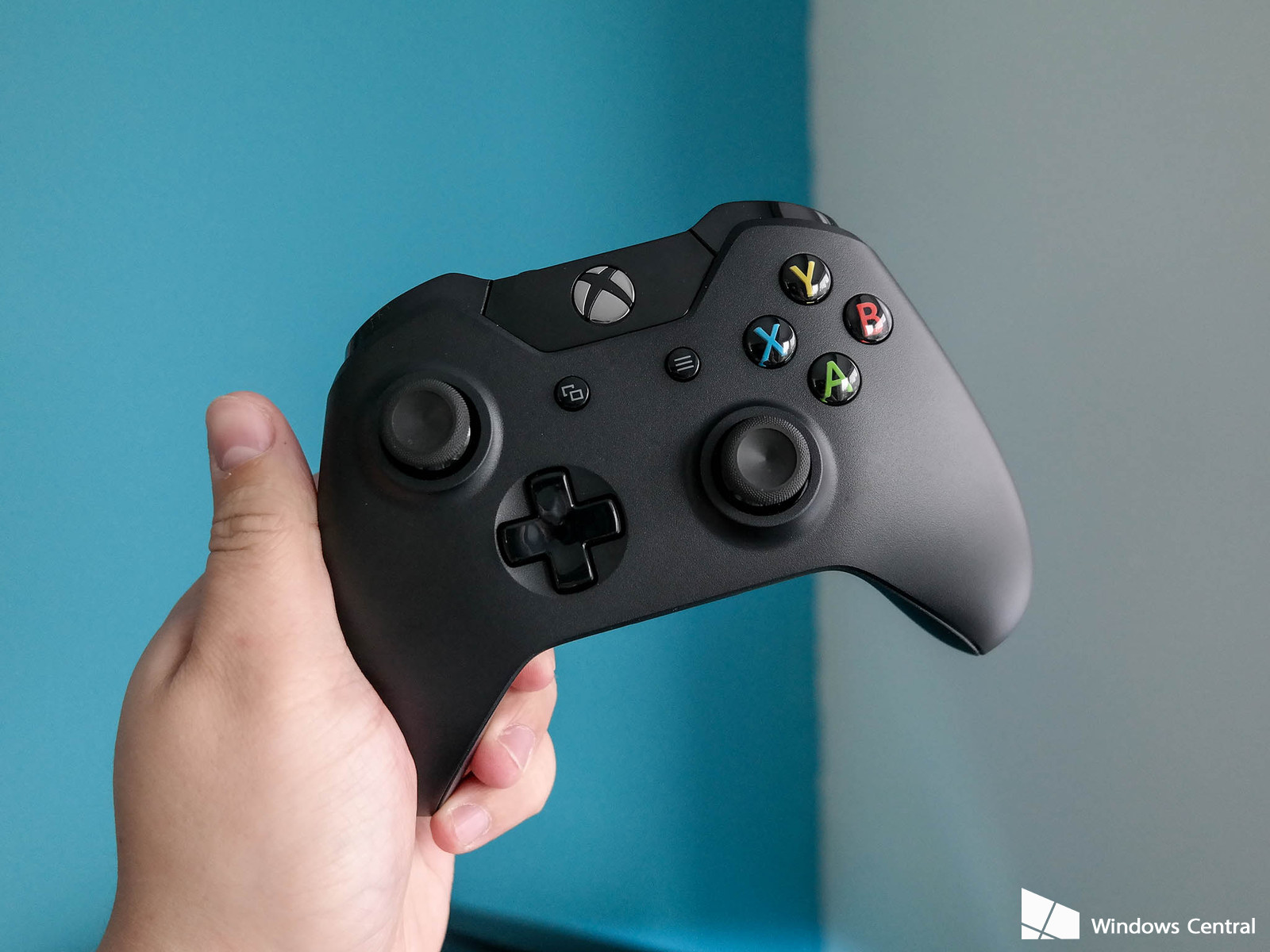
I couldn't find a proper FAQ for this so I'd figure it'd be good to post it here. When I play console ports on my PC, I generally try to follow the button layout of the console version unless there's some sort of button combination that is simply uncomfortable for me to use.
This is also for those of you who have a PS2 controller through a third party adapter or MotionInJoy for your PS3 controller:
The list will be as follows:Other button combos to remember
Square/X + Triangle/Y = Storm Slash attack
R1/Right Bumper + Circle/B = Second Musou Attack
Press and hold L2/Left Trigger = Call horse and instantly mount it once it gets within your vicinity
D-pad = Navigates menus
I hope this helps you with the configuration and figuring out the button layouts.
Troubleshooting Your Controller (aka why doesn't it work?)
If you have an X360 pad it WILL work with this game, but unlike most other XInput-enabled games, the default controller configuration is NOT CONFIGURED PROPERLY RIGHT OFF THE BAT.
You will have to go into the controller mapping section USING YOUR KEYBOARD and clear ALL the controller buttons (there's a button dedicated for it - F12 I think?). Then follow the above chart and assign your buttons manually by hitting Enter at each Input type and then pressing the appropriate button on your gamepad. YES it's annoying, but once you set it YOU CAN FORGET IT.
As someone mentioned in another thread, keep a lookout for other "HID-compliant game controllers" in your Device Manager. This PC port doesnt let you assign a particular controller to a particular player - it'll assign P1 to the first controller it sees, even if it's not a legitimate controller. If you are like me and you play fighting games, you have a regular controller for most games and a fightstick for your fighters and most of the time you probably have it connected simultaneously.
You MAY have to disable the fightstick in the Device Manager to make DW8 properly see your intended controller. Play a little bit of a guessing game with the Gamepad Control Panel to see which HID-compliant game controller is which.
- 6th Weapon guide and attributes in general★ 5 (1.1k)23k views1.9k ♥11 minUpdated 12 Mar, 2019
- Gameplay Tips and FAQs★ 5 (497)19k views642 ♥23 minUpdated 13 Oct, 2014
- 真三国无双7猛将传全成就指南(附全dlc介绍)★ 5 (743)18k views1.2k ♥1 minSimplified ChineseUpdated 7 Jun, 2025
- Dynasty Warriors 8: The Ultimate Controller Guide★ 4 (121)15k views199 ♥2 min
- 《真・三国无双7本传with猛将传》史上最详细快速白金(全成就)全流程指北攻略★ 5 (381)14k views1.1k ♥3 minSimplified ChineseUpdated 27 Oct, 2024
- 5-Star Weapon Guide★ 5 (296)13k views718 ♥18 minUpdated 18 Jan, 2016




- Upgrading to PremiumTeam Fortress 2★ 5 (20k)1441k views11k ♥6 minUpdated May 11, 2022
- No More Room in Hell Official ManualNo More Room in Hell★ 5 (2.8k)569k views2.1k ♥29 minUpdated Apr 22, 2019
- NMRiH Community Hosting GuidesNo More Room in Hell★ 5 (526)351k views653 ♥1 minUpdated Aug 10, 2022
- ULTIMATE GUIDE FOR GAME DEV TYCOONGame Dev Tycoon★ 5 (5.8k)326k views10k ♥4 minUpdated 23 Jan, 2014
- How to 'Git Gud' Soon™MORDHAU★ 5 (2k)318k views3k ♥68 minUpdated Nov 16, 2024
- Лучшие кооперативные игры SteamPAYDAY 2★ 5 (1.5k)315k views2.1k ♥56 minRussianUpdated Apr 27, 2025






This guide was created by its original author on the Steam Community. Are you the author and want it removed? Request removal.