Creativerse Chat Commands
Introduction
This guide is about the commands that can be run in the in-world Creativerse chat.
Some of these options are available in the settings interface as well.
This guide does not cover all the commands you may find in the chat, for the simple reason that some commands don't seem to do anything and/or I have no idea whether they do anything at all.
Only a few commands which I ignore the purpose of are listed in the last section since I think they actually do something and I'm investigating on them.
Player management
The "ignore" feature only covers messages sent by the players, notifications about players being killed, killing mobs, crafting items and so forth will still be shown in the chat.
The following commands require additional privileges to be run (Owner, Admin or Mod) - the game chat will reply back in case you don't have the privileges to run them.
Where the ignore feature only affects your own chat, muted players will not be able to send messages in the chat at all.
This position will not be used for players that have already entered the world, as they will normally respawn in their last position.
This position could though be used for returning players if their position happens to be invalid due to some game bug or connection hiccup.
Private messages (whisper and party)
The chat line will change from [global] to [party] or the other way around to notify you of that change, which will persist after closing and reopening the chat.
Preferences
Some of the preferences do not persist across reloads.
To know whether a preference saves or not you can hit TAB after typing the command and the chat should reply with info about the default value, whether or not the setting will save (persist) and the accepted range.
For instance, if you type this:That saves/persists information on TAB isn't shown for some preferences even though they really persist (such as the View Radius, which persists across reloads, but the TAB info doesn't include the "Saves: True" mention). Preferences will be listed here with the type of value they accept:
- string: any text, no need to wrap it into double quotes or the alike
- boolean: either True or False, the numbers 1 and 0 can be used as well
- single: a number that accepts decimals, such as 1.5
- int32: a whole/integer number
Informative & troubleshooting
More info about coordinates and chunks: https://steamcommunity.com/app/280790/discussions/3/2145343313160830833/
https://steamcommunity.com/app/280790/discussions/3/2145343313160764070/
World control
The default amount of seconds is 20, and the command may not work if the world has not been running for at least 5 minutes.
Please do not abuse this command, it should only be used if you are instructed to do so by the Creativerse support or if you know that it is going to sort out a real problem with your world.
If you are getting random disconnections or lagging or latency or the alike, it's more likely a problem with the installation on your computer, or your settings, or your connection - when in doubt just contact [email protected] to get proper help.
In-game HUD
Audio
Cursor and mouse
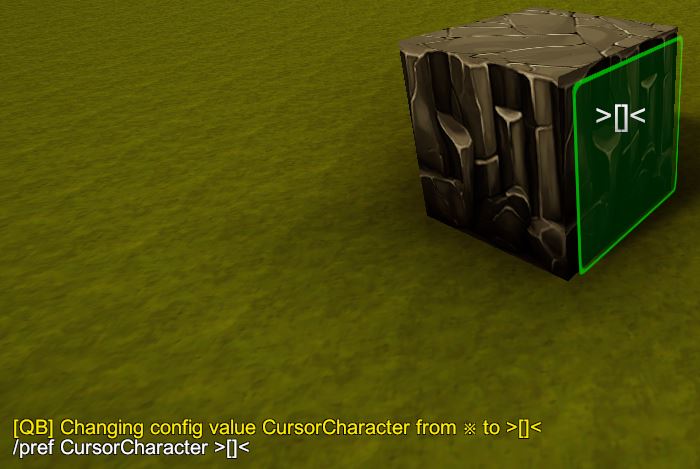
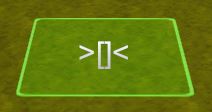
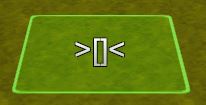
Character control
Such additional effects are this green ring appearing as you place blocks...
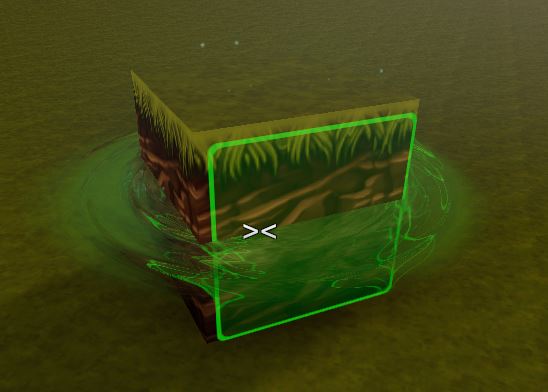
...and these small particles appearing on the block as you pull them:
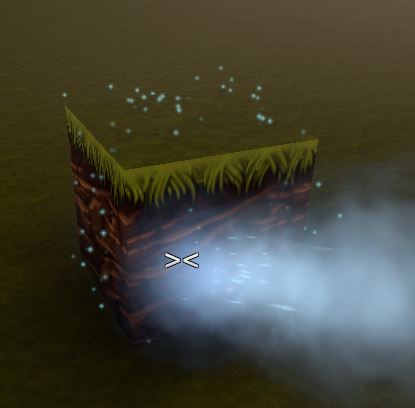
The "trembling" of the block and the "smoke" as you pull them cannot be disabled.
BP Preview
You will always see previews of cornerstones you place yourself.
User Interface control
Basic Graphics control
- 0: Fantastic
- 1: Good
- 2: Fastest
Not sure if altering the above really changes anything, seems like the option can only be altered from the Graphics settings.
- 0: No Anti Aliasing
- 1: FXAA (Fast Approximate AA)
- 2: SMAA (Sub-pixel Morphological AA)
- 3: TAA (Temporal AA)
If you need more info about how each of those different antialiasing methods work it's better to google them, otherwise just change them and stick with the one that looks better to you.
Here you can see the comparison between Ambient Occlusion enabled (darker) or disabled (brighter):
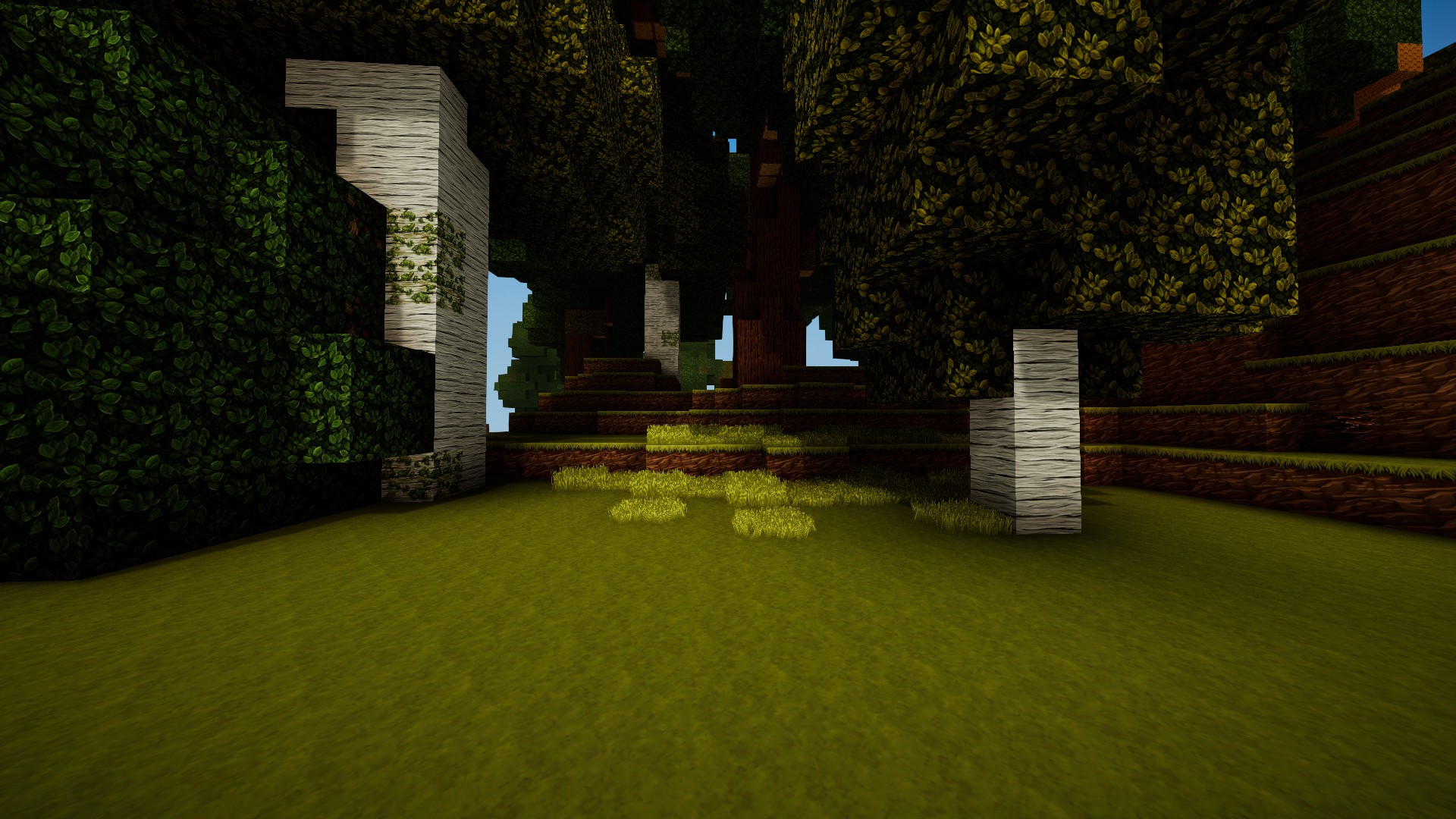
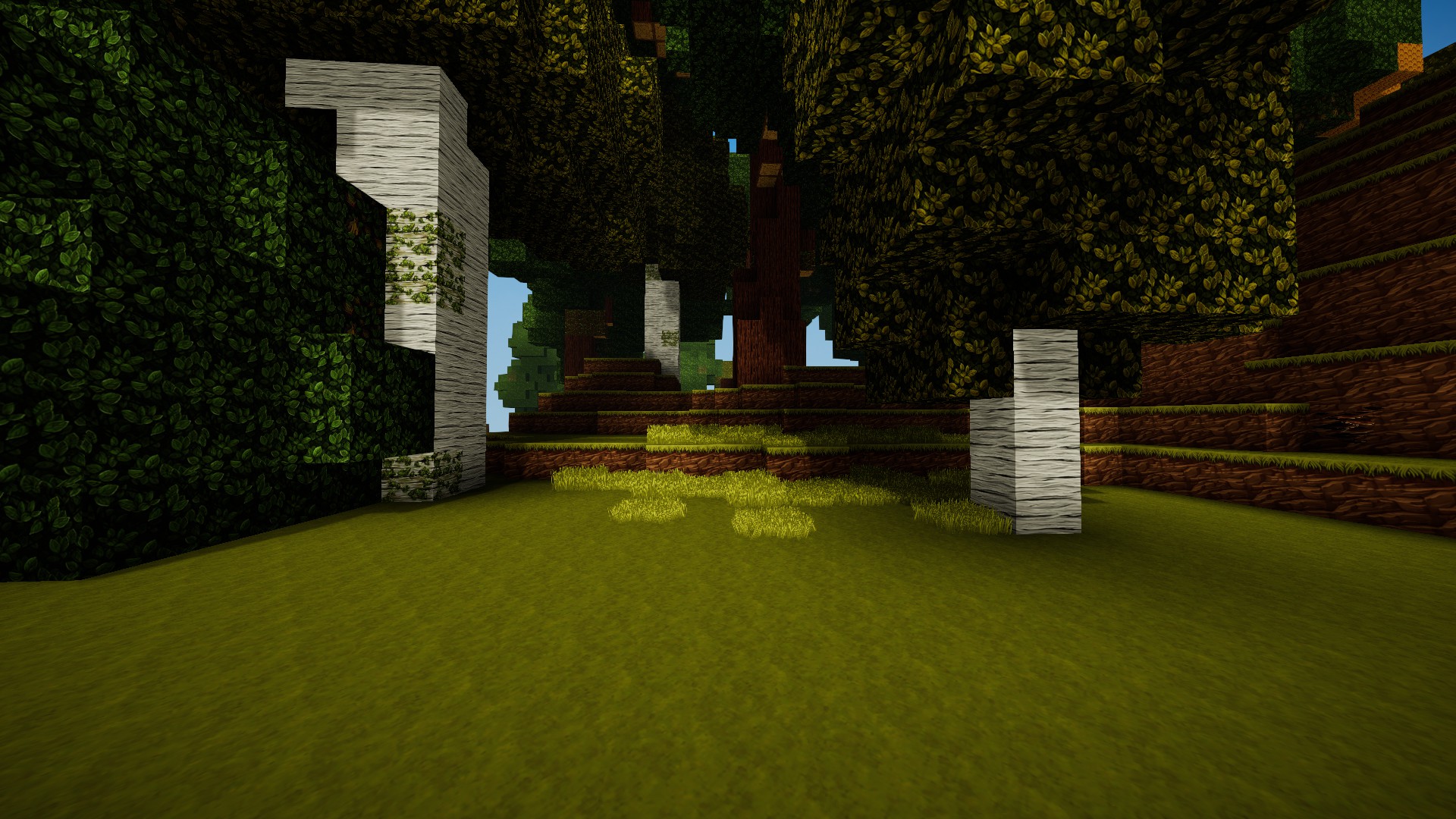
Values:
- 0: off (only vertical shadow)
- 0.5: low (vertical shadow and sun-dependent shadow, sharp)
- 1: high (as above, with sun-dependent shadow blurred)
Changes to the shadows quality seem to require reloading the game to be applied.
Additional effects
Framerate and V-Sync
- 0 - 120FPS
- 1 - 120FPS
- 2 - 60FPS
- 3 - 40FPS
- 4 - 30FPS
The intended purpose of the VSyncCount option is to sync the frequency of the frames produced by the game with the refresh rate of your display, to avoid "screen tearing" (ugly "horizontal cuts" appearing on the screen when a frame gets only partially updated and sent to the display).
The VSyncCount setting will override the next TargetFramerate setting, so you need VSyncCount set to zero to let TargetFramerate have any effect at all.
You can set it lower than your display refresh rate to lower the load on your machine (so you could set it to 30 even if your monitor has a 60Hz refresh rate) but you could as well increase it to, say, 75, if your monitor has a 75Hz refresh rate.
Setting the TargetFramerate higher than your display refresh rate is completely useless.
Garbage Collection
Since a few updates ago Creativerse was running on a Unity version that used "halt the world" garbage collection.
That meant that the game had to stop all computations while Unity was checking the loaded objects to decide what to discard cause it was not needed anymore, and that caused the so-called "clockwork freeze" every minute or so on some rigs.
Now Creativerse uses a Unity version that allows spreading the load of such Garbage Collection over multiple frames - this collection gets still run about every minute, and depending on the rig at hand and the settings, it may still cause framedrops (during the frames that are affected by the collection) or freezes (if the "sliced" collection isn't able to complete in the intended amount of time).
The following command gives some control over the Garbage Collection settings:In theory the higher the value, the more noticeable the framedrop, but the less likely to hit a hard freeze - conversely, the lower the value, the less noticeable the framedrop, but the more likely to get a hard freeze - at least that's my understanding of the thing.
Some rigs don't show any framedrop at all even during the garbage collection, as above all of this is heavily dependent of the CPU / GPU / RAM / Settings and load in the area.
Just keep eyes on the RAM consumption and see if you need to run it, I have been running the game with the Garbage Collection disabled and I pretty much never needed to manually invoke it.
Leaving the world automatically invokes the Garbage Collection.
Teleporting to any location far enough for the game to trigger a loading screen automatically invokes the Garbage Collection
Rendering distance
The main rendering distance is controlled by the View Radius - which decides the chunks that are loaded at all by the game - within the loaded chunks there are some more preferences that control the rendering distance for heavier objects such as lights.
More info about the chunks: https://steamcommunity.com/app/280790/discussions/3/2145343313160830833/
More info about the View Radius: https://steamcommunity.com/app/280790/discussions/0/1651043958639529407/
The max value has been increased from 8 to 20, this should allow rendering farther objects and achieve the same result of previous versions.
Here you can see the difference in the rendering distance between the value 2 and the value 8, in the following screenshots the Arctek Torches, the Gas Lamps and the Arctek Lamps go all the way down to the end of the claim (each square subdivision in the floor is a chunk):
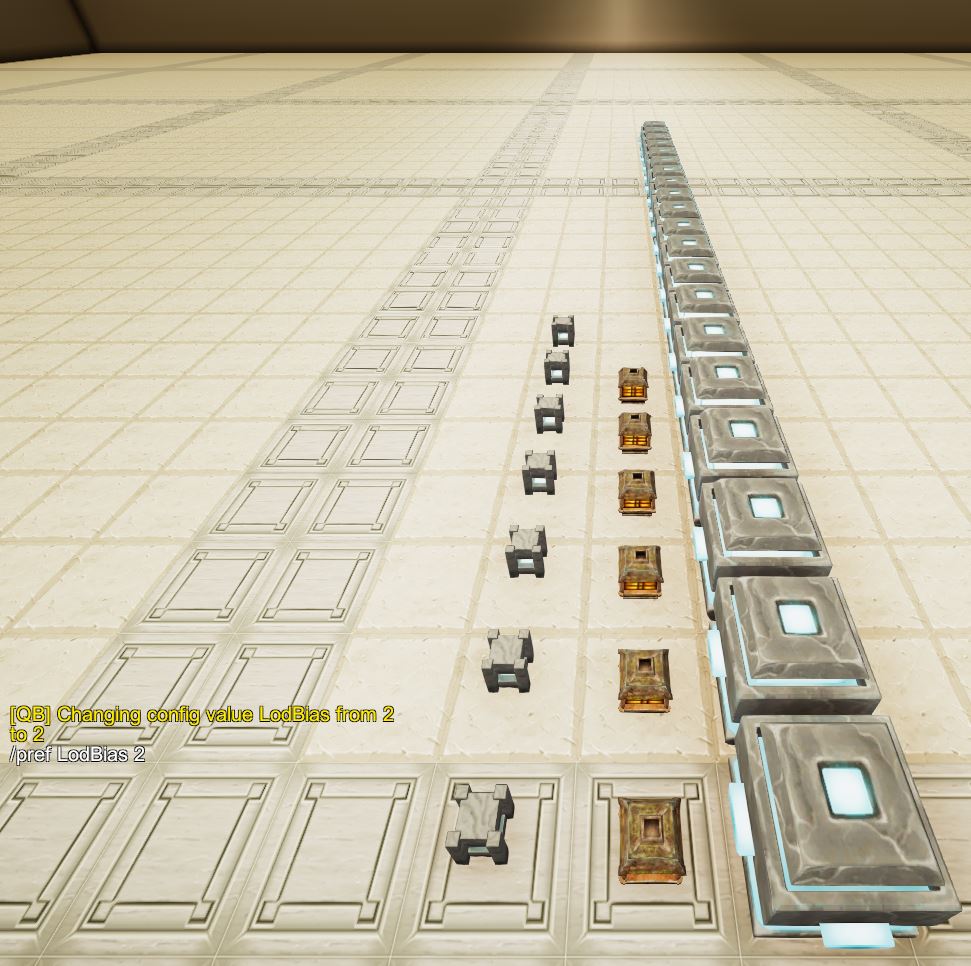
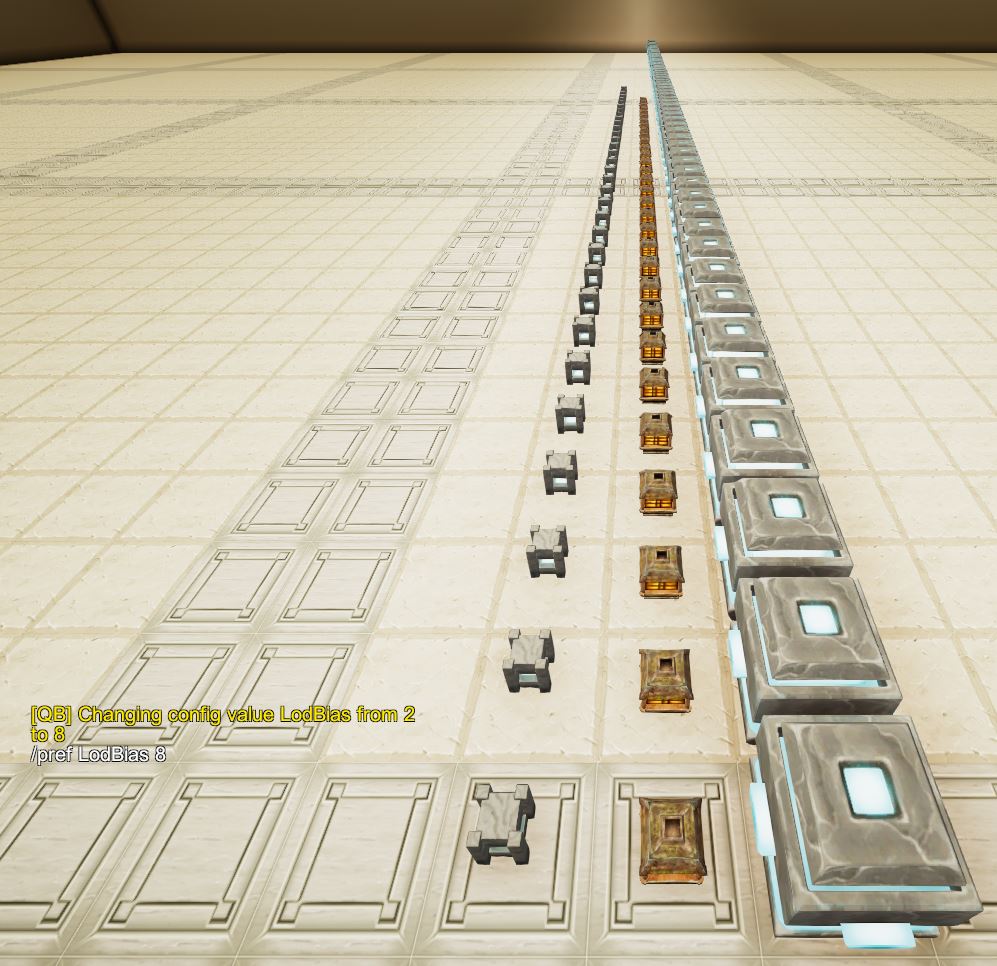
Both preferences range from 100 to 256, the first defaults to 150, the second defaults to 100 - I'd say start tweaking the LodBias and if that doesn't help try increasing these latter two preferences.
Be aware that the higher the rendering distance, the higher the load on the game, so you may get a worse performance for little or no gain if you cannot really tell the difference in the effect of different values.
Better to keep all of these values as low as possible unless you really can tell the difference and you know that you want such additional viewing range.
Postprocessing
Postprocessing includes lots of the other preferences and effects listed in this guide.
Just to get an idea, this is the difference between postprocessing on and off:
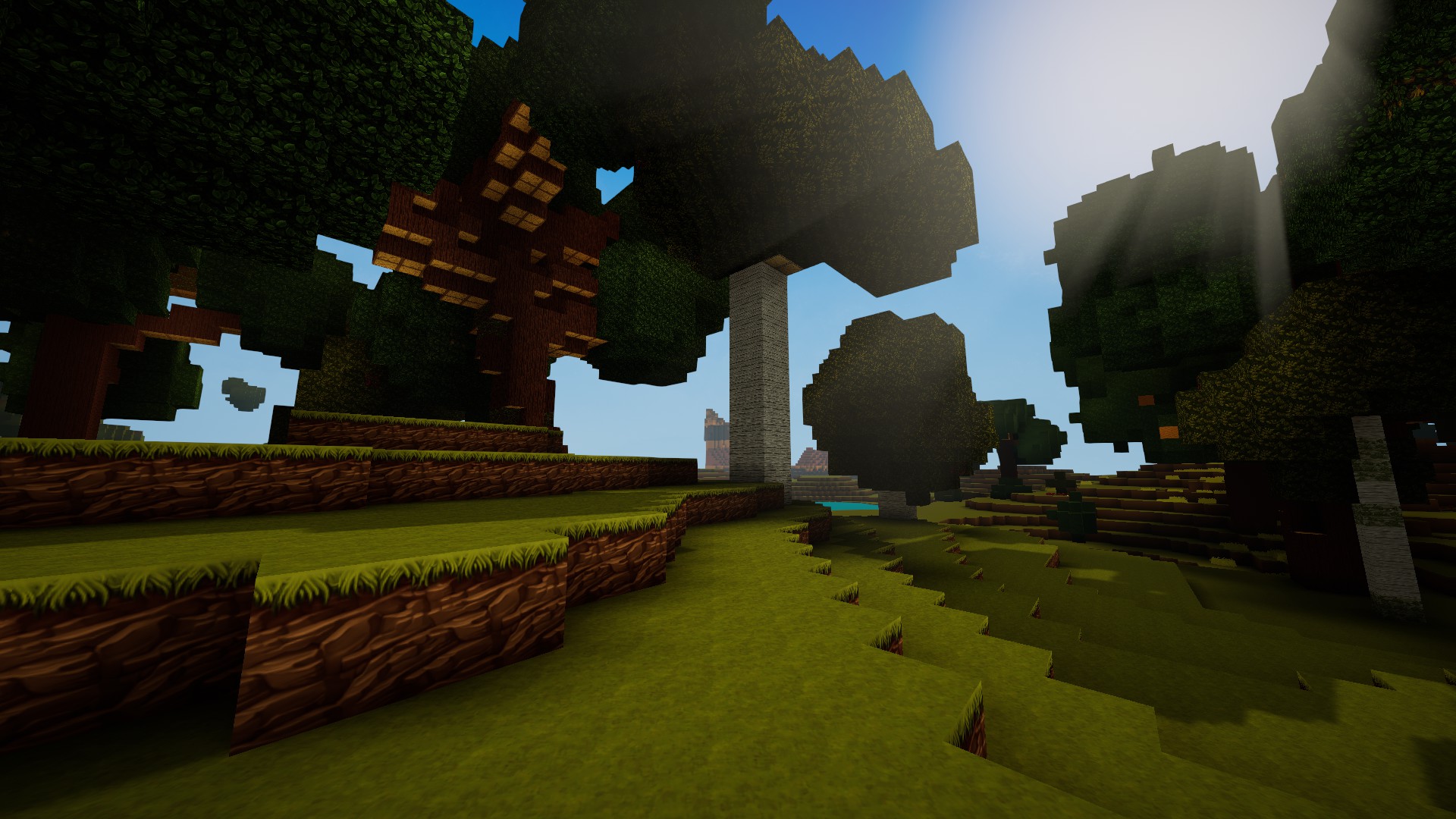
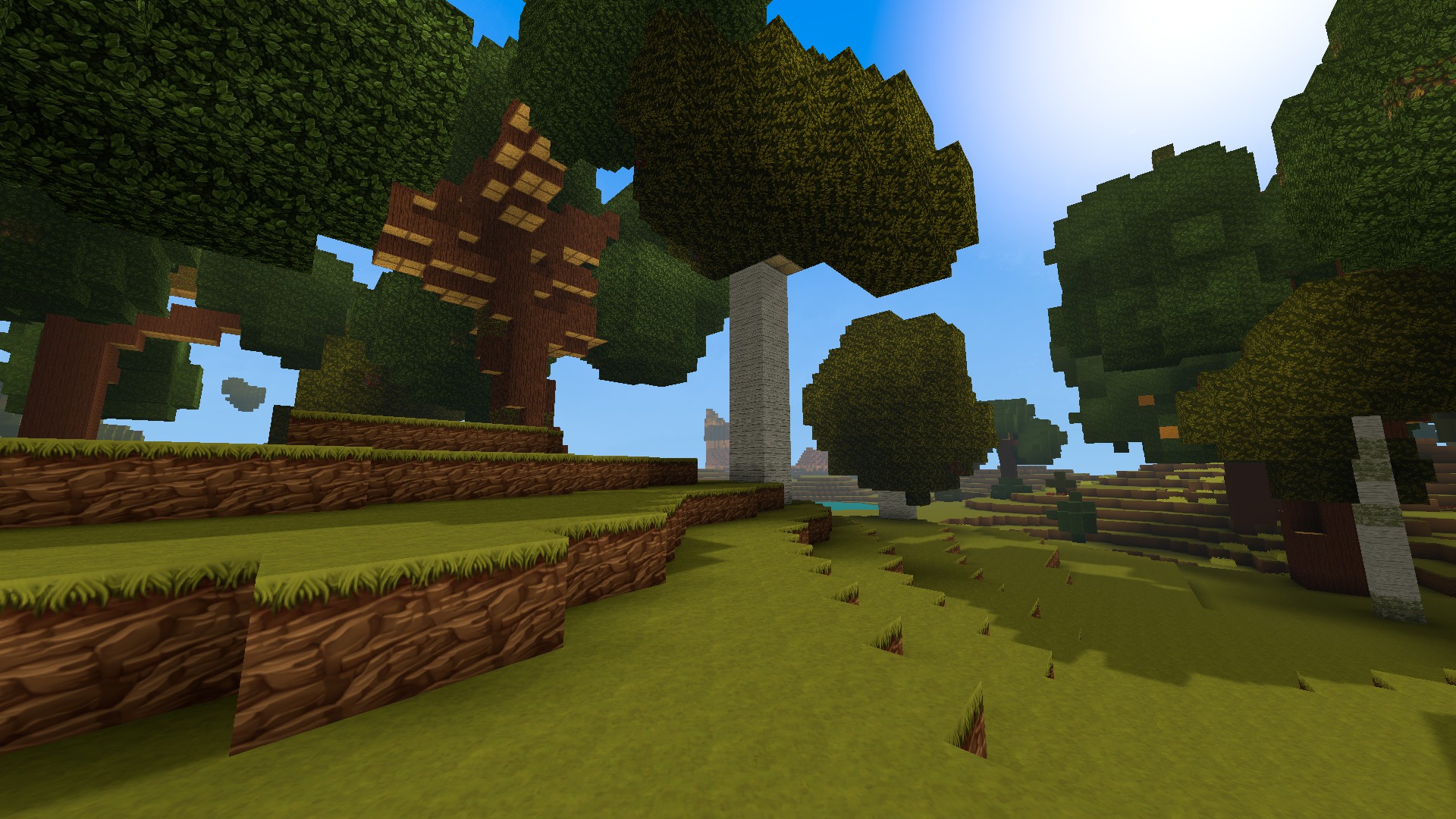
In the above you can notice how the saturation, contrast and overall brightness of the world look different, along with the sun shafts missing. Postprocessing covers far more, including ambient occlusion, motion blur, bloom and so forth.
You can enable and disable postprocessing with this command in the chat:Be aware that turning postprocessing off will affect the in-game camera as well, so if you want to use the camera effects you need to turn postprocessing on again. Almost all the effects applied to the normal gameplay can be tweaked in a settings file, which can be loaded, and reset with this other chat command:
Texture control
The easiest way to explain the difference between the full texture and the flatcolor is looking at these two screenshots:
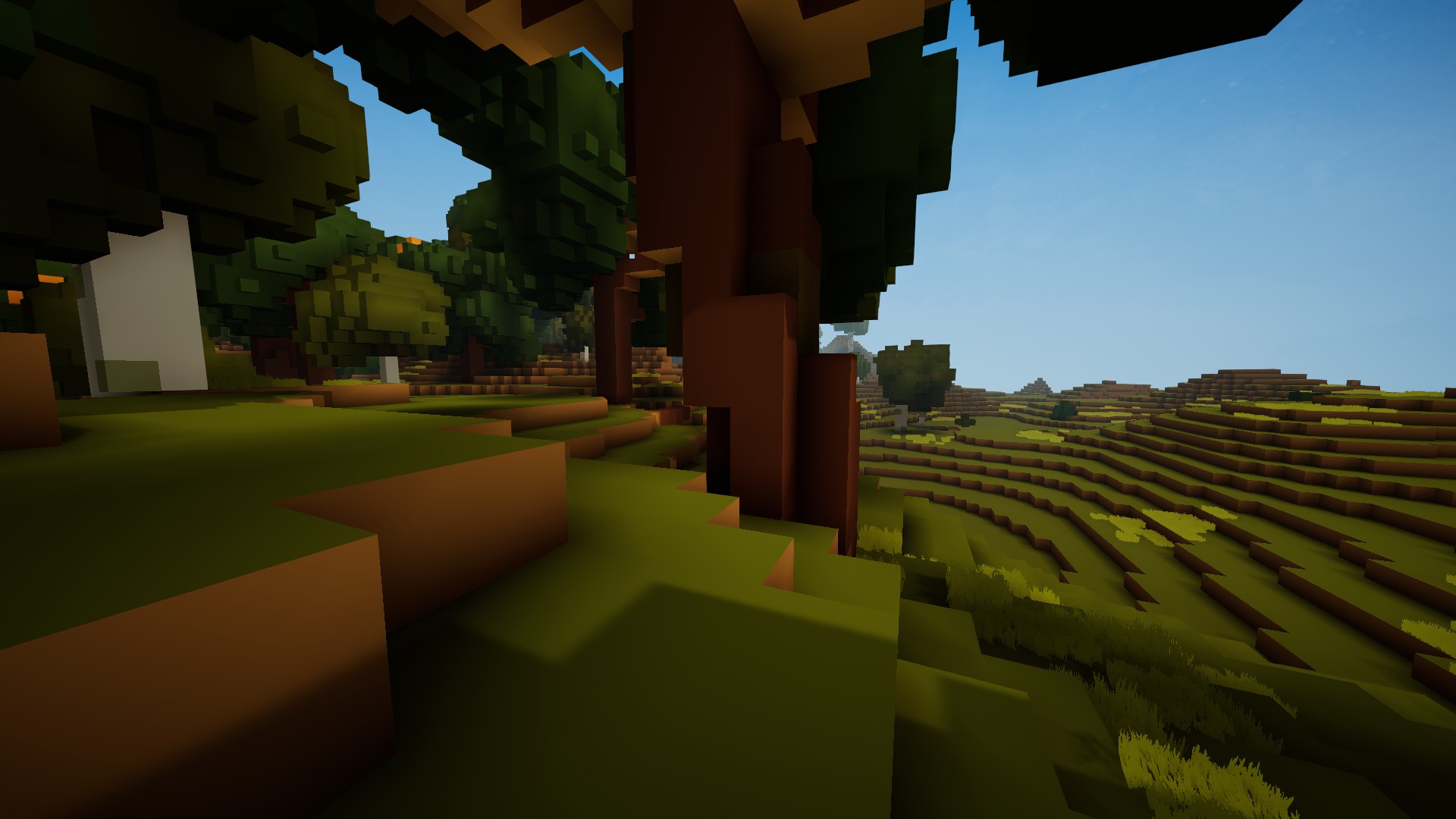
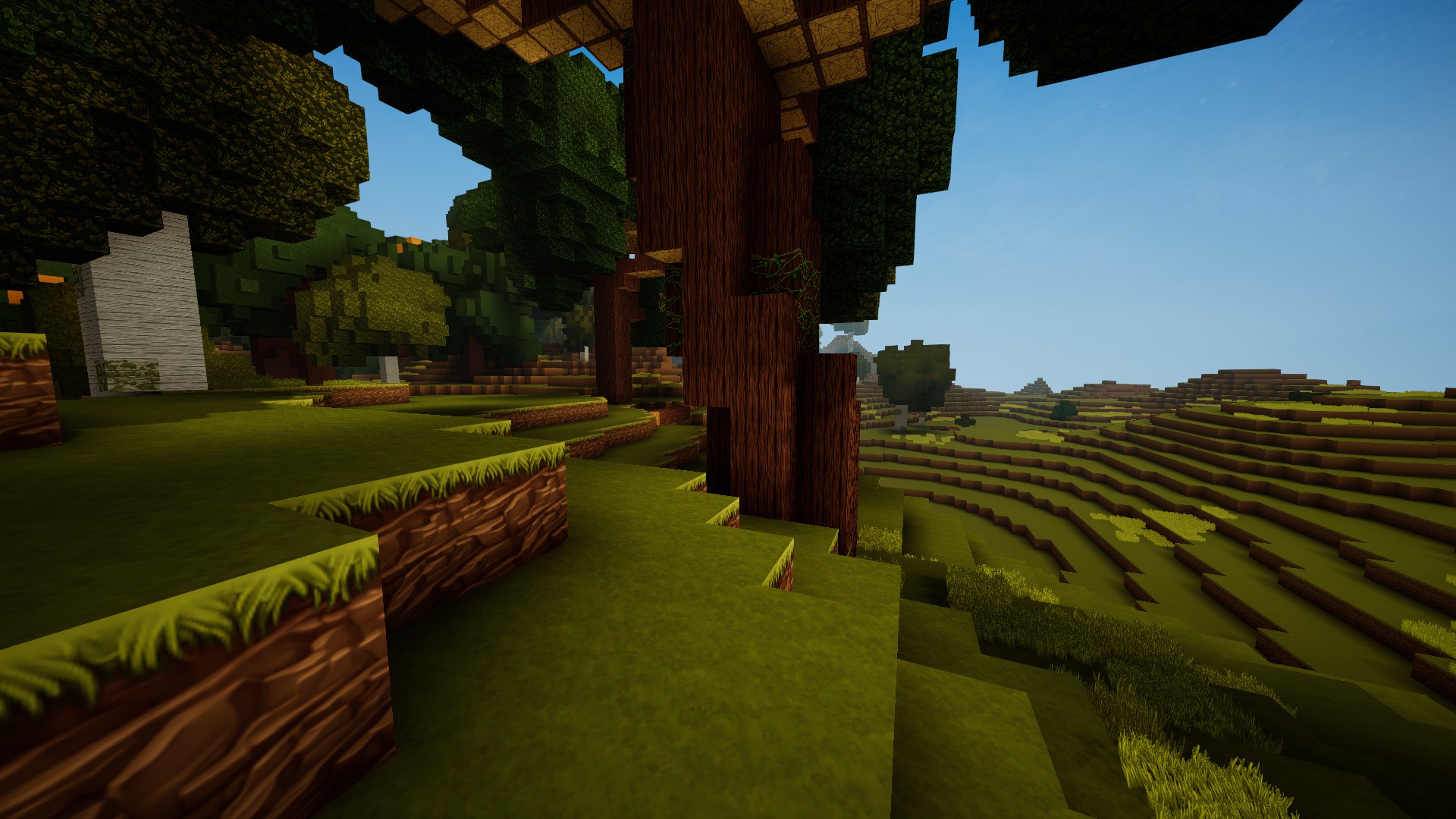
On the left you can see the full flatcolor applied to all the blocks, on the right you can see the full textures.
The following commands control the distances at which the full textures start and end fading into the flat colors:Here you can see the effect of both start and end set to 10:
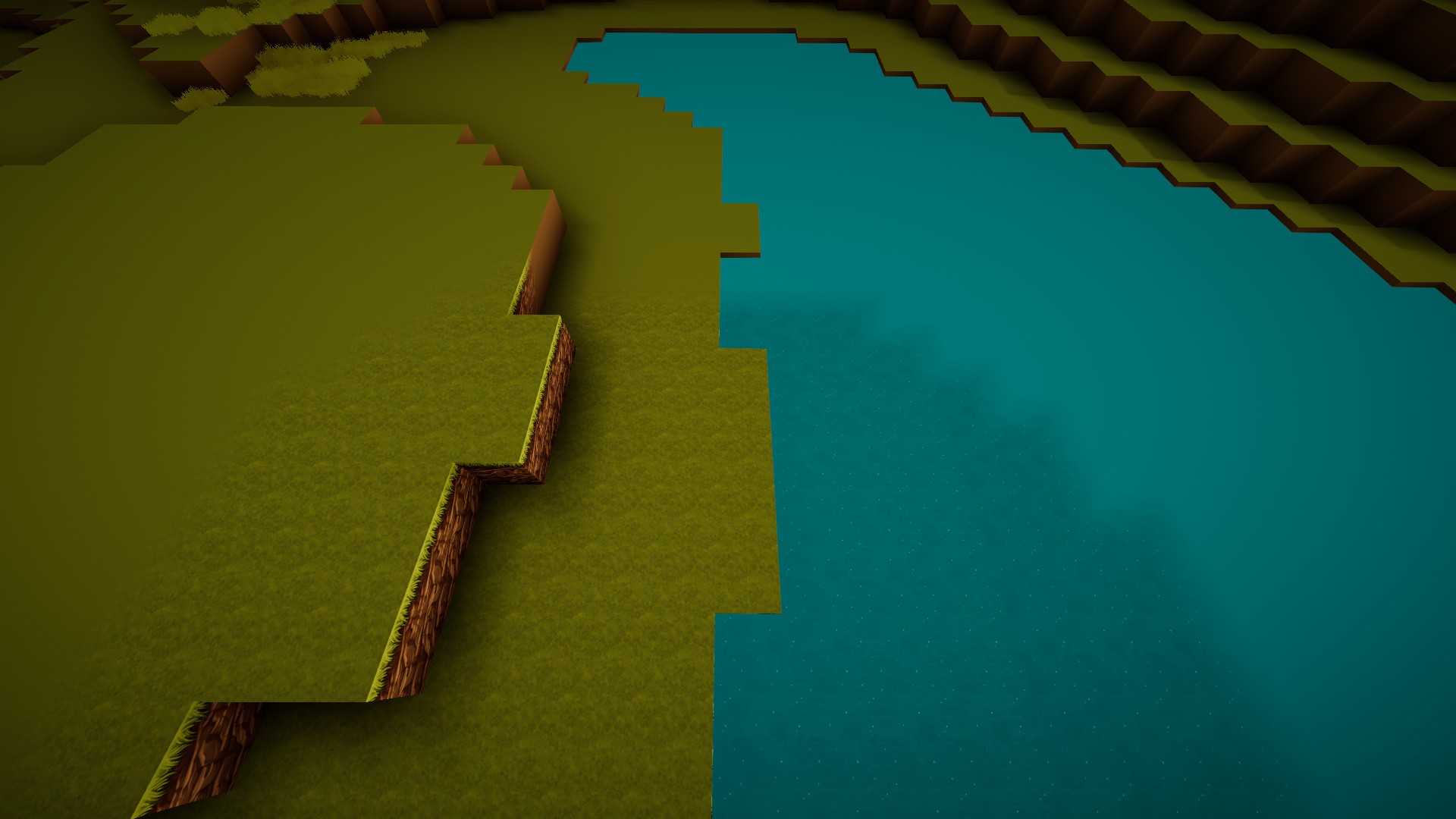 The following command is a multiplier that gets applied to both start and end:
Unknown commands
Not entirely sure what these command do. Putting it here in case anyone manages to figure out and wants to comment about.
Ending words
Comments to screenshots, blueprints and guides are annoying cause they cannot be edited or referenced to.
If you have any comment about this guide I'd be happy if you could post them in this thread instead:
https://steamcommunity.com/app/280790/discussions/3/1637543304825874627/
Thank you!
- Useful Tips & Tricks★ 5 (306)18k views373 ♥3 minUpdated 10 Jan, 2017
- Getting Started in Creativerse★ 5 (252)17k views248 ♥5 minUpdated 10 Jul, 2017
- Все о Ресурсах★ 5 (208)8k views248 ♥3 minRussianUpdated 14 Nov, 2015
- Русификатор игры7.5k views55 ♥1 minRussianUpdated 27 Dec, 2022
- Секреты, хитрости и тонкости...★ 5 (166)6.7k views233 ♥8 minRussianUpdated 26 Feb, 2016
- How To Setup Machines★ 4 (111)3.2k views144 ♥16 minUpdated 15 Mar, 2017


- Upgrading to PremiumTeam Fortress 2★ 5 (20k)1441k views11k ♥6 minUpdated May 11, 2022
- No More Room in Hell Official ManualNo More Room in Hell★ 5 (2.8k)569k views2.1k ♥29 minUpdated Apr 22, 2019
- NMRiH Community Hosting GuidesNo More Room in Hell★ 5 (526)351k views653 ♥1 minUpdated Aug 10, 2022
- ULTIMATE GUIDE FOR GAME DEV TYCOONGame Dev Tycoon★ 5 (5.8k)326k views10k ♥4 minUpdated 23 Jan, 2014
- How to 'Git Gud' Soon™MORDHAU★ 5 (2k)318k views3k ♥68 minUpdated Nov 16, 2024
- Лучшие кооперативные игры SteamPAYDAY 2★ 5 (1.5k)315k views2.1k ♥56 minRussianUpdated Apr 27, 2025






This guide was created by its original author on the Steam Community. Are you the author and want it removed? Request removal.