Dishonored Max Graphics and Best Settings 2026
In-game Settings
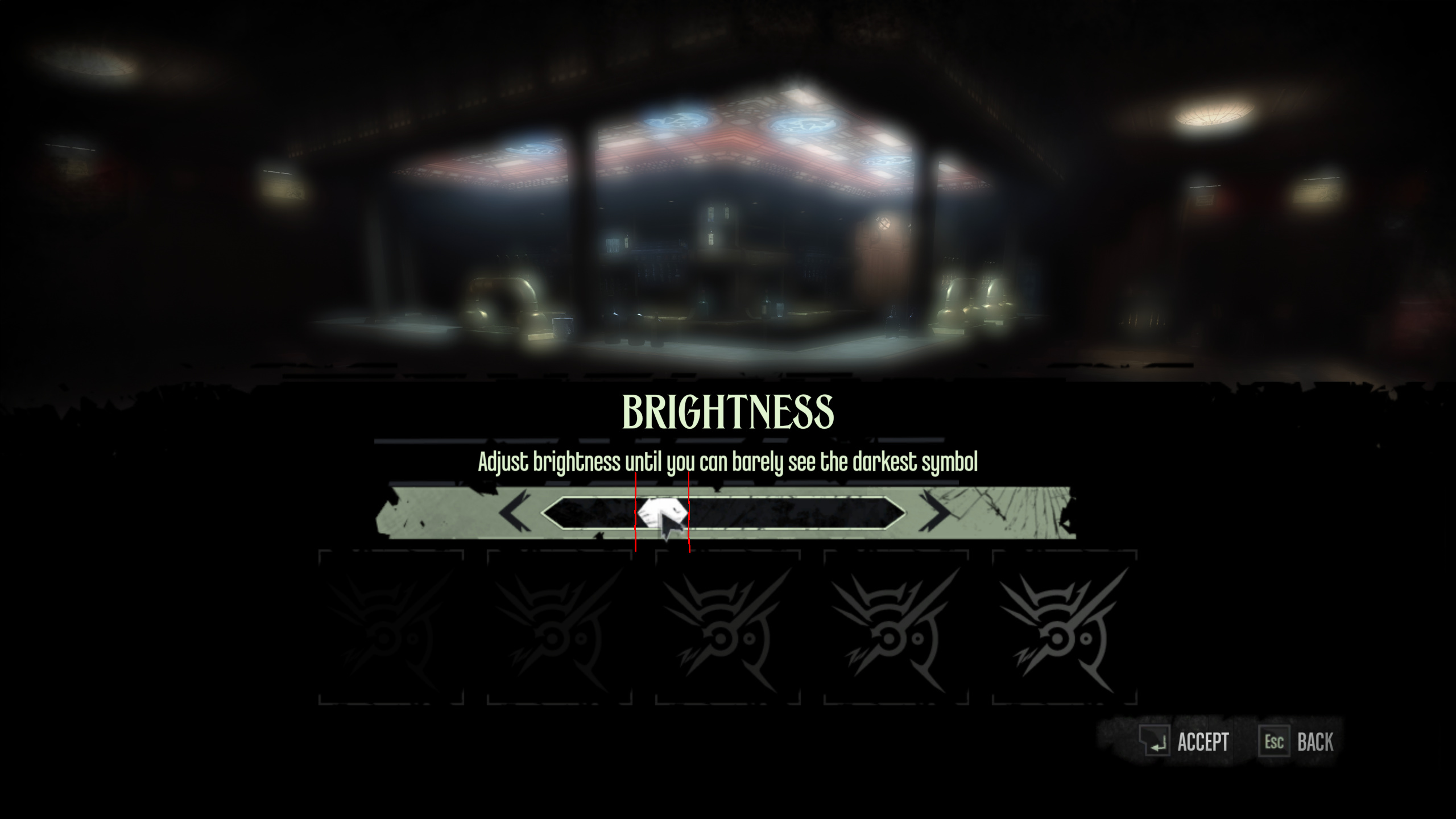
Lower brightness to about 30% (darker is better and makes colors and shadows pop more).
Set Fov to 90 or 100 (lets you see more of Corvo's hands and weapons).
Disable most of the HUD clutter and make the important stuff contextual (immersion).
Disable in-game V-sync.
Disable in-game FXAA/MLAA.
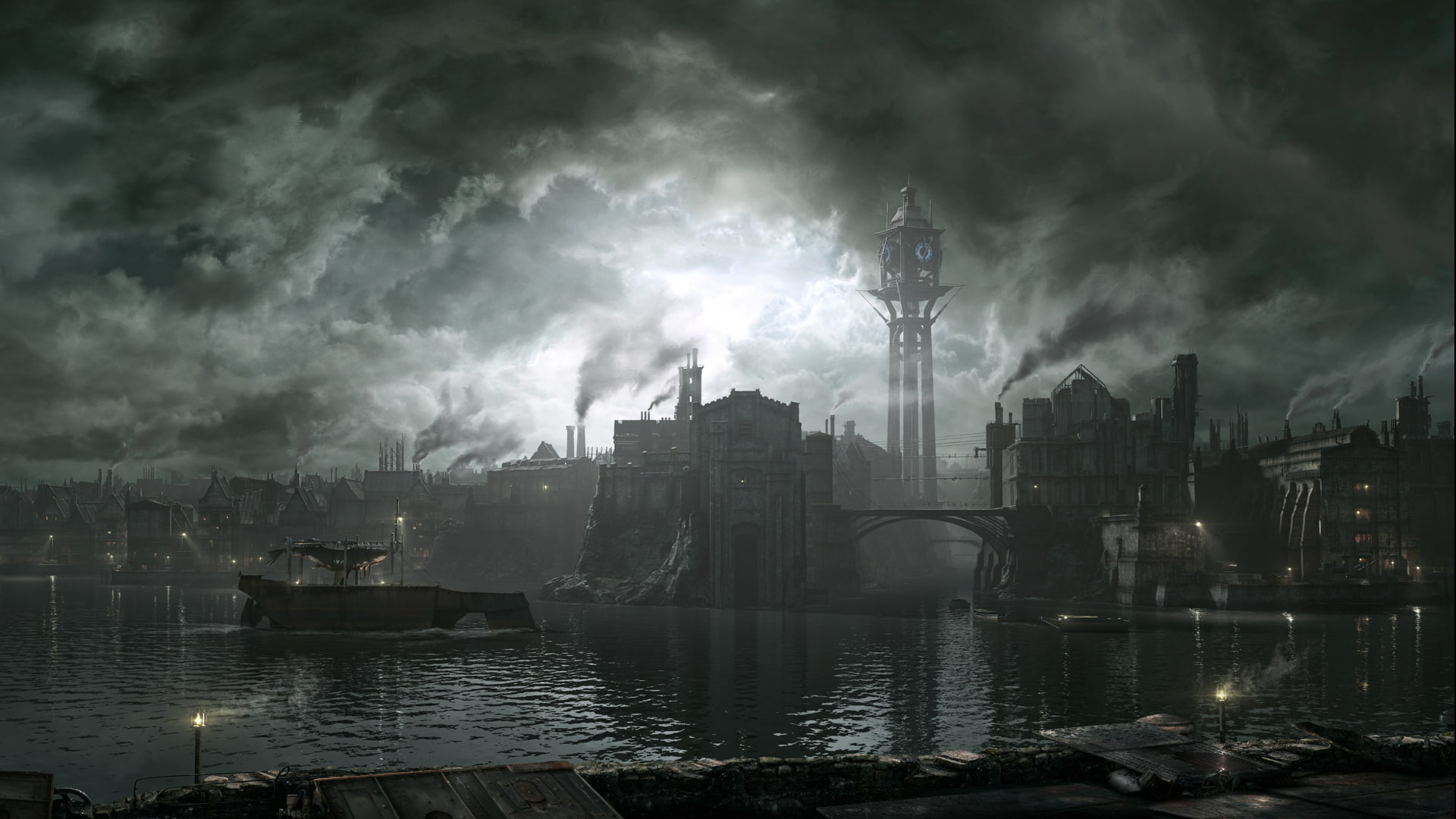
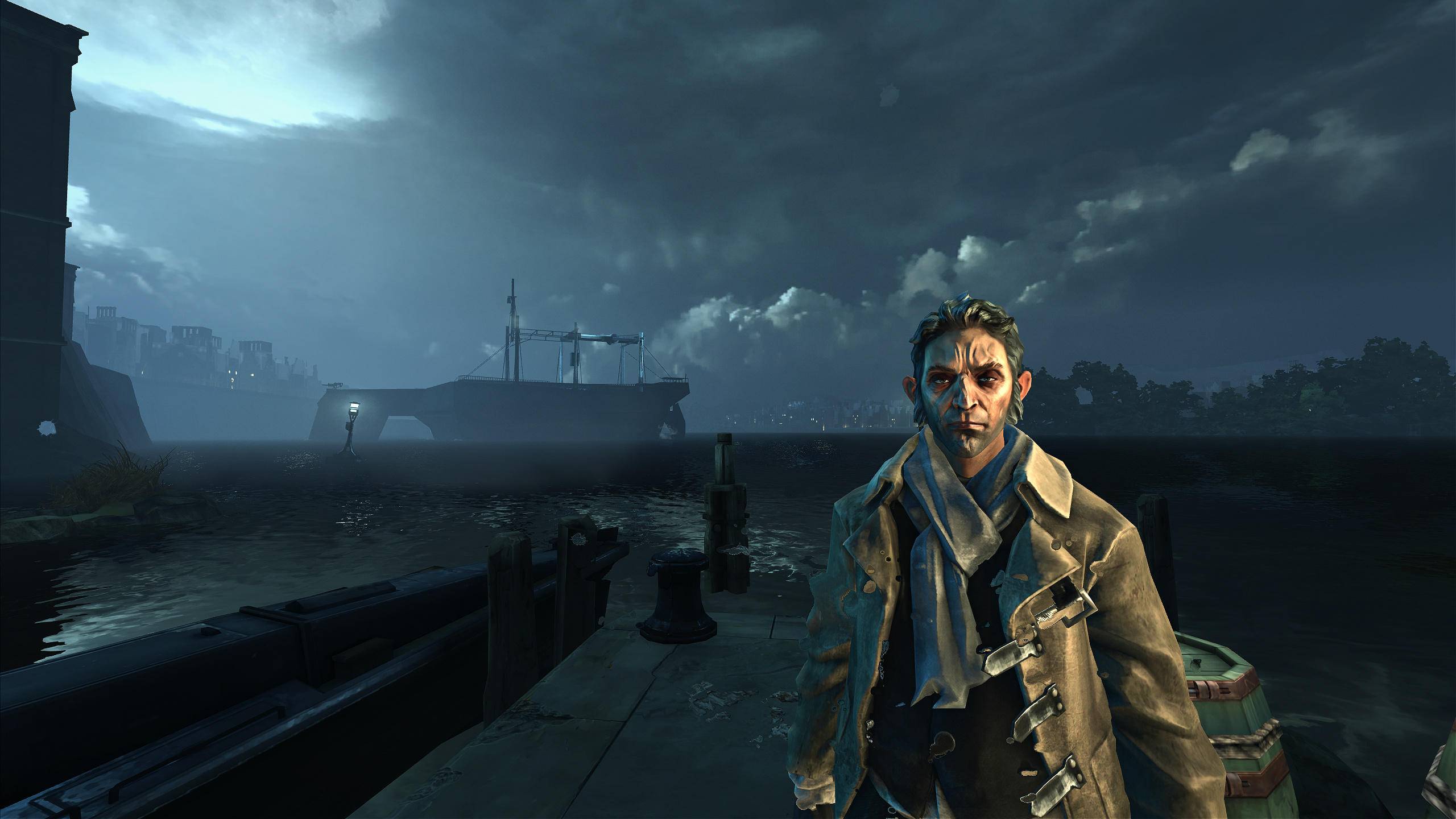 (Right click and "Open link in new tab" to view in 2K)


Nvidia Profile Inspector Settings
Download Nvidia Profile Inspector (everyone should own this).
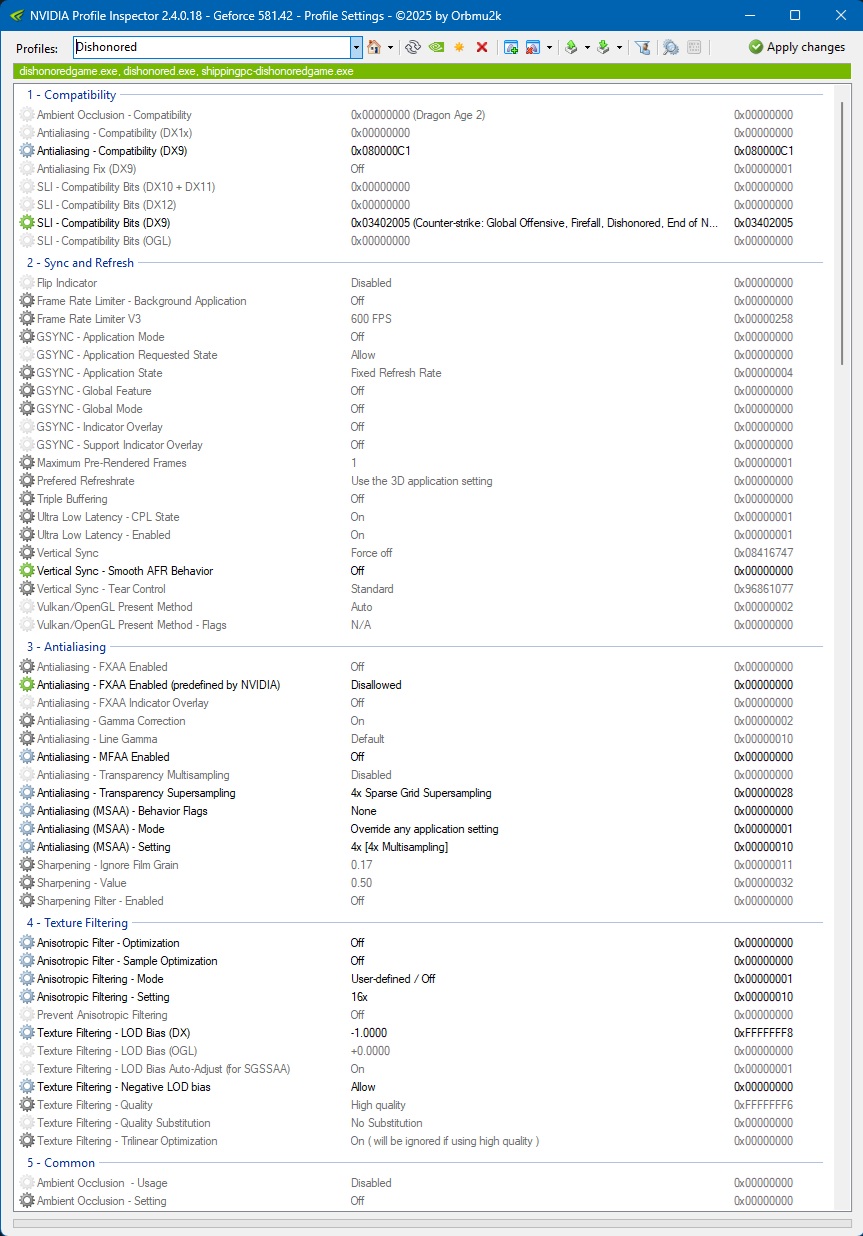
Make these changes for Dishonored's NV Profile:
AA compatibility (DX9): 0x080000C1
AA Transparency Supersampling: 4x Sparse Grid Supersampling
AA Behavior Flags: None
AA Mode: Override any app setting
AA Setting: 4x [4x Multisampling] ... (I'm using 1440p display. I'd use 2x if on 4K)
Anisotropic Filter Optimization: Off
Anisotropic Filter Sample Optimization: Off
Anisotropic Filtering Mode: User-defined
Anisotropic Filtering Setting: 16x
Texture Filtering LOD Bias (DX): -1.0 (use -0.5 for 2xSGSS/2xMSAA, and -1.5 for 8x)
Texture Filtering Negative LOD bias: Allow
(make sure FXAA/MLAA is off in game)
Make these changes for Dishonored's NV Profile:
AA compatibility (DX9): 0x080000C1
AA Transparency Supersampling: 4x Sparse Grid Supersampling
AA Behavior Flags: None
AA Mode: Override any app setting
AA Setting: 4x [4x Multisampling] ... (I'm using 1440p display. I'd use 2x if on 4K)
Anisotropic Filter Optimization: Off
Anisotropic Filter Sample Optimization: Off
Anisotropic Filtering Mode: User-defined
Anisotropic Filtering Setting: 16x
Texture Filtering LOD Bias (DX): -1.0 (use -0.5 for 2xSGSS/2xMSAA, and -1.5 for 8x)
Texture Filtering Negative LOD bias: Allow
(make sure FXAA/MLAA is off in game)
INI Tweaks
These settings will fix Dishonored's ragdoll capacity limit (absolute must) and improve textures, shadows, lighting, distance, fps cap, and overall quality. Very minimal performance impact.
Go to Documents/MyGames/Dishonored/DishonoredGame/Config folder and then open "DishonoredAI.ini" and make these changes:
[DishonoredGame.DishonoredGlobalAIManager]
m_bCorpseCleanupInView=False
m_CorpseAbsoluteMaximumCount=200
m_CorpseIdealMaximumCount=200
IMPORTANT: (Save and set to READ ONLY)
Next, open "DishonoredEngine.ini" in that same folder and make these changes (locate each section by CTRL+F searching and changing the values):
[Engine.Engine]
bAllowMatureLanguage=TRUE
bSmoothFrameRate=TRUE (Must be TRUE for the FPS cap to work properly)
MinSmoothedFrameRate=130
MaxSmoothedFrameRate=200 (Don't go above 200, causes animation bugs)
MaxProcBuildingLODColorTextureSize=2048
MaxProcBuildingLODLightingTextureSize=1024
IdealTextureDensity=20.0
MaxTextureDensity=80.0
[TextureStreaming]
PoolSize=320
DropMipLevelsLimit=24
StopIncreasingLimit=24 (supposed to help reduce texture pop in)
MinTimeToGuaranteeMinMipCount=0 (improves streaming behavior)
MaxTimeToGuaranteeMinMipCount=0
[MemoryPools]
FLightPrimitiveInteractionInitialBlockSize=1024
FModShadowPrimitiveInteractionInitialBlockSize=1024
[SystemSettings]
TextureForcedLODBias=0 (Keeps textures sharper farther away)
iType_AntiAlias=0
bUseMaxQualityMode=False
StaticDecals=True
DynamicDecals=True
UnbatchedDecals=True
DecalCullDistanceScale=10.0
DynamicLights=True
DynamicShadows=True
LightEnvironmentShadows=True
CompositeDynamicLights=False (more accurate dynamic lighting)
Bloom=True
UseHighQualityBloom=True
bAllowLightShafts=True
bAllowRatsShadow=True
OneFrameThreadLag=False
UseVsync=False (Always off to ensure fps cap works)
SkeletalMeshLODBias=0
ParticleLODBias=0
DetailMode=4 (keep this at 4)
ShadowFilterQualityBias=10 (reduces banding on shadows)
MaxAnisotropy=16
MaxShadowResolution=4096 (detailed shadows)
MaxWholeSceneDominantShadowResolution=4096
ShadowTexelsPerPixel=16 (how many shadows rendered on screen)
bEnableVSMShadows=True (better shadow interaction)
bAllowHardwareShadowFiltering=True (better shadows)
bAllowBetterModulatedShadows=True (better shadows)
bEnableForegroundShadowsOnWorld=True
bEnableForegroundSelfShadowing=True
bAllowWholeSceneDominantShadows=True
ShadowFilterRadius=4 (improves shadow outlines)
ShadowDepthBias=.012 (improves quality of small shadows)
TEXTUREGROUP_Character=(MinLODSize=256,MaxLODSize=4096,LODBias=0)
TEXTUREGROUP_Weapon=(MinLODSize=256,MaxLODSize=4096,LODBias=0)
TEXTUREGROUP_Vehicle=(MinLODSize=512,MaxLODSize=4096,LODBias=0)
TEXTUREGROUP_UI=(MinLODSize=512,MaxLODSize=4096,LODBias=0)
TEXTUREGROUP_Lightmap=(MinLODSize=512,MaxLODSize=4096,LODBias=0)
TEXTUREGROUP_Shadowmap=(MinLODSize=512,MaxLODSize=4096,LODBias=0,NumStreamedMips=0)
TEXTUREGROUP_RenderTarget=(MinLODSize=1,MaxLODSize=4096,LODBias=0)
bForceNoStartupMovies=true
IMPORTANT: (Save and set to READ ONLY)
Dishonored will now start with no intro videos, capped at 200fps, and have ultra clear anti-aliasing and textures. Enjoy.

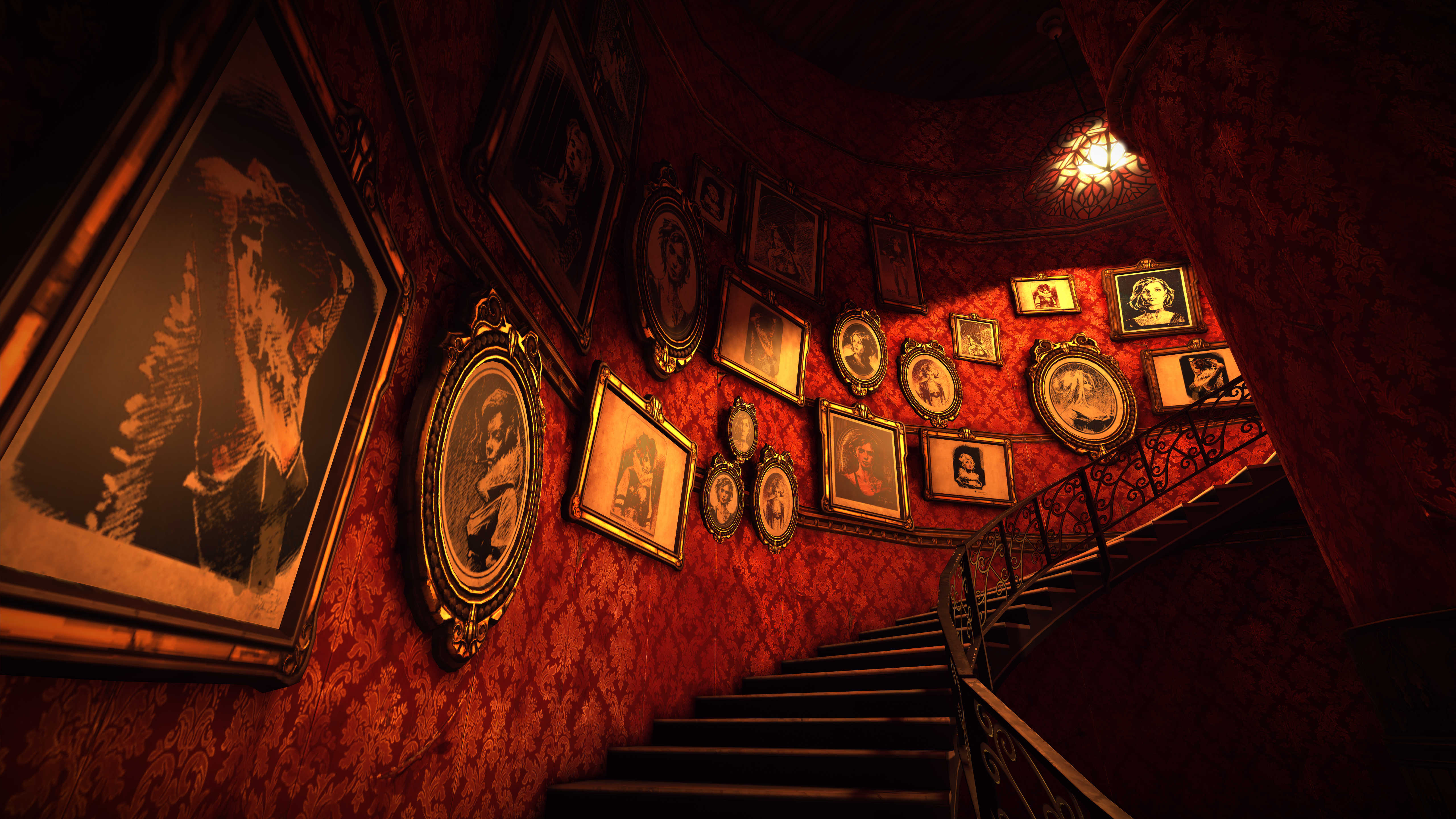 (Right click and "Open link in new tab" to view in 5K!)
Go to Documents/MyGames/Dishonored/DishonoredGame/Config folder and then open "DishonoredAI.ini" and make these changes:
[DishonoredGame.DishonoredGlobalAIManager]
m_bCorpseCleanupInView=False
m_CorpseAbsoluteMaximumCount=200
m_CorpseIdealMaximumCount=200
IMPORTANT: (Save and set to READ ONLY)
Next, open "DishonoredEngine.ini" in that same folder and make these changes (locate each section by CTRL+F searching and changing the values):
[Engine.Engine]
bAllowMatureLanguage=TRUE
bSmoothFrameRate=TRUE (Must be TRUE for the FPS cap to work properly)
MinSmoothedFrameRate=130
MaxSmoothedFrameRate=200 (Don't go above 200, causes animation bugs)
MaxProcBuildingLODColorTextureSize=2048
MaxProcBuildingLODLightingTextureSize=1024
IdealTextureDensity=20.0
MaxTextureDensity=80.0
[TextureStreaming]
PoolSize=320
DropMipLevelsLimit=24
StopIncreasingLimit=24 (supposed to help reduce texture pop in)
MinTimeToGuaranteeMinMipCount=0 (improves streaming behavior)
MaxTimeToGuaranteeMinMipCount=0
[MemoryPools]
FLightPrimitiveInteractionInitialBlockSize=1024
FModShadowPrimitiveInteractionInitialBlockSize=1024
[SystemSettings]
TextureForcedLODBias=0 (Keeps textures sharper farther away)
iType_AntiAlias=0
bUseMaxQualityMode=False
StaticDecals=True
DynamicDecals=True
UnbatchedDecals=True
DecalCullDistanceScale=10.0
DynamicLights=True
DynamicShadows=True
LightEnvironmentShadows=True
CompositeDynamicLights=False (more accurate dynamic lighting)
Bloom=True
UseHighQualityBloom=True
bAllowLightShafts=True
bAllowRatsShadow=True
OneFrameThreadLag=False
UseVsync=False (Always off to ensure fps cap works)
SkeletalMeshLODBias=0
ParticleLODBias=0
DetailMode=4 (keep this at 4)
ShadowFilterQualityBias=10 (reduces banding on shadows)
MaxAnisotropy=16
MaxShadowResolution=4096 (detailed shadows)
MaxWholeSceneDominantShadowResolution=4096
ShadowTexelsPerPixel=16 (how many shadows rendered on screen)
bEnableVSMShadows=True (better shadow interaction)
bAllowHardwareShadowFiltering=True (better shadows)
bAllowBetterModulatedShadows=True (better shadows)
bEnableForegroundShadowsOnWorld=True
bEnableForegroundSelfShadowing=True
bAllowWholeSceneDominantShadows=True
ShadowFilterRadius=4 (improves shadow outlines)
ShadowDepthBias=.012 (improves quality of small shadows)
TEXTUREGROUP_Character=(MinLODSize=256,MaxLODSize=4096,LODBias=0)
TEXTUREGROUP_Weapon=(MinLODSize=256,MaxLODSize=4096,LODBias=0)
TEXTUREGROUP_Vehicle=(MinLODSize=512,MaxLODSize=4096,LODBias=0)
TEXTUREGROUP_UI=(MinLODSize=512,MaxLODSize=4096,LODBias=0)
TEXTUREGROUP_Lightmap=(MinLODSize=512,MaxLODSize=4096,LODBias=0)
TEXTUREGROUP_Shadowmap=(MinLODSize=512,MaxLODSize=4096,LODBias=0,NumStreamedMips=0)
TEXTUREGROUP_RenderTarget=(MinLODSize=1,MaxLODSize=4096,LODBias=0)
bForceNoStartupMovies=true
IMPORTANT: (Save and set to READ ONLY)
Dishonored will now start with no intro videos, capped at 200fps, and have ultra clear anti-aliasing and textures. Enjoy.
(Right click and "Open link in new tab" to view in 5K!)
More Dishonored guides
- Safe codes★ 5 (1.7k)54k views3.5k ♥1 minUpdated Feb 15, 2017
- Dishonored: All Canonical Choices! - What did Corvo do?★ 5 (951)50k views1.6k ♥11 minUpdated Apr 29
- Dishonored - Complete Achievement guide (all 50 base game achieves)★ 5 (1.5k)44k views3.3k ♥20 minUpdated Nov 29, 2024
- Русификатор Dishonored +DLC | Текст от 1С [Google Диск]★ 5 (540)37k views1.2k ♥1 minRussianUpdated Dec 6, 2025
- Safe Combinations for Dishonored + DLCs★ 5 (1.2k)35k views2.7k ♥2 min
- Mission by Mission Achievement Guide + DLC★ 5 (1.2k)34k views2.6k ♥12 minUpdated Mar 26, 2016



This guide was created by its original author on the Steam Community. Are you the author and want it removed? Request removal.