Enabling the Developer Console
Getting Started...
Enabling the console is not too much of a task. Just follow these simple steps.
Alternative: If you would rather not go into your game data files, then navigate to "Documents\BioWare\Mass Effect\Config" in your user folder.
Recommendation: It is a good idea to make a backup of this file before making modifications to it. Just copy and paste the file somewhere safe, but make sure you keep the extension as a .ini file.
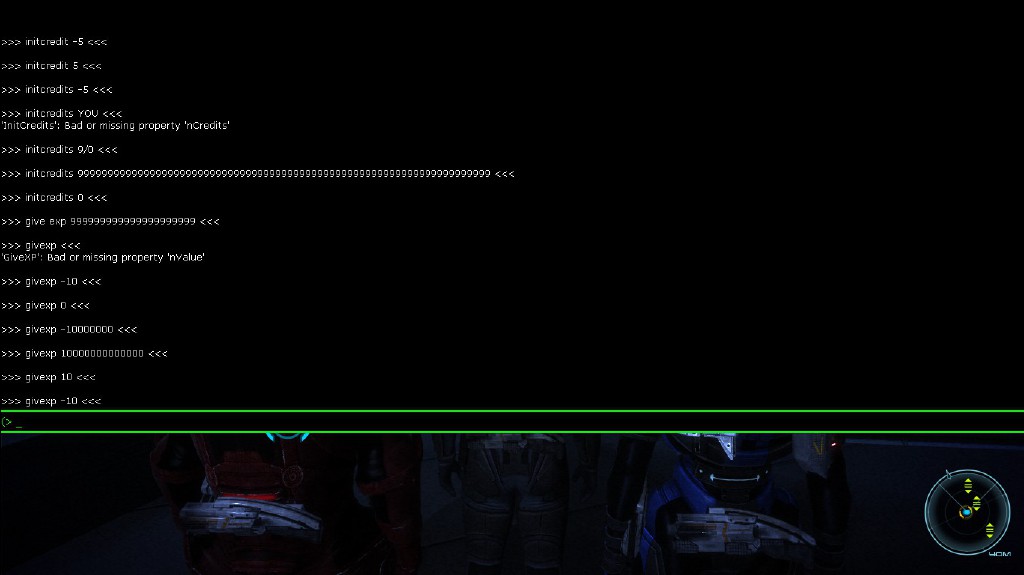
After that your console should be functional! Boot up the game and hit the '~' key found next to your 1 key (or if you rebound it, they key you bound it to) and a black box should pop up, covering most of the screen:
Step 1:
Navigate to "Steam\SteamApps\Common\Mass Effect\BioGame\Config" in your Program Files folder.Alternative: If you would rather not go into your game data files, then navigate to "Documents\BioWare\Mass Effect\Config" in your user folder.
Step 2:
Open the file called "DefaultInput.ini". If you are using the alternative path, then the file is called "BIOInput.ini".Recommendation: It is a good idea to make a backup of this file before making modifications to it. Just copy and paste the file somewhere safe, but make sure you keep the extension as a .ini file.
Step 3:
Look for the header called [Engine.Console]. It should be found on line 57. Use Ctrl-F if in doubt.Step 4:
Once you have found that section in the file, make it look like the following:[Engine.Console]
MaxScrollbackSize=1024
HistoryBot=-1
ConsoleKey=Tilde
Step 4a:
If you are unable to open up the developer's console, your keyboard may not be able to bind that particular key. The problem is commonly found in bilingual keyboards. To fix it, you will need to change the key bound to bringing up the console by editing the "ConsoleKey" line. Change the word "Tilde" to another key on your keyboard (like "o" or "KP_enter") that is not in use by the game.After that your console should be functional! Boot up the game and hit the '~' key found next to your 1 key (or if you rebound it, they key you bound it to) and a black box should pop up, covering most of the screen:
Useful Commands
Here is a small list of commands to get you started (note that capitalization is not necessary):
- "Stat FPS" : Displays your frames per second near the top right of screen.
- "FOV #" : Change the degree of your field of view. Replace # with a number between 1 and 170.
- "ToggleHUD" : Makes HUD invisible. Enter command again to make it visible.
- "ToggleFlyCam" : Allows you to enter a free camera state. Combine it with the last command for a nice clean screenshot tool!
- "SetGender #" : Changes the gender of your Shepard. Replace # with 0 for male and 1 for female.
- "Teleport" : Teleports Shepard to the surface your crosshair is looking at.
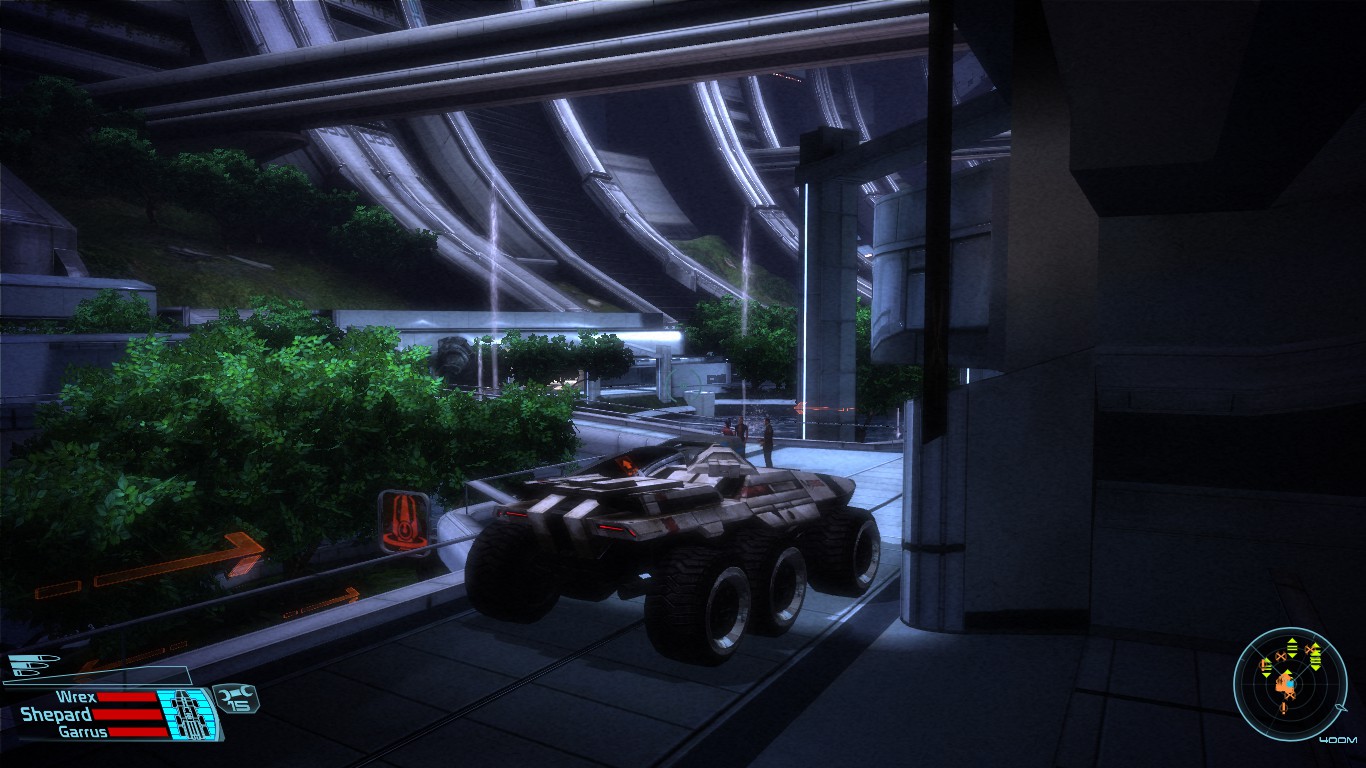
- "SpawnVehicle" : Spawns a Makko where your crosshair is pointed.
Other interesting commands can be found in this section on the Mass Effect Wikia:
http://masseffect.wikia.com/wiki/PC_Cheats#In-Game_Console
More Mass Effect (2007) guides
- Mass Effect русская версия (субтитры) + Все DLC + HD Текстуры★ 5 (1.2k)31k views1.5k ♥2 minRussianUpdated Apr 28, 2020
- Guide for New Mass Effect Players★ 5 (643)24k views721 ♥26 minUpdated May 13, 2021
- Mass Effect: Русификатор \ DLC \ HD Textures "MEUITM" \ SweetFX \ Проблемы★ 5 (914)23k views981 ♥6 minRussianUpdated Apr 2, 2024
- The Definitive Improvement Guide★ 5 (251)17k views453 ♥10 minUpdated Apr 29, 2016
- Доработанная русификация Mass Effect★ 5 (274)17k views551 ♥4 minRussianUpdated May 1, 2020
- HD текстуры для Mass Effect (1.2)★ 5 (513)17k views501 ♥3 minRussianUpdated Nov 6, 2021





This guide was created by its original author on the Steam Community. Are you the author and want it removed? Request removal.