FOV Fix Mod
How to Download and Install
- Download FOV Fix Mod[deadrising2mods.proboards.com]
- Extract the desired FOV (fov70 is my favorite) into \deadrising3\data\gameplay\
- Rename to fov.bin (make sure you did not hide file extensions)
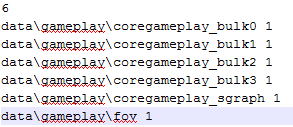
- Open \deadrising3\data\gameplay\coregameplay_loads_new.txt
- Add 1 to the first line, create a new line at the end and type:data\gameplay\fov 1
- Save and close
- Done! Inside your "gameplay" folder you should have a new file called fov.bin and an edited coregameplay_loads_new.txt file.
How to Do It Yourself
- Download DROTR23 Packer/Unpacker GUI and tools HERE[deadrising2mods.proboards.com]
- Extract them to a folder of your choice.
- Create a new .txt file named "fov.txt" in \deadrising3\data\gameplay\
- Copy and paste this inside the .txt file:cCameraBehaviorStaticFOV 542840058 { FOV = "70" } cCameraBehaviorStaticFOV 1832862821 { FOV = "70" } cCameraBehaviorStaticFOV 2262082550 { FOV = "70" }*Note* "70" can be exchanged for any number. "70" is my ideal FOV, "75" and "80" are good too.
- Open DROTR23 Packer/Unpacker (on first launch will prompt you to select directories for each of the dead rising games)
- Click "Dead Rising 3"
- Click Browse
- Find the newly created fov.txt file and select it
- Click "Pack". fov.txt is now packed and converted to fov.bin
- Open \data\gameplay\coregameplay_loads_new.txt
- Add 1 to first line and add this to a new line:data\gameplay\fov 1
- Save and exit. Done! You should have a new file called fov.bin and an edited coregameplay_loads_new.txt
More Dead Rising 3 guides
- How To Unlock The Framerate On Dead Rising 3★ 5 (316)38k views307 ♥1 minUpdated 5 Sep, 2014
- For those who cannot uncap fps 30★ 5 (484)34k views491 ♥1 min
- Снимаем ограничение в 30 фпс.★ 5 (408)17k views313 ♥1 minRussianUpdated 25 Dec, 2016
- All Costume Locations★ 5 (454)16k views735 ♥16 minUpdated 11 Nov, 2020
- 100% Achievement Guide + DLC (by THN)★ 5 (479)16k views911 ♥25 minUpdated 7 Jan, 2021
- Unlock FPS 80 Second Video★ 4 (60)9.5k views70 ♥1 minUpdated 4 Jul, 2021


🔥 Popular guides
- Upgrading to PremiumTeam Fortress 2★ 5 (20k)1441k views11k ♥6 minUpdated May 11, 2022
- No More Room in Hell Official ManualNo More Room in Hell★ 5 (2.8k)569k views2.1k ♥29 minUpdated Apr 22, 2019
- NMRiH Community Hosting GuidesNo More Room in Hell★ 5 (526)351k views653 ♥1 minUpdated Aug 10, 2022
- ULTIMATE GUIDE FOR GAME DEV TYCOONGame Dev Tycoon★ 5 (5.8k)326k views10k ♥4 minUpdated 23 Jan, 2014
- How to 'Git Gud' Soon™MORDHAU★ 5 (2k)318k views3k ♥68 minUpdated Nov 16, 2024
- Лучшие кооперативные игры SteamPAYDAY 2★ 5 (1.5k)315k views2.1k ♥56 minRussianUpdated Apr 27, 2025






This guide was created by its original author on the Steam Community. Are you the author and want it removed? Request removal.