General tips / Help
x-server.sys and other system files.
-Missing system files? If you don't want to be spoonfed all the way through this process, then don't read the next 2 (3 with picture) paragraphs. I'll give some tips here. You were probably just booted off your own system, and now you see nothing but a command shell, no GUI, no buttons and no flashy lights. You still have access to your machine and all its tools though, so you're not all lost! Check your log files and see what the hell hit you!
-Missing "x-server.sys" or "os-config.sys"? If you lose either, you will lose your graphical interface and be left with a command prompt complaining about lack of system files. Remember that your own IP is on a network with another server. Using the "scan" command will show you servers in the same network as the connected system. Doing a "scan" on your own IP will show you which servers you have access to in your network. A backup "x-server.sys" file can be downloaded from the other server located on your network, as you should already have access to it at this point. Download the system files from the server, rename if needed and reboot your system.
 -Shown in few steps how I manage to gain access to the system files I need from my network. All that's left is to download them into the correct folder. Use the "scp x-system.sys" command to download the x-system.sys file. Note that your IPs will probably be different from mine in the picture.
-Missing "bootcfg.dll" or "netcfgx.dll"? If you lost them you'll need to redownload them, the exact same way as with the "x-server.sys" file, except this time you should specify the download location, /sys. If you didn't specify the /sys folder when downloading, the files would've ended up in your /home folder. You'll need to move them from /home to /sys, and they need their original names!
-Other systems have different looking "x-server.sys" files (color themes) that you can download and check out for yourself. You can do this manually by downloading the "x-server.sys" file from the remote /sys folder, and renaming it with the command "mv", overwriting your old/original "x-server.sys" file, then use the "reboot -i" command. "x-server.sys" files can be named differently, but will usually contain "x-server.sys" in the name. ***Software SPOILER*** You will get a ThemeChanger piece of software later on that will allow you to change themes on the fly without having to reboot. You can also use this piece of software to check out themes in use on other servers, before you decide to download it or not.
Firewalls, analyze and solve
-Some people have a bit of a hard time understanding just how the firewall and analyzer system works. I'll try and explain and demonstrate with a few pictures.
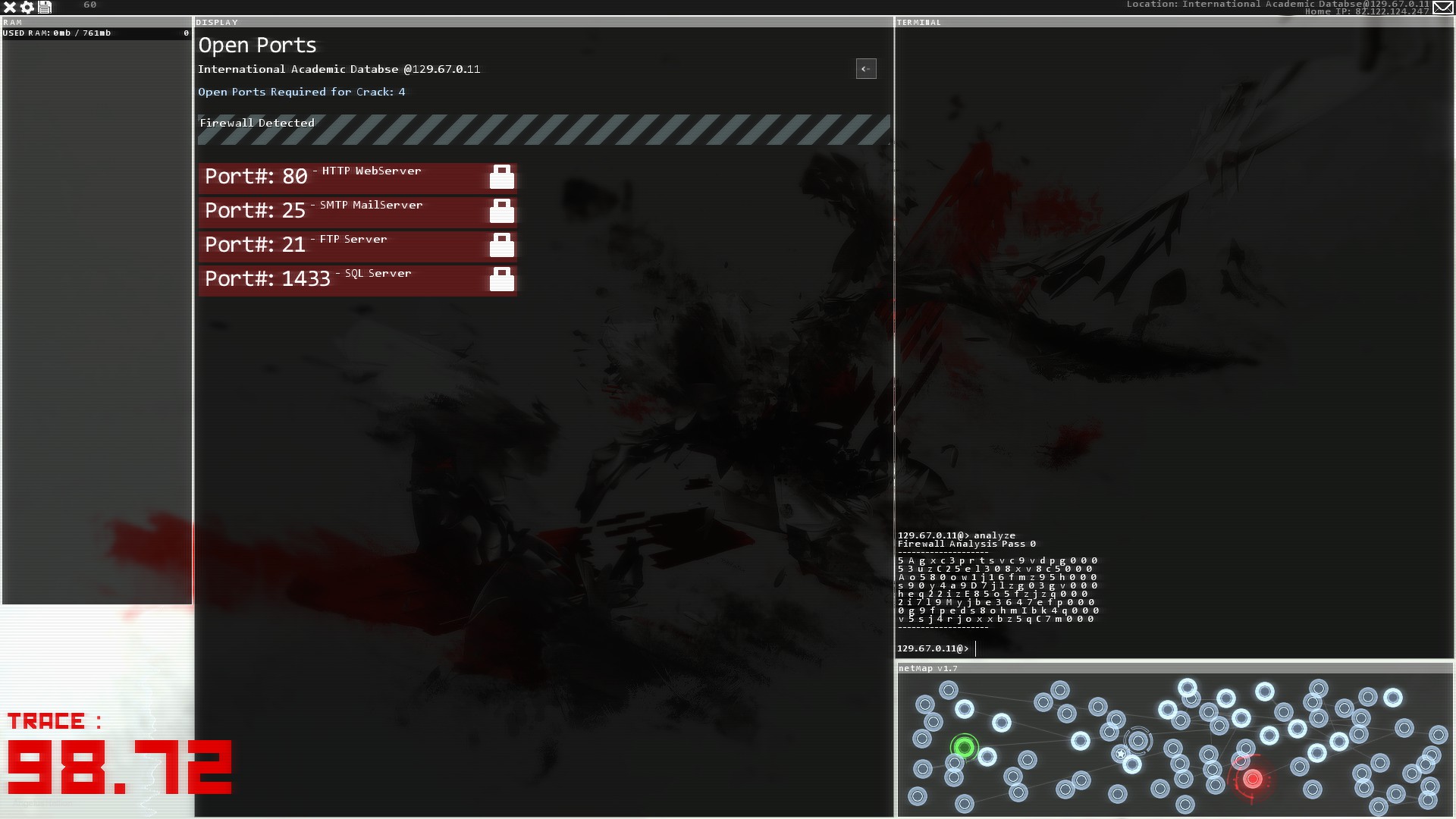 -As seen here we've found a server with an active firewall. We need to take down the firewall before we can PortHack our way in. We do this by analyzing. In this picture I've used the "analyze" command once, which leaves us with a lot of random numbers and letters. Give it time.
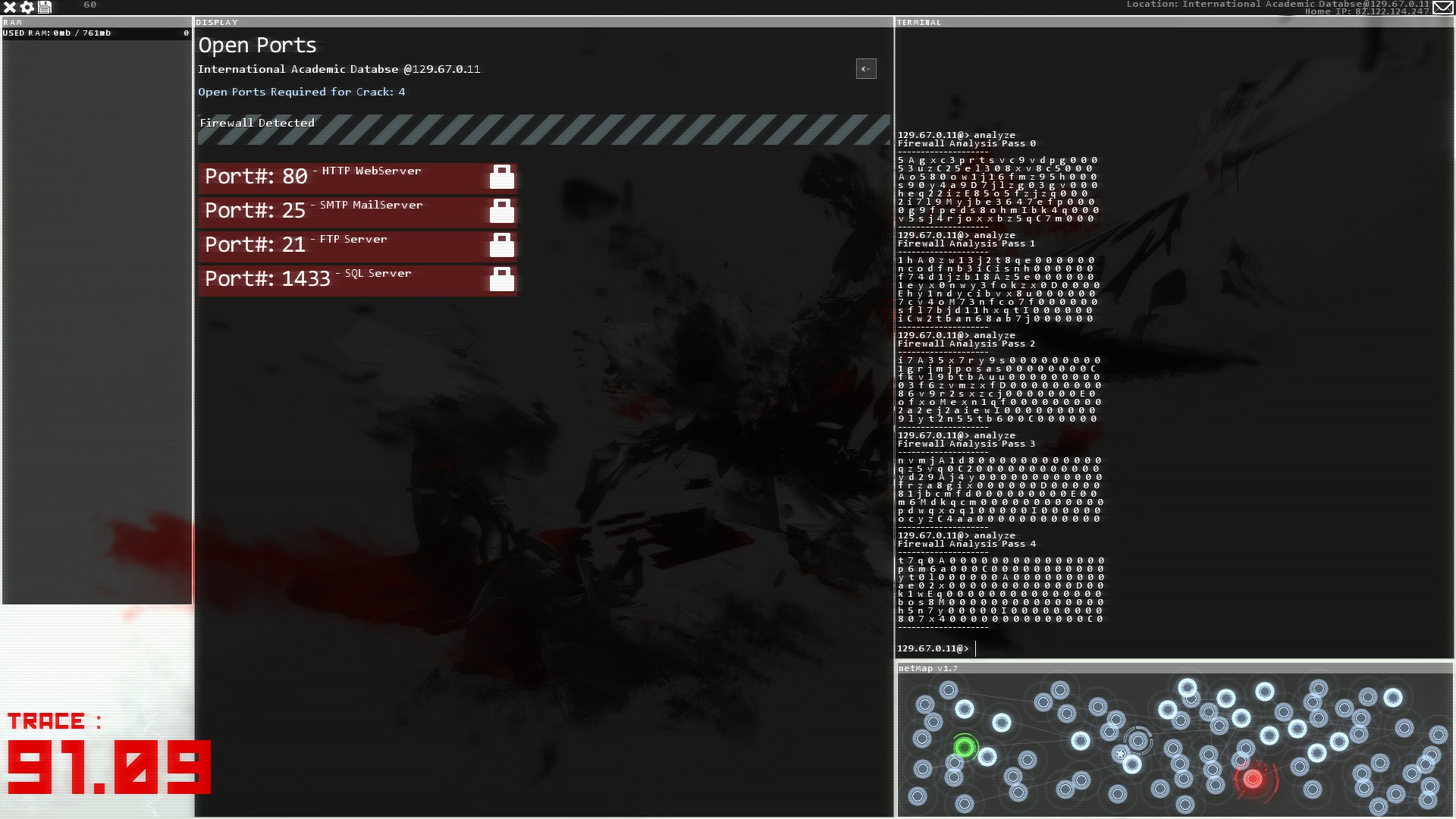 -The more we "analyze" the firewall, the closer we get to the actual password we need. Notice how more of the characters turn into 0's the more we analyze.
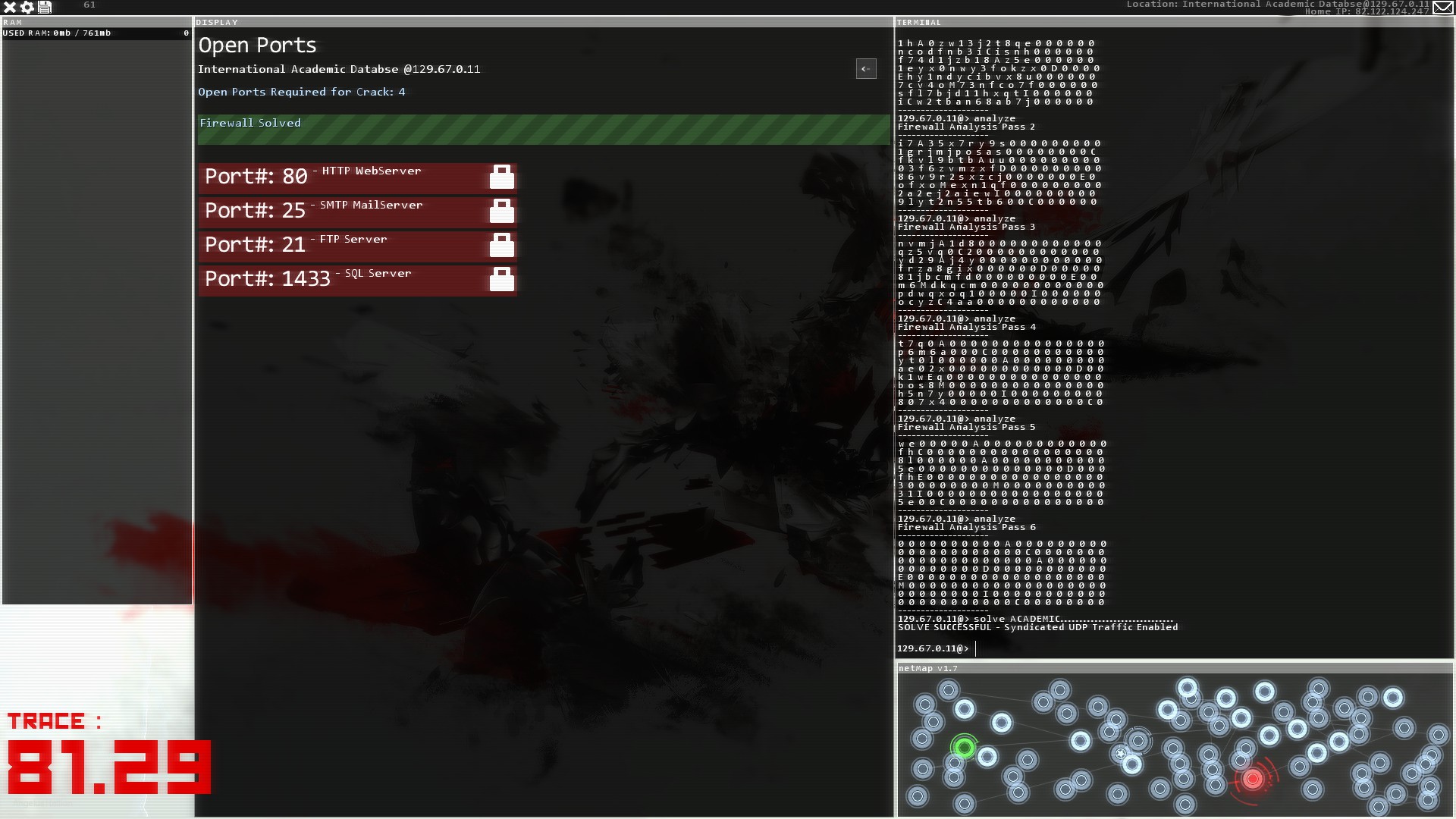 -As you can see, we've analyzed the firewall fully, leaving only a single character that isn't 0, per line. Take the letter from every line, left to right, top to bottom, and you'll get the password "ACADEMIC". Now that we have the password we simply type ind "solve ACADEMIC" (without the " " quotation marks), and it'll tell us if the solve was successful or not.
-IMPORTANT NOTE: A few rare passwords will actually have the number 0 in them. If an entire line is full of 0's, the character for that line is 0!
-Remember, you don't need to take down a firewall to attack the ports with exploits.
Ingame Commands
-I'll write a list of some of the ingame commands here, and give an example of how they're used. I'll be listing them (somewhat) in order of importance.
help & help 2 & help 3 - Shows help page 1, 2 or 3. Contains information about ingame commands.
cd FolderName - Change directory to FolderName. Used to move from one folder to the next.
cd.. - Used to go back one step from your current directory. Remember the double dots!
ls - Lists the files and folders in your current directory.
ls FolderName - Lists files and folders of specified folder.
upload home/FileName.ext - Uploads FileName.ext from your /home folder to current remote folder.
scp RemoteFileName.ext - Downloads RemoteFileName.ext to "appropriate" folder.
scp RemoteFileName.ext /home - will put RemoteFileName.ext in the /home folder.
probe - Probes the current connected system. Use this to check what security and which ports are running.
scan - Scans the connected system for new nodes. Networked nodes are shown with a thin line between them. Adds new nodes to map.
rm FileName - Removes a file with the name FileName.
rm * - Removes ALL files in current directory, except for folders.
mv FileName.ext NewFileName.ext - Used to rename a file.
mv FileName.ext FolderName/FileName.ext - Used to move a file from one folder to the next.
mv FileName.ext ../FolderName/FileName.ext - The " ../ " part specifies that the FolderName should be looked for one step back from the current folder you're in. You can add multiple " ../ " to go back more steps.
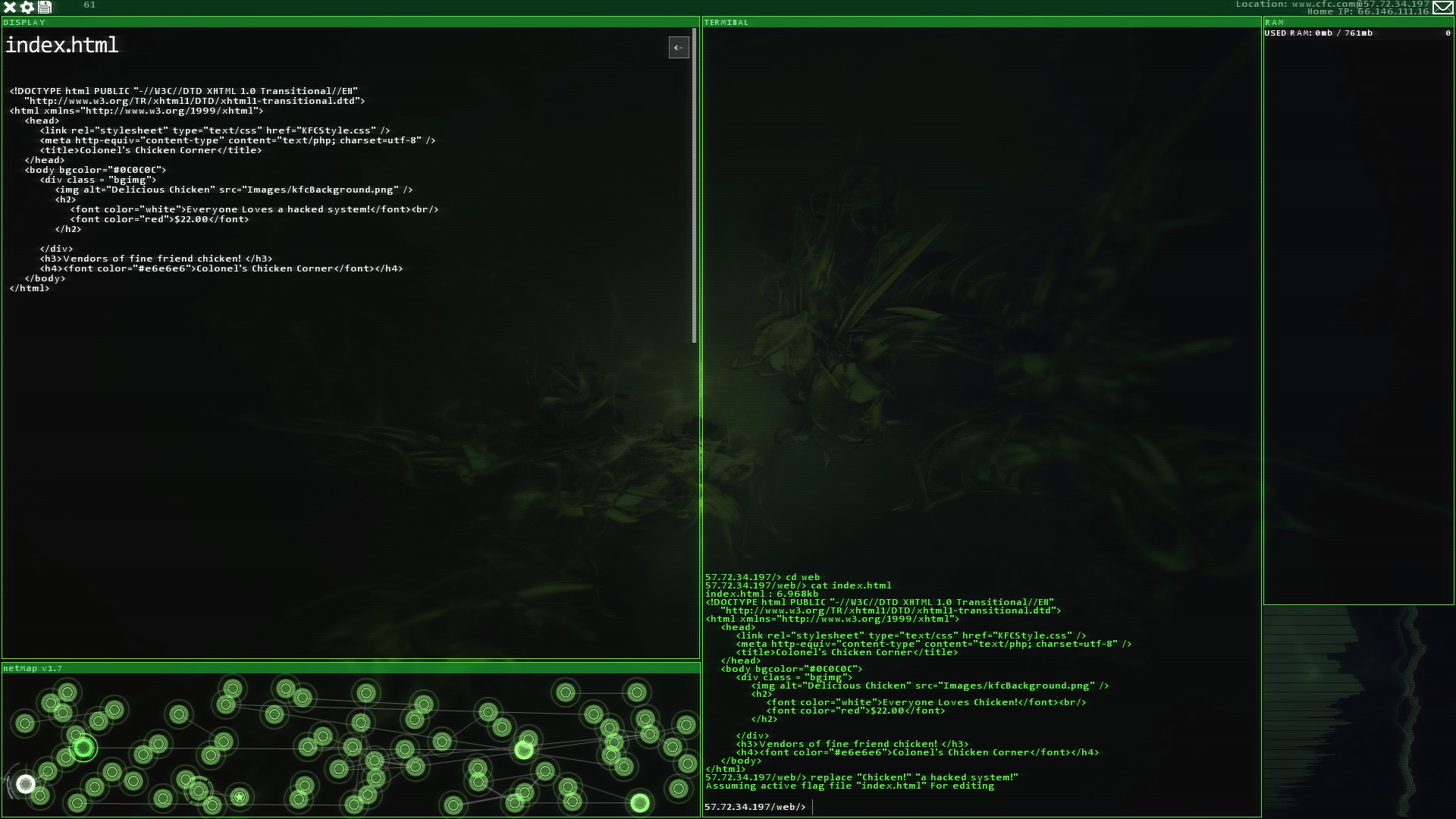
Picture for replace command:
ps - Shows a list of running processes on your local machine and their IDs.
kill 123 - Kill a process with ID123. Specify the ID of the process you wish to kill.
Unorganized list of tips
-You can use the "mv" command to make filenames in the /bin folder shorter. You could rename "WebServerWorm.exe" to "Web.exe", for faster code execution. You cannot rename "PortHack", "Scan" or "ForkBomb".
-The ***Software SPOILER*** SQL Server exploit and KTB_PortTest.exe (Lux Æterna: it (KTB_PortTest) won't even trigger the tracking process) can be run without overloading the remote proxy first (if present). *Partial courtesy of user "Lux Æterna"
-Exploitation software (except for PortHack) can be used without the Firewall being disabled/bypassed first.
-Logs can be deleted even while disconnected from a recently hacked server. If you run the " rm * " command in the /log folder and disconnect, the logs will still be deleted, as long as you retain your access. Some servers reset their passwords/states after a disconnect.
-The "ForkBomb" command can be used for the extra paranoid hacker after cleaning the /log folder of a remote system. A ForkBomb crashing a system doesn't leave an IP in the logs, only a generic crash log.
-Using the "replace" command with quotation marks ( " " ) allows you to replace strings of information. Say you get a mission to replace "[HAXME]" with "I am the winner!", you would wanna use quotation marks around the "I am the winner!" sentence to make sure the text gets replaced properly. Example: replace filename "[HAXME]" "I am the winner!"
-You can press the Up-Arrow key to scroll through preciously written commands.
-For personal notes, use the unlisted command/tool <addNote "your note here"> this creates a note in your memory task bar with the info entered. *Courtesy of user "I'm sorry Dave."
- To create a brand new file, rename your ~/Notes.txt (i.e. do 'mv /home/Notes.txt /home/Notes_backup'). Then run 'Notes' and click 'Add note' (or just use 'addNote'), then type in the contents of your new file. It will be saved as the new Notes.txt. Rename it to whatever you need it to be. *Courtesy of user "Lstor"
- To copy an existing file for modification: There is no 'cp' (copy) command, but you can just 'upload' it to a server, and then 'scp' it back down to create a copy. ('scp' doesn't work locally, unfortunately). *Courtesy of user "Lstor"
Will write more if I figure out more.
- Hacknet Step-by-Step Walkthrough★ 5 (2k)94k views3k ♥16 minUpdated Oct 23, 2015
- Hacknet 100% Achievements Guide★ 5 (686)34k views1k ♥3 minUpdated Aug 25, 2015
- A Complete Guide to Hacknet★ 5 (213)26k views365 ♥5 minUpdated Apr 24, 2020
- How to get x-server.sys back★ 5 (305)25k views201 ♥3 minUpdated Dec 11, 2016
- Labyrinths Step-By-Step Walkthrough★ 5 (270)19k views515 ♥12 minUpdated Jun 12, 2017
- Understanding Hacknet & How to play it properly!★ 4 (155)18k views286 ♥8 minUpdated Sep 20, 2015





- Upgrading to PremiumTeam Fortress 2★ 5 (20k)1441k views11k ♥6 minUpdated May 11, 2022
- No More Room in Hell Official ManualNo More Room in Hell★ 5 (2.8k)569k views2.1k ♥29 minUpdated Apr 22, 2019
- NMRiH Community Hosting GuidesNo More Room in Hell★ 5 (526)351k views653 ♥1 minUpdated Aug 10, 2022
- How to 'Git Gud' Soon™MORDHAU★ 5 (2k)318k views3k ♥68 minUpdated Nov 16, 2024
- Лучшие кооперативные игры SteamPAYDAY 2★ 5 (1.5k)315k views2.1k ♥56 minRussianUpdated Apr 27, 2025
- Desert Eagle Heat Treated | Blue GemCounter-Strike 2★ 5 (1.6k)293k views1.5k ♥2 minUpdated Jan 16





This guide was created by its original author on the Steam Community. Are you the author and want it removed? Request removal.