HDTV refresh rate fix (and a couple of other game tweaks)
HDTV refresh rate fix
A nasty bug that has been plaguing the CryENGINE 2 and 3 in DX10/11 mode, it usually manifests itself through very low but steady framerates on hardware more than capable of running the game properly. As HDTVs report a lot of different definitions and refresh rates to cater to the audiovisual industry, they pollute our PC's control panels with many pointless options we don't want. Sadly, the CryENGINE selects the first (ie. the lowest) refresh rate and never allows us to change it.
You can check if you are affected by this by checking your TV's current mode (refer to your TV's manual for more info, but usually pressing the button to show current channel/EPG data will show the mode).
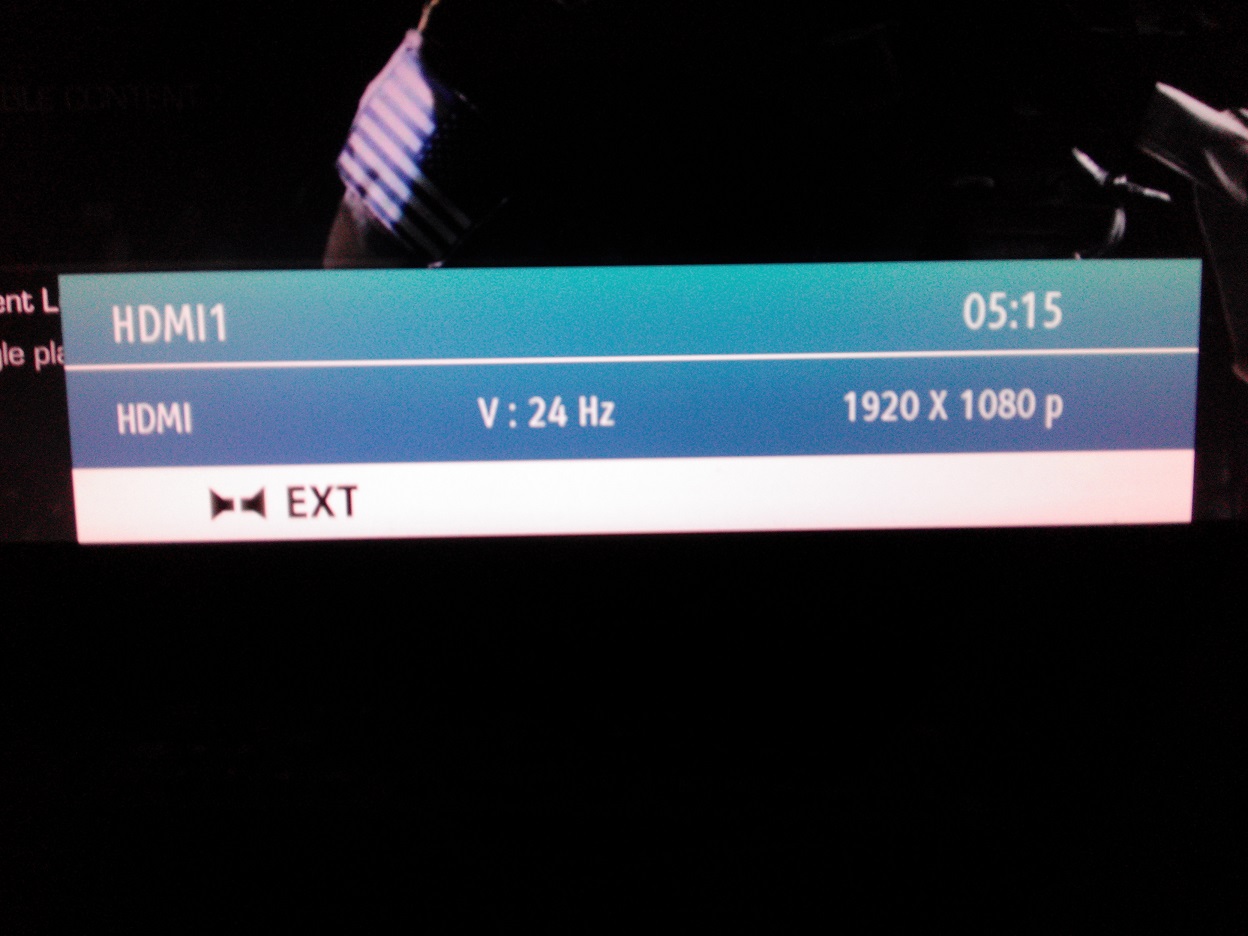 24 Hz refresh rate as TV current mode
The fix for this may vary, but usually switching from fullscreen to windowed and back solves it. Right after launching the game, press [Alt] + [Enter] to switch from fullscreen to windowed, then press the same keys again to go back to fullscreen. Note that sometimes the two changes are done instantly. After doing the little stunt the game should be running at the desktop's refresh rate, you can make sure of that by checking your TV's current mode.
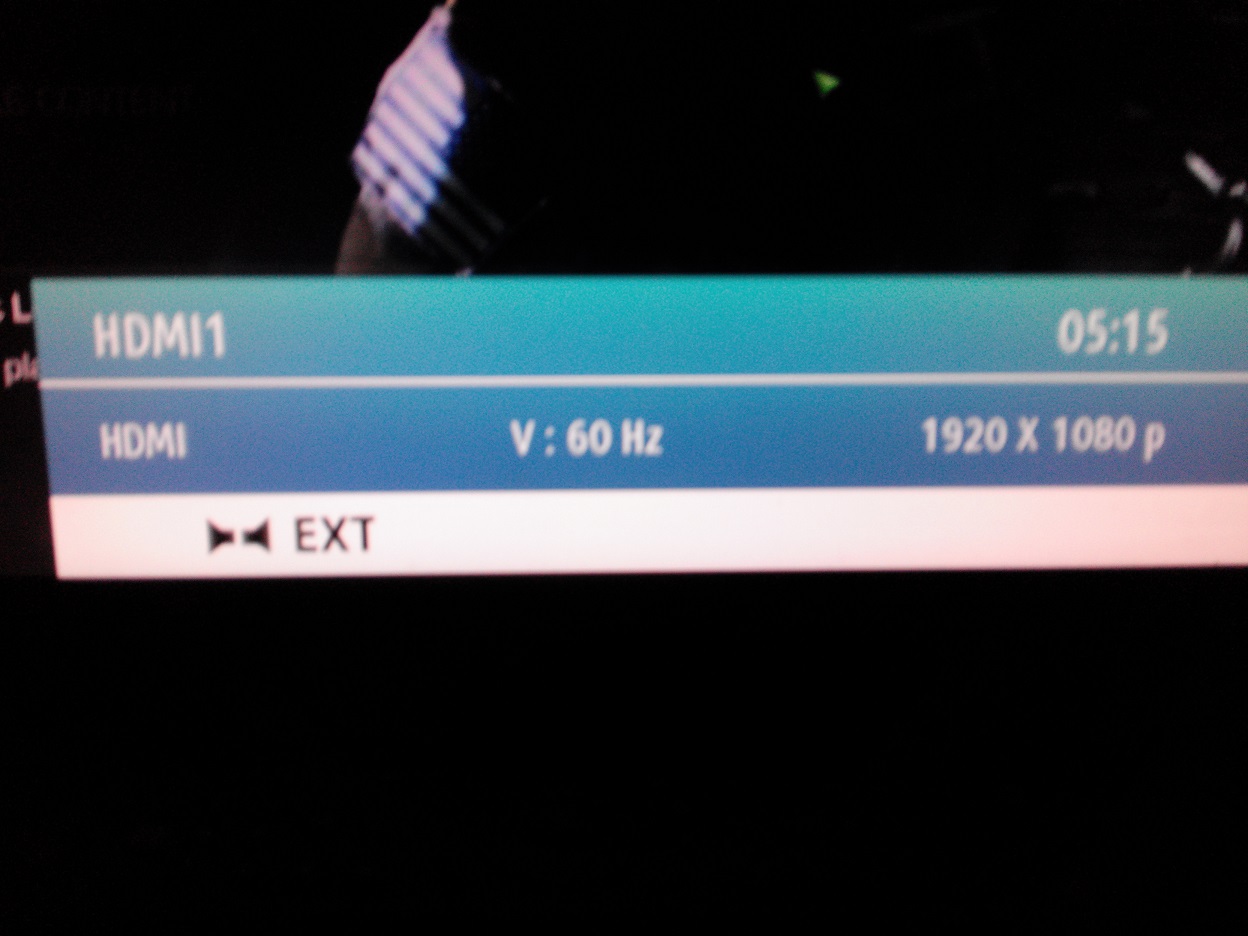 Tastier 60 Hz refresh rate as TV current mode
You can check if you are affected by this by checking your TV's current mode (refer to your TV's manual for more info, but usually pressing the button to show current channel/EPG data will show the mode).
24 Hz refresh rate as TV current modeThe fix for this may vary, but usually switching from fullscreen to windowed and back solves it. Right after launching the game, press [Alt] + [Enter] to switch from fullscreen to windowed, then press the same keys again to go back to fullscreen. Note that sometimes the two changes are done instantly. After doing the little stunt the game should be running at the desktop's refresh rate, you can make sure of that by checking your TV's current mode.
Tastier 60 Hz refresh rate as TV current mode
Removing the launch advertising
Unskippable intro cutscenes are a sin, and this game sins a lot. The very long string of unskippable advertisements you have to watch before getting into the game is very annoying, but thankfully it's easy to remove (tip from PC Gaming Wiki).
Open the game's install folder (full default Steam setups will have it in "C:\Program Files (x86)\Steam\SteamApps\common\SniperGhostWarrior2\", if you chose another drive I believe you're smart enough to figure out the directory by yourself), then go to "Game\_FastLoad" and rename/move/delete "IntroMovies.pak". That's it.
Open the game's install folder (full default Steam setups will have it in "C:\Program Files (x86)\Steam\SteamApps\common\SniperGhostWarrior2\", if you chose another drive I believe you're smart enough to figure out the directory by yourself), then go to "Game\_FastLoad" and rename/move/delete "IntroMovies.pak". That's it.
FOV fix and other notable convars
Setting up
Go to your game's installation folder (full default Steam setups will have it in "C:\Program Files (x86)\Steam\SteamApps\common\SniperGhostWarrior2\", if you chose another drive I believe you're smart enough to figure out the directory by yourself) and create an empty file called "autoexec.cfg".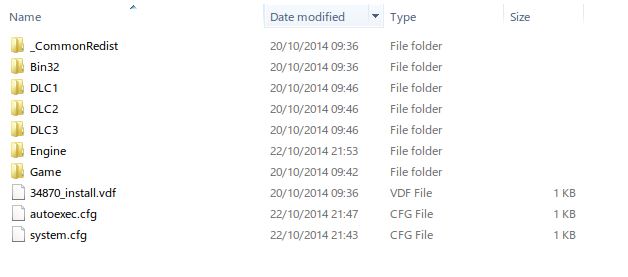 Your folder structure should look like that, beware of the file extension, it might not appear on your computer depending on your Windows Explorer settings
Open this "autoexec.cfg" file in Notepad/Notepad++/Sublime Text/vi/emacs/your favourite raw text editor and type the convars you want to modify in this file.
The commands will be executed when the game is launched.
FOV
cl_fov=xx
r_drawnearfov=xx
pl_movement.power_sprint_targetfov=xx
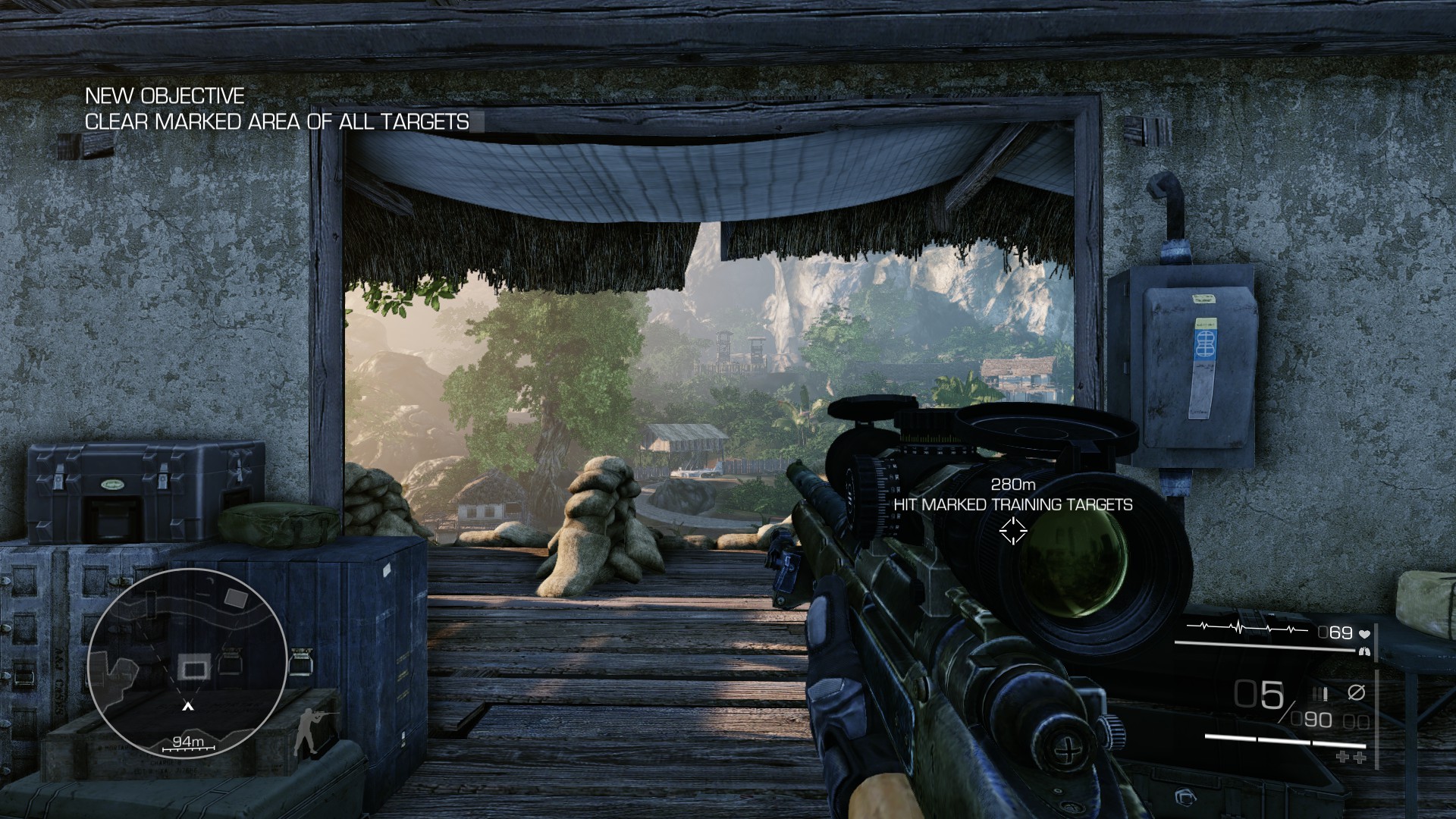
cvars for the FOVThis game uses horizontal FOV instead of the widespread vertical FOV so use an online calculator (such as this one[www.rjdown.co.uk]) to get the correct value for your favourite FOV. I use 90 vFOV on a 16:9 screen, which is equal to 59 hFOV so I entered the following commands:
cl_fov=59
r_drawnearfov=59
pl_movement.power_sprint_targetfov=59
cvars for 90 vFOVAnd got the following (pleasing) result:
Post processing
Note: I haven't tested most of those commands and only found them by scouting the engine's internal configuration data. Unless the developers did some weird stuff there's no reason for them to be broken.All those cvars have values set as part of the video presets but you might want to turn off some of those effects if you don't like them.
SSAO
Pretty heavy post processing effect, enabled by default on the highest shading setting.
r_SSAO = 0
Depth of Field
If you don't like that particular depth blurring you can turn it off
r_DepthOfField = 0
Anti-aliasing
The game seems to use some sort of post process AA that isn't really effective and can consume some resources you don't want.
r_PostAA=0
Motion Blur
In case you don't like the motion blur effect.
r_MotionBlur=0
More Sniper Ghost Warrior 2 guides
- 10 Commandments of Sniping★ 5 (286)13k views135 ♥3 minUpdated Jul 14, 2013
- Снайпер 2: Воин Призрак 2 | Русификатор (Лицензия!)★ 5 (354)11k views270 ♥1 minUpdated Oct 5, 2023
- 100% Achievements [+All Secrets]★ 5 (543)11k views582 ♥16 minUpdated Jul 7, 2017
- Руководство по достижениям Sniper: Ghost Warrior 2 (RUS)★ 5 (524)9.1k views515 ♥4 minRussianUpdated May 2, 2017
- Sniper: Ghost Warrior 2★ 4 (122)5.6k views44 ♥1 minRussianUpdated Jun 2, 2017
- Русификатор для Sniper Ghost Warrior 2★ 4 (102)3.6k views141 ♥1 minRussianUpdated May 6, 2018


This guide was created by its original author on the Steam Community. Are you the author and want it removed? Request removal.