How to backup and restore game data manually
Summary
You can backup and restore data manually from following save data location.
Note 1: It is not Steam common location, but similar to Tekken 7.
Note 2: Make sure to back up current data first before overwriting or resetting.
I hope you don't loose save data like me.
Game data location
Soulcalibur 6's saved game data is at following location.
C:\Users\_your_user_name_\AppData\Local\SoulcaliburVI
or
%LOCALAPPDATA%\SoulcaliburVI\
Folder size can be about 25MB.
You can manually back up the folder and restore when you need it. It is not guaranteed to restore data if game version is different.
How to backup
How to restore
- Quit game
- Back up current saved game data for just in case (don't just delete)
- Replace with backup file to same location
If you have corrupted saved data after you play same Steam account on different PC, you may be able to get valid data from last PC used. It happened to me about 5 times. So I changed to use different Steam ID on different machines.
Recommendation to do:
* Steam cloud back up
* Wait Steam cloud sync done after quit game
* Use single account on each PC for SC6
Recommendation NOT to do
Other options
* VODKALIBUR
Back up by batch file sample 1
Multiple back up in same level on same disk with random number prefix.
Ex. SC_backup_duplicate_in_same_folder.bat
===== batch file begin =====
set TMP_SC6_DST=%LOCALAPPDATA%\SoulcaliburVI_backup_%random%
md %TMP_SC6_DST%
xcopy /E /V /Y %LOCALAPPDATA%\SoulcaliburVI\*.* %TMP_SC6_DST%
====== batch file end =====
Notes:
* You need to delete old backup folder once in a while.
* If the drive crashes, you loose all data together.
* Better to back up to different disk.
Back up by batch file sample 2
Another back up batch file sample:
Back up at different disk
Ex. game_data_backup.bat
===== batch file begin =====
REM Destination
set TMP_GAME_BACKUP_DST=D:\_manual_backup\game_data
set TMP_BACKUP_DST=%TMP_GAME_BACKUP_DST%\SoulcaliburVI
md %TMP_BACKUP_DST%
xcopy /E /V /Y %LOCALAPPDATA%\SoulcaliburVI\*.* %TMP_BACKUP_DST%
===== batch file end =====
Note:
* Change destination path before you run batch file
* It copy and overwrite single backup.
Data rescue from different machine
If you have still access to old drive, you may be able to get save data.
If disk is fine, you may be able to connect to different machine and rescue data.
Some case like following adapter would help.
USB 3.0 to IDE and SATA Converter External Hard Drive Adapter
https://www.amazon.com/dp/B00EHDTRJ6/
Note: I don't own this, so I cannot tell how it is good or not. You may find better one.
Data rescue from corrupt data
If save data got corrupt, SC6 does not launch and shows Fatal Error dialog.
You can verify if the issue with your save data with new game (just remove save data). Note: back up current data first.
If the custom character data (your own or downloaded one) has issue, you may be able to remove them to recover save data.
I personally don't use, but following tools may help:
https://steamcommunity.com/sharedfiles/filedetails/?id=1619160956
Saved data on Steam Cloud
Just a reference that following link has your Steam Cloud Data
List of games:
https://store.steampowered.com/account/remotestorage
Direct link to SC6 save data:
https://store.steampowered.com/account/remotestorageapp/?appid=544750
Binary search approach to find corrupted character data
Following is the ideas, but I have not tested myself.
If one or multiple character data is suspected corrupts save data, following approach may help.
A1) Back up your save data (very important / don't forget)
A2) Delete all character data from save editor like following
https://steamcommunity.com/sharedfiles/filedetails/?id=1619160956
A3) Back up save data as different set (you may use data at step B)
A4) Start game
If it does not work still, this method may help in the case.
If it start normally, it is verified one or multiple created/download character has issue.
>> you can stop here to give all all created character but game progress have recovered.
>> Or you can do following B or C steps to identify bad data.
Identifying wrong data (one bad data case) with binary search by _adding_
B1) Restore A3's back up
B2) Add back half or some part of created character
B3) Make another back up
B4) Start game
If there is no issue, you can keep current save data and repeat from B2
If there is issue again, go back to B1 and B2 to add different set up data
B5) Repeat until you satisfied
Identifying wrong data (one bad data case) with binary search by _deleting_
C1) Restore A1's back up
C2) Delete only half data instead of all (compared A2)
C3) If issue still exit, bad data is in left data
If issue is gone, bad data was in deleted data
C4) Repeat from B1 to identify bad data by narrowing down. (Half of Half)
C5) You can stop at the point you satisfied
Other related guides (from me)
https://steamcommunity.com/sharedfiles/filedetails/?id=2192326393
https://steamcommunity.com/sharedfiles/filedetails/?id=2186983802
https://steamcommunity.com/sharedfiles/filedetails/?id=2198639564
https://steamcommunity.com/sharedfiles/filedetails/?id=2289807551
https://steamcommunity.com/sharedfiles/filedetails/?id=2291382184
Completely reset save data
If you ever need to reset save data, steps are following:
- Disable steam cloud sync
- Delete save game folder
- Start game again
- Enable steam cloud sync (better to have for just in case)
Your save data should be reset except online rank point.
- How to find and install mods for SC6★ 5 (410)38k views831 ♥1 minUpdated 26 Dec, 2020
- Tutorial To Remove Ingame Background Blur Easy !★ 5 (183)17k views179 ♥1 minUpdated 21 Oct, 2018
- Savegame tool for sharing Create-A-Soul creations★ 5 (235)13k views365 ♥2 minUpdated 26 Dec, 2020
- Soulcalibur VI PC Configuration Guide★ 4 (109)8.3k views190 ♥6 minUpdated 15 May, 2020
- PlayStation DualShock 4 button prompts/icons★ 4 (110)7.8k views136 ♥1 minUpdated 27 Oct, 2018
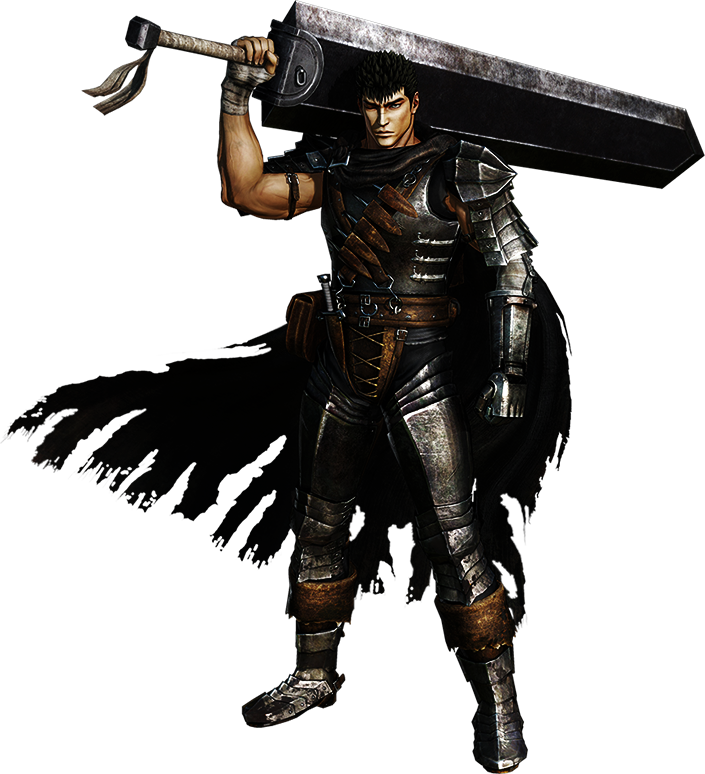
- How To Make Black Swordsman Guts in Soul Calibur 6★ 4 (86)7.4k views103 ♥1 minUpdated 3 Feb, 2022



- Upgrading to PremiumTeam Fortress 2★ 5 (20k)1441k views11k ♥6 minUpdated May 11, 2022
- No More Room in Hell Official ManualNo More Room in Hell★ 5 (2.8k)569k views2.1k ♥29 minUpdated Apr 22, 2019
- NMRiH Community Hosting GuidesNo More Room in Hell★ 5 (526)351k views653 ♥1 minUpdated Aug 10, 2022
- ULTIMATE GUIDE FOR GAME DEV TYCOONGame Dev Tycoon★ 5 (5.8k)326k views10k ♥4 minUpdated 23 Jan, 2014
- How to 'Git Gud' Soon™MORDHAU★ 5 (2k)318k views3k ♥68 minUpdated Nov 16, 2024
- Лучшие кооперативные игры SteamPAYDAY 2★ 5 (1.5k)315k views2.1k ♥56 minRussianUpdated Apr 27, 2025






This guide was created by its original author on the Steam Community. Are you the author and want it removed? Request removal.