How to extract the Licensed Soundtrack
Introduction
In this guide I will describe how to rip the licensed music from the game files and how to add metadata so they play nicely with your music player program of choice. I do assume technical competence as I will not completely hold your hand through this guide for the sake of brevity. If you get confused, don't hesitate to comment, and hopefully I can help you though your problems.
Step 0: Prerequisites
For this guide you will need two pieces of software.
The first is Double Fine Explorer[quickandeasysoftware.net].
This is a tool that we will use to extract the songs from the .fsb files they are stored in. For the saftey concious of you, I will point out that the Github Repo[github.com] for this program points directly to the above link, verifying it's legitamcy.
The second program you need is MP3TAG[www.mp3tag.de].
It is a standard program used to modify the metadata of music files on windows. The reason we wish to do this is that once we extract the game files we get out 107 files with titles like "music_L_WrathOfKillenstein_IG.mp3". Now if you want to look for one song in particular this can be difficult as these shortened names don't always resemble the song title. In the example given the song title is Ignisis Dance, so if you went looking for it without knowing it was by Wrath of Killenstein, you would not be in for a fun time. But if we add the metadata that problem goes away, and it also makes the tracks appear as a nice album on all music players programs & apps.
The first is Double Fine Explorer[quickandeasysoftware.net].
This is a tool that we will use to extract the songs from the .fsb files they are stored in. For the saftey concious of you, I will point out that the Github Repo[github.com] for this program points directly to the above link, verifying it's legitamcy.
The second program you need is MP3TAG[www.mp3tag.de].
It is a standard program used to modify the metadata of music files on windows. The reason we wish to do this is that once we extract the game files we get out 107 files with titles like "music_L_WrathOfKillenstein_IG.mp3". Now if you want to look for one song in particular this can be difficult as these shortened names don't always resemble the song title. In the example given the song title is Ignisis Dance, so if you went looking for it without knowing it was by Wrath of Killenstein, you would not be in for a fun time. But if we add the metadata that problem goes away, and it also makes the tracks appear as a nice album on all music players programs & apps.
Step 1: Rip the Audio Files
First start up Double Fine Explorer. Then click "Open" and then choose "Brutal Legend". When the file picker opens up, go into the "Audio" folder and then the "Music_Scripted" folder. Then select the file "Music_Licenced_1.fsb". Then click on "Save All Files" and "Save All Audio". Then save all of the songs in a folder.
Then repeat for the other three licenced music files, saving them all in the same folder. Once you are done you should have 107 files in the same folder.
Then repeat for the other three licenced music files, saving them all in the same folder. Once you are done you should have 107 files in the same folder.
Step 2: Add the Track Information
Next open MP3Tag and in MP3Tag, press "File", "Select Directory" and then choose the folder you saved the songs in. Then download this file[pastebin.com] and copy it into the in the same folder as the music. Then make sure that the file at the top of the screen is "music_L_3InchesOfBlood_Deadly.mp3". If not, press "Filename" once and if it still isn't at the top, press it again. Once it is at the top, select that file, and then press Control+A to select everything. Next press "Convert", "Text file - Tag". Now select the text file you have just downloaded and put in "%artist% - %album% - %title% - %track% - %genre% - %comment%" below it without the quotation brackets. After that press OK and then all the song names should be filled in correctly.
Check that the song titles and artists match up with the file names. (If the first five are correct, all of them should be correct.) Note that the track order is not completely alphabetical. This is because the tracks are ordered by allegiance first and then by alphabetical order. (See conclusion for more info.)
Check that the song titles and artists match up with the file names. (If the first five are correct, all of them should be correct.) Note that the track order is not completely alphabetical. This is because the tracks are ordered by allegiance first and then by alphabetical order. (See conclusion for more info.)
Step 3 (Optional): Add an Album Cover
Now the tracks should appear nicely as an album on your device. Hooray! But if you open it in a music player, you will notice it will automatically be assigned a default album cover that looks kind of ugly if surrounded by albums with album covers. Let's fix that.
Below is what I personally use as the album cover.
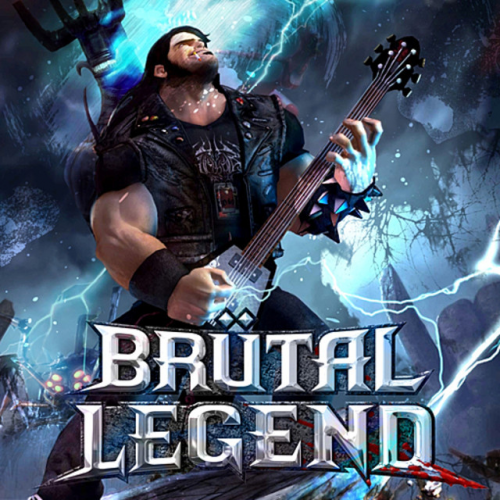
I recommend you use this one, however you can use another image if you wish. If you wish to use this one, save this image by right clicking on it.
Once you have saved it, if it's not already still open, open MP3Tag in the folder you saved your tracks to. Then select all tracks. Once you have done this right click on any of the tracks and then finally select extended tags. Press the top button to the right of the "Cover" subsection and select your album cover of choice. Then press OK. Once it's done saving, your album cover of choice should appear in your music player.
Below is what I personally use as the album cover.
I recommend you use this one, however you can use another image if you wish. If you wish to use this one, save this image by right clicking on it.
Once you have saved it, if it's not already still open, open MP3Tag in the folder you saved your tracks to. Then select all tracks. Once you have done this right click on any of the tracks and then finally select extended tags. Press the top button to the right of the "Cover" subsection and select your album cover of choice. Then press OK. Once it's done saving, your album cover of choice should appear in your music player.
Step 4 (Optional) Add Allegiance to Title
If you want to have the faction name associated with a song in it's title (i.e. make "Her Ghost In The Fog" appear as "Her Ghost In The Fog (The Drowning Doom)"), this is how you do it.
Select all songs in MP3Tag as done in previous steps. Press "Convert", "Tag - Tag", select "TITLE" as Field and input "%title% (%comment%)" without quotation brackets into the Format String box. Then all the songs will be retitled to include the song source. If you dislike this change, redo step 2 to rest back to the original titles.
If you are wondering why you would want to do this, see the conclusion.
Select all songs in MP3Tag as done in previous steps. Press "Convert", "Tag - Tag", select "TITLE" as Field and input "%title% (%comment%)" without quotation brackets into the Format String box. Then all the songs will be retitled to include the song source. If you dislike this change, redo step 2 to rest back to the original titles.
If you are wondering why you would want to do this, see the conclusion.
Step 5 (Optional): Replace Tracks with Poor Audio Quality
You can skip this step if you do not like any of the Drowning Doom or Tainted Coil music as this issue only effects select songs from these factions (to the best of my knowledge).
There seems to be problems with some of the recordings as stored in the game files. Personally I have noticed that the version of Tvangeste's Birth of the Hero stored in the game clearly has audio quality/compression issues that are not present in the original recording. Others have also noticed issues in Static-X's Love Dump and Marilyn Mason's Beautiful People. However it is accepted that Birth of the Hero is the song with the worst audio issues by a long shot. Luckily it is very easy to fix this issue. I will only describe how to do this for Birth of the Hero, but the process for Love Dump and Beautiful People is identical.
The first thing we need to do is obtain a better copy of Birth of the Hero. You can officially pick up the original recording of the song here on Bandcamp[tvangeste.bandcamp.com] for a very small fee (~$1). You can download the song in any format, but in this guide for consistency we will use mp3.
However if money is tight, you can pick up the whole album that it comes from on Tvangeste's official website for free here[tvangeste.com], alongside their other album[tvangeste.com] as well. (If you wish to get it off of their site, be quick as it seems the site is not being maintained and is breaking down in real-time.)
Once you have the song, copy it into the folder and rename it "music_L_Tvangeste_BirthOfTheH.mp3". Then open MP3Tag, select the song and press the read x in the top left. Then repeat step 2 again and then selecting Birth of the Hero ONLY this time redo step 3. If you did step 4, you will have to select this song and then do it for this song.
Then you are done. If you want, you can redo this for Beautiful People and Love Dump, however the audio quality for those two is nowhere near as bad and you cannot obtain the mp3s for those two for free. (At least though official means.) I personally haven't bothered to do it for those two. (Largely because I am not a big fan of those two songs and the fact it is far less noticeable with those two songs.)
There seems to be problems with some of the recordings as stored in the game files. Personally I have noticed that the version of Tvangeste's Birth of the Hero stored in the game clearly has audio quality/compression issues that are not present in the original recording. Others have also noticed issues in Static-X's Love Dump and Marilyn Mason's Beautiful People. However it is accepted that Birth of the Hero is the song with the worst audio issues by a long shot. Luckily it is very easy to fix this issue. I will only describe how to do this for Birth of the Hero, but the process for Love Dump and Beautiful People is identical.
The first thing we need to do is obtain a better copy of Birth of the Hero. You can officially pick up the original recording of the song here on Bandcamp[tvangeste.bandcamp.com] for a very small fee (~$1). You can download the song in any format, but in this guide for consistency we will use mp3.
However if money is tight, you can pick up the whole album that it comes from on Tvangeste's official website for free here[tvangeste.com], alongside their other album[tvangeste.com] as well. (If you wish to get it off of their site, be quick as it seems the site is not being maintained and is breaking down in real-time.)
Once you have the song, copy it into the folder and rename it "music_L_Tvangeste_BirthOfTheH.mp3". Then open MP3Tag, select the song and press the read x in the top left. Then repeat step 2 again and then selecting Birth of the Hero ONLY this time redo step 3. If you did step 4, you will have to select this song and then do it for this song.
Then you are done. If you want, you can redo this for Beautiful People and Love Dump, however the audio quality for those two is nowhere near as bad and you cannot obtain the mp3s for those two for free. (At least though official means.) I personally haven't bothered to do it for those two. (Largely because I am not a big fan of those two songs and the fact it is far less noticeable with those two songs.)
Conclusion
Now you have a banger 107 track heavy metal compilation album. Have fun headbanging to these tracks whenever you feel like it!
Just a note on the track information and the track listing.
I chose to leave all of the track information completely as it was presented in game. This means I have left the allegiances and genres intact. The genres seem to be largely based off of what the bands identify as, rather than what they are typically labelled as.
I have sorted the tracks alphabetically, by allegiance (as listed in the game) sorted alphabetically. This means that monuments are listed separately as their own allegiance. I did this to make it easier to listen to all of one factions music and to prevent constant genre whiplash when listening to the tracks. This also allows you to choose what type of metal you wish to listen to by choosing the starting track.
Just a note on the track information and the track listing.
I chose to leave all of the track information completely as it was presented in game. This means I have left the allegiances and genres intact. The genres seem to be largely based off of what the bands identify as, rather than what they are typically labelled as.
I have sorted the tracks alphabetically, by allegiance (as listed in the game) sorted alphabetically. This means that monuments are listed separately as their own allegiance. I did this to make it easier to listen to all of one factions music and to prevent constant genre whiplash when listening to the tracks. This also allows you to choose what type of metal you wish to listen to by choosing the starting track.
More Brütal Legend guides
- Item Maps★ 5 (1.2k)28k views1.6k ♥1 minUpdated Feb 4, 2024
- "Beard Beard Action Beard!" - Achievement★ 5 (246)18k views83 ♥1 minUpdated Jan 23, 2016
- 100% Achievement Guide: Brutal Legend★ 5 (575)17k views900 ♥14 minUpdated Oct 27, 2017
- Русификатор для Brutal Legend.★ 5 (316)15k views366 ♥1 minRussianUpdated May 29, 2024
- Brütal Legend OST★ 5 (349)9.3k views317 ♥5 minBulgarian
- achievement guide★ 5 (247)9.2k views496 ♥21 minBulgarianUpdated May 10, 2023




This guide was created by its original author on the Steam Community. Are you the author and want it removed? Request removal.