How to install FTL: Multiverse on Steam Deck/Linux
Prerequisites
- Go to Desktop Mode (skip this if not on Steam Deck).
ㅤ
- Download latest FTL Manager[github.com] for your corresponding OS (Steam Deck == Linux).
ㅤ
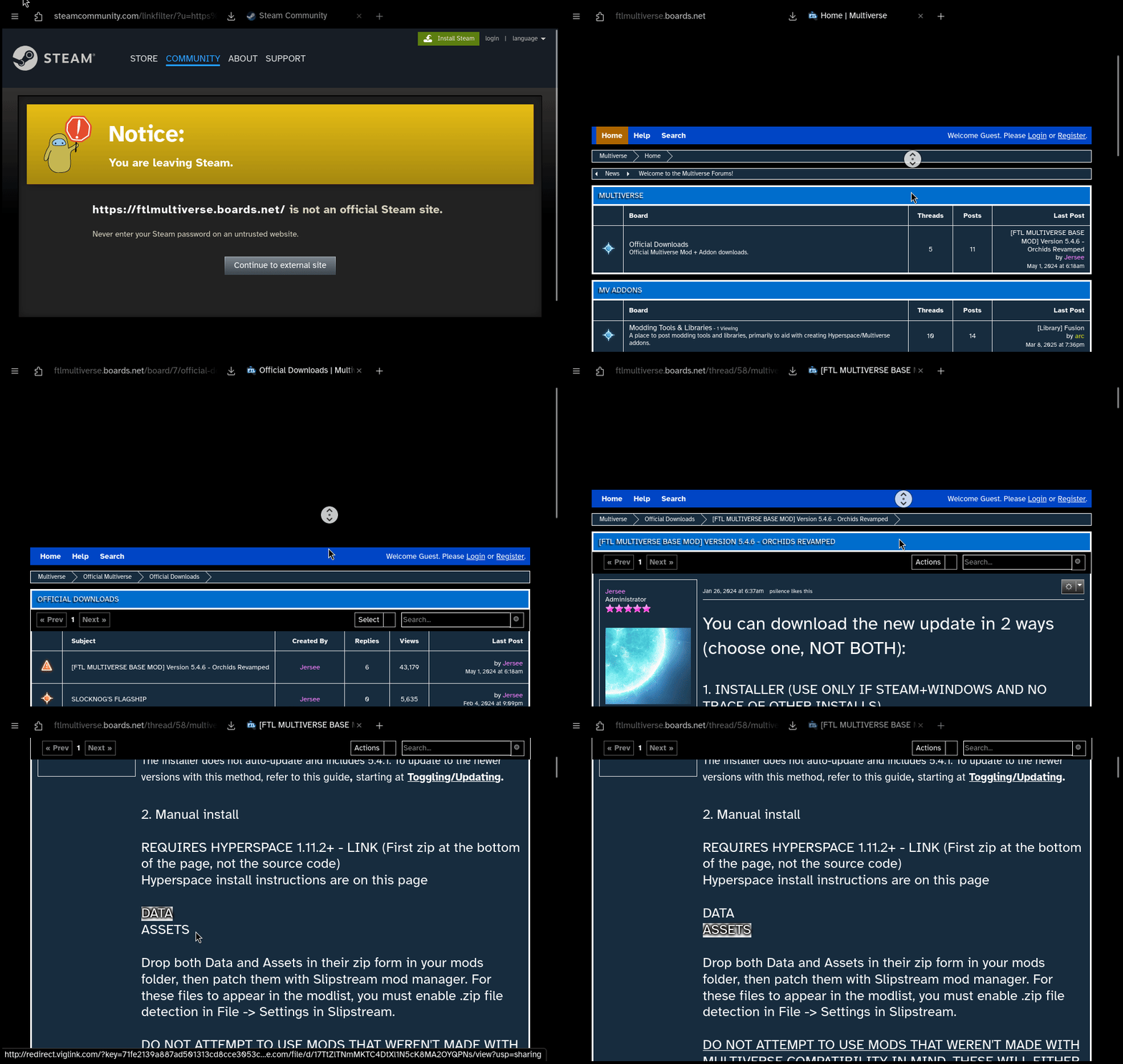
- Download latest FTL: Multiverse Data and Assets from Multiverse Forums[ftlmultiverse.boards.net].
Clicking DATA and ASSETS should direct you to a Google Drive/Dropbox/Mega download page.
ㅤ
Download Mirror[github.com]
ㅤYou should have all these files now
⏎
✔️ Assets.zip
✔️ Data.zip
✔️ ftlman.tar.gz (or ftlman.zip if on Windows)
ㅤ
ㅤ
ㅤ
Install
- Extract ftlman...linux-gnu.tar.gz and move Data.zip & Assets.zip to ftlman/mods.
ㅤ
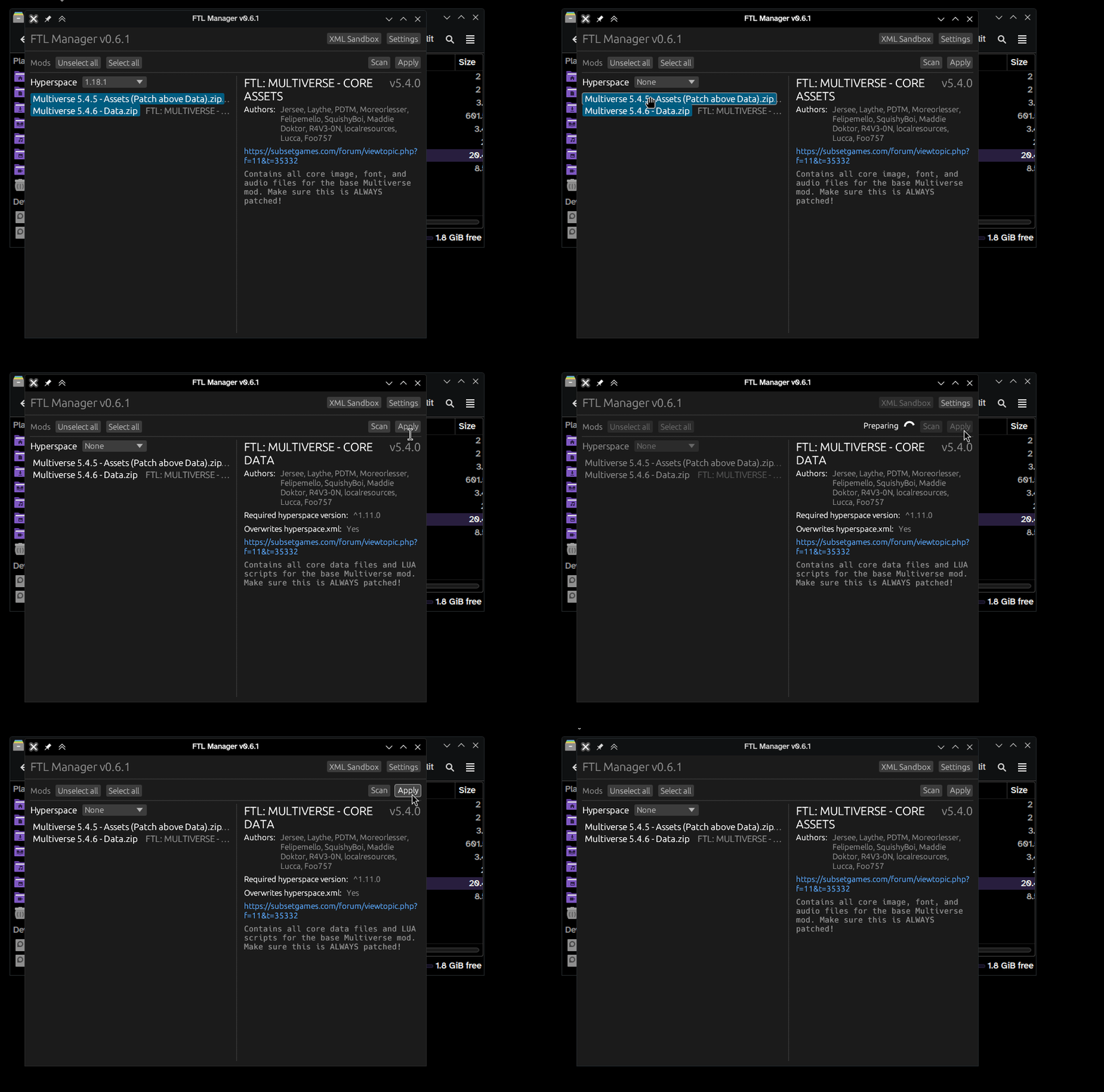
- Launch FTL Manager, select latest Hyperspace version then select/highlight mods you want enabled and click Apply.
ㅤ
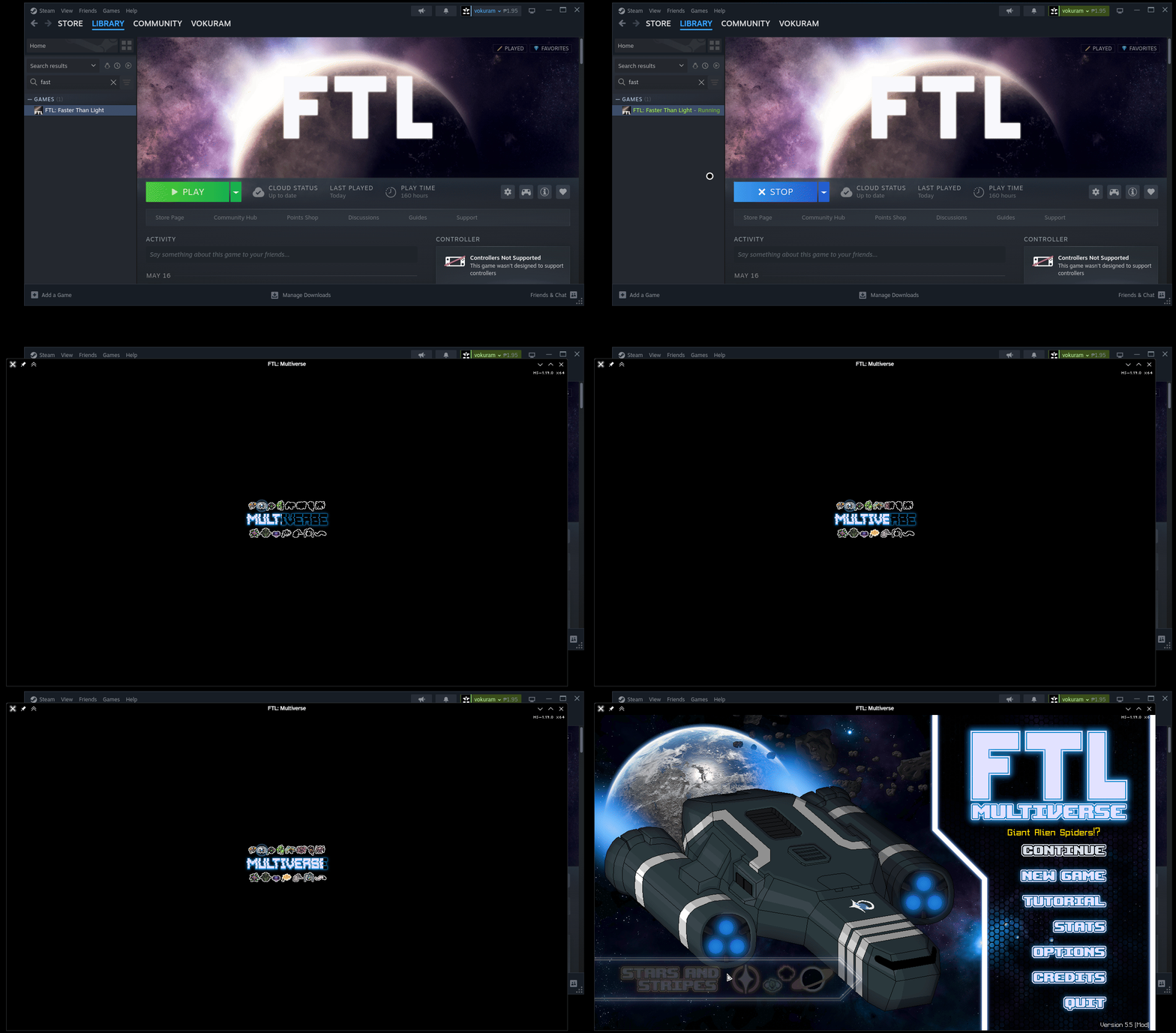
- Launch game on Steam with FTL: Multiverse installed.
Update
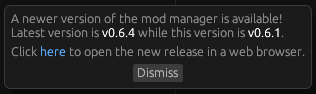
- Overwrite FTL Manager with the latest version (if newer version is available) and move updated FTL: Multiverse files to mods folder.
New files on left window.ㅤㅤㅤㅤㅤㅤㅤㅤㅤㅤCurrent ftlman directory on right window.ㅤ
- Select latest Hyperspace version, unselect previous FTL: Multiverse files then select latest files and click Apply.
Delete old mod files if not used anymore (optional).
Uninstall
On FTL Manager, set Hyperspace version to None then unselect/unhighlight mods you want uninstalled and click Apply.
Issues & Fixes
⚠️ Issue: Vanilla FTL save files conflicting with Multiverse save files
⚠️ Issue: Game not launching/Stuck on loading screen
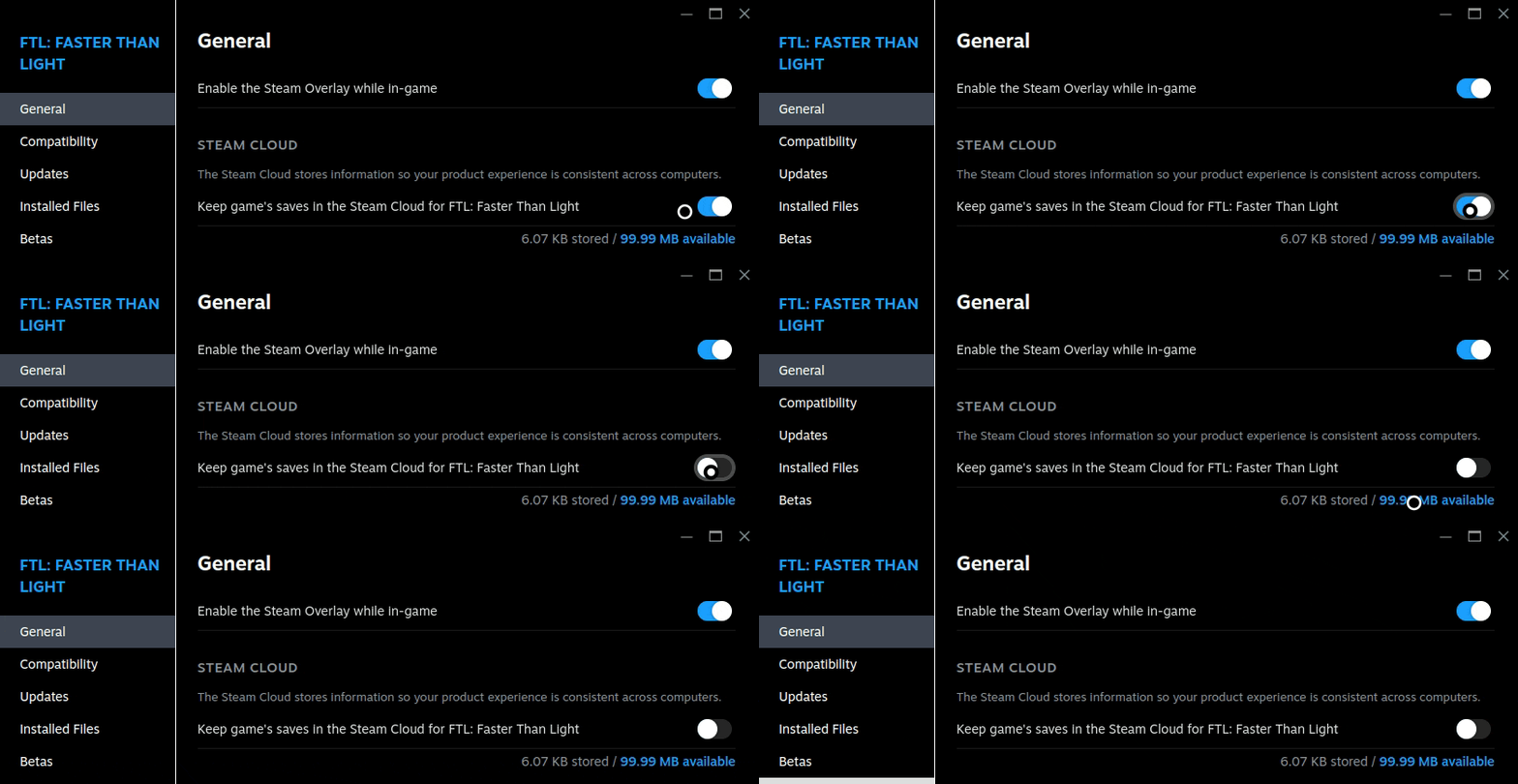
✅ Fix: Disable Steam Cloud and delete vanilla FTL save folder.
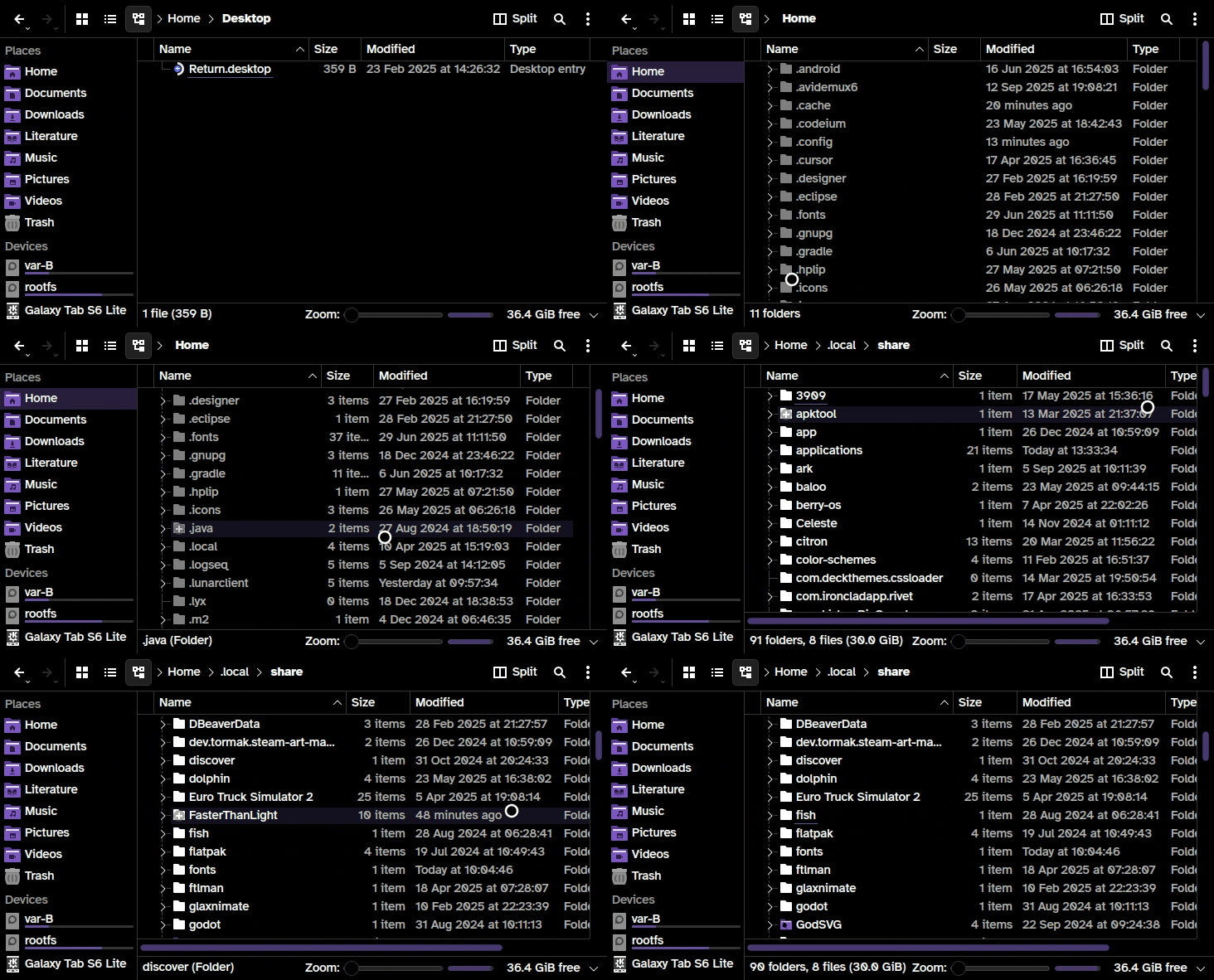
 Delete (or move it somewhere as backup) vanilla FTL local save folder named FasterThanLight located at /home/deck/.local/share/
 ㅤ
ㅤ
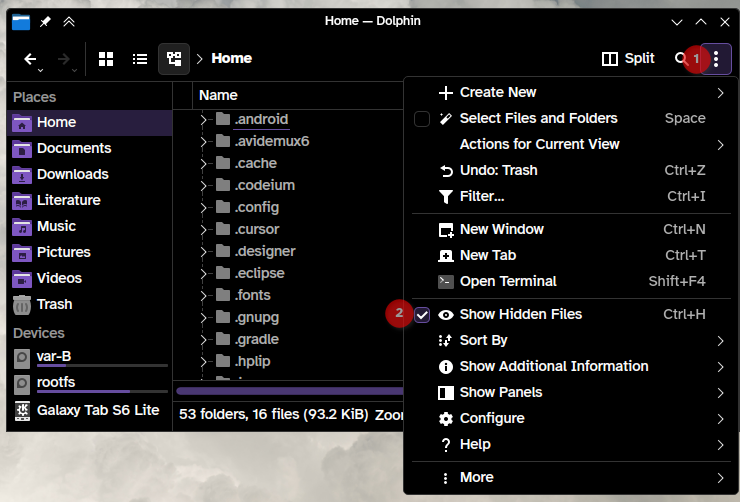
To view hidden files select the "Three dotted icon" and enable Show Hidden Files
ㅤ
ㅤ
ㅤ
⚠️ Issue: Wrong FTL executable for operating system
✅ Fix: Make sure that you download the correct FTL executable for your operating system
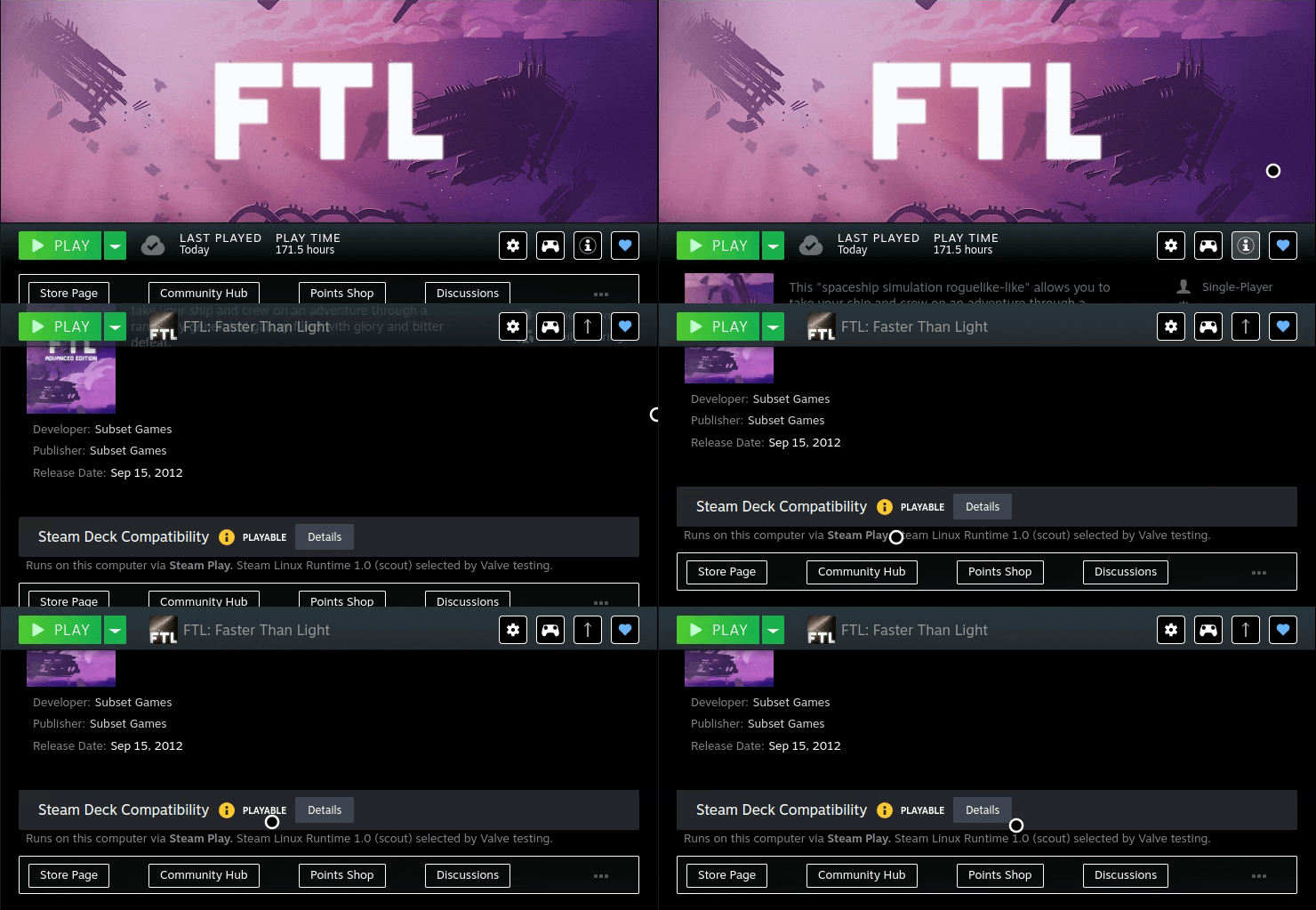
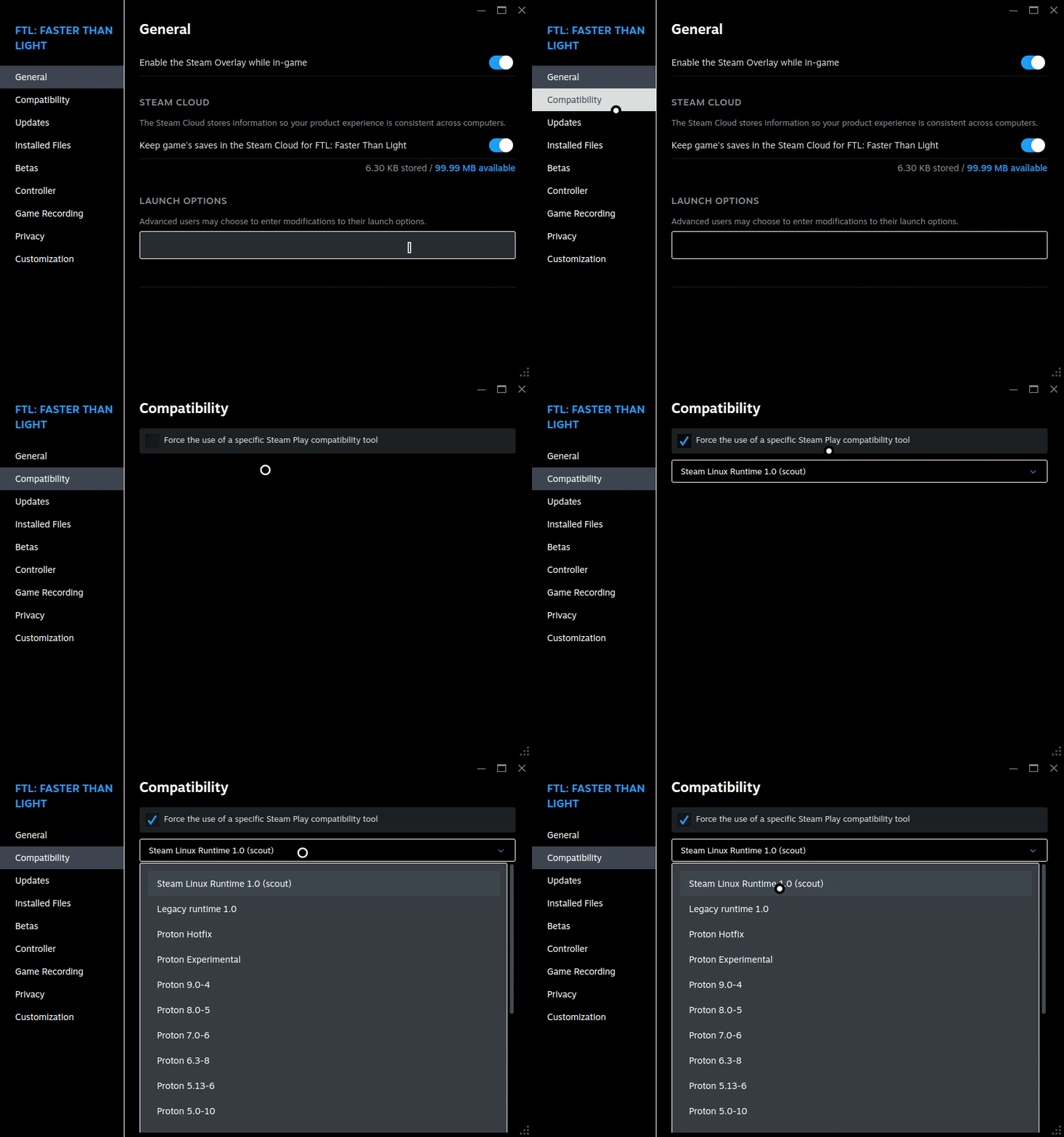 Change the compability option to the following:
*Steam should automatically download the proper executable for your OS
*if on Steam Deck make sure that the game is not running under Proton
ㅤ
ㅤ
ㅤ
⚠️ Issue: Cloud Sync Error
⚠️ Issue: Cloud Sync Error after uninstalling
✅ Fix: Delete vanilla FTL local save folder, re-enable sync and play the game to sync.
Delete vanilla FTL local save folder named FasterThanLight located at /home/deck/.local/share/
Re-enable Steam Cloud if disabled
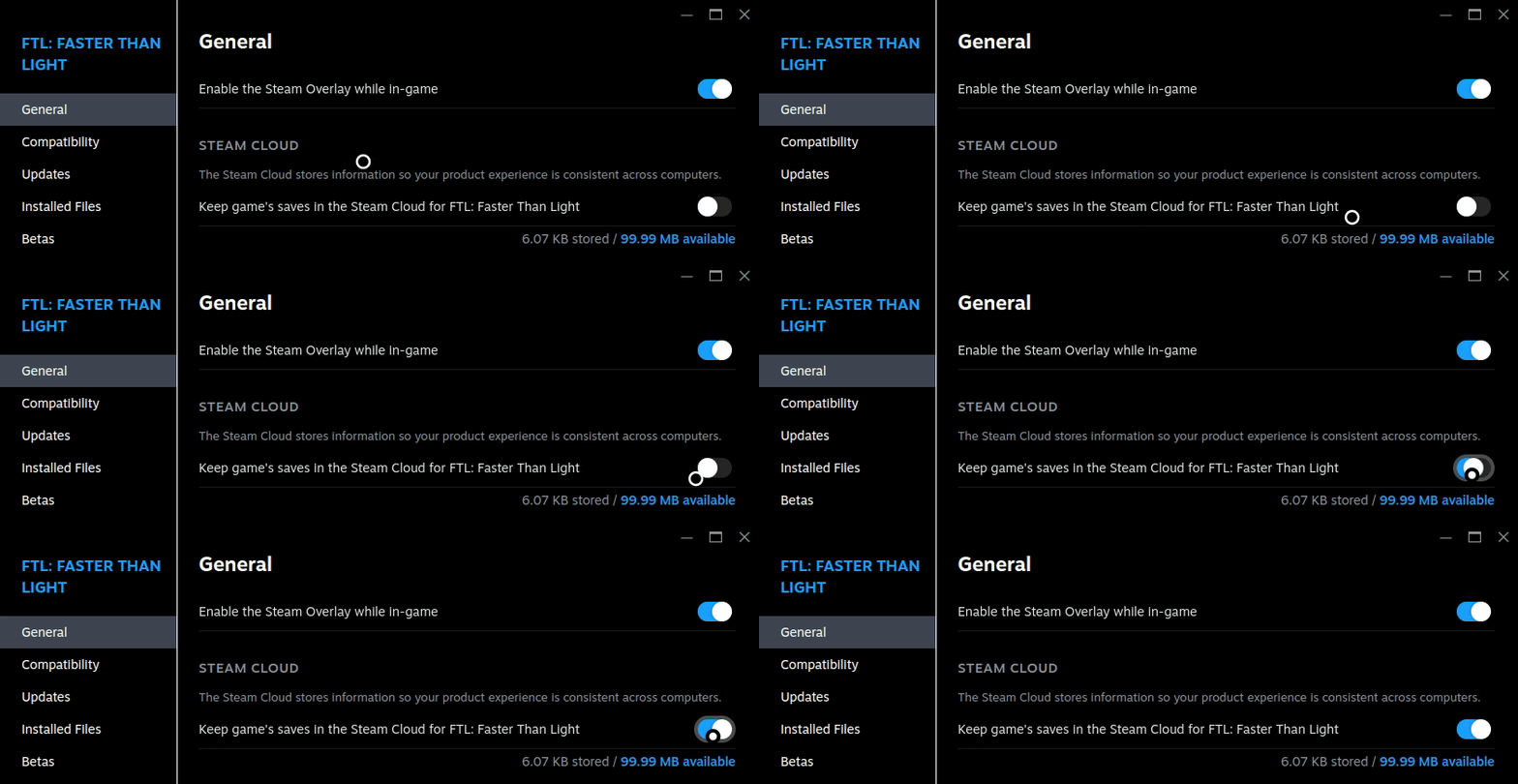
Play the game to sync latest saves from Steam Cloud.
ㅤ
ㅤ
ㅤ
⚠️ Issue: Hyperspace option in FTLMan missing
✅ Fix: Locate FTL directory on Steam > copy file location > paste it on FTLMan FTL directory field > Restart FTLMan
ㅤ
ㅤ
ㅤ
⚠️ Issue: SELinux is preventing hyperspace from running
⚠️ Issue: Hyperspace/FTL: Multiverse refuses to run on Fedora linux
⚠️ Issue: "Failed to install hook"
✅ Fix: Set SELinux to permissive mode by typing...
ㅤ
ㅤ
ㅤ
⚠️ Issue: "UH OH... Looks like you didn't install hyperspace properly. :("
⚠️ Issue: "Cannot launch game and throws a Steam error"
✅ Fix: Verify Integrity of FTL > let Steam handle the rest > re-apply mods using FTLMan
⚠️ Issue: Game not launching/Stuck on loading screen
✅ Fix: Disable Steam Cloud and delete vanilla FTL save folder.
Delete (or move it somewhere as backup) vanilla FTL local save folder named FasterThanLight located at /home/deck/.local/share/ㅤTo view hidden files select the "Three dotted icon" and enable Show Hidden Files
ㅤ
ㅤ
ㅤ
⚠️ Issue: Wrong FTL executable for operating system
✅ Fix: Make sure that you download the correct FTL executable for your operating system
Change the compability option to the following:Operating System
Compability option
Windows
Do not change
Linux/Steam Deck
Steam Linux Runtime 1.0 (scout)
MacOS
Unknown
*if on Steam Deck make sure that the game is not running under Proton
ㅤ
ㅤ
ㅤ
⚠️ Issue: Cloud Sync Error
⚠️ Issue: Cloud Sync Error after uninstalling
✅ Fix: Delete vanilla FTL local save folder, re-enable sync and play the game to sync.
Delete vanilla FTL local save folder named FasterThanLight located at /home/deck/.local/share/
Re-enable Steam Cloud if disabled
Play the game to sync latest saves from Steam Cloud.
ㅤ
ㅤ
ㅤ
⚠️ Issue: Hyperspace option in FTLMan missing
✅ Fix: Locate FTL directory on Steam > copy file location > paste it on FTLMan FTL directory field > Restart FTLMan
ㅤ
ㅤ
ㅤ
⚠️ Issue: SELinux is preventing hyperspace from running
⚠️ Issue: Hyperspace/FTL: Multiverse refuses to run on Fedora linux
⚠️ Issue: "Failed to install hook"
✅ Fix: Set SELinux to permissive mode by typing...
sudo setenforce 0
This change is temporary: SELinux will revert to its previous state (typically enforcing mode) after you reboot the system.ㅤ
ㅤ
ㅤ
⚠️ Issue: "UH OH... Looks like you didn't install hyperspace properly. :("
⚠️ Issue: "Cannot launch game and throws a Steam error"
✅ Fix: Verify Integrity of FTL > let Steam handle the rest > re-apply mods using FTLMan
More FTL: Faster Than Light guides
- At 200 Hours In: An FTL Master's 42 Top Tips★ 5 (1.7k)94k views2.6k ♥23 minUpdated Apr 2, 2023
- How to install FTL: Multiverse 5.5★ 5 (520)72k views1.3k ♥4 minUpdated Jun 1, 2025
- How to Avoid losing to "Luck"★ 5 (1.3k)66k views1.6k ♥14 minUpdated May 25, 2021
- Quick reference on unlocking ships★ 5 (1.3k)61k views1.9k ♥11 minUpdated Jun 29, 2014
- Practical FTL★ 5 (1.6k)57k views3.4k ♥180 minUpdated Sep 12, 2022
- Know Your Ship: Guide to using Kestrel Class★ 5 (655)51k views1.2k ♥12 minUpdated Jul 31, 2015


This guide was created by its original author on the Steam Community. Are you the author and want it removed? Request removal.