How to install older versions of Beat Saber using Steam
Introduction
Not many people know, but you can revert any Steam game to any update publicly released over the course of its existence. Snapshots of the game content are saved in the Steam database and can be retrieved at any time, no local backups are necessary.
For some people, sudden big updates may mean the breakage of mods or other user-created content. Depending on the amount of code changes in an update, some mods can stay broken and unpatched for extended periods of time. It may also be interesting to see what older versions looked like, and their unique features or bugs (if any).
The following guide will show how to do this specifically for Beat Saber. Hopefully it is useful in addition to update-blocking methods.
Notes:- This method will only work if you own the game on Steam, otherwise the commands provided here will fail.
- Unlike many others, this specific method does NOT require to input your Steam credentials anywhere during the process, as it utilizes the built-in Steam console of your official Steam client!
1. Choosing the version to download
In order to downgrade we first need to know what version we want to install. Version numbers (1.0.0, 1.1.0 etc.) are not used in the Steam database, so we have to refer to dates and Manifest IDs instead. Extended tables in this Guide should help you pick the needed version without having to guess.
- Refer to the tables below (or alternatively, if there's a new version not listed there then check this list[steamdb.info]* on SteamDB).
- Choose the version you want and memorize its corresponding Manifest ID - we will be using it next.
You can click highlighted items to read patchnotes.
* NEW: if you use the SteamDB list, you can click the ◳ button next to the needed version to copy the full command, then click "Open Console". You can then skip directly to Step 3 of this Guide, and Paste the command!
• Recent Versions
• Older Versions
• Experimental Versions
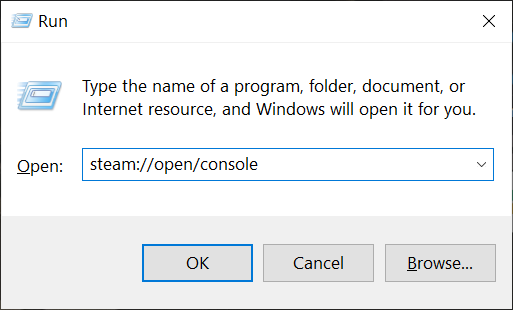
2. Accessing the Steam Console
3. Starting the download
Now that we are in the Steam Console, we can start the download of the version you have chosen. Below is an example for version 1.29.1. The command you need to paste into the form at the bottom will look as follows (where the last number is your ID):
It will initiate the download. The progress will not be visible (other than by the "Network Usage" in your library downloads tab) but it should continue in background until you get the following:
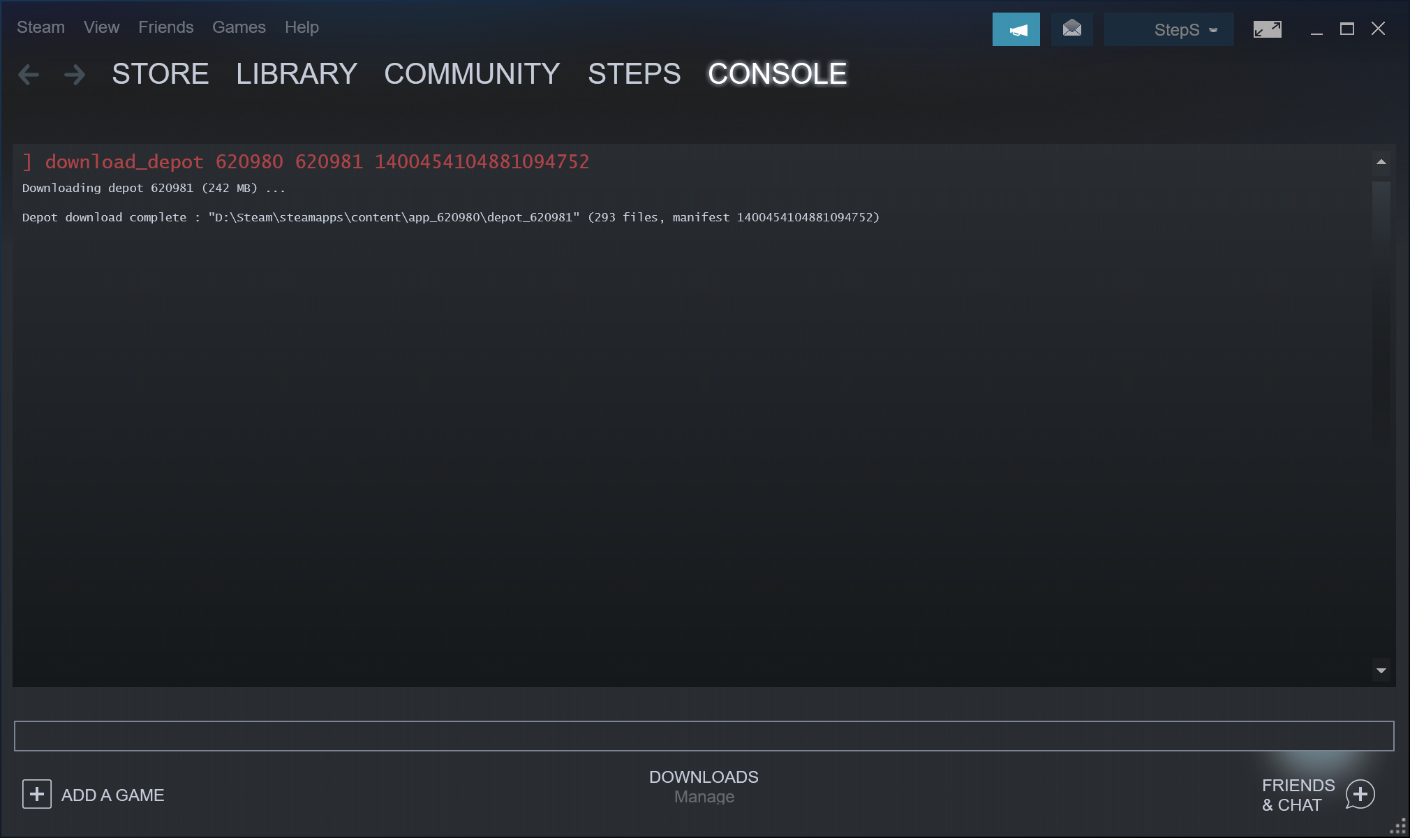
Keep note of the folder path after the words "Depot download complete". That is where the downloaded files are.
(Also ignore any additional random messages you may get before that, they are for debugging purposes and don't affect the download)
4. Managing the downloaded content
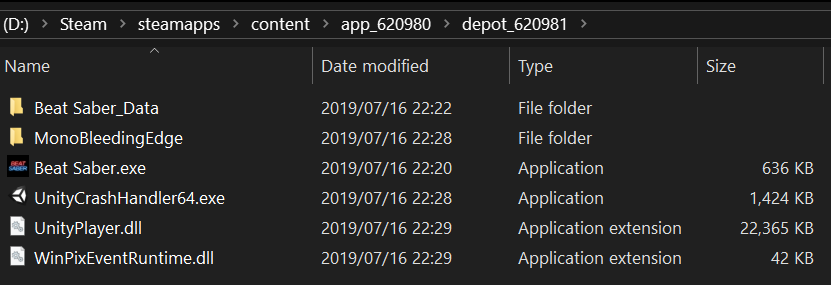
Now that the download is complete, perform the following:
- Copy the resulting path you got in the console and paste it into the Windows Explorer's address bar (example above). *
- You can now select and copy the files.
- Go up the directory tree, back to steamapps. Then open common -> Beat Saber.
- Perform clean-up (don't skip this step, especially if going below 1.29.4!):
- Make backup copies of "Beat Saber_Data\CustomLevels", "DLC" (if you own any) and "UserData" somewhere on your PC (which you can restore later)
- Clear all contents of the Beat Saber directory. Your mods will be removed and can be reinstalled later, but this should prevent obscure issues from occurring.
- Make backup copies of "Beat Saber_Data\CustomLevels", "DLC" (if you own any) and "UserData" somewhere on your PC (which you can restore later)
- Now paste the downloaded files into the Beat Saber directory, accepting the overwrite prompt.
You have now downgraded the game.
If you had mods for older versions, and you have a renamed folder with them (e.g. "Old 1.5.0 Plugins"), you can rename it back to Plugins after downgrading to that version, and then run IPA.exe once to reinstall the patches.
Alternatively, just open your mod manager and select the version you've downgraded to, downloading and installing your mods again.
* This is the entire installation of the game at the time of that version (and not just the update's changes). Do NOT run the EXE from the "depot_620981" folder directly -- Steam will shut down this attempt and automatically restart the game from the main directory/exe which probably still has the latest version.
Troubleshooting
Known major breakages: in 1.16.1 the replay API was updated, hard-breaking older versions, while 1.29.4 changed the game from OpenVR to OpenXR.
- You have some incompatible mod or library installed (possibly a left-over from the previous version you had) or the folder structure has changed such that some excess files produce problems. Try performing the "clean-up" step above;
- Your user data is too new and not supported by older versions. You will have to backup and clear it. It is located in %USERPROFILE%\AppData\LocalLow\Hyperbolic Magnetism\Beat Saber
Unfortunately there is no config-converter tool for downgrading your PlayerData and settings at the moment. However, the format does not change often, so usually you shouldn't have to do this.
Additional material
More methods on downgrading Beat Saber and blocking updates can be found here:
https://steamcommunity.com/sharedfiles/filedetails/?id=2263141699
Downgrading any Steam game through Depot Downloader:
https://steamcommunity.com/sharedfiles/filedetails/?id=2353930763
If you want even more control over your game, and to learn more convenient methods on downgrading your game, you can join the Beat Saber Legacy Group on Discord[discord.gg]. Note that the Group is not associated with this Steam Guide in any way. Be sure to read their rules very carefully!
- Beat Saber Modding Guide [upd. 2019/03/26]★ 4 (149)58k views240 ♥1 minUpdated Aug 5, 2021
- How to prevent Beat Saber from updating★ 5 (369)28k views719 ♥2 min
- Beat Saber - Добавление музыки и модов в игру с помощью Mod assistant★ 4 (77)22k views149 ♥1 minRussianUpdated Sep 30, 2024
- How to get better at Beat Saber★ 5 (457)21k views84 ♥1 minUpdated Nov 12, 2020
- 🩺 Quick Warm-Up for Beat Saber (2 mins)★ 5 (1.1k)18k views1.7k ♥4 minUpdated Jan 31, 2023
- Update broke mods!!! >:(★ 4 (171)15k views246 ♥3 minUpdated Jun 7, 2023




- Upgrading to PremiumTeam Fortress 2★ 5 (20k)1441k views11k ♥6 minUpdated May 11, 2022
- No More Room in Hell Official ManualNo More Room in Hell★ 5 (2.8k)569k views2.1k ♥29 minUpdated Apr 22, 2019
- NMRiH Community Hosting GuidesNo More Room in Hell★ 5 (526)351k views653 ♥1 minUpdated Aug 10, 2022
- How to 'Git Gud' Soon™MORDHAU★ 5 (2k)318k views3k ♥68 minUpdated Nov 16, 2024
- Лучшие кооперативные игры SteamPAYDAY 2★ 5 (1.5k)315k views2.1k ♥56 minRussianUpdated Apr 27, 2025
- Desert Eagle Heat Treated | Blue GemCounter-Strike 2★ 5 (1.6k)293k views1.5k ♥2 minUpdated Jan 16





This guide was created by its original author on the Steam Community. Are you the author and want it removed? Request removal.