How to put your own music/soundtrack into MGSV
Getting started.
First off, your obviously going to need to have music to put in. This process can be repeated for multiple songs. The best way to do this is by a YouTube video, you can also (in theory) put entire videos in MGSV, but were not here to do that, your here for music.
This process is simple:
1:Copy the link to whatever song you want, again, specifically a YouTube video.
2:Go to any sort of MP3 converter, it is recommended you use a YouTube video to MP3 converter, or some other converter that with convert a video into an MP3/Audio file.
Congrats, you have your MP3, good for you. Again, this process can be repeated, so go ahead and get as many songs as you want.
Putting the music into the game.
Okay, so you have your music, good job *pat pat*, now to get it in the game. First you'll need to open the files of MGSV, which means you need to go to the file explorer.
The file should be in the Windows storage area and the file looks like this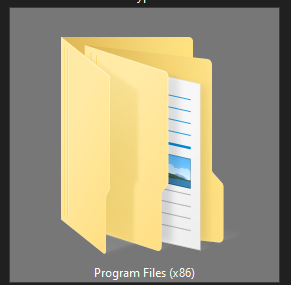
Opening it will probably give you a list, note it may differ from everyone, but it should have a name along the lines of "Program Files".
In this file, you will find a list of smaller files, look for the one titled 'Steam.
One this is done, click on the file called 'steamapps', this is where your games are kept, it should be around the top of the list.
Then, click 'common', it should be at the very top of the list.
From here, you will need to scroll down until you find a file named 'MGS_TPP', this is the file for Metal Gear Solid V:The Phantom Pain. You should see, or see something like this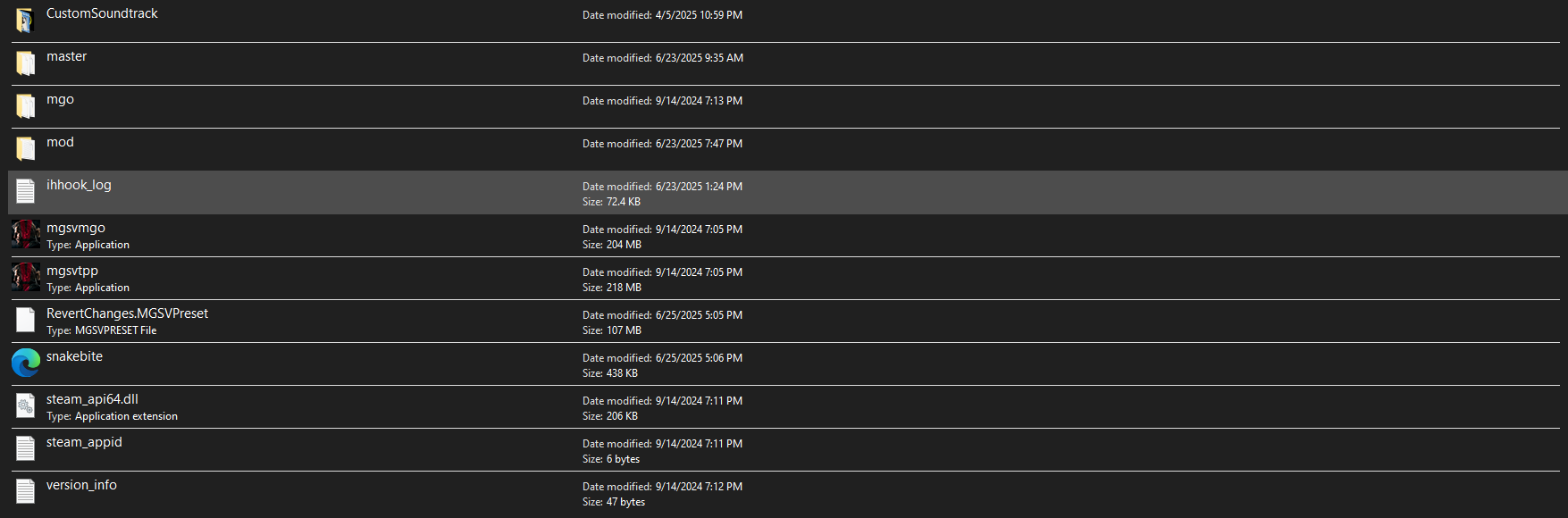
Now, click the file labeled 'CustomSoundtrack'. The first file in there should be titled 'Sands', don't worry about it, you can delete it if you wish.
Putting the music in the game 2, plus extras/warnings?.
So, you have the custom soundtrack open, now this part is simple. Drag and drop the MP3 file into the Custom Soundtrack file, and you're done, wow, congrats, you can also rename the files as always. But anyways, there are some other notices i have.
1, if a song happens to share a name with another song, depending on the converter you used, may change the song from the artist you had to a different artist, the way i found this out was from converting the song 'Crybaby' by Destroy Boys into an MP3, the converter made it into 'Crybaby' by Searows, so beware if it sounds different, you may need to use a different video.
2, The Program Files (i think) look different for everybody, try searching around.
3, You can also set your custom soundtrack songs as your helicopter music.
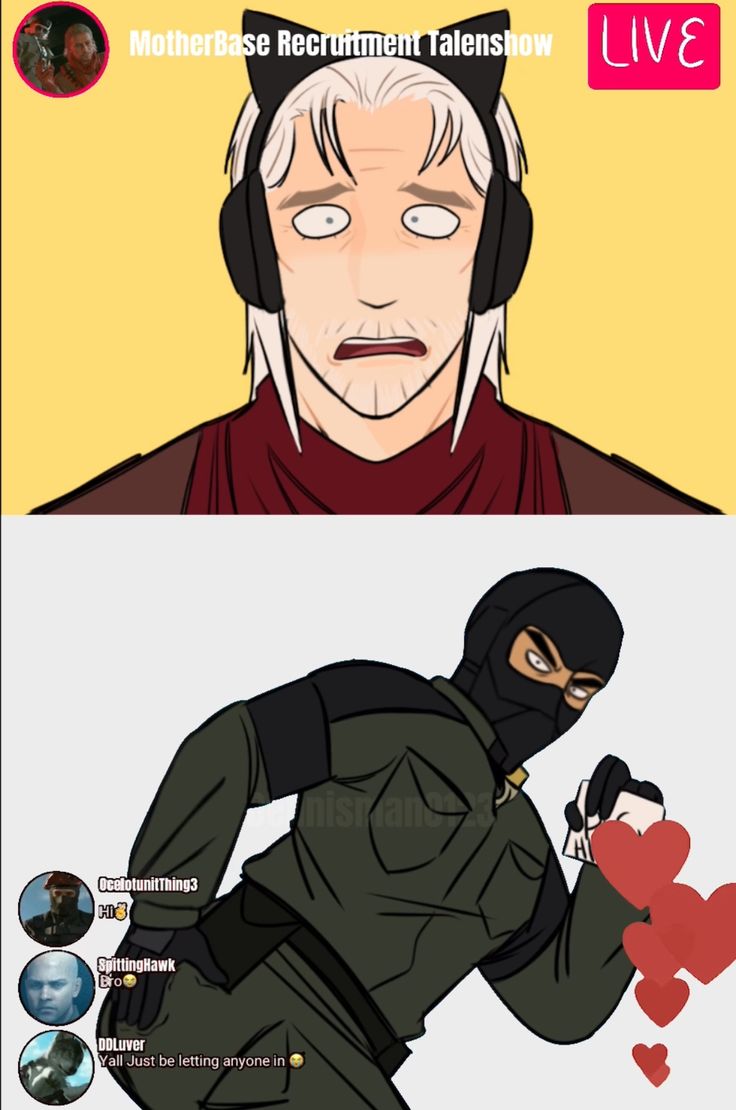
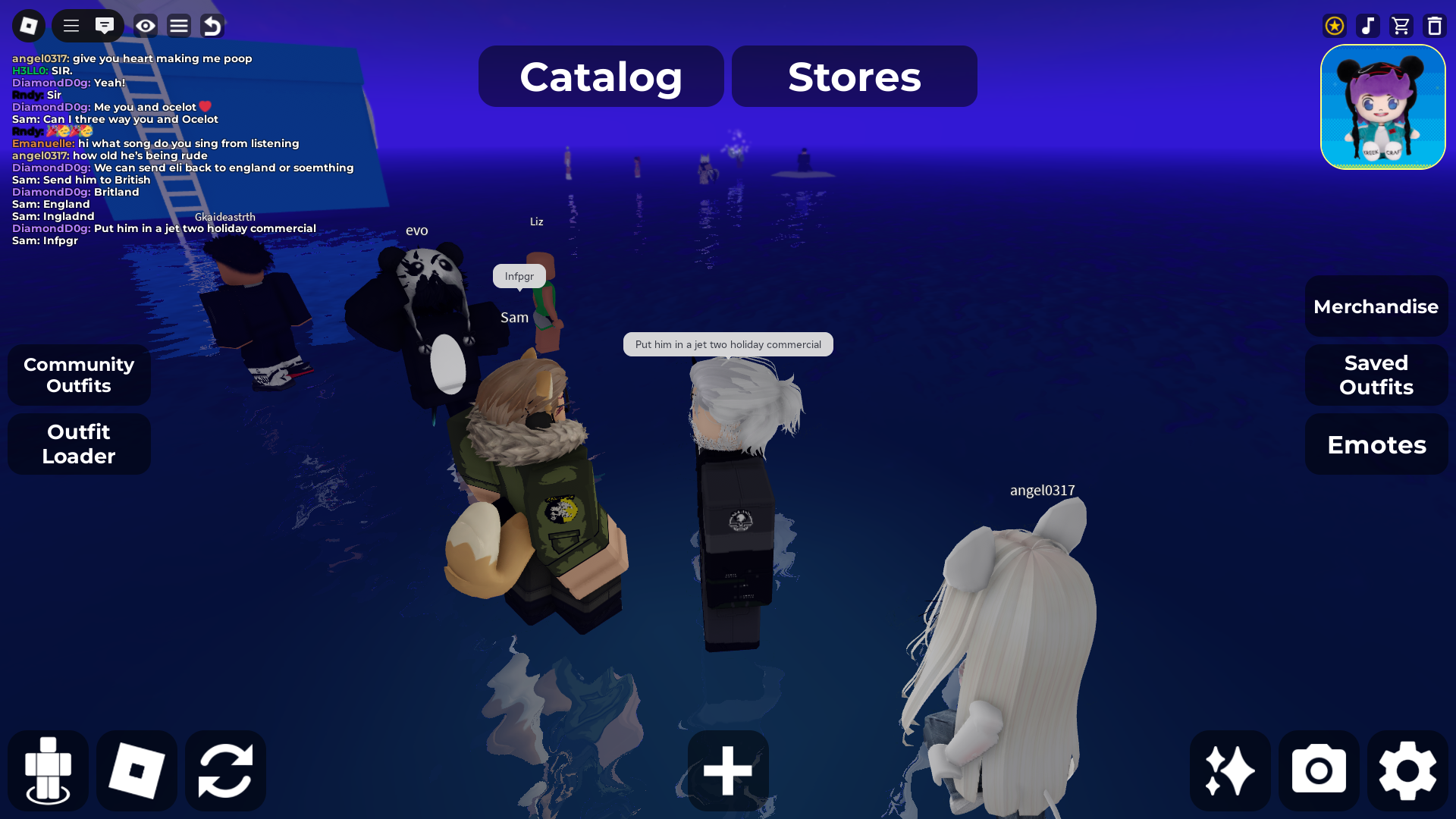
Have fun with this new knowledge and enjoy this glorious artwork from Dennisman0123, and some screenshots.
- The Water Pistol: A serious guide about a "joke" weapon★ 5 (919)78k views802 ♥6 minUpdated Nov 4, 2019
- Advanced Game Mechanics★ 5 (1.5k)45k views2.1k ♥12 minUpdated Oct 1, 2021
- Guide to S Ranking Missions★ 5 (1.3k)35k views2.7k ♥43 minUpdated May 10, 2016
- Recommended Mods for Custom Missions, Side Ops and Beyond★ 5 (866)32k views1.8k ♥10 minUpdated Sep 1, 2022
- All Hideo Kojima Games★ 5 (250)19k views228 ♥19 minUpdated Sep 9, 2025
- MGSV: How to add "Duran Duran - Invisible" to your game★ 5 (286)13k views311 ♥1 minUpdated Oct 21, 2025


- Upgrading to PremiumTeam Fortress 2★ 5 (20k)1441k views11k ♥6 minUpdated May 11, 2022
- No More Room in Hell Official ManualNo More Room in Hell★ 5 (2.8k)569k views2.1k ♥29 minUpdated Apr 22, 2019
- NMRiH Community Hosting GuidesNo More Room in Hell★ 5 (526)351k views653 ♥1 minUpdated Aug 10, 2022
- ULTIMATE GUIDE FOR GAME DEV TYCOONGame Dev Tycoon★ 5 (5.8k)326k views10k ♥4 minUpdated 23 Jan, 2014
- How to 'Git Gud' Soon™MORDHAU★ 5 (2k)318k views3k ♥68 minUpdated Nov 16, 2024
- Лучшие кооперативные игры SteamPAYDAY 2★ 5 (1.5k)315k views2.1k ♥56 minRussianUpdated Apr 27, 2025






This guide was created by its original author on the Steam Community. Are you the author and want it removed? Request removal.