How to Rollback the New Update for Skullgirls (and for other games too)
Part 1: Gathering Depot Information
For the sake of this guide, we will be installing a previous version of Skullgirls so that we can "downgrade" our software. Again, this is applicable to any game on Steam and the guide will henceforth be written in a way that reflects that.
The very first thing you should do is open your internet browser of choice and go to https://steamdb.info/. This is where we will get a few important numbers.
At the top of the site's homepage, there is a search bar. Use this search bar to find the game you want to downgrade and then click on it.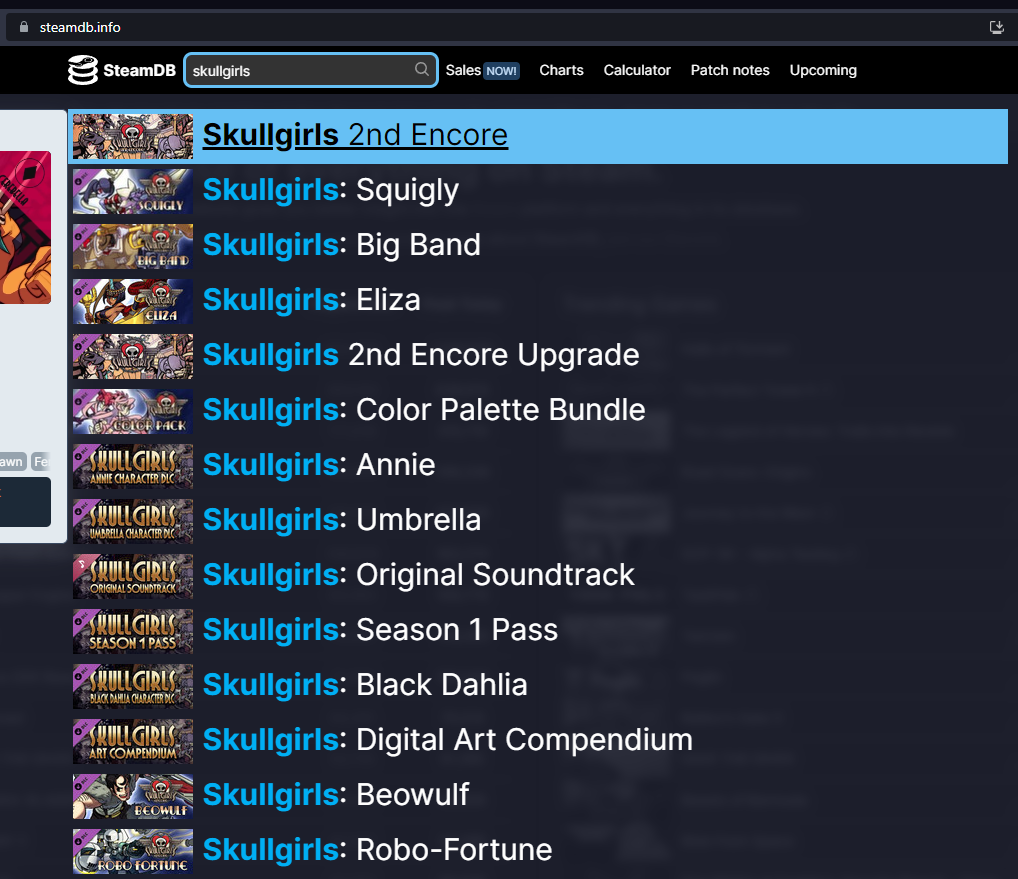
Now that you're at your desired game's SteamDB page, you'll want some means of taking notes readily available. The medium doesn't matter, but I recommend making a text document for this so that you can copy and paste the contents later. Towards the top of your game's SteamDB page, almost directly beneath the game's title will be a section labeled "App ID". Document your game's App ID, you will need it later.
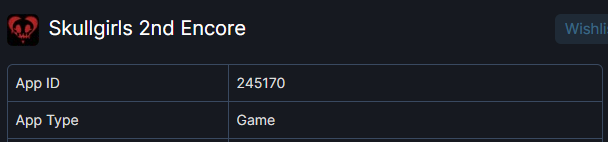
After that, scroll down until you see a list of options/tabs on the left-hand side of the web page. Click the tab that says "Depots".
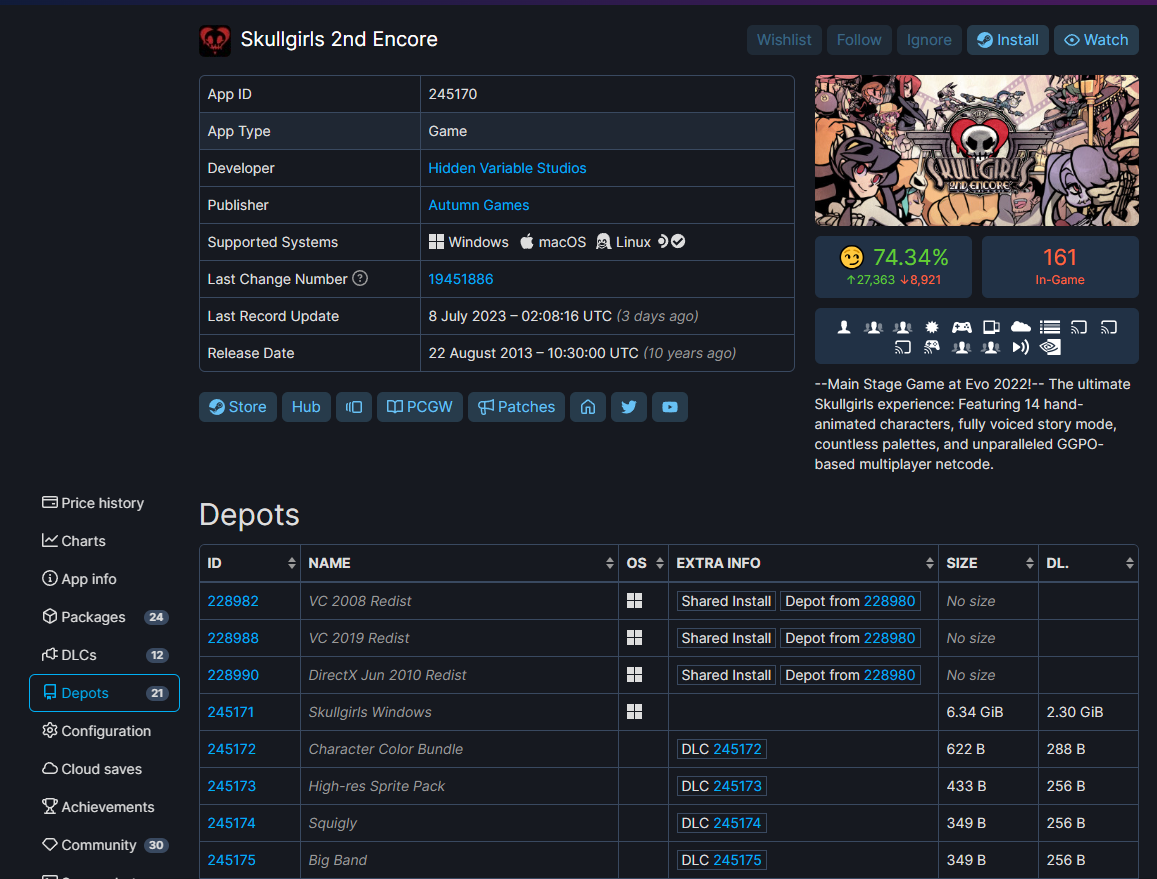
IMPORTANT: The following step(s) will vary on a game-to-game basis. Consult your relevant community hubs (Steam Community tabs, Reddit, etc.) to see if there is already a guide to downgrade that specific game, in which case I implore you to consult that instead. If not, then you might have to go with your best guess. Don't worry, this guide can help you with that too. Again, this step will vary depending on what game you are trying to downgrade. You are looking for the game's base installation depot in the "Depots" tab you just opened. This will usually be named something like "(Game Title) Windows" or "(Game Title) Base", but you are looking for an entry in the Depots tab that has the title of your desired game, has an icon for your preferred OS, and more often than not, is one of the largest files by size in the list. Click on this option's ID.
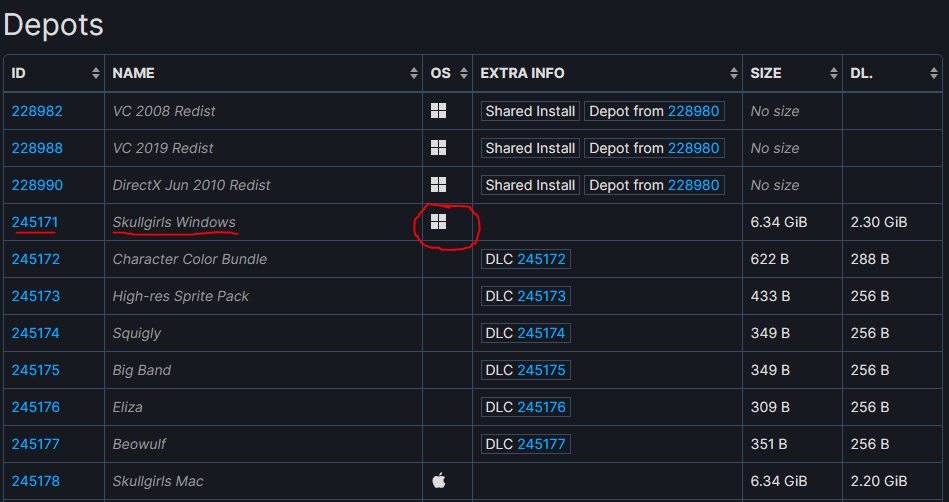
Hopefully, you made the right choice on which file you clicked. After following the previous step, you should arrive at SteamDB's page for your game's base installation depot. This page is set up similarly to the game's main page on SteamDB, so look for the tabs on the left-hand side once again. Click on the tab that says "Manifests".
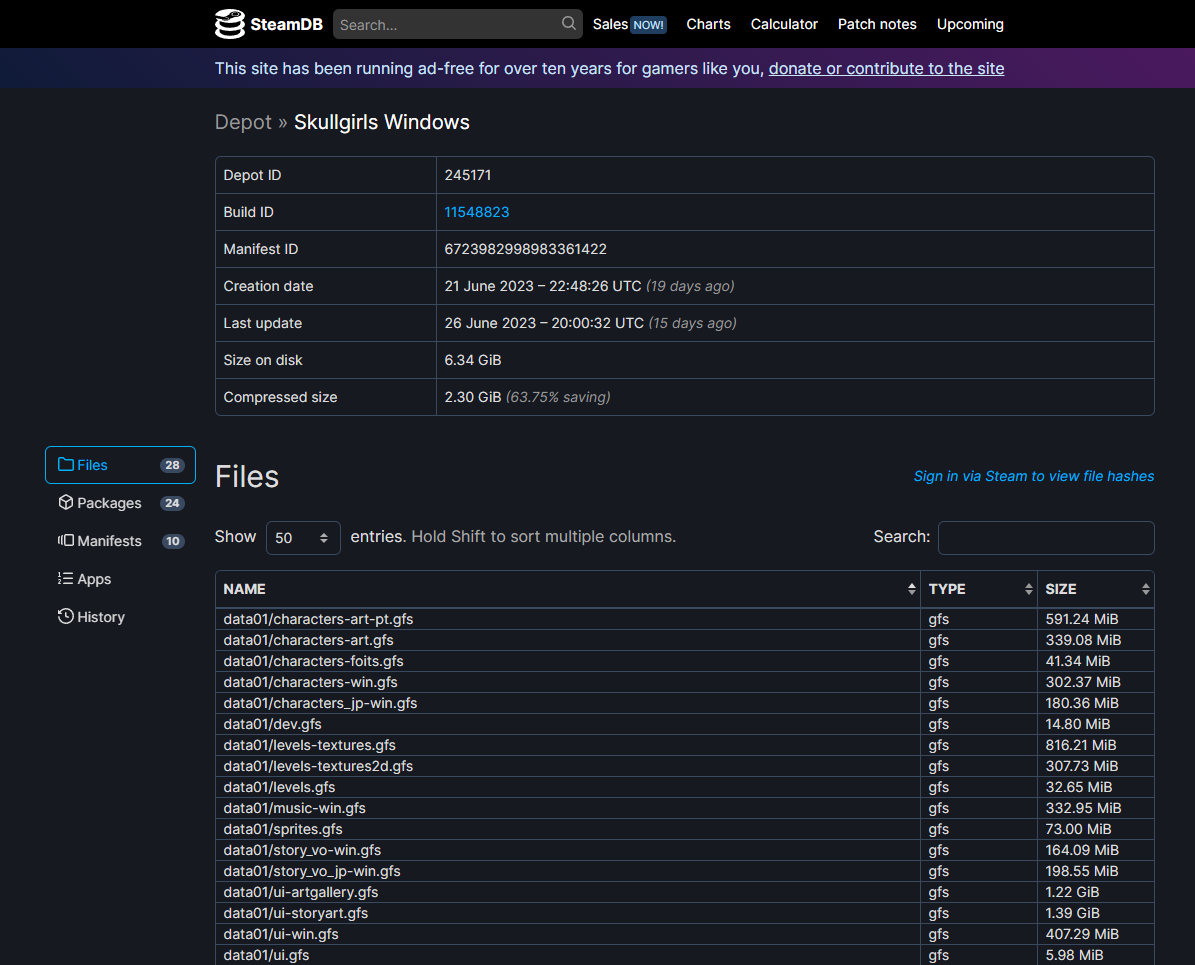
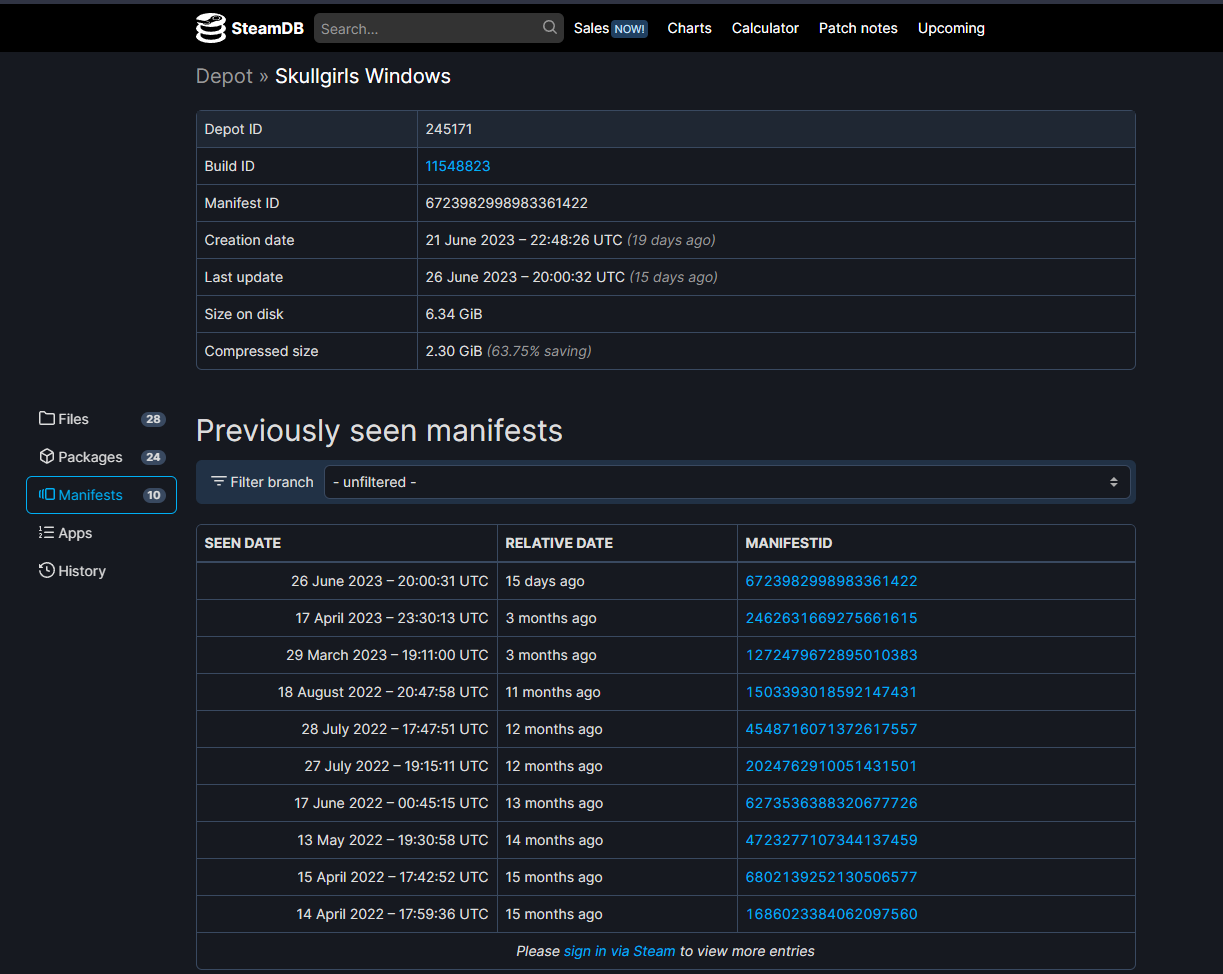
This is the page you ultimately want to end up at. Now, we need to document two more IDs from this page. You are looking for the Depot ID, located towards the top of the page and the Manifest ID, located in the table towards the bottom of the page. Document your game's Depot ID. Then, scroll down, then find and document the Manifest ID that corresponds to the original release date of the game version that you want to downgrade to. If your game was recently updated and has not been updated since, this is usually the second entry in the table.
Part 2: Installing the Downgrade
The bulk of the work is now over, but you're not done yet. Now that you have your game's App ID, Depot ID, and Manifest ID, you can begin installing your downgrade.
First step is to bring up your OS's "run" command (not sure what the equivalent is for Mac or Linux, sorry). Windows users can do this by pressing the Windows Key and the "R" Key simultaneously (Win+R). Clear the text in the window that pops up and enter steam://open/console then press OK to confirm.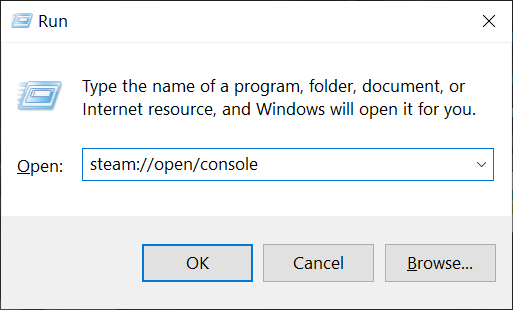
You should now have the Steam application running, on a page you're likely not familiar with. This is the Steam console.
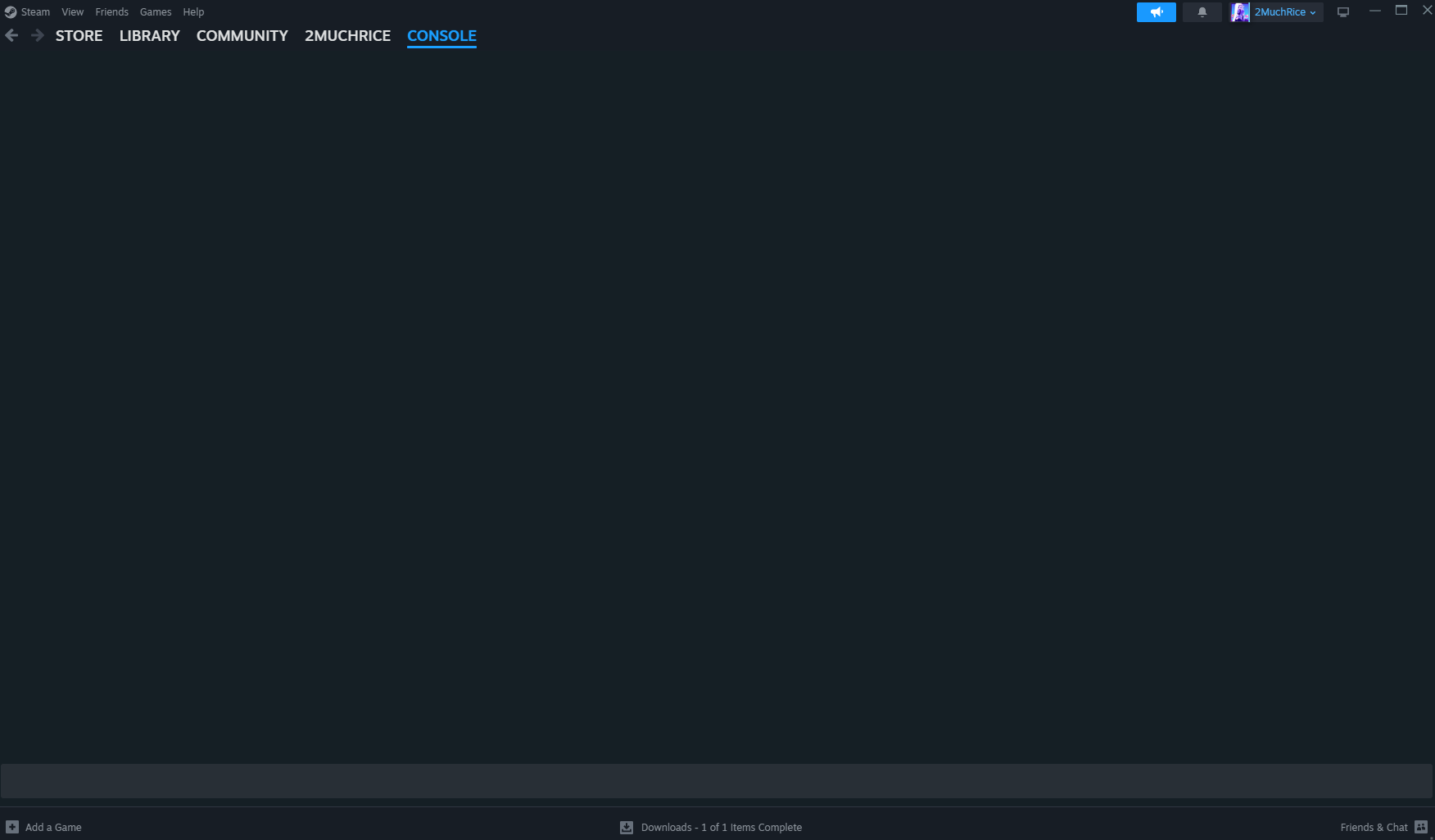
Now, at the bottom of the page is a bar where you can enter text. Enter the following, but replace each ID with its corresponding number, the very same ones that you documented earlier:
download_depot appID depotID manifestID
As an example, the text I would enter to download the last version of Skullgirls before its latest update (as of the time of writing this) would be:
download_depot 245170 245171 2462631669275661615

Take note of the folder path after "Depot download complete" and navigate to the location in your File Explorer. Copy/cut the contents of the folder.
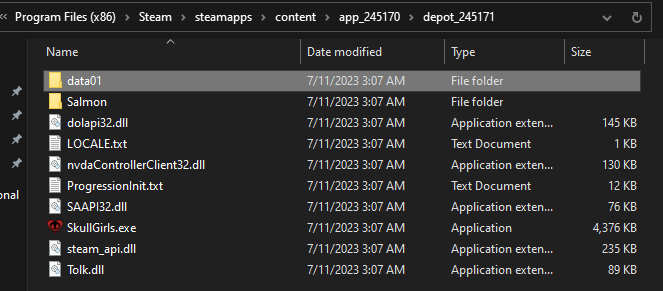
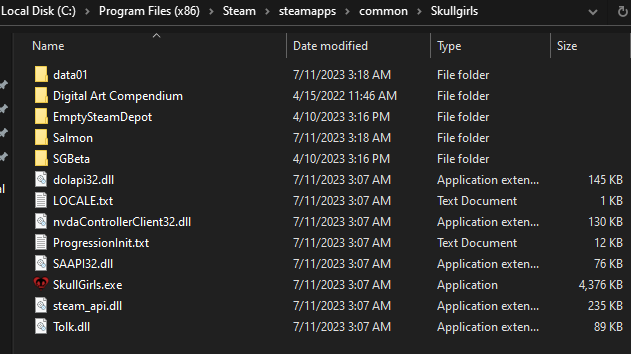
Go to your library and click on your game to bring up its page in your library. Click on the cog wheel on the right hand side of the page to open up an options dropdown. Click on Properties. On the window that opens, navigate to "Installed Files", and click "Browse". This will open up your game's current local files folder in File Explorer. Paste to this folder. Accept the prompt to overwrite any files with the same name.
Enjoy Your Downgrade
Addendum: Restoring the Compendium
PLEASE NOTE: Doing the above will downgrade the game itself, reverting ONLY the art assets that were in the base game itself (animations, story backgrounds, etc.). If you own the Digital Art Compendium DLC, the above procedure WILL NOT affect your compendium, which is a folder in the game's root folder. To restore your compendium, simply follow and/or skip the above steps, pulling your build ID and manifest IDs from this page.
https://steamdb.info/depot/1549100/manifests/
VERY IMPORTANT: Downloading just the manifest ID of the previous build appears to only give an incomplete compendium. I believe the content may be spread across all of the manifests, meaning to get a complete compendium, you may need to download each and every one of the manifests and compile them yourself.
- Achievement Guide★ 5 (1.1k)25k views1.3k ♥8 minUpdated 22 Apr, 2014
- Fighting Game Beginner's Guide★ 5 (1.3k)23k views2k ♥49 minUpdated 8 Sep, 2013
- How to Unlock Alt. Voices★ 5 (462)22k views569 ♥14 minUpdated 24 Jun, 2017
- Defense in Skullgirls★ 5 (616)17k views733 ♥16 minUpdated 20 Mar, 2016
- [MOD] Pre-Censorship Original Story Art★ 5 (615)15k views478 ♥3 minUpdated 28 Jun, 2023
- Skullgirls: руководство для начинающих и не только★ 5 (558)14k views1k ♥68 minRussianUpdated 11 Mar, 2020


- Upgrading to PremiumTeam Fortress 2★ 5 (20k)1441k views11k ♥6 minUpdated May 11, 2022
- No More Room in Hell Official ManualNo More Room in Hell★ 5 (2.8k)569k views2.1k ♥29 minUpdated Apr 22, 2019
- NMRiH Community Hosting GuidesNo More Room in Hell★ 5 (526)351k views653 ♥1 minUpdated Aug 10, 2022
- ULTIMATE GUIDE FOR GAME DEV TYCOONGame Dev Tycoon★ 5 (5.8k)326k views10k ♥4 minUpdated 23 Jan, 2014
- How to 'Git Gud' Soon™MORDHAU★ 5 (2k)318k views3k ♥68 minUpdated Nov 16, 2024
- Лучшие кооперативные игры SteamPAYDAY 2★ 5 (1.5k)315k views2.1k ♥56 minRussianUpdated Apr 27, 2025






This guide was created by its original author on the Steam Community. Are you the author and want it removed? Request removal.