How to run Mechwarrior Online in Linux
[1] Getting Steam Ready
Getting Mechwarrior Online to run in Linux is actually very easy and doesn't take long. There are only three simple steps and it'll take about 5 minutes (if that) to do. I've also tried to make it as simple as possible using screenshots etc. Anyway...
First off - Make sure you have Steam installed. If you don't already have Steam installed and you're viewing this guide using a web browser, it is likely available within your distribution's software store or repository. If you're reading this guide within Steam (as opposed to the Steam website) then you're already good to go!
Start Steam and log in.
Using the top title-bar in Steam click:
Steam > Settings
A window will open:
Go to Steam Play
Tick:
Enable Steam Play for supported titles
Enable Steam Play for all other titles
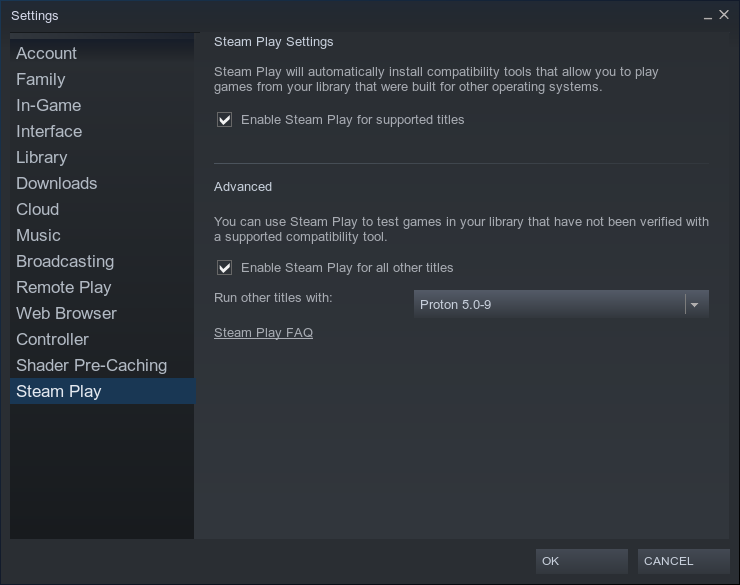
Steam may ask you to restart - go ahead and do so.
Within Steam, download/install Mechwarrior Online
[2] GloriousEggRoll's Proton Build
Because the current versions of Proton in Steam do not properly allow Mechwarrior Online to run in Linux, we'll need a special custom version. There are two ways to do this - either via terminal or by GUI. Terminal is faster and easier, GUI is probably more comfortable for users fresh from Windows.
- Open terminal
Your system will now create the required directory, download the custom Proton version, then extract it to the created directory:
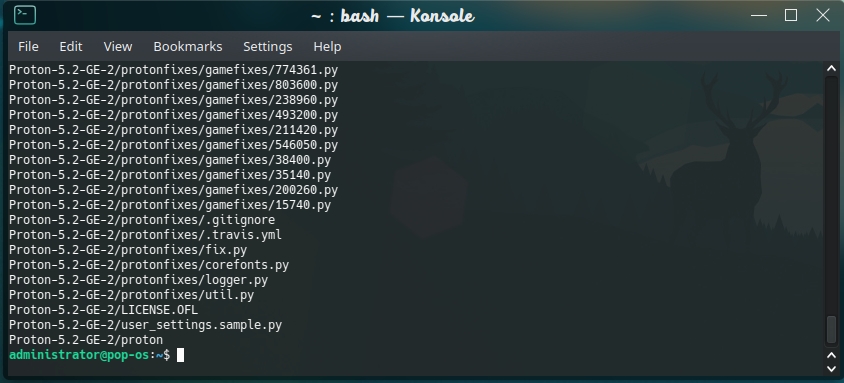
And you're done! Close terminal and move onto Step [3] - Setting Mechwarrior Online to use the new Proton Build
- Completely quit Steam if it is currently running
- Download GloriousEggRoll's Proton Build 5.2-GE-2[github.com]
From this link, download Proton-5.2-GE-2.tar.gz
- In your system, we'll need to create a new folder where the custom Proton build will go.
Navigate to ~/.steam/root/
Notes:
~ refers to your HOME directory
Any folder with a prefix of . means it is hidden. You may need to show hidden folders to find the .steam directory. The easiest way is to just copy and paste ~/.steam/root/ into the filepath.
- Create a new folder called compatibilitytools.d
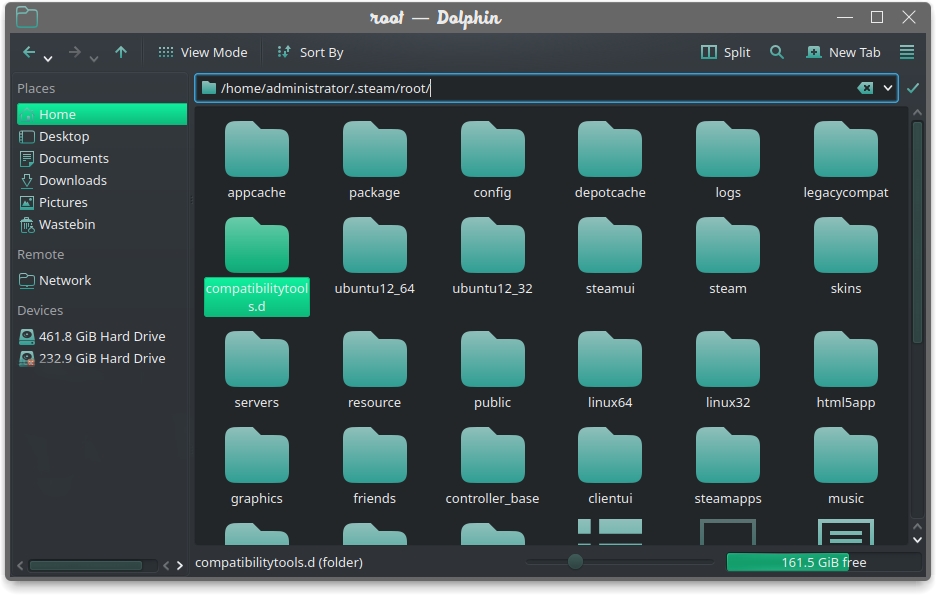
- Extract Proton-5.2-GE-2.tar.gz to ~/.steam/root/compatibilitytools.d
[3] Setting Mechwarrior Online to use the new Proton Build
Now you have GloriousEggRoll's custom Proton build installed, we need to set Mechwarrior Online to use it.
1)
From your games library, right click on Mechwarrior Online and click Properties.
2)
Click Set Launch Options...
In the box that opens, copy and paste:
%command% -noprompt -anygpu
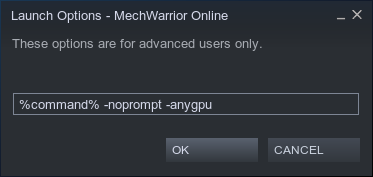
Click OK.
(Mechwarrior Online tends to complain about graphics cards in Linux - this command stops the pop-up box from bugging you).
3)
Tick:
Force the use of a specific Steam Play compatibility tool
From the drop down list, choose:
Proton-5.2-GE.2
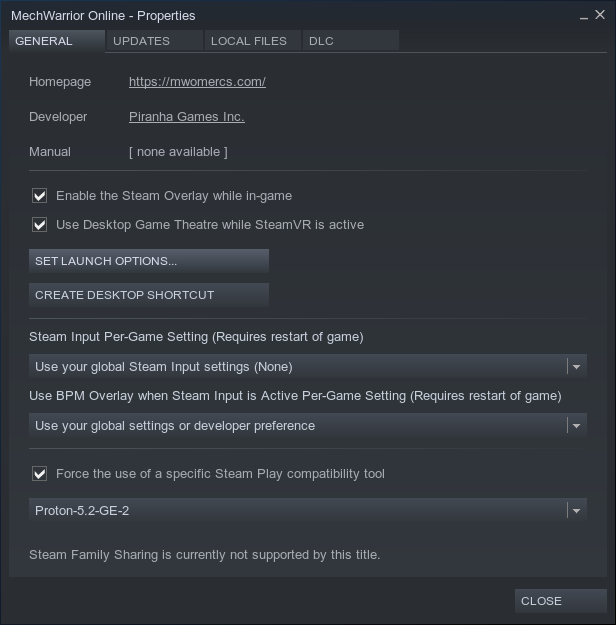
Click Close.
[4] Play the game! (& Troubleshooting)
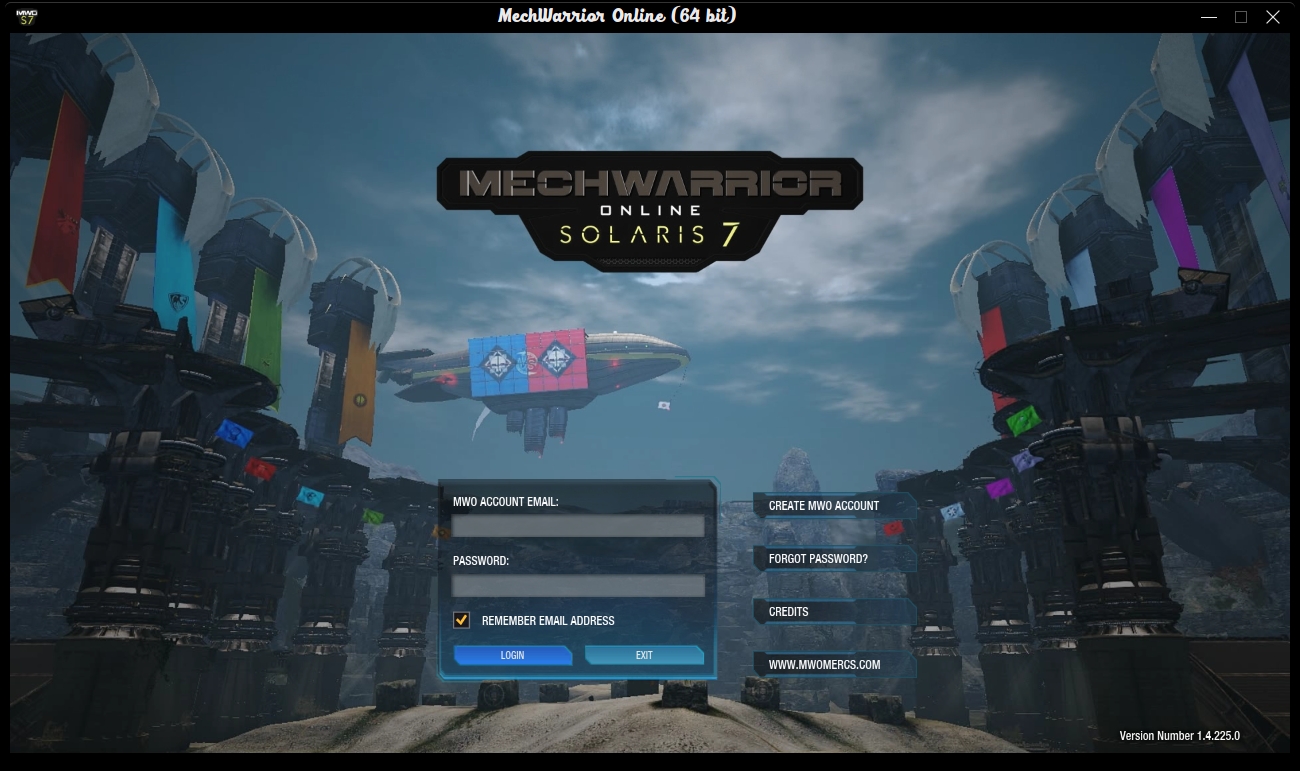
However, if you have any troubles:
Feel free to leave a comment in the comments section for this guide. I might not have the answer, but I might be able to help. Also consider the below:
1)
Make sure that your graphics drivers are up to date.
If you have an AMD or Intel graphics card, the drivers are within the Linux kernel. This means that keeping your system updated will automatically use the latest drivers for this hardware.
NVIDIA users will need to install their drivers manually, as NVIDIA drivers are proprietary (ie, not open source).
2)
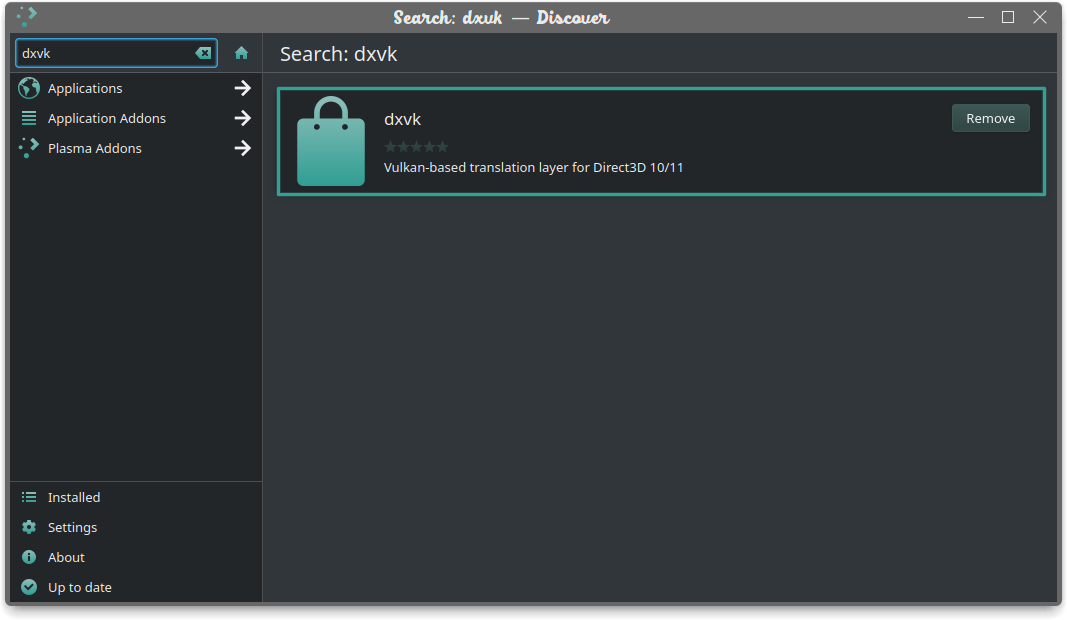
Make sure that you have DXVK (Vulkan) installed. This should be available in your distributions software centre. If not, a quick online search should tell you how to install the Vulkan libraries on your system.
3)
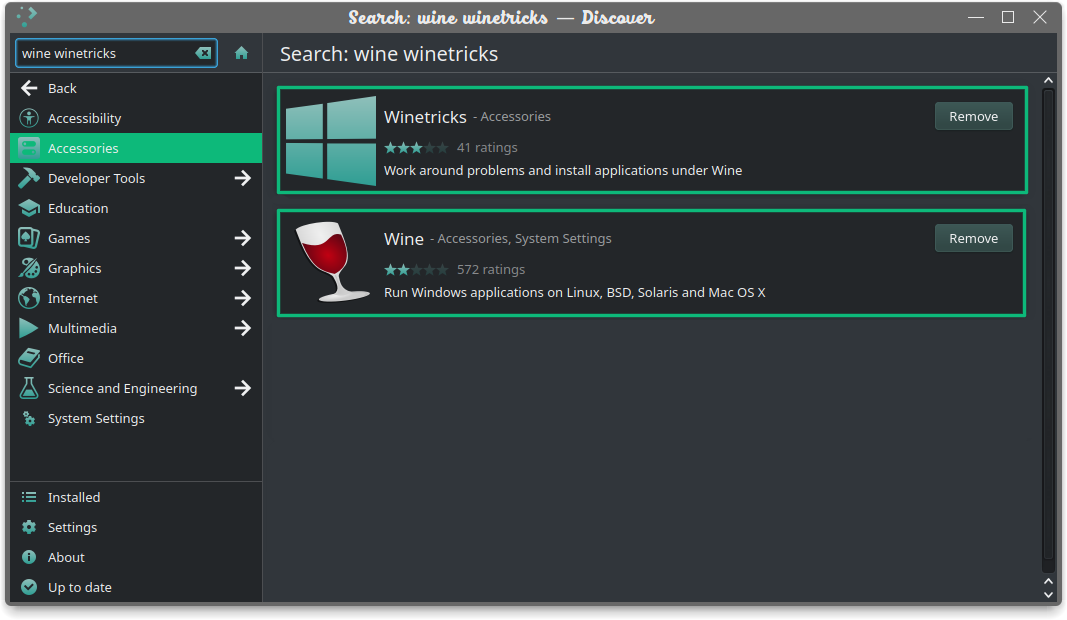
Install Wine and Winetricks from your distributions repository (or software store).
4)
There are additional steps you can follow at the Proton Wiki[github.com] if you are struggling (particularly if you are using Ubuntu 18.04) 5)
If you used the terminal method and ran into a problem, try running each of the commands individually:
- A Noob's Guide to Mechwarrior Online★ 5 (309)20k views421 ♥30 minUpdated Sep 29, 2021
- Light Mech Combat Guide★ 5 (217)12k views211 ♥19 minUpdated Apr 23, 2016
- Подробное руководство по игре (с картинками!)★ 5 (439)11k views484 ♥70 minRussianUpdated Dec 15, 2024
- A First Buyers Guide: Something to Consider★ 4 (102)11k views79 ♥6 minUpdated Jan 15, 2016
- Running Cold: The Comprehensive Guide to Heat - MWO★ 5 (256)9.2k views240 ♥41 minUpdated Jul 8, 2016
- Heavier Guns: A Quick Glimpse at Free Tonnage (Clan Mechs) - MWO★ 4 (56)6.1k views50 ♥3 minUpdated Apr 14, 2022




- Upgrading to PremiumTeam Fortress 2★ 5 (20k)1441k views11k ♥6 minUpdated May 11, 2022
- No More Room in Hell Official ManualNo More Room in Hell★ 5 (2.8k)569k views2.1k ♥29 minUpdated Apr 22, 2019
- NMRiH Community Hosting GuidesNo More Room in Hell★ 5 (526)351k views653 ♥1 minUpdated Aug 10, 2022
- ULTIMATE GUIDE FOR GAME DEV TYCOONGame Dev Tycoon★ 5 (5.8k)326k views10k ♥4 minUpdated 23 Jan, 2014
- How to 'Git Gud' Soon™MORDHAU★ 5 (2k)318k views3k ♥68 minUpdated Nov 16, 2024
- Лучшие кооперативные игры SteamPAYDAY 2★ 5 (1.5k)315k views2.1k ♥56 minRussianUpdated Apr 27, 2025






This guide was created by its original author on the Steam Community. Are you the author and want it removed? Request removal.