How to setup the custom radio
Basics
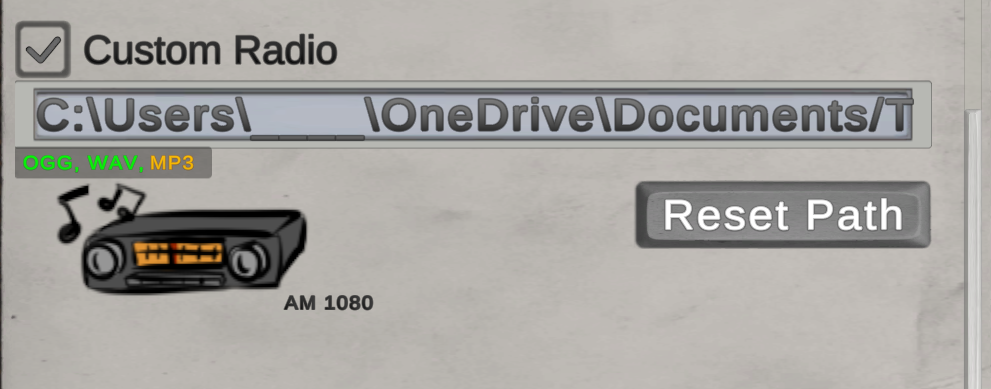
How to get the files and where to put them
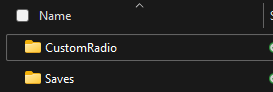
First, you will need an audio file you can get one in many ways like a YouTube to mp3 converter or downloading it from a site. The file you get will most likely be in the .mp3 or some other format so we will need to convert it. you can do this in many ways but I use https://github.com/Tichau/FileConverterright click on a file then select Show more options, locate File Converter, a drop-down menu will appear and you will select .ogg. After the file is converted locate documents>TheLongDrive>CustomRadio and drop the file in there.

 [/previewimg
] If you can't find it then try to follow the path shown in the settings for the radio. Or if the custom radio folder isn't there make a folder and name it "CustomRadio" spelled exactly like that.
The Radio plays songs randomly so the order doesn't matter. If the radio doesn't play press reset path in the settings menu.
Like if this helped you :)
- Beginner's guide★ 5 (346)42k views580 ♥14 minUpdated Aug 29, 2020
- Using Modifications★ 5 (254)39k views595 ♥4 minUpdated Oct 15, 2024
- [?] КАК ИГРАТЬ в The Long Drive MULTIPLAYER ✅★ 4 (104)33k views158 ♥1 minRussianUpdated Dec 21, 2024
- Интересные сиды/семя★ 4 (97)25k views219 ♥2 minRussianUpdated Sep 3, 2023
- Мир The Long Drive★ 5 (259)25k views437 ♥61 minRussianUpdated Apr 22
- TLD Engine Recognition Guide★ 5 (260)22k views664 ♥1 minUpdated Jun 22, 2023


- Upgrading to PremiumTeam Fortress 2★ 5 (20k)1441k views11k ♥6 minUpdated May 11, 2022
- No More Room in Hell Official ManualNo More Room in Hell★ 5 (2.8k)569k views2.1k ♥29 minUpdated Apr 22, 2019
- NMRiH Community Hosting GuidesNo More Room in Hell★ 5 (526)351k views653 ♥1 minUpdated Aug 10, 2022
- ULTIMATE GUIDE FOR GAME DEV TYCOONGame Dev Tycoon★ 5 (5.8k)326k views10k ♥4 minUpdated 23 Jan, 2014
- How to 'Git Gud' Soon™MORDHAU★ 5 (2k)318k views3k ♥68 minUpdated Nov 16, 2024
- Лучшие кооперативные игры SteamPAYDAY 2★ 5 (1.5k)315k views2.1k ♥56 minRussianUpdated Apr 27, 2025






This guide was created by its original author on the Steam Community. Are you the author and want it removed? Request removal.