Learning Lua - A beginner's guide to scripting
Introduction
This is the first guide in the series. The second is Learning More Lua. The third is a collection of useful functions titled Learning Lua Functions.
Before The First Keystroke
Instructions on installation and setup of Atom[berserk-games.com]
Next you should bookmark the documentation knowledge base[berserk-games.com]. You will be referencing this site often once you start to write your own scripts. Its where you go to find Tabletop Simulator specific functions and how they work. You will most often use the API and Objects pages, at least in my experience.
Setting Up
- Set up the table the way you want it.
- Save the table.
- Load the table.
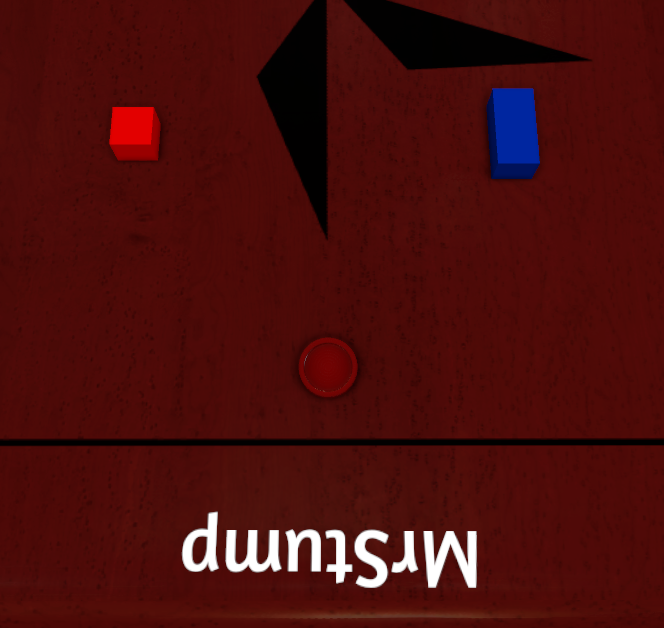
For this exercise, take a blank table and spawn two objects (I used a square block and rectangle block) as well as a red checker.
Remember to save/load then open up the scripting in Atom or go to Host > Scripting in Tabletop Simulator to begin.
1) Global.lua
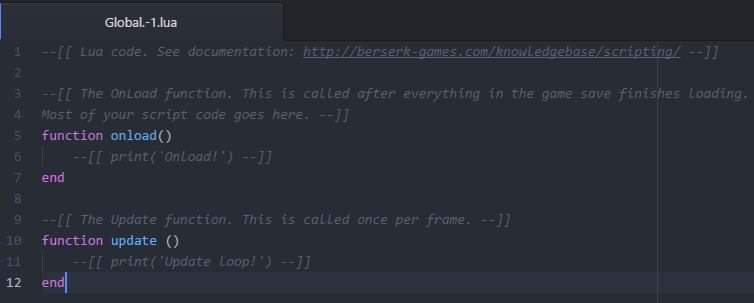 Global.lua is the scripting which is a part of the save file. It is where we will be working for most of this tutorial. On a new save, it always starts with some text saved into the editor. Just delete it, we will not be using it.
It is also possible to write scripts and attach them to objects instead of Global. That way if you save and object it will save its LUA right along with it. You can perform most functions using either Global or Item scripts but we will be working in Global.
2) Functions
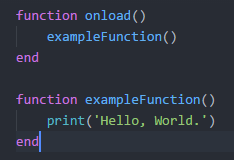 Functions[berserk-games.com] are what trigger groups of code. Some of them are built into the scripting system (ex. onload()) while others can be created by the user. Every function will start with the word function and end with the word end.
A common function built into Tabletop Simulator is onload(). This function triggers every time the script is loaded (like if Undo/Redo is pressed). So let us get started by using it to activate a function we will create. Functions should start with a lowercase letter, and cannot contain spaces. We'll use exampleFunction.
Functions[berserk-games.com] are what trigger groups of code. Some of them are built into the scripting system (ex. onload()) while others can be created by the user. Every function will start with the word function and end with the word end.
A common function built into Tabletop Simulator is onload(). This function triggers every time the script is loaded (like if Undo/Redo is pressed). So let us get started by using it to activate a function we will create. Functions should start with a lowercase letter, and cannot contain spaces. We'll use exampleFunction.The message is called a string, and is always surrounded by quotes to indicate that. A string is a series of characters. (Ex: "This is a string." or 'So is this!')When you save and upload your script, it should now print "Hello, World." to chat.
Extra Credit: When you create your own function, you can also pass variables along with it for the function to use. Another way to write our starting exercise would be:3) Objects
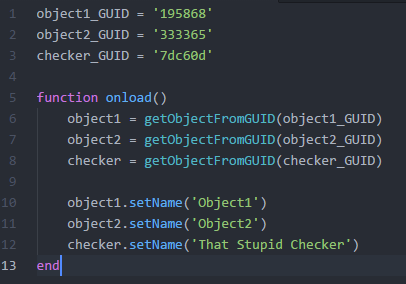 Objects[berserk-games.com] are the physical entities that exist within tabletop. In our example, our objects currently are two blocks and a checker (what a terrible game we are making). Using scripting, we can manipulate objects, move them, add buttons to them or perform other various actions. We're starting our Global.lua over fresh. Erase all text in it.
Extra Credit: You may be curious as to why we didn't put the object GUIDs directly into getObject (EX: object1 = getObjectFromGUID('195868') ). We could have, it would work. This example was to show you that, sometimes, it is more convenient to set a variable early on so you can reference it later. That way, if that variable needs to change (new GUID) you don't have to try to track it down to fix it throughout your code. If you wanted to, for the checker, there is no reason you couldn't write it like:
4) Buttons
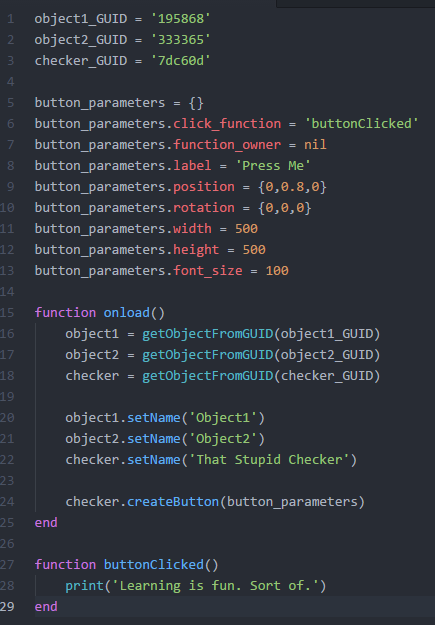 While there are many ways to activate functions, buttons are a convenient way to activate sections of code at the player's choosing. All buttons must be attached to an object, and are created using parameters. The object we want to attach our button to is our checker, and those parameters are found on the Objects page in the Knowledge Base. Many are optional, here they are for reference.
- click_function = String --The name of the function which will activate when this button is pressed.
- function_owner = Object --Determines where the function that the button activates lives (global or an object's script).
- labels = String --The name on the button.
- position = Table --X, Y and Z coordinates for where the button appears, from the center of the object it is attached to.
- rotation = Table --Pitch, Roll and Yaw in degrees, relative to the object it is attached to.
- width = Number --How wide the button is, relative to the scale of its object.
- height = Number --How tall the button is, relative to the scale of its object.
- font_size = Number --Size of the text on the button, relative to the scale of its object.
Now we have a table with the paramiters listed within it. So lets use the object function to create a button on the checker. Enter this inside of function onload() before its end.
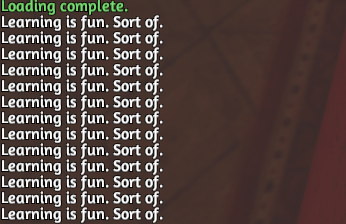
After uploading our script, pressing the button should print our message once for each click.
 Click it repeatedly because of course you will.
 EXTRA CREDIT: When you create tables, there are several ways to accomplish it[www.lua.org]. The way used here was to provide visual clarity. However, creating button parameters like this, if you are going to have many buttons, takes up A LOT of space. I prefer to create my tables in such a way that it saves space but doesn't create a run-on line that goes well off the right side of the screen. Using our example, I would have created my parameter table like this:
EXTRA CREDIT: This is the perfect point to start playing with different things you can do with objects. Go to the Object page in the Knowledge Database and try stuff. Move the objects, make them switch positions, change their colors, whatever you can think of.
EXTRA CREDIT: Also, any time you press a button, its click_function triggers with 2 parameters. The first is an object reference, specifically the reference to the object the button is attached to. The second is a color (ex. "Blue") in string format of the color player who pressed the button.
5) Logic Statements
 Logic statements[www.lua.org] are generally called "if statements". They are used to tell your code what you want it to do in a given situation. When the statement is activated (say, by pressing a button) the logic contained in its statement will only be activated if the condition given is true. They are always formatted as:
What you place in the area I labeled CONDITION in these examples are called relational and conditional operators.[www.tutorialspoint.com] Using them, you can compare many things to eachother. They produce what is called a boolian value (a variable value that is either "true" or "false").
When those lines are used and the button pressed, you will see that only the print functions located in the TRUE statement were printed. Also, because 5==0 is a false statement it activated the print function located in the "else" part of the logic.

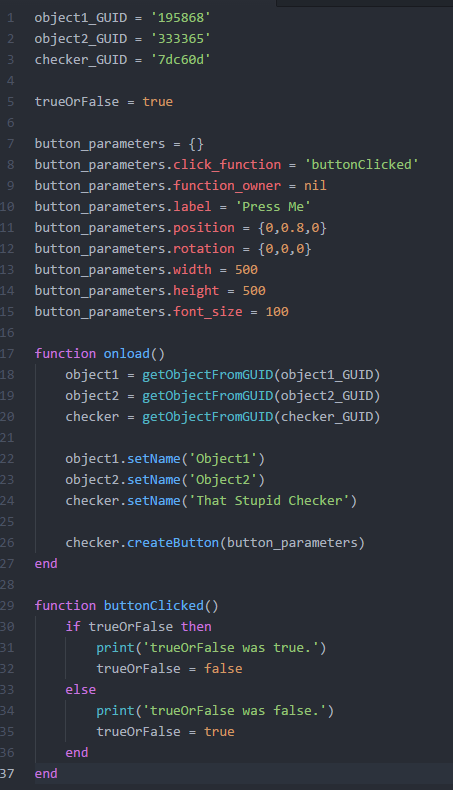
Then, in buttonClicked, we will establish some logic to check if trueOrFalse is, well, true or false. If it is true, we'll print that it was true and switch it over to false. If the button is clicked again, it will print that it was false and switch it to true.
We could have also written that as "if trueOrFalse == true then" but that is unnecesary. Remember, the IF statement just needs to be fed True or False. And since trueOrFalse is already one of those, we can skip the operators.
6) Loops
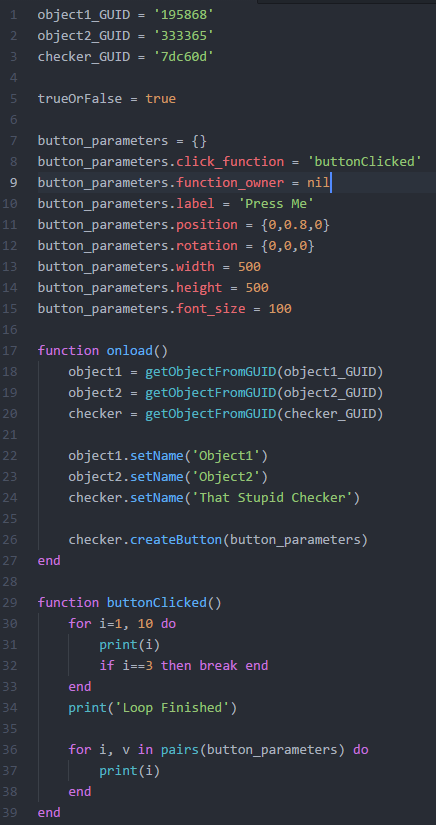 Loops are sections of code that can run multiple times/continuously when activated only once. These are some of the more complex elements you will use in LUA. They often go hand-in-hand with tables, allowing you to run code on each entry in the table.
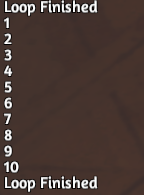
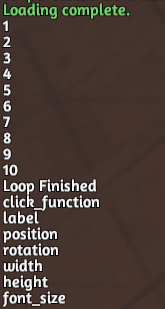
There is another type is ipairs. Pairs is for tables with non-numeric keys, while ipairs is for sequential numeric keys (arrays). ipairs goes in order, while pairs can go in any order.
7) Scripting Outside of Global
When you write LUA here, it is just like global. Except if you need to reference the object the script is a part of, you simply write "self" without the quotes, all lower case. So to create a button on itself, you would use self.createButton(table_of_paramiters).
Closing
I hope this introduction to LUA has helped you better understand some of the underlying mechanics of scripting. If not, then I hope you get lost on your way to throttle me.
Remember, the Knowledge Base has information on all the functions which are a part of Tabletop Simulator. That, and some basic practice with if/else/then and for loops will let you accomplish most anything you want. Good luck.
Another guide has been created, if you are looking for more lessons. Learning MORE Lua is now up. It comes with many scripting examples for you to play with and, I hope, teaches some good coding practices.
Also, if you are on you way to coding, I have started a list of functions to take care of some more complex processes in Lua. You can find it here.
- D&D Setup [Up to 9 Players]★ 5 (513)35k views1.6k ♥5 minUpdated Nov 26, 2021
- Achievement Guide★ 5 (550)34k views880 ♥7 minUpdated Nov 9, 2024
- [RUS] Тайный Гитлер / Secret Hitler★ 5 (582)27k views1.1k ♥8 minRussianUpdated May 5, 2019
- Making Card Games★ 5 (310)27k views734 ♥3 min
- 100% Achievements: A Comprehensive Guide★ 5 (303)26k views515 ♥7 minUpdated Jul 11
- Crash Course in Tabletop Simulator★ 5 (329)19k views1.1k ♥10 min



- Upgrading to PremiumTeam Fortress 2★ 5 (20k)1441k views11k ♥6 minUpdated May 11, 2022
- No More Room in Hell Official ManualNo More Room in Hell★ 5 (2.8k)569k views2.1k ♥29 minUpdated Apr 22, 2019
- NMRiH Community Hosting GuidesNo More Room in Hell★ 5 (526)351k views653 ♥1 minUpdated Aug 10, 2022
- ULTIMATE GUIDE FOR GAME DEV TYCOONGame Dev Tycoon★ 5 (5.8k)326k views10k ♥4 minUpdated 23 Jan, 2014
- How to 'Git Gud' Soon™MORDHAU★ 5 (2k)318k views3k ♥68 minUpdated Nov 16, 2024
- Лучшие кооперативные игры SteamPAYDAY 2★ 5 (1.5k)315k views2.1k ♥56 minRussianUpdated Apr 27, 2025






This guide was created by its original author on the Steam Community. Are you the author and want it removed? Request removal.