Mafia doesn't start (FIX)
Mafia isn't start when you click the icon
To find a complete solution to this problem, please scroll down to the 'Some tips' tab in the middle.
My apologies, but originally the guide was about to improve optimization and to give you some tips.
Creating another one is not profitable for me, so I have combined all of them into one.
My apologies, but originally the guide was about to improve optimization and to give you some tips.
Creating another one is not profitable for me, so I have combined all of them into one.
To download
To start the guide, you need to download a big pack, which is below.
Widescreen Fix [thirteenag.github.io]
Next to the 'download', there is a small down arrow.
You can click it and choose the 'direct link' - faster way to download the pack.
Now copy everything from the pack to the main directory - (\ProgramFiles\Steam\steamapps\common\Mafia\Mafia) and replace!
Widescreen Fix [thirteenag.github.io]
Next to the 'download', there is a small down arrow.
You can click it and choose the 'direct link' - faster way to download the pack.
Now copy everything from the pack to the main directory - (\ProgramFiles\Steam\steamapps\common\Mafia\Mafia) and replace!
Improvements
- Mafia Widescreen Fix
When you replace all the files from the big pack, the widescreen will work immediately, so you don't need to change anything.
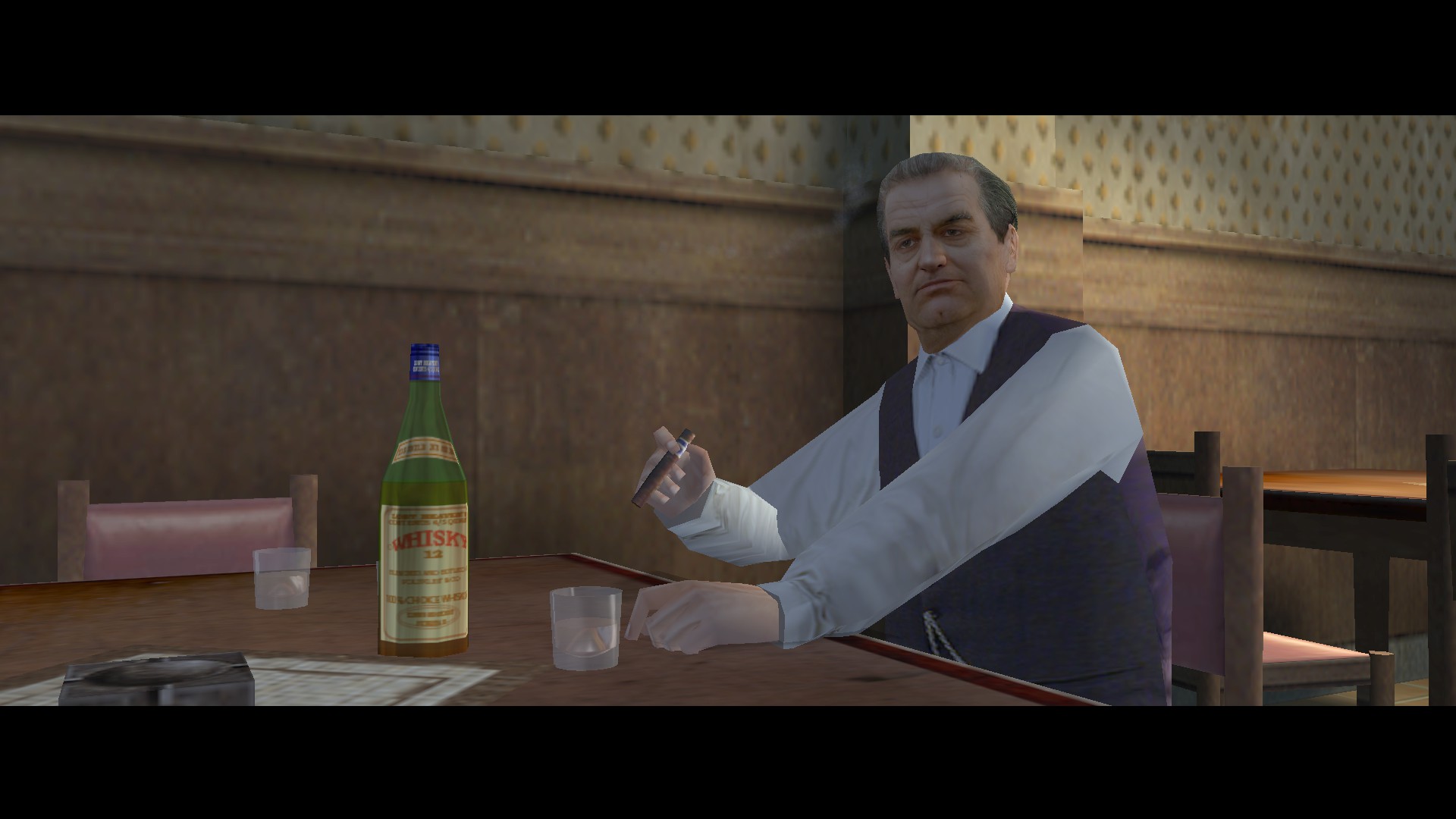
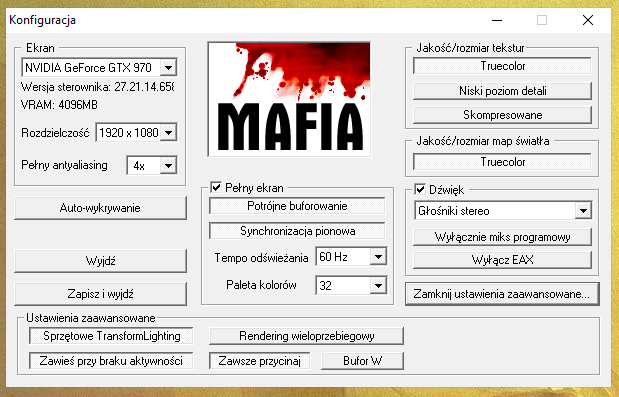
However, the resolution might not change, so in that case, go to the main directory - :\Program Files\Steam\steamapps\common\Mafia\Mafia and launch setup.exe!
Then you can switch the resolution and extra options as you want.
- Unlocked FPS
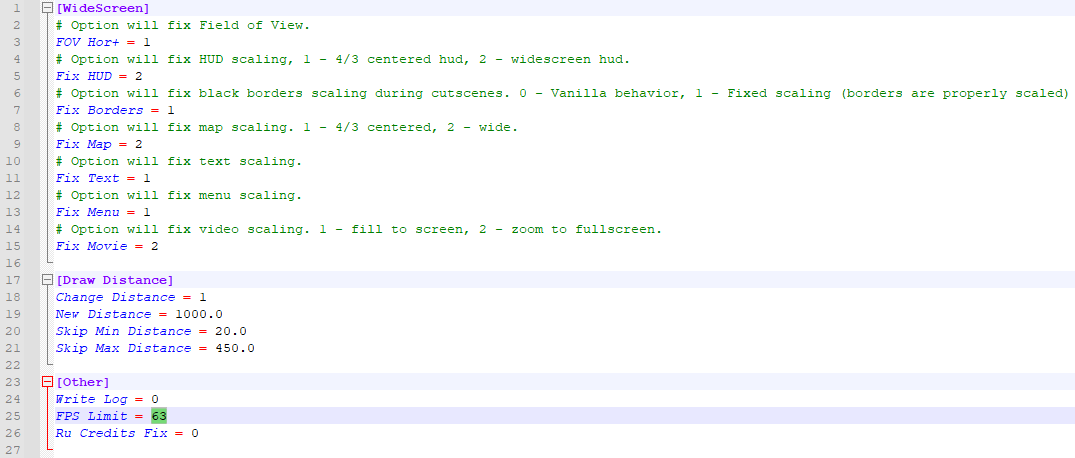
Go to the 'scripts' folder, then open a 'Mafia.WidescreenFix'.
Find the 'FPS Limit' and set it to 63 fps, which is a default value, and I really recommend you to do it.
Higher values, such as 240 fps, are causing many problems.
NPCs can get stuck on sidewalks or stairs, or you won't be able to complete the mission if you need to park your car completely. The game continues to believe it's moving, so..
Check the table below, if you still have a problem with the gameplay!
*Working FPS limits*FPSComment61.458.858.157.154.553.8Hotel clip stops working, but you can work around it50.449.346.045.041.7Backwards clip at better get used to it stops working37.332.9
These values still work and you can choose them if you have any problems with dropping frames.
How do I implement them?
I use RivaTuner, but there is an extensive explanation at the end!
- Increase Draw Distance
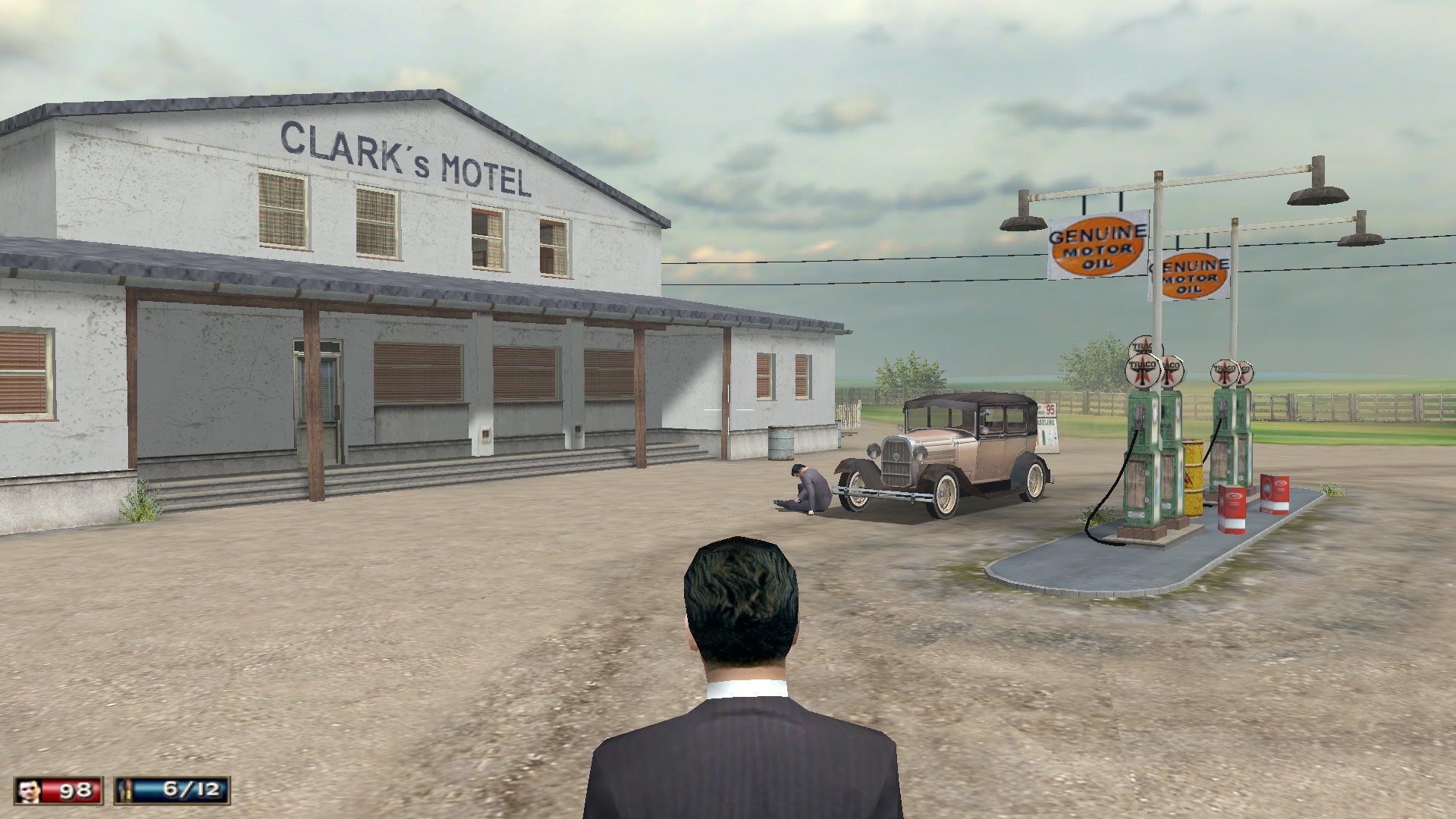
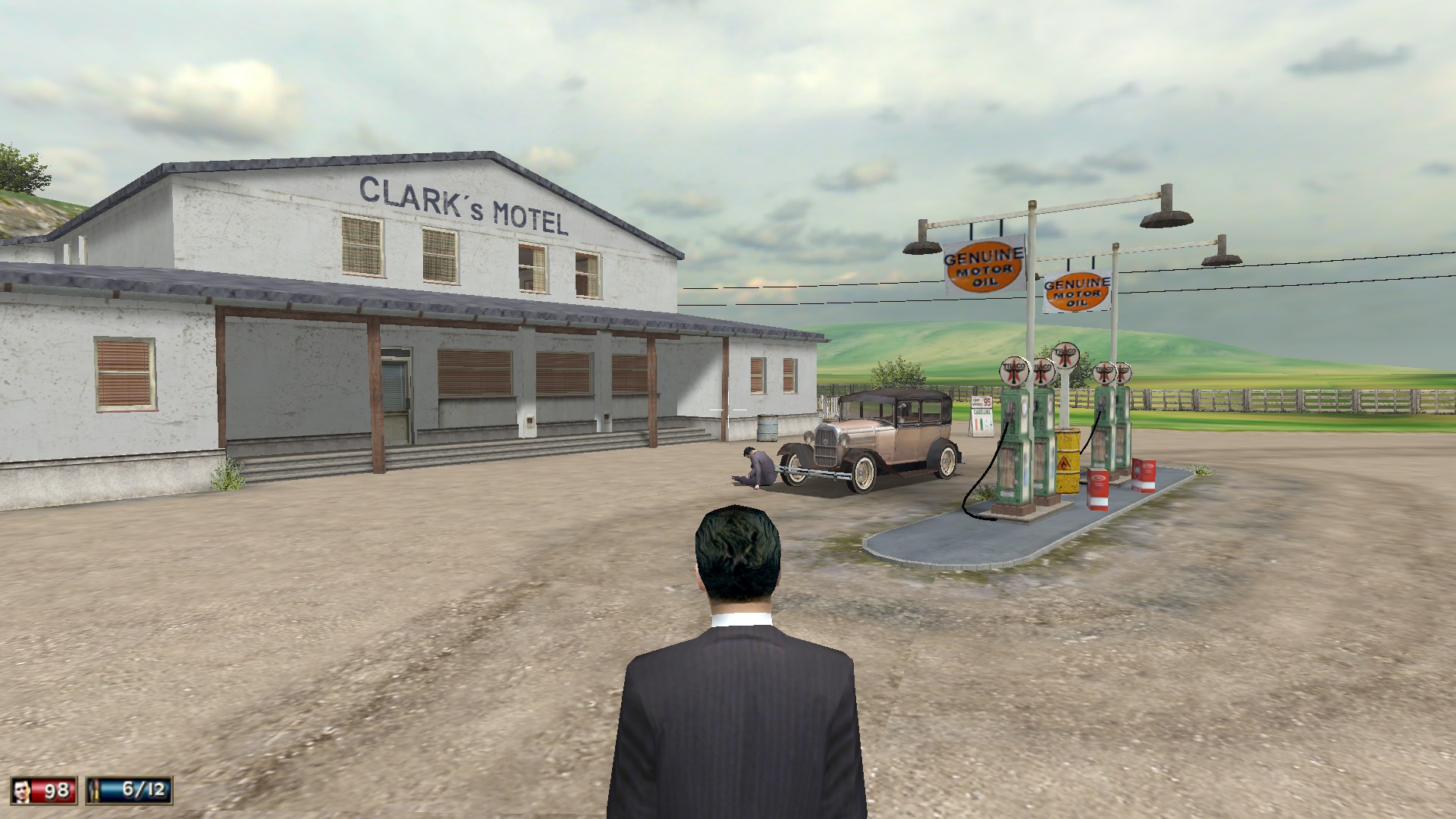
To change the Draw Distance, go to the 'scripts' folder, then open a 'Mafia.WidescreenFix'.
Find the 'Draw Distance', then 'New Distance' and set it to the value between 600|1000|2000.
I suggest setting it to 1000.
Some tips
- FPS Limits
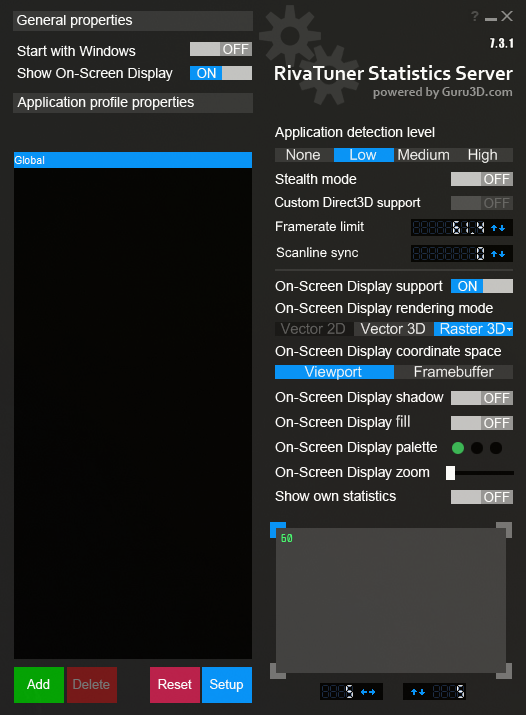
As I mentioned before, to implement the values from the table, just use the RTSS software.
RTSS (Rivatuner Statistics Server) [www.guru3d.com]
After installation, just launch the RTSS until you see the full window.
(Usually the software is hidden on the taskbar - next to the date & time - so click on it until it pops up).
There is a 'Framerate Limit' on the right side.
There, you have to set up the limits from the table (*FPS Limits*).
I used to play on 61.4.
The gameplay is going smoothly and I haven't experienced any FPS drops.
Keep in mind: Launch the RTSS each time before you launch Mafia!!
- Mafia isn't start when you click the icon
*We operate on the two different locations, which looks similar, so be careful*
I - :\Program Files\Steam\steamapps\common\MafiaII - :\Program Files\Steam\steamapps\common\Mafia\Mafia
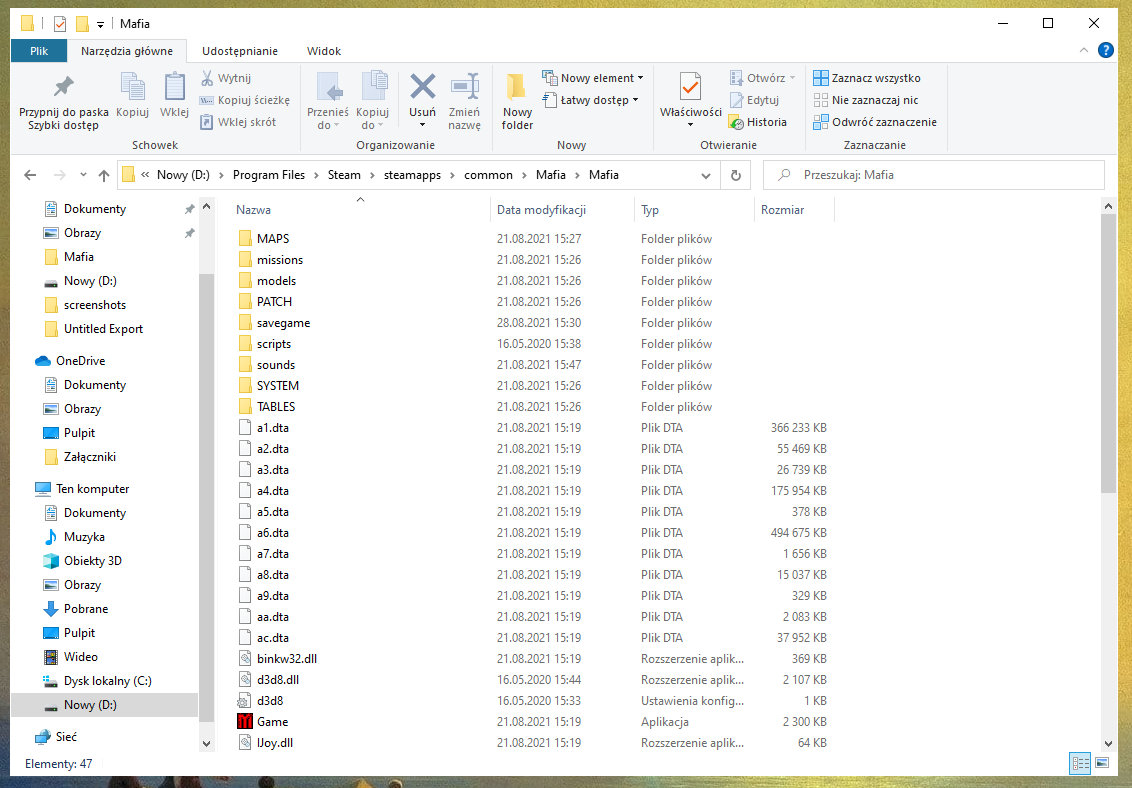
First, go to the main directory - :\Program Files\Steam\steamapps\common\Mafia\Mafia
and copy all the files except game.exe and setup.exe!!
I've created a list of the files you need to copy.
Don't worry about the number of files, as it may vary depending on your system.A1.dtaa2.dtaa3.dtaa4.dtaA5.dtaA6.dtaA7.dtaa8.dtaa9.dtaAA.dtaAC.dtabinkw32.dllIJoy.dllINet.dllintrointroISdata.dtalogo1logo1logo2logo2Logo3mafia.sdbmafia_installscript.vdfogg.dllrw_data.bakrw_data.dllvorbis.dllvorbisfile.dll
Move all these files to the primary location - :\Program Files\Steam\steamapps\common\Mafia.
Now click on 'game.exe' and the error will disappear.
Once this is finished, the setup window will be displayed. Change your video settings and save them by clicking on the 'Save' button.
Be careful when choosing options that can lower performance.
To start the game, simply click on the 'game.exe'.
When you exit the game, the 'savegame' folder will be displayed.
Copy this folder and paste it in - :\Program Files\Steam\steamapps\common\Mafia\Mafia and relaunch the game.
After all, the game will run smoothly, so you may enjoy it.
*The final step is to remove everything from the initial location (:<unk> Program Files<unk> Steam<unk> steamapps<unk> common<unk> Mafia) until you have just game.exe/setup.exe and one folder left*
- Mafia isn't start when you click the icon
A second method, which is much faster but is not always successful!!
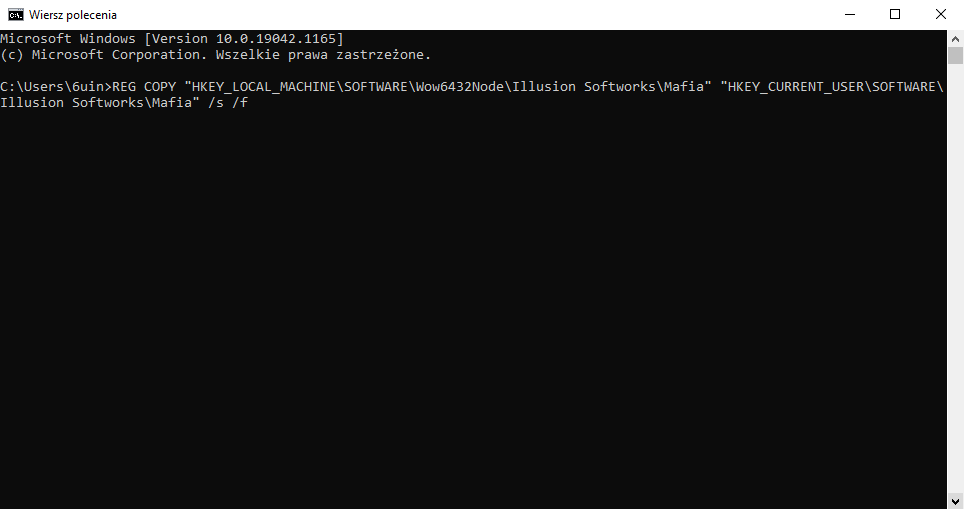
Press the Windows key + R on your keyboard, or go to the taskbar and search for the 'cmd'.
Run it as an administrator!
Then, depending on your system (32/64bit), paste the command line below and press ENTER!
*Windows x64*
REG COPY "HKEY_LOCAL_MACHINE\SOFTWARE\Wow6432Node\Illusion Softworks\Mafia" "HKEY_CURRENT_USER\SOFTWARE\Illusion Softworks\Mafia" /s /f
*Windows x32*
REG COPY "HKEY_LOCAL_MACHINE\SOFTWARE\Illusion Softworks\Mafia" "HKEY_CURRENT_USER\SOFTWARE\Illusion Softworks\Mafia" /s /f
- Music Fix
Most of the music was removed for several years because of copyright issues.
No need to worry, there is a solution.
Music Fix [www49.zippyshare.com]
Second Link [drive.google.com]
First, download the .zip Archive.
Then go to the main directory - :\Program Files\Steam\steamapps\common\Mafia\Mafia\sounds and replace all the files!
Now you may enjoy the most beautiful music from the 30s!!
- Errors
*First Error: #4212*
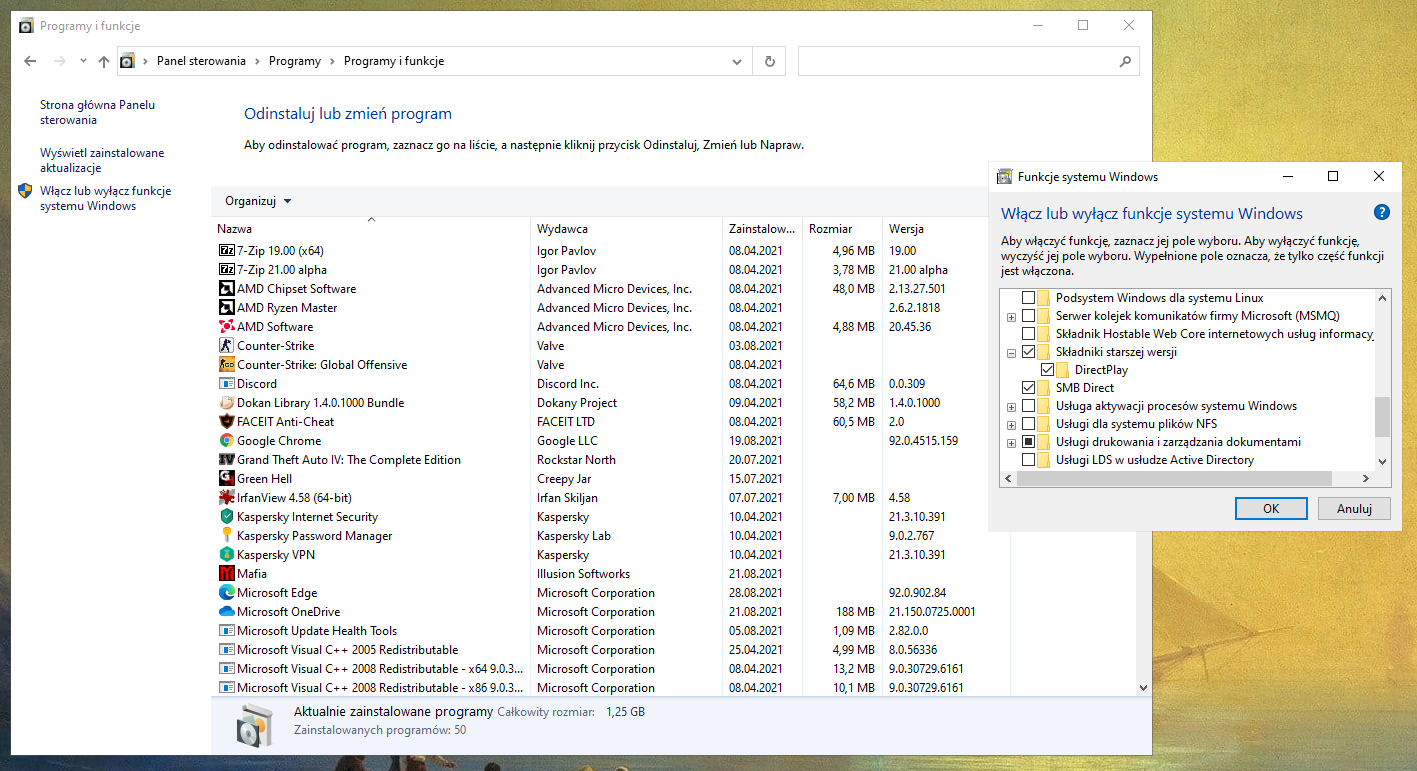
Go to the 'Control Panel', then choose 'Programs' and 'Program and Features'.
Then, on the left side, click on 'Turn Windows features on or off'.
Then you need to find 'Legacy Components' and select 'DirectPlay'!
*Second Error: #4214*
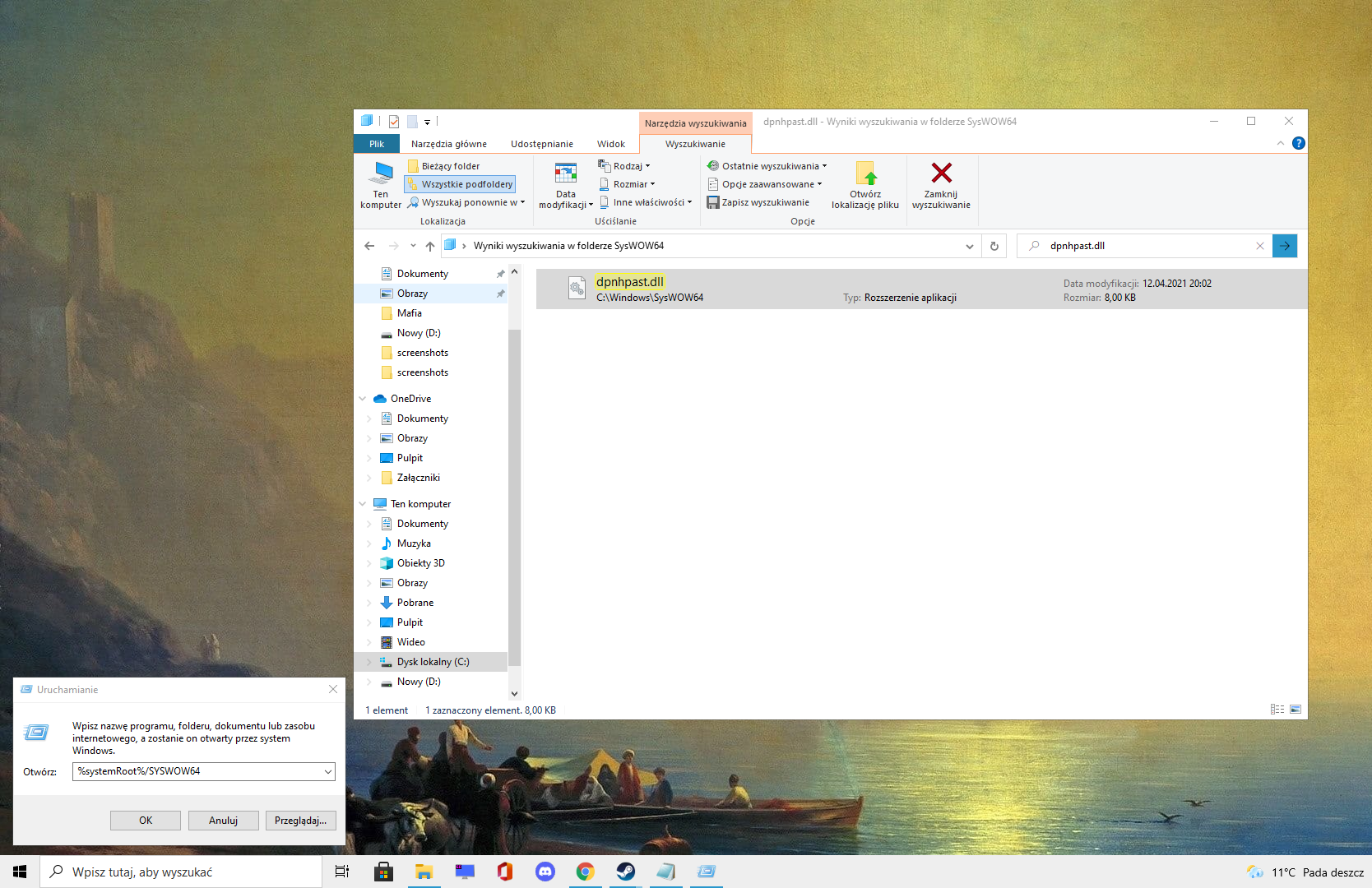
Press the Windows key + R on your keyboard, or go to the taskbar and search for 'Run'.
Then type %systemRoot%/SYSWOW64 and search for dpnhpast.dll.
Then copy it and paste it (replace) into the main location of the Mafia -
:\Program Files\Steam\steamapps\common\Mafia\Mafia.
Error #4215 | #4205
*Error: #4215 or #4205*
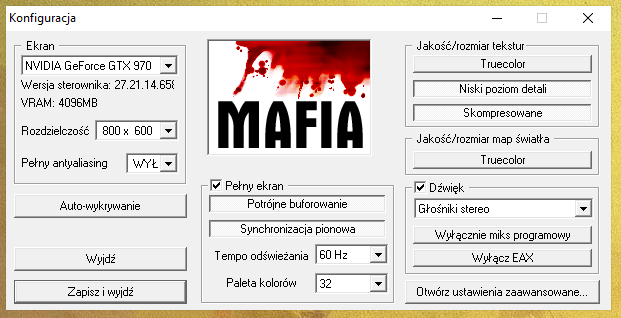
Go to the main location - \ProgramFiles\Steam\steamapps\common\Mafia\Mafia and lauch setup.exe.
Then change the resolution to 800x600 and turn off antialiasing & Truecolor.
Then select the low resolution and 'compressed' option on the right side.
If you keep getting this error, go to 'Start', then 'Run', and enter 'dxdiag' without any quotes.
Once the Direct X Diagnostic tool window is opened, click on the Sound tab.
Find an area labeled Direct X Features near the middle of the screen, and a slider that controls Hardware Sound Acceleration.
To adjust the acceleration to Basic, move this slider two notches to the left.
Exit and run the game.
If you still have trouble, go back into the Direct X Diagnostic Tool and change the acceleration to 'None'.
The official 2K website provided the above solution, but as I am aware, Hardware Acceleration is being phased out and is fewer and far between in settings.
Additionally, try to download the DirectX drivers! Maybe the previous version will be helpful.
Go to the main location - \ProgramFiles\Steam\steamapps\common\Mafia\Mafia and lauch setup.exe.
Then change the resolution to 800x600 and turn off antialiasing & Truecolor.
Then select the low resolution and 'compressed' option on the right side.
If you keep getting this error, go to 'Start', then 'Run', and enter 'dxdiag' without any quotes.
Once the Direct X Diagnostic tool window is opened, click on the Sound tab.
Find an area labeled Direct X Features near the middle of the screen, and a slider that controls Hardware Sound Acceleration.
To adjust the acceleration to Basic, move this slider two notches to the left.
Exit and run the game.
If you still have trouble, go back into the Direct X Diagnostic Tool and change the acceleration to 'None'.
The official 2K website provided the above solution, but as I am aware, Hardware Acceleration is being phased out and is fewer and far between in settings.
Additionally, try to download the DirectX drivers! Maybe the previous version will be helpful.
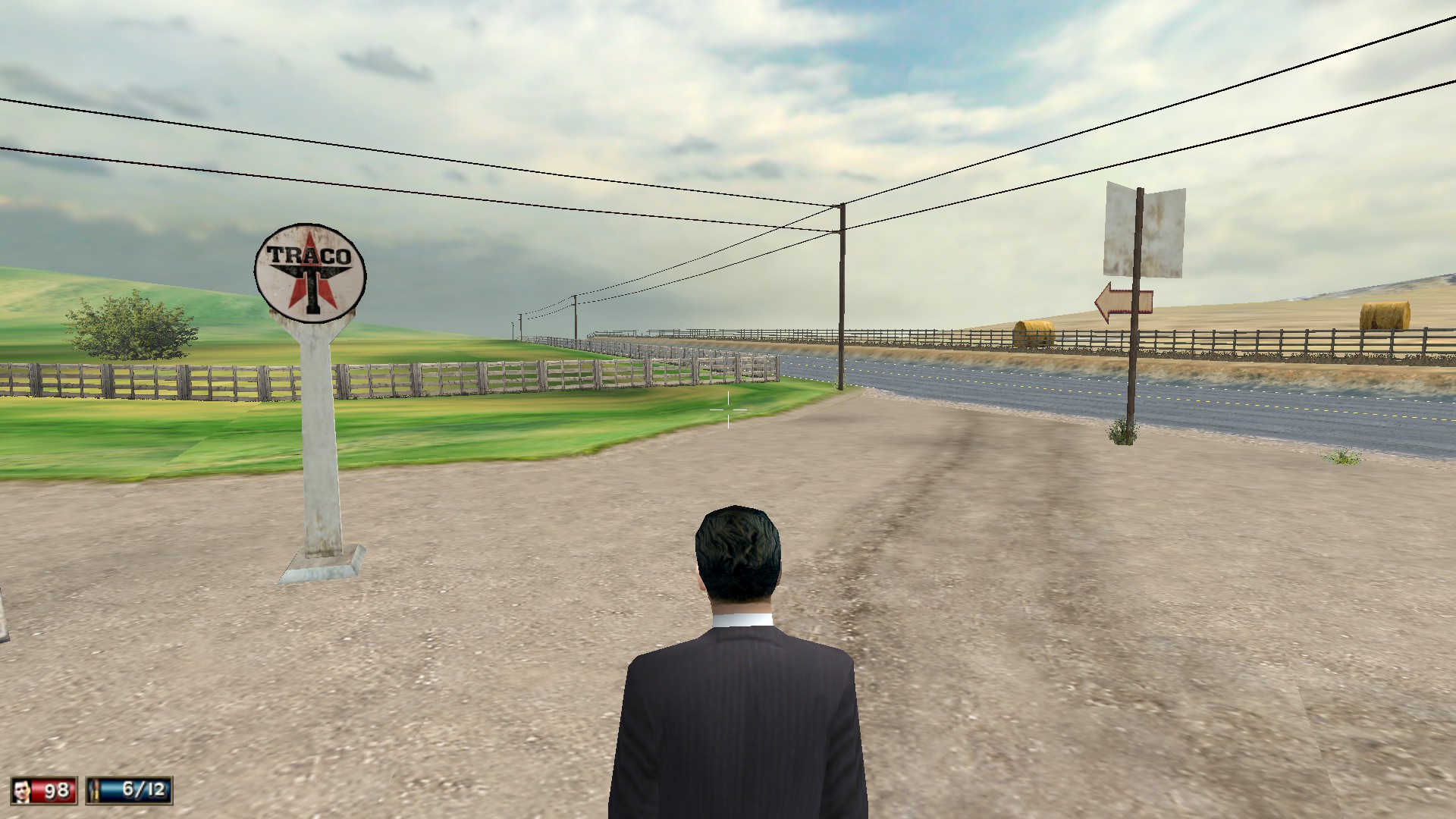
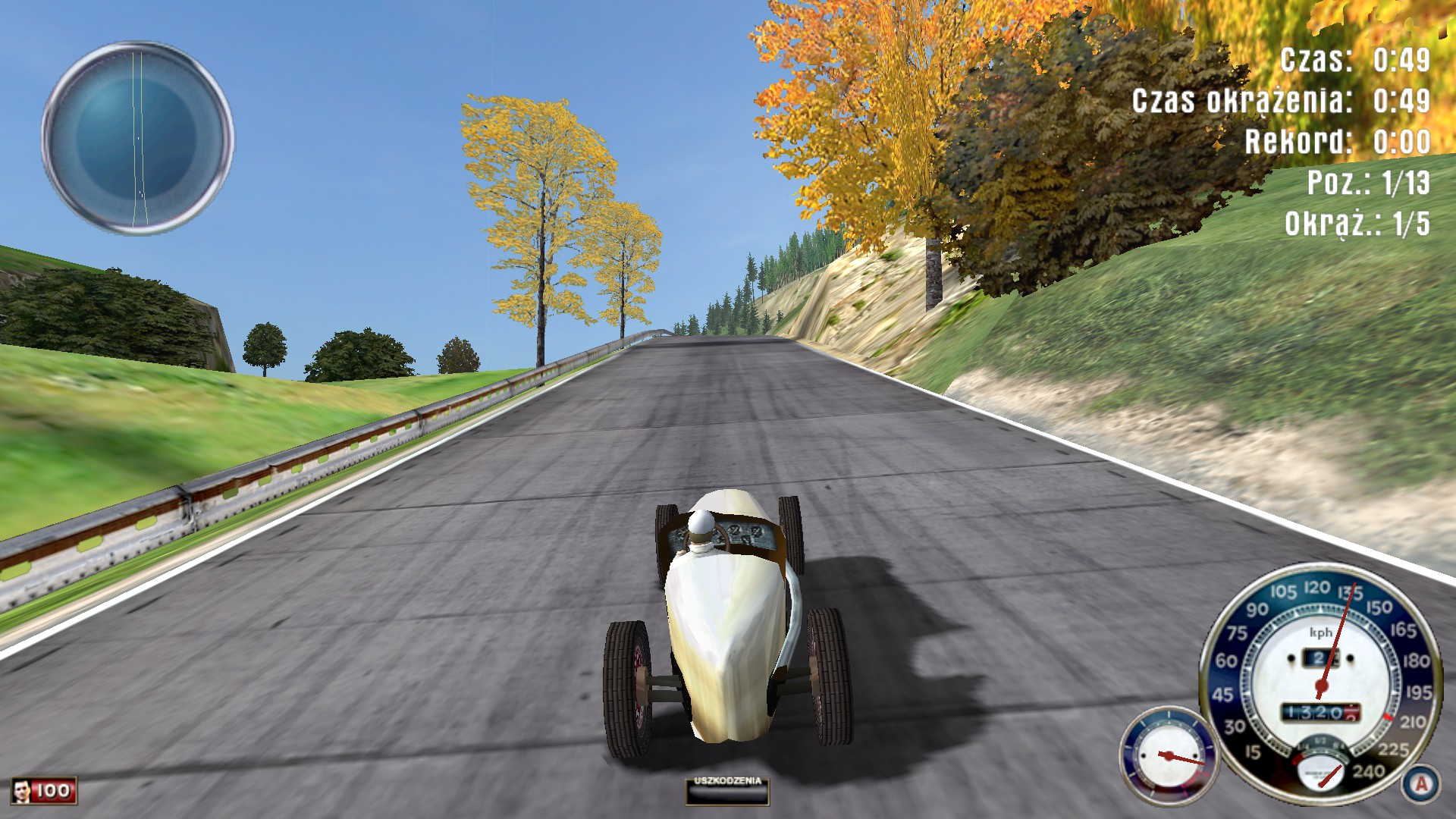
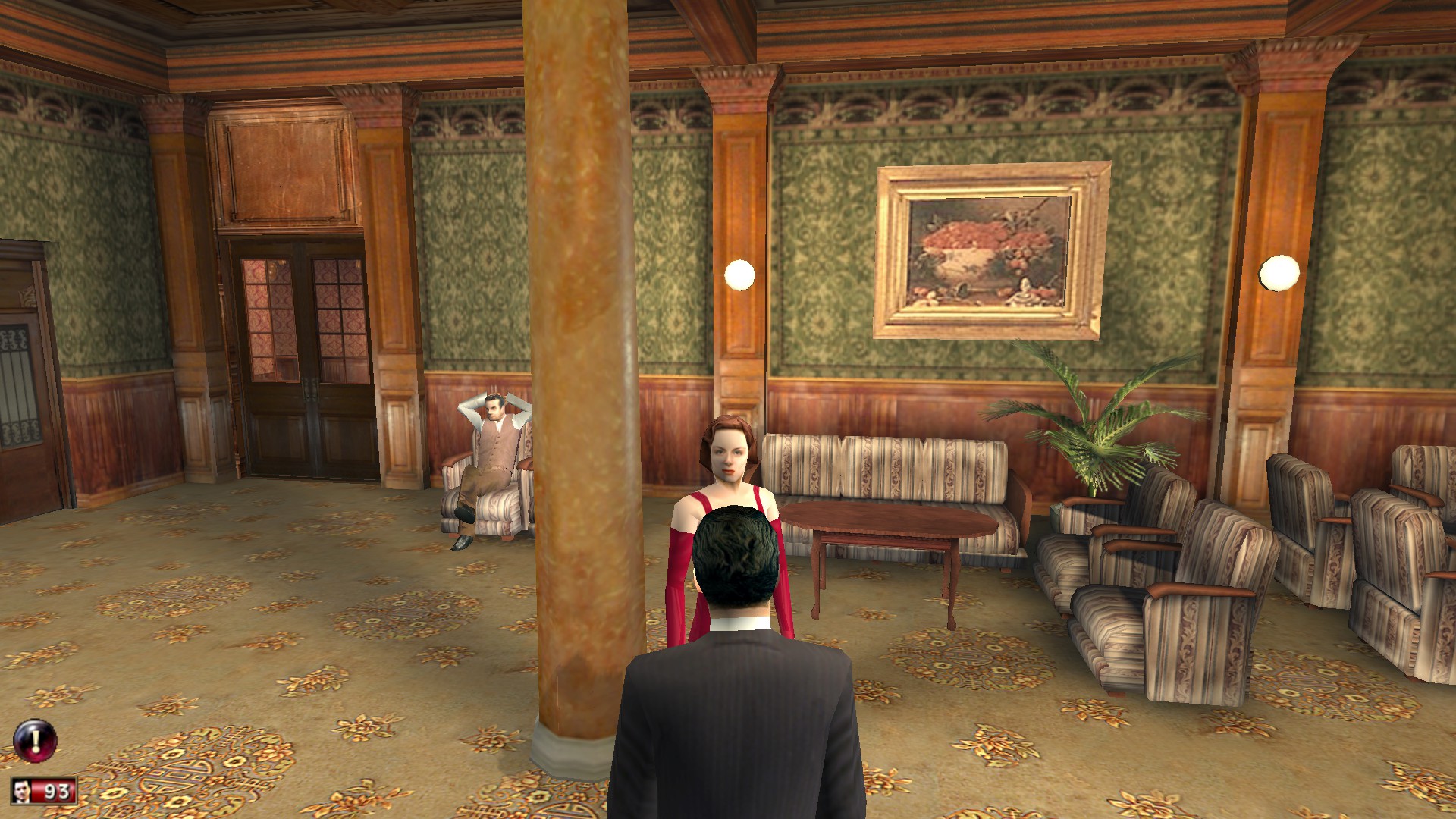
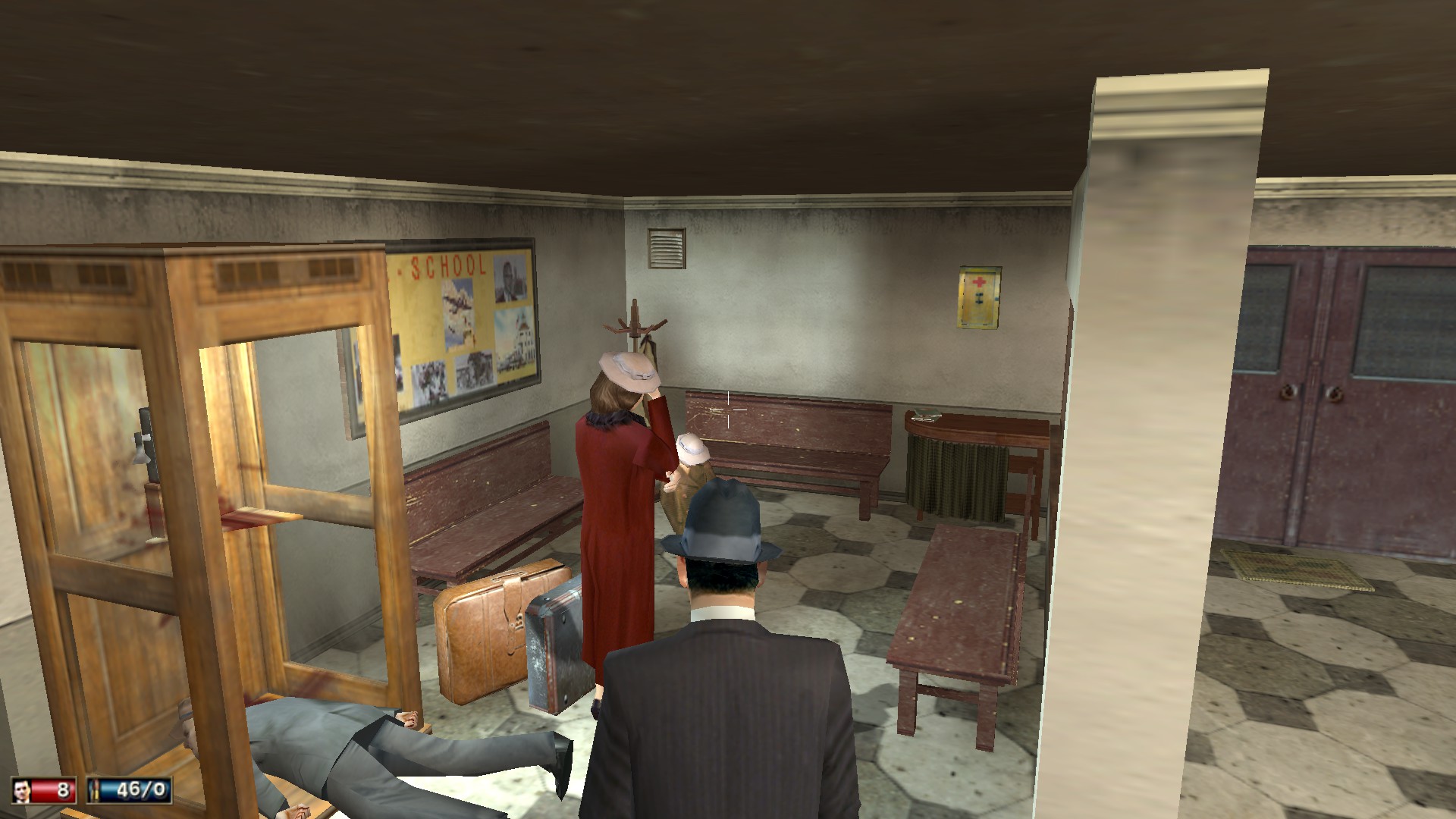
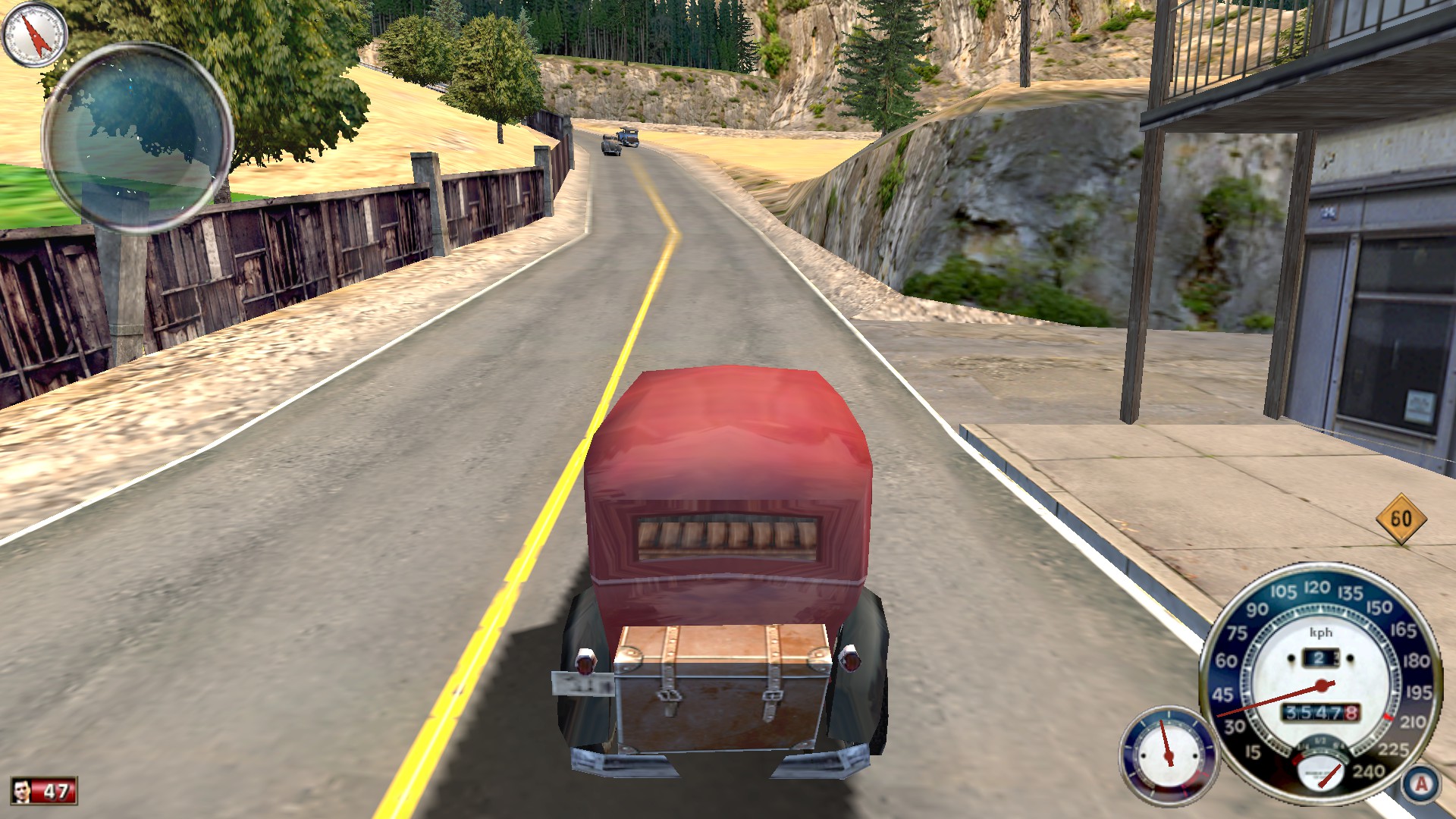
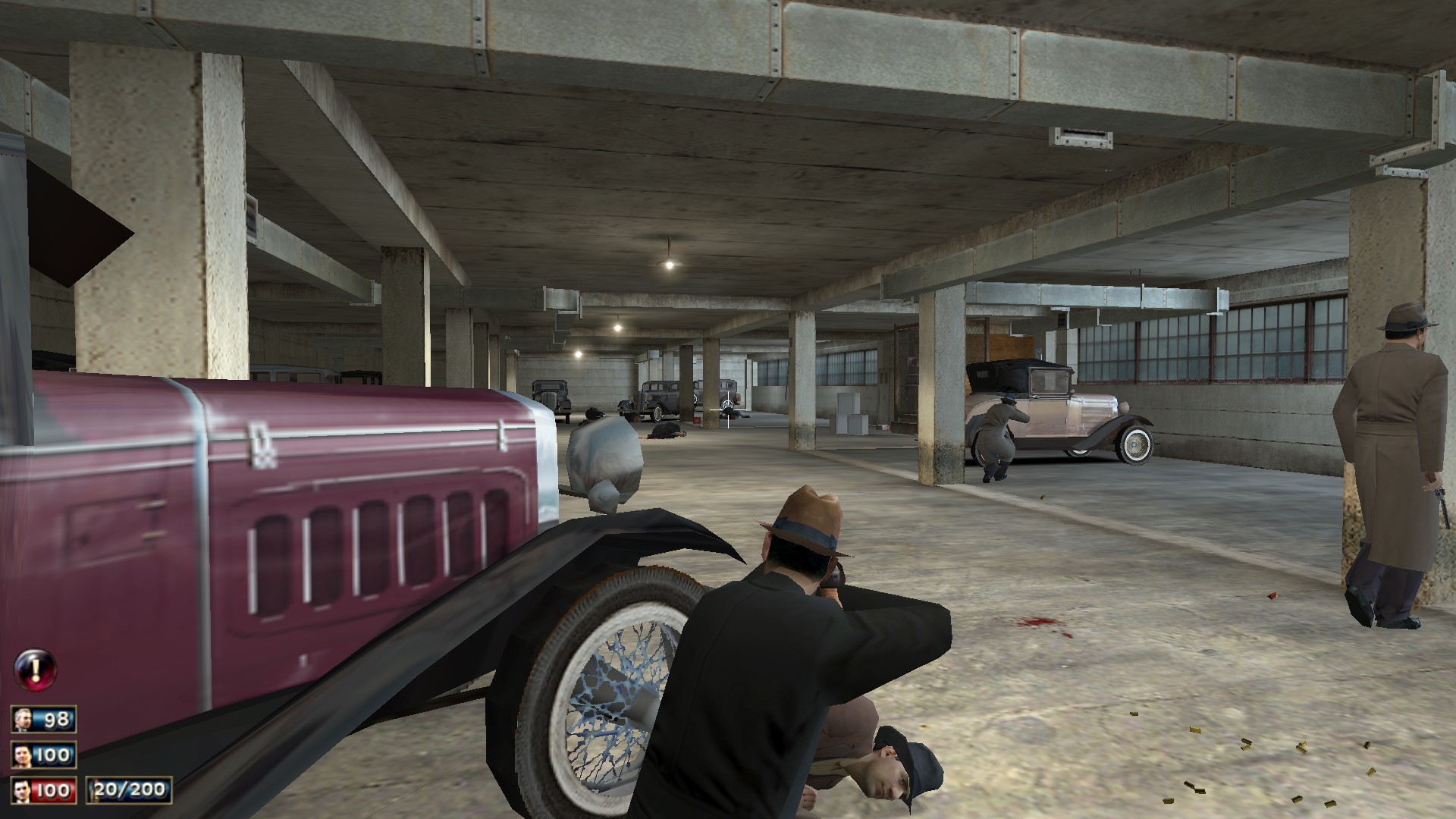
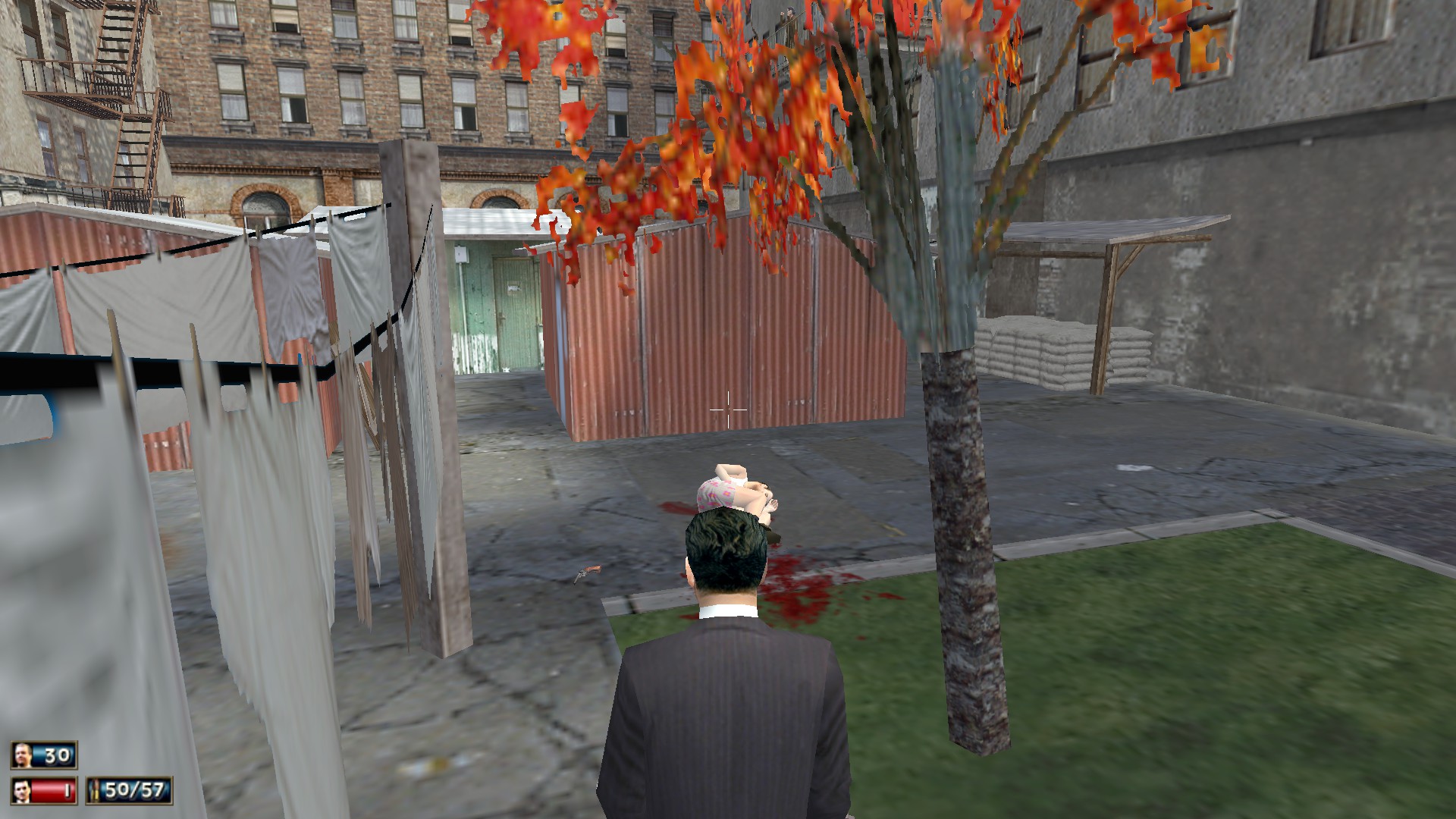
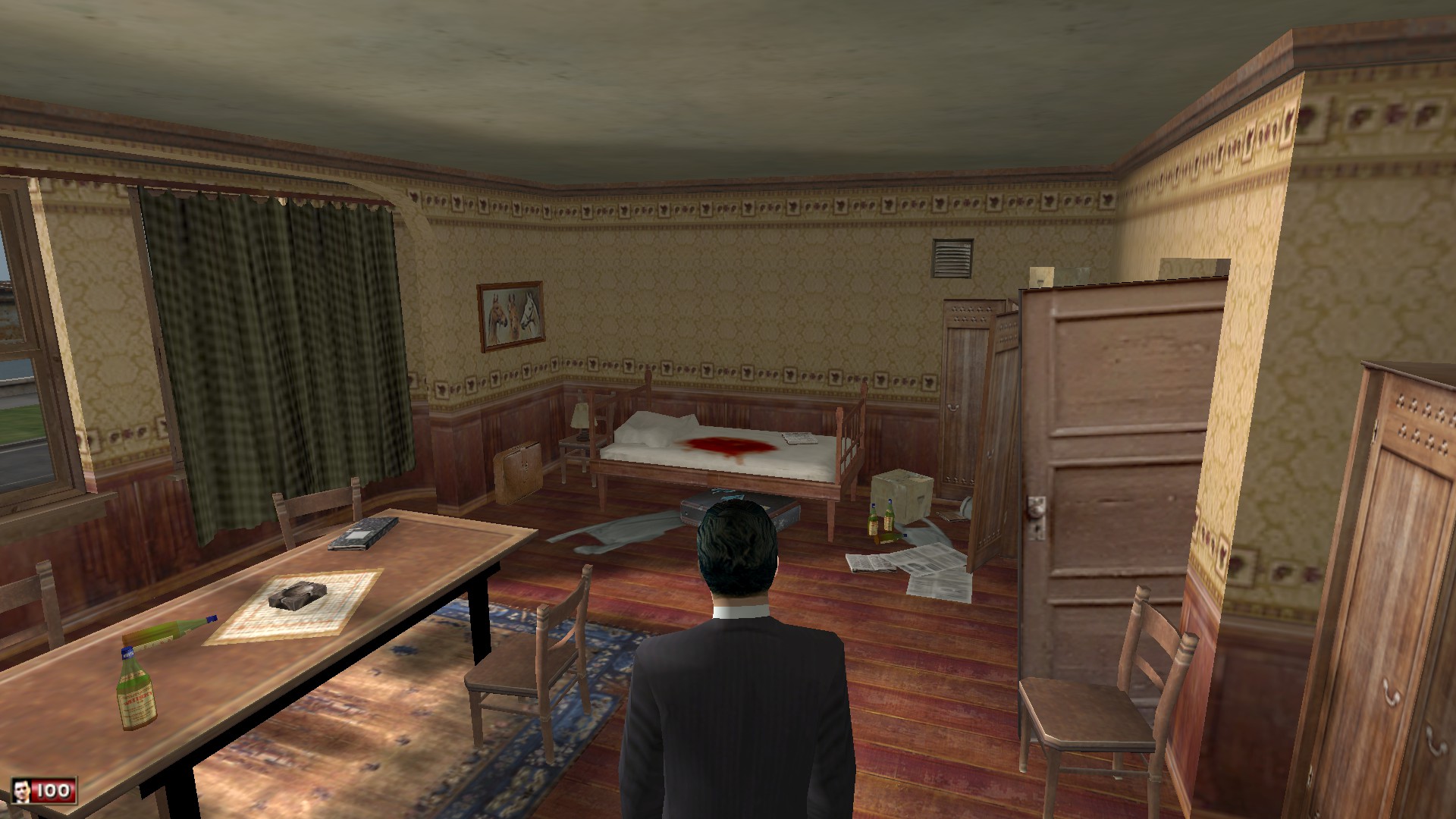
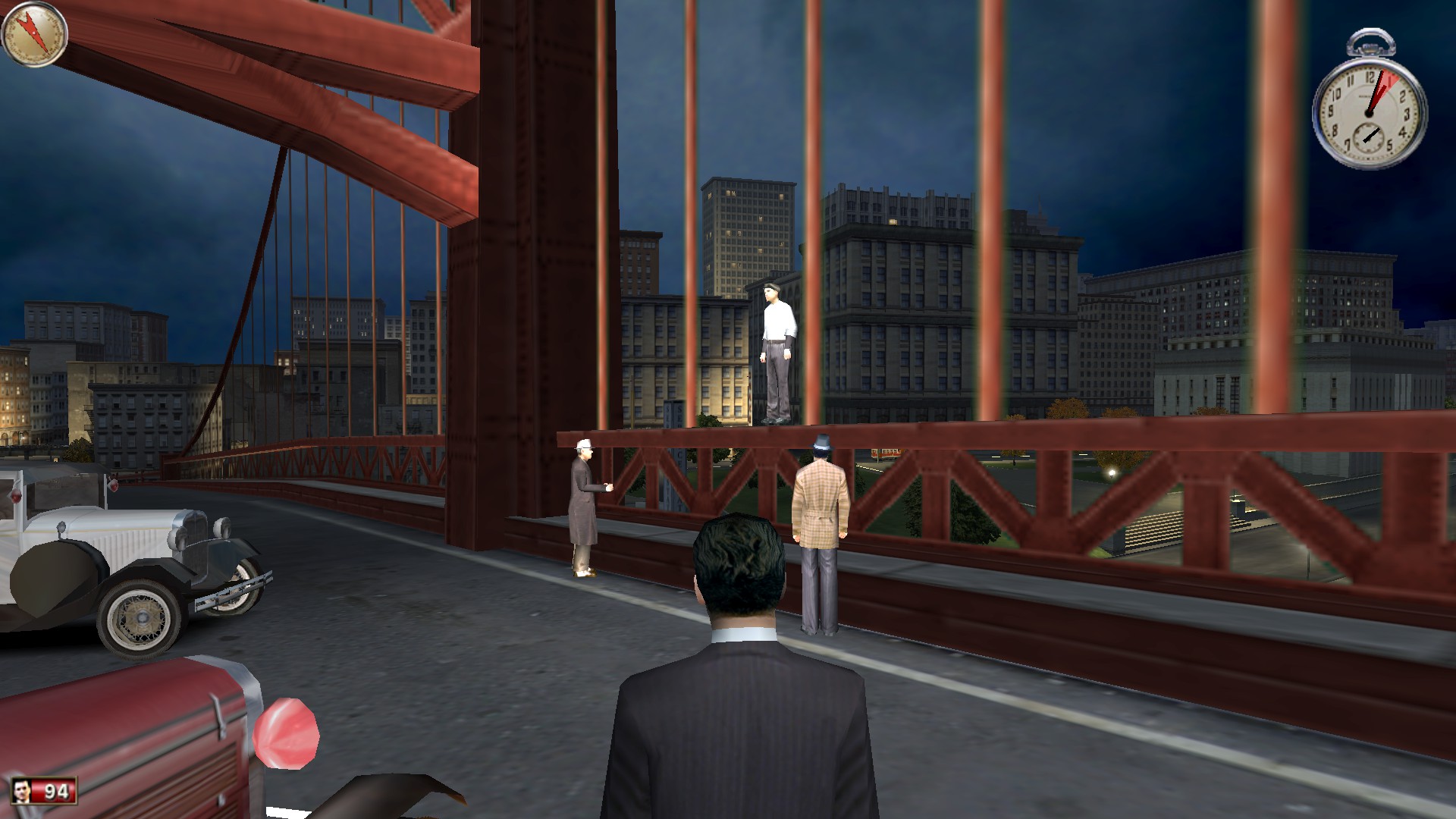
Screenshots
More Mafia guides
- Не запускается Mafia | Решение★ 5 (742)32k views475 ♥1 minRussianUpdated Jan 13, 2025
- Исправление проблемы с запуском/Startup issues fix (RU/EN)★ 5 (732)26k views627 ♥1 minRussianUpdated Dec 30, 2017
- How to restore the original music to MAFIA: TCoLH★ 5 (576)22k views628 ♥1 minUpdated Dec 4, 2024
- Mafia Graphics Improvements + HD mod (Texture Upscaling)★ 5 (180)15k views354 ♥4 minUpdated Jun 5, 2021
- Возвращение музыки. Сочетание текста и звука.★ 5 (632)15k views733 ♥1 minRussianUpdated Nov 24, 2017
- Mafia - Essential HD Interface Mods + Win 10/Widescreen Fixes + Music★ 5 (323)14k views542 ♥3 minUpdated Sep 12, 2020



This guide was created by its original author on the Steam Community. Are you the author and want it removed? Request removal.