More FPS on ANY Computer | KF2
Backup configuration files
Before we begin, I recommend you BACKUP your current config files. These are located in Documents\My Games\KillingFloor2\KFGame\Config
COPY (not move) all of the files and paste them into a safe place. This is in case you mess anything up and wish to return to your old settings. I AM NOT RESPONSIBLE IF YOU FK UP YOUR GAME
Modifying configs takes time. Don't change everything at once, run the game every few minutes to make sure you haven't done something that crashes the game. It's easier to revert sooner rather than later when you'll probably be having to start over.
If you launch the game without setting tweaked configs to 'read-only' the game will wipe them and you'll have to start over. It'll save a lot of time and frustration if you double-check. KFSettings and KFEngine are the only ones that revert in my testing.
Setting KFGame to read-only will only make you have to reapply your skins and cosmetics each time you play. Same with KFInput but for controls, leave these ones alone.
You can delete any config file, and a fresh one will be made next time you boot up Killing Floor.
COPY (not move) all of the files and paste them into a safe place. This is in case you mess anything up and wish to return to your old settings. I AM NOT RESPONSIBLE IF YOU FK UP YOUR GAME
Modifying configs takes time. Don't change everything at once, run the game every few minutes to make sure you haven't done something that crashes the game. It's easier to revert sooner rather than later when you'll probably be having to start over.
If you launch the game without setting tweaked configs to 'read-only' the game will wipe them and you'll have to start over. It'll save a lot of time and frustration if you double-check. KFSettings and KFEngine are the only ones that revert in my testing.
Setting KFGame to read-only will only make you have to reapply your skins and cosmetics each time you play. Same with KFInput but for controls, leave these ones alone.
You can delete any config file, and a fresh one will be made next time you boot up Killing Floor.
What every other guide says
First let's get the obvious BS out of the way.
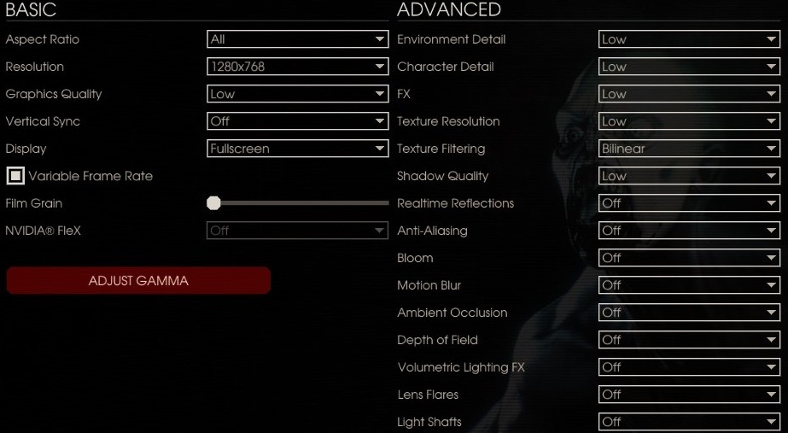
Go into your game and set each option to the ones I have selected. This will set everything to low or off. Resolution is up to you; as you go lower you will get higher FPS, but your game will look more blurry/pixellated. Gamma is game brightness, it doesn't affect performance.
Close other programs that may hog CPU resources. Antivirus programs usually do this.
Make sure your drivers are up-to-date, especially your Nvidea/Intel graphics or whatever.
Disable the Steam Overlay, no matter what game I play I notice I get more FPS and less crashes doing this. Use another monitor or Alt + Tab if you want to use steam functions.
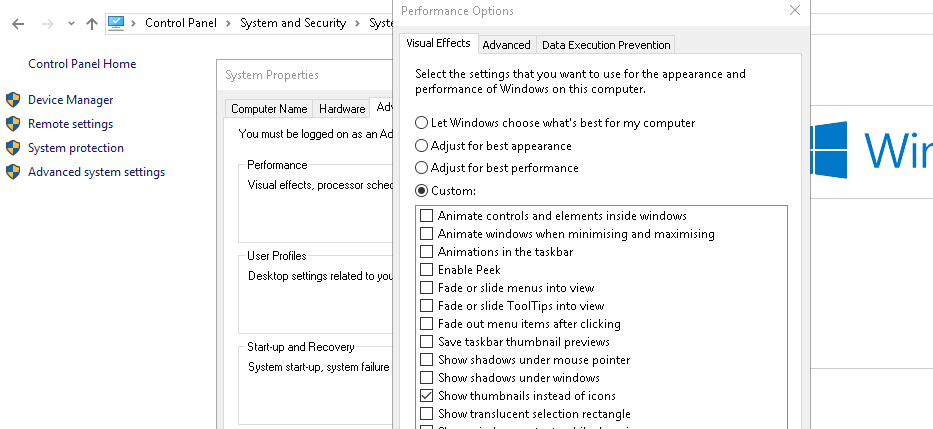
Go to Control Panel, System and Security, System, Advanced System Settings, Performance.
Set the profile to either performance, or custom and pick what you want. This'll make your computer look more basic but will free up ram in systems with low memory.
Defrag your drives and move your page file to a backup drive if you have one.
When playing open task manager, right-click KF2, go to the details and set its' priority to 'high'. It's possible to make a custom .bat file that does this for you, included below.
Open file explorer and search for %temp%, these are all the temporary files that are stored on your computer and are only used once. It's safe to remove these and usually clears up a few gigs.
If you're having problems with any of this, google it or don't bother. There's plenty of tutorials and aside from cleaning your temp files, the results will be marginal at best.
Go into your game and set each option to the ones I have selected. This will set everything to low or off. Resolution is up to you; as you go lower you will get higher FPS, but your game will look more blurry/pixellated. Gamma is game brightness, it doesn't affect performance.
Close other programs that may hog CPU resources. Antivirus programs usually do this.
Make sure your drivers are up-to-date, especially your Nvidea/Intel graphics or whatever.
Disable the Steam Overlay, no matter what game I play I notice I get more FPS and less crashes doing this. Use another monitor or Alt + Tab if you want to use steam functions.
Go to Control Panel, System and Security, System, Advanced System Settings, Performance.
Set the profile to either performance, or custom and pick what you want. This'll make your computer look more basic but will free up ram in systems with low memory.
Defrag your drives and move your page file to a backup drive if you have one.
When playing open task manager, right-click KF2, go to the details and set its' priority to 'high'. It's possible to make a custom .bat file that does this for you, included below.
Open file explorer and search for %temp%, these are all the temporary files that are stored on your computer and are only used once. It's safe to remove these and usually clears up a few gigs.
If you're having problems with any of this, google it or don't bother. There's plenty of tutorials and aside from cleaning your temp files, the results will be marginal at best.
Basic tweaks
Now that all the basic computer junk tips are behind us, I can show you which values you can change/disable in the config files to help your frames. For editing these files I use Notepad++ but the regular notepad works just fine too.
Killing Floor 2 is built on Unreal Engine 3, which is good news for us because every aspect of this engine can be tweaked. Other games using Unreal Engine 3 should also benefit from these tips.
(In-game you can open the console and type 'stat fps', it'll bring up a FPS counter for you. No need to use the steam one or a recording software like fraps)
Open file explorer and navigate to Documents\My Games\KillingFloor2\KFGame\Config
Open up 'KFSystemSettings.ini' with notepad and change any/all of the following.
(You can press CTRL + F and type in the name of a value and it'll find it for you)
StaticDecals=True False (removes small static decals, like posters.)
DynamicDecals=True False (Disables bullet holes when you shoot at things.)
UnbatchedDecals=True False
DropParticleDistortion=True False (Post effect blurring on explosions.)
SpeedTreeLeaves=True False (Related to foliage. )
SpeedTreeFronds=True False (Related to foliage.)
OnlyStreamInTextures=False True (removed stutter for me on 8GB of ram.)
FogVolumes=True False (disables some fog, which is a massive cpu tank.)
FloatingPointRenderTargets=True False (more post effects.)
AllowRadialBlur=True False (more blur/post effects.)
AllowImageReflections=True False (disables reflections, like from glass.)
AllowImageReflectionShadowing=True False (shadows in reflections.)
bAllowHighQualityMaterials=True False
MaxDrawDistanceScale=1.000000 0.800000 (How far you can see textures. If you set this low enough you can spot enemies and ammo through walls. Really helps FPS.)
ScreenPercentage=100.000000 90.000000 (a way of reducing res without blurring UI, extremely helpful for FPS.)
bAllowFracturedDamage=True False (Removes breakable glass.)
UseComputeSSR=True False
ImageGrainScaler=0.500000 0.000000 (screen grain, for some reason this always reverts back to 0.5 without read-only file.)
AllowBooleanPreshadows=True False
UseNewDOF=True False
DistanceFog=True False (more fog effects.)
MotionBlurStaticScale=0.800000 0.0 (motion blur, which I hate.)
MotionBlurDynamicScale=3.000000 0.0 (motion blur, which I hate.)
After you've finished, save KFSystemSettings.ini and set it to 'read-only'
Open up 'KFEngine.ini' with notepad and change any/all of the following.
ImageReflectionTextureSize=1024 512 (go lower if you want.)
bStaticDecalsEnabled=True False (keep same as systemsettings.ini)
bDynamicDecalsEnabled=True False (keep same as systemsettings.ini)
bUseTextureStreaming=True False (Improves performance for some, try it.)
MaxFluidNumVerts=1048576 1
MaxParticleVertexMemory=131972 1 (Particle memory. Setting this to 1 will disable particles, which are bullets, fire, explosions, etc. You may want to skip this.)
MipFadeInSpeed0=0.3 0.0
MipFadeOutSpeed0=0.1 0.0
MipFadeInSpeed1=2.0 0.0
MipFadeOutSpeed1=1.0 0.0
bSmoothFrameRate=TRUE FALSE
MinSmoothedFrameRate=22 30
MaxSmoothedFrameRate=62 60 (Set to your monitor's refresh rate)
RequestedDirectXVersion=11 10 (Set steam launch command -dx10. DirectX 10 is known to cause less crashes than 11, give it a try.)
MinDesiredFrameRate=35.000000 60
BoostPlayerTextures=3.0 0.0
ParticlePercentage=100 80 (0 will disable particles and give you a massive boost.)
After you've finished, save KFEngine.ini and set it to 'read-only'
Open up 'KFGame.ini' with notepad and change any/all of the following.
DecalLifeSpan=10.0 0.0
MaxImpactEffectDecals=8 0
ShellEjectLifetime=2.000000 0.5
After you've finished, save KFGame.ini and set it to 'read-only'
Killing Floor 2 is built on Unreal Engine 3, which is good news for us because every aspect of this engine can be tweaked. Other games using Unreal Engine 3 should also benefit from these tips.
(In-game you can open the console and type 'stat fps', it'll bring up a FPS counter for you. No need to use the steam one or a recording software like fraps)
Open file explorer and navigate to Documents\My Games\KillingFloor2\KFGame\Config
Open up 'KFSystemSettings.ini' with notepad and change any/all of the following.
(You can press CTRL + F and type in the name of a value and it'll find it for you)
StaticDecals=True False (removes small static decals, like posters.)
DynamicDecals=True False (Disables bullet holes when you shoot at things.)
UnbatchedDecals=True False
DropParticleDistortion=True False (Post effect blurring on explosions.)
SpeedTreeLeaves=True False (Related to foliage. )
SpeedTreeFronds=True False (Related to foliage.)
OnlyStreamInTextures=False True (removed stutter for me on 8GB of ram.)
FogVolumes=True False (disables some fog, which is a massive cpu tank.)
FloatingPointRenderTargets=True False (more post effects.)
AllowRadialBlur=True False (more blur/post effects.)
AllowImageReflections=True False (disables reflections, like from glass.)
AllowImageReflectionShadowing=True False (shadows in reflections.)
bAllowHighQualityMaterials=True False
MaxDrawDistanceScale=1.000000 0.800000 (How far you can see textures. If you set this low enough you can spot enemies and ammo through walls. Really helps FPS.)
ScreenPercentage=100.000000 90.000000 (a way of reducing res without blurring UI, extremely helpful for FPS.)
bAllowFracturedDamage=True False (Removes breakable glass.)
UseComputeSSR=True False
ImageGrainScaler=0.500000 0.000000 (screen grain, for some reason this always reverts back to 0.5 without read-only file.)
AllowBooleanPreshadows=True False
UseNewDOF=True False
DistanceFog=True False (more fog effects.)
MotionBlurStaticScale=0.800000 0.0 (motion blur, which I hate.)
MotionBlurDynamicScale=3.000000 0.0 (motion blur, which I hate.)
After you've finished, save KFSystemSettings.ini and set it to 'read-only'
Open up 'KFEngine.ini' with notepad and change any/all of the following.
ImageReflectionTextureSize=1024 512 (go lower if you want.)
bStaticDecalsEnabled=True False (keep same as systemsettings.ini)
bDynamicDecalsEnabled=True False (keep same as systemsettings.ini)
bUseTextureStreaming=True False (Improves performance for some, try it.)
MaxFluidNumVerts=1048576 1
MaxParticleVertexMemory=131972 1 (Particle memory. Setting this to 1 will disable particles, which are bullets, fire, explosions, etc. You may want to skip this.)
MipFadeInSpeed0=0.3 0.0
MipFadeOutSpeed0=0.1 0.0
MipFadeInSpeed1=2.0 0.0
MipFadeOutSpeed1=1.0 0.0
bSmoothFrameRate=TRUE FALSE
MinSmoothedFrameRate=22 30
MaxSmoothedFrameRate=62 60 (Set to your monitor's refresh rate)
RequestedDirectXVersion=11 10 (Set steam launch command -dx10. DirectX 10 is known to cause less crashes than 11, give it a try.)
MinDesiredFrameRate=35.000000 60
BoostPlayerTextures=3.0 0.0
ParticlePercentage=100 80 (0 will disable particles and give you a massive boost.)
After you've finished, save KFEngine.ini and set it to 'read-only'
Open up 'KFGame.ini' with notepad and change any/all of the following.
DecalLifeSpan=10.0 0.0
MaxImpactEffectDecals=8 0
ShellEjectLifetime=2.000000 0.5
After you've finished, save KFGame.ini and set it to 'read-only'
Texture sizes
By now you've probably noticed these lines in KFSystemSettings.ini
TEXTUREGROUP_Creature(MinLODSize=1,MaxLODSize=4096,LODBias=3,MinMagFilter=Linear..
These are the texture sizes for the game, and by default they load up to 4K res textures.
You can increase your FPS by lowering the MaxLODSize and changing MinMagFilter=Linear to Point
For the MaxLODSize I recommend 2048 or 1024, which halfs and quarters the texture res respectively. Minimum value is 1, which will give the biggest performance increase but make textures look colorless and extremely blocky. Just go down the list and change each one to the value you'd like.
LODBias controls the level of detail on textures. -1 is the 'highest' detail, and 10 is the 'lowest'. This is a more advanced variable, and I'm not 100% sure how it works. Mess around with it if you're feeling brave and post in comments if it gave you more frames.
Don't lower UI, ColorLookupTable or Bokeh to anything under 256, these values control images on the main menu, hud, etc. Lowering them to 1 will show them as little grey squares, but did give me a good FPS boost. Do this if you're desperate.
Don't lower TerrainHeightMap and TerrainWeightMap below 256, they cause texture bugs with the ground and foliage on certain maps that make it difficult to play.
Obviously setting all the MaxLODSizes to 1 here will make the game textures flat and completely gray. Expect a huge FPS increase from doing this with obvious decrease in visuals. The lowest I recommend is 16, because certain settings being set to 1 will cause the texture bug on Black Forest and ZedLanding.
After you've finished, save KFSystemSettings.ini and set it to 'read-only'
TEXTUREGROUP_Creature(MinLODSize=1,MaxLODSize=4096,LODBias=3,MinMagFilter=Linear..
These are the texture sizes for the game, and by default they load up to 4K res textures.
You can increase your FPS by lowering the MaxLODSize and changing MinMagFilter=Linear to Point
For the MaxLODSize I recommend 2048 or 1024, which halfs and quarters the texture res respectively. Minimum value is 1, which will give the biggest performance increase but make textures look colorless and extremely blocky. Just go down the list and change each one to the value you'd like.
LODBias controls the level of detail on textures. -1 is the 'highest' detail, and 10 is the 'lowest'. This is a more advanced variable, and I'm not 100% sure how it works. Mess around with it if you're feeling brave and post in comments if it gave you more frames.
Don't lower UI, ColorLookupTable or Bokeh to anything under 256, these values control images on the main menu, hud, etc. Lowering them to 1 will show them as little grey squares, but did give me a good FPS boost. Do this if you're desperate.
Don't lower TerrainHeightMap and TerrainWeightMap below 256, they cause texture bugs with the ground and foliage on certain maps that make it difficult to play.
Obviously setting all the MaxLODSizes to 1 here will make the game textures flat and completely gray. Expect a huge FPS increase from doing this with obvious decrease in visuals. The lowest I recommend is 16, because certain settings being set to 1 will cause the texture bug on Black Forest and ZedLanding.
After you've finished, save KFSystemSettings.ini and set it to 'read-only'
Advanced Tweaks for low-end PCs
The following tips will sacrifice visuals for huge increase in frames.
Make sure you save and set each file to READ-ONLY after you are done.
Disabling Shadows
Open up 'KFSystemSettings.ini' with notepad and change the following
DynamicShadows=True False
MinShadowResolution=128 1
MinPreShadowResolution=8 0
MaxShadowResolution=1024 1
MobileShadowTextureResolution=1120 1
MaxWholeSceneDominantShadowResolution=1204 1
ShadowFadeResolution=256 0
PreShadowFadeResolution=16 0
ShadowTexelsPerPixel=0.500000 0
bAllowHardwareShadowFiltering=True False
GlobalShadowDistanceScale=0.750000 0.0
AllowBooleanPreshadows=True False
MaxPrimBoundsForPerObjectShadows=1000.000000 0.0
Disabling Lights
Open up 'KFSystemSettings.ini' with notepad and change the following
DynamicLights=True False
LightEnvironmentShadows=True False
CompositeDynamicLights=True False
SHSecondaryLighting=True False
DirectionalLightmaps=True False
MaxOverlappingLights=15 0
AllowLightOcclusionQueries=True False
VolumetricLightingMode=1 0
Open up 'KFEngine.ini' with notepad and change the following
bShouldGenerateSimpleLightmaps=TRUE FALSE
bUseNormalMapsForSimpleLightMaps=TRUE FALSE
Disabling Gore
Open up 'KFSystemSettings.ini' with notepad and change the following
AllowPersistentSplats=True False
AllowSecondaryBloodEffects=True False
Open up 'KFGame.ini' with notepad and change the following
MaxExplosionDecals=8 0
BloodPoolDelay=2 0
GoreFXLifetimeMultiplier=0.500000 0.0
BodyWoundDecalLifetime=30.000000 0.0
BloodSplatterLifetime=10.000000 0.0
BloodPoolLifetime=20.000000 0.0
GibletLifetime=10.000000 0.0
MaxBodyWoundDecals=2 0.0
MaxBloodSplatterDecals=20 0.0
MaxBloodPoolDecals=20 0.0
BloodSplatSize=100.000000 0.0
BloodPoolSize=125.000000 0.0
MaxDeadBodies=8 0.0
MaxBloodEffects=12 0.0
MaxGoreEffects=8 0.0
AllowBloodSplatterDecals=True False
PersistentSplatTraceLength=1000.000000 0.0
MaxPersistentSplatsPerFrame=25 0.0
GoreLevel=2 0
Disabling Particles (Bullets, Explosions, Fire, etc)
Open up 'KFEngine.ini' with notepad and change the following
MaxFluidNumVerts=1
MaxParticleResize=532
MaxParticleResizeWarn=0
MaxParticleVertexMemory=64
ParticlePercentage=0
Open 'KFGame.ini' with notepad and change the following
MaxFluidNumVerts=64
MaxParticleResize=532
MaxParticleVertexMemory=64
ShellEjectLifetime=0.000000
Make sure you save and set each file to READ-ONLY after you are done.
Disabling Shadows
Open up 'KFSystemSettings.ini' with notepad and change the following
DynamicShadows=True False
MinShadowResolution=128 1
MinPreShadowResolution=8 0
MaxShadowResolution=1024 1
MobileShadowTextureResolution=1120 1
MaxWholeSceneDominantShadowResolution=1204 1
ShadowFadeResolution=256 0
PreShadowFadeResolution=16 0
ShadowTexelsPerPixel=0.500000 0
bAllowHardwareShadowFiltering=True False
GlobalShadowDistanceScale=0.750000 0.0
AllowBooleanPreshadows=True False
MaxPrimBoundsForPerObjectShadows=1000.000000 0.0
Disabling Lights
Open up 'KFSystemSettings.ini' with notepad and change the following
DynamicLights=True False
LightEnvironmentShadows=True False
CompositeDynamicLights=True False
SHSecondaryLighting=True False
DirectionalLightmaps=True False
MaxOverlappingLights=15 0
AllowLightOcclusionQueries=True False
VolumetricLightingMode=1 0
Open up 'KFEngine.ini' with notepad and change the following
bShouldGenerateSimpleLightmaps=TRUE FALSE
bUseNormalMapsForSimpleLightMaps=TRUE FALSE
Disabling Gore
Open up 'KFSystemSettings.ini' with notepad and change the following
AllowPersistentSplats=True False
AllowSecondaryBloodEffects=True False
Open up 'KFGame.ini' with notepad and change the following
MaxExplosionDecals=8 0
BloodPoolDelay=2 0
GoreFXLifetimeMultiplier=0.500000 0.0
BodyWoundDecalLifetime=30.000000 0.0
BloodSplatterLifetime=10.000000 0.0
BloodPoolLifetime=20.000000 0.0
GibletLifetime=10.000000 0.0
MaxBodyWoundDecals=2 0.0
MaxBloodSplatterDecals=20 0.0
MaxBloodPoolDecals=20 0.0
BloodSplatSize=100.000000 0.0
BloodPoolSize=125.000000 0.0
MaxDeadBodies=8 0.0
MaxBloodEffects=12 0.0
MaxGoreEffects=8 0.0
AllowBloodSplatterDecals=True False
PersistentSplatTraceLength=1000.000000 0.0
MaxPersistentSplatsPerFrame=25 0.0
GoreLevel=2 0
Disabling Particles (Bullets, Explosions, Fire, etc)
Open up 'KFEngine.ini' with notepad and change the following
MaxFluidNumVerts=1
MaxParticleResize=532
MaxParticleResizeWarn=0
MaxParticleVertexMemory=64
ParticlePercentage=0
Open 'KFGame.ini' with notepad and change the following
MaxFluidNumVerts=64
MaxParticleResize=532
MaxParticleVertexMemory=64
ShellEjectLifetime=0.000000
Launching the game with a .bat file
Open notepad and paste the following;
start steam://rungameid/232090
timeout 45
wmic process where name="KFGame.exe" CALL setpriority "high priority"
wmic process where name="Steam.exe" CALL setpriority "low"
Save the file as 'KF2.bat' make sure the box is set to 'all files'.
Now when you click the command on your desktop it will launch the game and set it to high priority.
If you are desperate you can add taskkill /F /IM explorer.exe to the end of the bat file on a new line -
WARNING; This will disable your taskbar, volume buttons and other things. To re-enable when you're done playing press CTRL + ALT + delete and go to task manager. Click 'run new task' and type 'explorer'
start steam://rungameid/232090
timeout 45
wmic process where name="KFGame.exe" CALL setpriority "high priority"
wmic process where name="Steam.exe" CALL setpriority "low"
Save the file as 'KF2.bat' make sure the box is set to 'all files'.
Now when you click the command on your desktop it will launch the game and set it to high priority.
If you are desperate you can add taskkill /F /IM explorer.exe to the end of the bat file on a new line -
WARNING; This will disable your taskbar, volume buttons and other things. To re-enable when you're done playing press CTRL + ALT + delete and go to task manager. Click 'run new task' and type 'explorer'
Low Config (Not updated since 2018)
DO NOT RECOMMEND USING. I lowered everything to minimum possible bc people were asking.
Link with files and read-me instructions;
www dot mediafire dot com/file/3y2ku9nbs4gfqva/KF2LowConfig.7z
Copy the above text into your browser, replace 'dot' with . No spaces.
Move the above ini. and xml files to "C:\Users\yourname\Documents\My Games\KillingFloor2\KFGame\Config"
If asked to replace, hit yes. To remove these changes just delete all the ini. files and restart game.
IMPORTANT, after moving the files, set KFEngine.ini & KFSystemSettings.ini to read only. To do this..
Right click the file > Properties and tick the READ-ONLY box near the bottom. Then apply/OK.
Features
•Low Textures
•Removed Particles
•Reduced Draw Distance
•Lowered Screen Percentage
•FoV tweaked, see my other guides.
Link with files and read-me instructions;
www dot mediafire dot com/file/3y2ku9nbs4gfqva/KF2LowConfig.7z
Copy the above text into your browser, replace 'dot' with . No spaces.
Move the above ini. and xml files to "C:\Users\yourname\Documents\My Games\KillingFloor2\KFGame\Config"
If asked to replace, hit yes. To remove these changes just delete all the ini. files and restart game.
IMPORTANT, after moving the files, set KFEngine.ini & KFSystemSettings.ini to read only. To do this..
Right click the file > Properties and tick the READ-ONLY box near the bottom. Then apply/OK.
Features
•Low Textures
•Removed Particles
•Reduced Draw Distance
•Lowered Screen Percentage
•FoV tweaked, see my other guides.
Autoexec
Make a text file in Steam\steamapps\common\killingfloor2\Binaries
This will be in the same drive you have the game installed. So for example, for me it's;
C:\Program Files (x86)\Steam\steamapps\common\killingfloor2\Binaries
Create a text file called exec and paste the following lines.
texturepoolsize 1
fogdensity 0
postprocessAAtype 0
RawInputUpdateTest true
BloomSize 0
Save the file, then right click Killing Floor 2 in your steam library.
Go to properites, launch options and add this line.
-exec.txt
Features
•Disabled Fog
•Lowered Textures
•Lowered Bloom
This will be in the same drive you have the game installed. So for example, for me it's;
C:\Program Files (x86)\Steam\steamapps\common\killingfloor2\Binaries
Create a text file called exec and paste the following lines.
texturepoolsize 1
fogdensity 0
postprocessAAtype 0
RawInputUpdateTest true
BloomSize 0
Save the file, then right click Killing Floor 2 in your steam library.
Go to properites, launch options and add this line.
-exec.txt
Features
•Disabled Fog
•Lowered Textures
•Lowered Bloom
Misc.
If you're still having issues, here's some more things I found that you can safely lower/disable.
KFSystemSettings.ini
DecalCullDistanceScale=1.000000
bAllowSeparateTranslucency=True
MaxFilterBlurSampleCount=16
SkeletalMeshLODBias=1 Refer to texture sizes section on LODBias.
ParticleLODBias=1 Same as above.
MaxDrawDistanceScale=1.000000 Lowering this to 0.20 should end your FPS problems.
TessellationAdaptivePixelsPerTriangle=48.000000
ShadowFilterRadius=2.000000 Don't touch this unless you disable shadows.
ShadowDepthBias=0.025000 Don't touch this unless you disable shadows.
PerObjectShadowTransition=60.000000
PerSceneShadowTransition=600.000000
CSMSplitPenumbraScale=0.500000
CSMSplitSoftTransitionDistanceScale=4.000000
CSMSplitDepthBiasScale=0.500000
CSMMinimumFOV=40.000000
CSMFOVRoundFactor=4.000000
UnbuiltWholeSceneDynamicShadowRadius=20000.000000
UnbuiltNumWholeSceneDynamicShadowCascades=3
WholeSceneShadowUnbuiltInteractionThreshold=50
I believe the following are resources for Nvidea PhyX, changing them didn't break anything for me But I don't have a Nvidea card. Be careful.
ApexLODResourceBudget=1000000020040877300000.000000
ApexDestructionMaxChunkIslandCount=2500
ApexDestructionMaxChunkSeparationLOD=1.000000
ApexGRBGPUMemSceneSize=128
ApexGRBGPUMemTempDataSize=128
ApexGRBMeshCellSize=7.500000
ApexGRBNonPenSolverPosIterCount=9
ApexGRBFrictionSolverPosIterCount=3
ApexGRBFrictionSolverVelIterCount=3
ApexGRBSkinWidth=0.025000
ApexGRBMaxLinearAcceleration=1000000.000000
AllowSPHFluidMipmap=True
ForegroundProjectionDepthBias=0.200000
WholeSceneShadowCutoffDistance=700.000000 Don't touch this unless you disable shadows.
WholeSceneShadowFadeOutDistance=600.000000 Don't touch this unless you disable shadows.
AllowGroupedPerObjectShadows=True
EnableDynamicAudioOcclusion=True
DoRelevancyFacingCheck=True
DoRelevancyTeamCheck=True
DoRelevancyVelocityPrediction=True
CycleExtraRelevancyChecks=True
KFEngine.ini
ProcBuildingLODColorTexelsPerWorldUnit=0.075000 Don't touch this unless you disable lights.
ProcBuildingLODLightingTexelsPerWorldUnit=0.015000 Don't touch this unless you disable lights.
MaxProcBuildingLODColorTextureSize=1024
MaxProcBuildingLODLightingTextureSize=256
TerrainMaterialMaxTextureCount=16
TerrainTessellationCheckCount=6
TerrainTessellationCheckBorder=2.0
TerrainTessellationCheckDistance=4096.000000
MinTextureDensity=0.000000
IdealTextureDensity=6.500000
MaxTextureDensity=27.500000
MinLightMapDensity=0.000000
IdealLightMapDensity=0.050000
MaxLightMapDensity=0.200000
ParticlePercentage=100
Console commands that boost FPS.
open console in game (tilde or apostrophe) and type 'enablecheats' (only works solo.)
Now you can use the following commands;
showpostprocess Removes all postprocess.
showlevelcoloration Disables all coloration from your game
showfog Removes fog, very noticable on maps like Farmhouse.
clearcorpses removes all dead bodies.
clearsplatters removes all blood splatters.
Binding clear corpses to R; open console in game (tilde or apostrophe)
type 'setbind R clearcorpses'
go into options and set your reload key to R again.
Now when you reload your weapon, the game will clear all dead bodies.
...
Hope this info helped some people. Peace :)
KFSystemSettings.ini
DecalCullDistanceScale=1.000000
bAllowSeparateTranslucency=True
MaxFilterBlurSampleCount=16
SkeletalMeshLODBias=1 Refer to texture sizes section on LODBias.
ParticleLODBias=1 Same as above.
MaxDrawDistanceScale=1.000000 Lowering this to 0.20 should end your FPS problems.
TessellationAdaptivePixelsPerTriangle=48.000000
ShadowFilterRadius=2.000000 Don't touch this unless you disable shadows.
ShadowDepthBias=0.025000 Don't touch this unless you disable shadows.
PerObjectShadowTransition=60.000000
PerSceneShadowTransition=600.000000
CSMSplitPenumbraScale=0.500000
CSMSplitSoftTransitionDistanceScale=4.000000
CSMSplitDepthBiasScale=0.500000
CSMMinimumFOV=40.000000
CSMFOVRoundFactor=4.000000
UnbuiltWholeSceneDynamicShadowRadius=20000.000000
UnbuiltNumWholeSceneDynamicShadowCascades=3
WholeSceneShadowUnbuiltInteractionThreshold=50
I believe the following are resources for Nvidea PhyX, changing them didn't break anything for me But I don't have a Nvidea card. Be careful.
ApexLODResourceBudget=1000000020040877300000.000000
ApexDestructionMaxChunkIslandCount=2500
ApexDestructionMaxChunkSeparationLOD=1.000000
ApexGRBGPUMemSceneSize=128
ApexGRBGPUMemTempDataSize=128
ApexGRBMeshCellSize=7.500000
ApexGRBNonPenSolverPosIterCount=9
ApexGRBFrictionSolverPosIterCount=3
ApexGRBFrictionSolverVelIterCount=3
ApexGRBSkinWidth=0.025000
ApexGRBMaxLinearAcceleration=1000000.000000
AllowSPHFluidMipmap=True
ForegroundProjectionDepthBias=0.200000
WholeSceneShadowCutoffDistance=700.000000 Don't touch this unless you disable shadows.
WholeSceneShadowFadeOutDistance=600.000000 Don't touch this unless you disable shadows.
AllowGroupedPerObjectShadows=True
EnableDynamicAudioOcclusion=True
DoRelevancyFacingCheck=True
DoRelevancyTeamCheck=True
DoRelevancyVelocityPrediction=True
CycleExtraRelevancyChecks=True
KFEngine.ini
ProcBuildingLODColorTexelsPerWorldUnit=0.075000 Don't touch this unless you disable lights.
ProcBuildingLODLightingTexelsPerWorldUnit=0.015000 Don't touch this unless you disable lights.
MaxProcBuildingLODColorTextureSize=1024
MaxProcBuildingLODLightingTextureSize=256
TerrainMaterialMaxTextureCount=16
TerrainTessellationCheckCount=6
TerrainTessellationCheckBorder=2.0
TerrainTessellationCheckDistance=4096.000000
MinTextureDensity=0.000000
IdealTextureDensity=6.500000
MaxTextureDensity=27.500000
MinLightMapDensity=0.000000
IdealLightMapDensity=0.050000
MaxLightMapDensity=0.200000
ParticlePercentage=100
Console commands that boost FPS.
open console in game (tilde or apostrophe) and type 'enablecheats' (only works solo.)
Now you can use the following commands;
showpostprocess Removes all postprocess.
showlevelcoloration Disables all coloration from your game
showfog Removes fog, very noticable on maps like Farmhouse.
clearcorpses removes all dead bodies.
clearsplatters removes all blood splatters.
Binding clear corpses to R; open console in game (tilde or apostrophe)
type 'setbind R clearcorpses'
go into options and set your reload key to R again.
Now when you reload your weapon, the game will clear all dead bodies.
...
Hope this info helped some people. Peace :)
More Killing Floor 2 guides
- Killing Floor 2 Startup Crashes and Startup Problems★ 5 (761)33k views798 ♥8 minUpdated Apr 20, 2023
- Killing Floor 2 все предметы / all collectibles★ 5 (688)17k views676 ♥3 minUpdated Sep 22, 2023
- Equipping Conflicting Accessories v2★ 5 (742)15k views1.2k ♥4 minUpdated Oct 19, 2018
- «От А до Я» или не совсем коротко о перках.★ 5 (642)14k views942 ♥31 minRussianUpdated Oct 3, 2019
- How to predict which boss★ 5 (362)12k views569 ♥1 minUpdated Mar 21, 2025
- Достижения Killing Floor 2★ 5 (741)12k views721 ♥26 minRussianUpdated May 13, 2020


This guide was created by its original author on the Steam Community. Are you the author and want it removed? Request removal.