PERFORMANCE GUIDE 2026-04 - GET THOSE FRAMES!
[STEP 1] [GAMEPLAY] [GUIDE START]
- Stack/place everything in one central place.
- Could even put it on top of a floating tile in a vacuum which only select dupes having access to it.
- Keep dupe/critter numbers low.
- Limit access to areas they don't need access to.
- Limit multiple pathways to the same location.
- Don't use rocket suites (flying atmo jet suites).
- Limit ladders, they really bad for path finding.
Work times can be reduced and tuning/application can be x fold better. 300%+.
EG. Two toilets can support those 20 dupes under different schedules.
No heat/movement = far less CPU calculations.
[STEP 2] [GAME OPTIONS]
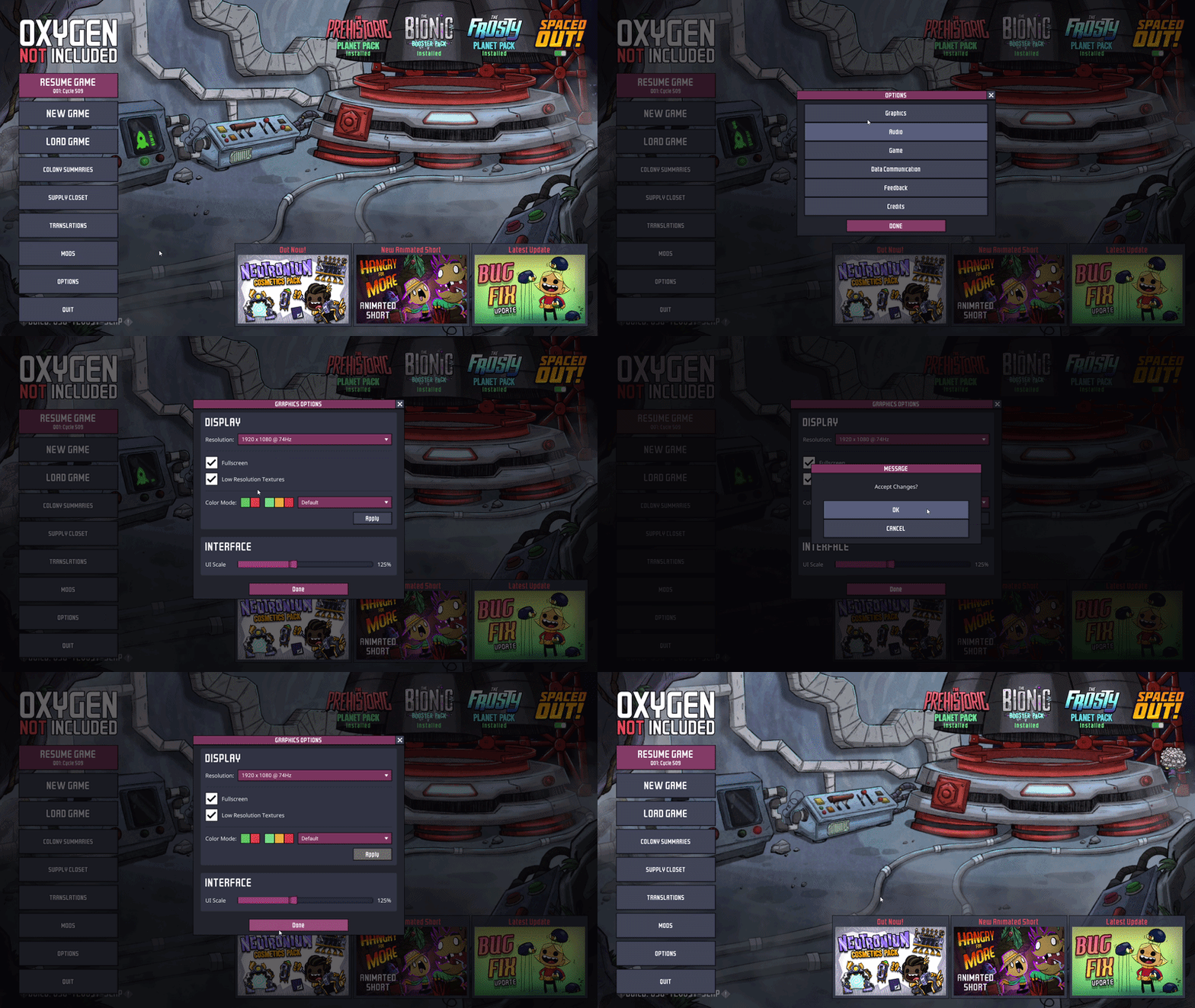
LOW RESOLUTION TEXTURES [ ENABLE ]
- Halves GPU VRAM usage. Great for iGPUs (less RAM used) or low VRAM GPUs (4GB or less).
- Minimal quality loss.
- Helps with stuttering/tearing in mid-late game.
- GPU processing though is minimally impacted/improved.
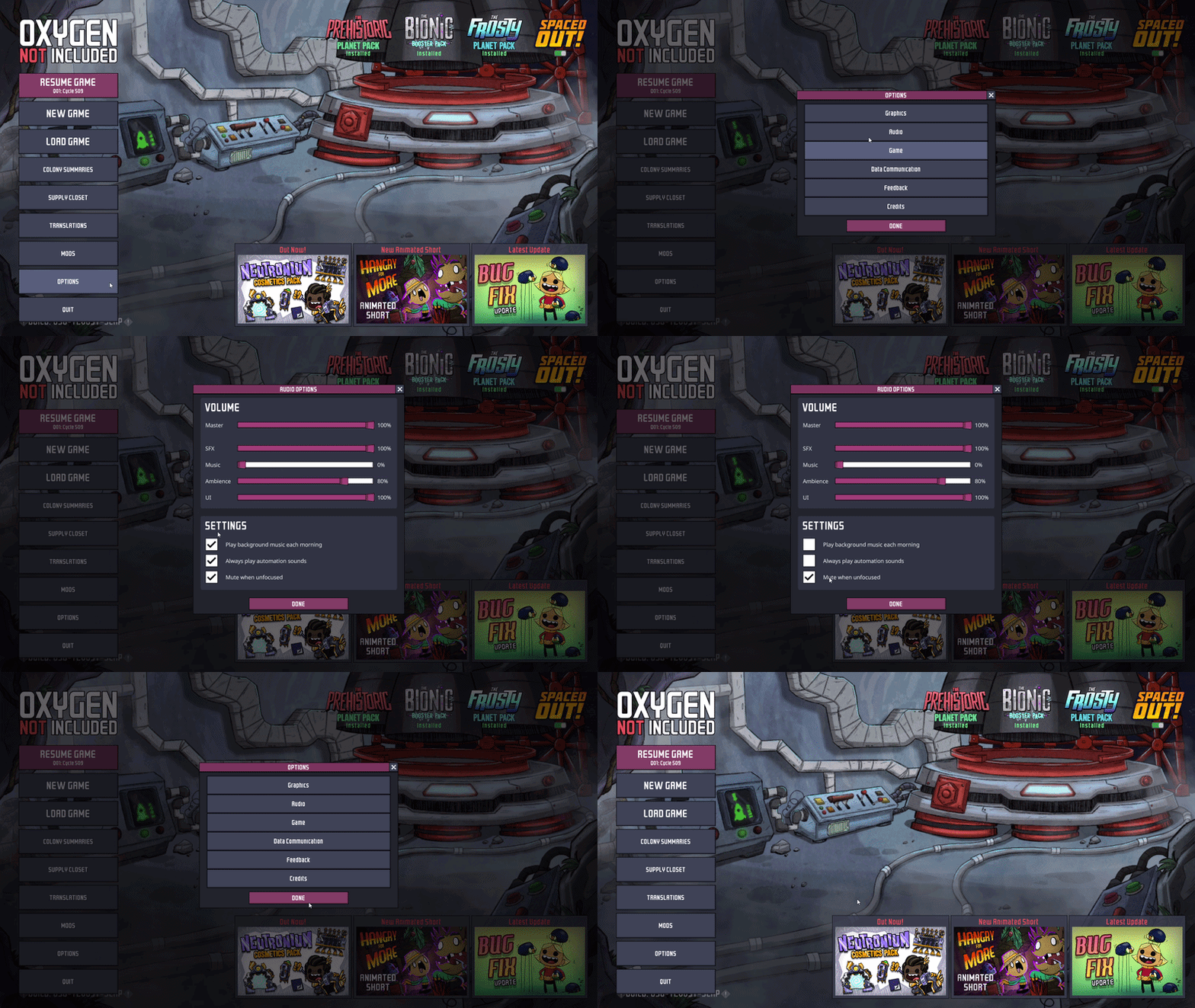
PLAY BACKGROUND MUSIC EACH MORNING [ DISABLE ]
ALWAYS PLAY AUTOMATION SOUNDS [ DISABLE ]
- No audio needed playing every morning, disable this.
- Disable always play sound affects for everything and not just within your focused window area.
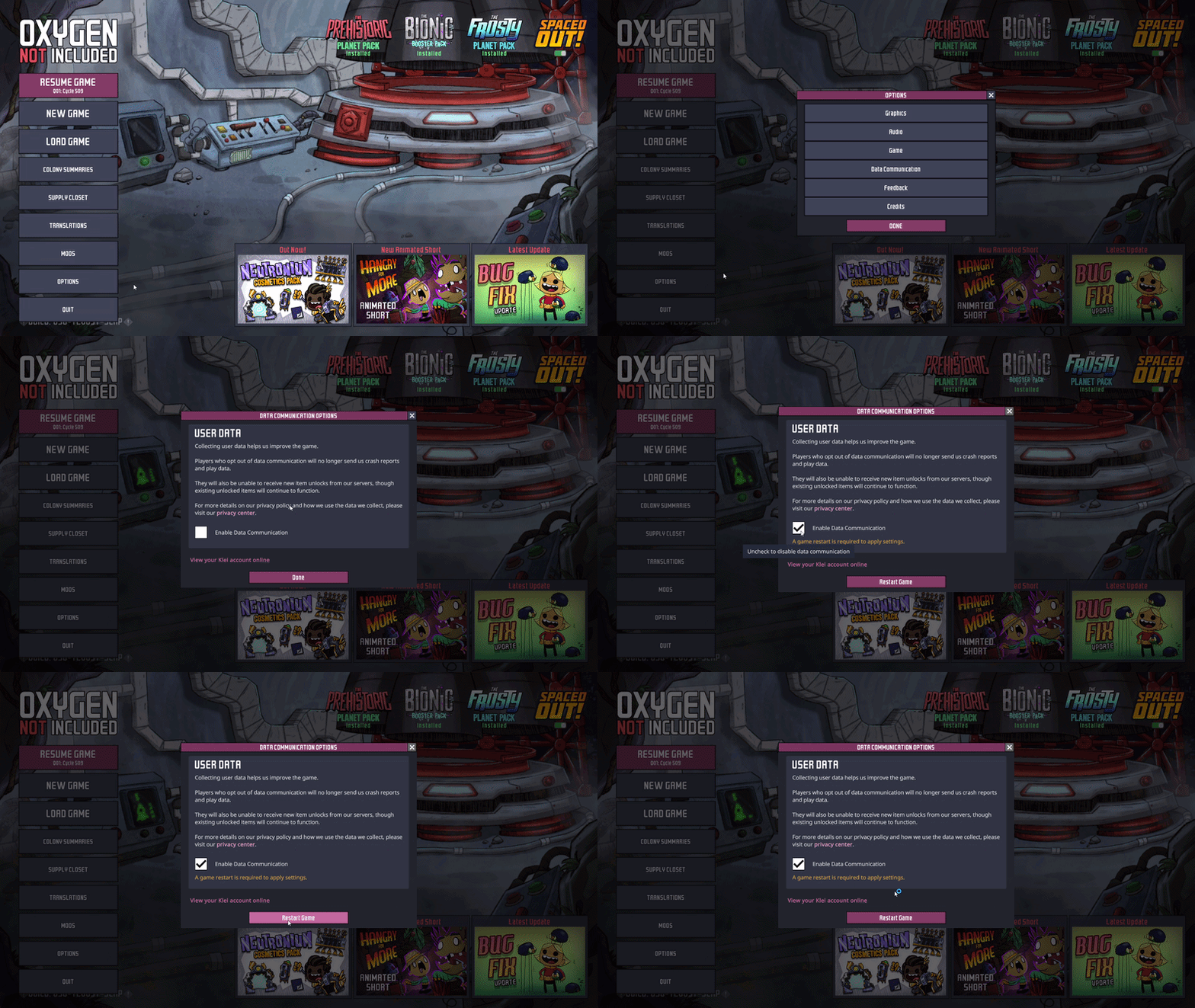
DATA COMMUNICATION [ ENABLE ]
Only disable this you don't want them collection any information on you and you don't mind loosing out on the random weekly skins.
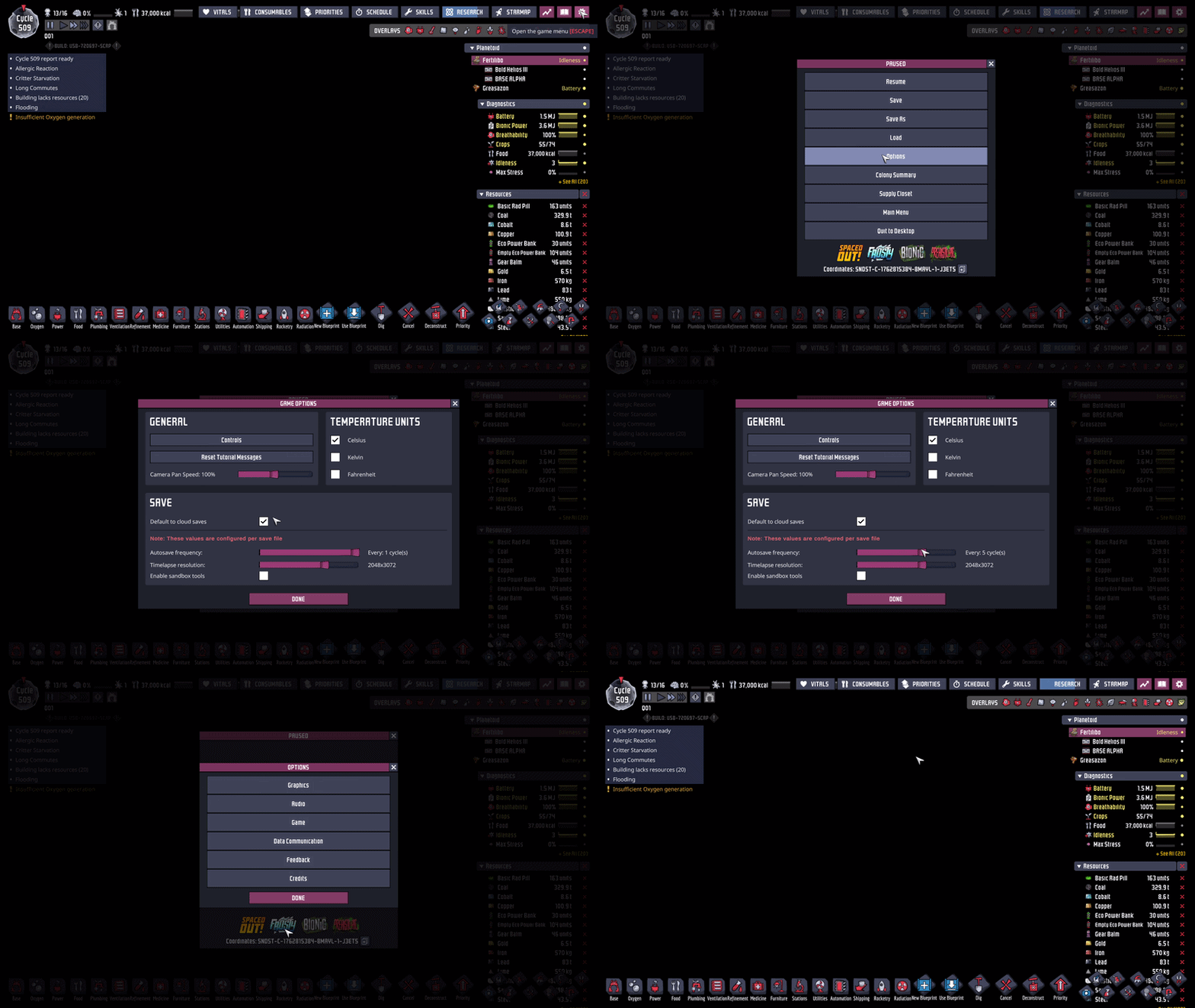
*THIS IS ONLY AVAILABLE WHILE PLAYING (GAME/SESSION/MAP).
AUTOSAVE FREQUENCY [ EVERY 5 CYCLES ]
TIMELAPSE RESOLUTION [ DISABLE ]
Map progression image of every save, so unless you like seeing your map progression or a Ytber, disable this.
[STEP 3] [STEAM]
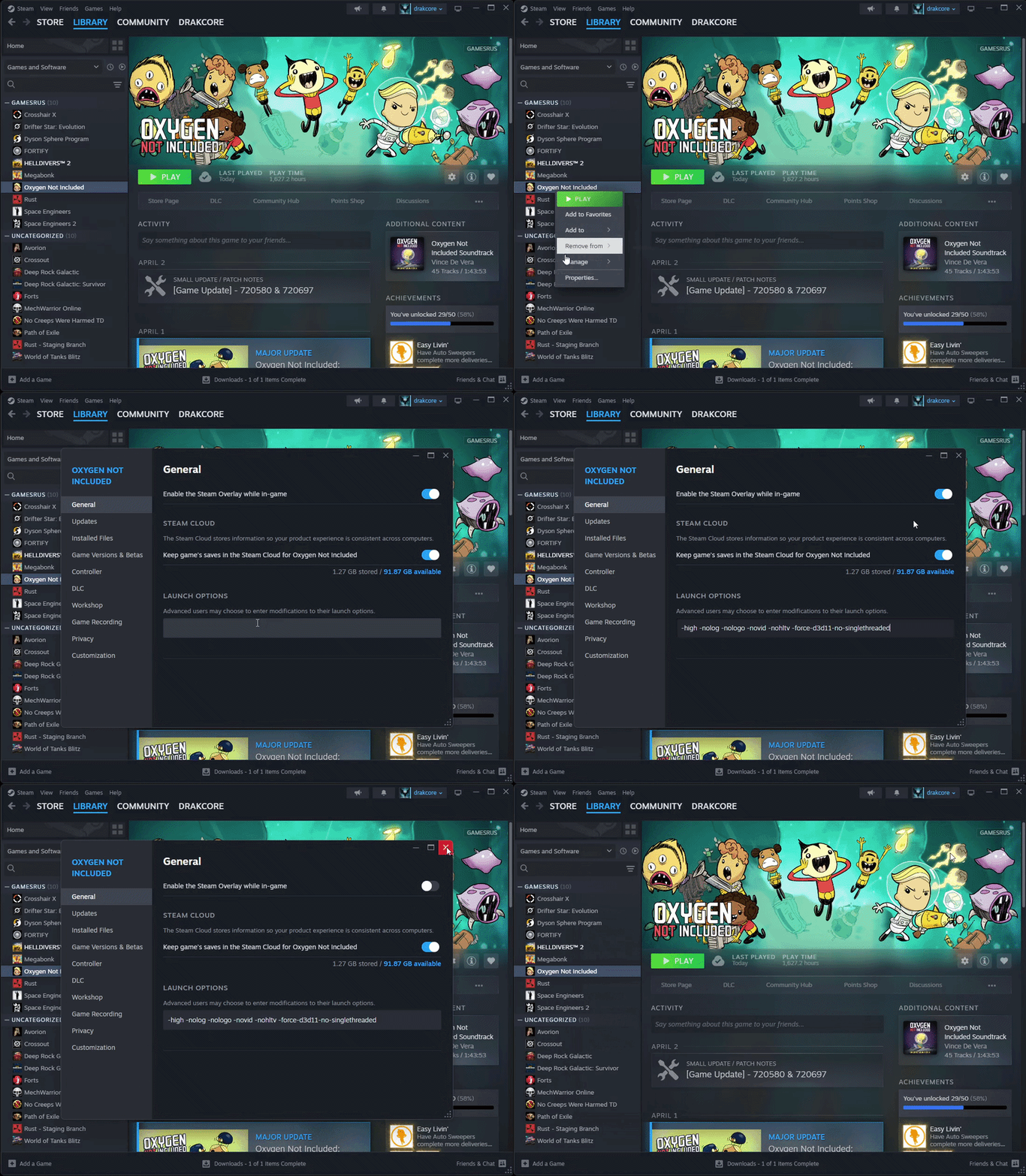
LAUNCH OPTIONS: -high -nolog -nologo -novid -nohltv -force-d3d11-no-singlethreaded
- high - Using the high launch option will set the priority of the game process to High on your computer.
- nolog - Disables logging.
- nologo - If games have intro logo, this disables it.
- novid - When you add the novid launch option to a game, the intro video of the game will not be played. This can help you achieve faster load times.
- nohltv - Disables SourceTV hosting, less resource usage.
- force-d3d11-no-singlethreaded - Even with Unity 6+, Directx 12 is still slower than 11. https://discussions.unity.com/t/is-performance-parity-planned-between-dx12-and-dx11/1616930
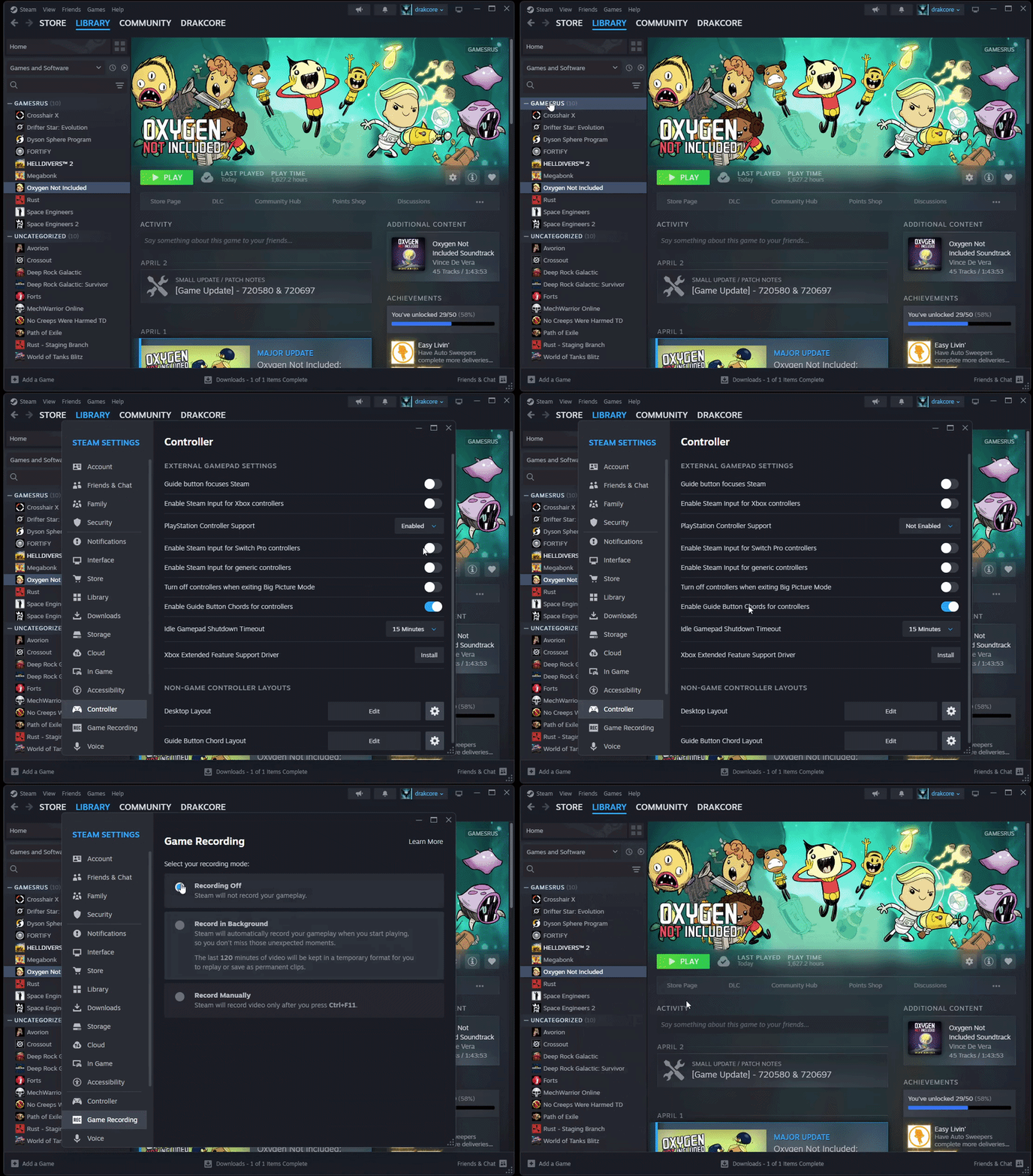
PLAYSTATION CONTROLLER SUPPORT [ NOT ENABLED ]
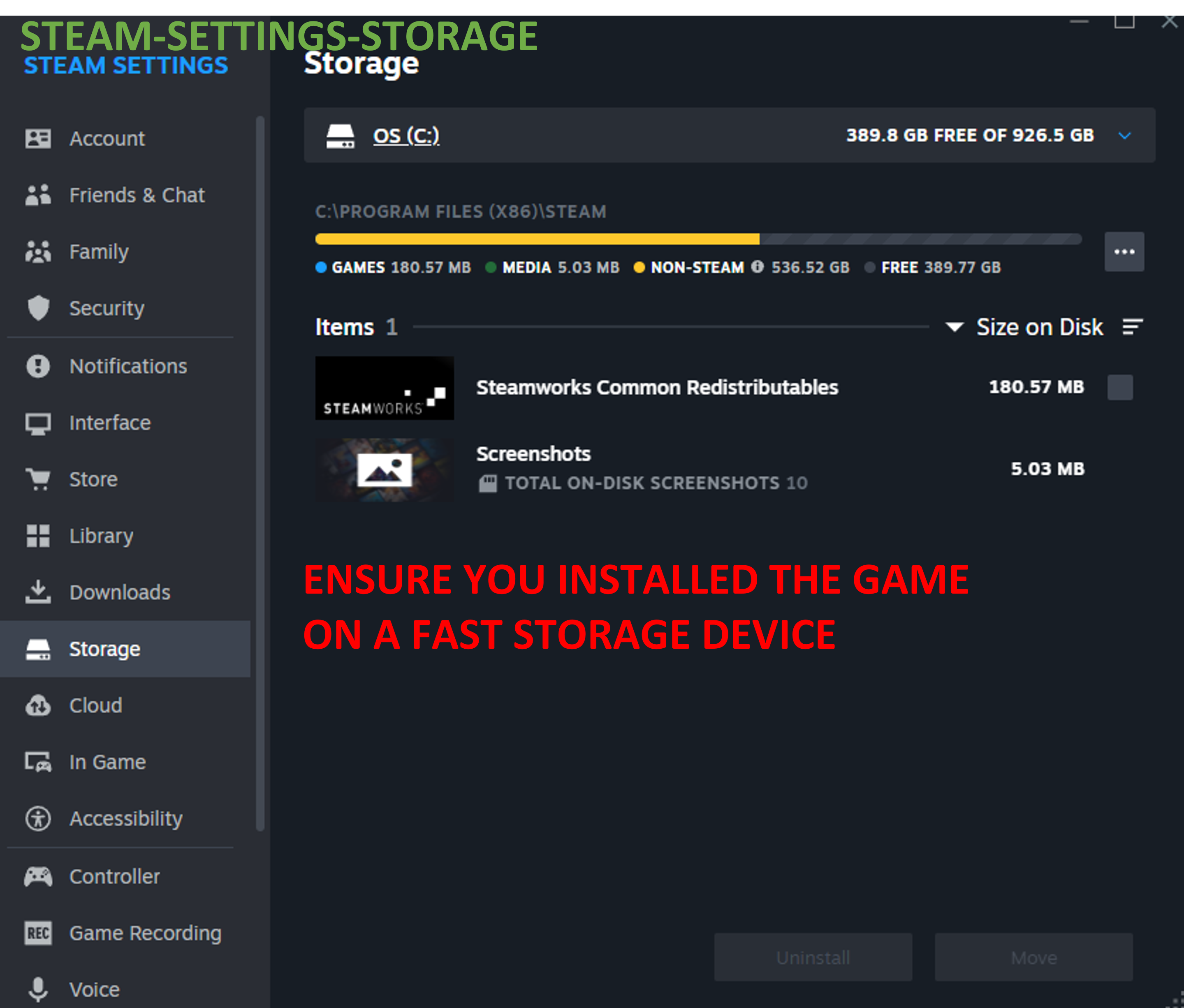
ENSURE GAME IS SAVED UNDER FASTEST DRIVE.
[STEP 4] [MODS]
A few of them have options you can change on the mod window within the game.
*Forum post[forums.kleientertainment.com]
*Github[github.com]
[STEP 5] [WINDOWS(OS)]
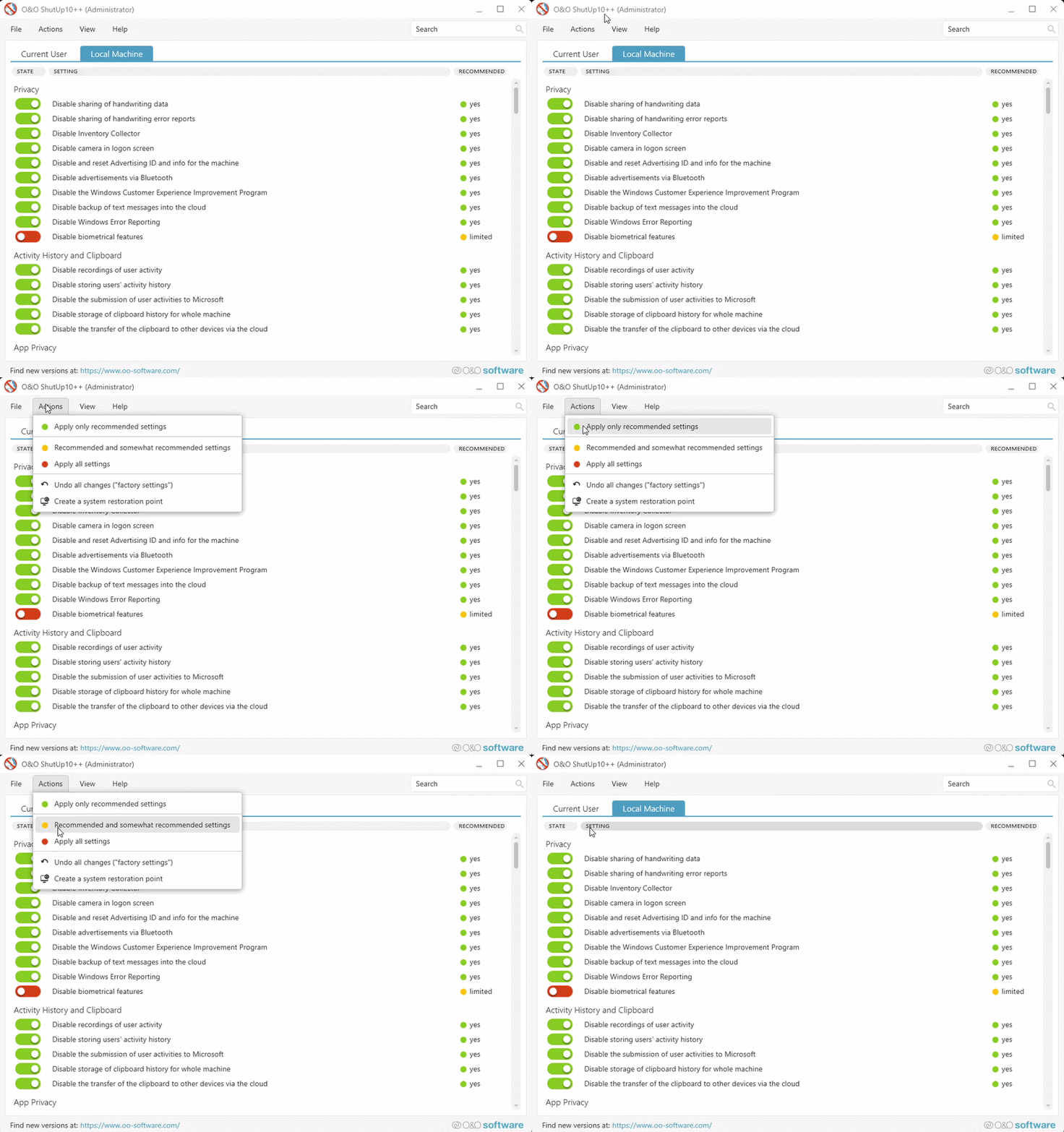
If you are worried, just "Apply only recommnded settings"
Personally I would do "Recommended and somewhat recommended settings"
DELETE / DISABLE UN-WANTED APPS/SERVICES
DON'T REMOVE ANYTHING YOU DON'T KNOW WHAT IT IS!
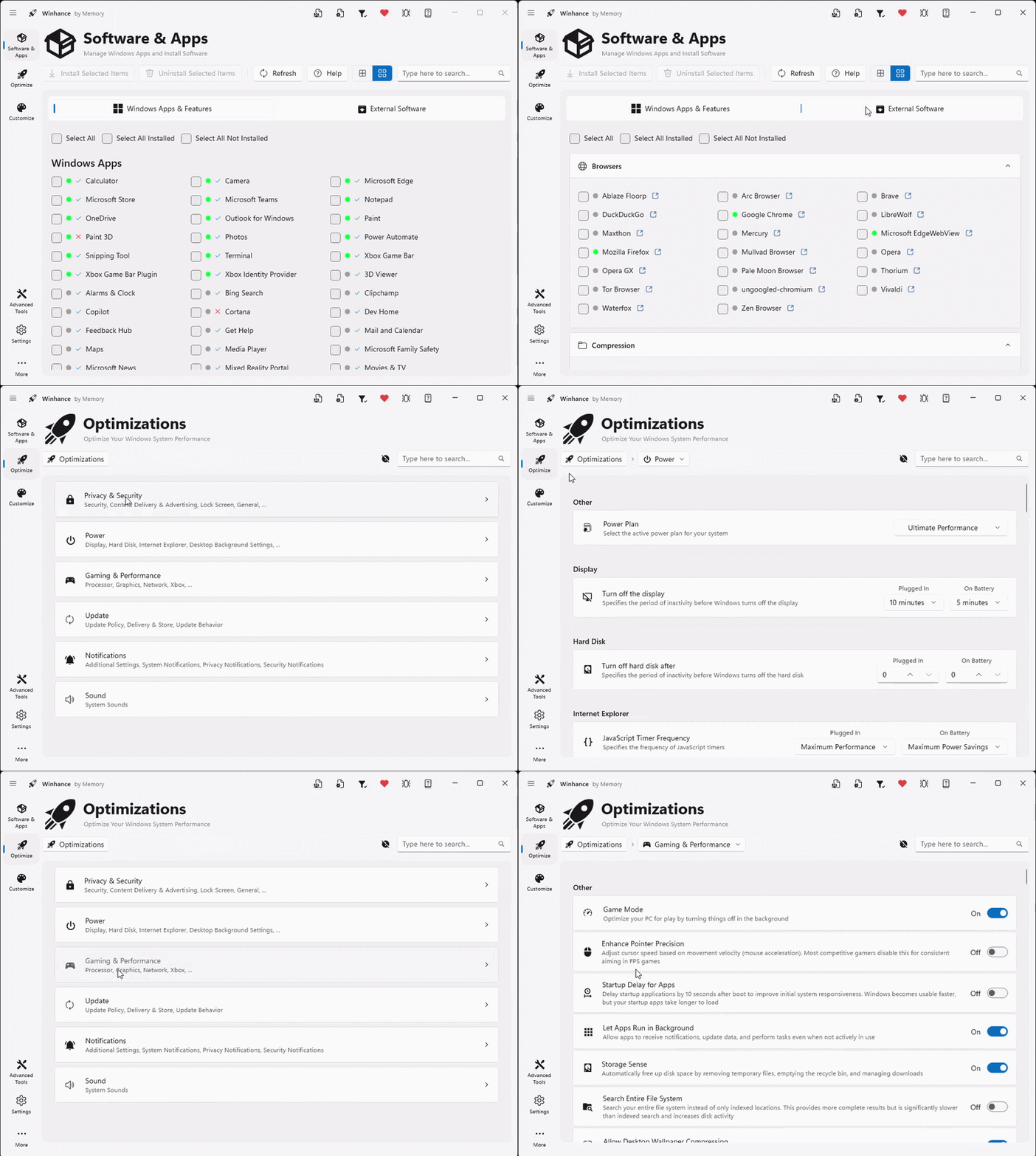
*links within the excel document.
Clean temp files, un-install, reg cleaner, startup/process handler, plugin, duplicator. Just makes life easier to cleanup your system. MALWAREBYTES + TRON
*links within the excel document.
INFECTION CLEANUP OF SYSTEM
Naviagate to - Windows Security - Virus & threat protection - Virus & threat protection settings - manage settings - Exclusions - Add or remote exclusions - Add an exclusion - Process - OxygenNotIncluded.exe
Or you can use powershell to add it to the exclusions.
powershell.exe -Command "Add-MpPreference -ExclusionProcess 'OxygenNotIncluded.exe'"
If you have anything beside the built in Windows Defender, just add "OxygenNotIncluded.exe" to the exceptions/allow list.
[STEP 6] [CPU-GPU] [GUIDE END]
CPUs LOVE UNDERVOLTING, GPUs LOVE OVERVOLTING, NEITHER LOVE THE HEAT AND THE RAM GOES BRRRRR
I have omitted a huge part on the CPU section since the new Unity Engine handling cores/threads seems to be fighting affinity handeling causing loss of performance instead of improving it when selecting best cores.
*Only minimal Process Lasso optimal settings are left here.
*Once I figure out what is causing the affinity issues I will re-add them here.
*links within the excel document.
You can customize your CPU/GPU power, VRM, GPU/VRAM clock, CPU boost/curve/CCD/profile. *Ghelper is another similar tool but has far less options.
I use this app due to my ASUS laptop BIOS being locked down like Fort Knox and the Amory crate software it came with is garbage.
ONI ONLY USES 2 CORES / 4 THREADS.
And not all cores are created equally.
SITE: https://bitsum.com/
Now open Process Lasso and start ONI (Oxygen Not Included)
Look for the "OXYGENNOTINCLUDED.EXE", right click on it, then set the following.
CPU PRIORITY -always -high
I/O PRIORITY -always -high
GPU PRIORITY -always -high
BOOST -always -one
POWER PROFILE -ultimate performance
EXCLUDE FROM PROBALANCE
[benchmark]
CPU: 7940HS (8C / 16T)
RAM: 32GB DDR5 4800 MT/s
GPU: 4070 8GB
STORAGE: 1TB+2TB NVME
*JohnFrancis benchmark forum post[forums.kleientertainment.com]
*enabling debug mode[oxygennotincluded.wiki.gg]
Go into debug mode (by pressing backspace key), once the first alarm goes off, you unpause + set a stop watch, then press (CTRL+U) to get into Ultra Test Mode.
(this has to be done after the un-pause)
When the next alarm goes off (300 in game ticks), you stop the timer = your benchmark time.
*It is not perfect, but the best we have.
You gain 5%+- over having nothing in the launch options for ONI through STEAM.
[-high -nolog -nologo -novid -nohltv -dx11 -nojoy -nod3d9ex] | 104, 99, 102
[-high -nolog -nologo -novid -nohltv -force-d3d11-no-singlethreaded -nojoy -nod3d9ex -gc.buffer 2048] | 99, 99, 102, 99
[-high -nolog -nologo -novid -nohltv -force-d3d11-no-singlethreaded -nojoy] | 100, 101
[-high -nolog -nod3d9ex -force-d3d11-no-singlethreaded -gc.buffer 256 -nologo -novid -nohltv -nojoy] | 107, 102
[-high -nolog -nod3d9ex -force-d3d12-no-singlethreaded -gc.buffer 2048 -nologo -novid -nohltv -nojoy] | 105, 98, 101, 101
[-high -nolog -nologo -novid -nohltv -force-d3d11-no-singlethreaded -nojoy -nod3d9ex -gc.buffer 4096] | 103, 101
[-high -nolog -nologo -novid -nohltv -force-d3d11-no-singlethreaded -nojoy -nod3d9ex] | 104, 101, 101
[-high -nolog -nologo -novid -nohltv -force-d3d11-no-singlethreaded -nojoy -nod3d9ex -gc.buffer 1024] | 103, 99
[todo]
[changelog]
- ONI - Surviving the Early Game★ 5 (2.4k)83k views6.3k ♥54 minUpdated 6 Aug, 2019
- Useful Construction Patterns★ 5 (1.8k)74k views5.2k ♥66 minUpdated 29 Aug, 2020
- 10* things I wish I knew sooner...★ 5 (754)58k views1k ♥4 minUpdated 6 Oct, 2017
- ONI - Surviving the Mid-Game★ 5 (1.3k)44k views3.8k ♥150 minUpdated 6 Sep, 2019
- Not Quite Beginner's Guide★ 5 (361)32k views1.1k ♥91 minUpdated Mar 26, 2023
- Руководство для начинающих. (ОСНОВЫ)★ 5 (629)32k views1.2k ♥21 minRussianUpdated 20 Apr, 2019




- Upgrading to PremiumTeam Fortress 2★ 5 (20k)1441k views11k ♥6 minUpdated May 11, 2022
- No More Room in Hell Official ManualNo More Room in Hell★ 5 (2.8k)569k views2.1k ♥29 minUpdated Apr 22, 2019
- NMRiH Community Hosting GuidesNo More Room in Hell★ 5 (526)351k views653 ♥1 minUpdated Aug 10, 2022
- ULTIMATE GUIDE FOR GAME DEV TYCOONGame Dev Tycoon★ 5 (5.8k)326k views10k ♥4 minUpdated 23 Jan, 2014
- How to 'Git Gud' Soon™MORDHAU★ 5 (2k)318k views3k ♥68 minUpdated Nov 16, 2024
- Лучшие кооперативные игры SteamPAYDAY 2★ 5 (1.5k)315k views2.1k ♥56 minRussianUpdated Apr 27, 2025






This guide was created by its original author on the Steam Community. Are you the author and want it removed? Request removal.