Script Fix for the PhysX Crash Bug
Introduction
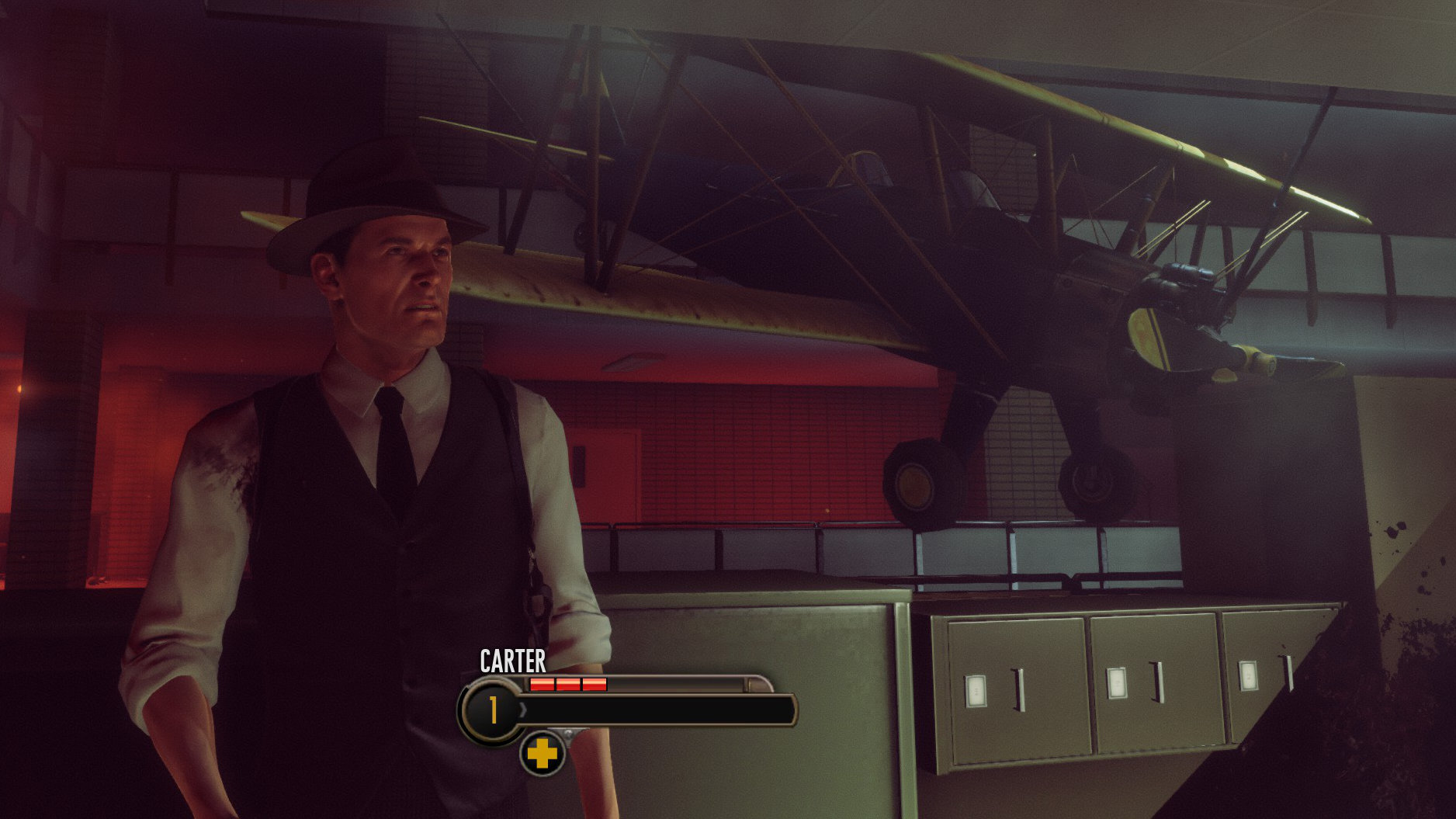
Since its release many years ago, this game has been crashing for Nvidia GPU users due to a problematic DLL file called PhysXCore.dll. You will know if you are affected by this problem because disaster strikes after just a minute or two of gameplay when you encounter this biplane:
Nvidia installs multiple versions of this DLL file in separate subfolders for backward compatibility. However, as the display driver evolved, these subfolder names became unpredictable, repeatedly breaking existing guides. This script resolves the issue by finding the correct DLL (even if the subfolder name changes again) and replacing the faulty one.
Nvidia installs multiple versions of this DLL file in separate subfolders for backward compatibility. However, as the display driver evolved, these subfolder names became unpredictable, repeatedly breaking existing guides. This script resolves the issue by finding the correct DLL (even if the subfolder name changes again) and replacing the faulty one.
Prerequisites
Before proceeding, please ensure the following:
- A recent Nvidia driver[www.nvidia.com] is installed with PhysX.
- The Bureau: XCOM Declassified is installed (well duh!😜).
Tip: If you wish to vet the script, please scroll down to the 'Review the Script'
section before running it on your system.
Quick Fix: Copy-Paste Solution
1. Launch Powershell by pressing ⊞ Win + R, type 'powershell' (without quotes), and press Enter.
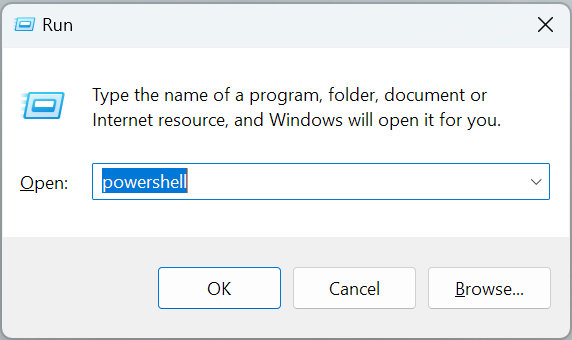
A Powershell window should now open.
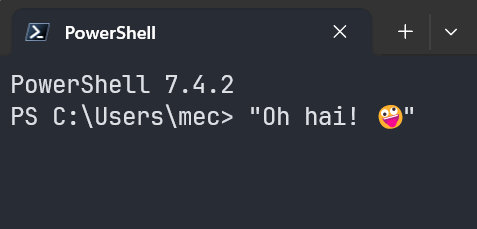
2. Download the Script by copying the following line of code with Ctrl+C, then pasting it into the PowerShell window using Ctrl+V.
3. Run the Script by copying the following line of code with Ctrl+C, then pasting it into the PowerShell window using Ctrl+V.
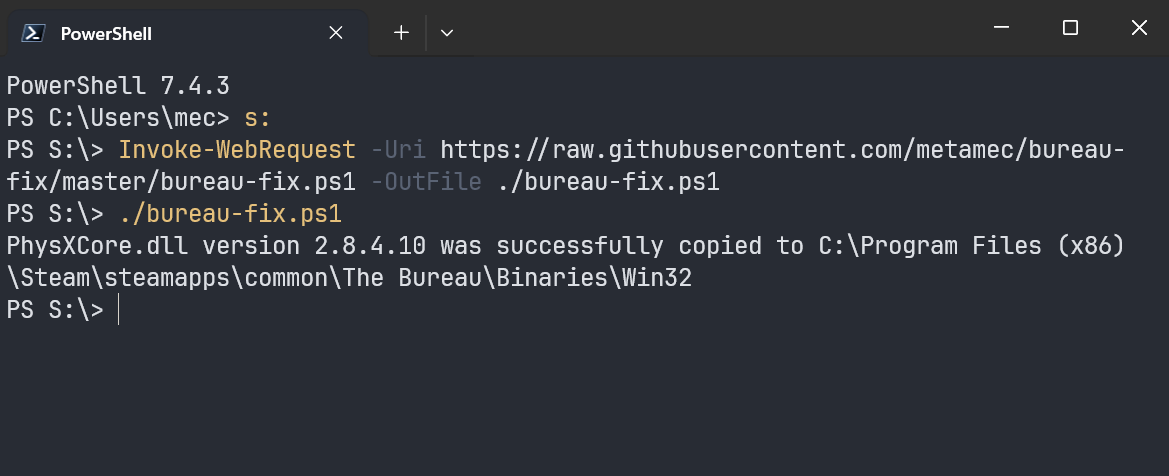
All being well, you should now see a message at the bottom of the powershell window indicating that a working version of PhysXCore.dll was successfully copied:
Script executed. No more game crashes. Time to save the world, Agent! 🕵️♂️
A Powershell window should now open.
2. Download the Script by copying the following line of code with Ctrl+C, then pasting it into the PowerShell window using Ctrl+V.
Invoke-WebRequest -Uri https://raw.githubusercontent.com/metamec/bureau-fix/master/bureau-fix.ps1 -OutFile ./bureau-fix.ps1
3. Run the Script by copying the following line of code with Ctrl+C, then pasting it into the PowerShell window using Ctrl+V.
./bureau-fix.ps1
All being well, you should now see a message at the bottom of the powershell window indicating that a working version of PhysXCore.dll was successfully copied:
Script executed. No more game crashes. Time to save the world, Agent! 🕵️♂️
Review the Script
For peace of mind, consider reviewing the script before executing it, or have a tech-savvy friend give it a once-over. You can open it in Notepad after running the Invoke-WebRequest command above:
Alternatively, it can be found at Github[github.com].
notepad ./bureau-fix.ps1
Alternatively, it can be found at Github[github.com].
Tweaking the Script
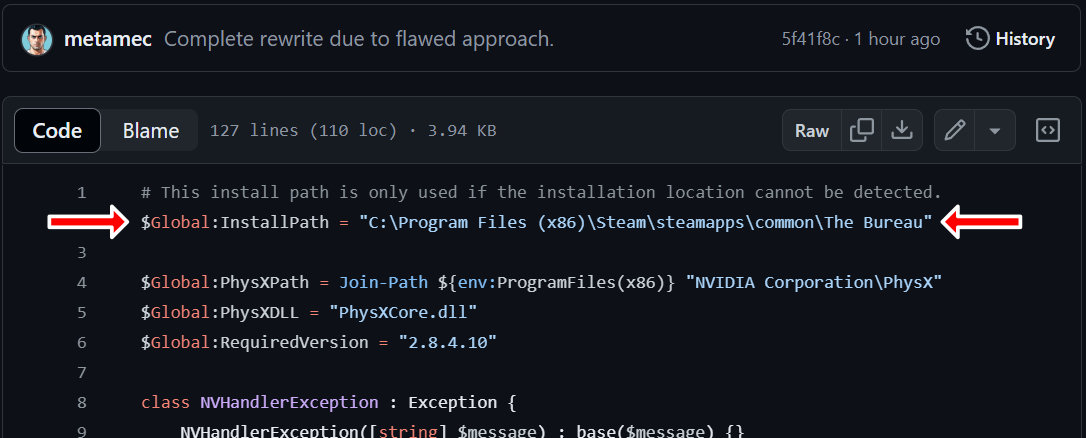
The script attempts to detect The Bureau's installation folder automatically, but if you purchased the game from a platform other than Steam this will not work. To resolve this problem, you will need to manually locate the game's installation folder and update the $Global:InstallPath variable accordingly.
Mission accomplished! Now go enjoy the game before the aliens change their mind about letting you win. 👽
Mission accomplished! Now go enjoy the game before the aliens change their mind about letting you win. 👽
More The Bureau: XCOM Declassified guides
- Radio frequency★ 5 (319)15k views122 ♥1 min
- Руководство по достижениям (RU)★ 5 (1k)14k views816 ♥12 minRussianUpdated Jan 23, 2019
- Achievements Guide (ENG)★ 5 (564)14k views601 ♥12 minUpdated Feb 19, 2017
- The Bureau Endings Guide (there are technically 7 endings)★ 4 (121)10k views95 ♥3 min
- Радиочастоты★ 4 (255)10k views97 ♥1 minRussianUpdated Aug 24, 2013
- general guide to the game/should I buy it? (Is it fun)★ 3 (44)6.7k views9 ♥6 min



This guide was created by its original author on the Steam Community. Are you the author and want it removed? Request removal.