Secret formula to optimize KOTOR (without mods)
Setting up launch of KOTOR
Right click swkotor.exe to set compatibilty mode to Windows XP (Service Pack 3) and add DPI override for this application.
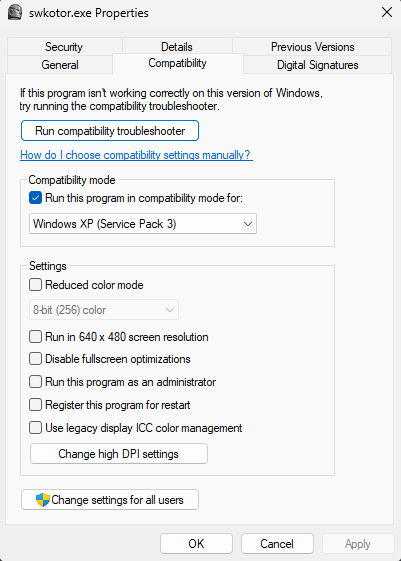
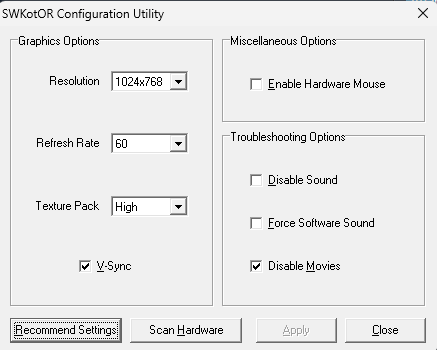
Go into game and set resolution to 1024x768, reset game and the game will look as it was intended on original 4:3 hardware.
Modifying swkotor.ini to optimize the game
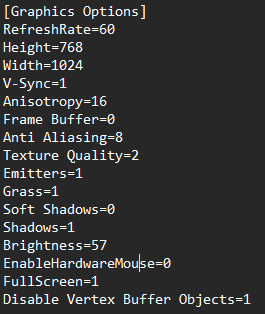
Optional stuff
Optional:
Playing this game with only one monitor or having your other monitors disabled seems to have less breaking when you Alt+Tab so I manually disable my second monitor in Windows before each time I play.
You can disable movies in the swconfig.exe to skip the loud intros for Bioware & LucasArts, it keeps the cutscenes from the story intact and just skips the intro.
In swkotor.ini you can disable certain autopause settings to have a faster, less interrupted gameplay experience. My personal recommendation is turning off Mine Sighted & Enemy Sighted since your game will be autopausing so much in certain parts it can be unsettling and kind of annoying.
- The Definitive Improvement Guide★ 5 (1.6k)158k views4.1k ♥22 minUpdated Mar 25, 2021
- KotOR Cheat Codes★ 5 (1.6k)123k views4.2k ♥4 minUpdated Nov 23, 2014
- Make your KOTOR playthrough more enjoyable★ 5 (1.8k)97k views5k ♥13 minUpdated Jun 24
- [How-To] KotOR on modern systems (incl. Widescreen)★ 5 (778)95k views1.8k ♥4 minUpdated Nov 24, 2015
- KoToR Best Order of Planets★ 5 (689)73k views1.6k ♥1 min
- [Windows 10] My Steps To Running The Game On WIndows 10★ 5 (617)64k views1.7k ♥2 minUpdated Nov 2, 2018




- Upgrading to PremiumTeam Fortress 2★ 5 (20k)1441k views11k ♥6 minUpdated May 11, 2022
- No More Room in Hell Official ManualNo More Room in Hell★ 5 (2.8k)569k views2.1k ♥29 minUpdated Apr 22, 2019
- NMRiH Community Hosting GuidesNo More Room in Hell★ 5 (526)351k views653 ♥1 minUpdated Aug 10, 2022
- ULTIMATE GUIDE FOR GAME DEV TYCOONGame Dev Tycoon★ 5 (5.8k)326k views10k ♥4 minUpdated 23 Jan, 2014
- How to 'Git Gud' Soon™MORDHAU★ 5 (2k)318k views3k ♥68 minUpdated Nov 16, 2024
- Лучшие кооперативные игры SteamPAYDAY 2★ 5 (1.5k)315k views2.1k ♥56 minRussianUpdated Apr 27, 2025






This guide was created by its original author on the Steam Community. Are you the author and want it removed? Request removal.