[Windows 10] My Steps To Running The Game On WIndows 10
DISCLAIMER
I take no responsibility for any harm to or unintended effects on your computer that arise as a result of using this guide. These are just the steps that I took to be able to play the game on Windows 10.
STEP #1 [Disable Steam Overlay & Open Game Install Folder]
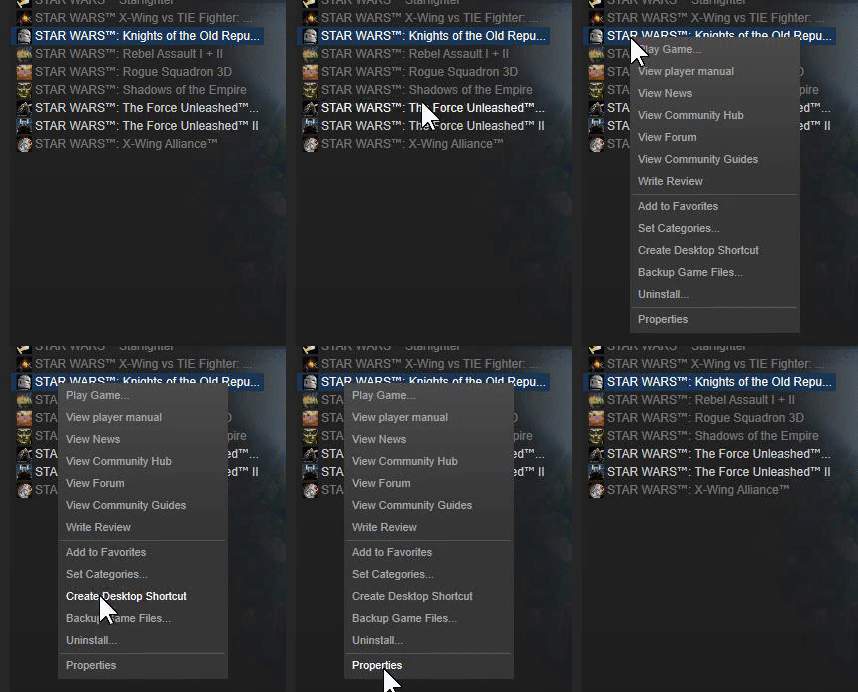
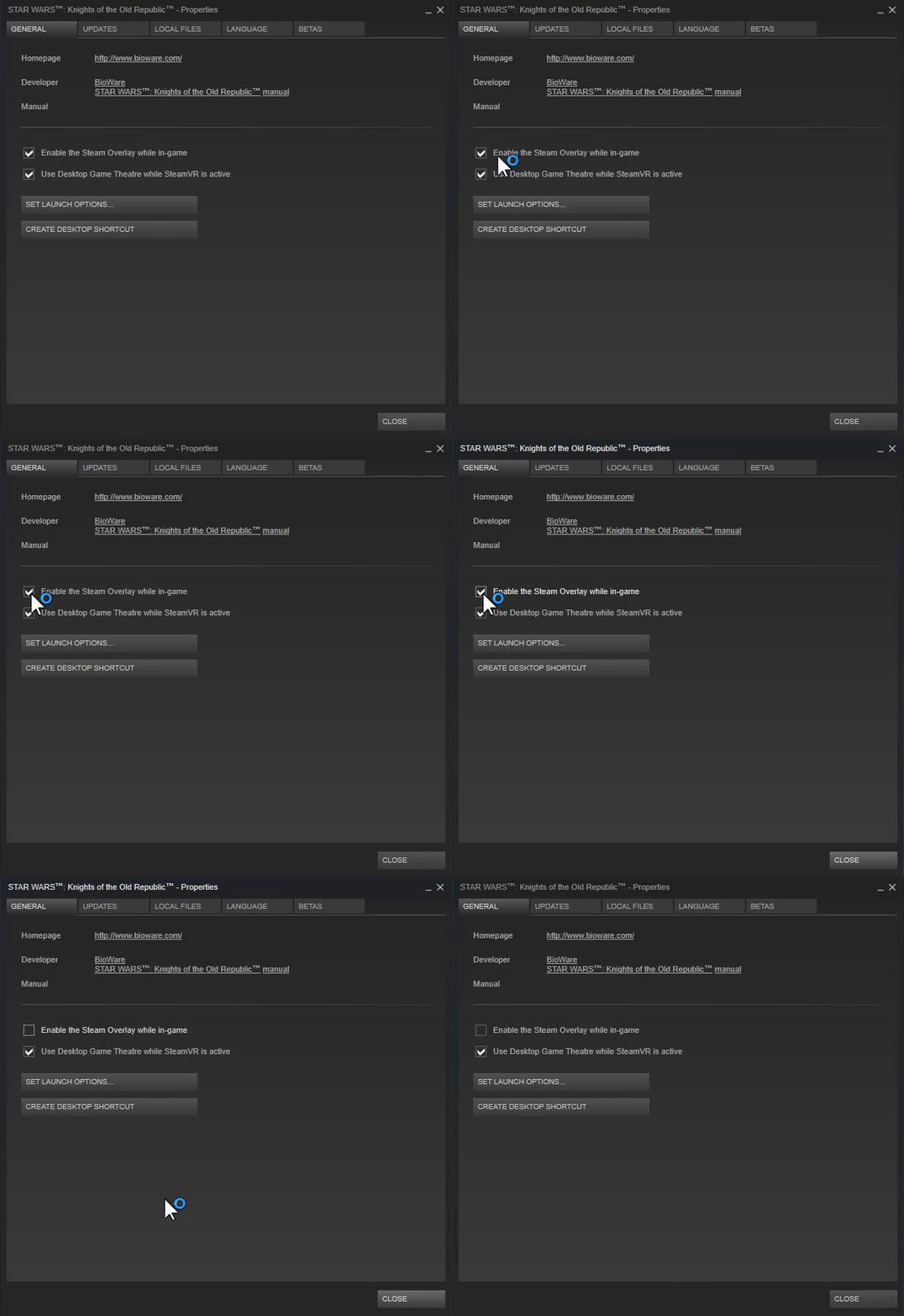
The first step is to disable the steam overlay, as it can cause issues with STAR WARS™ Knights of the Old Republic™
With the "swkotor" folder open, you can proceed to step #2.
On Steam, right-click STAR WARS™ Knights of the Old Republic™, then click Properties:
Uncheck the box that says "Enable the Steam Overlay while in-game":
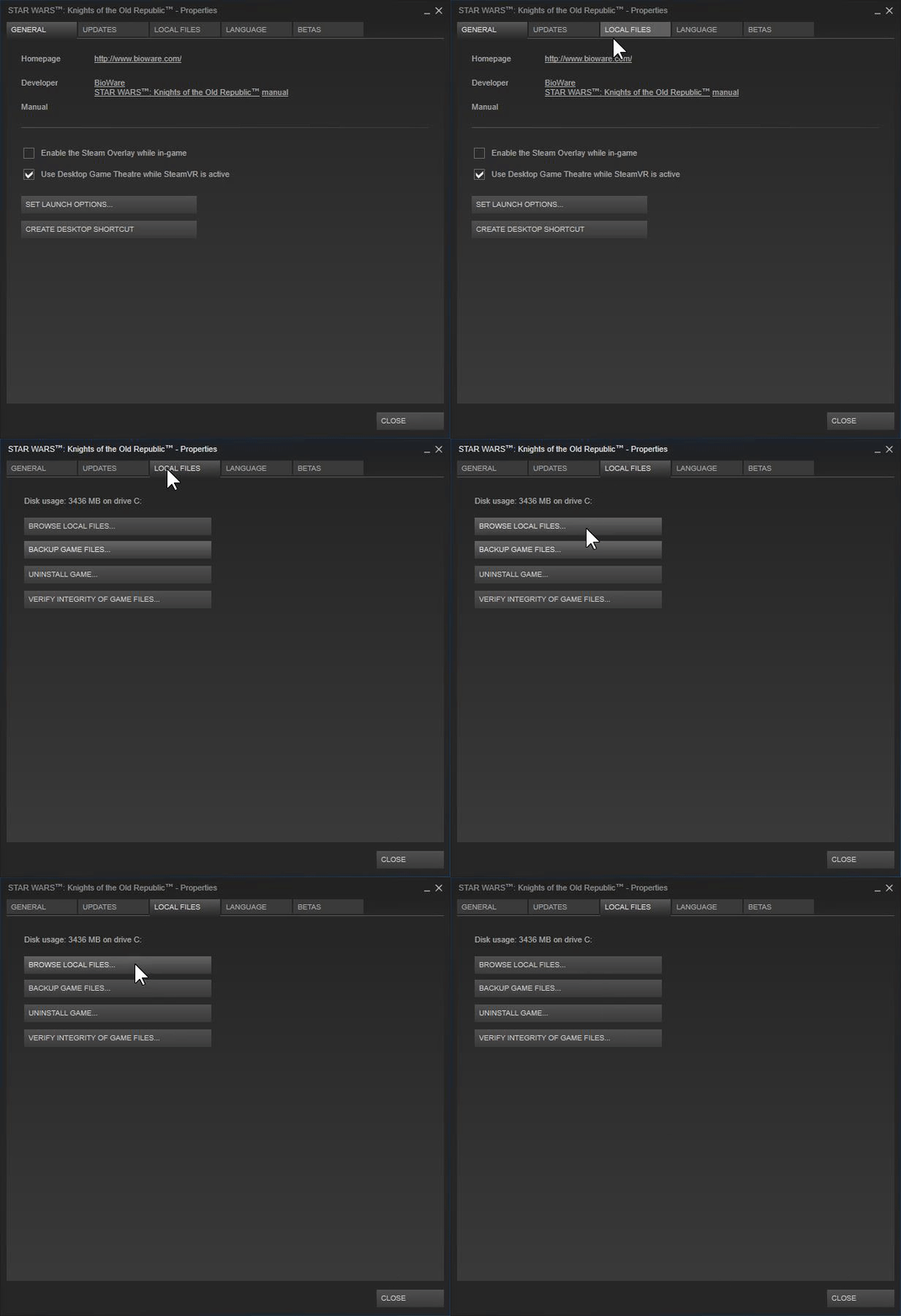
Click on the "Local Files" tab, then click "Browse Local Files...":
With the "swkotor" folder open, you can proceed to step #2.
STEP #2 [Compatability Settings]
This step consists of changing the compatability settings on the game's executable (swkotor.exe). You should have the "swkotor" folder open still from step #1.
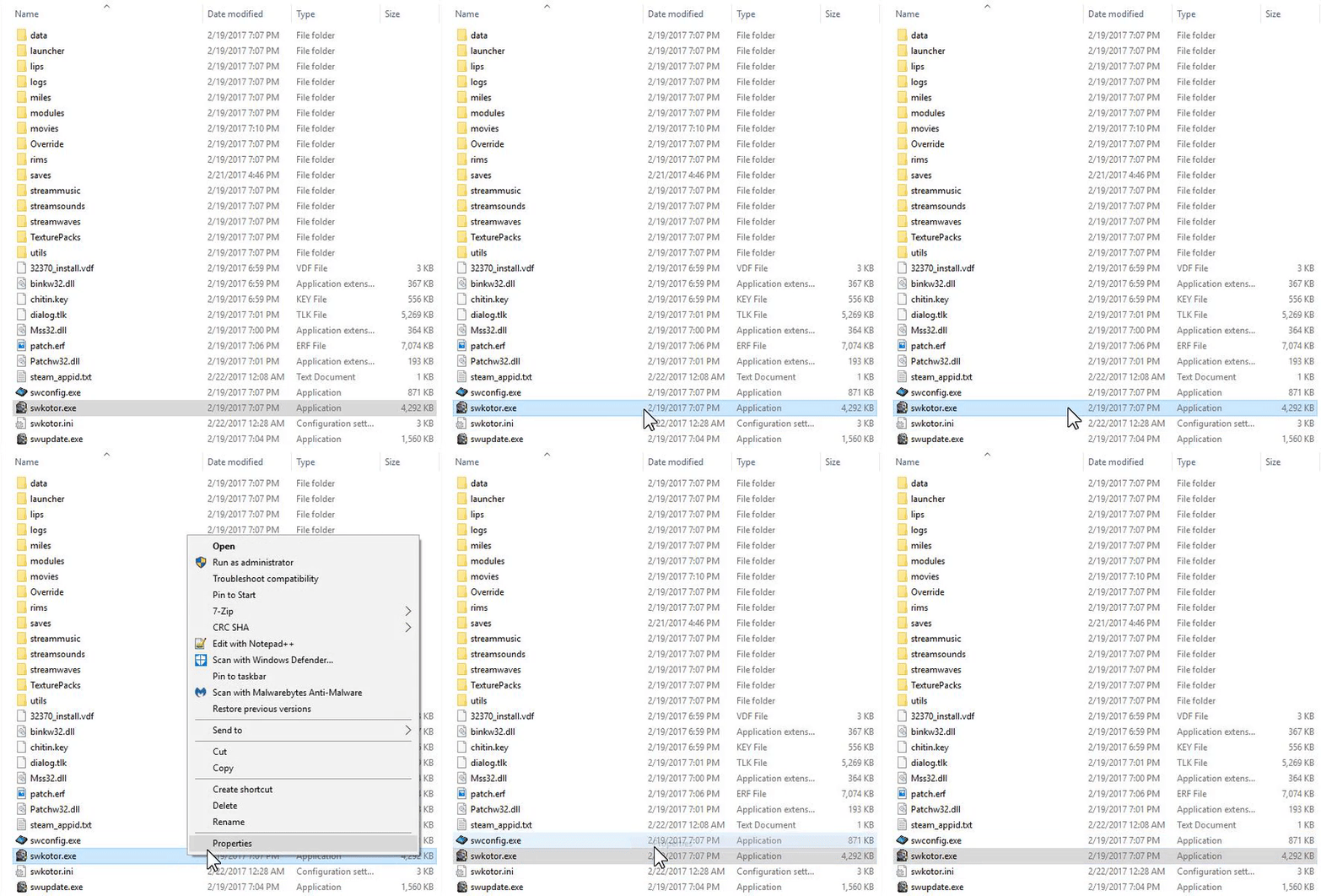
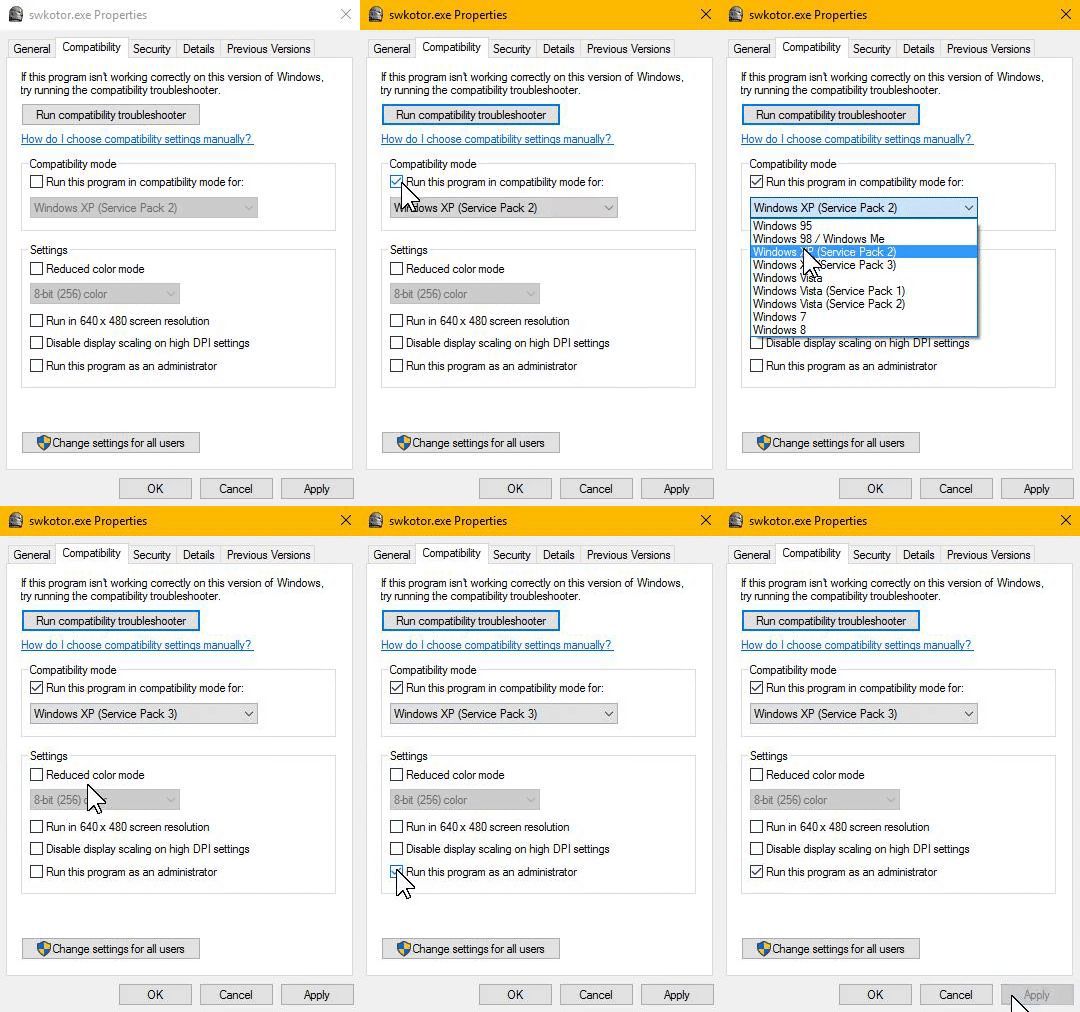
In the "swkotor" folder, locate and right-click on the application/executable file named "swkotor", then click on properties:
In the properties menu, click on the Compatability tab.
Then check the box that says "Run this program in compatability mode for:" and select "Windows XP (Service Pack 3)" from the drop-down menu.
Finally, check the box that says "Run this program as an administrator."
Click either "Ok" or "Apply" to save the settings.
Then check the box that says "Run this program in compatability mode for:" and select "Windows XP (Service Pack 3)" from the drop-down menu.
Finally, check the box that says "Run this program as an administrator."
Click either "Ok" or "Apply" to save the settings.
STEP #3 [Graphics Options]
This step requires that the "swkotor" folder is still open.
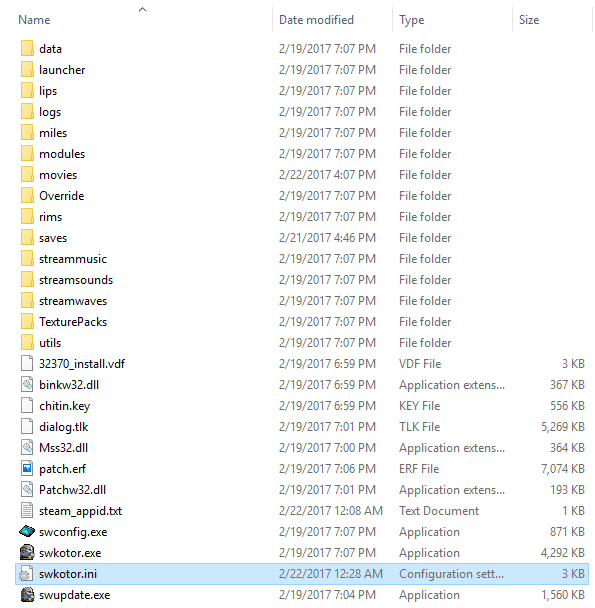
From the "swkotor" folder, find and open the configuration file named "swkotor.ini" or just "swkotor"
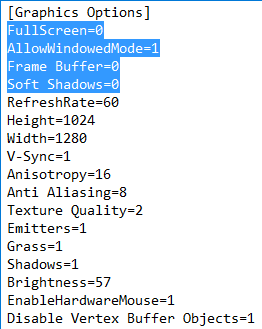
You can open the configuration file for editing with notepad.exeIn the configuration file, find the header [Graphics Options]
Make sure the four highlighted lines are somewhere under [Graphics Options], but above the next header.
Make sure the four highlighted lines are somewhere under [Graphics Options], but above the next header.
STEP #4 [Disable Opening Cutscenes]
This step requires that the "swkotor" folder is still open.
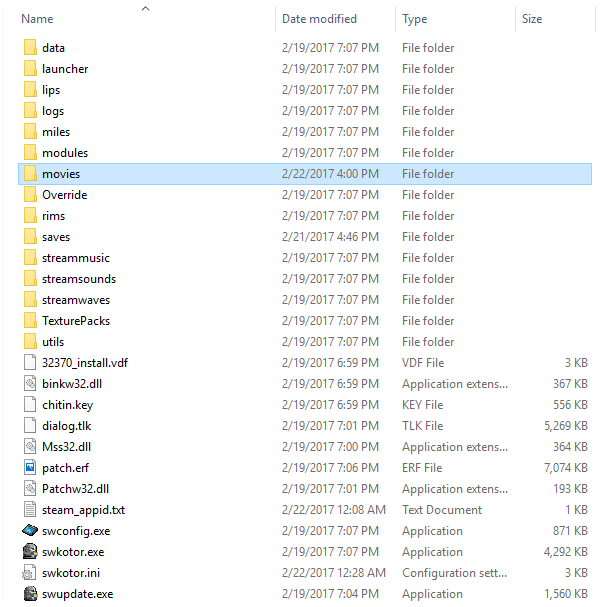
Find the "movies" folder and open it
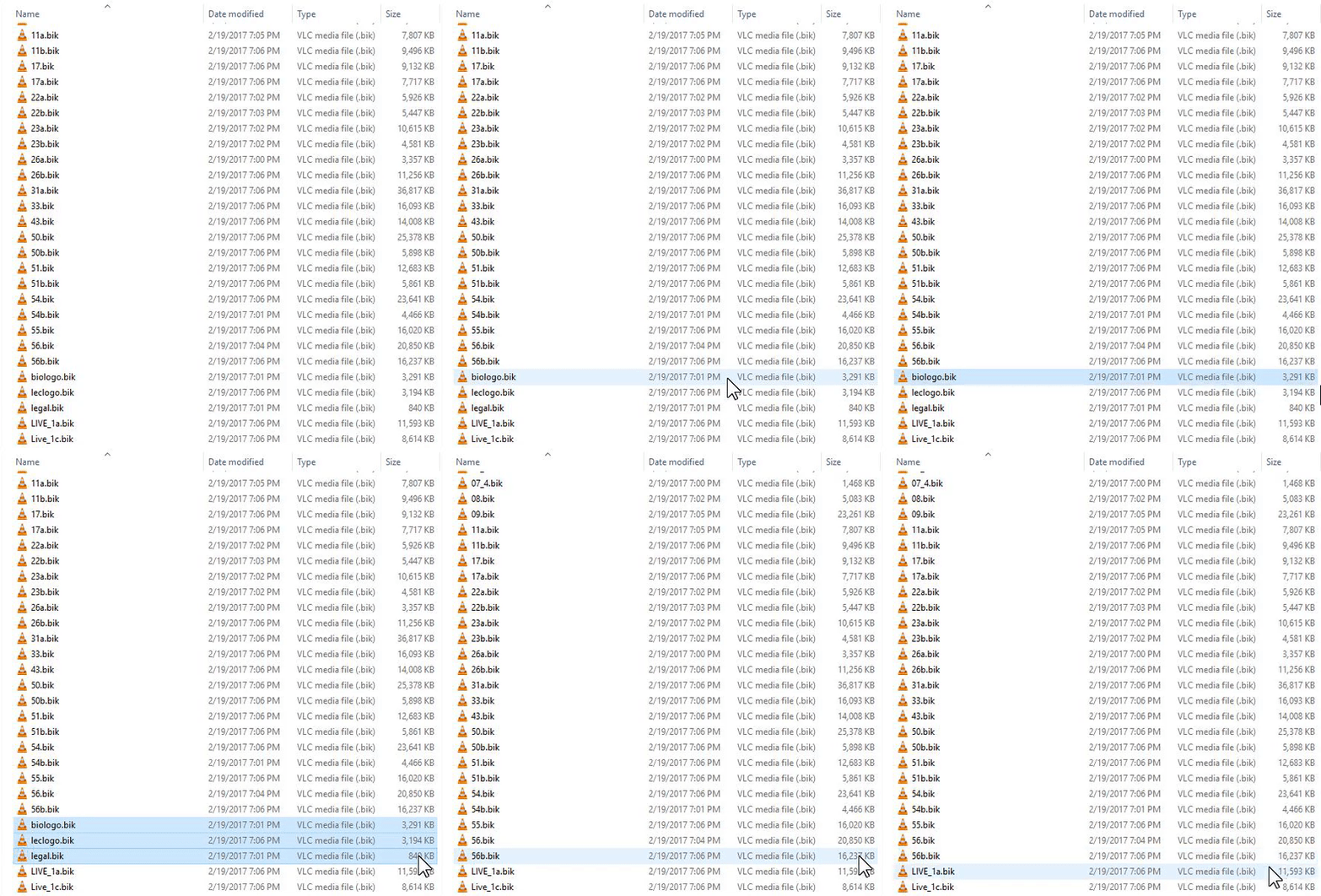
You have to do something about these 3 files:
- biologo.bik
- leclogo.bik
- legal.bik
Option #1
- Delete the 3 files.
Option #2
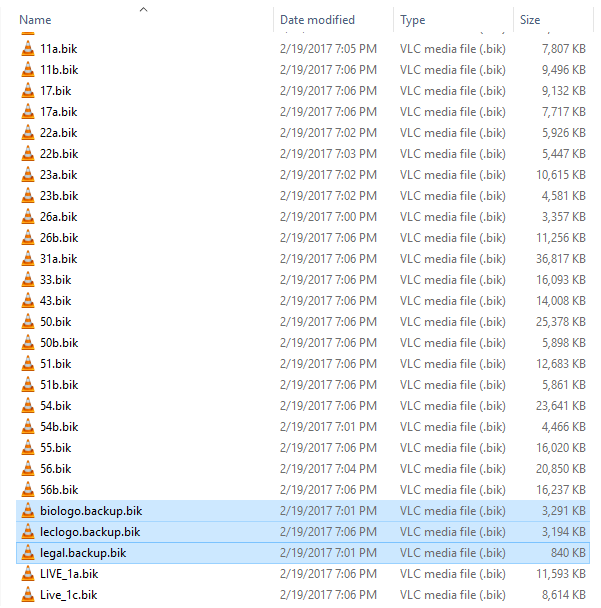
- Rename the 3 files to have .backup at the end of their names
STEP #5 [Open The Game]
Now that you have completed the steps above, you can launch the game.
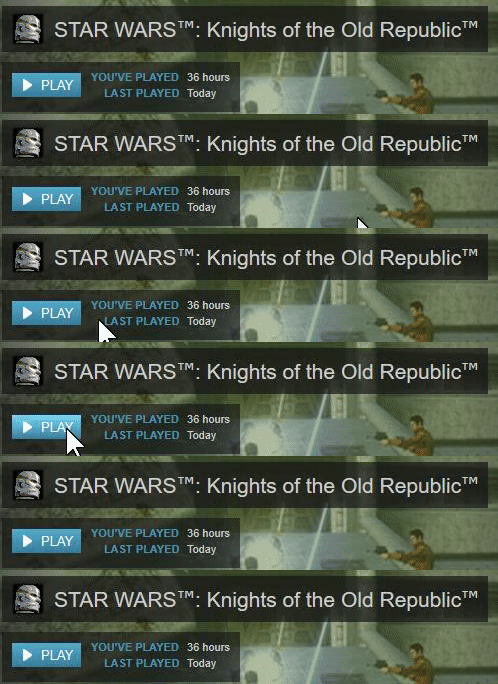
Launch the game through the Steam client:
Ending Notes
Hello everybody who read this far. I hope you enjoyed my guide! This was my first time making a guide of any kind.
Goodbye, and have fun playing!
LEAVE A COMMENT IF:
- A part of the guide is hard to follow or understand.
- This guide helped you in some way.
- The steps in the guide do not work for you.
- You have an idea or suggestion that would improve the guide.
Goodbye, and have fun playing!
More STAR WARS™ Knights of the Old Republic™ guides
- The Definitive Improvement Guide★ 5 (1.6k)158k views4.1k ♥22 minUpdated Mar 25, 2021
- KotOR Cheat Codes★ 5 (1.6k)123k views4.2k ♥4 minUpdated Nov 23, 2014
- Make your KOTOR playthrough more enjoyable★ 5 (1.8k)97k views5k ♥13 minUpdated Jun 24
- [How-To] KotOR on modern systems (incl. Widescreen)★ 5 (775)95k views1.8k ♥4 minUpdated Nov 24, 2015
- KoToR Best Order of Planets★ 5 (689)73k views1.6k ♥1 min
- A compatible collection of enhancements that don’t alter gameplay (KotoR) (HD) (2016)★ 5 (630)59k views1.9k ♥5 min




This guide was created by its original author on the Steam Community. Are you the author and want it removed? Request removal.