How to Make Your Own "Remaster"
Before You Start: Bug Fixes, Setting up and Unique Steam Version Step
NOTICE: This guide is a few years old and multiple mods have come out that do make some of my choices outdated, but still usable. I'll be updating and overhauling this guide soon.
Before you start, make you have a Nexus and a Deadly Stream account for downloading mods. There are 1 or 2 fixes that you will have to do before doing the other steps, one everyone should do and one only Steam users will have to do (Disc and GOG users don't need to do this). The fix everyone should do is fix the "stuck after combat bug" to fix it go to your GPU's control Panel and select Knights of the Old Republic and limit it's FPS to 60 any FPS higher causes the after combat bug or enabling V-sync in the game may also fix it. The next fix is only for Steam users and it is getting an unencrypted version of the exe. Before you start, make a backup copy of your KOTOR exe just in case. This is technically piracy and illegal so I will not directly link it, but you can find it easily. But once you get the unencrypted exe you will place it in the swkotor folder, to get there easily right click on the game's name in your steam game list, go to manage, and click on Browse Local Files. Make sure the game launches and if it does you are ready for the first real step.
Before you start, make you have a Nexus and a Deadly Stream account for downloading mods. There are 1 or 2 fixes that you will have to do before doing the other steps, one everyone should do and one only Steam users will have to do (Disc and GOG users don't need to do this). The fix everyone should do is fix the "stuck after combat bug" to fix it go to your GPU's control Panel and select Knights of the Old Republic and limit it's FPS to 60 any FPS higher causes the after combat bug or enabling V-sync in the game may also fix it. The next fix is only for Steam users and it is getting an unencrypted version of the exe. Before you start, make a backup copy of your KOTOR exe just in case. This is technically piracy and illegal so I will not directly link it, but you can find it easily. But once you get the unencrypted exe you will place it in the swkotor folder, to get there easily right click on the game's name in your steam game list, go to manage, and click on Browse Local Files. Make sure the game launches and if it does you are ready for the first real step.
Step 1: Getting the Game in Widescreen
After you get the exe set up, download UniWS, https://www.wsgf.org/article/star-wars-knights-old-republic and follow those steps. Once you do all of that, your game should run in widescreen and look like this.
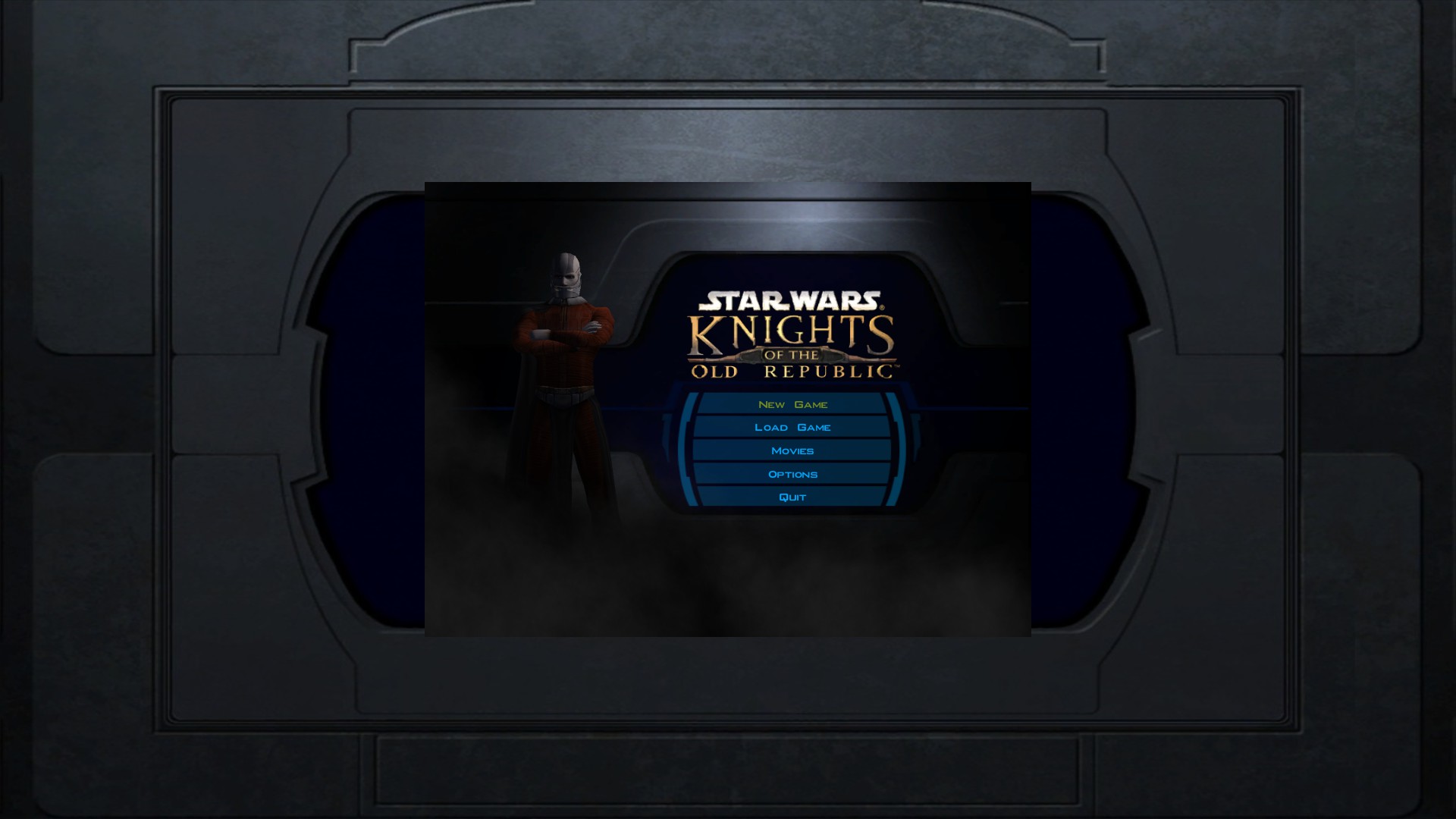
But it could be better. The next step will be improving the widescreen screen, HUD elements, and other fixes.
But it could be better. The next step will be improving the widescreen screen, HUD elements, and other fixes.
Step 2: Improving the Widescreen and UI
Even though the actual game will now be running in widescreen, there are some issues that will need fixing or could be improved. For all of the fixes/improvements in this step will be in a list. Also, some mods have overlap of what they do, so choose which one you like more/have it overwrite the mod you like less.
- Better Widescreen HUD (install this one first), Mod: https://deadlystream.com/files/file/1159-kotor-high-resolution-menus/
- Make the Fade-in and Fade-Out Widescreen, Mod: https://www.nexusmods.com/kotor/mods/1379
- HD logo and bigger HUD, mod, https://www.nexusmods.com/kotor/mods/1256
- Random HD UI Elements, Mod: https://deadlystream.com/files/file/1909-random-hd-ui-elements/
- HD Logo, Mod: https://deadlystream.com/files/file/1954-kotor-widescreen-logos/
- HD UI Menu Pack, Mod: https://deadlystream.com/files/file/1226-hd-ui-menu-pack/
- Upscaled Computer, Mod: https://deadlystream.com/files/file/2025-upscaled-computer/
- Upscaled OG Icons, Mod: https://deadlystream.com/files/file/1914-upscaled-og-icons/?tab=comments
- Pretty Good! Icons for KotOR, Mod: https://deadlystream.com/files/file/1815-pretty-good-icons-for-kotor/?tab=comments
- HD PC Portraits, Mod: https://deadlystream.com/files/file/1547-hd-pc-portraits/?tab=comments
- HD NPC Portaits, Mod: https://deadlystream.com/files/file/1213-hd-npc-portraits/
- New Pazaak UI and Stuff, Mod: https://www.nexusmods.com/kotor/mods/1281
- Widescreen Cockpit and Racing Track on Manaan, Mod: https://www.nexusmods.com/kotor/mods/1211
Step 3: Graphic Improvements
Due to the game releasing in 2003 and it being an Xbox game first, the graphics are by today's standard dated. If you don't want major graphic changes, you will want to pick and choose which mods you download and if you don't want any changes at all, don't download any of these. The mods will again be in a list, and I will tell you some pros and cons on them.
- AI Upscaled Cutscenes, upscales the pre-rendered cutscenes to different resolutions.
Pros: Cutscenes will match you games resolution leading to less issues from the game switching resolution, cutscenes will be higher res and framerate.
Cons: Some elements in cutscenes will look off, mainly faces and some text elements.
Mod: https://deadlystream.com/files/file/1517-kotor-1-remastered-ai-upscaled-cutscenes/ - Ultimate Character Overhaul Redux, upscales every character and equipment.
Pros: Makes every part of character model's higher resolution, has compatibility patches for different mods.
Cons: Some elements will look off, pockets, medals and other details on clothes. - Ultimate Location High Resolution, upscales every location (no skyboxes)
Pros: higher quality than vanilla, can use TPC compressed version for better performance/lower file size with little to no visual downgrades.
Cons: some textures will completely different leading to different looking environments.
Mod (Only Taris version other in the series are in the mod's description): https://www.nexusmods.com/kotor/mods/1360 - High Quality Skyboxes II, replaces the original skyboxes with new ones.
Pros: Skyboxes look way better.
Cons: Up to personal preference on which one you prefer.
Mod: https://www.nexusmods.com/kotor/mods/69 - High Quality Blasters, replaces low poly blaster models with higher poly and higher resolution models.
Pros: Models are high quality and based of their inventory icons to make them lore friendly.
Cons: Can look out of place from how high quality they look and some clipping with character's arms\hands can happen.
Mod: https://www.nexusmods.com/kotor/mods/104 - High Poly Grenades, replace grenade models with a higher poly version.
Pros: Models are high quality and lore friendly.
Cons: No real cons.
Mod: https://www.nexusmods.com/kotor/mods/1209 - Quarterstaff Replacement Pack for K1, Makes the quarterstaves have higher quality models and textures.
Pros: Makes the Quarterstaff and Massassi Battle staff have a high quality model (non of the mods here improved them)
Cons: might be minor clipping (which every weapon has in this game)
Mod: https://deadlystream.com/files/file/2231-quarterstaff-replacement-pack-for-k1/ - Selphadur's Kotor Texture Redux, upscales every texture
Pros: Textures are higher quality and all are based off their vanilla version
Cons: Large File size, no TPC version, few patches for mods.
Mod: https://www.nexusmods.com/kotor/mods/1302?tab=description - Fire and Ice HD, makes the Fire and Ice effects higher quality
Pros: the covered effects are look better, especially the fire effects.
Cons: doesn't cover every effect, like Lightning.
Mod: https://www.nexusmods.com/kotor/mods/33?tab=description - Explosion texture, replaces the explosion textures of certain explosion effects (Endar Spire explosions, Sith Ship explosions in the mini-game)
Pros: Look nice.
Cons: doesn't cover every explosion effect.
Mod: https://deadlystream.com/files/file/2194-explosion-texture - New Grass, improves grass, Kashyyyk leaves, and Ahto City Walls
Pros: Greatly improves textures on the objects effected.
Cons: Up to personal preference.
Mod: https://www.nexusmods.com/kotor/mods/1207?tab=description
Step 4: Gameplay Improvements and Other Additions
This step will be focused on adding removed content, restoring EAX, bug fixes, and some vanilla-like features. The Restoration Patch and Community Patch aren't compatibly with each other, so pick which one you want.
Fixes and Content Restoration
- KOTOR 1 Restoration, not only 2 has a restoration patch, but unlike 2 this mod will only add smaller additions with some bug fixes, with biggest one being the scrapped Female Dark side ending being added. The full list of addition can be found on the mod page.
Mod: https://deadlystream.com/files/file/558-kotor-1-restoration/ - KOTOR 1 Community Patch, unlike the Restoration patch this mod Only fixes bugs meaning this is closer to vanilla.
Mod: https://deadlystream.com/files/file/1258-kotor-1-community-patch/?tab=comments
Restoring EAX
KOTOR and a lot of games of the time used EAX to improve immersion of games by using soundcards to add environmental audio presets. But most modern PCs don't have soundcards and Windows Vista dropped Support for EAX. But even if you don't have a soundcard you are still able to enable EAX in KOTOR (and a lot of other games) by using OpenAL Soft. Download it from here, https://www.nexusmods.com/newvegas/mods/65094?tab=description. Extract the file with WinRar or 7zip. Then put these file in the same location with KOTOR's exe, alsoft.ini, dsoal-aldrv.dll, dsoal-log-error.bat, dsound.dll. then launch the game go to sound settings then advanced sound settings and if you can enable EAX you have downloaded it correctly.
Step 5: Play the Game and Final Message From Writer
Now that you download what mods you wanted from my list of mods. You can play KOTOR with; widescreen, better textures, better models, bug fixes, and new content.
If there is a mod you use and isn't in the list, post the link to the mod in the comments and I will add it to whichever category it belongs to.
If there is a mod you use and isn't in the list, post the link to the mod in the comments and I will add it to whichever category it belongs to.
More STAR WARS™ Knights of the Old Republic™ guides
- The Definitive Improvement Guide★ 5 (1.6k)158k views4.1k ♥22 minUpdated Mar 25, 2021
- KotOR Cheat Codes★ 5 (1.6k)123k views4.2k ♥4 minUpdated Nov 23, 2014
- Make your KOTOR playthrough more enjoyable★ 5 (1.8k)97k views5k ♥13 minUpdated Jun 24
- [How-To] KotOR on modern systems (incl. Widescreen)★ 5 (775)95k views1.8k ♥4 minUpdated Nov 24, 2015
- KoToR Best Order of Planets★ 5 (689)73k views1.6k ♥1 min
- [Windows 10] My Steps To Running The Game On WIndows 10★ 5 (617)64k views1.7k ♥2 minUpdated Nov 2, 2018



This guide was created by its original author on the Steam Community. Are you the author and want it removed? Request removal.