How to run KOTOR Fullscreen
Files to Download
If you do not have 7.zip or WinRAR, you will need a way to extract the files you download.
Universal Widescreen Patcher (UniWS):
https://www.wsgf.org/article/universal-widescreen-uniws-patcher
KOTOR Editable Executable 1.0.0:
https://deadlystream.com/files/file/1320-kotor-editable-executable/
KOTOR High Resolution Menus 1.5:
https://deadlystream.com/files/file/1159-kotor-high-resolution-menus/
HD UI Menu Pack 1.1:
https://deadlystream.com/files/file/1226-hd-ui-menu-pack/
KOTOR 1 Remasterd (AI Upscaled) Cutscenes:
*You will need to have a Nexus account to download this file*
*Download whichever resolution you need*
https://www.nexusmods.com/kotor/mods/1306?tab=description
Universal Widescreen Patcher (UniWS):
https://www.wsgf.org/article/universal-widescreen-uniws-patcher
KOTOR Editable Executable 1.0.0:
https://deadlystream.com/files/file/1320-kotor-editable-executable/
KOTOR High Resolution Menus 1.5:
https://deadlystream.com/files/file/1159-kotor-high-resolution-menus/
HD UI Menu Pack 1.1:
https://deadlystream.com/files/file/1226-hd-ui-menu-pack/
KOTOR 1 Remasterd (AI Upscaled) Cutscenes:
*You will need to have a Nexus account to download this file*
*Download whichever resolution you need*
https://www.nexusmods.com/kotor/mods/1306?tab=description
Prerequisites
Make sure to start KOTOR at least once, so your computer can create some files.
After starting the game, close it and open the swconfig.exe file located in the swkotor file.
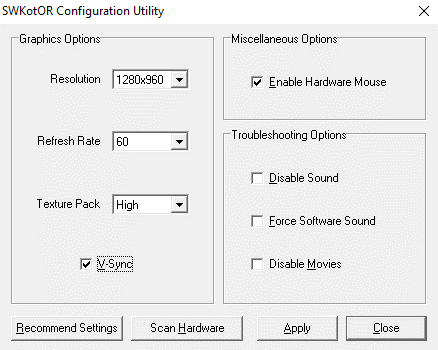 Make sure to set the resolution to 1280x960 and to turn on V-Sync, then you can apply the settings and close the config menu.
Open the kotor.ini file in the swkotor folder using Notepad.
Scroll down to [Graphics Options] and input your desired resolution in the height and width then save and close out of Notepad.
I am playing on 2560x1440, but here is what the graphics options should look like.
![]()
After starting the game, close it and open the swconfig.exe file located in the swkotor file.
Make sure to set the resolution to 1280x960 and to turn on V-Sync, then you can apply the settings and close the config menu.Open the kotor.ini file in the swkotor folder using Notepad.
Scroll down to [Graphics Options] and input your desired resolution in the height and width then save and close out of Notepad.
I am playing on 2560x1440, but here is what the graphics options should look like.
KOTOR Editable Executable
This step is simple.
Open the folder, copy the swkotor.exe found in the folder, then paste and replace the swkotor.exe in your game folder.
Open the folder, copy the swkotor.exe found in the folder, then paste and replace the swkotor.exe in your game folder.
UniWS
Open the UniWS folder and run the uniws.exe file.
Select "Star Wars: KOTOR (1280x960 interface)" in the game section.
Either find your game directory manually or press the "Find it for me..." if you are lazy.
I have found that if you have a lot of files on your computer, the automatic finder will sometimes cause UniWS to stop responding so I would suggest finding it manually.
Once you find your game directory, just click on "swkotor" and then you should be looking at something like this:
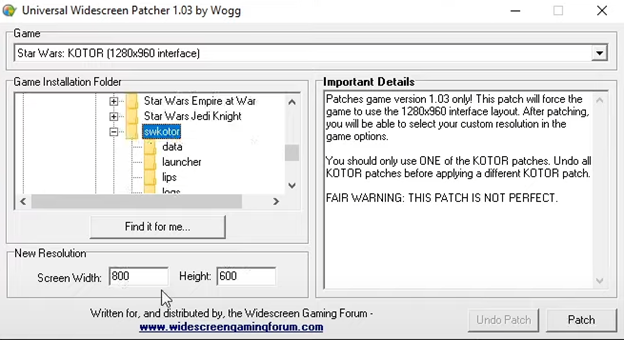
Change the resolution to whatever one you need then click the "Patch" button.
Once a popup tells you that the game was successfully patched, you are safe to close UniWS.
Select "Star Wars: KOTOR (1280x960 interface)" in the game section.
Either find your game directory manually or press the "Find it for me..." if you are lazy.
I have found that if you have a lot of files on your computer, the automatic finder will sometimes cause UniWS to stop responding so I would suggest finding it manually.
Once you find your game directory, just click on "swkotor" and then you should be looking at something like this:
Change the resolution to whatever one you need then click the "Patch" button.
Once a popup tells you that the game was successfully patched, you are safe to close UniWS.
In-Game Settings
Open the game and navigate to the graphics settings.
Here you need to change your screen resolution to whichever dimensions you have been inputting throughout this process.
You can max out the settings in the advanced graphics options as well.
If you start a new game or load a save file, the UI will not be correct.
Close the game after changing the settings.
Here you need to change your screen resolution to whichever dimensions you have been inputting throughout this process.
You can max out the settings in the advanced graphics options as well.
If you start a new game or load a save file, the UI will not be correct.
Close the game after changing the settings.
KOTOR High Resolution Menus 1.5
Open the k1hrm-1.5 folder.
Copy the two highlighted files and paste them into your KOTOR game directory.
![]()
Run the top file and a command prompt will pop up.
Enter your resolution for the first two inputs, then answer "yes" to the dialog letterbox proportions adjusted question, then enter swkotor.exe as the file you wish to patch.
Press yes to the popup, then press any key to close the command prompt.
Open the Override folder and it should be empty.
You can now remove the two files you pasted into your directory.
In the k1hrm-1.5 folder, find your resolution. 1920x1080 and 2560x1440 are both under 16-by-9.
Open the folder that has your resolution name on it, copy, then paste all the files into the Override folder. Make sure the Override folder has a capital O.
Copy the two highlighted files and paste them into your KOTOR game directory.
Run the top file and a command prompt will pop up.
Enter your resolution for the first two inputs, then answer "yes" to the dialog letterbox proportions adjusted question, then enter swkotor.exe as the file you wish to patch.
Press yes to the popup, then press any key to close the command prompt.
Open the Override folder and it should be empty.
You can now remove the two files you pasted into your directory.
In the k1hrm-1.5 folder, find your resolution. 1920x1080 and 2560x1440 are both under 16-by-9.
Open the folder that has your resolution name on it, copy, then paste all the files into the Override folder. Make sure the Override folder has a capital O.
HD UI Menu Pack 1.1
Another easy step.
Open the hd_ui_menupack_PV folder.
Open the Override folder then copy and paste the files into the Override folder in your KOTOR game directory.
Open the hd_ui_menupack_PV folder.
Open the Override folder then copy and paste the files into the Override folder in your KOTOR game directory.
KOTOR 1 Remasterd (AI Upscaled) Cutscenes
The last step is yet another easy one.
Open the Nexus folder you downloaded with the name of your desired resolution.
Copy, paste, and replace the files in the movies folder in your KOTOR game directory.
Open the Nexus folder you downloaded with the name of your desired resolution.
Copy, paste, and replace the files in the movies folder in your KOTOR game directory.
Done
You are now good to play KOTOR.
If you are stuck and need help there is a video guide made by YouTuber LinkinForcer.
https://youtu.be/HNnOhB4ZU2w?t=225
If you are stuck and need help there is a video guide made by YouTuber LinkinForcer.
https://youtu.be/HNnOhB4ZU2w?t=225
More STAR WARS™ Knights of the Old Republic™ guides
- The Definitive Improvement Guide★ 5 (1.6k)158k views4.1k ♥22 minUpdated Mar 25, 2021
- KotOR Cheat Codes★ 5 (1.6k)123k views4.2k ♥4 minUpdated Nov 23, 2014
- Make your KOTOR playthrough more enjoyable★ 5 (1.8k)97k views5k ♥13 minUpdated Jun 24
- [How-To] KotOR on modern systems (incl. Widescreen)★ 5 (775)95k views1.8k ♥4 minUpdated Nov 24, 2015
- KoToR Best Order of Planets★ 5 (689)73k views1.6k ♥1 min
- [Windows 10] My Steps To Running The Game On WIndows 10★ 5 (617)64k views1.7k ♥2 minUpdated Nov 2, 2018



This guide was created by its original author on the Steam Community. Are you the author and want it removed? Request removal.