Setting up a "Custom" Folder
Introduction
As I've learned the hard way, certain modifications to Black Mesa don't work when they're downloaded from the Workshop. This is because the game enforces consistency for certain files, which means that they can't be modified via Workshop items. Setting up this folder can override this enforcement, and can also be used to install add-ons that are non-VPK and made for the mod version of Black Mesa.
Note that in the case of mod version add-ons, incompatibility issues may arise due to differences between the mod and retail versions of Black Mesa. Be careful about what you try to install.
As of the 1.5 (Definitive) update you will no longer need to create the custom folder yourself - it comes with a fresh install - and the game will now properly read most custom assets from the Workshop!
Setting up the folder
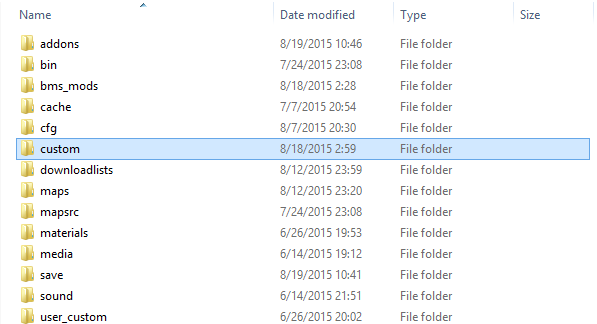 Within this folder, the format for installing add-ons is as follows:
- VPK based add-ons go directly in the Custom folder
- Non-VPK add-ons go into a subfolder inside the Custom folder

To handle non-VPK add-ons, create another folder inside the Custom folder and name it whatever you want (like the "mods" folder shown above). This folder that you just created inside the Custom folder will be treated as an alternate main directory. This means that the root asset directories (models, materials, sound, maps, particles, etc.) for the add-on start from that folder. Your directory paths should be like this:
- bms/custom/mods/models/your_model.mdl
- bms/custom/mods/materials/your_material.vmt
- bms/custom/mods/particles/your_particles.pcf
- bms/custom/mods/maps/your_map.bsp
This is NOT correct:
- bms/custom/materials/your_material.vmt
Never name one of your Custom subfolders after a loose directory, it will prevent you from starting up your game altogether!
Note that it is possible to set up multiple subfolders in Custom if you want, each with their own assortment of files. You can utilize this to sort your addons by type.
Setting up gameinfo.txt
Open the file "gameinfo.txt", also found in the "bms" folder.
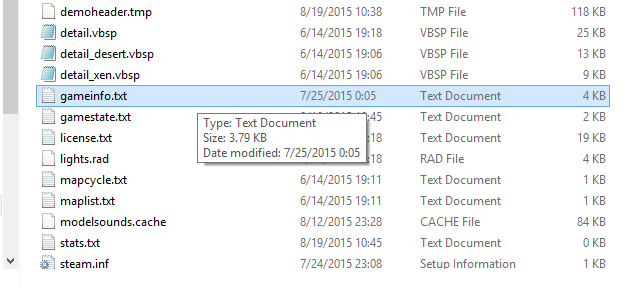
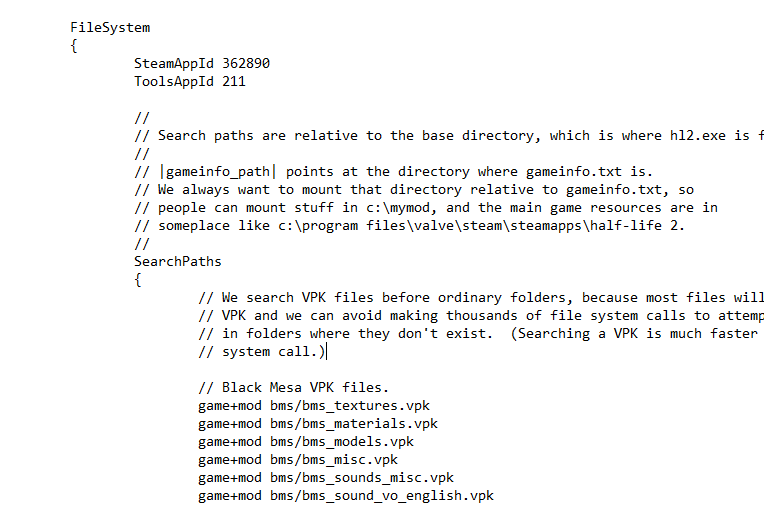
Scroll down until you see a section named "SearchPaths".
At the top of this section (above all the other game+mod entries), add the line
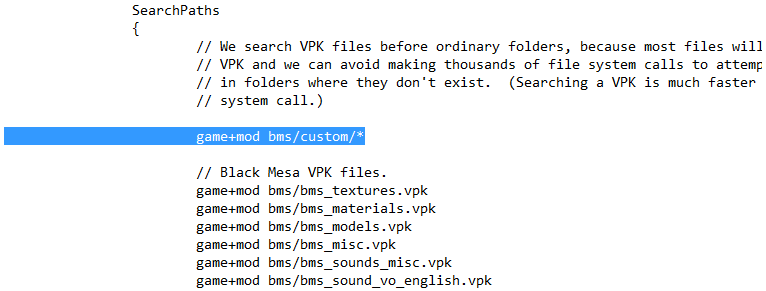
Save the text file, close it, and you're done! The next time you start it up, Black Mesa will read the files you placed in the Custom folder.
Moving Workshop addons to the Custom folder
Once the Custom folder is set up, you can go ahead and move some custom content into it, including your problematic Workshop addons.
You can either use Crowbar to obtain the files, or move it from your Workshop directory to the Custom folder.
To obtain the files from the Workshop:
- Subscribe to the addon.
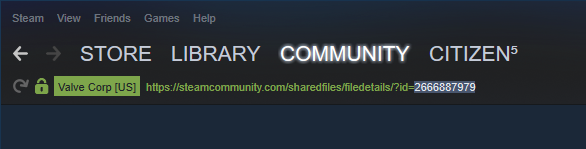
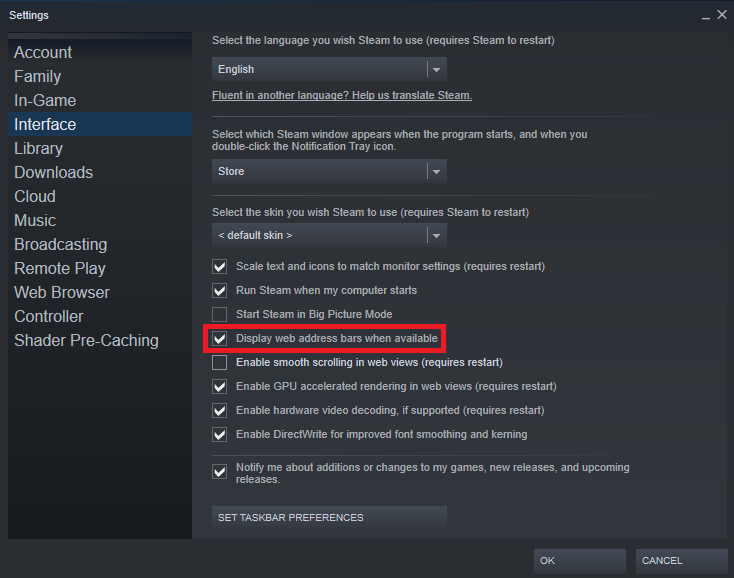
- Find the addon's Workshop ID in the URL. If browsing the Workshop on Steam, make sure you have web addresses enabled (Steam > Settings > Interface > Display web address bars when available) so you can see the URL.
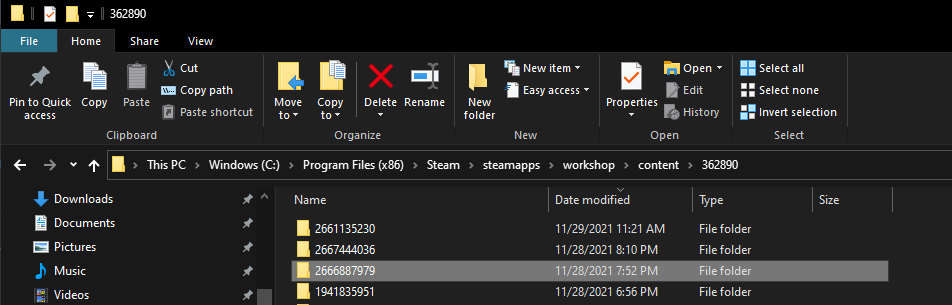
- In file explorer, navigate to Steam\steamapps\workshop\content\362890 and search for the folder named after this Workshop ID.
- Open this folder and copy the contents to your Custom folder.
- Unsubscribe from the Workshop addon.
- Enjoy your newly functioning custom content!
- Делаем ВСЕ Достижения Black Mesa / ALL Achievements Black Mesa★ 5 (3.1k)53k views5.8k ♥48 minUpdated 21 Sep, 2023
- How to play COOP [SourceCoop Mod]★ 5 (559)48k views1.1k ♥2 minUpdated 19 May
- Black Mesa 100% Achievement Guide★ 5 (1.7k)41k views3k ♥14 minUpdated 13 May, 2024
- Black Mesa 100% Achievements Guide★ 5 (2.1k)36k views3.3k ♥21 minUpdated 25 Aug, 2020
- 100% Achievement Guide: Black Mesa★ 5 (1.5k)31k views3.1k ♥78 minUpdated 13 May
- Русификатор звука, текста и текстур (29.11.2020)★ 5 (536)26k views521 ♥3 minRussianUpdated 2 Jul, 2025




- Upgrading to PremiumTeam Fortress 2★ 5 (20k)1441k views11k ♥6 minUpdated May 11, 2022
- No More Room in Hell Official ManualNo More Room in Hell★ 5 (2.8k)569k views2.1k ♥29 minUpdated Apr 22, 2019
- NMRiH Community Hosting GuidesNo More Room in Hell★ 5 (526)351k views653 ♥1 minUpdated Aug 10, 2022
- ULTIMATE GUIDE FOR GAME DEV TYCOONGame Dev Tycoon★ 5 (5.8k)326k views10k ♥4 minUpdated 23 Jan, 2014
- How to 'Git Gud' Soon™MORDHAU★ 5 (2k)318k views3k ♥68 minUpdated Nov 16, 2024
- Лучшие кооперативные игры SteamPAYDAY 2★ 5 (1.5k)315k views2.1k ♥56 minRussianUpdated Apr 27, 2025






This guide was created by its original author on the Steam Community. Are you the author and want it removed? Request removal.