The Ultimate Guide To RE_Kenshi / ReKenshi
What is RE_Kenshi?
RE_Kenshi Features (For Players)
For A Full Complete List, including modder specific features see the link here[github.com]
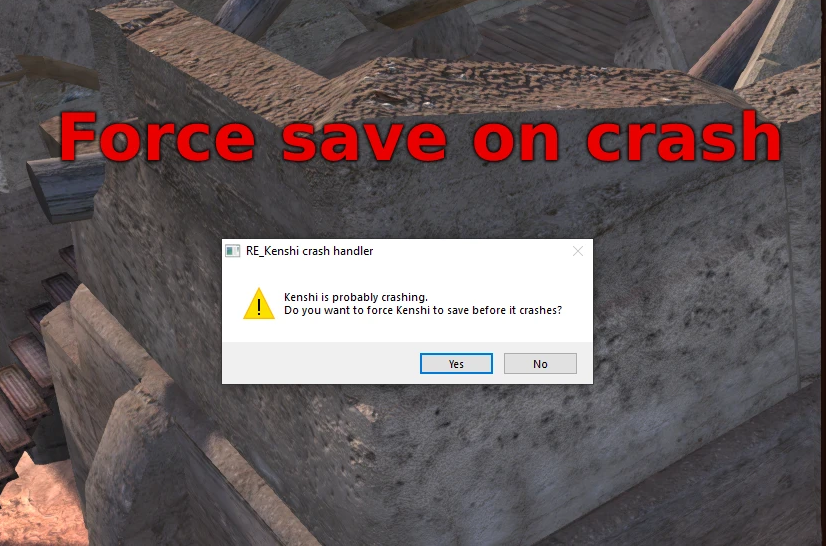 RE_Kenshi's crash handler can attempt to force the game to save when a crash is detected.
It is possible for this to fail in some cases, but it should usually generate working save files, allowing you to keep your progress when a crash occurs.
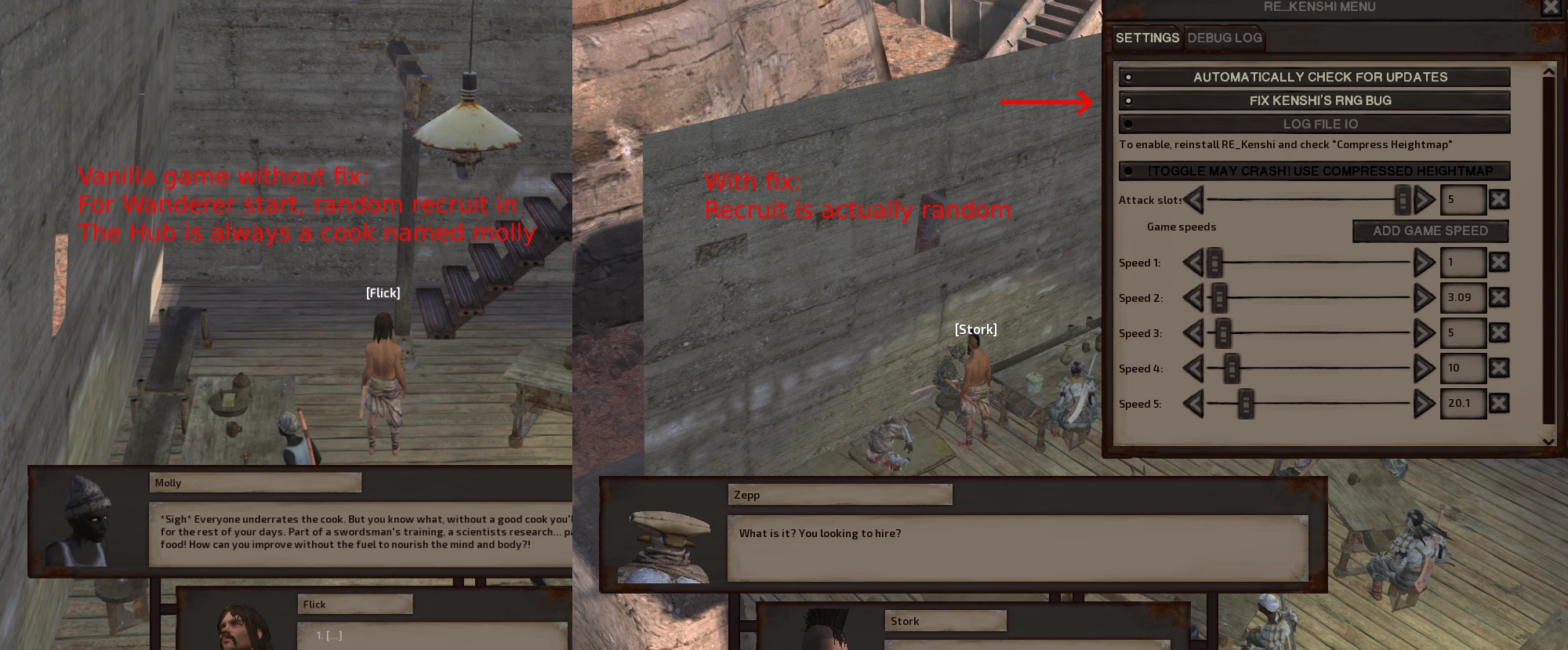 Fixes a bug in Kenshi's random number generation code.
Enabling this causes the following side-effects:
Randomized recruits will actually be random
Randomized item spawns will actually be random
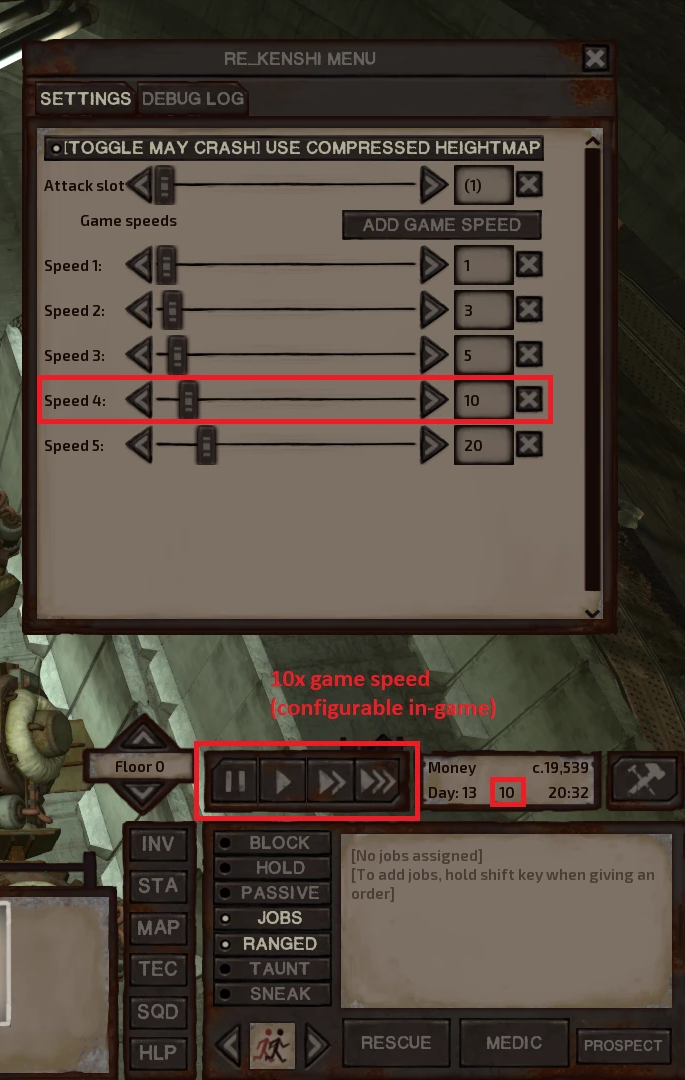
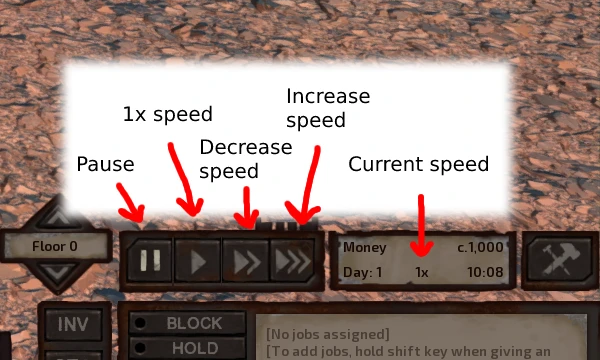 Set the game to any speed (up to 1000x, also supports slow-motion/speeds under 1x)
Note: zooming the camera out too far can cause visual bugs (most notably with shadows)
This reduces load time to get into the game, and may occasionally reduce stuttering when moving around the map.
- Attack slots (1-5)
- Max. squad size (1-1000)
- Max. faction size (1-1000)
- Max. squads (1-1000)
You also need to check the tick box next to the slider in order to enable the setting override. Leaving this unchecked will default back to the value set by mods.
There is unofficial support for setting these to out-of-range values by manually editing RE_Kenshi's config file RE_Kenshi.ini
Some visual bugs occur in the UI if the player has over 256 characters in a squad, but gameplay seems to work correctly. (This can be fixed for another mod later in this guide)
There are two options for optimizing the heightmap loader:
- Compressed heightmap
Enabling this setting can often halve load time on HDDs, but usually causes little to no difference on SSDs.
The "compress heightmap" option must be enabled when installing RE_Kenshi in order to use this setting. The install option is enabled by default when installing to an HDD, and disabled by default when installing to an SSD.
The current implementation caches decoded heightmap values in RAM, which can use up to 500MB of extra RAM.
- Fast uncompressed heightmap (recommended for Most modern SSDs)
Because the fast uncompressed heightmap uses the vanilla .TIF file, it should work regardless of what setting you installed RE_Kenshi with.
The first time RE_Kenshi is run, it will attempt to automatically select the "highest performance" option based on the type of drive you're loading the game from.
How To Install
RE_Kenshi can be found at the link Here: https://www.nexusmods.com/kenshi/mods/847?tab=description
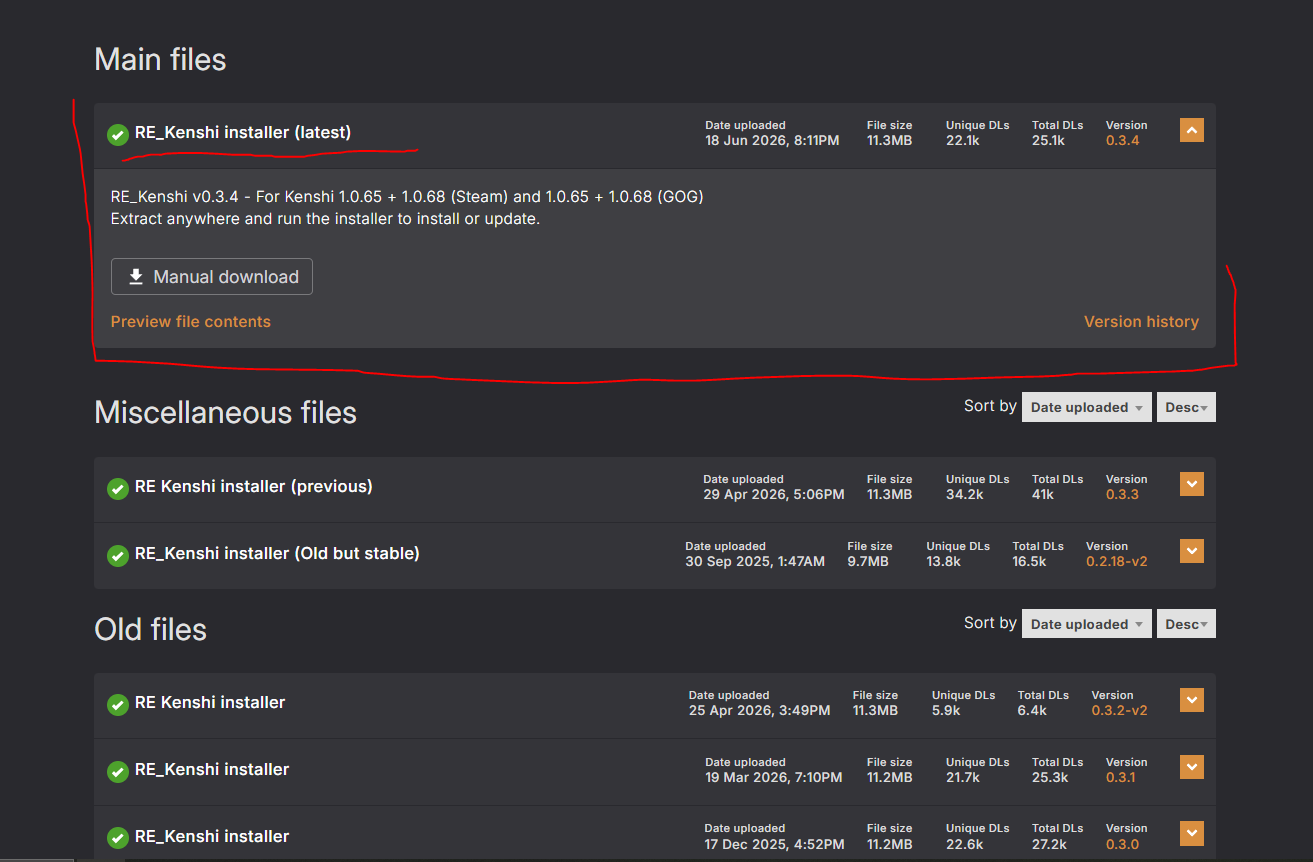
- Go to the “Files” tab on the Nexus page linked above, download “RE_Kenshi installer (latest)
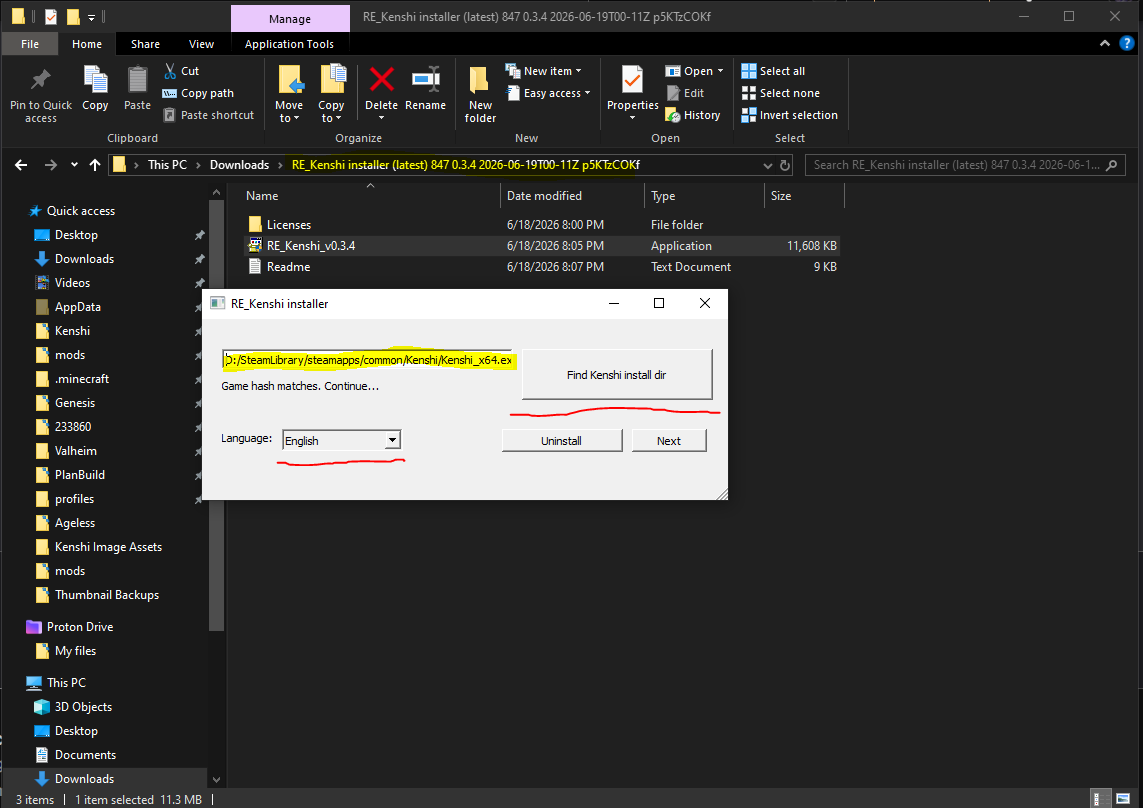
- Extract The folder anywhere
- Run the installer and follow it's instructions.
- Dont forget to select the correct file path and language!
- Once installed, running the game normally either through the desktop icon, if allowed, or through the Steam shortcut should load RE_Kenshi. Also if you launch the game via the RE_Kenshi shortcut in your start menu/desktop the game will open about a second faster (it skips some initialization).
- If the mod has installed correctly, the version text in Kenshi's main menu should read: RE_Kenshi vx.x.x - Kenshi 1.0.x - x64 (Newland)
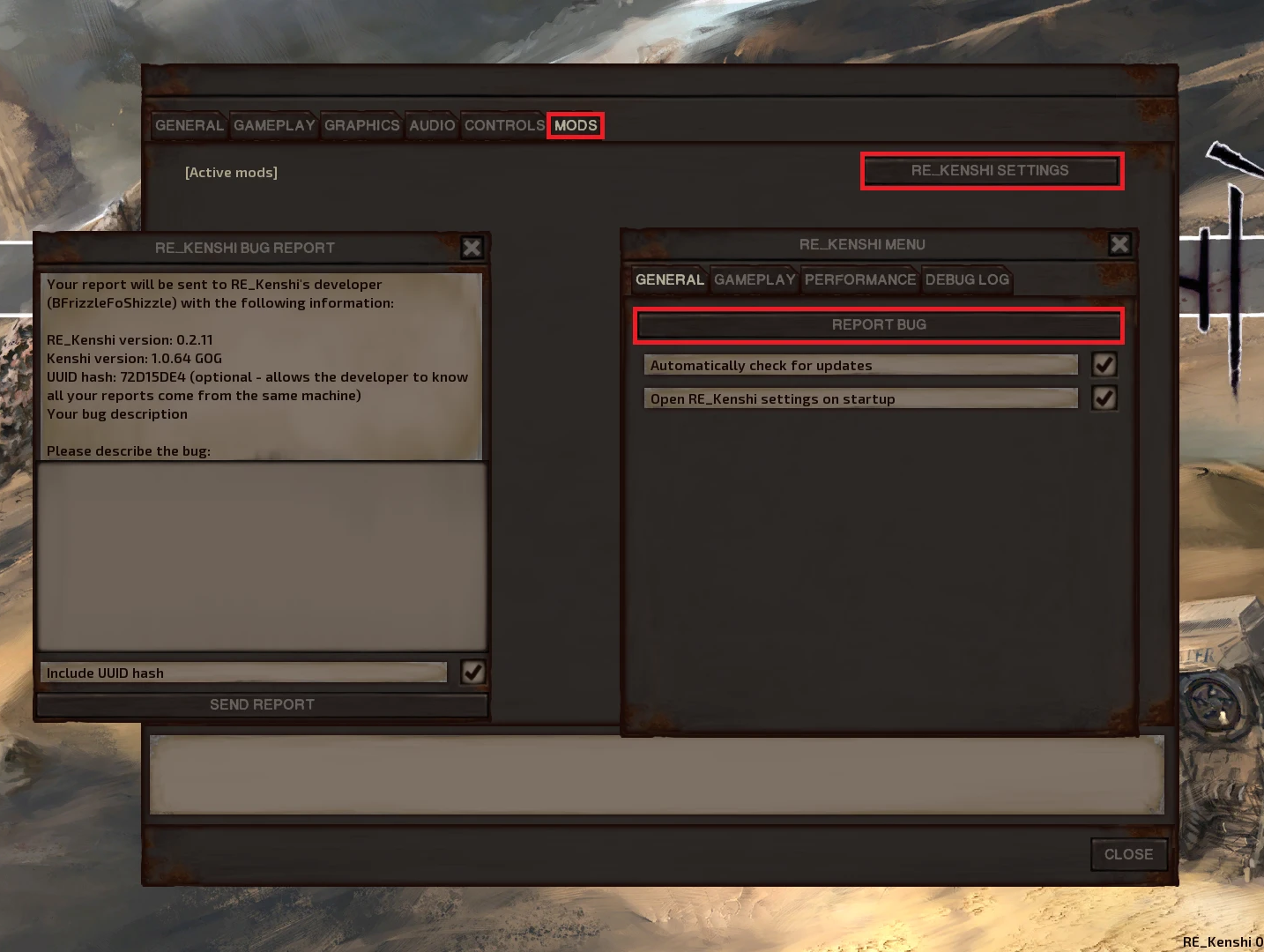
Settings can be changed through the mod's in-game UI.
Game speeds don't have to be integers, e.g. you can have a speed of 0.5 or 0.1 for slow motion, or 3.5, etc. Negative values crash the game.
To reopen the mod menu:
- (at main menu) OPTIONS -> MODS -> RE_KENSHI SETTINGS
- (in-game) esc -> OPTIONS -> MODS -> RE_KENSHI SETTINGS
This is located in the Kenshi installation folder: \Steam\steamapps\common\Kenshi\RE_Kenshi
It is however advised to use the DUST plugin instead which has direct access to the rekenshi systems and settings for better control: https://steamcommunity.com/sharedfiles/filedetails/?id=3703458265
Common Issues
By default, the game starts in 1.0.65. To run 1.0.68, add the flag --norekenshi to your Kenshi launch arguments on steam. This will also disable RE_Kenshi as it is not compatible with that version of the game.
Reporting Bugs & Suggesting Ideas
- Discord
The preferred method of reporting bugs is to directly message BFrizz on Discord (his Discord ID is in RE_Kenshi's readme). Discord is preferred because it's easy to send people debug builds when necessary.
You can also report bugs on the Genesis Modding discord here: https://discord.gg/g7F6aHw - Github
Ironically given the support network for modders and the mod author himself github reporting is actually not the preferred method as other options exist. https://github.com/BFrizzleFoShizzle/RE_Kenshi/issues - Nexus Mods
The third preferred method to report bugs can be found on the nexusmods site: https://www.nexusmods.com/kenshi/mods/847?tab=bugs - RE_Kenshi in-game bug report
RE_Kenshi has a built in crash detection mechanism & bug report feature. All reports are sent directly to the mod author (BFrizz) anonymously. The in-game bug reporter is the least-preferred method as it does not allow for two-way communication.
- Discord: https://discord.gg/g7F6aHw
Disadvantages of RE_Kenshi
As of RE_Kenshi version 0.3.3, there are no particular disadvantages.
Starting with RE_Kenshi version 0.3.0, Kenshi launches using version 1.0.65—the version prior to the latest Kenshi release, 1.0.68—rather than the latest version.
As a result, free camera mode is unavailable without a plugin.
The free camera feature was restored in RE_Kenshi version 0.3.2.
Furthermore, it appears that the only difference between Kenshi versions 1.0.65 and 1.0.68 is the presence or absence of the free camera feature.
A plugin for RE_Kenshi has also been posted that nicely expands the capabilities of the free camera.
Even if you are using RE_Kenshi versions 0.3.0 or 0.3.1, which do not include the free camera, you can use the free camera with this plugin.
https://steamcommunity.com/sharedfiles/filedetails/?id=3697462928
We’ll explain what RE_Kenshi plugins are and how to install them in the following chapters.
ReKenshi Plugins
RE_Kenshi version 0.3.0 and later support plugins for RE_Kenshi. This is a suggestive list and not an exhaustive one. When searching for RE_Kenshi plugins in the Workshop, using “rekenshi” (without the underscore “_”) as a keyword will usually bring up the results you’re looking for.
Regular mods use the Forgotten Construction Set (FCS) to modify or add elements within a predetermined scope.
FCS is the tool you launch by selecting “Launch Modding Tool” from the options when starting Kenshi.
Unlike standard FCS-based mods, RE_Kenshi plugins involve RE_Kenshi loading code written through rigorous programming to perform various functions.
While FCS-based mods alone have limited the scope of what can be modified or added, RE_Kenshi plugins allow for a much wider range of possibilities.
In the next chapter, I’ll introduce some of the RE_Kenshi plugins that have been posted.
I think you’ll get a sense that “these are fundamentally different from other mods” and that “they’re changing the very foundation of Kenshi.”
How to Install Plugins for RE_Kenshi
Simply enable the mod with that plugin’s name on the mod list screen when you launch the game.
For plugins available on the Steam Workshop, such as the Kenshi Extension Plugin, you just need to subscribe to them.
It’s best not to perform what’s known as “localization” (copying and pasting into the Kenshi/mods folder and renaming the folder) unless you’re doing so for backup purposes.
This is because there’s generally no need to view or edit the contents using FCS, and if the same mod exists in both the Workshop and the Kenshi/mods folder, the one in Kenshi/mods takes precedence and is loaded into the game.
If you leave it subscribed, the plugin will update automatically when new versions are released, so it’s best to keep it that way.
For plugins found on Nexus and similar sites, place them in the Kenshi/mods folder just like regular mods.
This is because they generally won’t conflict with other mods.
It’s a good idea to group them together at the very top or bottom of the mod load order.
If a plugin that interacts with the UI panel seems to conflict with other standard UI-modifying mods and causes something to look or behave strangely, check to see if the plugin is up to date, or try rearranging the load order as needed.
RE_Kenshi For Modders
All Relevant Links and Features can be found at the following link: https://github.com/BFrizzleFoShizzle/RE_Kenshi/wiki/RE_Kenshi-Features#modder-features
A JSON schema for RE_Kenshi.json mod config files can be found here: https://github.com/BFrizzleFoShizzle/RE_Kenshi/blob/0.2.12_fork/mod-config.schema.json
Tutorials and documentation for this feature can be found on the following pages:
- Tutorial: How to mod Kenshi's heightmap[github.com]
- Mod API: Using RE_Kenshi to mod hard-coded file paths[github.com]
- Finding file paths for rebinding[github.com]
The documentation for this is still a work-in-progress as the community is still figuring out the best way to use this.
More information can be found here[github.com]
- Performance notes
- Log file I/O
Viewing the Debug Log tab (I recommend staying on "Settings" or closing the window)
On some high-end SSDs, the compressed heightmap can hurt performance vs vanilla, but this is largely fixed in 0.2.9 onwards
-
- Preload heightmap
[/list]
If heightmap compression is enabled, this forces the entire heightmap to be loaded + decompressed into RAM when the game starts. This isn't well-tested and it is recommended to keep this disabled.
If you want to enable this, set "PreloadHeightmap" to true in RE_Kenshi.ini
- Game speeds above 1000x
- Disable save on crash
- Disable hash check
Note: disabling the hash check WILL NOT allow RE_Kenshi to work on unsupported versions, it will only fix modified copies of SUPPORTED versions.
To disable the hash check, set "IgnoreHash" to true in RE_Kenshi.ini
EXTRA WARNING: Enabling this may cause crashes after updating Kenshi from a supported version to an unsupported version. If this occurs, set "IgnoreHash" back to false.
- Disable update checker
- Disable mod list scroll fix
- Disable skip reading unused mipmaps
- Disable PhysX collider cache
KenshiLib (For Modders)
KenshiLib Page: https://github.com/BFrizzleFoShizzle/KenshiLib
KenshiLib Examples: https://github.com/BFrizzleFoShizzle/KenshiLib_Examples/
The best way to get started with writing RE_Kenshi/KenshiLib plugins is to download and compile the KenshiLib Examples repo[github.com] which also contains links with information on how to set up KenshiLib's dependencies.
KenshiLib is released under the GPLv3, please be aware that this generally means KenshiLib plugins must also be released under the GPLv3. KenshiLib also contains 3rd-party components with additional licenses.
- DO use KenshiLib's built-in function hooking system, it is designed to handle multiple plugins hooking the same function.
- DON'T use 3rd-party function hooking/detouring libraries as these can cause issues when multiple plugins hook the same function using different libraries.
- DON'T access the UI from non-UI threads. Most MyGUI functions are NOT thread-safe, this will cause race conditions that will intermittently crash the game. If you are exporting functions for other plugins to use, it is wise to make your plugin a Preload Plugin (doccumentation coming) so that it is loaded before other plugins.
RE_Kenshi Plugins (For Modders)
Automatically loads custom fcs.def configurations
Adds new features to FCS and RE_Kenshi via the FCS Extended plugin
- Feature List is here: https://github.com/BFrizzleFoShizzle/BFrizz_Extra_Extensions/wiki
- DC_IS_SLEEPING - checks if the target character is sleeping.
- DC_HAS_SHORT_TERM_TAG - checks if the speaker has a short term tag (CharacterPerceptionTags_ShortTerm) for the target character.
- DC_IS_ALLY_BECAUSE_OF_DISGUISE - checks if the target is considered an ally because of a disguise, i.e. the target is disguised, is an ally, and would not be an ally if not disguised.
- DC_STAT_LEVEL_UNMODIFIED - checks the unmodified stat level of the target.
- DC_STAT_LEVEL_MODIFIED - checks the stat level of the target taking into account stat modifiers.
- DC_WEAPON_LEVEL - checks the weapon level of the character's currently equipped weapon, taken from the weapon manufacturer model info defined in the FCS.
- DC_ARMOUR_LEVEL - checks whether the character has at least one piece of armour with a level satisfying the comparison operator. E.g. armour level > 20 means at least one equipped armour item with a level above 20, armour level < 20 means at least one equipped armour item with a level below 20.
- "take item" - takes a specified number of items from the target character (if they have them) and gives it to the speaker. Items will be placed in the spearker's inventory if there's room, or dropped on the ground if their inventory has insufficient space.
- "destroy item" - destroys a specified number of items from the target character (if they have them).
- "variable equals" - checks if a referenced variable is equal to some value
- "variable greater than" - checks if a referenced variable is greater than some value
- "variable less than" - checks if a referenced variable is less than some value
- "set variable" - sets a referenced variable to a specified value
- "add to variable" - adds a specified value to a referenced variable. Subtraction can be done by adding a negative value
RE_kenshi License
which can be found In the following places along with this guide:
GNU License: https://www.gnu.org/licenses/gpl-3.0.html#license-text
Github License: https://github.com/BFrizzleFoShizzle/RE_Kenshi/blob/master/LICENSE
Videos Covering Rekenshi & Plugins
- Proper Load Order & You.★ 5 (1.8k)78k views3.6k ♥10 minUpdated 20 Oct, 2022
- Save Editing 101★ 5 (729)51k views1.6k ♥28 minUpdated 16 Aug, 2025
- Roadmap for New Players and Basebuilding (Up-to-date)★ 5 (807)51k views2.4k ♥76 minUpdated 23 Apr, 2019
- Tips and Tricks of a Veteran Kenshi Player★ 5 (551)38k views1k ♥15 minUpdated 18 Nov, 2024
- Quickstart Newbie Walkthrough 1.0★ 5 (562)35k views1.5k ♥54 minUpdated 20 May, 2025
- Новички, я научу Вас выживать и наслаждаться КЕНШИ!★ 5 (380)23k views789 ♥34 minRussianUpdated 28 Oct, 2025


- Upgrading to PremiumTeam Fortress 2★ 5 (20k)1441k views11k ♥6 minUpdated May 11, 2022
- No More Room in Hell Official ManualNo More Room in Hell★ 5 (2.8k)569k views2.1k ♥29 minUpdated Apr 22, 2019
- NMRiH Community Hosting GuidesNo More Room in Hell★ 5 (526)351k views653 ♥1 minUpdated Aug 10, 2022
- ULTIMATE GUIDE FOR GAME DEV TYCOONGame Dev Tycoon★ 5 (5.8k)326k views10k ♥4 minUpdated 23 Jan, 2014
- How to 'Git Gud' Soon™MORDHAU★ 5 (2k)318k views3k ♥68 minUpdated Nov 16, 2024
- Лучшие кооперативные игры SteamPAYDAY 2★ 5 (1.5k)315k views2.1k ♥56 minRussianUpdated Apr 27, 2025






This guide was created by its original author on the Steam Community. Are you the author and want it removed? Request removal.