Tweaks For A Better PC Experience
Important Links
PC Gaming Wiki
FOV customization
http://steamcommunity.com/sharedfiles/filedetails/?id=202406126
Rick's tools: INI decrypter/encypter
To use Rick's Tools
-unzip files to folder \Documents\My Games\SpecOps-TheLine\SRGame\Config\-Drag and Drop files on Gibbed.SpecOpsTheLine.IniDecrypt.exe before editing
-To re-encrypt after editing, Drag and Drop on Gibbed.SpecOpsTheLine.IniEncrypt.exe
Removing Startup Movies
Method 1: Launch options
- Right click on Spec Ops in your library and go down to Properties. Click on Set Launch Options and input -nostartupmovies
Method 2: Rename or Delete the Startup Movies
- Target Movies if deleting include
- 2KLogo.bik
- Legal.bik
- legal_logo_screen.bik
- LegalScreen.bik
- StartupMovie.bik
- UnrealLogo.bik
- YagerLogo.bik
- 2KLogo.bik
Method 3: SREngine.ini
- After decrypting SREngine.ini, search for [FullScreenMovie] and either delete or add // before all instances of StartupMovies
Mouse & Camera Fixes
First decrypt SRInput.ini
Mouse Smoothing:
-Change bEnableMouseSmoothing to FalseMouse Acceleration:
-Change m_viewAccelEnabled to FalseSensetivity:
-Change MouseSensitivity from 60.0 to 30.0, or something that suits your preferenceAim Sensitivity:
-Change m_targetingModeMouseViewScalePct from 0.6 to 1.0No Auto Center on Sprint:
-Change m_autoCenterPitch to Falsere-encrypt SRInput.ini
Less intrusive HUD prompts
Remove those obtrusive and annoying Key/Mouse binding reminders that come up everytime for vaulting, dropping down, ect.
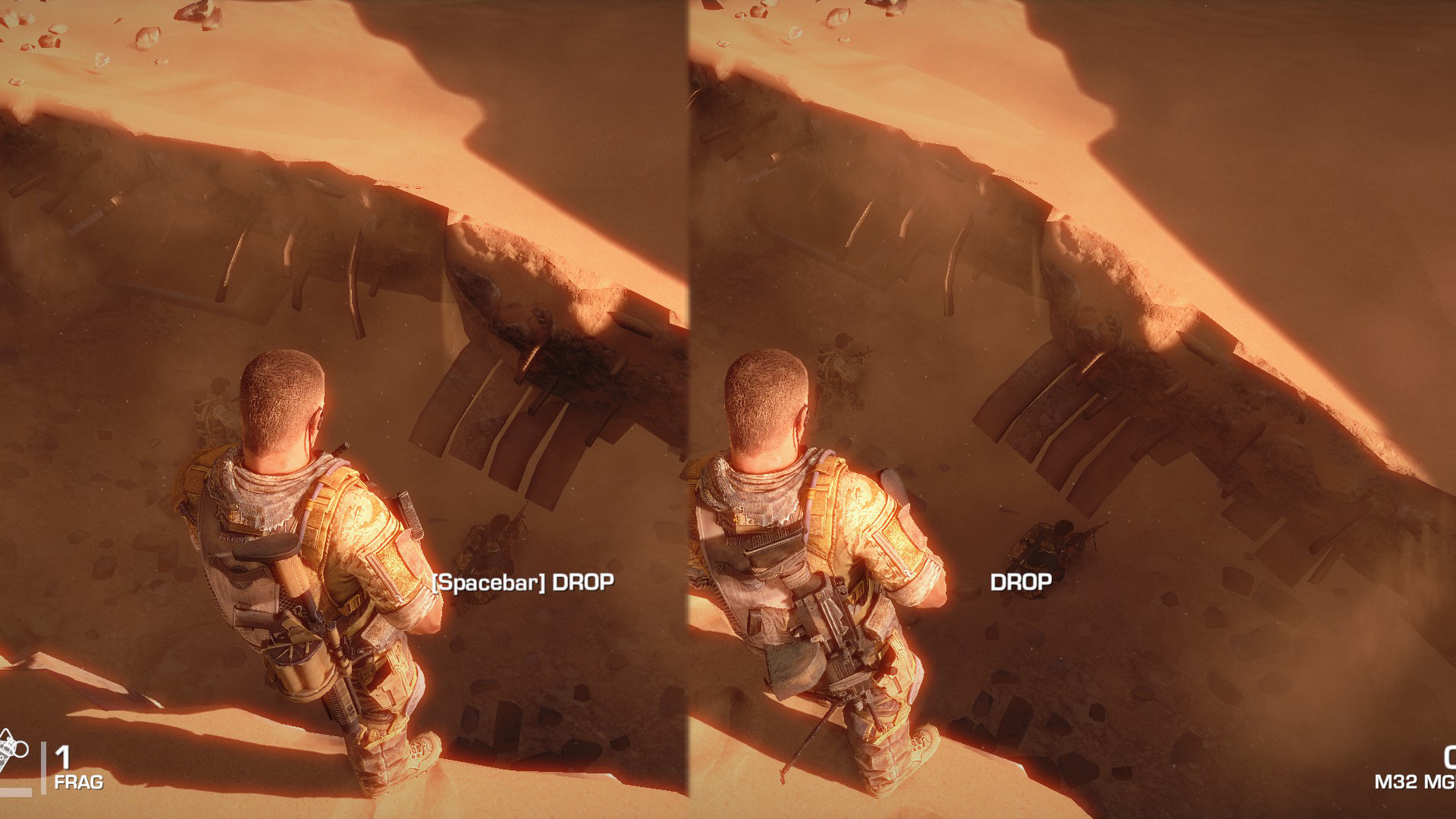
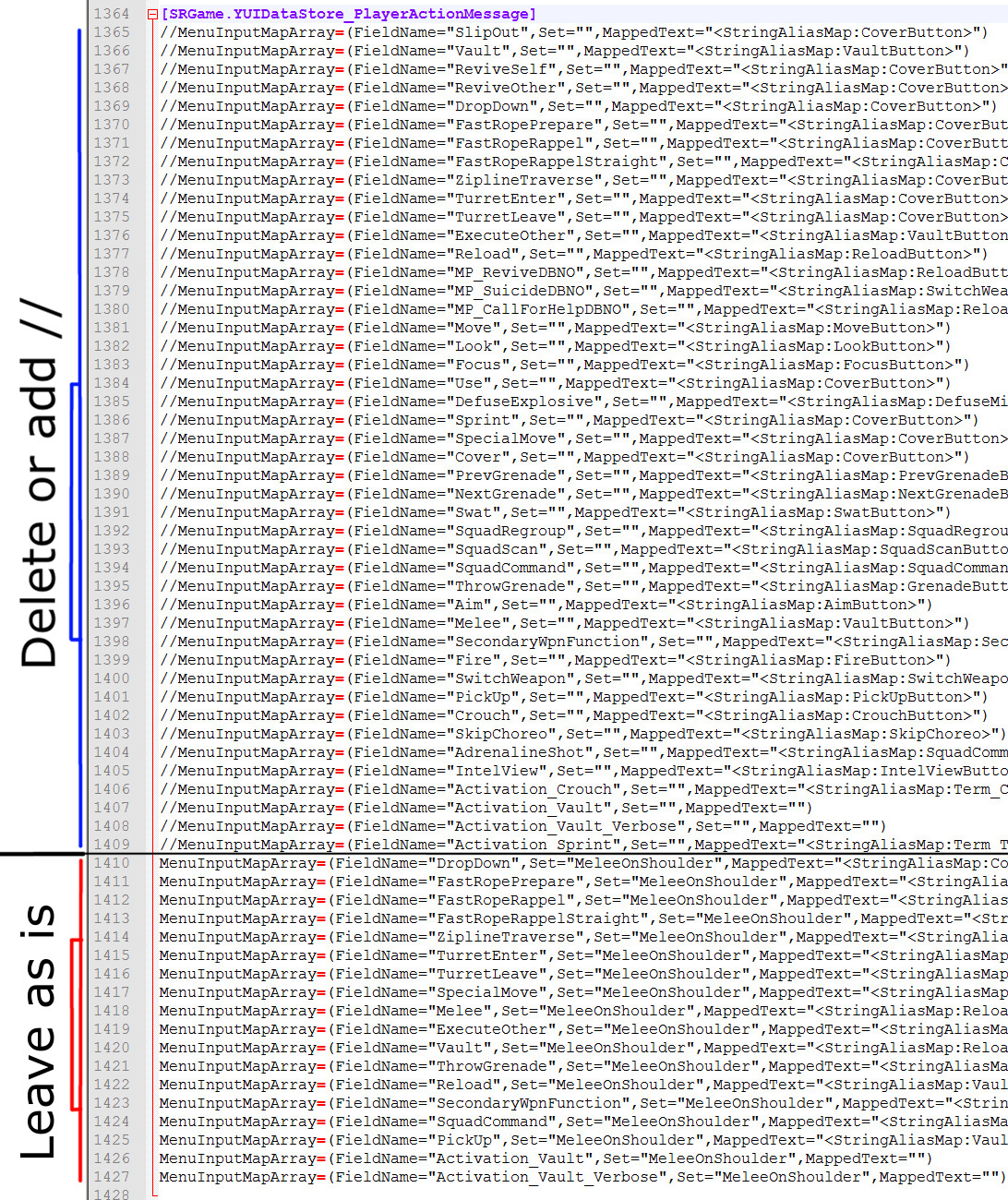
Decrypt SRInput.ini and go down to line [SRGame.YUIDataStore_PlayerActionMessage] and either delete or add // before all instances of MenuInputMapArray= until line 47 of that section (line 1410) that starts
MenuInputMapArray=(FieldName="DropDown",Set="MeleeOnShoulder",MappedText="<StringAliasMap:CoverButton>")
Don't Delete
the instances that include Set="MeleeOnShoulder" or the key reminders will still appear.The section should appear roughly like this
Alternatively you can remove the more common ones that pop up while leaving the uncommon ones unafffected
- "SlipOut"
- "Vault"
- "DropDown"
- "TurretEnter"
- "TurretLeave"
- "Reload"
- "ExecuteOther"
- "Use"
- "SpecialMove"
- "Cover"
- "Swat"
- "ThrowGrenade"
- "PickUp"
Re-encrypt SRInput.ini after editing
It's best to play the first level, that is the tutorial level, so you become familair with what keys belong to what prompts.
Encountering Problems
If you run into problems after editing the INI files, either delete the ones you have edited or delete the whole Config folder.
When the game is loaded up again, the default files will be regenerated
If a problem occurs with the ingame movie cutscenes, run a Verify Integrity of Game Cache.
More Spec Ops: The Line guides
- Spec Ops: The Line Achievement Guide★ 5 (1.6k)31k views1.4k ♥20 minUpdated Jan 23, 2013
- Spec Ops : The Line. Гайд по достижениям (RU)★ 5 (2.5k)27k views2k ♥11 minRussianUpdated Mar 7, 2016
- How to get the good ending★ 5 (820)26k views174 ♥1 minUpdated Dec 25, 2015
- Intel Locations★ 5 (1.7k)25k views1.7k ♥6 minUpdated Dec 24, 2012
- How to get preorder DLC - Fubar pack★ 5 (364)23k views356 ♥1 minUpdated Jun 15, 2019
- How to get the TAR-21 in Campaign★ 5 (197)16k views131 ♥1 minUpdated Mar 18, 2023


This guide was created by its original author on the Steam Community. Are you the author and want it removed? Request removal.