(UPDATED) Faux 21:9 Modification! (Using Reshade & HxD)
Installing reshade
UPDATE: 6/15/20
OKAY so apparently someone else found a HEX edit solution for fixing the gameplay proportions. UI IS STILL STRETCHED but try this method to at least get the gameplay ratio right
https://steamcommunity.com/app/1113000/discussions/0/2441461920669295659/
I HAVE UPDATED THE GUIDE WITH THE METHOD USED TO DO THIS. Credit goes to Stevie-coops for figuring this out!
First we must install the latest version of reshade into your P4G exe file
-First go to https://reshade.me/
-Then click the purple download button.
-Run the Setup EXE
-Click Select Game. Find the Game .exe file that you want to install ReShade for:
In this case you are looking for P4G.exe
-Select Direct 3D 10/11/12 Option
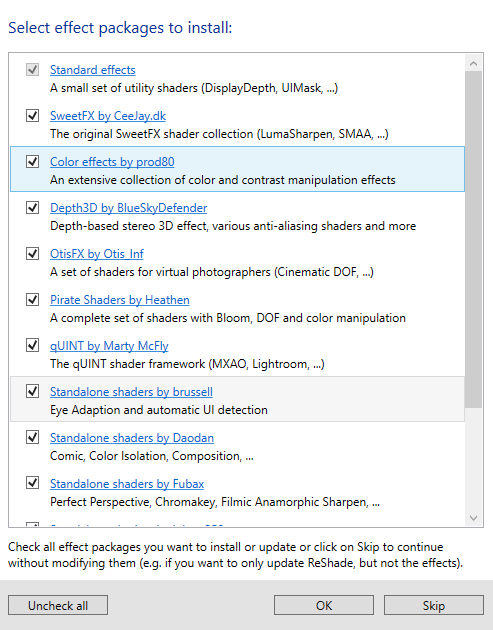
- For compatibility's sake (Check and download every shader set (including legacy effects)
Enabling the Aspect Ratio Fix
After installing reshade you can now enable the aspect ratio mod
If you don't know how to open the reshade UI, simply press the home key on your keyboard to bring it up. You can also choose to go trough the tutorial included with it if you aren't familiar.
Anyhow in order to apply the faux 21:9 fix go on the reshade ui's search bar and type in
-"Aspect Ratio" without the quotes
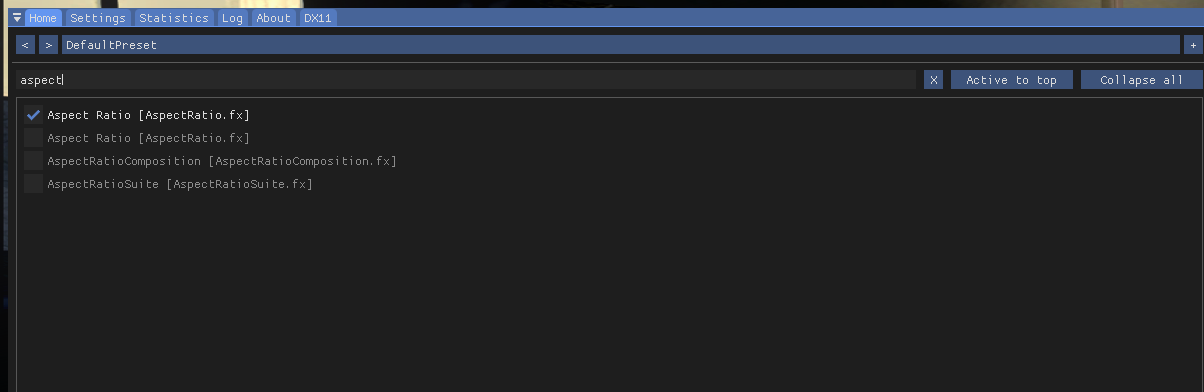
Select the first one at the top and proceed on to the bottom of the UI where you can modify the fix to suit your needs In my Case these are what my settings look like for my 3440x1440 LG Monitor
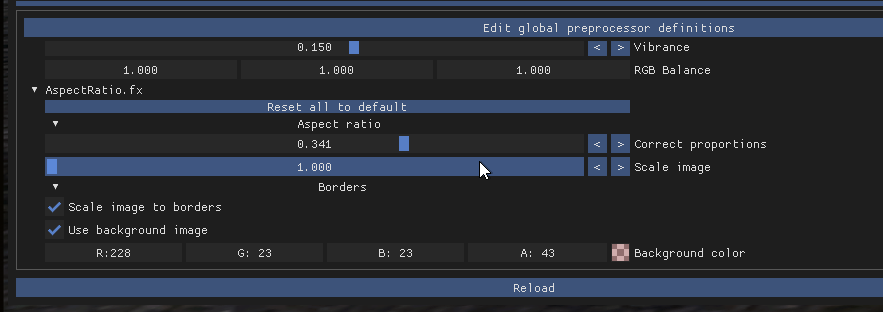
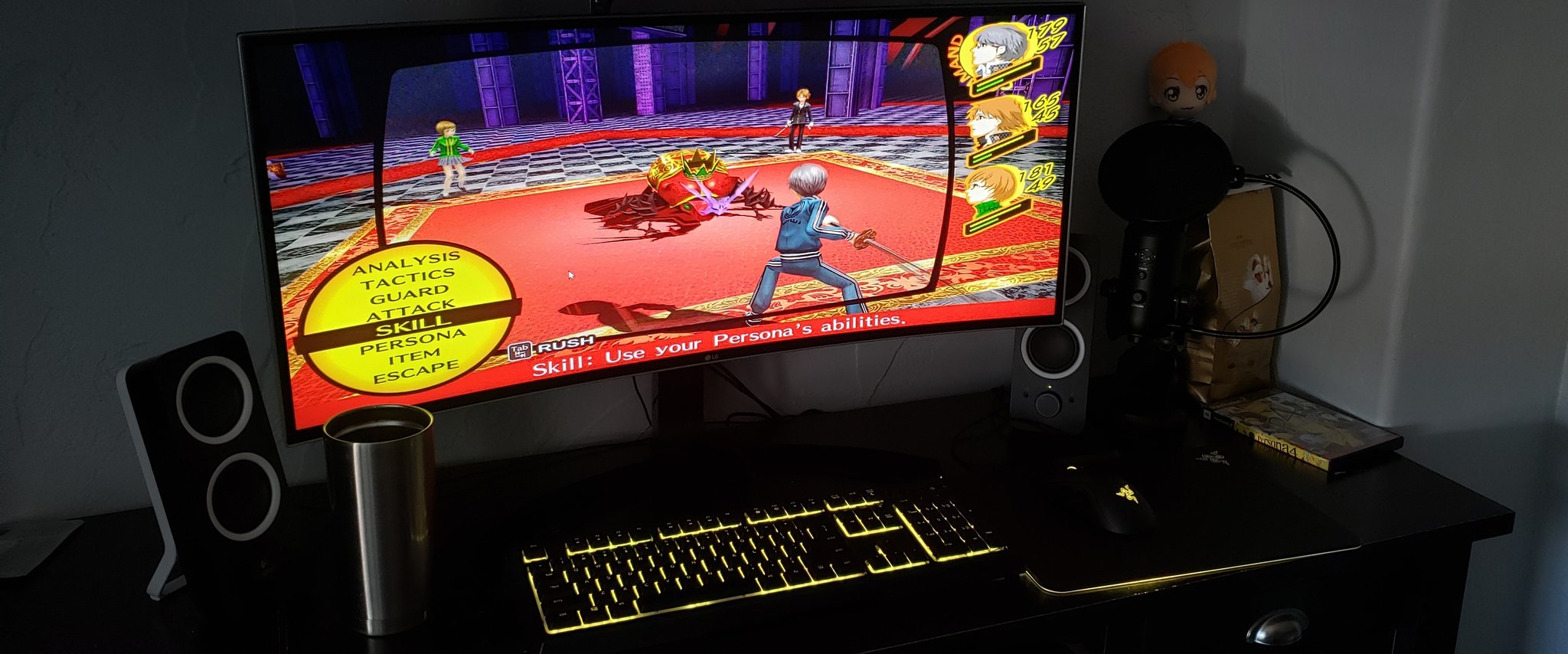
Like I mentioned THIS IS A FAUX PLACEHOLDER SOLUTION. What this fix simply does is stretch the aspect ratio to fill the rest of letterbox on your Ultra-Wide monitor.
Here are some screenshots that will give you an idea of what that looks like: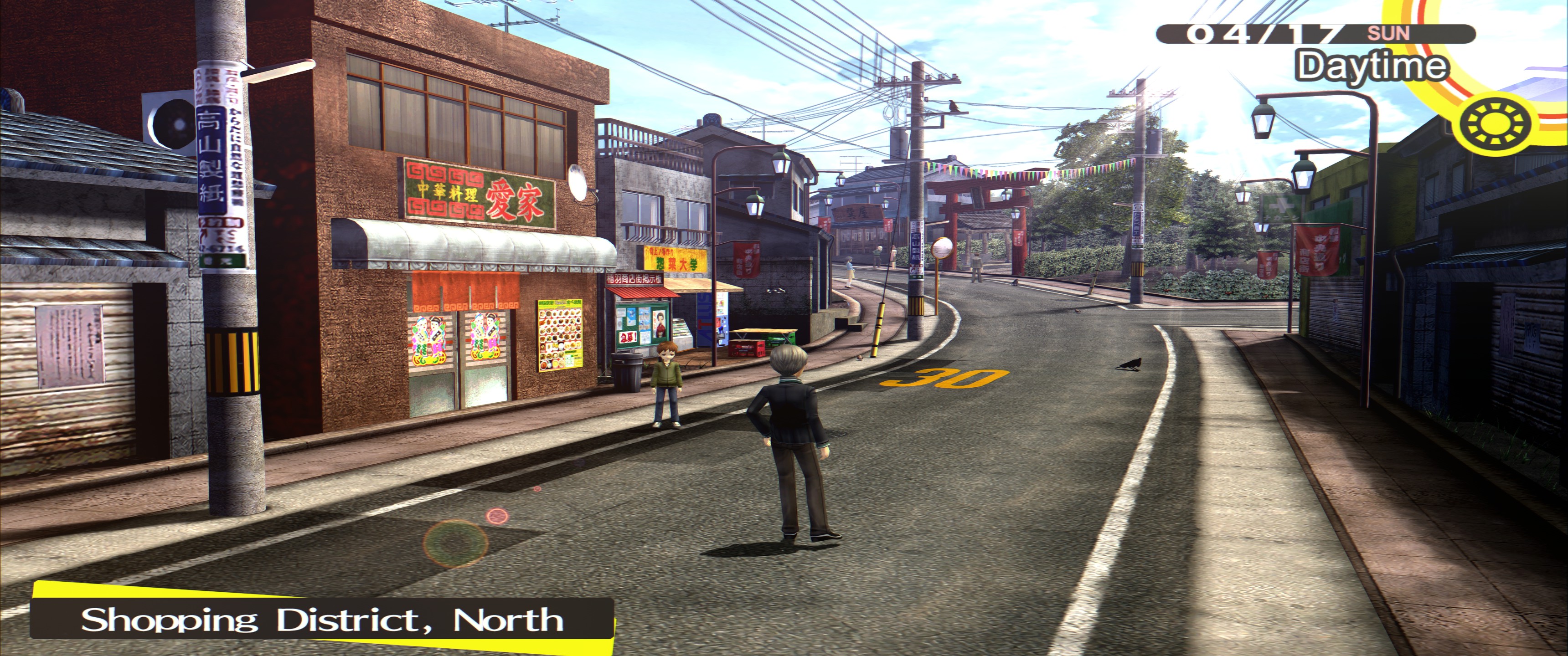
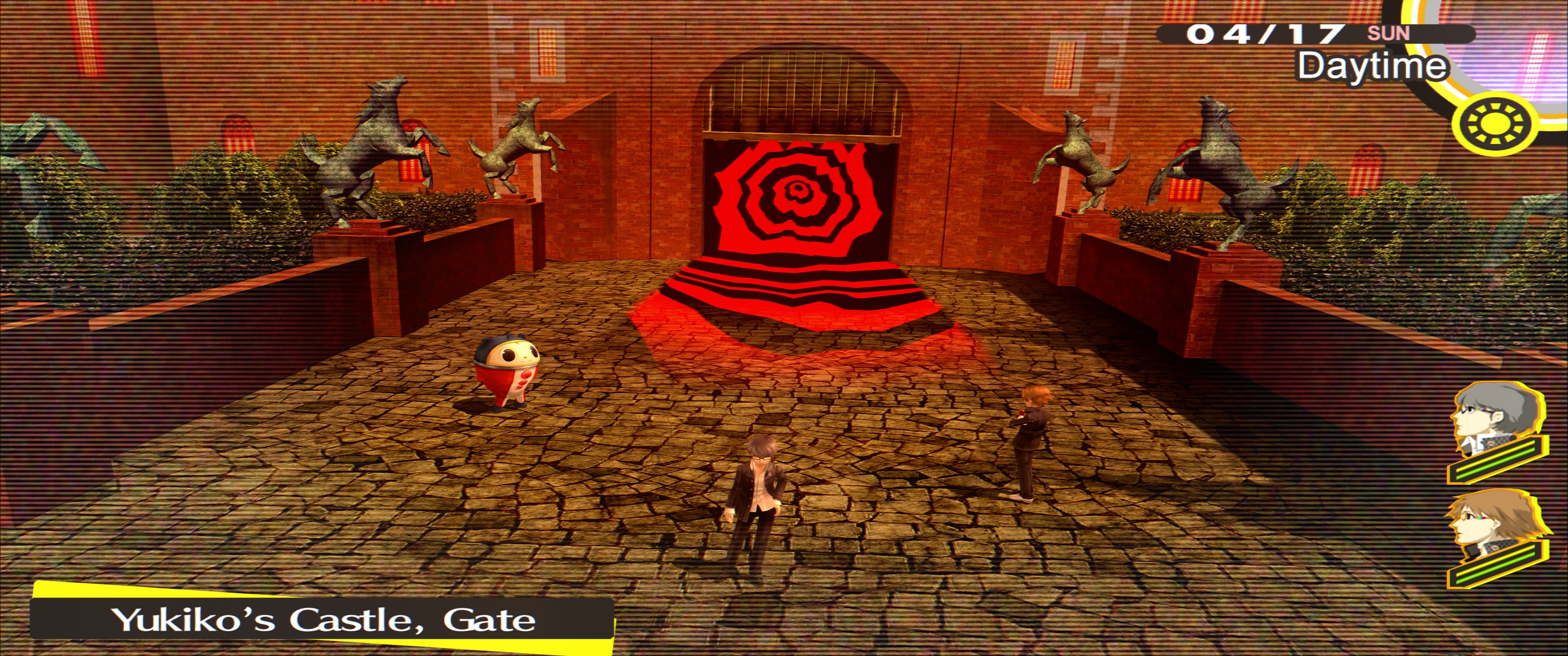
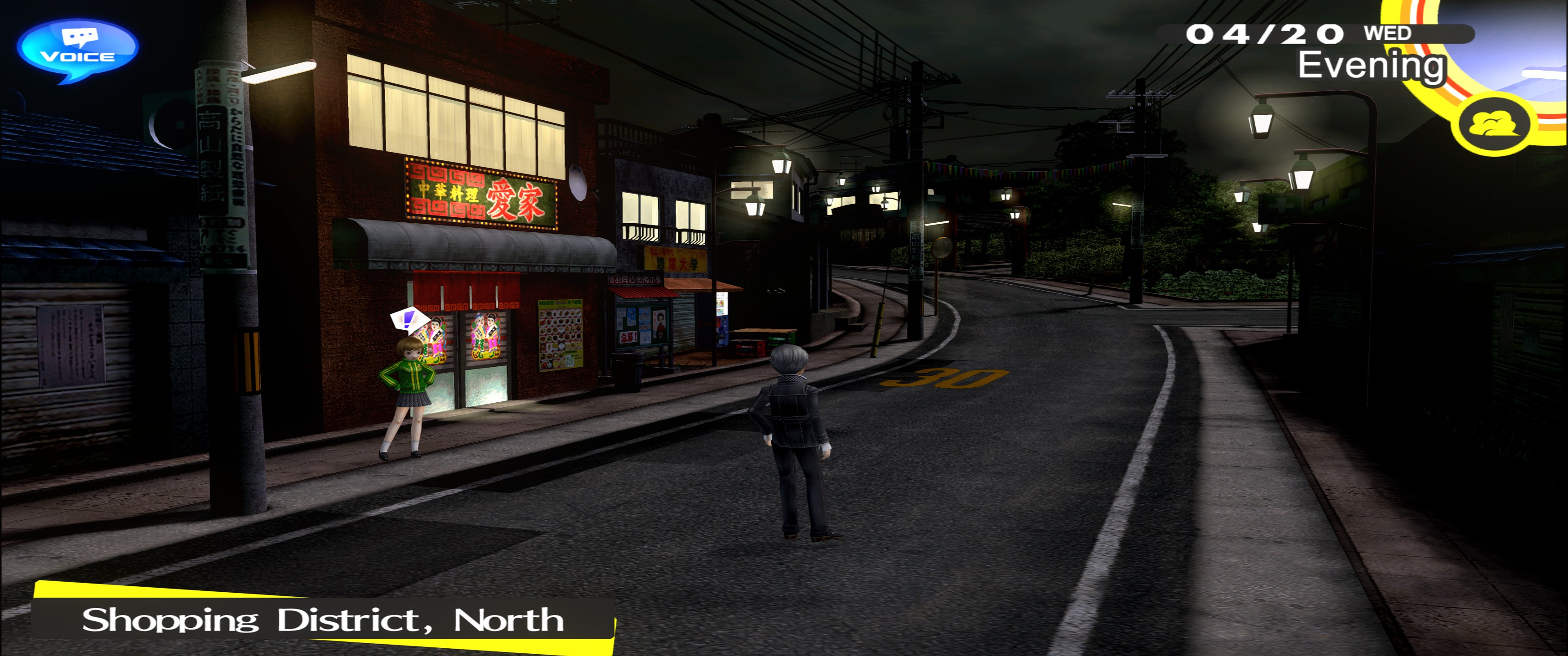

Not perfect and obviously stretched but I know a lot of you will prefer this mode more than having those pesky black letterboxes!
UPDATED: Fixing the In-game scaling (UI fix not yet available)
As you may have noticed this faux fix will mess up the games proportions. Luckily there is a temporary hex editor fix for this
First start by downloading a Hex editing suite (Personally I recommend using HxD since its the most streamlined out there. DOWNLOAD LINK: https://mh-nexus.de/en/hxd/
-After installing HxD let's start by opening the software. (should look like this)
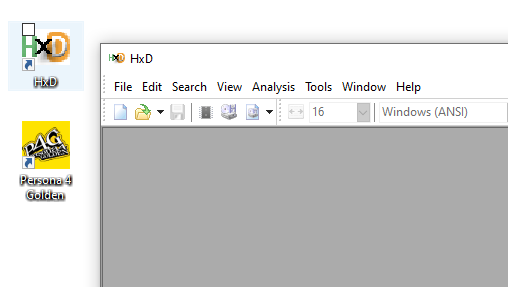
Next we must open the P4G.exe file -Simply File > Open and find your P4G.exe in its steam installation directory
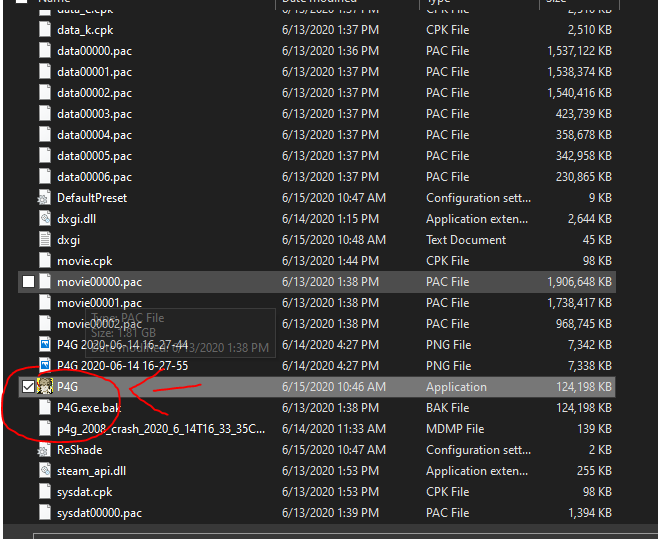
-should look like this
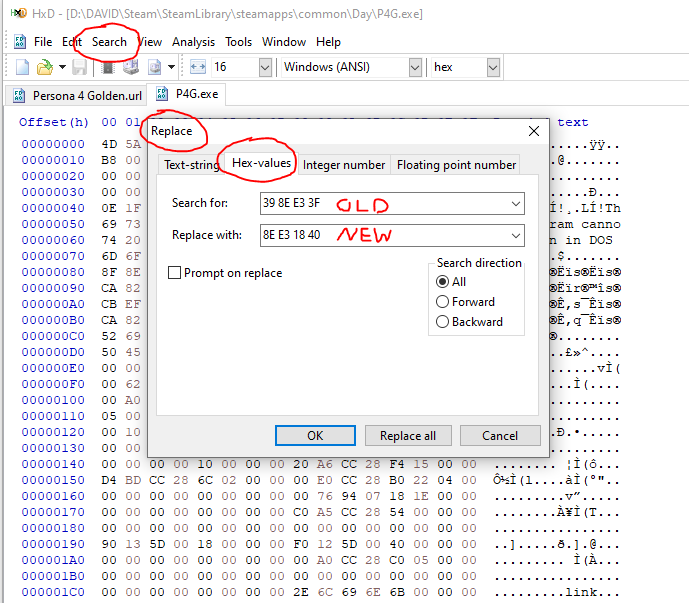
After opening the exe file with HxD it's now time to > REPLACE the Hex-value for the in-game aspect ratio
In the case of P4G the Hex value you are searching for is 39 8E E3 3F
And in my case I'm using a 3440x 1440 monitor so the hex value I will replace will be 8E E3 18 40
Here's a link to the page where you can find the various generic values for different aspect ratios!
https://www.wsgf.org/article/common-hex-values
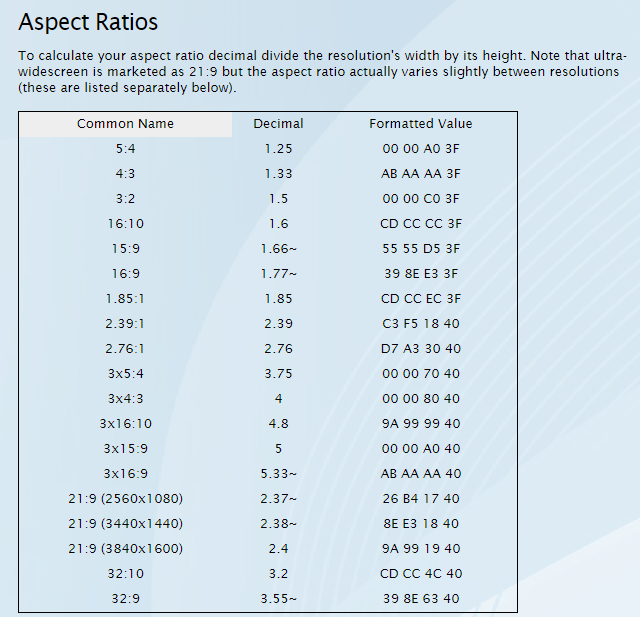
Very well in order to replace the hex-values you must simply click on the search tab and then replace.
OR use the keyboard shortcut CTRL+R
Follow this image and simply replace the generic value of 39 8E E3 3F with your desired ratio value using the guide I linked before.
Now that you have the aspect ratio fix stretch mod with ReShade + The Hex edit THE END RESULT is a proper 21:9 ingame ratio!
UI is still stretched out but this is a great temporary solution!
Here's how it should look like!
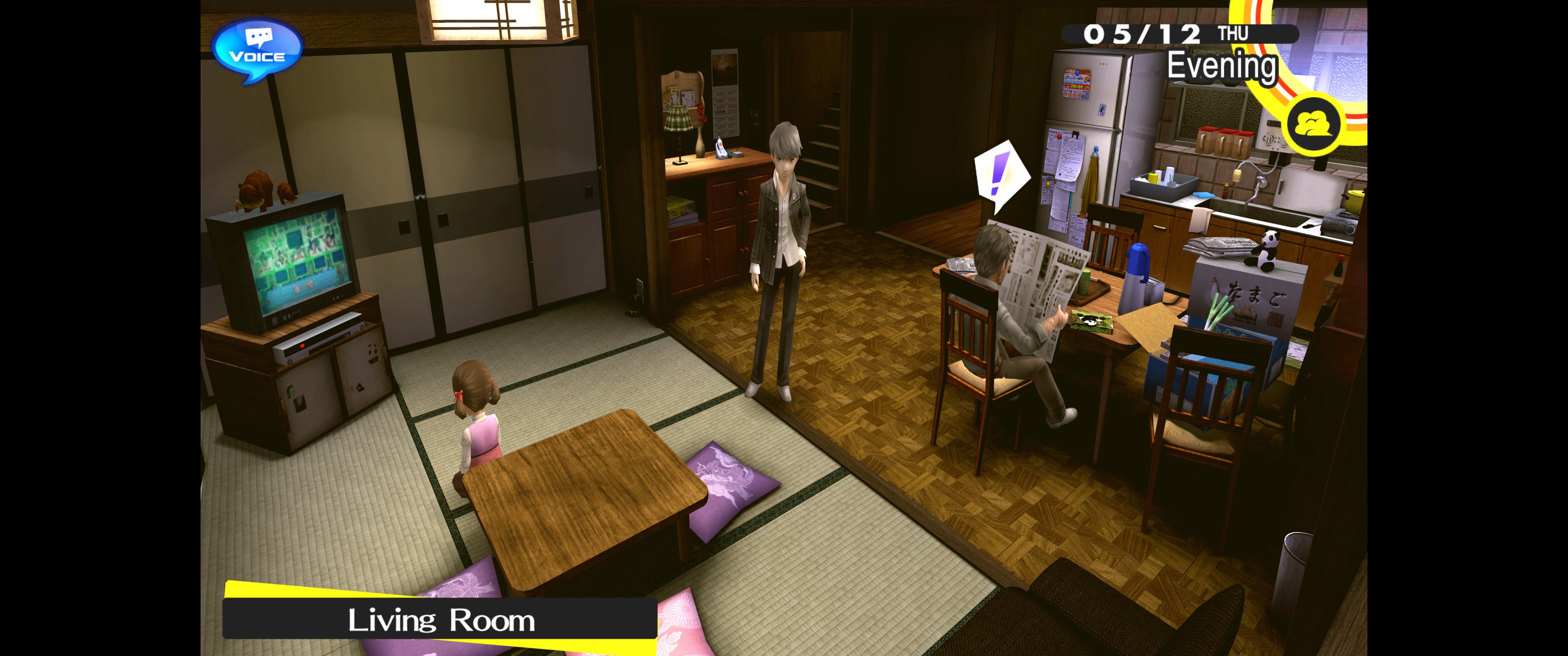 THIS IS WITH THE HEX EDIT / NO RESHADE FIX
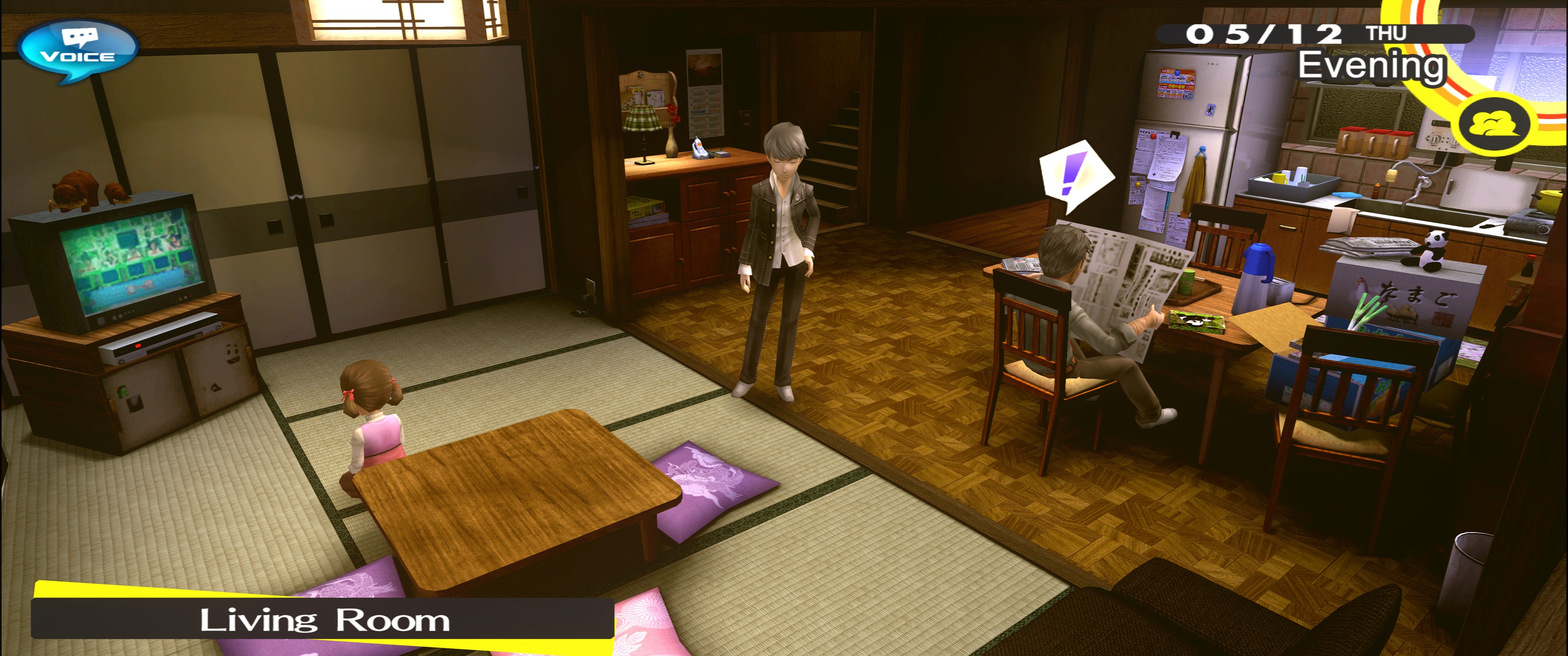 AND NOW THIS IS THE HEX EDIT + RESHADE FIX.
If you have anymore questions please feel free to ask we are all working together to get the 21:9 experience we deserve :D
- Super quick starter tips to see the entire story in a single playthrough★ 5 (1k)34k views2.2k ♥2 minUpdated Oct 22, 2020
- The Hardcore Risette Fan Experience™️★ 5 (489)32k views985 ♥48 minUpdated Aug 7, 2020
- Recommended level for every boss and their affinities. No spoilers★ 5 (730)32k views1.9k ♥7 minUpdated Jun 30, 2025
- Persona 4 Golden 100% Achievements Guide | 2020 (This is not a strict-Everyday-Guide)★ 5 (706)30k views1.7k ♥58 minUpdated Dec 25, 2020
- 100% Achievements Guide for Persona 4 Golden★ 5 (1.2k)29k views3.6k ♥87 minUpdated Feb 23, 2025
- 100% Day By Day Guide by Hurricanehaon★ 5 (1.3k)28k views4.2k ♥102 minUpdated Oct 4, 2023





- Upgrading to PremiumTeam Fortress 2★ 5 (20k)1441k views11k ♥6 minUpdated May 11, 2022
- No More Room in Hell Official ManualNo More Room in Hell★ 5 (2.8k)569k views2.1k ♥29 minUpdated Apr 22, 2019
- NMRiH Community Hosting GuidesNo More Room in Hell★ 5 (526)351k views653 ♥1 minUpdated Aug 10, 2022
- Лучшие кооперативные игры SteamPAYDAY 2★ 5 (1.5k)315k views2.1k ♥56 minRussianUpdated Apr 27, 2025
- Desert Eagle Heat Treated | Blue GemCounter-Strike 2★ 5 (1.6k)292k views1.5k ♥2 minUpdated Jan 16
- Treasure Hunt Puzzle SolutionsTotal War: WARHAMMER II★ 5 (6.9k)281k views15k ♥3 minUpdated Aug 19, 2021






This guide was created by its original author on the Steam Community. Are you the author and want it removed? Request removal.