Bioshock Crash, Resolution, Change Language, No Sound and FOV fix
Introduction
Hi, everyone! :) I made this simple troubleshooting guide for fixing the game crashing on start up on Windows 7 and Windows 8 OS, which seem to be the most common issue on most of the modern Systems/Computer. You can find most of the common fixes and tweaks here.
This fix is for Windows 7 and Windows 8 users. The same might apply to Windows 10 users.
This fix is for Windows 7 and Windows 8 users. The same might apply to Windows 10 users.
Crash on startup in Windows 7 64-bit & Windows 8 64-bit
Solution 1:
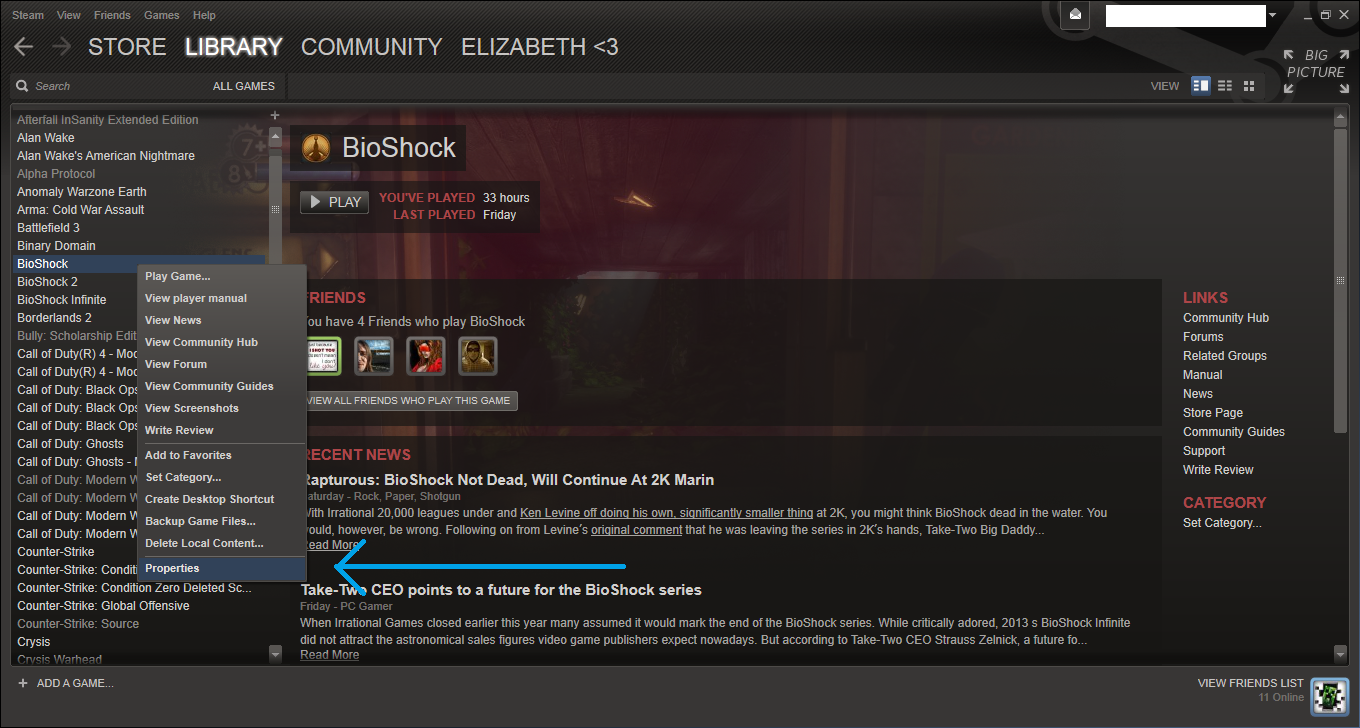
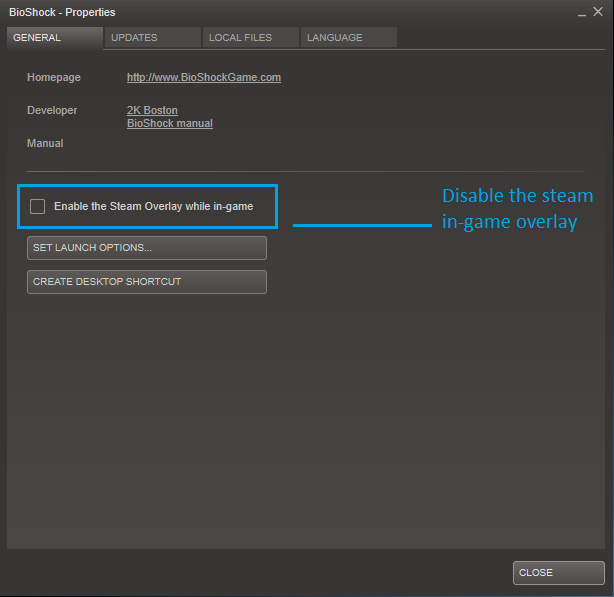
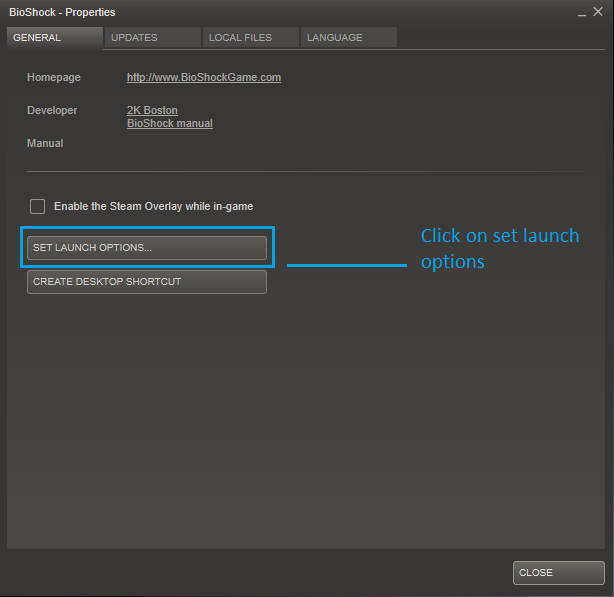
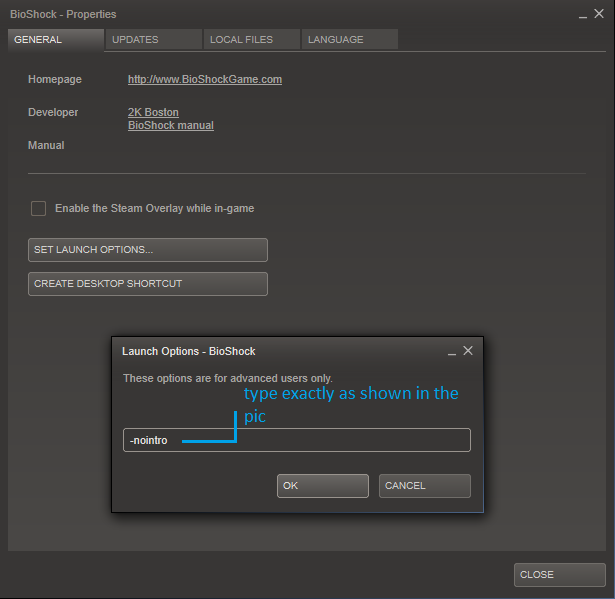
Note: Enabling the Steam in-game Overlay will make your game crash (for some users). You have to disable the Steam in-game overlay to play the game.
Or, you can just leave the steam in-game overlay on and download the fix below which let you play the game with the overlay on modern PCs. (As reported by some users)
Download[drive.google.com] For 32-bit OS
Download[drive.google.com] For 64-bit OS
If you are having trouble downloading from the links above. You can download the file from here
https://drive.google.com/open?id=1XJDA2qo2L1On5Rab9yi3jMrv1UU6Navf
Extract it and copy openal32.dll in Builds\Release folder, where the main Bioshock.exe is located.
Note: Tested the fix myself. The game works with the overlay on but the game still crashes randomly.
Solution 2:
If the above fix doesn't work for you then try running the game in DirectX 9 mode.
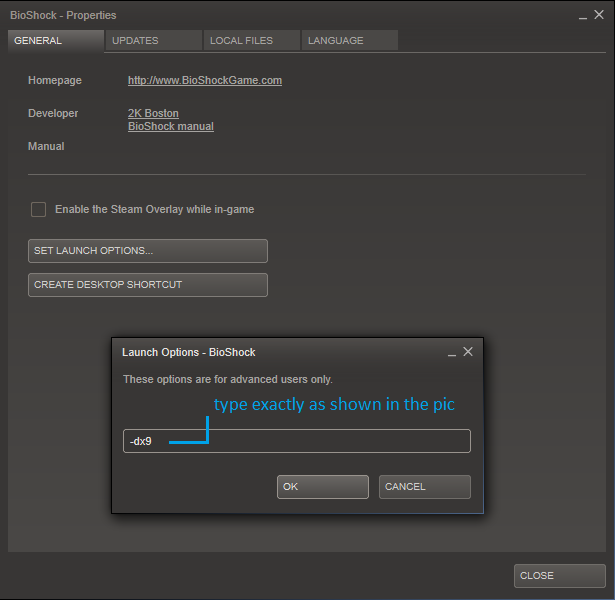
Note: If you want to run the game in DirectX 10 mode, remove "-dx9" from Set Launch Options and follow the instructions on Solution 3 and Solution 4.
Solution 3:
Enable Stereo Mix and try running the game again.
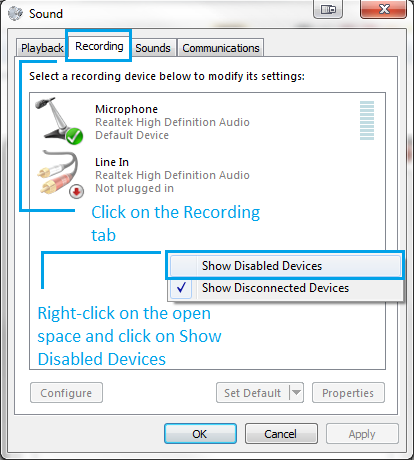
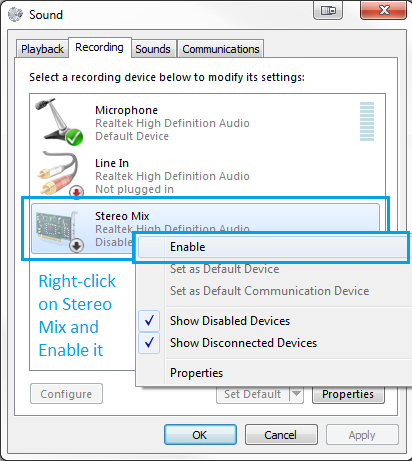
Note: If you can't find Stereo Mix under the recording tab, download the latest audio driver from your motherboard's manufacturer website and install it.
Solution 4:
Solution 5:
If none of the above fix worked for you then try this.
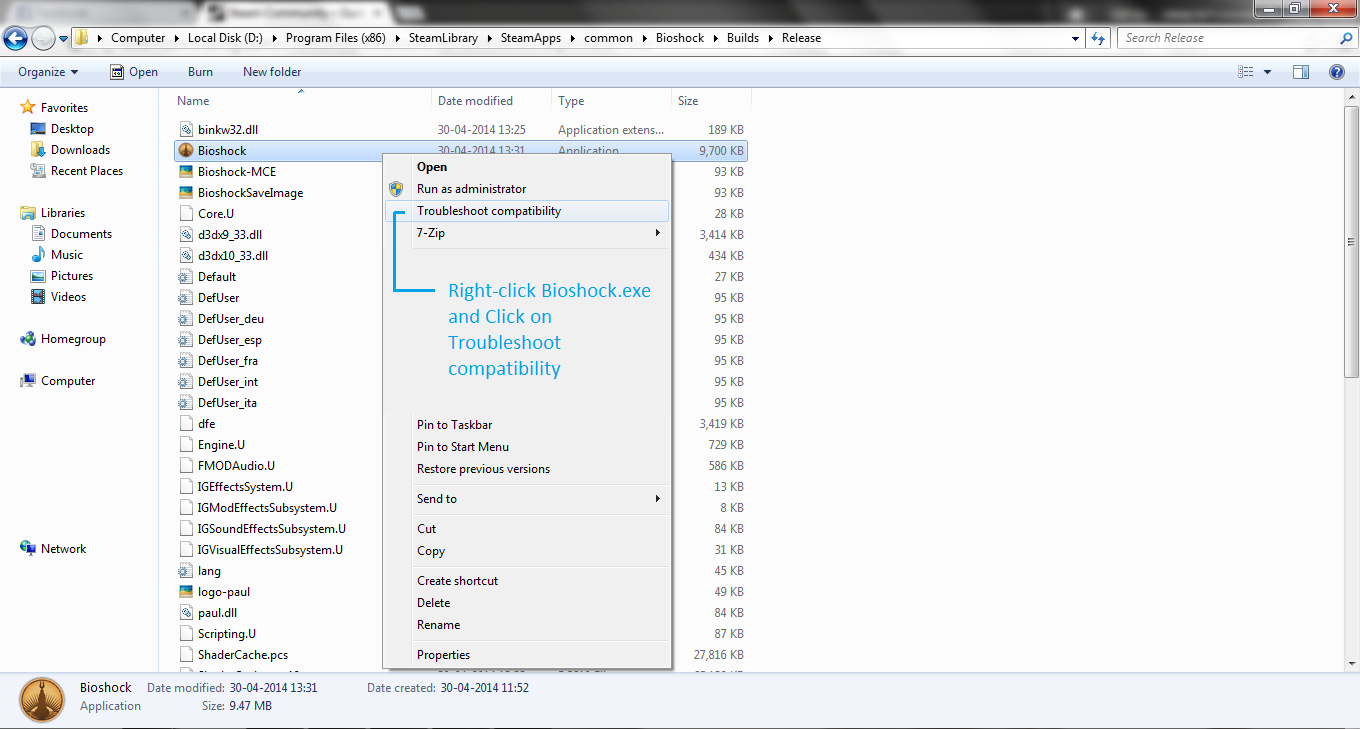
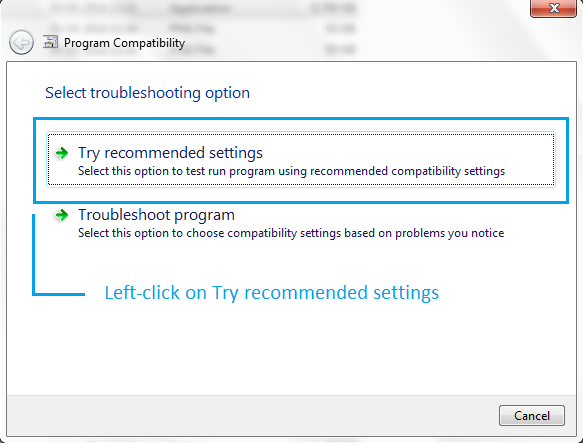
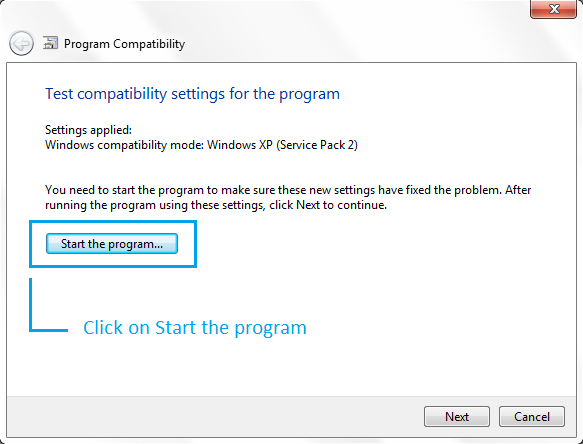
Note: You have to disable the Steam in-game overlay before you start to Troubleshoot Compatibility as the Steam in-game overlay make the game crash.
Solution 6:
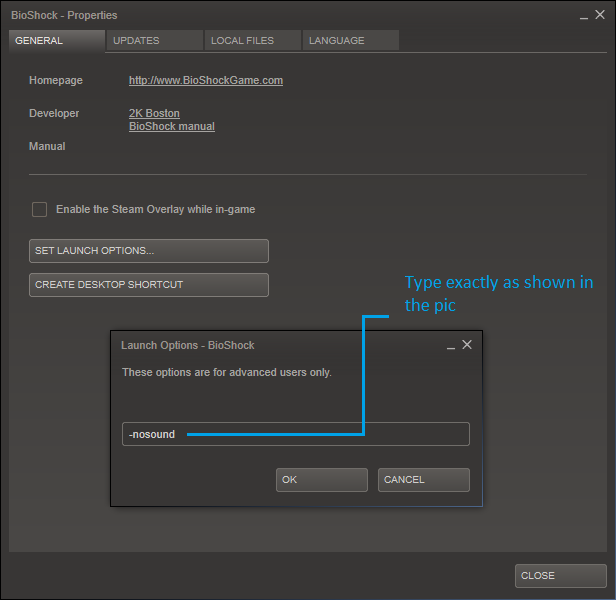
- Right-click Bioshock on Steam > Properties > Under the General tab > Uncheck Enable the Steam Overlay while in-game.
- Click on Set Launch Options > then add "-nointro" without quotes.
Note: Enabling the Steam in-game Overlay will make your game crash (for some users). You have to disable the Steam in-game overlay to play the game.
Or, you can just leave the steam in-game overlay on and download the fix below which let you play the game with the overlay on modern PCs. (As reported by some users)
Download[drive.google.com] For 32-bit OS
Download[drive.google.com] For 64-bit OS
If you are having trouble downloading from the links above. You can download the file from here
https://drive.google.com/open?id=1XJDA2qo2L1On5Rab9yi3jMrv1UU6Navf
Extract it and copy openal32.dll in Builds\Release folder, where the main Bioshock.exe is located.
Note: Tested the fix myself. The game works with the overlay on but the game still crashes randomly.
Solution 2:
If the above fix doesn't work for you then try running the game in DirectX 9 mode.
- Right-click Bioshock on Steam > Properties > Set Launch Options > Type "-dx9" without quotes.
Note: If you want to run the game in DirectX 10 mode, remove "-dx9" from Set Launch Options and follow the instructions on Solution 3 and Solution 4.
Solution 3:
Enable Stereo Mix and try running the game again.
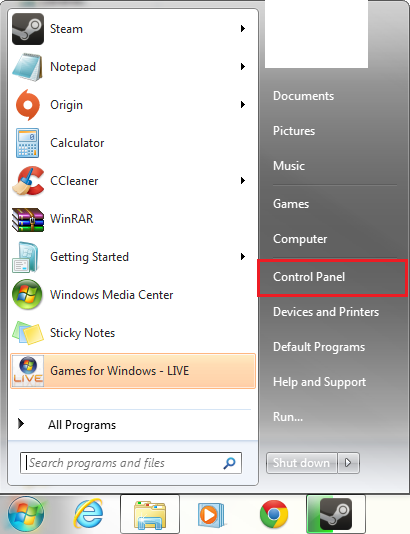
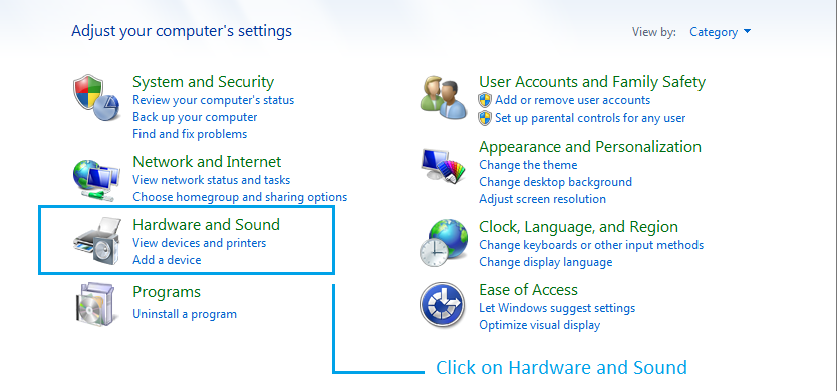
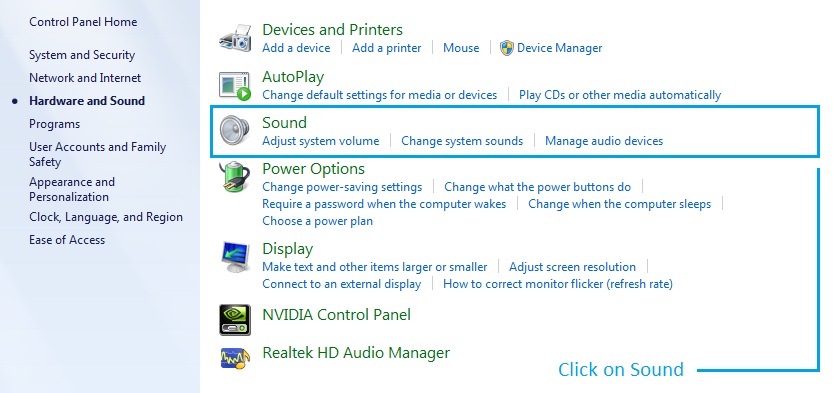
- Go to Control Panel > Hardware and Sound > Sound > Click on Recodring tab > Right-click and enable Show Disabled Devices > Right-click on Stereo Mix and Enable it.
Note: If you can't find Stereo Mix under the recording tab, download the latest audio driver from your motherboard's manufacturer website and install it.
Solution 4:
- If you have a Headphone, try plugging it in on the front jack and try running the game again.
- Right-click Bioshock on Steam > Properties > Set Launch Options > Type "-dx9" without quotes and try running the game again with the Headphone still plugged in.
Solution 5:
If none of the above fix worked for you then try this.
- Locate BioShock.exe
In my case, its inD:\Program Files (x86)\SteamLibrary\SteamApps\common\Bioshock\Builds\Release
(as seen in the picture below)
If you haven't changed the default installation directory, it should be in this locationC:\Program Files (x86)\SteamLibrary\SteamApps\common\Bioshock\Builds\Release
(or depending on which drive you installed the game)
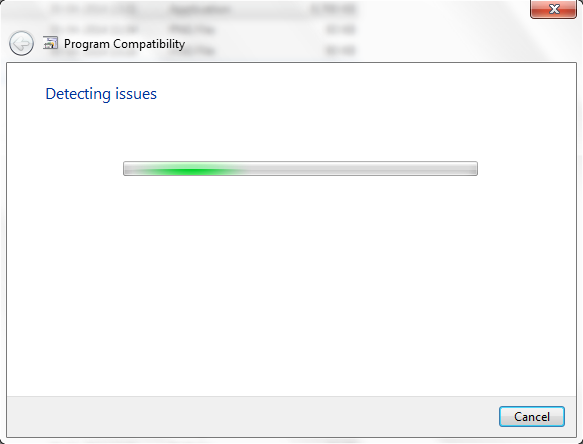
- Right-click on Bioshock.exe > Troubleshoot Compatibility > Try recommended settings > Click on start the program and see if the game still crashes.
Note: You have to disable the Steam in-game overlay before you start to Troubleshoot Compatibility as the Steam in-game overlay make the game crash.
Solution 6:
- Right-click Bioshock on steam > Properties > Set Launch Options > Type "-nosound" without quotes.
No Sound Fix
Those facing the problem with no sound in game try "Solution 3 and 4" from the "Crash on Startup in Windows 7 64-bit & Windows 8-64bit" section or alternatively you can try the fix below.
- Download OpenAL from here OpenAL[drive.google.com].
- Extract the archive and install the program.
- Go to
C:\Windows\System32
- or
C:\Windows\SysWoW64 for 64bit OS)
- Copy over wrap_oal.dll into the same folder where Bioshock's executable is located
(Bioshock\Builds\Release\)
(Right-click Bioshock on Steam > Properties > Local Files > Browse Local Files)
- Rename the file wrap_oal.dll to openal32.dll and run the game again see if the game has sound this time
Resolution Issue
Can't change the resolution from 1024x768. Changing the resolution make the game crash.
Example:
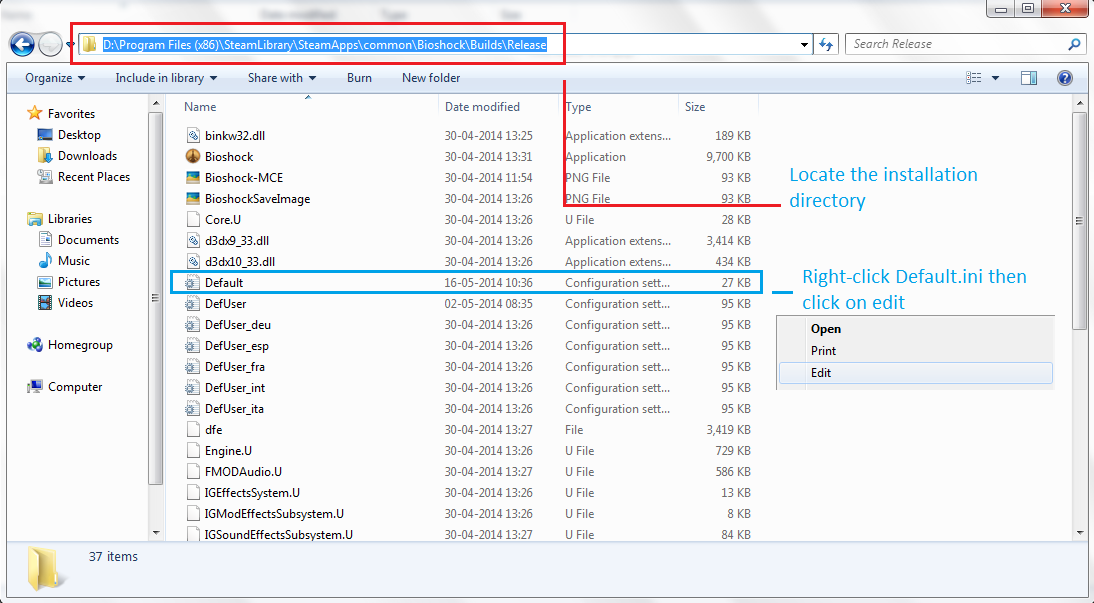
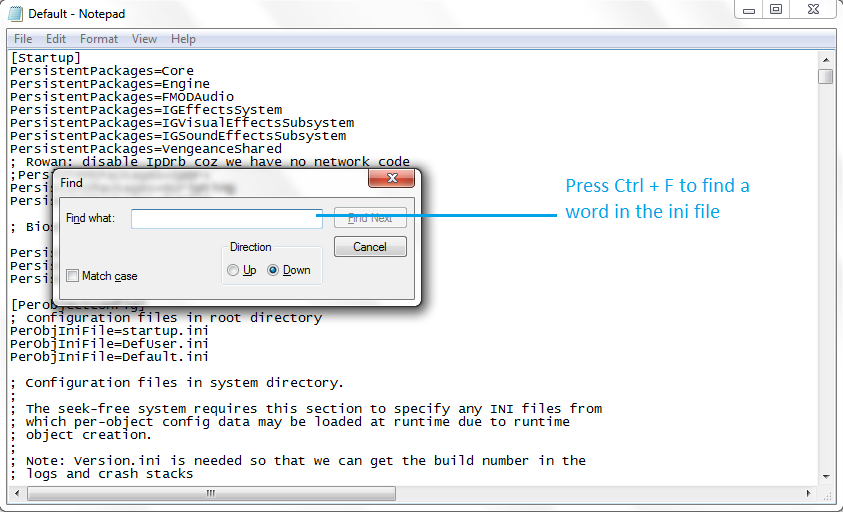
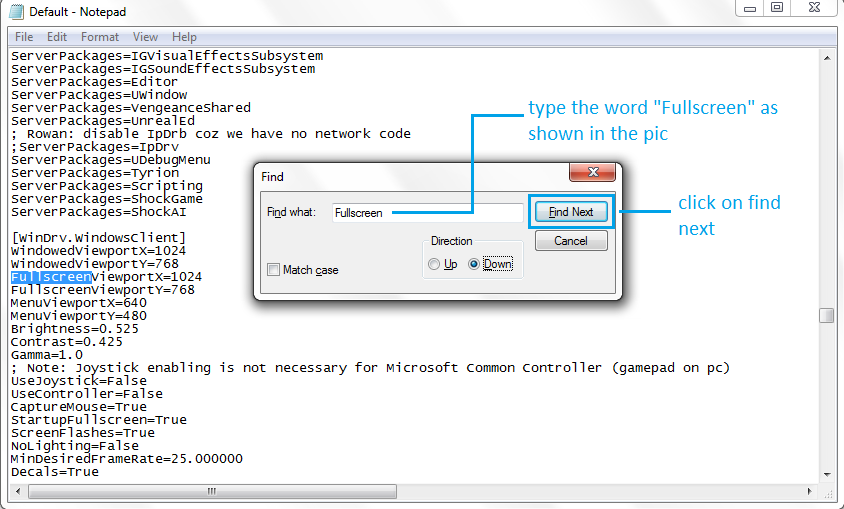
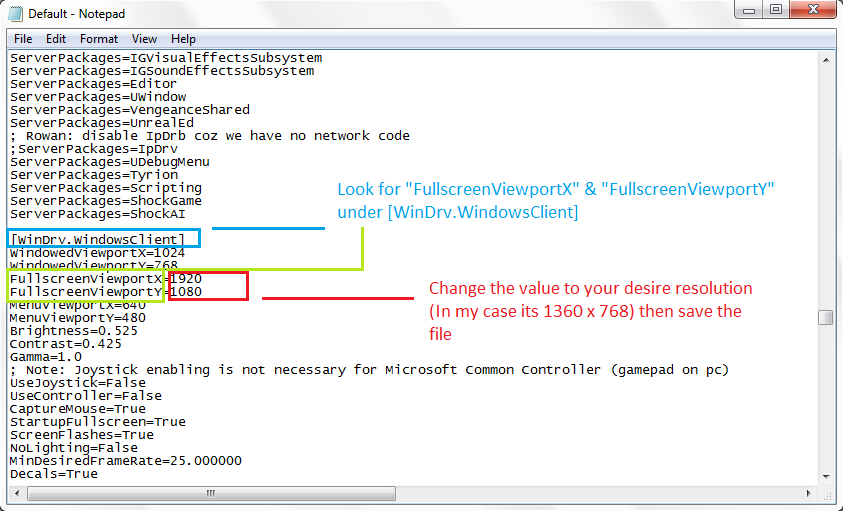
- Locate Default.ini in
C:\Program Files (x86)\Steam\SteamApps\common\Bioshock\Builds\Release
(or depending on which drive you installed the game)
In my case, its located inD:\Program Files (x86)\SteamLibrary\SteamApps\common\Bioshock\Builds\Release
(as seen in the picture below)
- Edit with Notepad and press Ctrl + F to search for "Fullscreen" in [WinDrv.WindowsClient] section without quotes).
- Edit the FullscreenViewportX and FullscreenViewportY values to your desired resolution then save the file.
Example:
FullscreenViewportX=1920
FullscreenViewportY=1080
Change Language
Locate
For Example: The default language is in English. If you want to change the language to German. Edit
"Language=int" to "Language=deu." (without quotes)
C:\Program Files (x86)\Steam\SteamApps\common\Bioshock\Builds\Release
- Edit Default.ini with notepad. Press Ctrl + F then type "Engine.Engine" without quotes.
- Click on Find Next then scroll down a bit and look for "Language=int".
- Change it to "Language=xxx" accordingly (see below for language codes) then save the file.
- Language=int (English)
- Language=esp (Spainish)
- Language=deu (German)
- Language=fra (French)
- Language=ita (Italian)
For Example: The default language is in English. If you want to change the language to German. Edit
"Language=int" to "Language=deu." (without quotes)
FOV(Field of View)
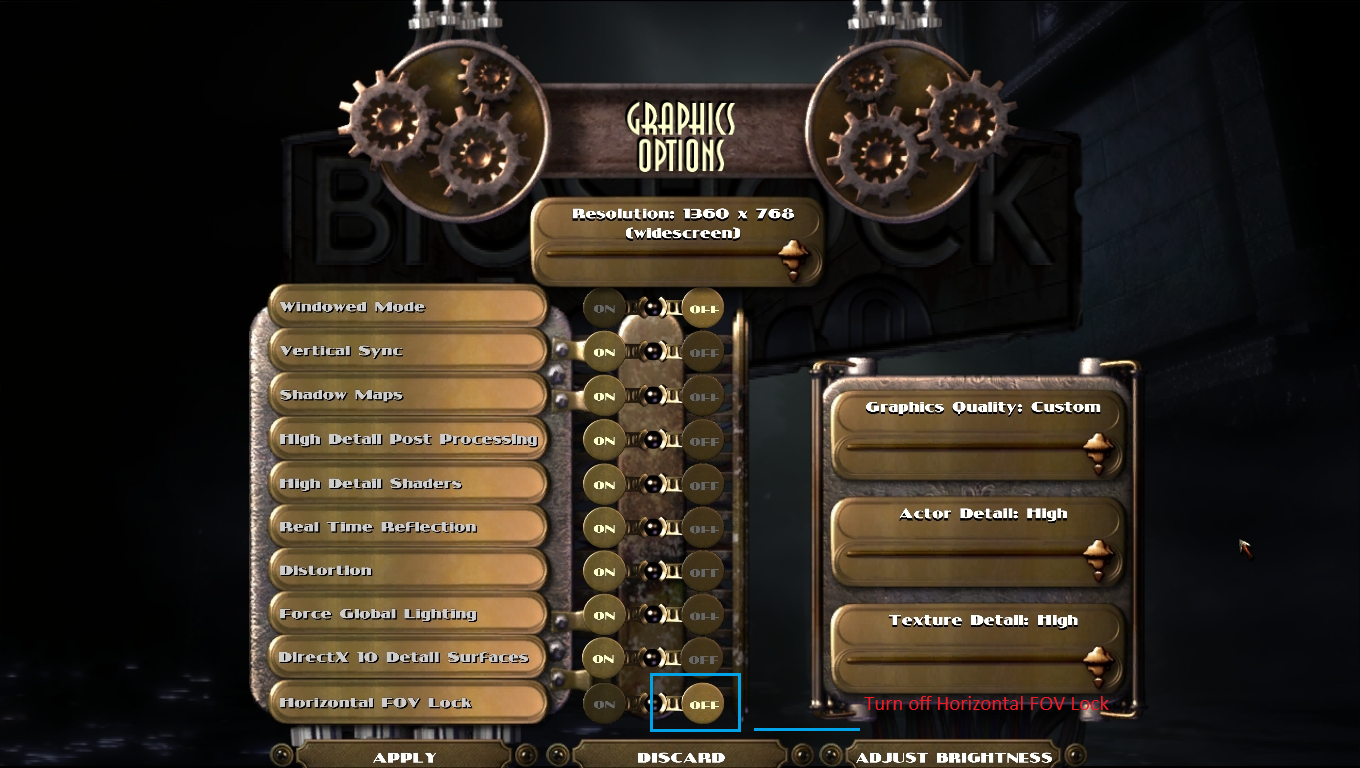
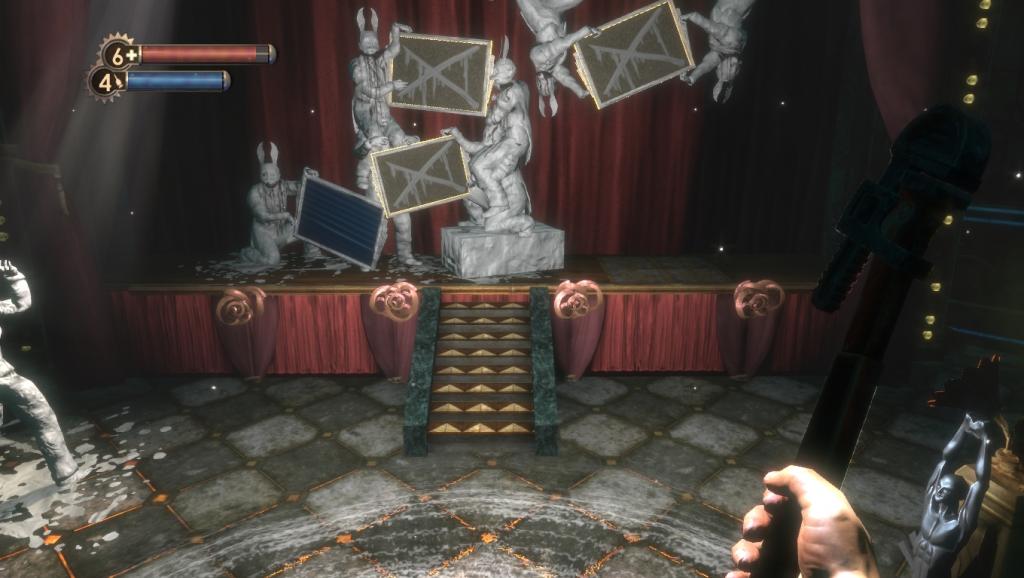
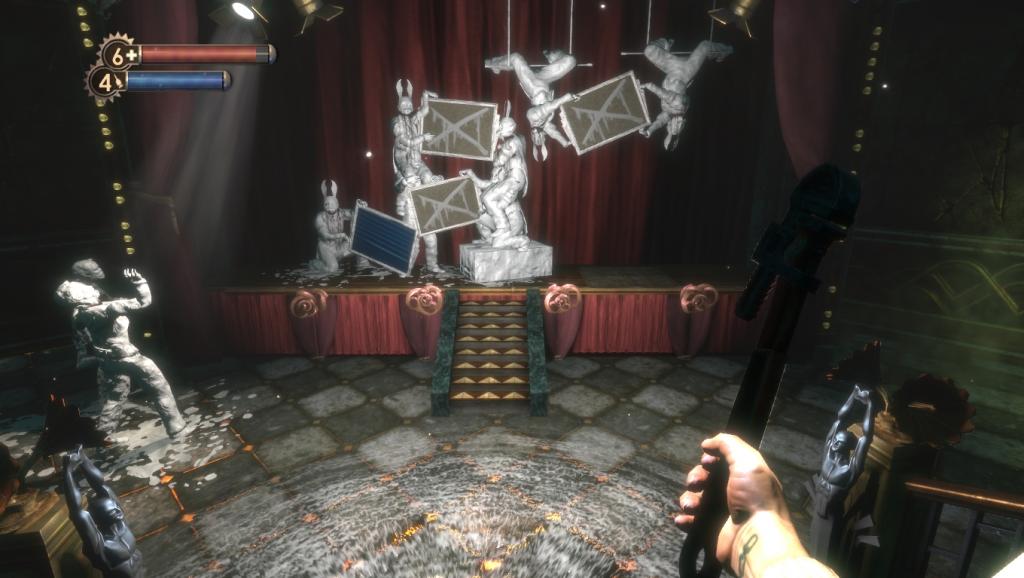
The default FOV makes my head hurts and make me feel dizzy. The FOV looks much better after turning off the Horizontal FOV Lock.
- Go to the in-game Options > Graphics Settings > Turn off the Horizontal FOV Lock
Screeshots comparison with Horizontal FOV Lock On and Off.
Horizontal FOV Lock On:
Horizontal FOV Lock Off:
More BioShock guides
- RU: Рус-тор Bioshock 1С + Решение многих проблем!★ 5 (919)29k views1.4k ♥5 minRussianUpdated May 25, 2025
- Choppy Physics Fix★ 5 (434)14k views442 ♥1 minUpdated Jul 21, 2018
- How to get BioShock (Non Remaster) to run★ 4 (135)12k views183 ♥6 minUpdated Apr 8, 2025
- BioShock INI Tweaks (Cheats)★ 4 (148)11k views230 ♥7 minUpdated Sep 26, 2016
- Guide to Weapon Upgrade Stations★ 5 (175)11k views330 ♥2 min
- Русификатор BioShock★ 4 (105)8.9k views217 ♥1 minRussianUpdated Feb 19, 2025





This guide was created by its original author on the Steam Community. Are you the author and want it removed? Request removal.