Enable Season Pass
Intro
Hello, everyone.
At this point of time, Steam only stores your vaults in the save cloud. Steam does NOT store your Season Pass status and progress on the cloud.
This means that if, for some reason you've lost your local data after buying the season pass, it will revert to it's unbought state after you redownload the game.
This guide will tell you how to enable paid season pass for your game.
Although it is possible to enable Season Pass this way without having ever bought it, this guide condemns such behavior and is made strictly to help those who have previously bought it.
Guide should be followed with the game closed.
Версия гайда на русском: https://steamcommunity.com/sharedfiles/filedetails/?id=3624869094
Guide
Find your save folder. It can be found at
Step 2:
Go to a save decryption site. Here's one such site [fossd.netlify.app], although there are several.
Grab a file named
Important! You need a file named "spd" with an extension "dat". There are two "spd" files in the folder : spd.dat and spd.dat.bkp. If you don't have "show file extensions" enabled, they appear as just "spd" and "spd.dat" - in this case, just "spd" is the one you need!I strongly suggest you keep a backup somewhere in case you break anything. Following the guide exactly should be absolutely safe.
It will prompt you to download a file with the same name and file type - this one is different, it is now decrypted. Save it. Step 4:
Get the file you downloaded and open it with a text editor of your choice. A common one would be Notepad, but I recommend Notepad++ or VisualStudioCode for it's format readability and easy line count.
Find the part with the current seasons info. It's the block "NewVegasA_26_07" under "seasonsData", should be around lines 2700.
Right there you shall find
Save the changes to your file.
You have now enabled the Season Pass for your game! Step 4.5:
Enabling the premium pass and getting the extra items.
In the same place, "NewVegasA_26_07" under "seasonsData", you shall find a line that says
Save your changes. This should give you the extra rewards from all seasons.
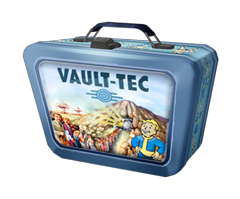
Upon loading a save the info will be added to your savefile and you'll get lunchboxes with all the extra items.
Step 5:
Drop the edited file into the editor's "Encrypt Save" field. Ignore that it asks for a .json file.
It will prompt you to download a file with the same name and file type - this one is different, it is now encrypted again. Save it.
Step 6:
Put the file you just downloaded into your local save folder that we opened in the beginning of the guide. Replace the one in there when prompted.
Step 7:
Open your game! You should now have the paid Season Pass line unlocked, just as you did when you legally bought it.
If you've previously made any progress on the season pass, you can restore the progress by finding the line that says "currentTokens" and changing the value when editing the decrypted file.
- Ответы на вопросы игры «Потеряй голову»★ 5 (1.3k)53k views1.5k ♥2 minRussianUpdated Mar 30, 2017
- How to transfer save files from any device to Steam version★ 5 (1.5k)46k views1.1k ♥2 minBulgarianUpdated Mar 30, 2017
- S.P.E.C.I.A.L Stats in the Wasteland★ 5 (4.3k)46k views2.8k ♥2 minUpdated Jan 14
- Как накрутить крышки,ланчбоксы,навыки и т.д.★ 5 (710)46k views1.2k ♥1 minRussianUpdated Jul 25, 2019
- Ностальгия★ 5 (729)28k views842 ♥4 minRussianUpdated Nov 28, 2019
- Fallout Shelter: Ультимативный гайд★ 5 (597)27k views1.1k ♥18 minRussianUpdated Dec 27, 2023



- Upgrading to PremiumTeam Fortress 2★ 5 (20k)1441k views11k ♥6 minUpdated May 11, 2022
- No More Room in Hell Official ManualNo More Room in Hell★ 5 (2.8k)569k views2.1k ♥29 minUpdated Apr 22, 2019
- NMRiH Community Hosting GuidesNo More Room in Hell★ 5 (526)351k views653 ♥1 minUpdated Aug 10, 2022
- Лучшие кооперативные игры SteamPAYDAY 2★ 5 (1.5k)315k views2.1k ♥56 minRussianUpdated Apr 27, 2025
- Desert Eagle Heat Treated | Blue GemCounter-Strike 2★ 5 (1.6k)292k views1.5k ♥2 minUpdated Jan 16
- Treasure Hunt Puzzle SolutionsTotal War: WARHAMMER II★ 5 (6.9k)281k views15k ♥3 minUpdated Aug 19, 2021






This guide was created by its original author on the Steam Community. Are you the author and want it removed? Request removal.