Far Cry 3: Complete Install, Setup & Fix Guide for Windows 10/11
STEP 1: Fix the “Running install script ()” Freeze
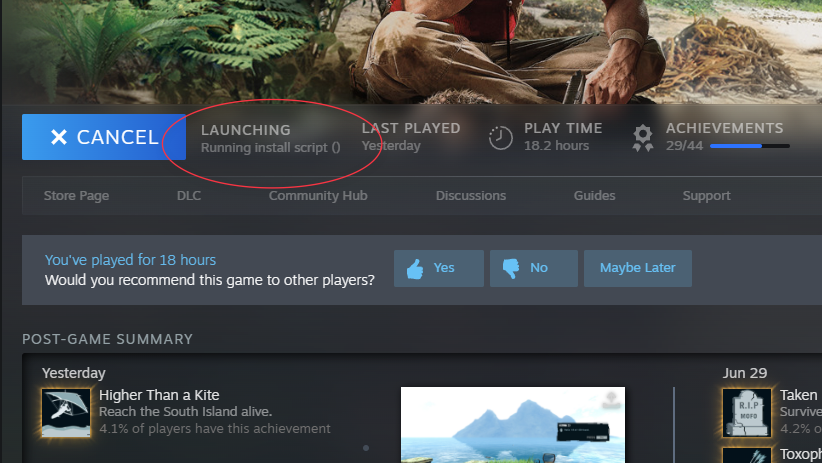
What’s happening?
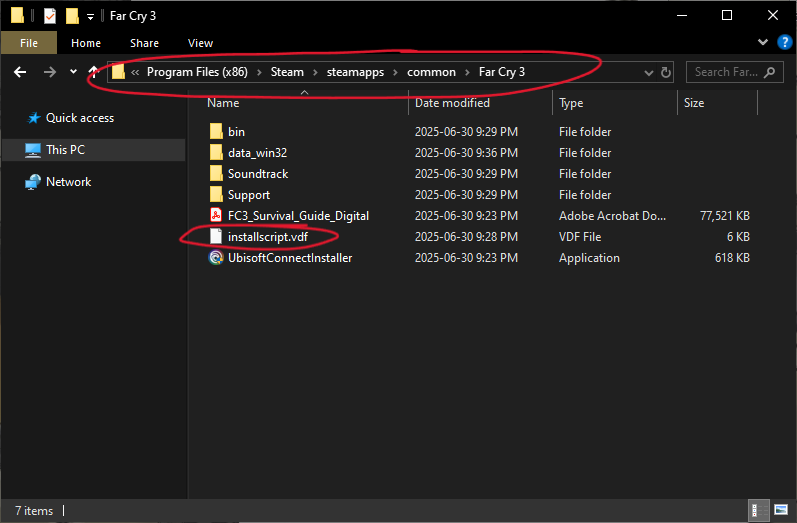
Steam is trying to run outdated Visual C++ and Ubisoft Connect installers through the game’s
installscript.vdf
file.On modern Windows, the script can fail without showing an error, leaving Steam stuck on “Running install script ()”.
The fix
Install the required Visual C++ runtimes manually, then remove the install script.
1. Install the Visual C++ runtimes
Far Cry 3 officially requires the 2010 runtime, but older games often depend on several versions. Installing the full package removes the guesswork and can also fix similar problems in other older games.
Visual C++ Redistributable All-in-One Package[www.techpowerup.com]
Extract the files, run the
.bat
installer as Administrator, and let it finish.2. Delete the install script
Open:
C:\Program Files (x86)\Steam\steamapps\common\Far Cry 3
Delete:
installscript.vdf
The required runtimes are now installed, so Steam no longer needs to run the old setup script. Deleting it prevents the same freeze from happening again.
STEP 2: Manually Install Ubisoft Connect
Why this is required
Even if you bought Far Cry 3 on Steam, Ubisoft still forces the game through Ubisoft Connect. If the launcher is missing, corrupted, or half-installed, the game will not start.
Ubisoft Connect is often the least reliable part of the entire setup.
The fix
Install Ubisoft Connect manually instead of relying on Steam’s old setup script.
1. Try the latest official installer
Download Ubisoft Connect[ubisoftconnect.com]
Install it normally and restart Steam afterward.
2. If the installer crashes or shows an “NSIS Error”
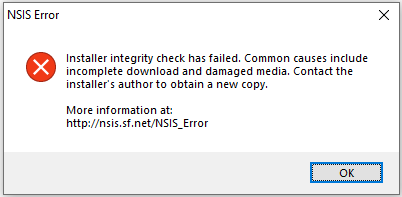
Use an older installer from the archive below:
Ubisoft Connect — Older Versions[uplay.en.uptodown.com]
Choose an older version that installs successfully. Once Ubisoft Connect launches, it should update itself to the current version.

3. Log in and confirm the game appears
Open Ubisoft Connect and sign in with the Ubisoft account linked to your Steam account.
Far Cry 3 should appear in your library with a Steam icon. If it does not, close both launchers completely, reopen Steam first, then launch the game again.

STEP 3: Launch the Game and Save Your Display Settings
Launch Far Cry 3 through Steam. Once you reach the main menu, go to:
Set the following:
Apply the settings, exit the game normally, then launch it again.
The first successful launch creates the game’s configuration files. Exiting normally makes sure your settings are actually written to disk before moving on to the stability fixes.
Options > Display
Set the following:
- Display Mode: Fullscreen
- DirectX: 11 — use DirectX 9 only if DX11 causes crashes or graphical problems.
- Resolution: Your monitor’s native resolution
- V-Sync: On — prevents screen tearing and limits the frame rate to your monitor’s refresh rate.
- GPU Max Buffered Frames: 1 — keeps the render queue short, which reduces input latency.
Apply the settings, exit the game normally, then launch it again.
The first successful launch creates the game’s configuration files. Exiting normally makes sure your settings are actually written to disk before moving on to the stability fixes.
STEP 4: Fix Random Crashes After a Few Minutes
Far Cry 3 commonly crashes to the desktop after 5–10 minutes of gameplay. Relaunching may get you a little farther, but the crash usually returns.
Far Cry 3 is a 32-bit game. By default, its executable can only use about 2 GB of virtual memory. Once the game reaches that limit, it can crash without warning.
On 64-bit Windows, enabling Large Address Aware allows it to use up to 4 GB instead.
Credit to Prateek HyperBeast for documenting the issue in more detail:
Far Cry 3 Crash Fix Guide
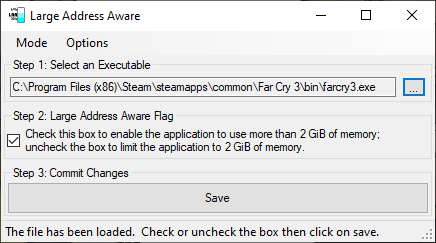
Download the tool:
https://www.techpowerup.com/forums/threads/large-address-aware.112556/
This removes the game’s original 2 GB memory limit and fixes one of its most common causes of crashing.
It will not fix every possible crash (this is still Far Cry 3), but it should stop the repeated memory-related crashes that happen shortly after starting the game.
Note: Verifying the game files through Steam may replace the modified executables. If the crashes return afterward, apply LAA again.
Why this happens
Far Cry 3 is a 32-bit game. By default, its executable can only use about 2 GB of virtual memory. Once the game reaches that limit, it can crash without warning.
On 64-bit Windows, enabling Large Address Aware allows it to use up to 4 GB instead.
Credit to Prateek HyperBeast for documenting the issue in more detail:
Far Cry 3 Crash Fix Guide
Enable Large Address Aware
Download the tool:
https://www.techpowerup.com/forums/threads/large-address-aware.112556/
- Extract and open the tool.
- Select farcry3.exefrom:C:\Program Files (x86)\Steam\steamapps\common\Far Cry 3\bin
- Enable the Large Address Aware option and click Save.
- Repeat the process for farcry3_d3d11.exe.
This removes the game’s original 2 GB memory limit and fixes one of its most common causes of crashing.
It will not fix every possible crash (this is still Far Cry 3), but it should stop the repeated memory-related crashes that happen shortly after starting the game.
Note: Verifying the game files through Steam may replace the modified executables. If the crashes return afterward, apply LAA again.
STEP 5: Fix Stuttering and Freezing
Even after fixing the crashes, Far Cry 3 may develop severe stuttering or freeze completely during longer sessions. It happened within hours on one system and after several sessions on another.
Far Cry 3 was built for older CPUs and does not always behave well with modern thread counts. Overlays and certain Windows security mitigations can also interfere with it.
Try these fixes in order.
1. Limit the game to four CPU threads
Run the game, then:
This reduces the number of threads the game has to manage and can noticeably improve frame pacing.
Windows resets CPU affinity whenever the game closes. Use Process Lasso if you want the setting applied automatically.
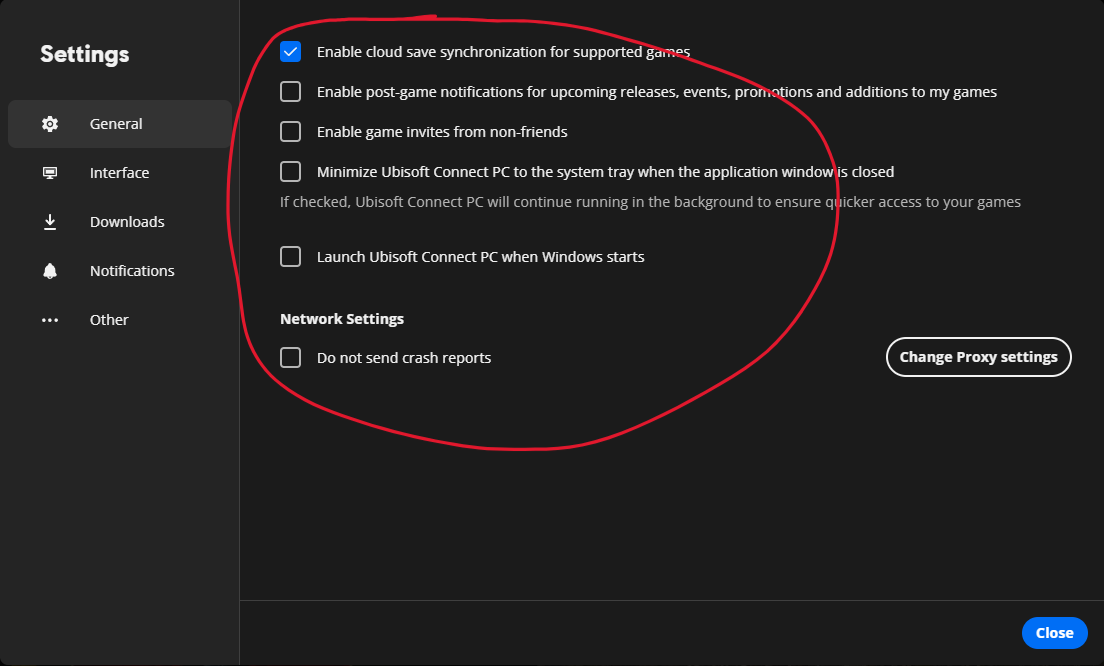
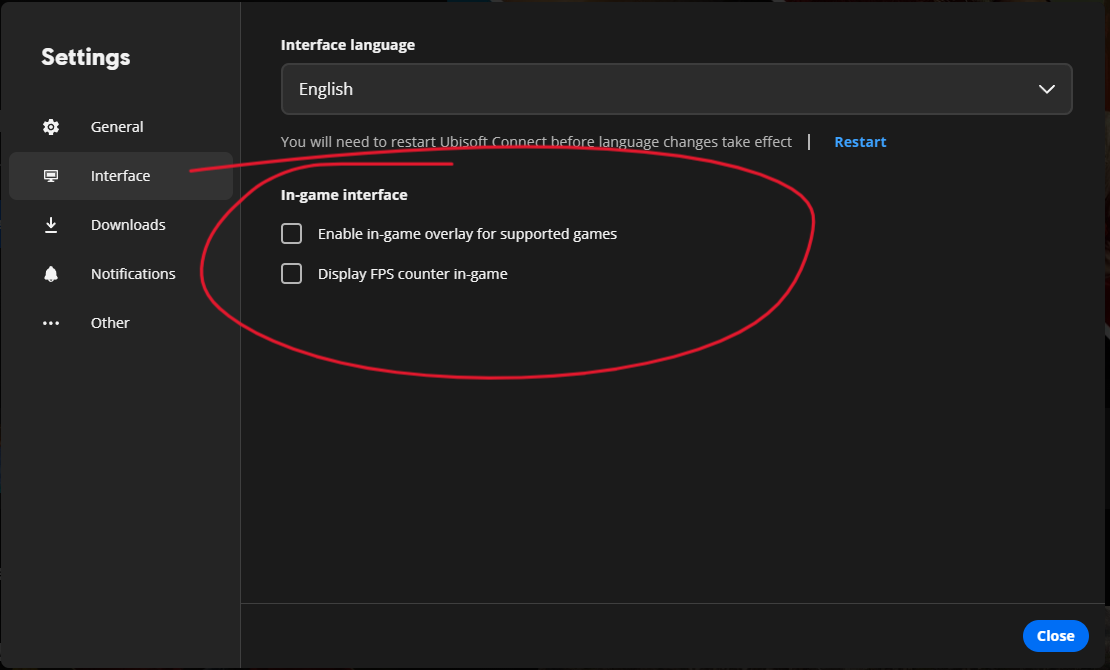
2. Disable unnecessary overlays
Turn off:
You can leave Ubisoft cloud saves enabled.
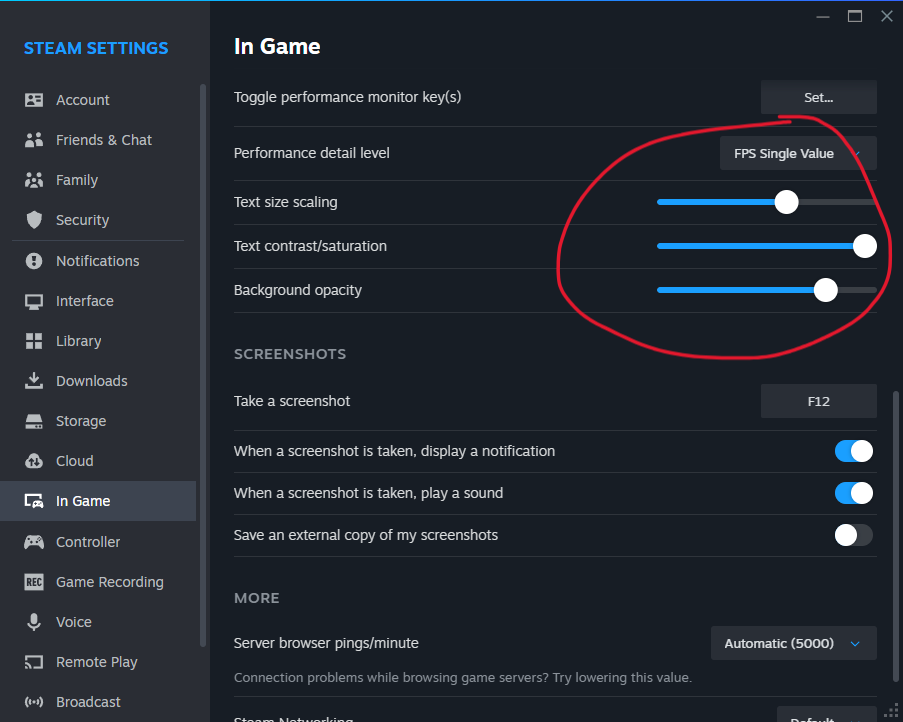
The Steam overlay worked correctly during my testing, including the FPS counter and achievement notifications. Disable it as well if the freezing continues.
3. Disable Control Flow Guard for the game executables
CFG is a Windows security mitigation. Do not disable it system-wide. Create exceptions only for Far Cry 3 if the previous fixes did not work.
This was the most effective fix for the full freezes on my systems.
4. Check your V-Sync settings
Avoid forcing V-Sync both in the game and in your GPU control panel.
Let Far Cry 3 control V-Sync, or disable it in-game when using G-Sync or FreeSync with a separate frame-rate limit.
Why this happens
Far Cry 3 was built for older CPUs and does not always behave well with modern thread counts. Overlays and certain Windows security mitigations can also interfere with it.
Try these fixes in order.
1. Limit the game to four CPU threads
Run the game, then:
- Open Task Manager with Ctrl + Shift + Esc.
- Go to the Details tab.
- Right-click farcry3_d3d11.exeand select Set affinity.
- Leave four CPUs enabled and disable the rest.
- Avoid CPU 0. For example, use CPU 1 through CPU 4.
This reduces the number of threads the game has to manage and can noticeably improve frame pacing.
Windows resets CPU affinity whenever the game closes. Use Process Lasso if you want the setting applied automatically.
2. Disable unnecessary overlays
Turn off:
- Ubisoft Connect overlay
- Discord overlay
- NVIDIA App, GeForce Experience, or AMD overlay
You can leave Ubisoft cloud saves enabled.
The Steam overlay worked correctly during my testing, including the FPS counter and achievement notifications. Disable it as well if the freezing continues.
3. Disable Control Flow Guard for the game executables
CFG is a Windows security mitigation. Do not disable it system-wide. Create exceptions only for Far Cry 3 if the previous fixes did not work.
- Search for Exploit protection in the Start menu.
- Open Program settings.
- Select Add program to customize → Choose exact file path.
- Add:C:\Program Files (x86)\Steam\steamapps\common\Far Cry 3\bin\farcry3.exe
- Repeat for:C:\Program Files (x86)\Steam\steamapps\common\Far Cry 3\bin\farcry3_d3d11.exe
- Open each entry, find Control Flow Guard (CFG), enable Override system settings, set it to Off, and click Apply.
This was the most effective fix for the full freezes on my systems.
4. Check your V-Sync settings
Avoid forcing V-Sync both in the game and in your GPU control panel.
Let Far Cry 3 control V-Sync, or disable it in-game when using G-Sync or FreeSync with a separate frame-rate limit.
STEP 6: Steam Achievements Not Unlocking
Some players unlock achievements in Ubisoft Connect but not on Steam. In most cases, Steam is not properly attached to the game session, which usually also means the Steam overlay will not open.
Always start Far Cry 3 from your Steam Library.
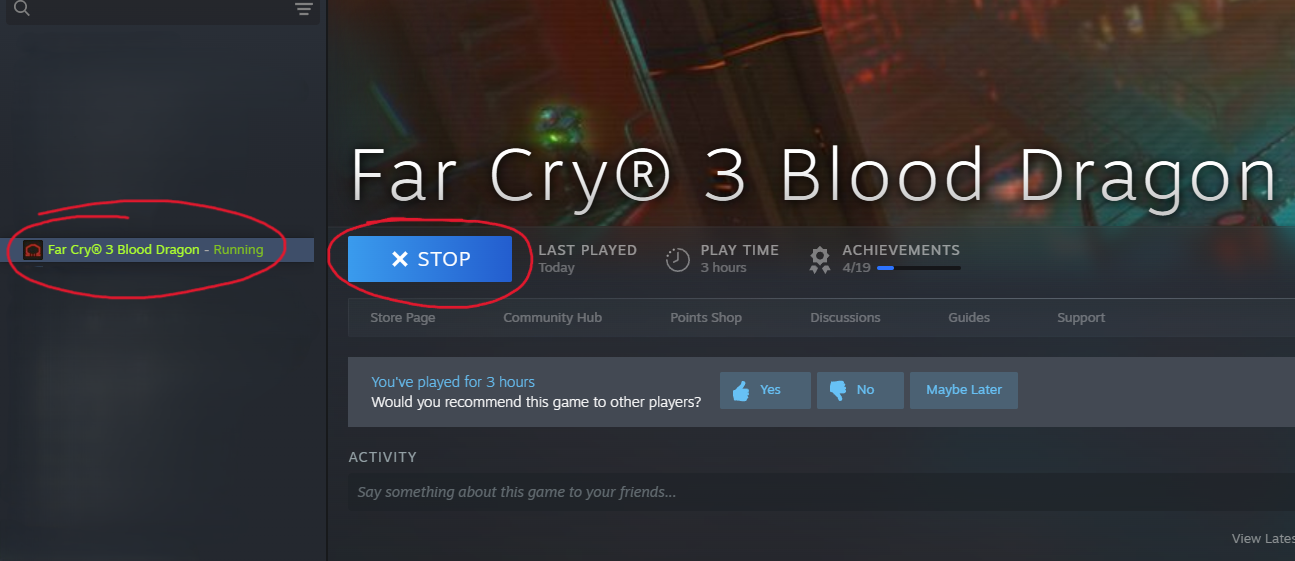
Do not launch it from Ubisoft Connect, the game executable, or a manually created shortcut. Steam should show you as playing Far Cry 3 while the game is running.
Press
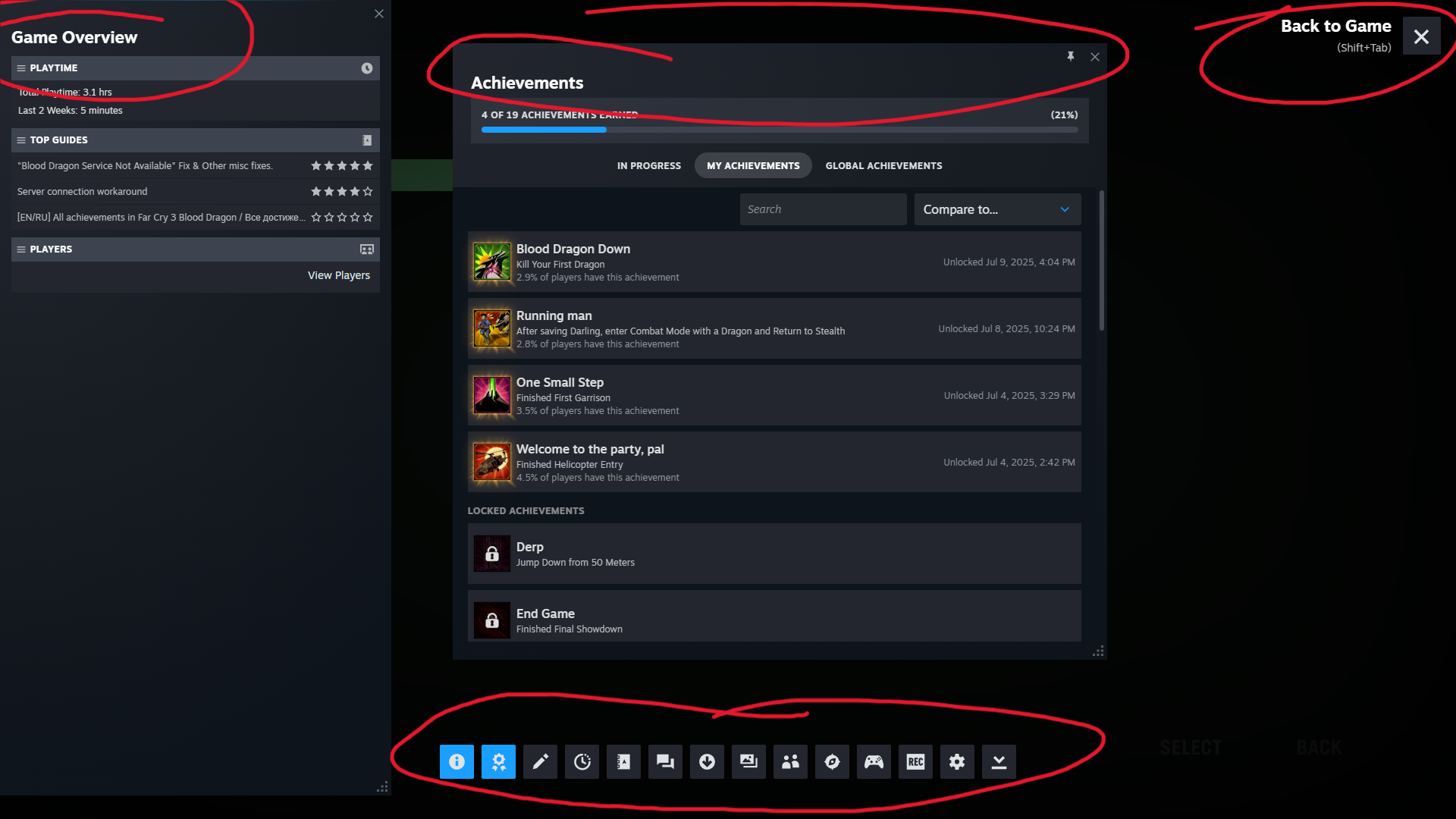
If the overlay opens, Steam is detecting the game. If it does not, go to:
Make sure Enable the Steam Overlay while in-game is turned on.
Windows compatibility settings can prevent Steam from attaching properly, especially when Steam and the game are running with different permission levels.
Open the Far Cry 3
For each file:
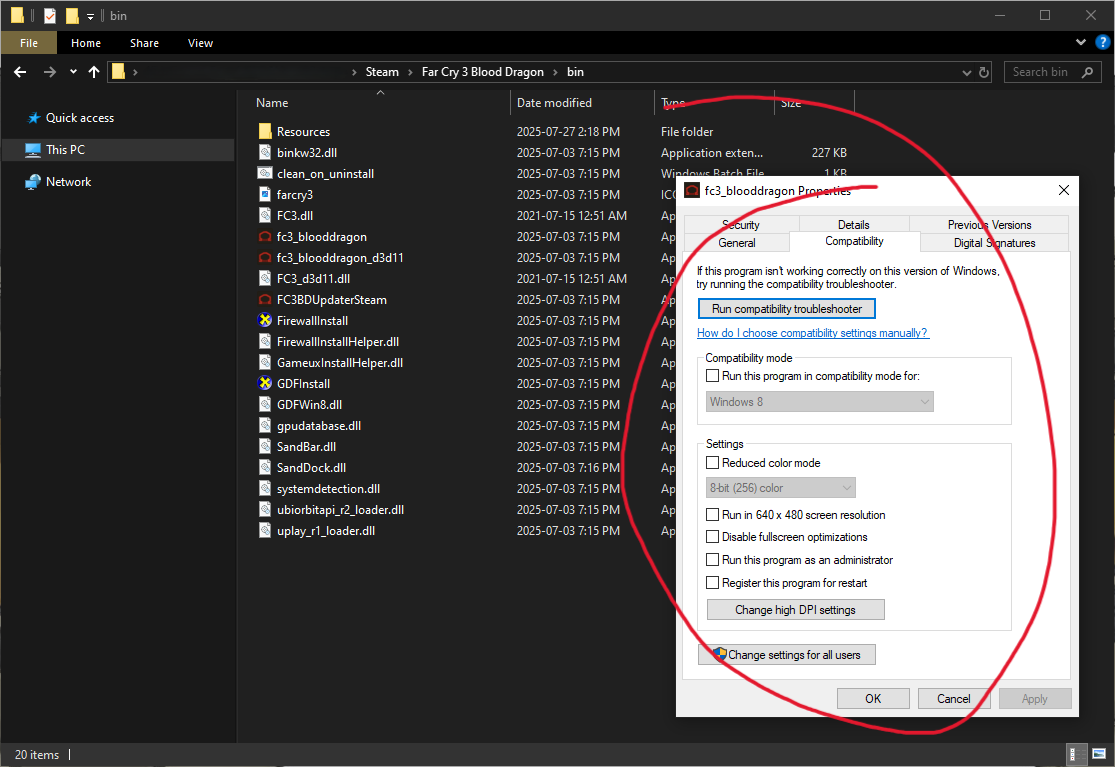
The screenshot uses Blood Dragon files, but the same settings apply to the Far Cry 3 executables listed above.
If the game only works when run as administrator, close Steam and run Steam as administrator as well. Both programs should use the same permission level.
Temporarily disable overlays from:
Restart Steam and Ubisoft Connect after changing these settings, then launch the game through Steam and test
These steps are not a guaranteed fix for every achievement issue, but they cover the most likely causes: Steam not detecting the session, mismatched administrator permissions, compatibility settings, and competing overlays.
1. Launch the game through Steam
Always start Far Cry 3 from your Steam Library.
Do not launch it from Ubisoft Connect, the game executable, or a manually created shortcut. Steam should show you as playing Far Cry 3 while the game is running.
2. Test the Steam overlay
Press
Shift + Tab
in-gameIf the overlay opens, Steam is detecting the game. If it does not, go to:
Steam > Settings > In Game
Make sure Enable the Steam Overlay while in-game is turned on.
3. Remove compatibility and administrator settings
Windows compatibility settings can prevent Steam from attaching properly, especially when Steam and the game are running with different permission levels.
Open the Far Cry 3
bin
folder and check:farcry3.exe
farcry3_d3d11.exe
farcry3_d3d9.exe
For each file:
- Right-click it and select Properties.
- Open the Compatibility tab.
- Disable Windows 7 or Windows 8 compatibility mode.
- Disable Run this program as an administrator.
The screenshot uses Blood Dragon files, but the same settings apply to the Far Cry 3 executables listed above.
If the game only works when run as administrator, close Steam and run Steam as administrator as well. Both programs should use the same permission level.
4. Disable other overlays
Temporarily disable overlays from:
- Ubisoft Connect
- Discord
- NVIDIA App or GeForce Experience
- AMD Software
- MSI Afterburner and RivaTuner
- Xbox Game Bar
Restart Steam and Ubisoft Connect after changing these settings, then launch the game through Steam and test
Shift + Tab
again.These steps are not a guaranteed fix for every achievement issue, but they cover the most likely causes: Steam not detecting the session, mismatched administrator permissions, compatibility settings, and competing overlays.
STEP 7: Saves, Backups, and Ubisoft Cloud Sync
Far Cry 3 does not use Steam Cloud. Saves are stored locally and synced through Ubisoft Connect, which makes them vulnerable to failed syncs, account mix-ups, and corrupted progress.
Local saves:
Configuration files:
Copy the entire
Do this periodically, especially before reinstalling the game, changing Ubisoft accounts, or troubleshooting cloud sync.
If Ubisoft Connect stops detecting your progress:
Be careful when choosing between local and cloud files. Selecting the wrong version can overwrite the save you are trying to recover.
Make sure Ubisoft Connect is signed into the same account linked to your Steam copy.
Far Cry 3 should appear in your Ubisoft library with a Steam icon.
Ubisoft cloud sync is convenient when it works, but it is not a substitute for a real backup.
If it repeatedly restores old files or loses progress, leave it disabled and back up the local save folder yourself.
1. Know where your files are stored
Local saves:
C:\Program Files (x86)\Ubisoft\Ubisoft Game Launcher\savegames<Your Ubisoft ID>\46
Configuration files:
Documents\My Games\Far Cry 3
2. Back up your saves manually
Copy the entire
46
folder somewhere safe.Do this periodically, especially before reinstalling the game, changing Ubisoft accounts, or troubleshooting cloud sync.
3. Restore a missing save
If Ubisoft Connect stops detecting your progress:
- Disable cloud synchronization in Ubisoft Connect.
- Launch the game, create a new save, then exit normally.
- Copy your backup files into the 46folder.
- Re-enable cloud synchronization.
- Launch the game again.
- If Ubisoft Connect reports a conflict, choose the local save.
Be careful when choosing between local and cloud files. Selecting the wrong version can overwrite the save you are trying to recover.
4. Check your Ubisoft account
Make sure Ubisoft Connect is signed into the same account linked to your Steam copy.
Far Cry 3 should appear in your Ubisoft library with a Steam icon.
5. Disable cloud sync if it keeps causing problems
Ubisoft cloud sync is convenient when it works, but it is not a substitute for a real backup.
If it repeatedly restores old files or loses progress, leave it disabled and back up the local save folder yourself.
Accessing the DLC & Ubisoft Rewards
Deluxe Edition DLC
The additional DLC requires the Deluxe Edition of Far Cry 3.
I bought it through Steam in 2017, but the Deluxe Edition and its DLC no longer appear to be sold separately. It may still be available through certain bundles or older keys, but I could not confirm a current official purchase option.
To check whether your account owns the DLC:
- Open your Steam Library.
- Right-click Far Cry 3 and select Properties.
- Open the DLC tab.
- You should see three DLC entries.
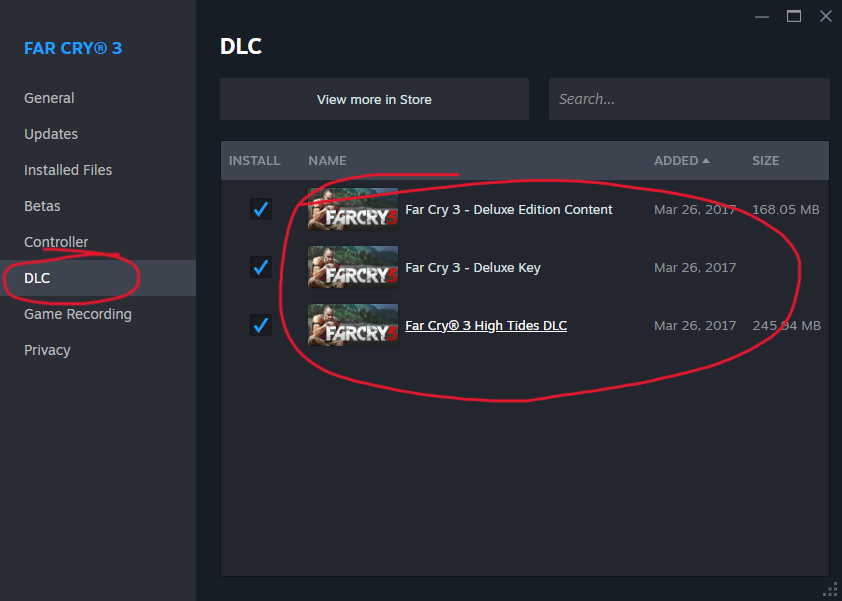
Steam downloads these as separate depots:
Far Cry 3 depots on SteamDB[steamdb.info]
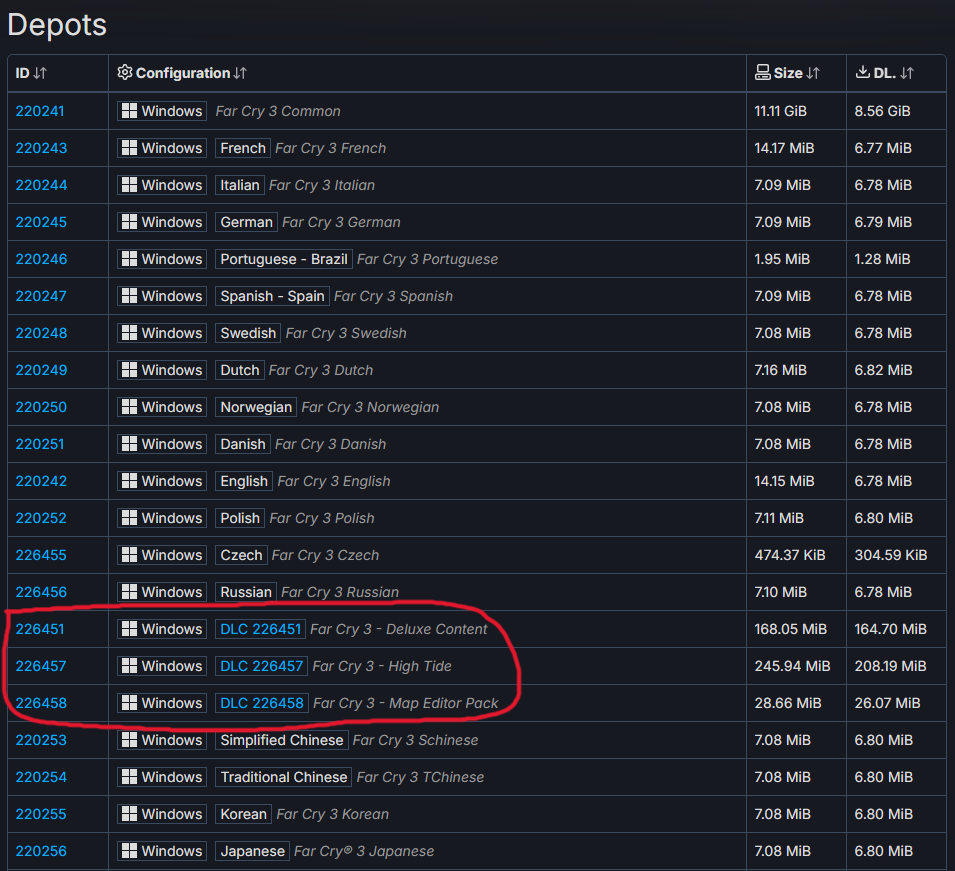
The files are tied to the Deluxe Edition license. Copying them manually from another installation will not unlock the content because Steam and Ubisoft still check whether your account owns it.
Ubisoft Connect Rewards
Far Cry 3 also has a small collection of Ubisoft Connect rewards.
To find them:
- Open Ubisoft Connect.
- Go to your Library and select Far Cry 3.
- Open the Rewards section.
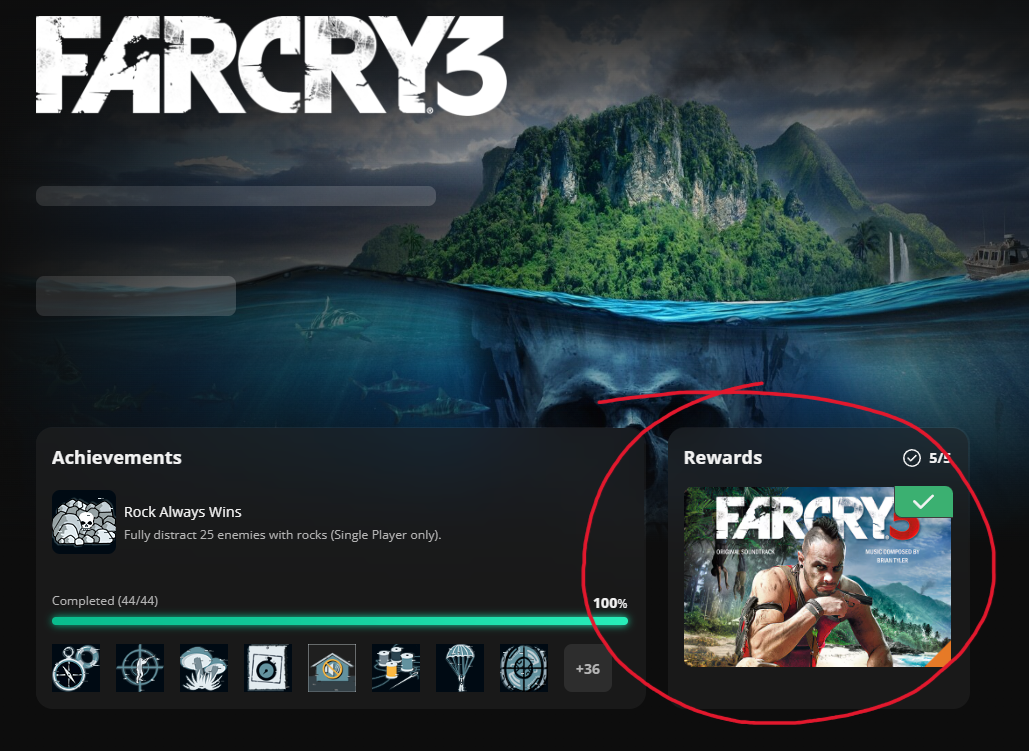
Most of the rewards are minor cosmetic items. The only one worth mentioning is Revolving Gift, which unlocks an epic revolver that can be purchased from weapon vendors in-game.

FC3: Blood Dragon Fixes
I originally planned to write a separate Blood Dragon guide, but the two resources below already cover the major problems well, including the endless server connection attempts, “Blood Dragon service not available” errors, and intro videos.
I followed both alongside the relevant fixes from this guide, and the game worked correctly afterward.
The most complete resource is Gay Lord’s Steam guide:
Far Cry 3: Blood Dragon Fix Guide
This Reddit comment by u/teleguy_8187 is also useful:
Blood Dragon fixes on r/farcry
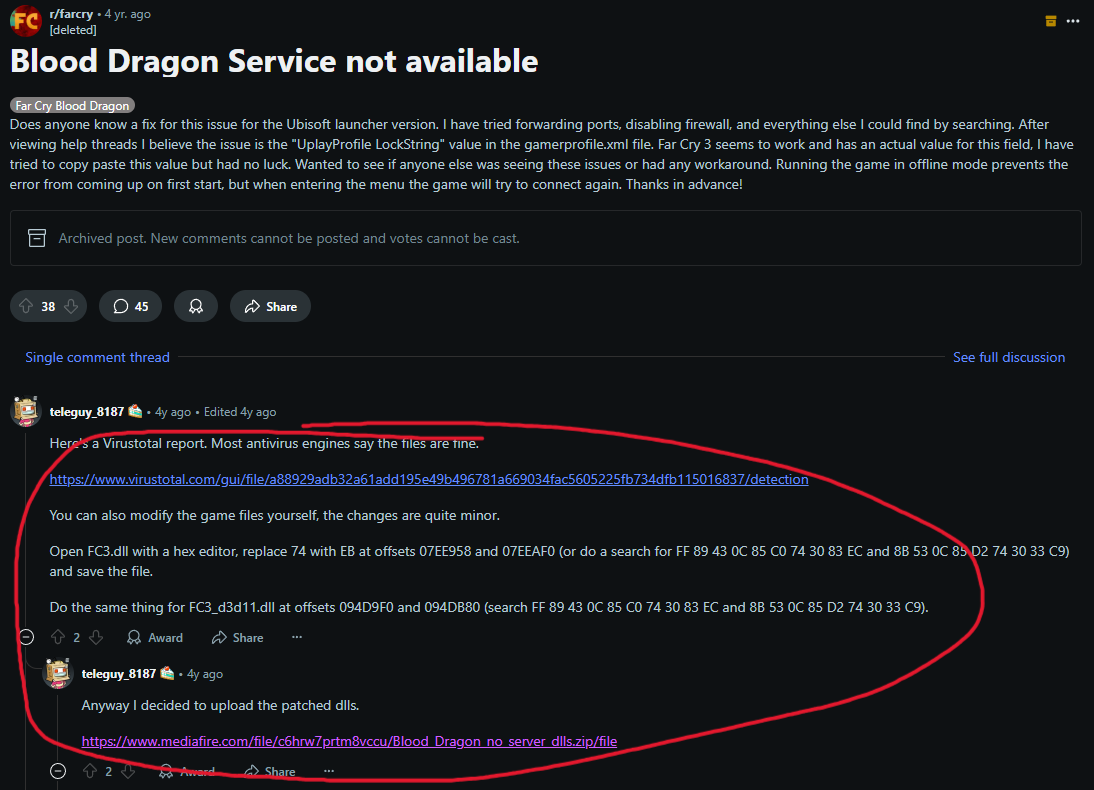
I also added the following to the game’s Steam launch options:
Between these resources and the fixes covered earlier in this guide, Blood Dragon should install and run properly on modern Windows.
I followed both alongside the relevant fixes from this guide, and the game worked correctly afterward.
The most complete resource is Gay Lord’s Steam guide:
Far Cry 3: Blood Dragon Fix Guide
This Reddit comment by u/teleguy_8187 is also useful:
Blood Dragon fixes on r/farcry
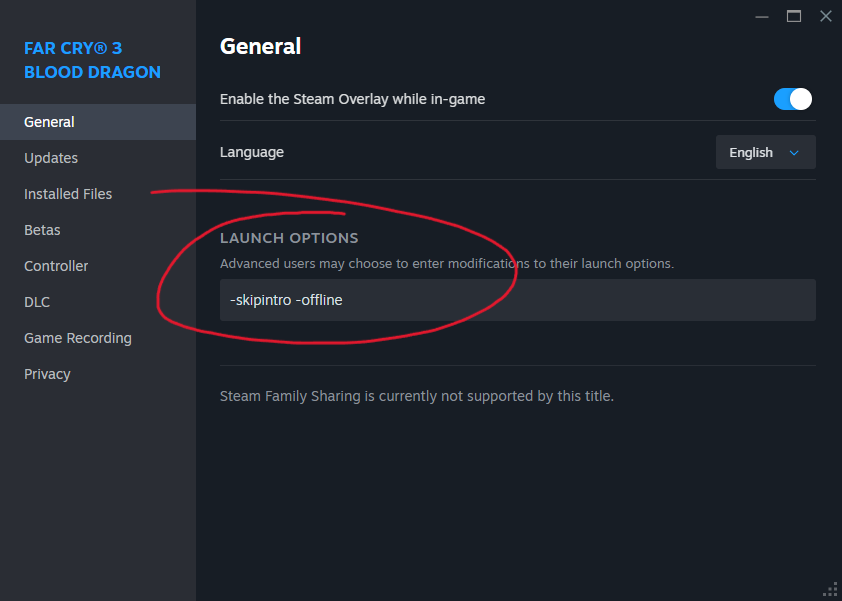
I also added the following to the game’s Steam launch options:
-skipintro -offline
-skipintro
bypasses the opening videos, while -offline
prevents the game from wasting time trying to connect to Ubisoft’s discontinued online services.Between these resources and the fixes covered earlier in this guide, Blood Dragon should install and run properly on modern Windows.
Final Tips
That is everything I needed to get Far Cry 3 installed, stable, and playable on both systems. A few final troubleshooting notes:
Only run the game as administrator if you are dealing with a genuine permissions problem. If you do, run Steam as administrator as well. Mismatched permission levels can break the Steam overlay and prevent achievements from unlocking.
- Keep your graphics drivers up to date.
- Leave Ubisoft Connect running in the background while playing.
- If the game suddenly stops launching, verify the files through Steam.
- If that does not help, reinstall Ubisoft Connect.
- Delete GamerProfile.xmlfrom:Documents\My Games\Far Cry 3The game will create a fresh copy the next time it launches.
- You can also edit GamerProfile.xmlmanually to change settings when the game will not stay open long enough to reach the menu.
Only run the game as administrator if you are dealing with a genuine permissions problem. If you do, run Steam as administrator as well. Mismatched permission levels can break the Steam overlay and prevent achievements from unlocking.
Done. You Made It.
Far Cry 3 should now install, launch, save, and run properly on modern Windows without the usual crashes, freezes, or Ubisoft Connect getting in the way.
Have fun.
Have fun.
You must follow the path of the warrior.
More Far Cry® 3 guides
- Windows 11 / 10 Crash Fix★ 5 (624)43k views773 ♥2 minUpdated May 16, 2024
- Far Cry 3 | Гайд по достижениям★ 5 (1.1k)34k views1.2k ♥6 minRussianUpdated May 14
- [FAR CRY 3]: Актуальное решение от вылетов в пару шагов!★ 5 (374)30k views542 ♥3 minRussianUpdated Mar 18
- FarCry 3 100% Достижений без прохождения★ 4 (298)23k views747 ♥2 minRussianUpdated Apr 28
- «Любимое оружие»★ 5 (580)21k views637 ♥1 minRussianUpdated Jul 18, 2014
- Far Cry 3 100% достижений★ 5 (491)20k views1.3k ♥10 minRussianUpdated Dec 17, 2025





This guide was created by its original author on the Steam Community. Are you the author and want it removed? Request removal.