How Quickly Boost Your FPS on big servers in 2025
Step 1 — Increase Texture Cache (PoolSize)
💬 Effect: Increases the size allocated to the texture cache to prevent unnecessary reloads.
📁 Path: Documents\My Games\KillingFloor2\KFGame\Config\
Open the file: KFEngine.ini
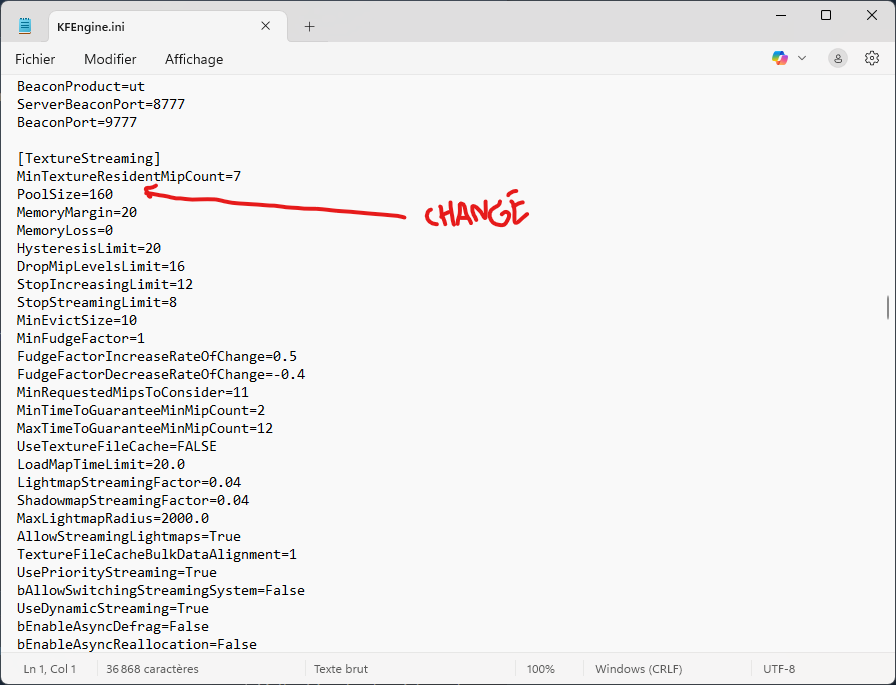
Find the section: [TextureStreaming]
Then modify the line:
PoolSize=160 (160 to 2000 in original value)
👉 Adjust according to your VRAM on Mb (VRAM = Video Memory, for example an NVIDIA GTX 1080 8GB has 8000MB of VRAM)
VRAM Recommended Value
For 2Go VRAM → set 1000
For 4Go VRAM → set 2000
For 6Go VRAM → set 3000
For 8Go VRAM → set 4000
For 10Go VRAM → set 5000 / 6000 MAX !
⚠️ If you experience stuttering, reset the PoolSize from recommended value, you are to high.
📁 Path: Documents\My Games\KillingFloor2\KFGame\Config\
Open the file: KFEngine.ini
Find the section: [TextureStreaming]
Then modify the line:
PoolSize=160 (160 to 2000 in original value)
👉 Adjust according to your VRAM on Mb (VRAM = Video Memory, for example an NVIDIA GTX 1080 8GB has 8000MB of VRAM)
VRAM Recommended Value
For 2Go VRAM → set 1000
For 4Go VRAM → set 2000
For 6Go VRAM → set 3000
For 8Go VRAM → set 4000
For 10Go VRAM → set 5000 / 6000 MAX !
⚠️ If you experience stuttering, reset the PoolSize from recommended value, you are to high.
Step 2 — Force More VRAM (Streaming PoolSize)
💬 Effect: Forces the engine to keep more streaming textures in memory.
📁 Path: Documents\My Games\KillingFloor2\KFGame\Config\
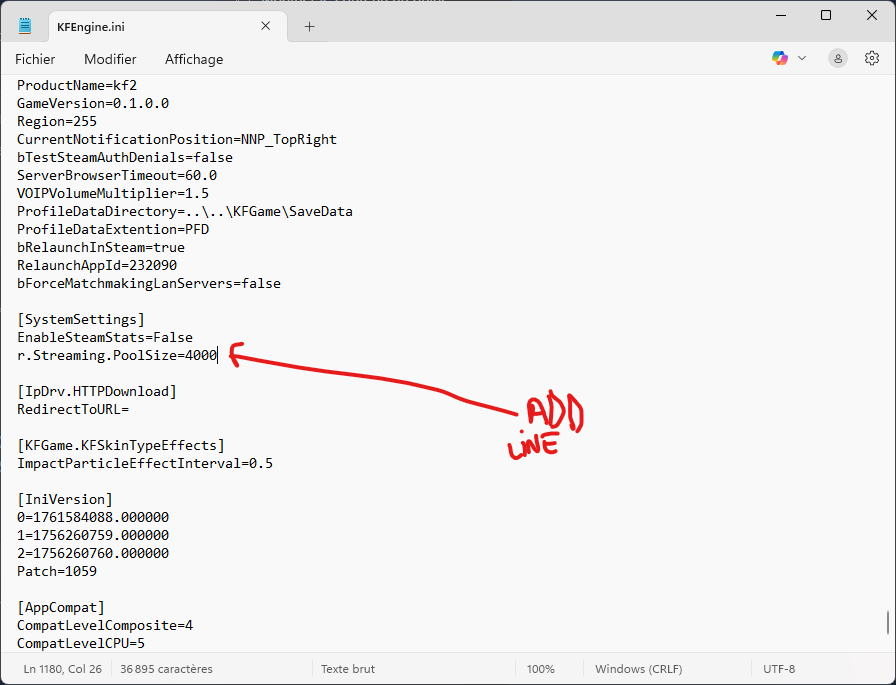
Still in KFEngine.ini, find the section: [SystemSettings]
Add the following line:
r.Streaming.PoolSize=4000 - Adjust according to your VRAM (e.g., 4000 for 8 GB).
The rest allows the entire graphical system to be established.
📁 Path: Documents\My Games\KillingFloor2\KFGame\Config\
Still in KFEngine.ini, find the section: [SystemSettings]
Add the following line:
r.Streaming.PoolSize=4000 - Adjust according to your VRAM (e.g., 4000 for 8 GB).
THIS STEP AND THE STEP 1 IS THE MOST IMPORTANT !
Normaly only with this 2 steps you have increase a lot your FPS !
Normaly only with this 2 steps you have increase a lot your FPS !
The rest allows the entire graphical system to be established.
Step 3 — Disable Streaming Limits
💬 Effect: The game keeps used textures in memory, reducing pop-in and freezes caused by constant reloading.
📁 Path: Documents\My Games\KillingFloor2\KFGame\Config\
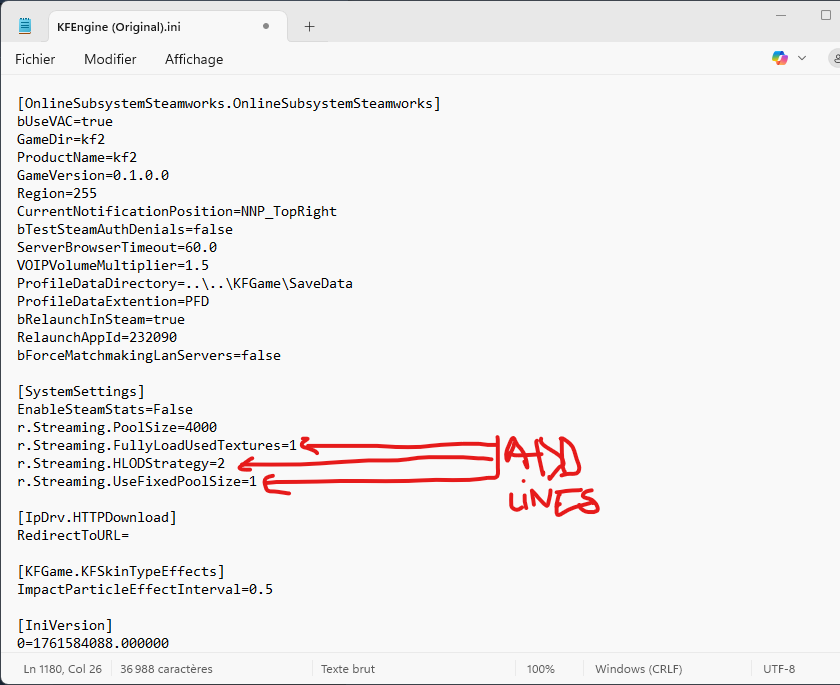
Still in KFEngine.ini, find the section: [SystemSettings], add these lines:
r.Streaming.FullyLoadUsedTextures=1
r.Streaming.HLODStrategy=2
r.Streaming.UseFixedPoolSize=1
📁 Path: Documents\My Games\KillingFloor2\KFGame\Config\
Still in KFEngine.ini, find the section: [SystemSettings], add these lines:
r.Streaming.FullyLoadUsedTextures=1
r.Streaming.HLODStrategy=2
r.Streaming.UseFixedPoolSize=1
Step 4 — Advanced Optimizations
🔹 Only for cards with at least 6GB of VRAM
➡️ Increases the stability of the texture cache.
📁 Path: Documents\My Games\KillingFloor2\KFGame\Config\
In the [TextureStreaming] section:
MemoryMargin=128
MemoryLoss=0
HysteresisLimit=40
DropMipLevelsLimit=16
StopIncreasingLimit=12
UsePriorityStreaming=True*
UseTextureFileCache=True**
*This makes streaming smoother and prevents memory spikes, specially if you're using a high r.Streaming.PoolSize (4000–5000) but more important if you are on HDD HardDisk.
**This line is important if you are on HDD HardDisk on SDD is only a little boost for fluidity !
----------------------------------------
➡️ Force the Unreal Engine to keeps more textures and objects in memory instead of constantly reloading them.
In [SystemSettings]:
r.OneFrameThreadLag=0
r.Streaming.DefragDynamicBounds=1
⚠️ Some of these settings may not be recognized depending on your game version, but this is safe.
![]()
----------------------------------------
➡️ Helps avoid shadow-related micro-stuttering.
In [MemoryPools] (create the section if it doesn't exist):
FLightPrimitiveInteractionInitialBlockSize= 512 (original Value)
FModShadowRenderPrimitiveInteractionInitialBlockSize= 512 (original Value)
PC Low (8 Go RAM, GTX 960 or -) set 1024
PC Middle (16 Go RAM, GTX 1060–1070) set 2048
PC Gamer (32 Go RAM, GTX 1080 / RTX 3060+4090 ) set 4096
PC Extrême (64 Go RAM, RTX 4090) set 8192 (Useless or only for test)
![]()
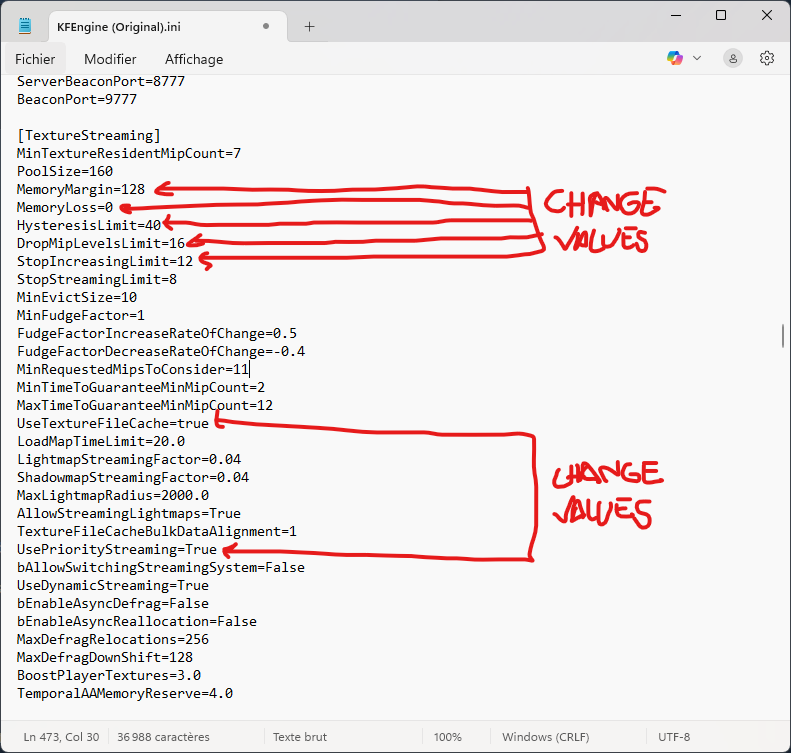
➡️ Increases the stability of the texture cache.
📁 Path: Documents\My Games\KillingFloor2\KFGame\Config\
In the [TextureStreaming] section:
MemoryMargin=128
MemoryLoss=0
HysteresisLimit=40
DropMipLevelsLimit=16
StopIncreasingLimit=12
UsePriorityStreaming=True*
UseTextureFileCache=True**
*This makes streaming smoother and prevents memory spikes, specially if you're using a high r.Streaming.PoolSize (4000–5000) but more important if you are on HDD HardDisk.
**This line is important if you are on HDD HardDisk on SDD is only a little boost for fluidity !
----------------------------------------
➡️ Force the Unreal Engine to keeps more textures and objects in memory instead of constantly reloading them.
In [SystemSettings]:
r.OneFrameThreadLag=0
r.Streaming.DefragDynamicBounds=1
⚠️ Some of these settings may not be recognized depending on your game version, but this is safe.
----------------------------------------
➡️ Helps avoid shadow-related micro-stuttering.
In [MemoryPools] (create the section if it doesn't exist):
FLightPrimitiveInteractionInitialBlockSize= 512 (original Value)
FModShadowRenderPrimitiveInteractionInitialBlockSize= 512 (original Value)
PC Low (8 Go RAM, GTX 960 or -) set 1024
PC Middle (16 Go RAM, GTX 1060–1070) set 2048
PC Gamer (32 Go RAM, GTX 1080 / RTX 3060+4090 ) set 4096
PC Extrême (64 Go RAM, RTX 4090) set 8192 (Useless or only for test)
Step 5 — Steam optimizations
💬 Forces KF2 to use all your CPU cores and disables unnecessary loading screens.
In Steam: Right-click on Killing Floor 2 → Properties
In Launch Options, add:
-USEALLAVAILABLECORES -PREFERPROCESSOR=1
In Steam: Right-click on Killing Floor 2 → Properties
In Launch Options, add:
-USEALLAVAILABLECORES -PREFERPROCESSOR=1
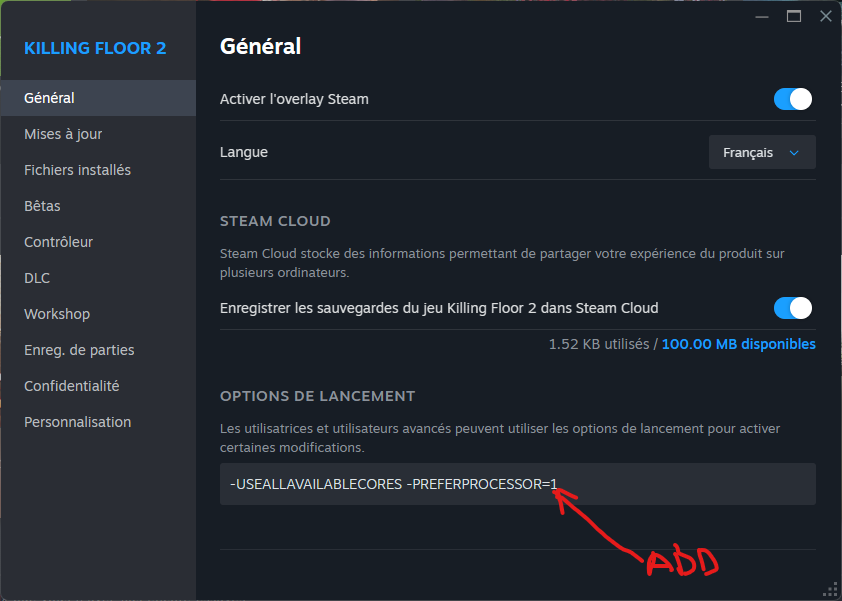
Steps is finish ! With that, we've done the maximum to gain as many FPS as possible.
CPU optimizations
These settings will improve thread processing, reduce PhysX micro-lags and accelerate memory management, without affecting graphics.
In KFEngine.ini add or modifie this lines :
⚙️[SystemSettings]
r.OneFrameThreadLag=0
r.FinishCurrentFrame=0
r.Streaming.NumStaticComponentsProcessedPerFrame=500
r.Streaming.NumDynamicComponentsProcessedPerFrame=200
🧠 Effect: Eliminates the one-frame lag between CPU and GPU.
Speeds up the loading of dynamic elements (weapons, FX).
Reduces minor stuttering during explosions or intense combat.
🧩[Core.System]
bUseBackgroundLevelStreaming=False
bDisableLogging=True
UseBackgroundLevelStreaming=False
🧠 Effect: Reduces the load on the Unreal Engine's multitasking capabilities.
Prevents the CPU from handling "silent" background loads (unnecessary on SSDs).
💥[Engine.Physics]
bPhysicsAsyncScene=True
bEnableAsyncScene=True
PhysXGpuHeapSize=128
PhysXMeshCacheSize=32
🧠 Effect: Enables asynchronous physics calculations (PhysX) to offload work from the main CPU.
Leaves a small amount of memory dedicated to GPU physics (without Flex).
Very stable on a GTX 1080 (with Flex disabled, no conflicts).
💻[Engine.Engine]
bSmoothFrameRate=True
MinSmoothedFrameRate=60
MaxSmoothedFrameRate=120
bUseVSync=False
bUseThreadedRendering=True
bUseThreadedUpdate=True
🧠 Effect: Enables multi-threaded rendering (makes better use of your 12 threads).
Maintains consistent FPS (avoids sharp fluctuations).
Lets the GPU work freely without forced VSync.
🧱[MemoryPools]
FParticleRenderDataPoolSize=1024
FPrimitiveSceneProxyPoolSize=2048
🧠 Effect: Prevents frequent reallocations in the graphics engine (improving performance).
Reduces CPU load during large waves of Zeds with blood effects.
In KFEngine.ini add or modifie this lines :
⚙️[SystemSettings]
r.OneFrameThreadLag=0
r.FinishCurrentFrame=0
r.Streaming.NumStaticComponentsProcessedPerFrame=500
r.Streaming.NumDynamicComponentsProcessedPerFrame=200
🧠 Effect: Eliminates the one-frame lag between CPU and GPU.
Speeds up the loading of dynamic elements (weapons, FX).
Reduces minor stuttering during explosions or intense combat.
🧩[Core.System]
bUseBackgroundLevelStreaming=False
bDisableLogging=True
UseBackgroundLevelStreaming=False
🧠 Effect: Reduces the load on the Unreal Engine's multitasking capabilities.
Prevents the CPU from handling "silent" background loads (unnecessary on SSDs).
💥[Engine.Physics]
bPhysicsAsyncScene=True
bEnableAsyncScene=True
PhysXGpuHeapSize=128
PhysXMeshCacheSize=32
🧠 Effect: Enables asynchronous physics calculations (PhysX) to offload work from the main CPU.
Leaves a small amount of memory dedicated to GPU physics (without Flex).
Very stable on a GTX 1080 (with Flex disabled, no conflicts).
💻[Engine.Engine]
bSmoothFrameRate=True
MinSmoothedFrameRate=60
MaxSmoothedFrameRate=120
bUseVSync=False
bUseThreadedRendering=True
bUseThreadedUpdate=True
🧠 Effect: Enables multi-threaded rendering (makes better use of your 12 threads).
Maintains consistent FPS (avoids sharp fluctuations).
Lets the GPU work freely without forced VSync.
🧱[MemoryPools]
FParticleRenderDataPoolSize=1024
FPrimitiveSceneProxyPoolSize=2048
🧠 Effect: Prevents frequent reallocations in the graphics engine (improving performance).
Reduces CPU load during large waves of Zeds with blood effects.
Crash Prevents
The following lines are not used to boost FPS, but to stabilize the Unreal Engine's memory, especially during:
- long sessions (2+ hours on a server),
- heavy modded maps,
- configurations with many mods and textures.
📁 Path: Documents\My Games\KillingFloor2\KFGame\Config\
In KFEngine.ini:
Find section [Core.System]
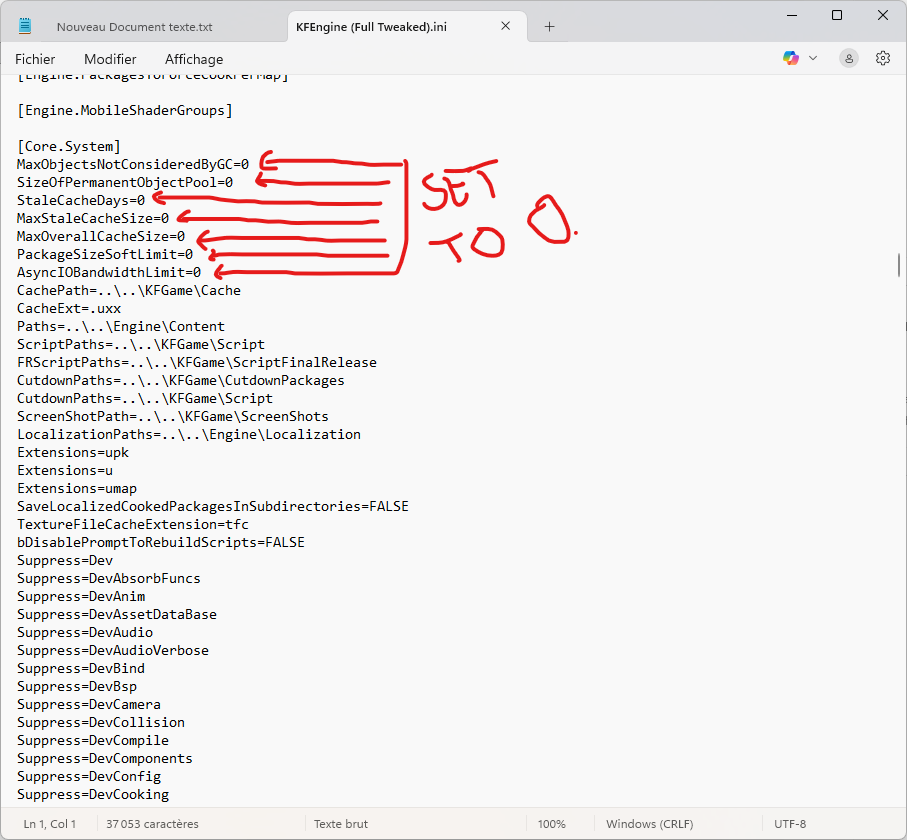
Change values of this lines and set 0
MaxObjectsNotConsideredByGC=0
SizeOfPermanentObjectPool=0
StaleCacheDays=0
MaxStaleCacheSize=0
MaxOverallCacheSize=0
PackageSizeSoftLimit=0
They prevent crashes due to memory saturation or corrupted cache,and ensure that the engine properly cleans up its allocations between each load.
In summary: These lines stabilize the Unreal Engine by preventing the accumulation of obsolete objects and caches. Setting them to 0 results in cleaner memory usage, no overflow, no corrupted cache,
therefore fewer crashes and freezes, especially in modded multiplayer.
- long sessions (2+ hours on a server),
- heavy modded maps,
- configurations with many mods and textures.
📁 Path: Documents\My Games\KillingFloor2\KFGame\Config\
In KFEngine.ini:
Find section [Core.System]
Change values of this lines and set 0
MaxObjectsNotConsideredByGC=0
SizeOfPermanentObjectPool=0
StaleCacheDays=0
MaxStaleCacheSize=0
MaxOverallCacheSize=0
PackageSizeSoftLimit=0
They prevent crashes due to memory saturation or corrupted cache,and ensure that the engine properly cleans up its allocations between each load.
In summary: These lines stabilize the Unreal Engine by preventing the accumulation of obsolete objects and caches. Setting them to 0 results in cleaner memory usage, no overflow, no corrupted cache,
therefore fewer crashes and freezes, especially in modded multiplayer.
Additional Tips
📁 Path: Documents\My Games\KillingFloor2\KFGame\Config\
In KFEngine.ini Modifie or add :
Disable logging (small SSD gain and micro-lags)
[Core.Log]
bDisableLogging=True
-------------------------------------
Audio thread (improved audio smoothness)
[Audio]
MaxChannels=64
UseEffectsProcessing=True
Use3DSound=True
TimeBetweenHWUpdates=15
bUseThreadedAudio=True
-------------------------------------
Asynchronous preloading
[Engine.Streaming]
s.MinBulkDataSizeForAsyncLoading=0
s.AsyncLoadingThreadEnabled=True
This is a technique that allows the engine to preload textures, models, and sounds in the background while the game continues to run, instead of waiting for everything to be loaded all at once.
In KFEngine.ini Modifie or add :
Disable logging (small SSD gain and micro-lags)
[Core.Log]
bDisableLogging=True
-------------------------------------
Audio thread (improved audio smoothness)
[Audio]
MaxChannels=64
UseEffectsProcessing=True
Use3DSound=True
TimeBetweenHWUpdates=15
bUseThreadedAudio=True
-------------------------------------
Asynchronous preloading
[Engine.Streaming]
s.MinBulkDataSizeForAsyncLoading=0
s.AsyncLoadingThreadEnabled=True
This is a technique that allows the engine to preload textures, models, and sounds in the background while the game continues to run, instead of waiting for everything to be loaded all at once.
Conclusion
- Significant FPS increase on large waves (from ~40 FPS to ~75 FPS)
- Reduced loading times
- No more freezes in multiplayer with many effects
- KFEngine.ini full tweaked are tested on my config for several games and in all conditions, without any problems or crashes due from Framerate.
- It's possible that you're not reaching 60FPS due to your system configuration and the game's coding itself, the graphics card, the number of players, etc. I myself don't consistently get 60FPS; it also depends on other factors.
- If you have a old computer or little graphic card the best way is downgrade graphic setting direct in game, all this modification is for play in ULTRA setting. I can also help you with old machines.
⚙️ Tested Servers:
HappyDog's MouseTrap / RANKED / Ultra Modded Zeds/Weapons/Maps
(Big thank and respect to CyRiver, Noodles, ANKABOOM, Danger Mouse and Dog)
The Best Big Ultra Modded Server on KF2 since longtime ;D
Look here for GameTracker Server Infos = HappyDog - Mouse Trap ![www.gametracker.com]
- Reduced loading times
- No more freezes in multiplayer with many effects
- KFEngine.ini full tweaked are tested on my config for several games and in all conditions, without any problems or crashes due from Framerate.
- It's possible that you're not reaching 60FPS due to your system configuration and the game's coding itself, the graphics card, the number of players, etc. I myself don't consistently get 60FPS; it also depends on other factors.
- If you have a old computer or little graphic card the best way is downgrade graphic setting direct in game, all this modification is for play in ULTRA setting. I can also help you with old machines.
⚙️ Tested Servers:
HappyDog's MouseTrap / RANKED / Ultra Modded Zeds/Weapons/Maps
(Big thank and respect to CyRiver, Noodles, ANKABOOM, Danger Mouse and Dog)
The Best Big Ultra Modded Server on KF2 since longtime ;D
Look here for GameTracker Server Infos = HappyDog - Mouse Trap ![www.gametracker.com]
My Profil
Here is my profile, with all modifications (someone is in test dont panic) adapted to my setup, which I use daily. I will also include the results obtained.
A stable, smooth, and durable preset for my system, optimized for long sessions on large, modded servers, without memory leaks or gradual FPS drops.
----------
My setup :
- Intel Core i7-5820K @ 3.30 GHz
- ASUS Rampage III Xtrm
- NVIDIA GTX 1080 8GB (VRAM)
- 32 GB DDR4 (RAM)
KF2 :
- Graphics : Ultra
- Gore : ON
- NVIDIA FLEX : OFF
----------
🧩 KFEngine.ini
[Engine.Physics]
bPhysicsAsyncScene=True
bEnableAsyncScene=True
PhysXGpuHeapSize=256
PhysXMeshCacheSize=64
[SystemSettings]
r.OneFrameThreadLag=0
r.FinishCurrentFrame=0
r.Streaming.PoolSize=3500
r.Streaming.UseFixedPoolSize=0
r.Streaming.FullyLoadUsedTextures=1
r.Streaming.HLODStrategy=2
r.Streaming.DefragDynamicBounds=1
r.Streaming.NumStaticComponentsProcessedPerFrame=500
r.Streaming.NumDynamicComponentsProcessedPerFrame=200
r.Streaming.AllowFastForceUnregister=1
r.Streaming.FramesForFullUpdate=10
r.LightFunctionQuality=1
r.ShadowQuality=3
r.MotionBlurQuality=0
r.MaxAnisotropy=8
r.PostProcessAAQuality=4
r.ViewDistanceScale=1.0
[TextureStreaming]
PoolSize=3500
MemoryMargin=128
MemoryLoss=0
HysteresisLimit=40
DropMipLevelsLimit=16
StopIncreasingLimit=12
StopStreamingLimit=8
UseTextureFileCache=True
UsePriorityStreaming=True
[MemoryPools]
FParticleRenderDataPoolSize=1024
FPrimitiveSceneProxyPoolSize=2048
FLightPrimitiveInteractionInitialBlockSize=2048
FModShadowRenderPrimitiveInteractionInitialBlockSize=2048
[Core.System]
bDisableLogging=False
MaxObjectsNotConsideredByGC=0
SizeOfPermanentObjectPool=0
StaleCacheDays=0
MaxStaleCacheSize=0
MaxOverallCacheSize=0
PackageSizeSoftLimit=0
bUseBackgroundLevelStreaming=False
🧠 Notes KFEngine
- Texture streaming enabled → prevents gradual FPS drops.
- Memory pool adjusted to 3500 MB (perfect for 8 GB VRAM).
- Asynchronous GPU PhysX enabled → improved collision detection and smoother gameplay.
- Memory pools provide a slight stability boost on large servers.
- Logging is enabled for security (crash diagnostics).
----
🚀STEAM LAUNCH OPTIONS
-USEALLAVAILABLECORES -PREFERPROCESSOR=1
🧠 Notes : These lines load everything into VRAM at once, which can saturate the video memory on KF2 and cause stuttering or crashes during combat.
------------------------------------------------------------------------------------
My Result on big serv Ultra Modded Like HappyDog :
Waves : 0-25 = Min/Max : 40/60FPS - 55FPS on average.
Waves : 26-30 = Min/Max : 30/60FPS - 45FPS on average.
Waves : 31-35 = Min/Max : 25/50FPS - 30FPS on average.
Waves : 0-25 = Min/Max : 40/60FPS - 55FPS on average.
Waves : 26-30 = Min/Max : 30/60FPS - 45FPS on average.
Waves : 31-35 = Min/Max : 25/50FPS - 30FPS on average.
------------------------------
Quick FAQ
❓: My game crashes or won’t start after changing the .ini files, what should I do?
A: Don’t worry! Just go to your Documents → My Games → KillingFloor2 → KFGame → Config folder and delete the modified .ini files.
When you launch the game again, Steam will automatically recreate new clean ones with default settings.
Always keep a backup copy of your original files before editing — this way, you can easily restore them.
❓: My FPS didn’t increase, or it even got worse — why?
A: Each PC reacts differently depending on the CPU, VRAM, and RAM.
Try testing one modification at a time instead of applying all changes.
Also, check that you didn’t set your texture pool size too high for your GPU VRAM — if your card has 4 GB, don’t go above 2000–2500.
❓: How can I know if the settings are working?
A: You can use the in-game FPS counter (F3 key) or enable the Steam FPS overlay (Shift + Tab → Settings → In-Game → Show FPS).
If you see smoother gameplay and fewer stutters during waves, the tweaks are working correctly.
❓: How to restore everything like before?
A: Simply delete KFEngine.ini, KFSystemSettings.ini, and KFGame.ini inside your Config folder.
Then launch Killing Floor 2 again — it will regenerate all the files with factory settings automatically.
❓: Can these tweaks cause bans or VAC issues?
A: No! These edits are 100 % safe. They only modify your local configuration and do not touch the game’s executable or any network files.
They are fully allowed by Tripwire and Steam.
❓: Does this work with modded servers or custom maps?
A: Yes, it works even better! Some servers with lots of Zeds or heavy effects benefit the most from these optimizations.
If you play on ultra-modded servers (like HappyDog or MouseTrap), the gain in FPS can be very noticeable.
More Killing Floor 2 guides
- Killing Floor 2 Startup Crashes and Startup Problems★ 5 (761)33k views798 ♥8 minUpdated Apr 20, 2023
- Killing Floor 2 все предметы / all collectibles★ 5 (688)17k views676 ♥3 minUpdated Sep 22, 2023
- Equipping Conflicting Accessories v2★ 5 (742)15k views1.2k ♥4 minUpdated Oct 19, 2018
- «От А до Я» или не совсем коротко о перках.★ 5 (642)14k views942 ♥31 minRussianUpdated Oct 3, 2019
- More FPS on ANY Computer | KF2★ 5 (442)14k views570 ♥10 minUpdated Jan 11, 2025
- How to predict which boss★ 5 (362)12k views569 ♥1 minUpdated Mar 21, 2025



This guide was created by its original author on the Steam Community. Are you the author and want it removed? Request removal.