How to install on Linux
Installing/Configuring Proton
First you must configure Proton if you haven't already. After configuring it, it will automatically install itself onto Alien Swarm.
Do this through the following. First press the little gear icon and navigate onto properties (as shown below)
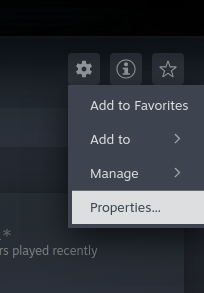
After that navigate to the Compatibility tab of the new window that shows up. Select the "Force the use of a specific Steam Play compatibility tool" checkbox and make sure Proton Experimental is selected in the dropdown below it.
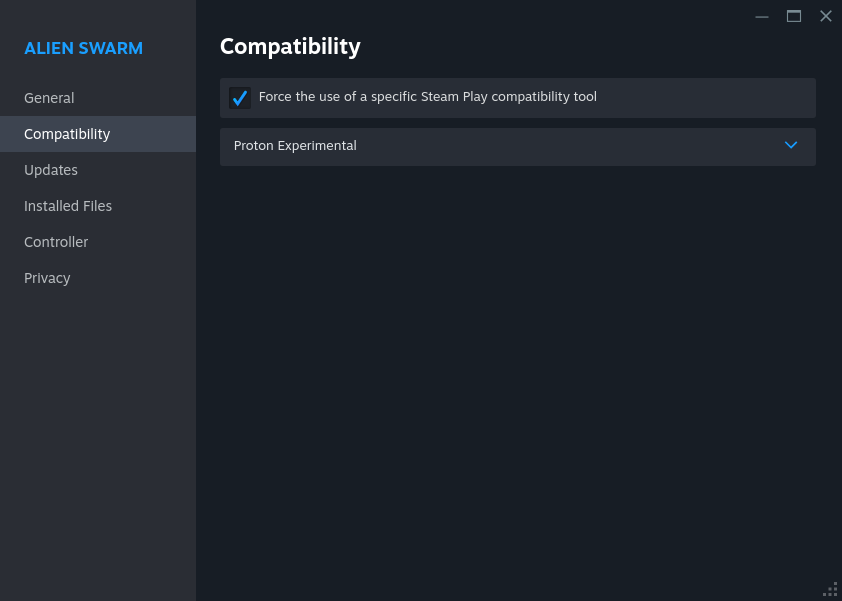
It should look like this once you are finished.
Do this through the following. First press the little gear icon and navigate onto properties (as shown below)
After that navigate to the Compatibility tab of the new window that shows up. Select the "Force the use of a specific Steam Play compatibility tool" checkbox and make sure Proton Experimental is selected in the dropdown below it.
It should look like this once you are finished.
Setting Launch Options
If you launch Alien Swarm now, you will see it being cut off by a black area. Worry not! There is a method to fix this
In the Properties window, go to the General tab. In the Launch Options text box, copy and paste this.
You can change these options if you want, but it must start in Windowed Borderless mode for it to display properly.
Be wary about increasing the cap.
Over 150FPS can lead to laggier server hosting and gameplay. I am unsure if this bug is present in Reactive Drop.
In the Properties window, go to the General tab. In the Launch Options text box, copy and paste this.
%command% -startwindowed -noborder -width 1980 -height 1080 +fps_max 100
It will start in Windowed Borderless mode, at HD resolution with an FPS cap of 100.You can change these options if you want, but it must start in Windowed Borderless mode for it to display properly.
Be wary about increasing the cap.
Over 150FPS can lead to laggier server hosting and gameplay. I am unsure if this bug is present in Reactive Drop.
Thanks
Thanks to Valve Developer Wiki for useful command line option information and Grocery for testing it on KDE Ubuntu. Also thanks to a commenter for testing on LMDE & Artix
Tested by me on Fedora 40.
Tested by me on Fedora 40.
More Alien Swarm guides
- First Person View, Console Commands and Promotion Stars Overview★ 5 (404)24k views469 ♥2 minUpdated Mar 10, 2017
- First Person Playing Mode (Original game!)★ 5 (166)12k views200 ♥2 minUpdated Jul 29, 2016
- Playing with Bots★ 5 (358)9.4k views480 ♥2 minUpdated Sep 7, 2015
- Руководство по получению достижений★ 5 (431)8.5k views368 ♥11 minRussianUpdated Mar 12, 2016
- Achievements guide★ 5 (268)8.2k views303 ♥25 minUpdated Apr 15, 2015
- MOD / DLC & Русификатор для Alien Swarm★ 4 (149)6.8k views170 ♥1 minBulgarianUpdated Jul 13, 2017


This guide was created by its original author on the Steam Community. Are you the author and want it removed? Request removal.