Linux Guide to "Warriors"/Musou/無双 Games
Why this guide?
Much of the information out there (on ProtonDB, PCGamingWiki, Valve's github, etc) is outdated and the default Proton setups don't work so I figured sharing my own obsessively compiled testing results may be useful for others. This guide is intended to cover all the musou games on Steam (that I have access to) and is based on my own first-hand experiences rather than hearsay.
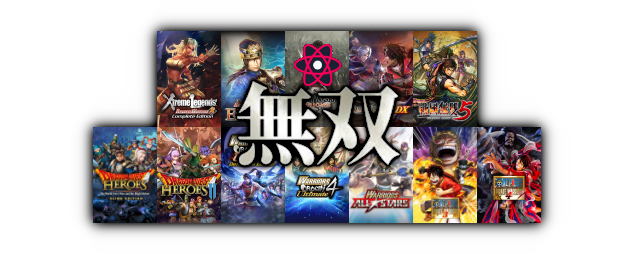
Which Proton to use?
The following are the most up-to-date Protons I have found to fully work (cutscenes play, no unexpected performance or rendering issues, etc.) with each game, and in most cases the only versions. "Untested" games are ones I don't own and therefore can't test.
Aug 2025 Update: GE-Proton10-12 fixed several games' video codec issues. These games are now playable on any version of Proton GE that is GE-Proton10-12 or newer (tested up to GE-Proton10-25). Jun 2026 Update: GE-Proton11-1 completely rewrote the video renderer to take into account older games. This means that any games still previously relying on old GE versions shouldn't need to anymore. It still isn't perfect, but the benefits of being on a current version of Proton far outweigh the minor issues (e.g. visual artifacting at the beginning of some videos). This guide will be updated in the future to reflect this, but the general rule of thumb is now: use GE-Proton11-1+.
🚧 Indicates GE-Proton alone won't fix everything and additional steps are needed for proper support. See the next section for game-specific details.
Game-Specific Fixes
- Controller prompts require a mod: https://steamcommunity.com/sharedfiles/filedetails/?id=3324691800
Extract the mod according to the instructions, then apply it with:protontricks --no-bwrap --cwd-app -c "wine cmd /c Patch.bat" 278080 - You MUST fully rebind the controller in-game (ideally after the mod for less guesswork). Keyboard input is required to reach that menu.
- Controller prompts require a mod: https://steamcommunity.com/sharedfiles/filedetails/?id=886358288
Extract the mod according to the instructions, then apply it with:protontricks --no-bwrap --cwd-app -c "wine cmd /c Patch.bat" 322520 - You MUST fully rebind the controller in-game (ideally after the mod for less guesswork). Keyboard input is required to reach that menu.
- Unique problems with 8bitdo controller detection. The only solution I've found can't be discussed here, but needless to say the problem is the specific Steam API dlls that come with the game.
- Pre-rendered cutscenes seem to have noticeable audio desync. A fix has not been found yet.
- Controller prompts require a mod:
https://steamcommunity.com/sharedfiles/filedetails/?id=657934045
Extract the mod according to the instructions, then apply it with:protontricks --no-bwrap --cwd-app -c "wine cmd /c Data/Patch.bat" 348470 - Controller detection in general seems to have issues that will require tinkering on your end.
- Xbox One controller users may need to use the 2nd part of the mod linked above (I don't own one and can't test this)
- My 8bitdo controller issues weren't resolved with the mod. The Right Trigger wasn't detected at all and the mini-map zooming hotkey was set in-game as Axis 4, which is the Left Trigger's release state. My non-ideal fix was:
- Unbind the mini-map controller hotkey (select it in the in-game settings, when prompted for the new binding press F10 to unbind the controller side of things, then press ESC to exit the rebinding prompt.
- Outside of the game use the Steam Input controller configuration to set the Right Trigger to be the game's mini-map keyboard binding: "." (period).
- Unbind the mini-map controller hotkey (select it in the in-game settings, when prompted for the new binding press F10 to unbind the controller side of things, then press ESC to exit the rebinding prompt.
- Xbox One controller users may need to use the 2nd part of the mod linked above (I don't own one and can't test this)
- REQUIRES configuring the game to run in Windows 7 compatibility mode
- The game's pop-up indicating this and asking if you want to change it will not work. Instead you need to forcibly set it through Protontricks. There are a few ways to accomplish this (through the "winecfg" or "Settings" Protontricks menus), but the quickest is to run this command:protontricks --no-bwrap 595740 win7
- The game's pop-up indicating this and asking if you want to change it will not work. Instead you need to forcibly set it through Protontricks. There are a few ways to accomplish this (through the "winecfg" or "Settings" Protontricks menus), but the quickest is to run this command:
- There are very noticeable performance issues (30-40% FPS drops), but on my setup the Atelier Sync Fix[github.com] (atfix) modification meant for KT's Atelier games worked wonders. Just download atfix.zip from the release page[github.com] and extract the d3d11.dll file to the game's root folder. It will generate an atfix.log file on game launch if it's working. If it doesn't then your setup may also require adding the following to the game's launch parameters:WINEDLLOVERRIDES="d3d11.dll=n,b" %command%
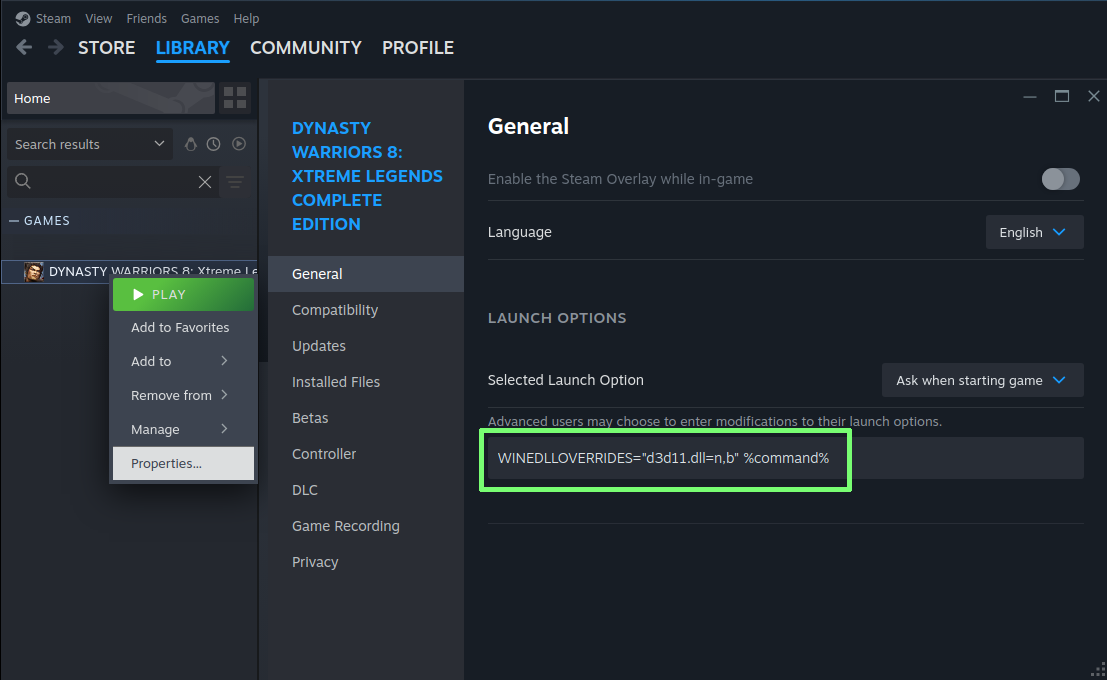
- Controller prompts require a mod: https://steamcommunity.com/sharedfiles/filedetails/?id=676138718
Extract the mod according to the instructions, then apply it with:protontricks --no-bwrap --cwd-app -c "wine cmd /c LINKDATA_DX9/Patch.bat" 331600 - It is recommended to rebind the right thumbstick to use the keyboard camera controls (T/H/G/F for Up/Right/Down/Left, respectively) in Steam's controller settings for the game to have modernized controls (otherwise the game uses the triggers). Community bindings can do this for you if you can get that feature to work... but it never has for me and is a long-term, well-known problem.
- Unique problems with 8bitdo controller detection. The only solution I've found can't be discussed here, but needless to say the problem is the specific Steam API dlls that come with the game.
How-To: Use GE-Proton
- Use the links in this guide to find the appropriate release on the GloriousEggroll github (or sift through the pages of releases[github.com] yourself)
- Download the GE-Proton#-#.tar.gz file in the Assets of that particular release
- Extract the contents of the .tar.gz to ~/.steam/root/compatibilitytools.d so that the folder structure resembles:
📁 /
└📁 home
└📁 <user>
└📁 .steam
└📁 root
└📁 compatibilitytools.d
└📁 GE-Proton7-55
├📁 files
├📁 protonfixes
├📁 __pycache__
├📄 compatibilitytool.vdf
├📄 filelock.py
├📄 LICENSE
└ ...
├📁 GE-Proton8-25
├📁 GE-Proton9-2
├📁 GE-Proton9-23
└ ... - Enable forcing of a specific compatibility tool in the game's properties and select the appropriate GE-Proton version from the list (Steam may need to be restarted for it to show)
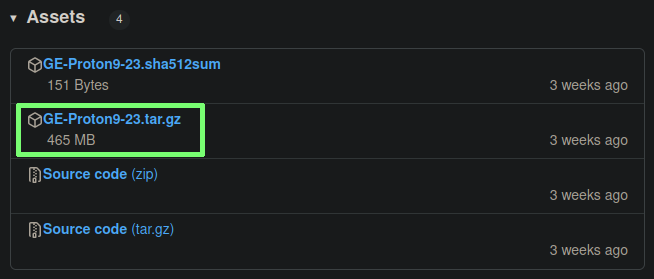
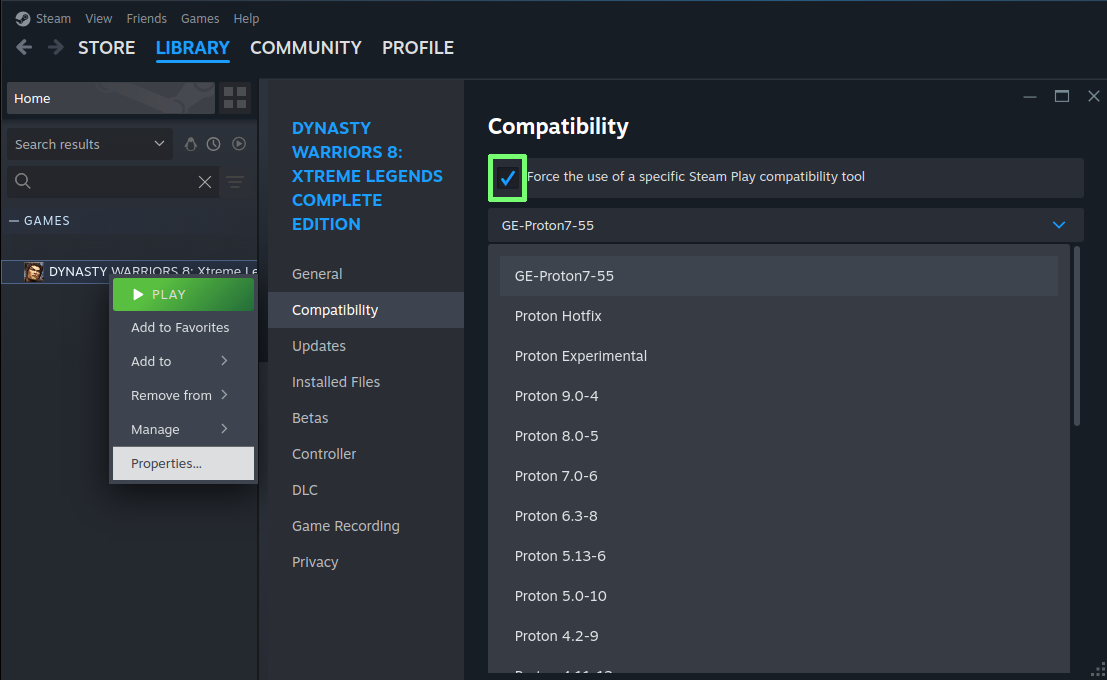
The next time you start the game there will likely be a short delay as the new Proton environment is setup, but when it does it should now be running in your selected version and (hopefully) working as intended!
How-To: Enable Steam Input
Controller support is a lot of trial and error on Steam, based on your hardware and software circumstances. This guide can't possibly cover controller problems that are system-wide, but if you know Linux is detecting it properly and if other games are working fine then the following may help.
Overall the main thing to try would be forcibly enabling (or, counter-intuitively, disabling) Steam Input and making sure Steam actually sees the device properly.
This can be accomplished on a per-game basis in the game's properties. Directly enabling or disabling Steam Input will do so for all controller types, whereas the default settings are based on your global settings.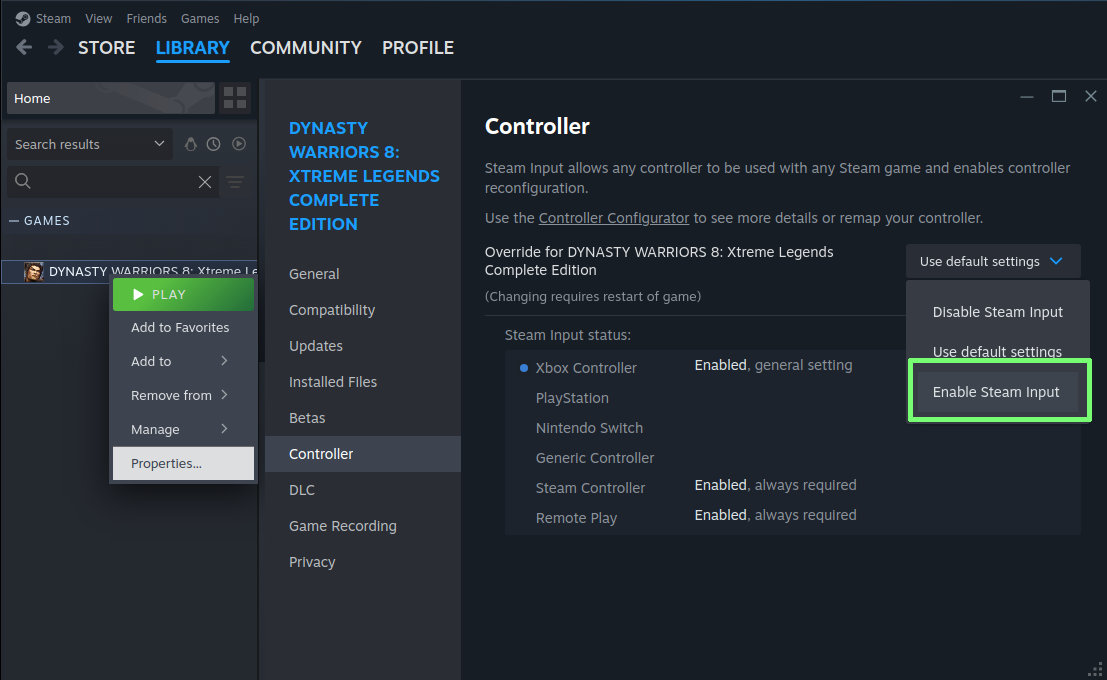
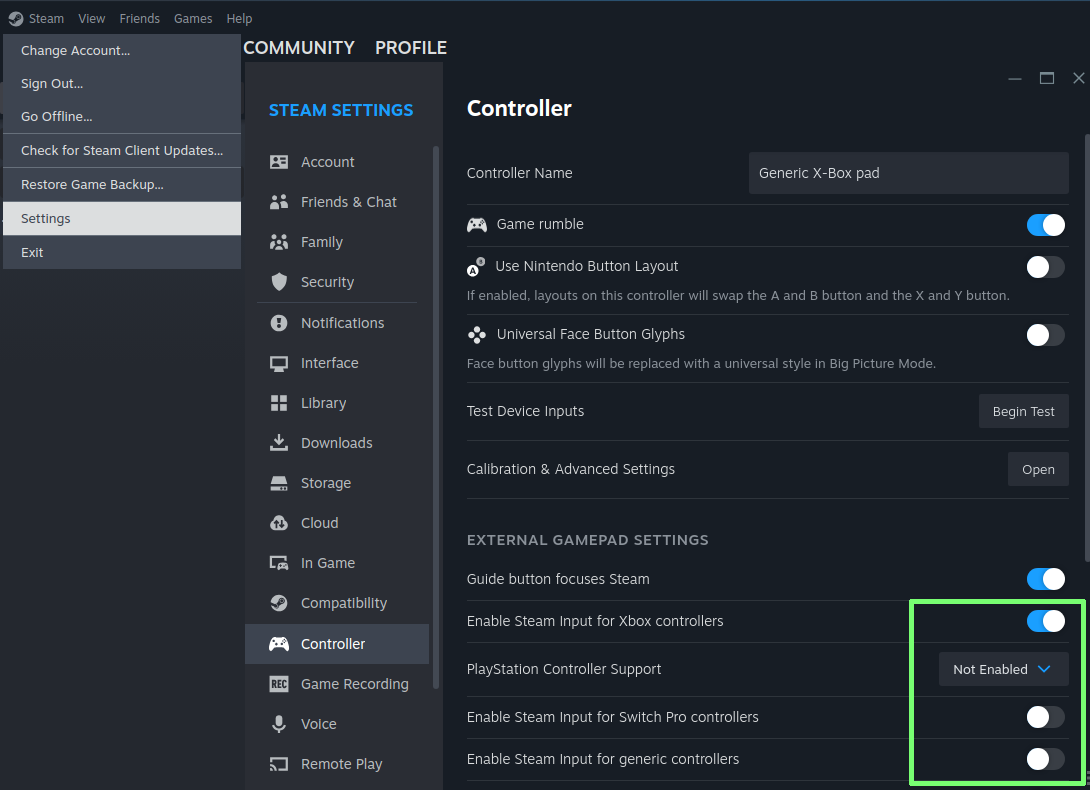
You can further tinker with the global settings (as well as perform controller tests and configurations) in the overall Steam settings menu. Note that the per-game enable/disable takes priority.
What was tested?
- Proton 7.0-6
- Proton 8.0-5
- Proton 9.0-4*
- Proton Experimental*
- Proton Hotfix*
- GE-Proton7-28
- GE-Proton7-55
- GE-Proton8-3
- GE-Proton8-4
- GE-Proton8-25
- GE-Proton8-31
- GE-Proton8-32
- GE-Proton9-2
- GE-Proton9-5
- GE-Proton9-10
- GE-Proton9-20
- GE-Proton9-22
- GE-Proton9-23
- GE-Proton9-27
- GE-Proton10-1
- GE-Proton10-8
- GE-Proton10-11
- GE-Proton10-12
- GE-Proton10-15
- GE-Proton10-20
- GE-Proton10-23
- GE-Proton10-25
*These versions are ever-changing and their status as working or not is based solely on their current (December 2025) status.
Acknowledgements
- idarion for their must-have controller prompt solutions
- doitsujin's Atelier Sync Fix[github.com]
- GloriousEggroll[github.com] for being the saving grace of all Linux gaming fans
- Protontricks[github.com] for the being most must-have of all Proton tools
- ProtonDB[protondb.com] for existing, if not always actually usefully so
- PCGamingWiki[pcgamingwiki.com] for sometimes having useful info
- MobyGames[mobygames.com] for meticulous data, names, and box art
- SteamGridDB[steamgriddb.com] for fan-made alternative box/icon/etc. art
- SteamDB[steamdb.info] for the most useful Steam data scraping efforts around
- Configuring your Gamepad to work with Dynasty Warriors 8 and follow console layouts★ 5 (332)28k views426 ♥2 minUpdated 7 Nov, 2022
- 6th Weapon guide and attributes in general★ 5 (1.1k)23k views1.9k ♥11 minUpdated 12 Mar, 2019
- Gameplay Tips and FAQs★ 5 (497)19k views642 ♥23 minUpdated 13 Oct, 2014
- 真三国无双7猛将传全成就指南(附全dlc介绍)★ 5 (743)18k views1.2k ♥1 minSimplified ChineseUpdated 7 Jun, 2025
- Dynasty Warriors 8: The Ultimate Controller Guide★ 4 (121)15k views199 ♥2 min
- 《真・三国无双7本传with猛将传》史上最详细快速白金(全成就)全流程指北攻略★ 5 (381)14k views1.1k ♥3 minSimplified ChineseUpdated 27 Oct, 2024



- Upgrading to PremiumTeam Fortress 2★ 5 (20k)1441k views11k ♥6 minUpdated May 11, 2022
- No More Room in Hell Official ManualNo More Room in Hell★ 5 (2.8k)569k views2.1k ♥29 minUpdated Apr 22, 2019
- NMRiH Community Hosting GuidesNo More Room in Hell★ 5 (526)351k views653 ♥1 minUpdated Aug 10, 2022
- ULTIMATE GUIDE FOR GAME DEV TYCOONGame Dev Tycoon★ 5 (5.8k)326k views10k ♥4 minUpdated 23 Jan, 2014
- How to 'Git Gud' Soon™MORDHAU★ 5 (2k)318k views3k ♥68 minUpdated Nov 16, 2024
- Лучшие кооперативные игры SteamPAYDAY 2★ 5 (1.5k)315k views2.1k ♥56 minRussianUpdated Apr 27, 2025






This guide was created by its original author on the Steam Community. Are you the author and want it removed? Request removal.