Modded Game Launch Alternative Solution
Introduction
Hey everyone and welcome to my very first guide!
This is just a short and quick guide on how to launch the game through the regular Steam launch buttons whether that is from the Library View or the Taskbar Menu's Recent Games. This solution is an alternative to the current community guides/suggestions of launching through Reloaded-II, a created shortcut (from Reloaded-II), or Adding a Non-Steam Game to your library methods. These ones can be found here under "Launching the Game"[gamebanana.com].
Think of this as quality-of-life type of thing to do, and in no way should it affect actual mods or gameplay (at least from my experience and knowledge). I came up with this since, I don't really like using shortcuts and usually just launch my games directly through Steam, or even GOG Galaxy. So I wanted to come up with a solution that accommodates this.
I came up with this solution with the help of the following posts and some previous experience:
At its core, this solution does the same thing that the shortcut, that Reloaded-II creates for you, does.
Anyways lets get started so you can get playing!
This is just a short and quick guide on how to launch the game through the regular Steam launch buttons whether that is from the Library View or the Taskbar Menu's Recent Games. This solution is an alternative to the current community guides/suggestions of launching through Reloaded-II, a created shortcut (from Reloaded-II), or Adding a Non-Steam Game to your library methods. These ones can be found here under "Launching the Game"[gamebanana.com].
Think of this as quality-of-life type of thing to do, and in no way should it affect actual mods or gameplay (at least from my experience and knowledge). I came up with this since, I don't really like using shortcuts and usually just launch my games directly through Steam, or even GOG Galaxy. So I wanted to come up with a solution that accommodates this.
I came up with this solution with the help of the following posts and some previous experience:
- Create executable to run a shortcut? Similar to a .bat file but a .exe?[stackoverflow.com]
- How do I change which .exe Steam opens up from the list of pinned games?
At its core, this solution does the same thing that the shortcut, that Reloaded-II creates for you, does.
Anyways lets get started so you can get playing!
1. Renaming the Original Executable
Navigate to or Find the Location of the Install
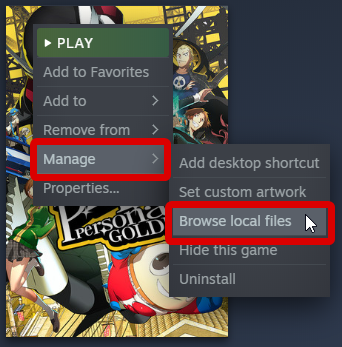
Assuming you already have the game installed. In your Library, right-click on it, move yourcursor over Manage, and then click on Browse local files.
Locate the Game's Executable
 Find the .EXE named "P4G.exe"
Rename to Something Appropriate
 I added "Steam" to the name, so its now named "P4GSteam.exe".
P4G Path
While you're here, copy or save the path to the folder and executable somewhere for later use in this guide.
2. Configure Mod-Managers Accordingly
Editing Configuration
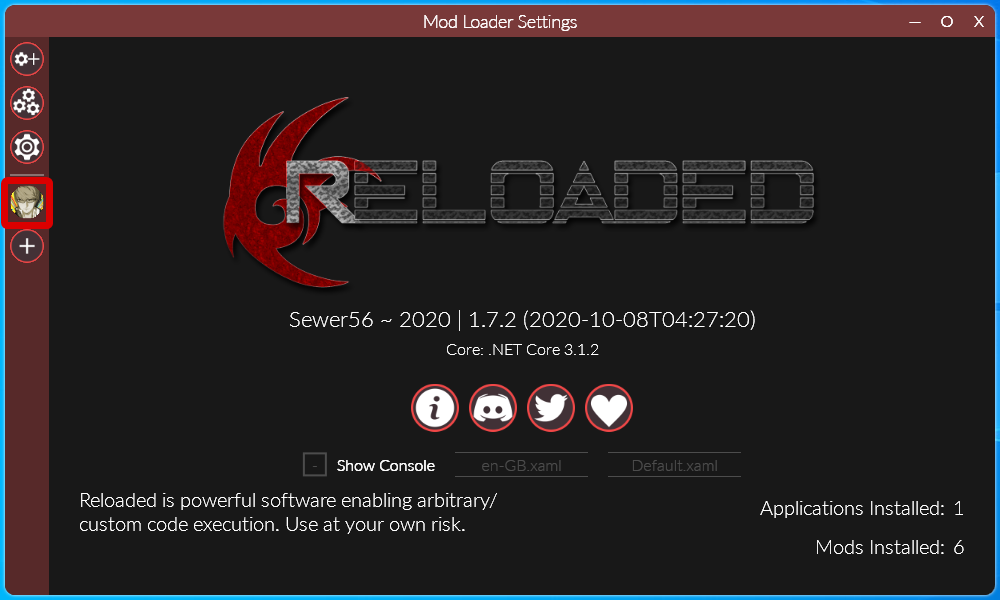
Since, Reloaded-II (the mod-manager I am using and know most of the community is as well) might be pre-configured to find your P4G executable with a specific name you'll have to go and edit it to accordingly reflect the rename change we applied.- So for Reloaded-II, launch it. Then click on Persona 4 Golden on the left.
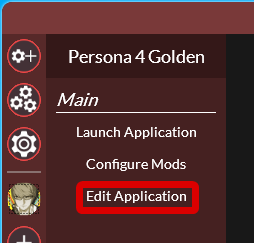
- Click on Edit Application, under the Main heading.
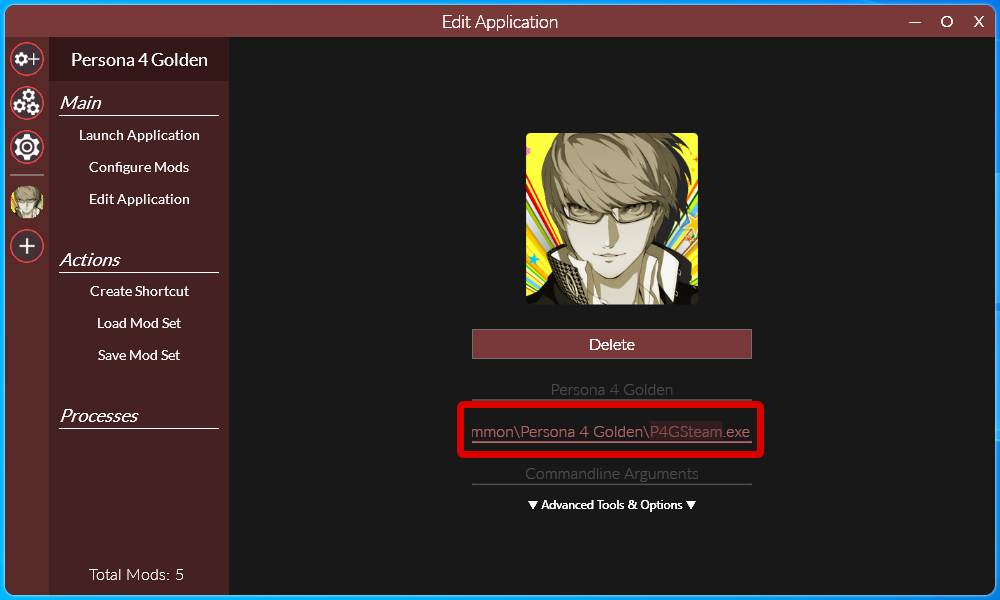
- Edit the second line in the menu. This should now match your path to our now named P4GSteam.exe
Since I already had this setup for modding, I just went in and added the word "Steam" to the name in the path.
And that's it, you can now close the Reloaded-II window.
3. Creating a CMD file
Open a Simple Text Editor
Now launch notepad, notepad++, Atom or any other simple text editor that you have on hand. We'll use it to create a CMD file with a command that starts Persona 4 Golden in the same manner that Reloaded-II does when it creates a shortcut for us.Creating our Command
So our CMD file is going to be made up of a simple start
command-line command, and use the /D
parameter which specifies a location to start a specific program, command or script. Feel free to read more about this command here[web.archive.org] or over here[web.archive.org].In the text editor write and create the following command (keeping the spaces that I have between the paths:
start "persona" /D [Reloaded-II Folder-Path] [Reloaded-II.exe Path] --launch [P4GSteam.exe Path]
- This command will require you to fill it in using the appropriate paths to your installation and setup. Change [Reloaded-II Folder-Path]with the folder path to where you have your Reloaded-II installed or placed. Change[Reloaded-II.exe Path]with Reloaded-II's executable path. And change[P4GSteam.exe Path]with the same path to the Persona 4 Golden's executable (that we renamed).
- So, my complete command looks like this:start "persona" /D "D:\Users\Jinhjy\Documents\My Games\Reloaded-II" "D:\Users\Jinhjy\Documents\My Games\Reloaded-II\Reloaded-II.exe" --launch "F:\Programs\Steam\steamapps\common\Persona 4 Golden\P4GSteam.exe"
Saving our CMD file
Now once, our command is complete. We'll save it as a .CMD file. I recommend naming it as "P4G.cmd", however, this isn't necessary just convenient. However, make sure to save it into an empty folder of it's own, as this will be important for a later step.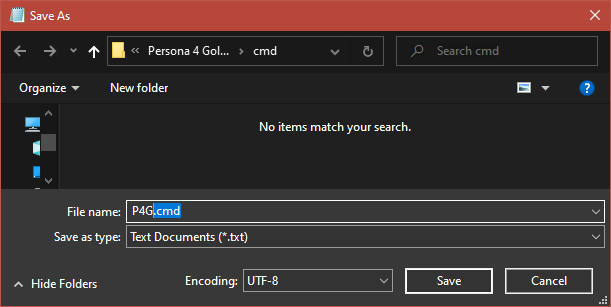
4. Saving an ICO Icon File
I should label this step as optional, but I think it makes the EXE that we'll create to not use a generic icon image.
For this step, feel free to use any other ICO file but if you don't care that it will look identical to the original EXE (the one we renamed). Then grab a copy of the ICO (that I converted) from here[drive.google.com].
(Looks something like this)

Save this ICO file right next to our CMD file from the previous step.
For this step, feel free to use any other ICO file but if you don't care that it will look identical to the original EXE (the one we renamed). Then grab a copy of the ICO (that I converted) from here[drive.google.com].
(Looks something like this)
Save this ICO file right next to our CMD file from the previous step.
5. Converting our CMD file to EXE
So this is the key step into making this launch method work, and that is to create an alternate EXE file that Steam will launch, that will instead launch P4G with our mods.
(At the time of writing of this guide I used v.1.7.0.0, here's the MD5 hash of my copy if you want to check yours against mine 127F2FD9512451EF0E6350FE2AB3235B)
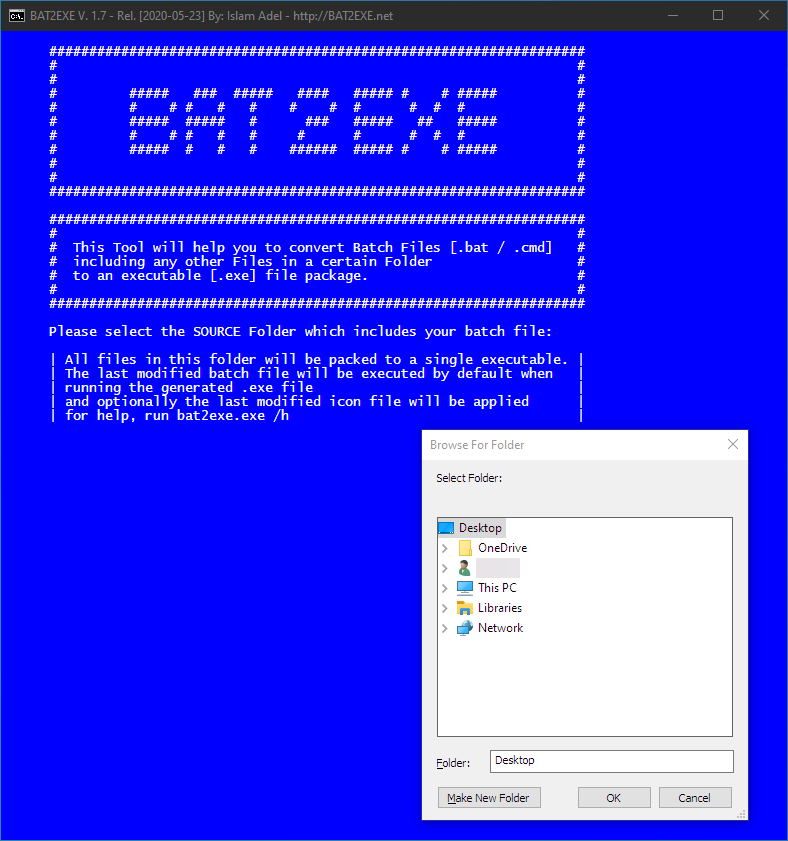
On first launch, it should immediately open a browse for folder dialog box.
You should now be able to exit/close the BAT2EXE application.
Download a CMD/BAT to EXE Converter
Navigate to either Github islamadel/bat2exe[github.com] or https://www.bat2exe.net/ and download the latest release version of the converter anywhere on your computer.(At the time of writing of this guide I used v.1.7.0.0, here's the MD5 hash of my copy if you want to check yours against mine 127F2FD9512451EF0E6350FE2AB3235B)
Launch BAT2EXE Converter
Simply launch it by double clicking it! No installation needed.On first launch, it should immediately open a browse for folder dialog box.
CMD to EXE Conversion
- Use this to navigate and select to the folder where we saved our CMD file, and icon. If you haven't placed these in an empty folder of their own yet, do that now.
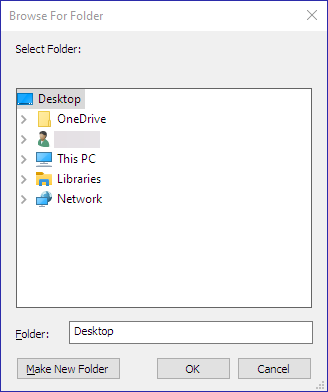
- It should now prompt you with another, browse for folder dialog box. This is where it will save the new EXE file that we need. For this one, I recommend creating and choosing another empty folder.
- If done correctly, this should take a second or two to successfully create our new P4G executable.
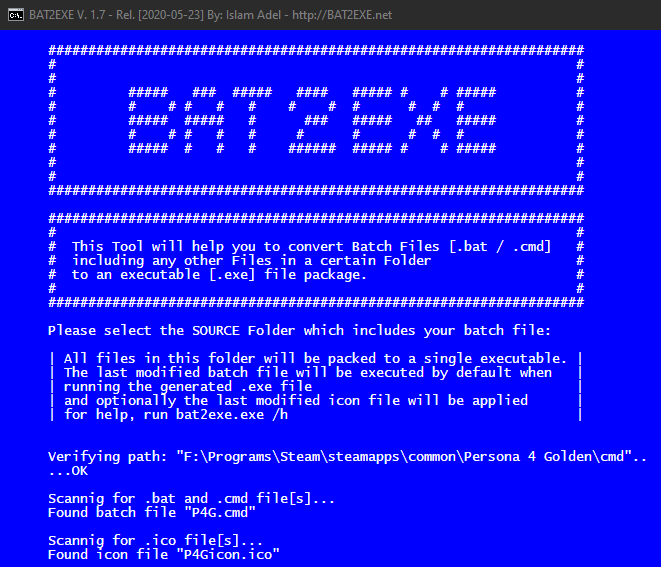
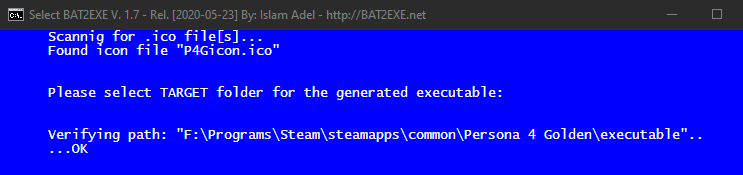
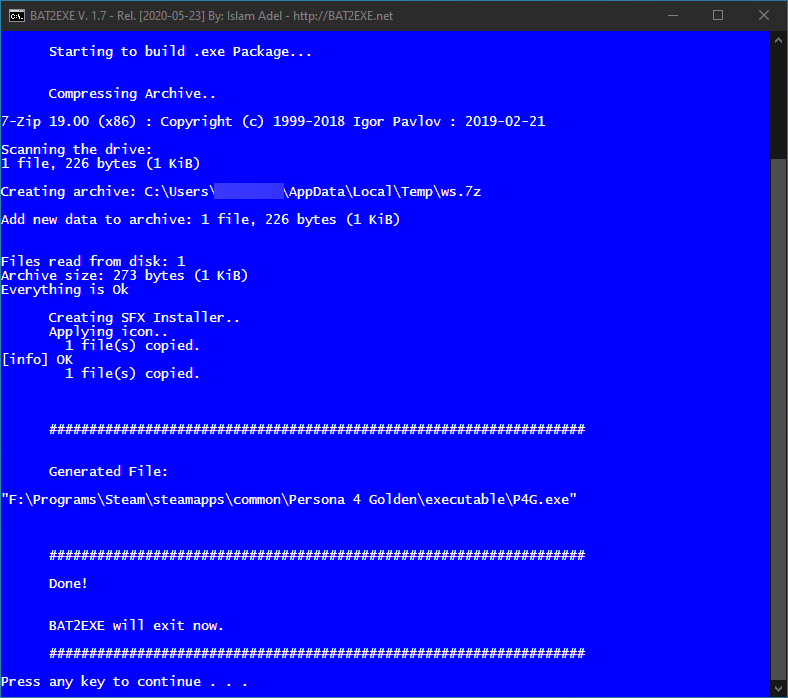
You should now be able to exit/close the BAT2EXE application.
6. Moving Our EXE
Finally, copy the new EXE we've created to the P4G folder. Should find that it sits right next to the original executable (now named "P4GSteam.exe")
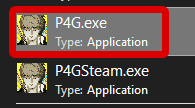
Conclusion
Launching Game
You should now be able to launch the game through the traditional and regular Steam methods either from the Library.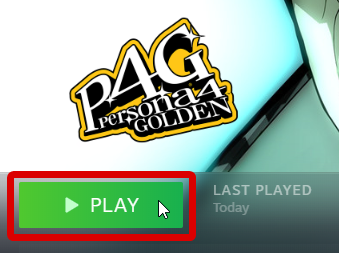
Or from the Taskbar Menu if its one of the recent games.
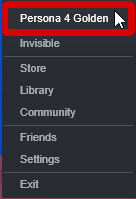
Or any other method you would regularly launch a Steam game.
Final Notes
One issue that you might run into with this setup, is that before proceeding with any update you will have to temporarily undo the custom EXE we created (maybe by placing it in a temp folder) and renaming the original EXE back to just "P4G.exe".Also I do not recommend you using this method to launch another application disguised as a Steam Game, this is against guidelines from what I know and will probably get your account banned.
I hope you found this helpful. Feel free to use this method of launching other modded games (if allowed within the game's usage guidelines). Anyways enjoy launching the game like normal now!
More Persona 4 Golden guides
- The Hardcore Risette Fan Experience™️★ 5 (489)32k views985 ♥48 minUpdated Aug 7, 2020
- Recommended level for every boss and their affinities. No spoilers★ 5 (730)32k views1.9k ♥7 minUpdated Jun 30, 2025
- Persona 4 Golden 100% Achievements Guide | 2020 (This is not a strict-Everyday-Guide)★ 5 (706)30k views1.7k ♥58 minUpdated Dec 25, 2020
- 100% Achievements Guide for Persona 4 Golden★ 5 (1.2k)29k views3.6k ♥87 minUpdated Feb 23, 2025
- 100% Day By Day Guide by Hurricanehaon★ 5 (1.3k)28k views4.2k ♥102 minUpdated Oct 4, 2023
- All Social Links Guide★ 5 (1.4k)26k views4.6k ♥95 minUpdated Nov 22, 2020






🔥 Popular guides
- Upgrading to PremiumTeam Fortress 2★ 5 (20k)1441k views11k ♥6 minUpdated May 11, 2022
- No More Room in Hell Official ManualNo More Room in Hell★ 5 (2.8k)569k views2.1k ♥29 minUpdated Apr 22, 2019
- NMRiH Community Hosting GuidesNo More Room in Hell★ 5 (526)351k views653 ♥1 minUpdated Aug 10, 2022
- Лучшие кооперативные игры SteamPAYDAY 2★ 5 (1.5k)315k views2.1k ♥56 minRussianUpdated Apr 27, 2025
- Desert Eagle Heat Treated | Blue GemCounter-Strike 2★ 5 (1.6k)292k views1.5k ♥2 minUpdated Jan 16
- Treasure Hunt Puzzle SolutionsTotal War: WARHAMMER II★ 5 (6.9k)281k views15k ♥3 minUpdated Aug 19, 2021






This guide was created by its original author on the Steam Community. Are you the author and want it removed? Request removal.