Native Flightstick Configuration
Preparation

IMPORTANT: Most people need to disable Steam Input for this method to work. Right click the game in the Steam Games library and go to Properties. Click "Controller" in the left pane. In the right pane, click the box with the blue dropdown indicator, and select "Disable Steam Input."
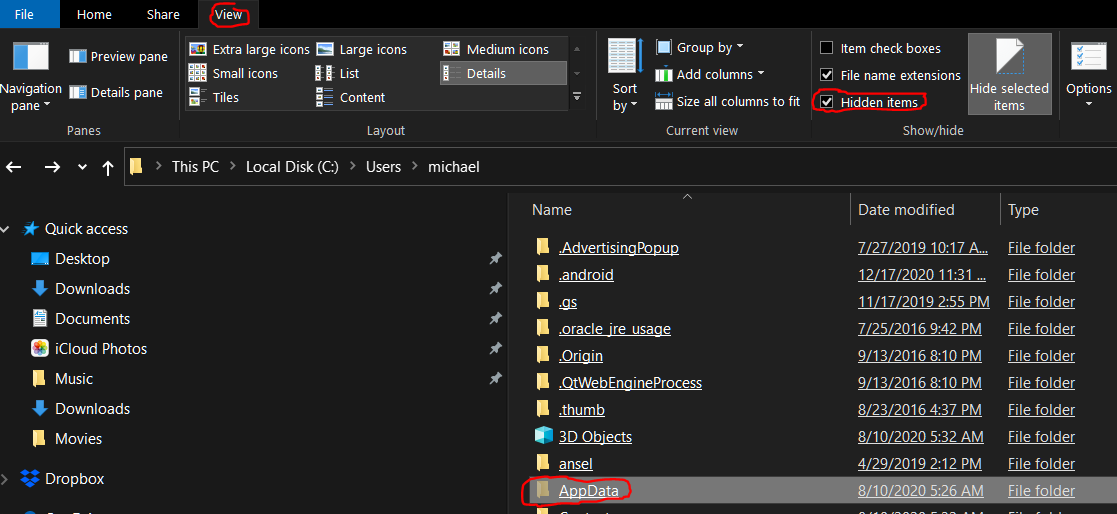
Be sure your Windows folder view settings are set to show hidden folders. The AppData folder you will need later is hidden by default. Here is how to unhide the folder in Windows 10:
- Navigate to C:\Users\[username].
- In the upper left menu bar, select the "View" tab.
- Toward the right side of the menu there is a section labeled "Show/hide". Check the "Hidden items" box.
And finally, if you previously had x360CE installed and applied to this game, you can get odd binding issues with this method. Be sure to remove any x360CE files in the AC7 working directory.
https://steamcommunity.com/app/502500/discussions/0/2569816251290811021/
Configuration

Use Windows Explorer to navigate to the C:\Users\[username]\AppData\Local\BANDAI NAMCO Entertainment\ACE COMBAT 7 folder. By default this folder is on the C drive, but it could be on a different drive depending on how you set up Steam installations. It is also hidden by default. Instructions to unhide the folder are in the previous section of this guide. (I have also read that using the Windows Search bar to search for %AppData% will open it even if hidden, but i have not verified this.)
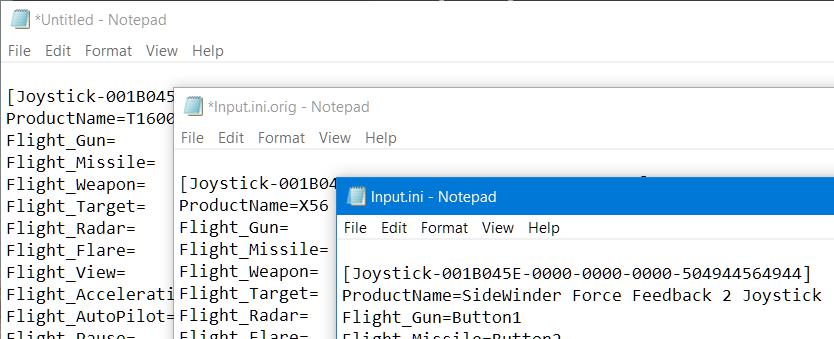
Open the input.ini file with Notepad or your text editor of choice. You should see something like this:
[Joystick-001B045E-0000-0000-0000-504944564944]
ProductName=SideWinder Force Feedback 2 Joystick
Flight_Gun=
Flight_Missile=
Flight_Weapon=
.
.
.
and about 40 or so additional parameters that are blank after the "equals" sign.
The game is at least acknowledging the joystick, and you just need to add values for each parameter.
OPTIONAL - make a backup of the existing input.ini, just in case something goes wrong and you need it back. You can just make a copy, and name it something like "input.ini.orig". If you mess up the new one, you can delete it, then rename your backup by removing ".orig".
Now just type or paste values to assign buttons and axes to the functions you want. Initially you can just paste the values below over the existing values in input.ini. For most sticks this works right out of the box, but you can adjust the values to match your play style and preferences. My stick has only 8 buttons, so if you have more you can fill in those blanks.
Flight_Gun=Button1
Flight_Missile=Button2
Flight_Weapon=Button6
Flight_Target=Button3
Flight_Radar=Button5
Flight_Flare=Button4
Flight_View=
Flight_AccelerationDeceleration=Button8
Flight_AutoPilot=Button7
Flight_Pause=
Flight_HatSwitchUp=
Flight_HatSwitchDown=
Flight_HatSwitchLeft=
Flight_HatSwitchRight=
Flight_Pitch=Y:R
Flight_Roll=X
Flight_Yaw=Rz
Flight_Throttle=Slider1
Flight_CameraPitch=POV_U1 + POV_D1:R
Flight_CameraYaw=POV_R1 + POV_L1:R
UI_B=Button2
UI_A=Button1
UI_X=Button3
UI_Y=Button4
UI_LB=POV_L1
UI_RB=POV_R1
UI_LT=POV_U1
UI_RT=POV_D1
UI_LeftStickPress=Button5
UI_RightStickPress=Button6
UI_DPadUp=
UI_DPadDown=
UI_DPadLeft=
UI_DPadRight=
UI_LeftStickUp=Y:N
UI_LeftStickDown=Y:P
UI_LeftStickLeft=X:N
UI_LeftStickRight=X:P
UI_RightStickUp=
UI_RightStickDown=
UI_RightStickLeft=
UI_RightStickRight=
UI_Menu=Button7
Play around with the assignments to map the controls to the functions you want.
Note for X56 users: MR.120 has helpfully provided a numeric profile link here: https://github.com/tux-box/x56_numericProfile
Note for users of Thrustmaster T.A320 Copilot and TCA Q-Eng 1&2 joysticks: Don Guorri shared his configs on github url=https://github.com/efeferrari/ac7-t-a320-copilot-tca-q-eng-1-2-config
Additional POV hat information
I found additional instruction for the POV hat here: https://steamcommunity.com/app/502500/discussions/0/1638661595064594449/
Note that for the flight camera, these settings work only absolute, so by using the POV hat switch you look full up, full down, full left and full right. Also, the Flight_HatSwitch* settings are intentionally blank on mine, so in multiplayer I don't send message every time I press the hat switch.
The remaining text is copied from the link above. I have not personally tried this setup to make the POV hat act relative rather than absolute.
"For relative look around with HAT switch it is lite more complicated.
You will need 3th party softwares vJoy and FreePIE. Set up vJoy in Input.ini file
[Joystick-BEAD1234-0000-0000-0000-504944564944]
ProductName=vJoy Device
...
Flight_CameraPitch=Ry
Flight_CameraYaw=Rx
...
and
run this sript in FreePIE.
if starting:
system.setThreadTiming(TimingTypes.HighresSystemTimer)
system.threadExecutionInterval = 10
x = 0
y = 0
deltax = 200
deltay = 200
if joystick[1].pov[0] == 0:
y = y+deltay
if abs(y) > vJoy[0].axisMax:
y = vJoy[0].axisMax * y / abs(y)
elif joystick[1].pov[0]==4500:
x = x+deltax
if abs(x) > vJoy[0].axisMax:
x = vJoy[0].axisMax * x / abs(x)
y = y+deltay
if abs(y) > vJoy[0].axisMax:
y = vJoy[0].axisMax * y / abs(y)
elif joystick[1].pov[0]==9000:
x = x+deltax
if abs(x) > vJoy[0].axisMax:
x = vJoy[0].axisMax * x / abs(x)
elif joystick[1].pov[0]==13500:
x = x+deltax
if abs(x) > vJoy[0].axisMax:
x = vJoy[0].axisMax * x / abs(x)
y = y-deltax
if abs(y) > vJoy[0].axisMax:
y = vJoy[0].axisMax * y / abs(y)
elif joystick[1].pov[0]==18000:
y = y-deltay
if abs(y) > vJoy[0].axisMax:
y = vJoy[0].axisMax * y / abs(y)
elif joystick[1].pov[0]==22500:
x = x-deltax
if abs(x) > vJoy[0].axisMax:
x = vJoy[0].axisMax * x / abs(x)
y = y-deltay
if abs(y) > vJoy[0].axisMax:
y = vJoy[0].axisMax * y / abs(y)
elif joystick[1].pov[0]==27000:
x = x-deltax
if abs(x) > vJoy[0].axisMax:
x = vJoy[0].axisMax * x / abs(x)
elif joystick[1].pov[0]==31500:
x = x-deltax
if abs(x) > vJoy[0].axisMax:
x = vJoy[0].axisMax * x / abs(x)
y = y+deltay
if abs(y) > vJoy[0].axisMax:
y = vJoy[0].axisMax * y / abs(y)
else:
x = x
y = y
vJoy[0].rx = x
vJoy[0].ry = y
center = joystick[1].getDown(9)
if center:
x = 0
y = 0
diagnostics.watch(vJoy[0].rx)
diagnostics.watch(vJoy[0].ry)
diagnostics.watch(joystick[1].pov[0])
diagnostics.watch(joystick[1].getDown(9))
The script would need to be tuned out. It's just the first attempt."
Specific profiles [WIP]
In this section I will post specific profiles i have found in comments, Steam forums, etc. My hope is that this will give more people a good starting point.
MS Sidewinder by deathspeed
[Joystick-001B045E-0000-0000-0000-504944564944]
ProductName=SideWinder Force Feedback 2 Joystick
Flight_Gun=Button1
Flight_Missile=Button2
Flight_Weapon=Button6
Flight_Target=Button3
Flight_Radar=Button5
Flight_Flare=Button4
Flight_View=Button7
Flight_AccelerationDeceleration=Button8
Flight_AutoPilot=
Flight_Pause=Button11
Flight_HatSwitchUp=
Flight_HatSwitchDown=
Flight_HatSwitchLeft=
Flight_HatSwitchRight=
Flight_Pitch=Y:R
Flight_Roll=X
Flight_Yaw=Rz
Flight_Throttle=Slider1
Flight_CameraPitch=POV_U1 + POV_D1:R
Flight_CameraYaw=POV_R1 + POV_L1:R
UI_B=Button2
UI_A=Button1
UI_X=Button3
UI_Y=Button4
UI_LB=POV_L1
UI_RB=POV_R1
UI_LT=POV_U1
UI_RT=POV_D1
UI_LeftStickPress=Button5
UI_RightStickPress=Button6
UI_DPadUp=
UI_DPadDown=
UI_DPadLeft=
UI_DPadRight=
UI_LeftStickUp=Y:N
UI_LeftStickDown=Y:P
UI_LeftStickLeft=X:N
UI_LeftStickRight=X:P
UI_RightStickUp=
UI_RightStickDown=
UI_RightStickLeft=
UI_RightStickRight=
UI_Menu=Button7
VKB Gladiator EVO R by Pan_de
ProductName=" VKBsim Gladiator EVO R "
Flight_Gun=Button1
Flight_Missile=Button3
Flight_Weapon=Button21
Flight_Target=Button9
Flight_Radar=Button6
Flight_Flare=Button19
Flight_View=
Flight_AccelerationDeceleration=
Flight_AutoPilot=
Flight_Pause=
Flight_HatSwitchUp=
Flight_HatSwitchDown=
Flight_HatSwitchLeft=
Flight_HatSwitchRight=
Flight_Pitch=Y:R
Flight_Roll=X
Flight_Yaw=
Flight_Throttle=
Flight_CameraPitch=Ry
Flight_CameraYaw=Rx
UI_B=Button3
UI_A=Button1
UI_X=Button4
UI_Y=Button5
UI_LB=Button14
UI_RB=Button12
UI_LT=Button9
UI_RT=Button7
UI_LeftStickPress=Button10
UI_RightStickPress=Button15
UI_DPadUp=Button16
UI_DPadDown=Button18
UI_DPadLeft=Button19
UI_DPadRight=Button17
UI_LeftStickUp=Ry:P
UI_LeftStickDown=Ry:N
UI_LeftStickLeft=Rx:P
UI_LeftStickRight=Rx:N
UI_RightStickUp=Y:P
UI_RightStickDown=Y:N
UI_RightStickLeft=X:P
UI_RightStickRight=X:N
UI_Menu=Button28
Thrustmaster A320 Airbus stick and throttle setup by Lunelli_98
[Joystick-0407044F-0000-0000-0000-504944564944]
ProductName=TCA Q-Eng 1&2
Flight_Gun=
Flight_Missile=
Flight_Weapon=
Flight_Target=
Flight_Radar=Button6
Flight_Flare=Button1
Flight_View=
Flight_AccelerationDeceleration=
Flight_AutoPilot=
Flight_Pause=Button8
Flight_HatSwitchUp=
Flight_HatSwitchDown=
Flight_HatSwitchLeft=
Flight_HatSwitchRight=
Flight_Pitch=
Flight_Roll=
Flight_Yaw=
Flight_Throttle=X
Flight_CameraPitch=
Flight_CameraYaw=
UI_B=
UI_A=
UI_X=
UI_Y=
UI_LB=
UI_RB=
UI_LT=
UI_RT=
UI_LeftStickPress=
UI_RightStickPress=
UI_DPadUp=
UI_DPadDown=
UI_DPadLeft=
UI_DPadRight=
UI_LeftStickUp=
UI_LeftStickDown=
UI_LeftStickLeft=
UI_LeftStickRight=
UI_RightStickUp=
UI_RightStickDown=
UI_RightStickLeft=
UI_RightStickRight=
UI_Menu=Button5
[Joystick-0405044F-0000-0000-0000-504944564944]
ProductName=T.A320 Pilot
Flight_Gun=Button1
Flight_Missile=Button3
Flight_Weapon=Button2
Flight_Target=Button4
Flight_Radar=
Flight_Flare=
Flight_View=
Flight_AccelerationDeceleration=
Flight_AutoPilot=
Flight_Pause=
Flight_HatSwitchUp=POV_U1
Flight_HatSwitchDown=POV_D1
Flight_HatSwitchLeft=POV_L1
Flight_HatSwitchRight=POV_R1
Flight_Pitch=Y:R ! Button10
Flight_Roll=X ! Button10
Flight_Yaw=Rz
Flight_Throttle=
Flight_CameraPitch=POV_U1 + POV_D1:R
Flight_CameraYaw=POV_R1 + POV_L1:R
UI_B=Button2
UI_A=Button1
UI_X=Button3
UI_Y=Button4
UI_LB=POV_L1
UI_RB=POV_R1
UI_LT=POV_U1
UI_RT=POV_D1
UI_LeftStickPress=
UI_RightStickPress=
UI_DPadUp=POV_U1
UI_DPadDown=POV_D1
UI_DPadLeft=POV_L1
UI_DPadRight=POV_R1
UI_LeftStickUp=Y:N
UI_LeftStickDown=Y:P
UI_LeftStickLeft=X:N
UI_LeftStickRight=X:P
UI_RightStickUp=
UI_RightStickDown=
UI_RightStickLeft=
UI_RightStickRight=
UI_Menu=
PXN2119 by gordo1701e
[Joystick-333711FF-0000-0000-0000-504944564944]
ProductName=USB Joystick
Flight_Gun=Button2
Flight_Missile=Button1
Flight_Weapon=Button3
Flight_Target=
Flight_Radar=Button16
Flight_Flare=Button13
Flight_View=
Flight_AccelerationDeceleration=
Flight_AutoPilot=Button7
Flight_Pause=Button8
Flight_HatSwitchUp=POV_U1
Flight_HatSwitchDown=POV_D1
Flight_HatSwitchLeft=POV_L1
Flight_HatSwitchRight=POV_R1
Flight_Pitch=Y:R
Flight_Roll=X
Flight_Yaw=Rz
Flight_Throttle=Z
Flight_CameraPitch=POV_U1 + POV_D1:R
Flight_CameraYaw=POV_R1 + POV_L1:R
UI_B=Button2
UI_A=Button1
UI_X=Button3
UI_Y=Button4
UI_LeftStickPress=Button5
UI_RightStickPress=Button6
UI_DPadUp=POV_U1
UI_DPadDown=POV_D1
UI_DPadLeft=POV_L1
UI_DPadRight=POV_R1
UI_LeftStickUp=Y:N
UI_LeftStickDown=Y:P
UI_LeftStickLeft=X:N
UI_LeftStickRight=X:P
UI_Menu=Button7
X56 Rhino by CapStar362
[Joystick-22210738-0000-0000-0000-504944564944]
ProductName=Saitek Pro Flight X-56 Rhino Stick
Flight_Gun=Button1
Flight_Missile=Button3
Flight_Weapon=Button5
Flight_Target=Button6
Flight_Radar=
Flight_Flare=
Flight_View=Button4
Flight_AccelerationDeceleration=
Flight_AutoPilot=
Flight_Pause=
Flight_HatSwitchUp=POV_U1
Flight_HatSwitchDown=POV_D1
Flight_HatSwitchLeft=POV_L1
Flight_HatSwitchRight=POV_R1
Flight_Pitch=Y:R
Flight_Roll=X
Flight_Yaw=Rz
Flight_Throttle=
Flight_CameraPitch=Ry
Flight_CameraYaw=Rx
UI_B=
UI_A=
UI_X=
UI_Y=
UI_LB=
UI_RB=
UI_LT=
UI_RT=
UI_LeftStickPress=
UI_RightStickPress=
UI_DPadUp=
UI_DPadDown=
UI_DPadLeft=
UI_DPadRight=
UI_LeftStickUp=
UI_LeftStickDown=
UI_LeftStickLeft=
UI_LeftStickRight=
UI_RightStickUp=
UI_RightStickDown=
UI_RightStickLeft=
UI_RightStickRight=
UI_Menu=Button4
[Joystick-A2210738-0000-0000-0000-504944564944]
ProductName=Saitek Pro Flight X-56 Rhino Throttle
Flight_Gun=
Flight_Missile=
Flight_Weapon=
Flight_Target=
Flight_Radar=Button5
Flight_Flare=Button1
Flight_View=
Flight_AccelerationDeceleration=Button4
Flight_AutoPilot=
Flight_Pause=
Flight_HatSwitchUp=
Flight_HatSwitchDown=
Flight_HatSwitchLeft=
Flight_HatSwitchRight=
Flight_Pitch=
Flight_Roll=
Flight_Yaw=
Flight_Throttle=X
Flight_CameraPitch=
Flight_CameraYaw=
UI_B=
UI_A=
UI_X=
UI_Y=
UI_LB=
UI_RB=
UI_LT=
UI_RT=
UI_LeftStickPress=
UI_RightStickPress=
UI_DPadUp=
UI_DPadDown=
UI_DPadLeft=
UI_DPadRight=
UI_LeftStickUp=
UI_LeftStickDown=
UI_LeftStickLeft=
UI_LeftStickRight=
UI_RightStickUp=
UI_RightStickDown=
UI_RightStickLeft=
UI_RightStickRight=
UI_Menu=
Troubleshooting

Sometimes the dumb thing still does not work. Here are a few things to try:
Be sure to follow each step in order, including the Preparation section. It may look like a lot but it really is not too bad, and once it is set up the way you like it you won't have to mess with it again.
The most common issue is that Steam Input has not been disabled. That is a REQUIRED step for most people. Instructions are in the first paragraph under "Preparation."
If you were using x360CE or other third party solutions before, they have been known to interfere with this method and cause odd binding issues. As the guide notes, be sure to remove any x360CE (or other controller emulator) files in the AC7 working directory. (see https://steamcommunity.com/app/502500/discussions/0/2569816251290811021/ )
Try the stick in another USB port.
Unplug any other controllers. Windows 10 sometimes has issues with multiple controllers and gaming keyboards.
Try setting the stick/HOTAS as the Preferred Windows controller. https://www.top-password.com/blog/open-game-controllers-settings-in-windows-10/
Closing Words

Using the joystick to navigate menus can be clunky, and the game UI still shows Xbox controller icons for functions. For example, the UI may say "Press A for this action", but you may not remember which button you assigned for A. To get around this, I usually connect my Xbox One controller at the same time. I have never had any issues, using the joystick to actually play and using the controller for menus, replay camera controls, etc.
If you are interested in using TrackIR, check out this guide as well:
https://steamcommunity.com/sharedfiles/filedetails/?id=2195724313&tscn=1608395090
I hope you find this guide helpful Feel free to share any suggestions, tips, tricks, and your configurations in the comments.
Credits

Thank you to LOGIRich, author of this Reddit post on which this guide is based: https://www.reddit.com/r/acecombat/comments/bty5xn/logitechsaitek_sticks_and_hotas_now_supported_on/
Also thank you to steam users Det.Bullock, lubomart/ bingbean, -bZ-CapStar362, and MR.120
for additional help and insights and to Reginaldo for the GUI tool he made based on information from this guide. Be sure to check out and like his guide as well!
And finally, thank you to all who have found this guide useful and shared it with others, given Steam awards, and commented. I try to read every comment, and improve the guide as i learn more from you.
- How to S rank all missions on ACE difficulty - ACE of ACES achievement★ 5 (717)26k views1.6k ♥23 minUpdated May 12, 2019
- Named Aircraft/"Bird of Prey" Guide★ 5 (980)20k views1.9k ♥10 minUpdated Feb 8, 2019
- All Aircraft Skins {Detailed Unlocks}★ 5 (414)19k views873 ♥15 minUpdated Dec 13, 2022
- Quick Guide to Maximum Texture Quality★ 5 (405)19k views721 ♥2 minUpdated Jan 16, 2020
- The ultimate(ish) nugget's guide to Ace Combat 7★ 5 (290)17k views540 ♥27 minUpdated Sep 8, 2022
- AC7 Achievement Guide★ 5 (417)17k views845 ♥7 minUpdated Feb 8, 2024




- Upgrading to PremiumTeam Fortress 2★ 5 (20k)1441k views11k ♥6 minUpdated May 11, 2022
- No More Room in Hell Official ManualNo More Room in Hell★ 5 (2.8k)569k views2.1k ♥29 minUpdated Apr 22, 2019
- NMRiH Community Hosting GuidesNo More Room in Hell★ 5 (526)351k views653 ♥1 minUpdated Aug 10, 2022
- ULTIMATE GUIDE FOR GAME DEV TYCOONGame Dev Tycoon★ 5 (5.8k)326k views10k ♥4 minUpdated 23 Jan, 2014
- How to 'Git Gud' Soon™MORDHAU★ 5 (2k)318k views3k ♥68 minUpdated Nov 16, 2024
- Лучшие кооперативные игры SteamPAYDAY 2★ 5 (1.5k)315k views2.1k ♥56 minRussianUpdated Apr 27, 2025






This guide was created by its original author on the Steam Community. Are you the author and want it removed? Request removal.