RimWorld.. on Steam Deck!
Preamble
This guide is written around the 1.6 update as it implements a chunk of optimisation and performance passes that will (likely) improve portable gameplay.
It'll eventually include DLC-specific tips, mostly for Odyssey when it comes out!
At the end of the day, even with this update the Steam Deck will not be as strong as your gaming-dedicated rig at home.
And despite the Trackpad's pretty nice feel, it won't beat out a regular ol' keyboard and mouse.
Temper your expectations diving in for your on-the-go colonies, as loading up your massive saves and cramming in your favourite titanic modlists likely won't go as swimmingly as you'd hope.
And of course, if you see my guides on another website, they've been copied or ripped without my permission. My guides will always be free (and free of ads)!
☆ Them's the Basics
To actually get started playing on the go, there's a few things to be aware of, especially if you're a new owner of a Steam Deck.
You can even skip over manually configuring your controller layout thanks to the community layouts tab, how neat!
However, note that saved Mod Lists inside the game's Mods menu are local-only.
You can get around this by using the old-fashioned saving method, by having a saved colony slot with the specific set of mods you want injected into it.
To avoid heartache, remember the golden rule of multiple devices: sync your newest saves first.
Steam isn't perfect, and prematurely launching your PC when you have fresh save data ready to sync up on your SDeck can sometimes cause those precious new hours to get lost in the pipelines.
It's rare, but is it really worth the risk after you've clocked in an extra hundred hours?
When you play your games offline, especially on separate machines (like a second PC, or your SDeck), the hours you pump in during that no-internet session typically don't get added onto your Library's metric.
This is just One Of Those Things that you'll have to plow over the barrier of annoyance for when using an SDeck, the only way to combat it is to always play online, which is obviously counterintuitive for a portable console!
Help, Freezing!! / Mods Crash my Game!!
Uh oh.
If you're not careful about chucking in mods for the first time playing on the go, you may run into this complex little headache in the making.
To put it in a few words: when you run Rimworld on Steam Deck (Linux), it reads something called a "Swap File" that acts as temporary storage for game files. It's basically virtual memory (VRAM).
The issue? By default, there's only 1GB of allocated VRAM for Rimworld. That means even small modlists stand to risk crashing your game!
The way to fix it?
To avoid issues relating to overloading memory, the simplest solution is to just not use mods - or severely cut down your mod list - while playing on your Steam Deck.
Maybe a vacation in Vanilla Rimworld will do us some good..?
It is a little technical, so if you're not confident with editing files.. you may just have to settle for Option A.
☆ Global Shortcuts
Especially for those brand new to owning an SDeck, something you should ingrain into your muscle memory as soon as possible - before digging into any game-specific controls - are the Steam Deck Global Shortcuts.
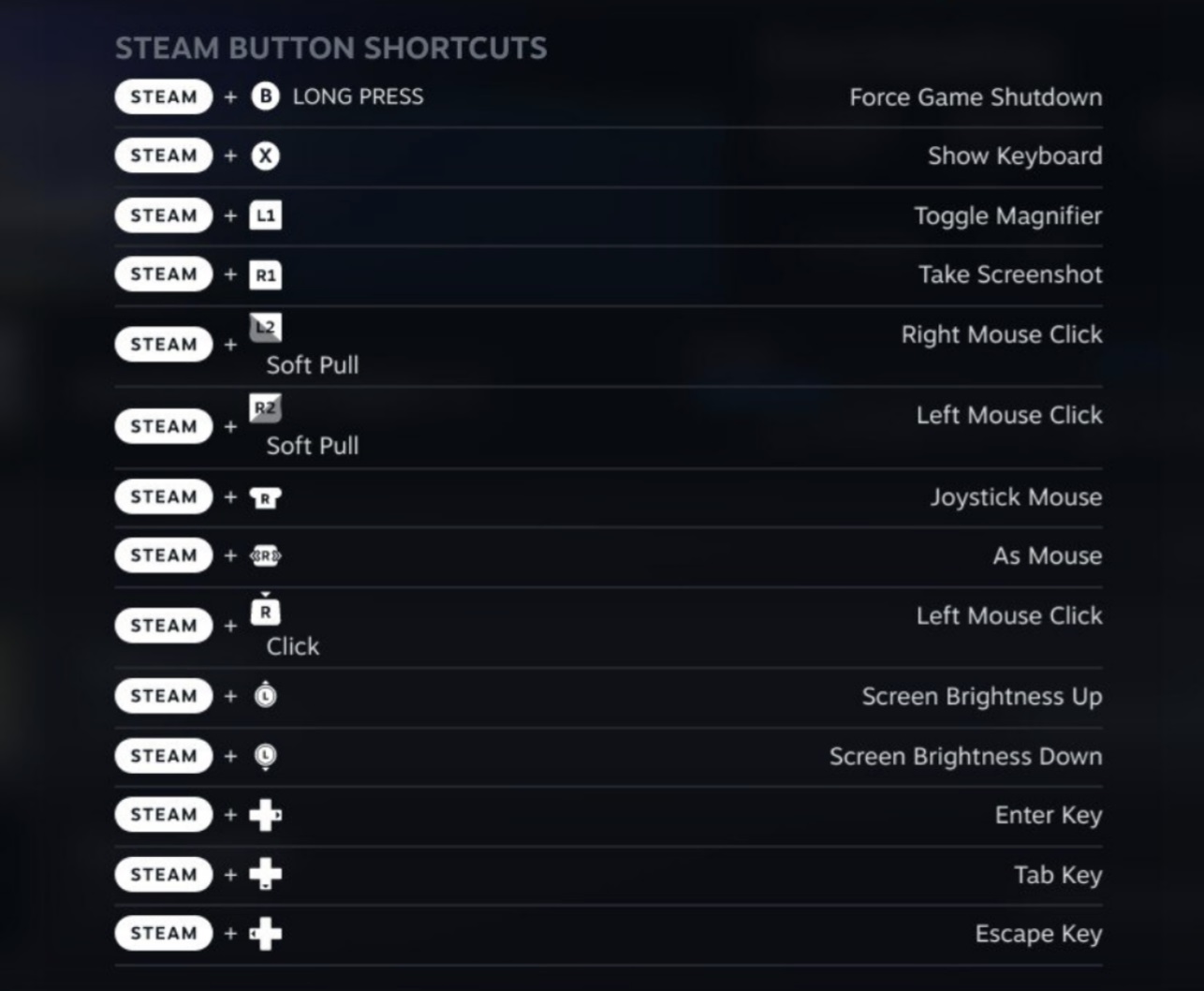
You can bring this up by holding either the Steam or Quick Access (...) button for a few seconds.
Hit the Steam button and X at the same time.
Hit the Steam button and R1 at the same time.
For more on Steam Deck-specific guidance, Af Chronos built a spectacular user's manual chock full of visual clips, covering just about every aspect to familiarising yourself with all its features.
https://steamcommunity.com/sharedfiles/filedetails/?l=danish&id=2804823261
Controller Configuration
If you want to skip straight to My Controller Layout and skip the manual setup process, you can find the Community Layouts tab within Steam Deck's Controller Configuration menu and grab my "Comfier Rimworld Keybinds" layout directly!
The default control setup when launching the game isn't actually all that bad, and has all of your needed functions to play set up and ready to go.
To access the Controller menu to change your hotkeys, you can either use the Steam Button while in-game to open the side menu, or hit the Controller Icon while looking at Rimworld in your library.
If you're like me and struggle with that first couple of hours when acclimating to new controls, here's a breakdown - it'll be available on your Controller submenu when hitting your Steam button, but feel free to grab a pen and paper, or even print out a note to make your own little Manual.
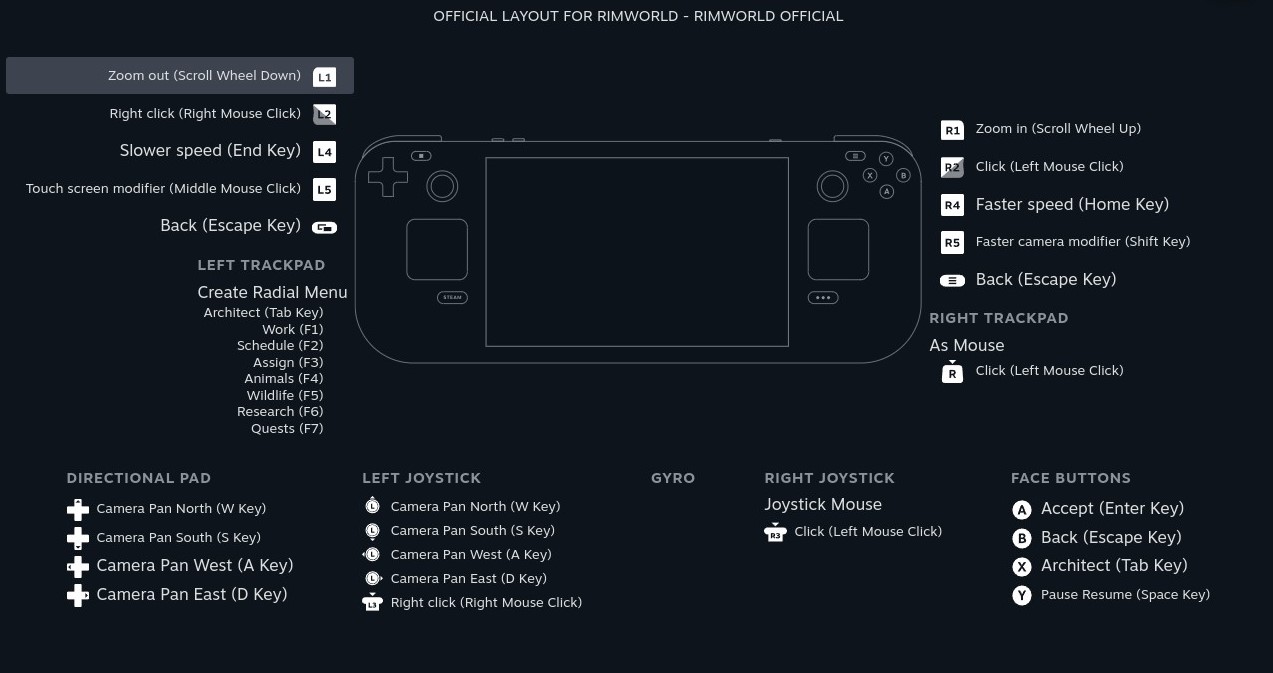
*I strongly advise not to change the trackpad functions until you know what you're wanting to do with them! The built-in radial menu is extremely useful just from the getgo.
☆ My Controller Layout
..So, that's fine and all, but there are quite a few redundant keys on the default layout, such as ESC and the Camera, so let's take a look at some tweaks that I've cooked up to make this feel a little more comfortable.
You can find this uploaded as "Comfier Rimworld Keybinds" on the Community tab when looking at your Controller Configuration menu!
[1] & [2] are changes explicitly with bill making and trading in mind, not so much for regular Shift use. R5 feels comfortable enough as the default camera speed-up keybind!
☆ Optimisation (& Battery)
Congratulations if you went with Option B earlier, as having CryoUtilities* bump up your VRAM will make a good amount of impact should you reach (or load) a lategame colony while on the go!
However, there are a couple of other tricks we can make use of, namely in respect to battery life.
While in-game, hit the Quick Access (...) button on your SDeck to open an extra side menu!
Here you can change various Performance ranges, like lowering your Brightness, FPS, and TDP Limit (your power draw in Watts) to stretch out game sessions.
Brightness tends to have the strongest effect, though playability with low settings will depend on if you own an LCD or OLED model.
The following data was collected on a 256GB LCD model with 100% battery charge, and a small earlygame colony with a short, tailored list of mods.
*CryoUtilities allegedly doesn't affect battery life.
Playing at low system brightness in a room without a lot of light can cause eye strain and headaches, so do what's best by you, not your machine!
☆ DLC
Under construction! This will focus on tips around parts of each of the DLCs that the SDeck may need extra consideration for!
Special Mentions:
Instead of worrying about having to set up all your ideoligion settings when changing styles/memes, this mod forces the game to remember your custom precepts - what a timesaver!
https://steamcommunity.com/sharedfiles/filedetails/?id=2944765939
1.6 has baked in a scroll bar to fix this - use L1 and R1 by default as your mousewheel!
Get used to tapping Pause, seriously.
I highly recommend my Comfier Rimworld Keybinds preset, or at least rebinding F8 (World Map) as it's not available on the default radial menu!
☆ Suggested Mods
These are 1.6 compatible mods I've tested together that won't cause issues on a Steam Deck that has not had CyroUtilities set up.
Setting up Cryo will just increase your theoretical install-ceiling for modlists.
These have been picked out exclusively with the SDeck in mind; from custom UI changes, input reduction, key quality of life, to simple timesavers.
Your personal mileage may vary, and make sure to always check your load order!
*ChEd's menu seems to get squashed out with either Dub's Mint Menus or UI Not Included, so with these additional mods, you can only bring up the Editor at colony creation, or by selecting a custom hotkey through your Mod Options.
Health Considerations for You
And finally, the "boring" part where I talk about Taking Care of Your Meat Suit.
Given Rimworld is a timesucker and a half, if you're planning to travel, or load your colonies frequently on the go, one of the most important things to remember is that you are not a machine.
Take a break every half hour to an hour. Don't wait until you start feeling sore.
Never underestimate how much a headache can stand to ruin your day. Stay hydrated!
For extended sessions - and you'll know your personal limits - make sure to play in a well-lit room, or at least increase your Brightness so that it's easier to see (yes, even if it costs you some battery life!).
If you suffer from any level of existing wrist pain, or simply want to reduce the stress on your tendons, consider resting the SDeck on a lap pillow (reading book position to avoid blocking vent flow) or other mildly elevated surface.
For the long-term, you may even want to find a decent stress ball, or low-level handgrip strengthener.
Seriously, don't knock this one straight off.
- Remember: posture your back correctly.
- Support the device in your palms, not by your fingers.
- Your elbows shouldn't be taking the weight, use chair arms, flat surfaces, and/or pillows.
- If reclined, try to prop yourself to a low-seated position. Fully flat can hurt your neck.
- Whatever's comfortable for you works? Then, it works!
- Colony Building Guide★ 5 (1.4k)60k views3.1k ♥35 minUpdated Apr 4, 2020
- Мультиплеер, Кооп с друзьями в Rimworld★ 5 (282)60k views830 ♥4 minRussianUpdated Mar 29
- Rimpy Mod Manager使用指南——集排序、管理、下载于一身的优秀工具★ 5 (838)57k views2k ♥6 minSimplified ChineseUpdated Jul 14
- A beginner's detailed guide. Up to date for 1.4 (2023).★ 5 (954)54k views2.7k ♥121 minUpdated Sep 15, 2025
- RIMWORLD PERFORMANCE OPTIMIZATION GUIDE (Rimworld 1.4 + All DLCs).★ 5 (616)48k views1.4k ♥35 minUpdated Sep 23, 2024
- A Definitive Guide to Efficient Freezers [1.4]★ 5 (667)37k views1.1k ♥8 minUpdated Nov 7, 2022


- Upgrading to PremiumTeam Fortress 2★ 5 (20k)1441k views11k ♥6 minUpdated May 11, 2022
- No More Room in Hell Official ManualNo More Room in Hell★ 5 (2.8k)569k views2.1k ♥29 minUpdated Apr 22, 2019
- NMRiH Community Hosting GuidesNo More Room in Hell★ 5 (526)351k views653 ♥1 minUpdated Aug 10, 2022
- Лучшие кооперативные игры SteamPAYDAY 2★ 5 (1.5k)315k views2.1k ♥56 minRussianUpdated Apr 27, 2025
- Desert Eagle Heat Treated | Blue GemCounter-Strike 2★ 5 (1.6k)292k views1.5k ♥2 minUpdated Jan 16
- Treasure Hunt Puzzle SolutionsTotal War: WARHAMMER II★ 5 (6.9k)281k views15k ♥3 minUpdated Aug 19, 2021






This guide was created by its original author on the Steam Community. Are you the author and want it removed? Request removal.