FPS improvement (AASystemSettings.ini tweaking)
Presentation and guide objective
IMPORTANT: UPDATED 22th, NOVEMBER 2015; WORKING WITH CURRENT VERSION.
This guide was originally written by me, in spanish; I will try to translate it to english. Excuse the grammar mistakes.
Our goal will be to set up the game at the very minimum to get as much FPS as we can. Of course you can tweak the settings yourself later to adapt it to your taste.
Why should I want to have more FPS (Frames Per Second)?
Having more FPS will give us a smoother gameplay; but if we have low FPS we will feel "heavy", "slow", and our reaction time will be affected.
In my personal opinion, in this game, a good number is 60 FPS (or more).
IMPORTANT: If you are already playing this game at maximum settings and over 60 FPS all the time, don't use this guide, you don't need it.
In my personal opinion, in this game, a good number is 60 FPS (or more).
IMPORTANT: If you are already playing this game at maximum settings and over 60 FPS all the time, don't use this guide, you don't need it.
Know your FPS
To show the FPS:
At the center/right part of the screen you will see two numbers:
The FPS on the top line; and the delay between frames below.
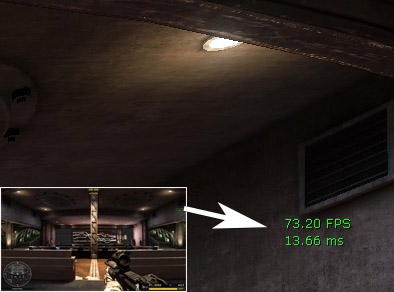
TIP: In the image you can see:
73,20 FPS = 13,66ms
It means 1000ms (1 second), divided by 73,20 Frames per Second, equals a frame each 13,66 miliseconds.
ALTERNATIVES: You can use an external software to see your FPS too; Fraps and Overwolf works well with America's Army Proving Grounds.
TIP: To compare the performance boost I recommend to open an offline map. For example, I can open "Three King" and write in a paper "standing on the backyard, looking at the clock tower I have 55 FPS". After tweaking the game, check how many FPS you have now in the same place.
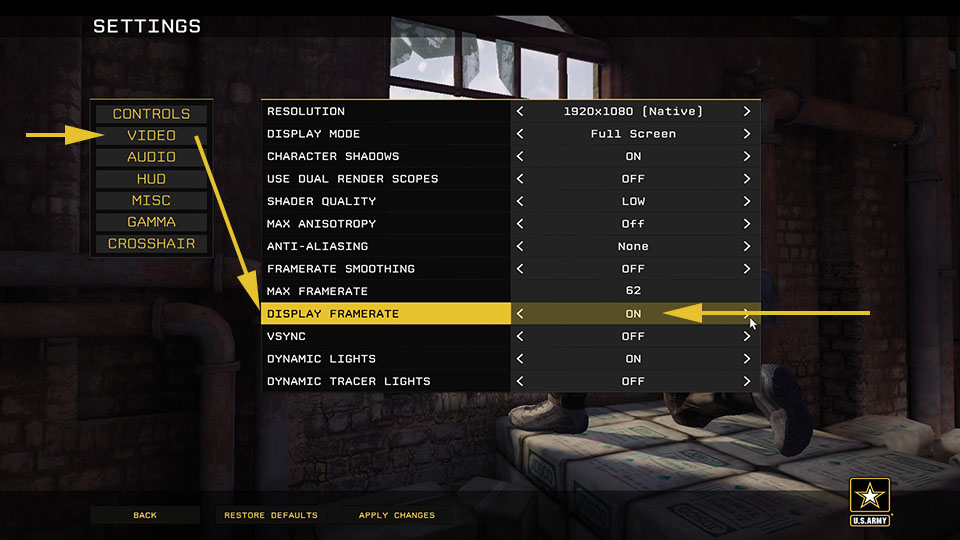
- Open any map (offline, recommended), and press "escape" to show the menu.
- Go to Settings
- Video
- "Display Framerate" change to "ON"
At the center/right part of the screen you will see two numbers:
The FPS on the top line; and the delay between frames below.
TIP: In the image you can see:
73,20 FPS = 13,66ms
It means 1000ms (1 second), divided by 73,20 Frames per Second, equals a frame each 13,66 miliseconds.
ALTERNATIVES: You can use an external software to see your FPS too; Fraps and Overwolf works well with America's Army Proving Grounds.
TIP: To compare the performance boost I recommend to open an offline map. For example, I can open "Three King" and write in a paper "standing on the backyard, looking at the clock tower I have 55 FPS". After tweaking the game, check how many FPS you have now in the same place.
How to tweak AASystemSettings.ini
AAEngine.ini is the file which stores all the graphical settings.
Now, SAVE the file, and set it as "Read-Only"
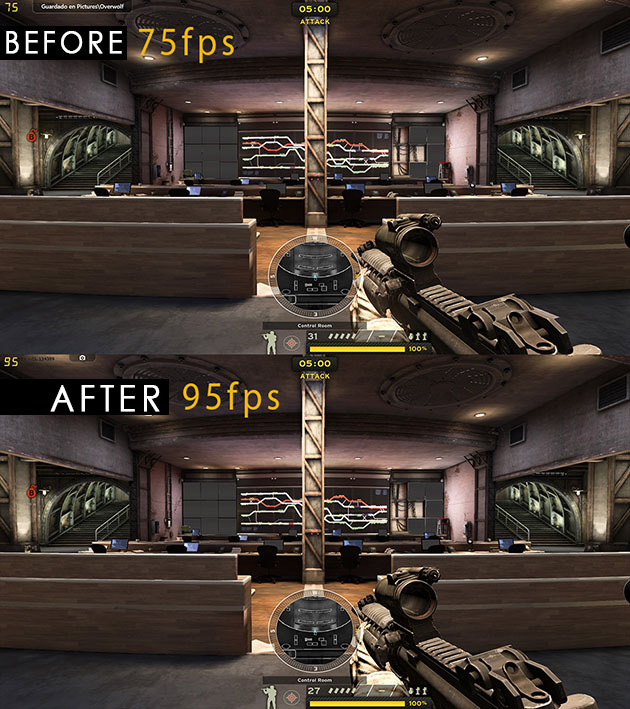
This is a comparison between the lowest game setting, and the lower tweaked game:
OLD PICTURE, WILL BE UPDATED
- Go to: "C:\Users\YOUR USER\Documents\My Games\America's Army Proving Grounds\AAGame\Config"
- Open "AASystemSettings.ini" (you can use Notepad, Notepad++ is recommended).
- Scroll down, to the very bottom, and paste the next text, exactly as you see it:
;/Steam ID: XYLBER/
;/LOW IMAGE QUALITY - HIGH FPS TWEAKS/
;/
[SystemSettings]
;--Tier1 Moderate FPS gain
StaticDecals=False
DynamicDecals=False
UnbatchedDecals=False
DecalCullDistanceScale=0.500000
DynamicLights=False
DynamicShadows=False
;--Tier2 Subtle FPS gain
;LightEnvironmentShadow=True NEVER CHANGE IT! Dark Characters!
LightEnvironmentShadows=True
CompositeDynamicLights=False
;SHSecondaryLighting=True NEVER CHANGE IT! Dark Characters!
SHSecondaryLighting=True
;DirectionalLightmaps=True NEVER CHANGE IT! Super DARK Shadows!
DirectionalLightmaps=True
MotionBlur=False
MotionBlurPause=False
MotionBlurSkinning=1
;--Tier3 Subtle FPS gain
DepthOfField=False
AmbientOcclusion=False
Bloom=False
bAllowLightShafts=False
Distortion=False
FilteredDistortion=False
DropParticleDistortion=False
;--Tier4 High FPS gain
bAllowDownsampledTranslucency=True
SpeedTreeLeaves=False
SpeedTreeFronds=False
OnlyStreamInTextures=False
LensFlares=False
FogVolumes=True
;--Tier5 No FPS gain
;DirectionalLightmaps=True - IF FALSE, No noticeable visual impact, no FPS gain.
FloatingPointRenderTargets=True
;--Tier6 FPS gain depends on hardware
OneFrameThreadLag=True
;--Tier7 Subtle FPS gain
UpscaleScreenPercentage=True
AllowOpenGL=False
AllowRadialBlur=False
AllowSubsurfaceScattering=False
AllowImageReflections=False
AllowImageReflectionShadowing=False
bAllowSeparateTranslucency=False
bAllowPostprocessMLAA=False
bAllowHighQualityMaterials=False
;--Tier8 Subtle FPS gain only with shadows enabled
MaxFilterBlurSampleCount=16
SkeletalMeshLODBias=10
ParticleLODBias=10
DetailMode=0
MaxDrawDistanceScale=1
ShadowFilterQualityBias=0
MaxAnisotropy=1
MaxMultiSamples=1
bAllowD3D9MSAA=False
bAllowTemporalAA=False
TemporalAA_MinDepth=500.000000
TemporalAA_StartDepthVelocityScale=100.000000
MinShadowResolution=32
MinPreShadowResolution=4
MaxShadowResolution=512
MobileShadowTextureResolution=1120
MaxWholeSceneDominantShadowResolution=1344
ShadowFadeResolution=128
PreShadowFadeResolution=16
ShadowFadeExponent=0.250000
;--Tier9 OTHERS (no gain)
ScreenPercentage=100.000000
SceneCaptureStreamingMultiplier=1.000000
ShadowTexelsPerPixel=1.273240
PreShadowResolutionFactor=0.500000
bEnableBranchingPCFShadows=False
bAllowHardwareShadowFiltering=False
TessellationAdaptivePixelsPerTriangle=48.000000
bEnableForegroundShadowsOnWorld=False
bEnableForegroundSelfShadowing=False
bAllowWholeSceneDominantShadows=False
bUseConservativeShadowBounds=False
ShadowFilterRadius=2.000000
ShadowDepthBias=0.012000
;/Compat extras
Trilinear=False
UseHighQualityBloom=False
FoliageDrawRadiusMultiplier=0.2
PopulationAdjustment=-40
bAllowWholeSceneDominantShadows=False
bAllowLightShafts=FALSE
MotionBlurSkinning=0
;////////////////////
;IN-GAME OPTIONS
;////////////////////
;Re-ENABLE SHADOWS AND DYNAMIC LIGHTS >>>>>>>>>>
DynamicLights=False
DynamicShadows=False
;Re-ENABLE SHADER QUALITY HIGH >>>>>>>>>>
bAllowHighQualityMaterials=False
;Re-ENABLE ANISOTROPIC FILTER (4 by default) >>>>>>>>>>
MaxAnisotropy=1
;SCREEN RELATED
UseVsync=False
Fullscreen=True
ResX=1920
ResY=1080
ScreenResX=1920
ScreenResY=1080
;////////////////////
;HIDDEN OPTIONS
;////////////////////
;Enable/Disable bullet decals, simulated munition/paintballs >>>>>>
UnbatchedDecals=False
;Enable/Disable fire muzzle >>>>>>
CompositeDynamicLights=False
;Set to "TRUE" to Enable "secret option" "BLUR EFFECTS" on camera - Info: The camera has a subtle blur when you move it faster (like the old version) - FPS Penalty 7% on a AMD HD270>>>>>>
MotionBlur=False
;Set to "TRUE" to Enable "secret option" "AMBIENT OCCLUSION" - Info: Object will have a subtle added shadows on edges (like the old version) - FPS Penalty 5% on a AMD HD270>>>>>>>>>>>>
AmbientOcclusion=False
;True by default - Re-enable subtle explosion distortions, may be helpful to know where the grenade exploded>>>>>>>>>>>>
Distortion=False
FilteredDistortion=False
;True by default - TRY IT YOURSELF; depends on hardware. False is recommended >>>>>>
OneFrameThreadLag=True
;///
;HIGHER QUALITY TEXTURES (DELETE FROM HERE TO END TO RECOVER NORMAL DETAIL) - DO NOT AFFECT FPS!!!! (UNLESSS YOU HAVE A LOW MEMORY VGA, EXAMPLE 512MB or less)
;TEXTUREGROUP_World=(MinLODSize=256,MaxLODSize=2048,LODBias=0,MinMagFilter=Aniso,MipFilter=Point,MipGenSettings=TMGS_SimpleAverage)
Now, SAVE the file, and set it as "Read-Only"
- Right-click the file, and then click Properties.
- Click the General tab, tick the Read-only check box, and then click OK.
- Edit and save your file as needed.
DONE
: Test the game, and you should have something between 10% and 25% more FPS, depending on hardware and map.This is a comparison between the lowest game setting, and the lower tweaked game:
OLD PICTURE, WILL BE UPDATED
But...
if the game looks very ugly, or the FPS are still the same, then stay here, and keep reading:
Problems? "IN-GAME" Options
No problem. Check the code you have pasted; after the line:
";////////////////////
;IN-GAME OPTIONS
;////////////////////"
...you can see that I added some tweaks with additional information.1) ENABLE SHADOWS AND DYNAMIC LIGHTS
In the code I disabled both, because they need a lot of processing power. You can enable them again, by changing both from False to True.;Re-ENABLE SHADOWS AND DYNAMIC LIGHTS >>>>>>>>>>
DynamicLights=False
DynamicShadows=False
2) ENABLE HIGH QUALITY MATERIALS (WITH SHADERS)
This is the same option you can find in-game. In the code I disabled it, because it reduce FPS. You can enable it again, by changing it from False to True. You will recover the bright materials and shiny reflections.;Re-ENABLE SHADER QUALITY HIGH >>>>>>>>>>
bAllowHighQualityMaterials=False
3) ENABLE ANISOTROPIC FILTER
This is the same option you can find in-game. Anisotropic is a filter to make textures look sharper when you see them from a closed angle. Fences will look better too. You can enable it again, by changing it from 1 to 2/4/8/16 (it takes near a 3% of FPS for each additional level).;Re-ENABLE ANISOTROPIC FILTER (4 by default) >>>>>>>>>>
MaxAnisotropy=1
4) SCREEN RESOLUTION
By default, the tweak sets your resolution to 1920x1080, full screen and v-sync off. You can change everything in this lines:;///
;SCREEN RELATED
UseVsync=False
Fullscreen=True
ResX=1920
ResY=1080
ScreenResX=1920
ScreenResY=1080
Problems? "Hidden" options
There are more options hidden from the in-game menu. You can change them editing the lines after:
Change this:
To this:
;////////////////////
;HIDDEN OPTIONS
;////////////////////
1) BULLETS DECALS/PAINTBALLS
I think it may the player. I recommend to re-enable them, and lose something between 1 and 2% of performance. To enable them, set to "True" the next:;Enable/Disable bullet decals, simulated munition/paintballs >>>>>>
UnbatchedDecals=False
2) FIRE MUZZLE
I think it may the player. I recommend to re-enable them, and lose something between 1 and 2% of performance. To enable them, set to "True" the next:;Enable/Disable fire muzzle >>>>>>
CompositeDynamicLights=False
3)BLUR SECRET OPTION
Like the beta AA:PG or Battlefield, there is a camera blur effect that you can enable only by editing the next line:;Set to "TRUE" to Enable "secret option" "BLUR EFFECTS" on camera - Info: The camera has a subtle blur when you move it faster (like the old version) - FPS Penalty 7% on a AMD HD270>>>>>>
MotionBlur=False
4)OCCLUSION SECRET OPTION
Like the beta AA:PG or Battlefield, there is a Ambient Occlusion Shadows effect that you can enable only by editing the next line:;Set to "TRUE" to Enable "secret option" "AMBIENT OCCLUSION" - Info: Object will have a subtle added shadows on edges (like the old version) - FPS Penalty 5% on a AMD HD270>>>>>>>>>>>>
AmbientOcclusion=False
5)EXPLOSIONS DISTORTION
Enabled by default, disabled in the tweak for FPS gain. You can reenable the distortion of explosion, as a visual aid, at expenses of some FPS in heavy load fighting:;True by default - Re-enable subtle explosion distortions, may be helpful to know where the grenade exploded>>>>>>>>>>>>
Distortion=False
FilteredDistortion=False
6) ONE FRAME LAG
In the code I left it enabled, because, a lot of hardware will suffer if you disable it. My recommendation is to try to DISABLE it to get less mouse lag/delay, and see if you get more FPS. TEST IT YOURSELF True or False:;True by default - TRY IT YOURSELF; depends on hardware. False is recommended >>>>>>
OneFrameThreadLag=True
7) HIGH QUALITY WORLD TEXTURES
You can enable higher quality textures by using the last line of code without the ";". You will notice the sharper textures on some maps, like the screens on REDLINE (picture will be uploaded later).Change this:
;///
;HIGHER QUALITY TEXTURES (DELETE FROM HERE TO END TO RECOVER NORMAL DETAIL) - DO NOT AFFECT FPS!!!! (UNLESSS YOU HAVE A LOW MEMORY VGA, EXAMPLE 512MB or less)
;TEXTUREGROUP_World=(MinLODSize=256,MaxLODSize=2048,LODBias=0,MinMagFilter=Aniso,MipFilter=Point,MipGenSettings=TMGS_SimpleAverage)
To this:
;///
;HIGHER QUALITY TEXTURES (DELETE FROM HERE TO END TO RECOVER NORMAL DETAIL) - DO NOT AFFECT FPS!!!! (UNLESSS YOU HAVE A LOW MEMORY VGA, EXAMPLE 512MB or less)
TEXTUREGROUP_World=(MinLODSize=256,MaxLODSize=2048,LODBias=0,MinMagFilter=Aniso,MipFilter=Point,MipGenSettings=TMGS_SimpleAverage)
9) I CAN'T CHANGE GRAPHICS IN-GAME
Well, untick the "read-only", and change the setting in the game. Remember that some options will be auto-enabled again (like the decals) if the file can be written; but you can change your graphical quality from the game menu again.
Recovering a AASystemSettings.ini
Oh my... did you mess all up and the game does not start? Well, simply close the game, and DELETE the AASystemSettings.ini file. When you launch the game again, you will have a new file created with default graphical settings.
Fiuu!!
Fiuu!!
Final words
All tweaks were tested.
Even when none of them can give you any visual advantage (you can't disable fog or trees), there is a chance that a server kicks you using Punkbuster CVAR checks. Never happened to me, anyway.
If you find a mistake in this guide (other than grammar :/ ) let me know. Feel free to add me on Steam.
If you want to donate, I do not accept money, but I accept CS:GO and Dota items if you send me a trade offer: https://steamcommunity.com/tradeoffer/new/?partner=138021105&token=aeE-8-Oc
In-game name: -=ME=-Xylber.Arg
Have fun!
Even when none of them can give you any visual advantage (you can't disable fog or trees), there is a chance that a server kicks you using Punkbuster CVAR checks. Never happened to me, anyway.
If you find a mistake in this guide (other than grammar :/ ) let me know. Feel free to add me on Steam.
If you want to donate, I do not accept money, but I accept CS:GO and Dota items if you send me a trade offer: https://steamcommunity.com/tradeoffer/new/?partner=138021105&token=aeE-8-Oc
In-game name: -=ME=-Xylber.Arg
Have fun!
More America's Army: Proving Grounds guides
- America's Army: Proving Grounds Quick Start Guide★ 5 (203)11k views121 ♥14 minUpdated Jul 2, 2014
- Official Weapon Challenge Guide★ 5 (215)9k views250 ♥13 minUpdated Mar 4, 2016
- The Art of Takedown★ 4 (91)7.4k views59 ♥11 minUpdated Dec 30, 2023
- Using the nVidia Override for Anti-Aliasing★ 3 (33)5.7k views22 ♥4 minUpdated Jul 2, 2014
- Official XP and Leveling Guide★ 4 (80)3.8k views94 ♥2 minUpdated Dec 9, 2015
- AA:PG - Binds★ 3 (26)2.9k views22 ♥1 minUpdated Jun 30, 2015






This guide was created by its original author on the Steam Community. Are you the author and want it removed? Request removal.