Getting started in Besiege
Intro
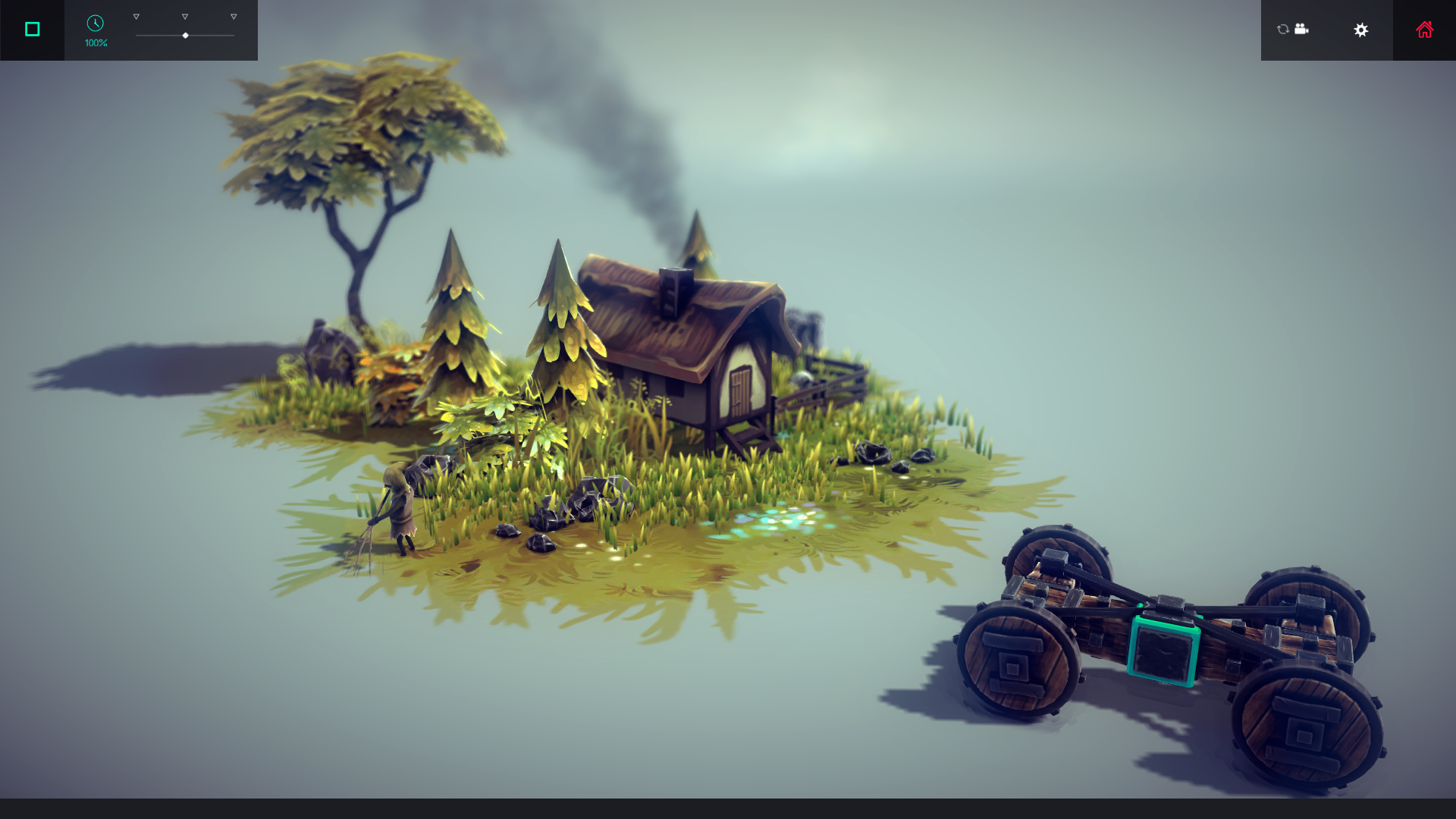
Saving and loading
Have you build an epic catapult? A tank made out of wood and steel? A machine filled with so many cannons it'd make Blackbeard envious? Do not worry, you can save your build and load it later. You can even share the savefile with friends and/or the community for them to use.
The save button is clearly recognizable as a good old floppy disk in the left top corner. Click it to open the savemenu.
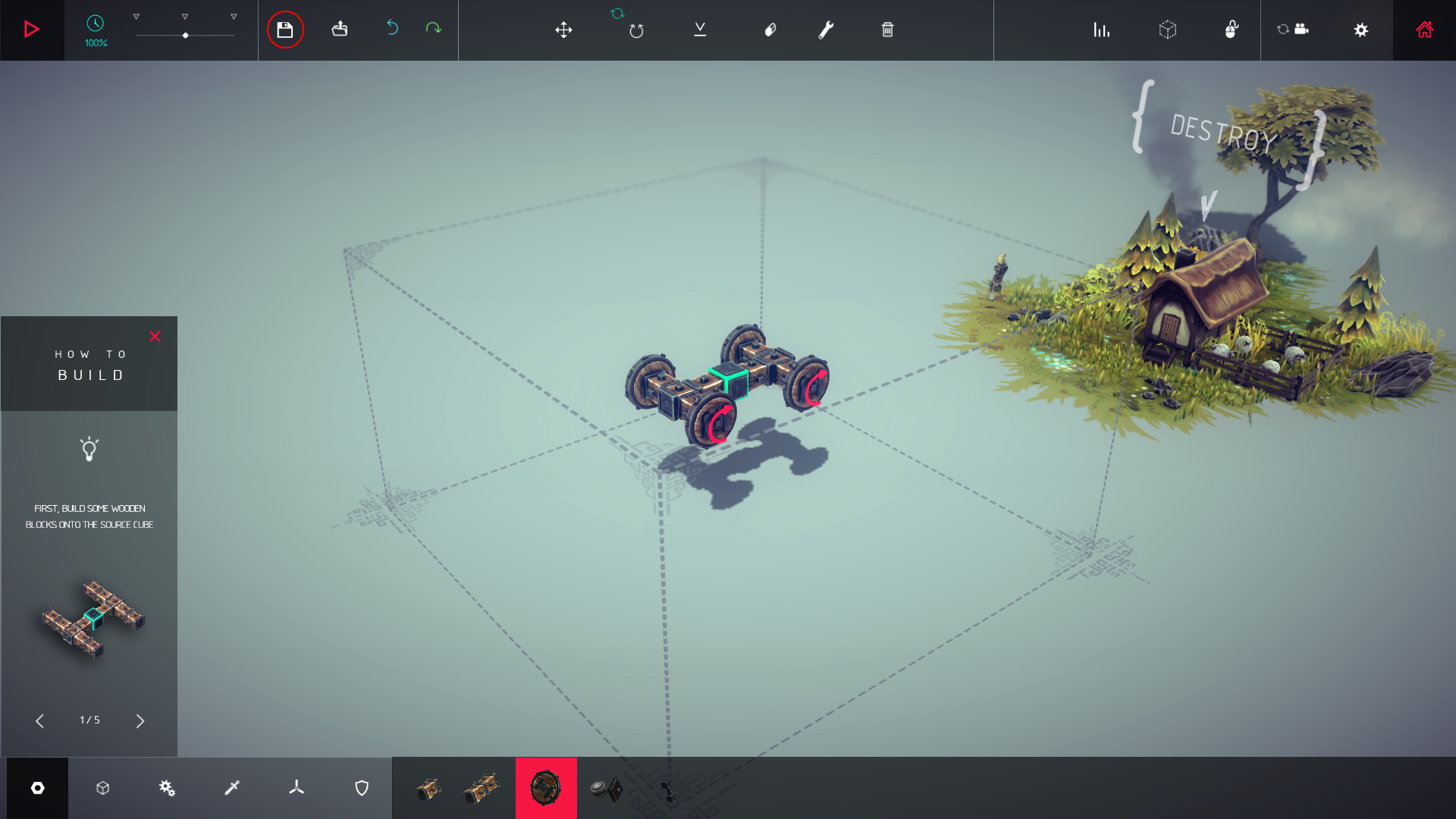
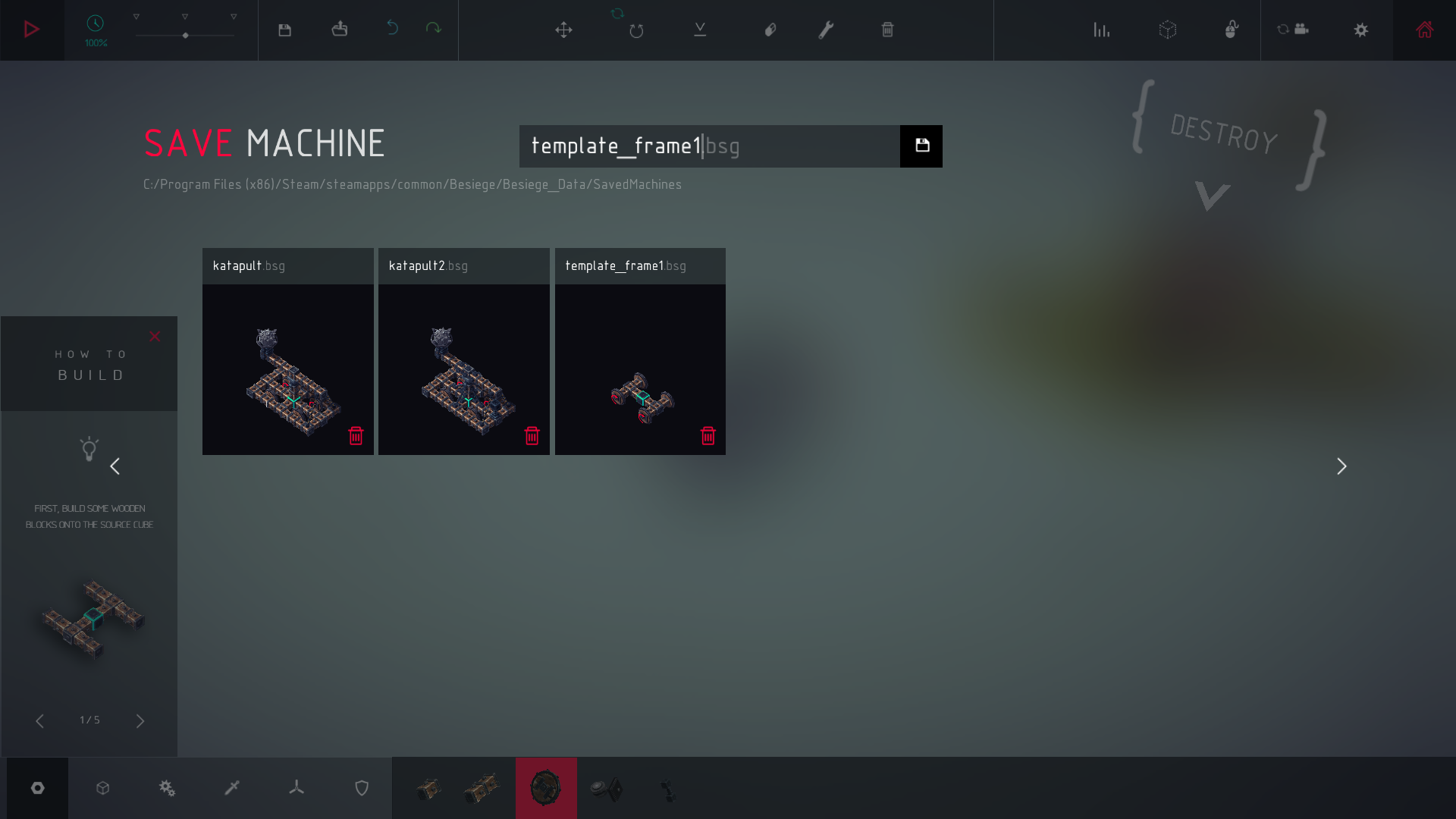
Give your build a name so you can find it back later. Press the savebutton next to the textbox to save your build.
Loading is just as easy. Press the load button right of the save button.
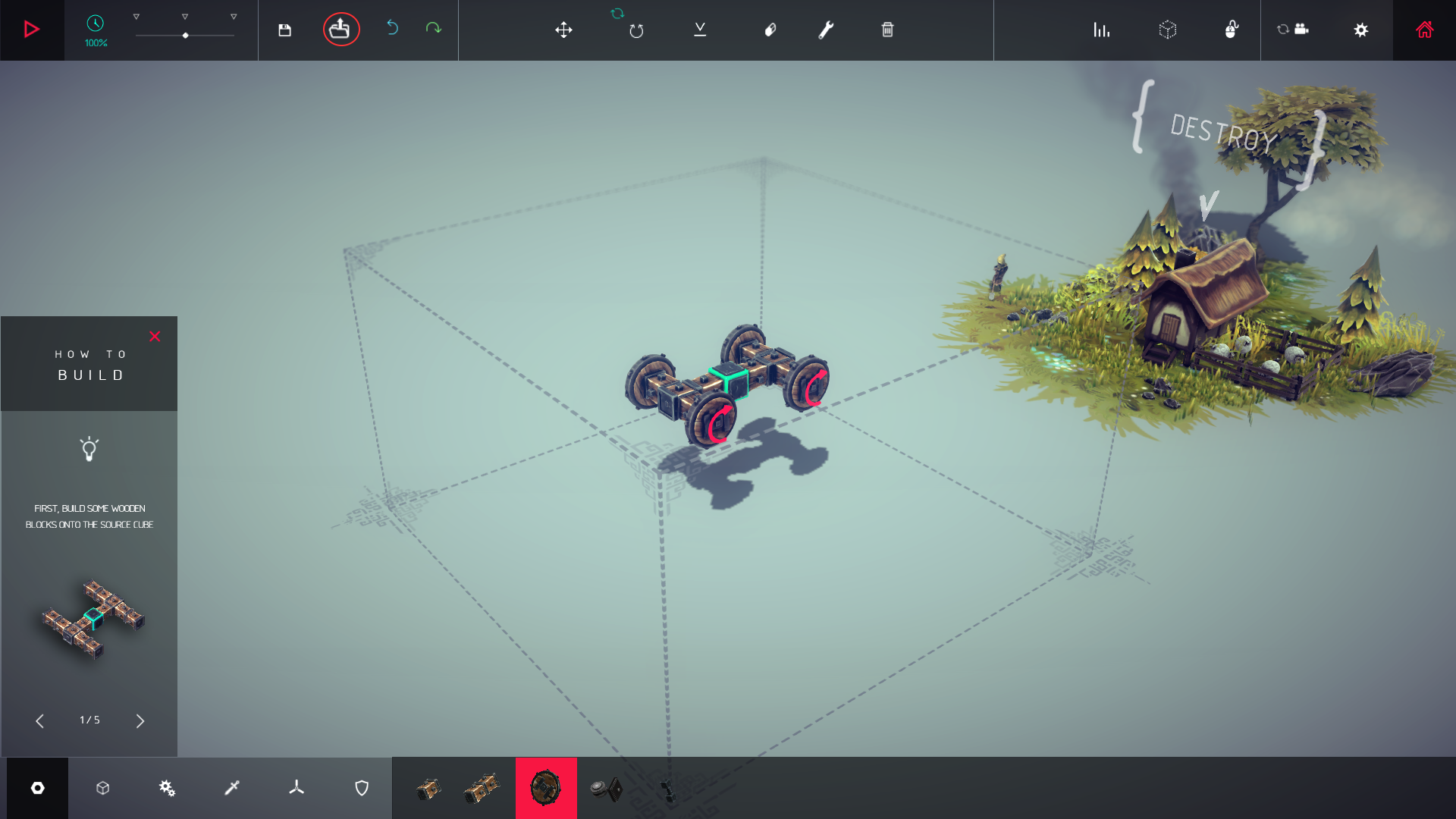
Doubleclick the file you'd like to open and it'll appear on your map.
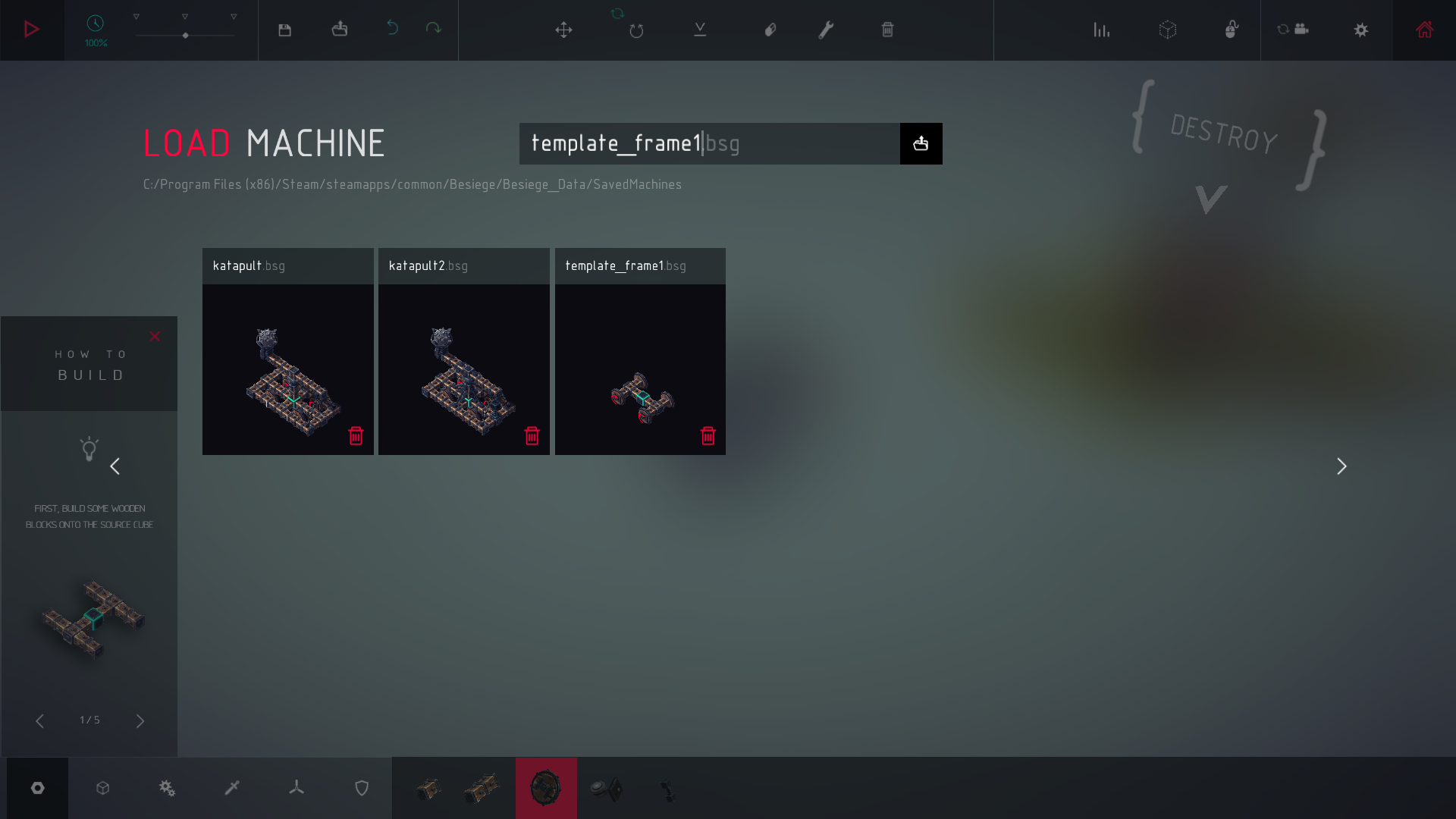
Moving your construction around
Don't worry, your builds won't be in a foreign language. Click the translate button once to make three arrows appear on your build.
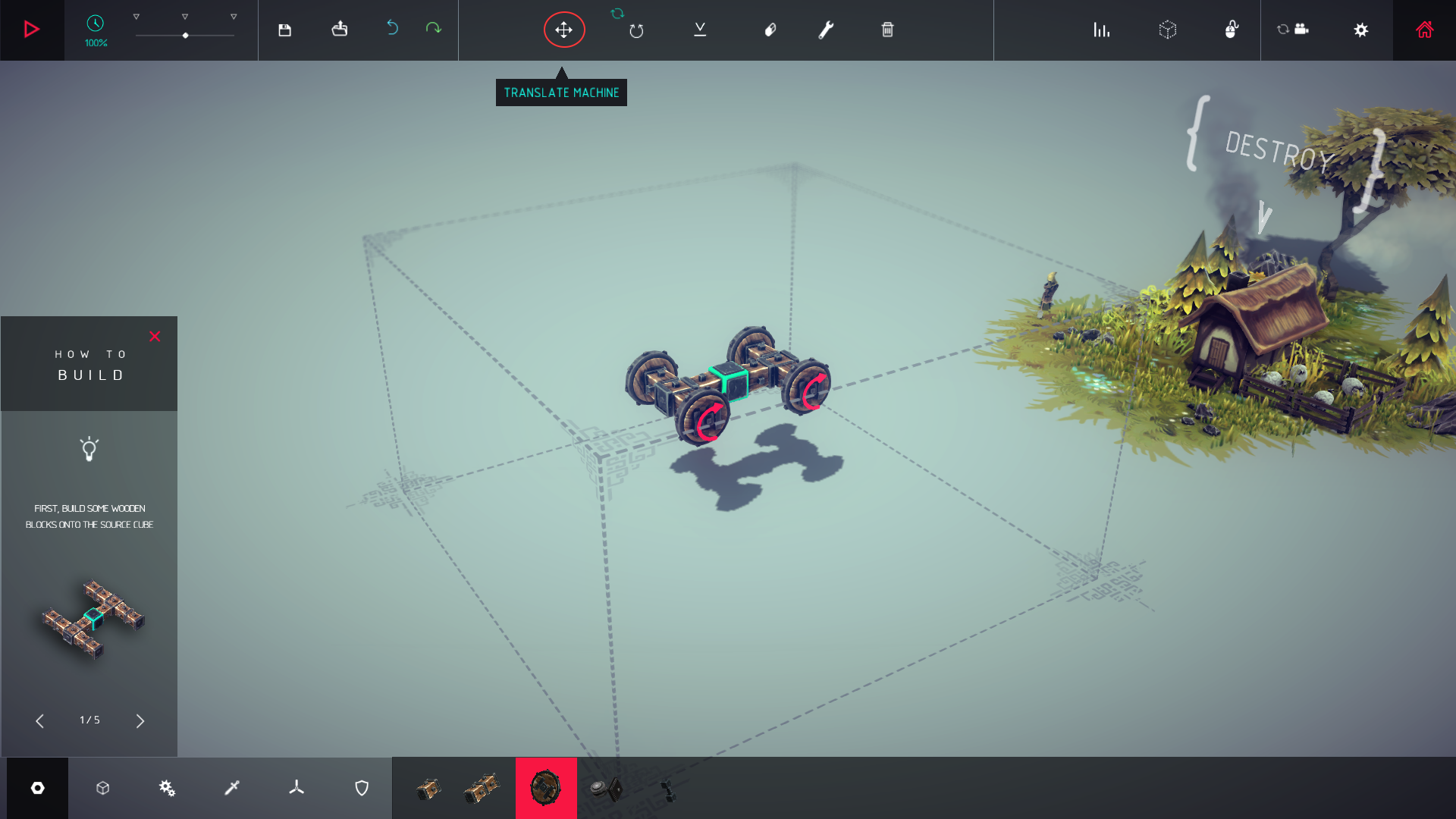
The small blue/grey block that appears every time you want to build something is used as the center for moving around your build. Click and drag the green arrow to move your build up and down, the red arrow to move left and right and the blue arrow to move forwards and backwards.
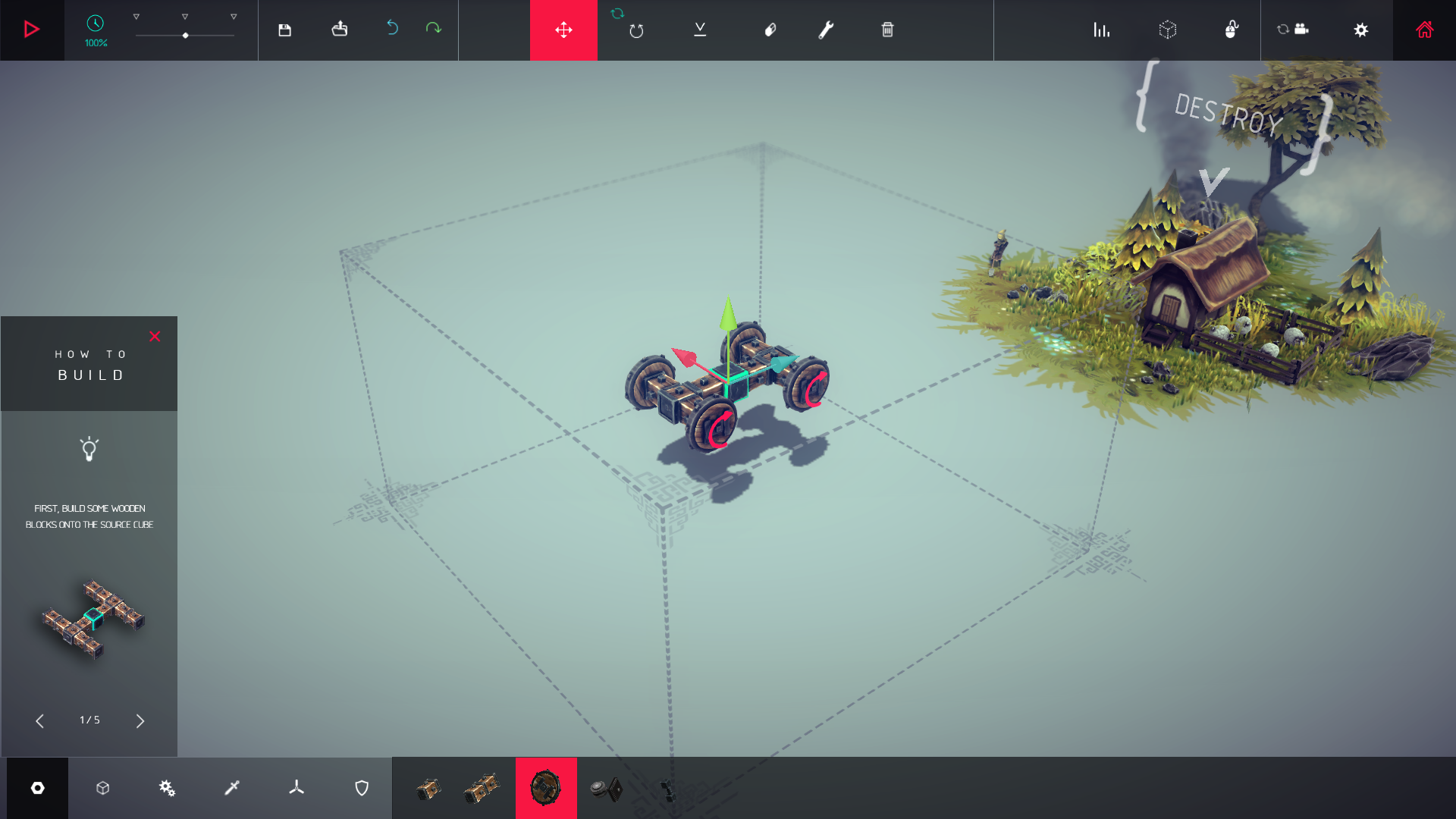
The rotate button is located next to the translate button. Click and drag it to rotate your build horizontally. Click the small button marked with the blue arrow to reset your build to the default angle.
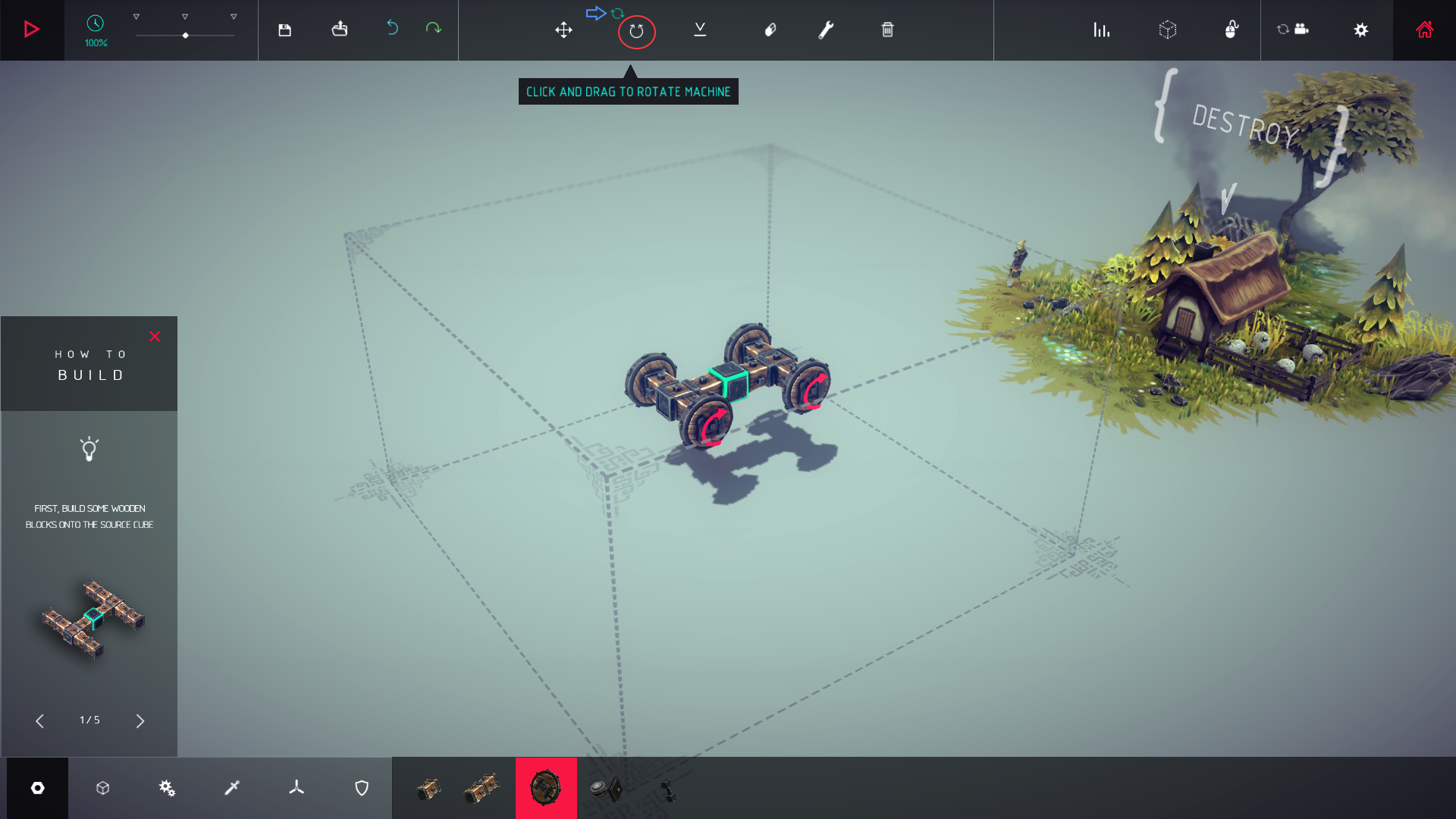
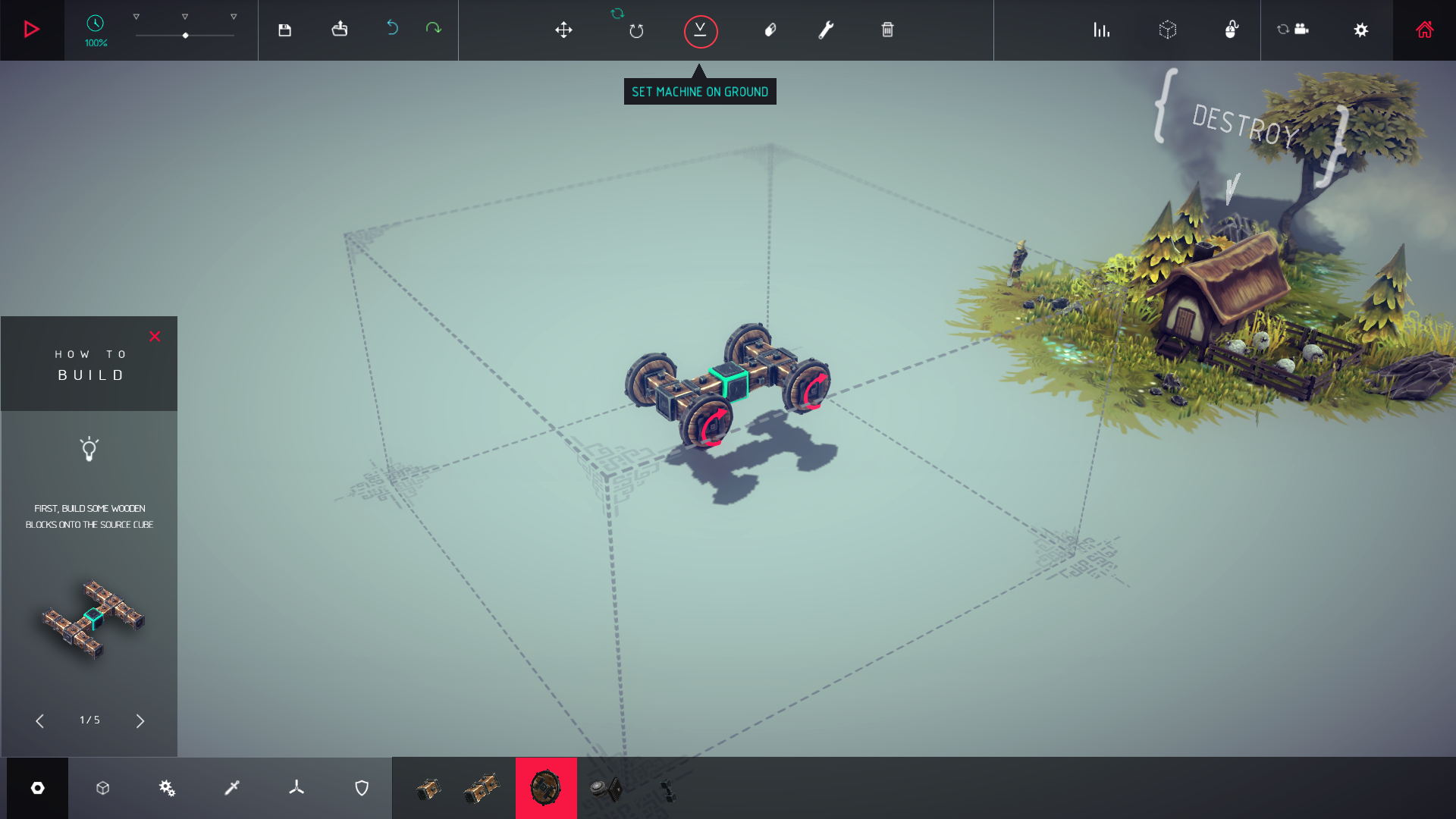
Click the set machine on ground button to set your build on the ground. I recommend doing this when you have placed your wheels/created the base on your build.
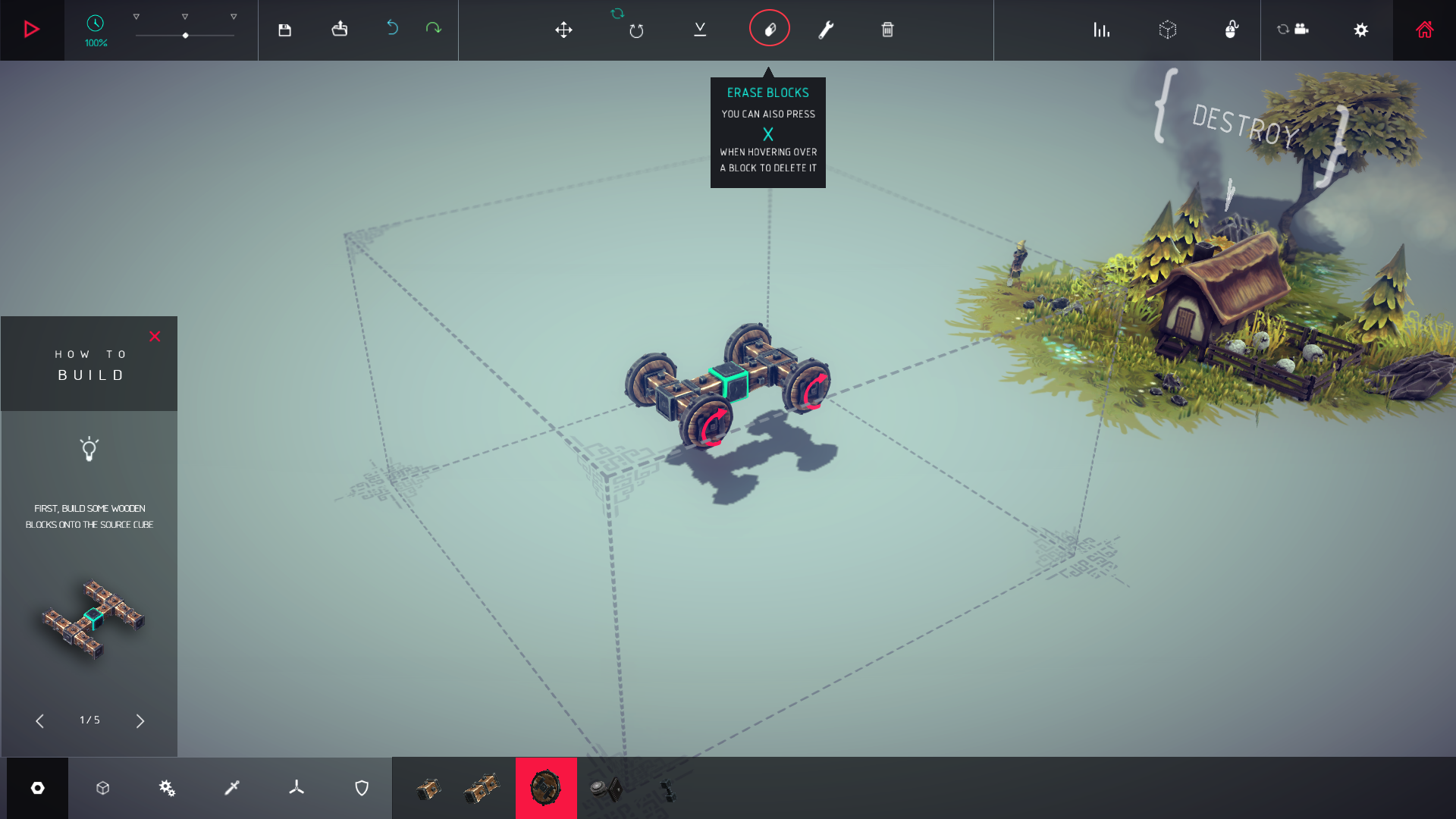
Using the X key is much easier in my opinion. Hover over a part and press the X key to delete the part. This can be done in the middle of building and is much easier and quicker.
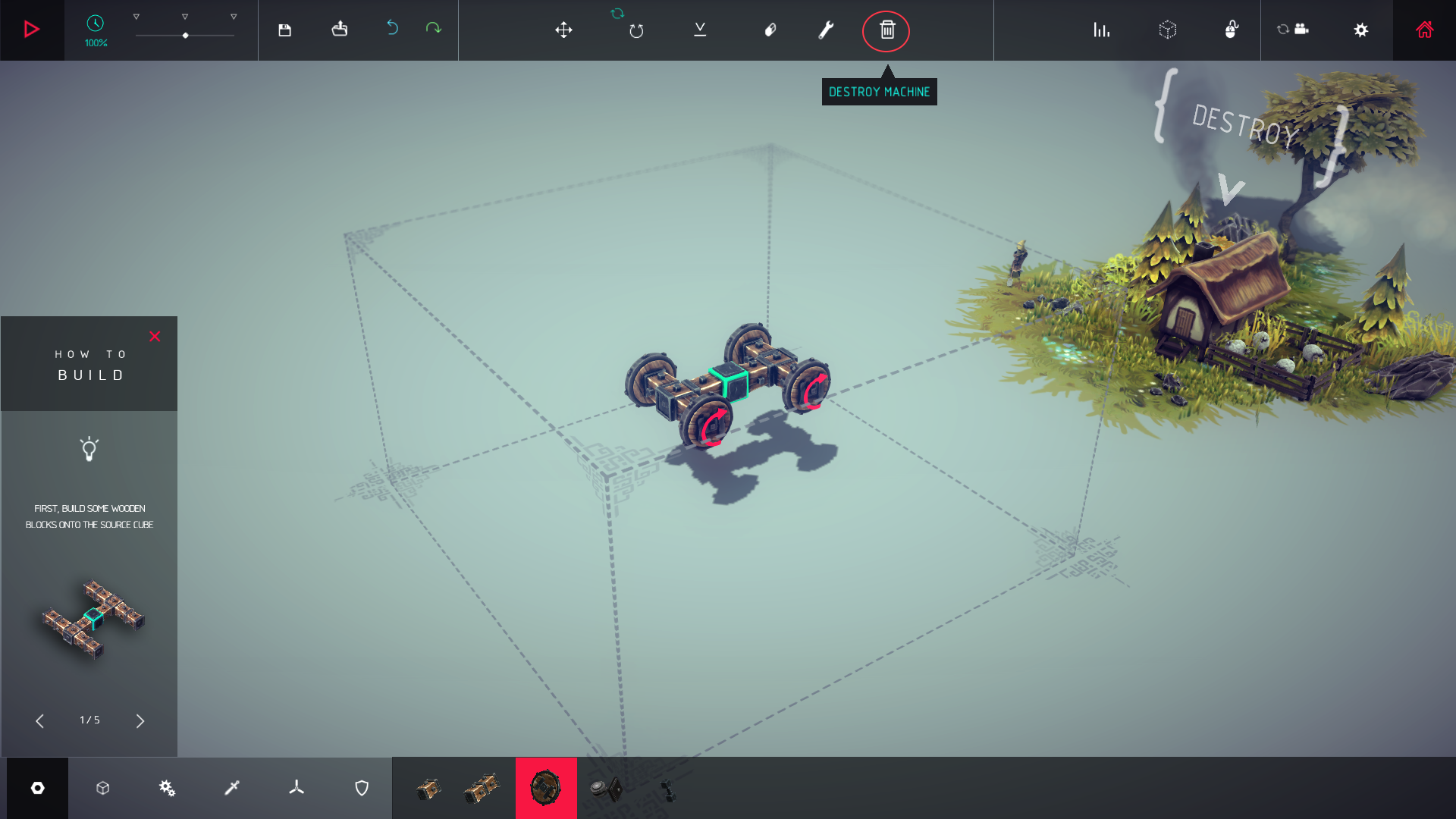
The destroy button is the most right button in the toolbox. Click it once to trigger confirmation message. Confirm to delete your build and start over.
Binding keys and tuning your build
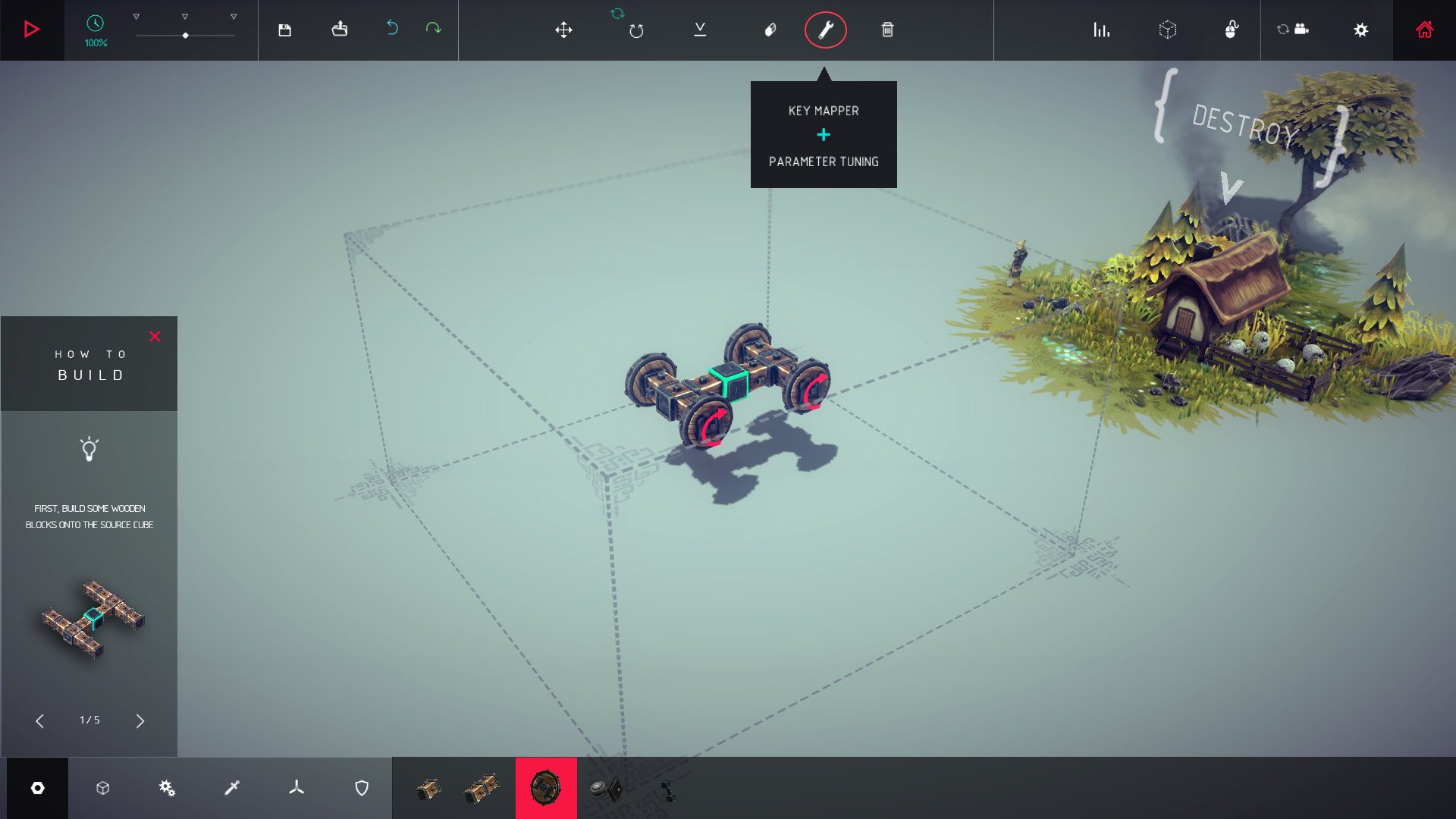
The final button is the keybinding and parameter tuning button. A mouthful. I'll refer to it as the wrench tool from here on out. The wrench tool is used to change keybinds on wheels, cannons, flamethrower, etc.
Click the wrench located in the toolbar to start the finetuning mode.
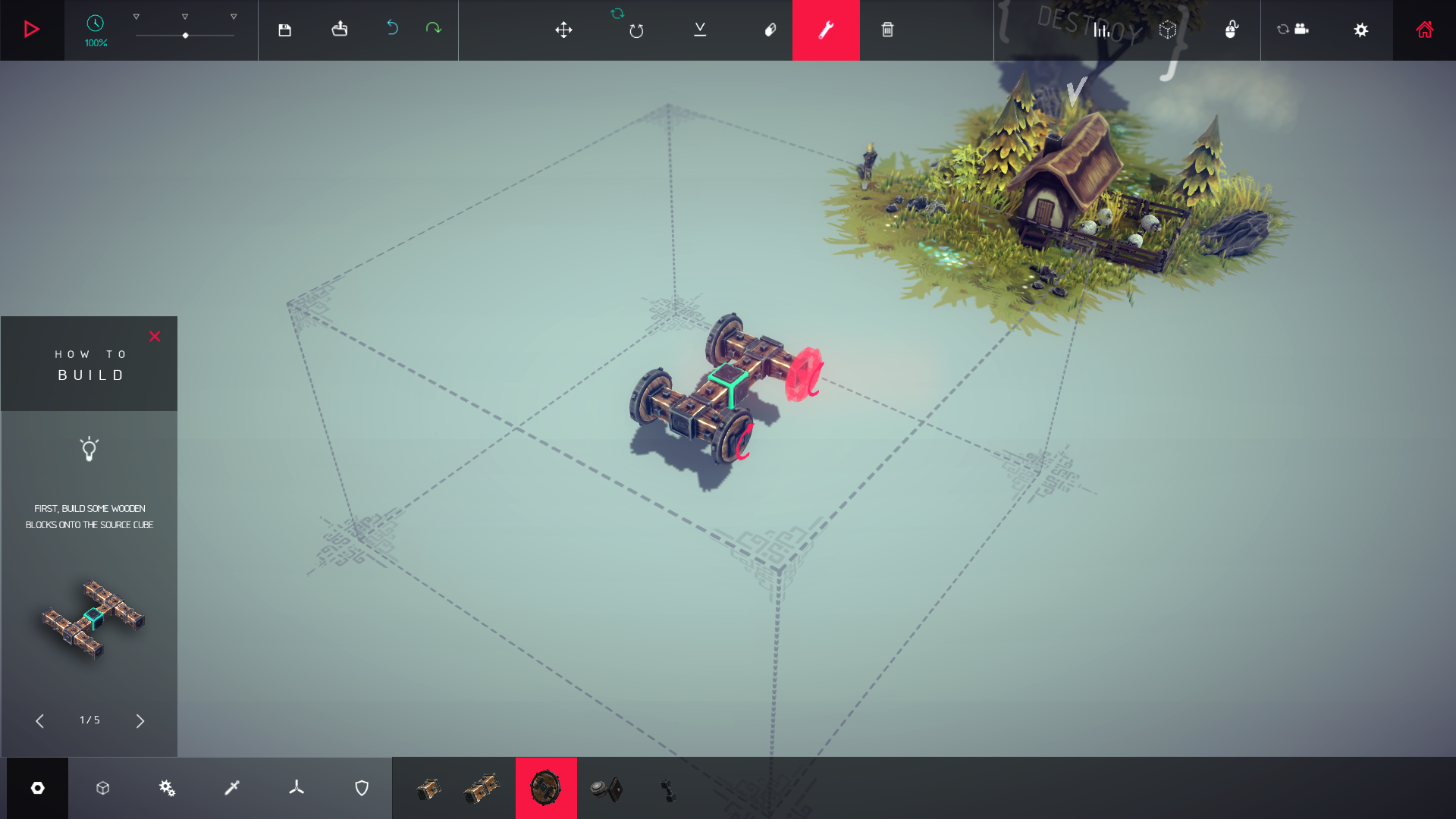
After you have clicked the wrench you can click whatever item you'd like. In this example I used the wheels on my build. In this example I'll also give a handy tip to make driving your build much easier.
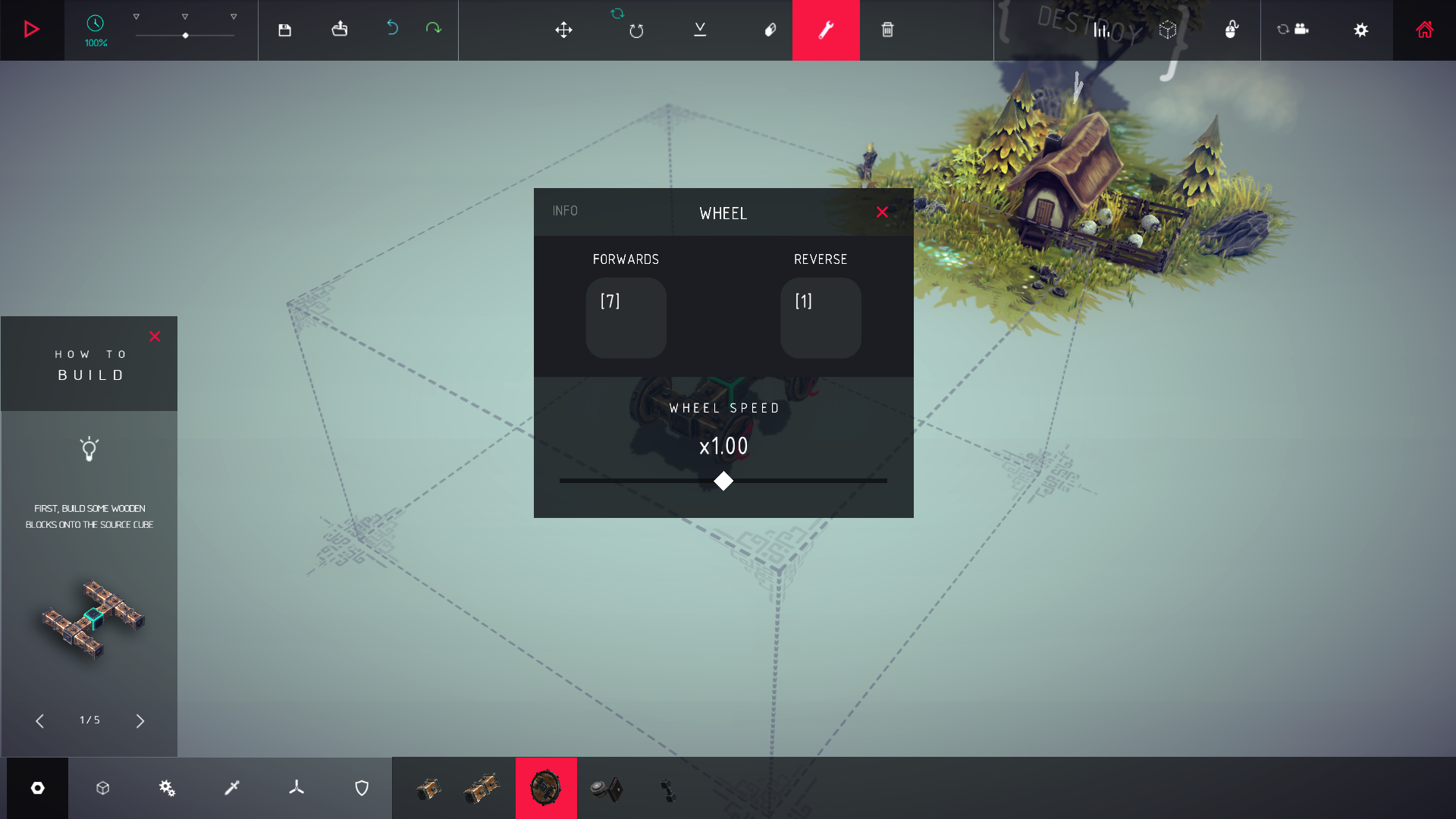
After clicking on the wheel the following window opens. As you can see I can also change to speed of the wheels. The default keys are arrow key up to move forward and arrow key down to move backwards. To make steering my builds easier I change the forward button on the right set of wheels to 7 and the backwards button to 1. These numbers are the ones on the numpad. Do this to all the wheels located right of the middle.
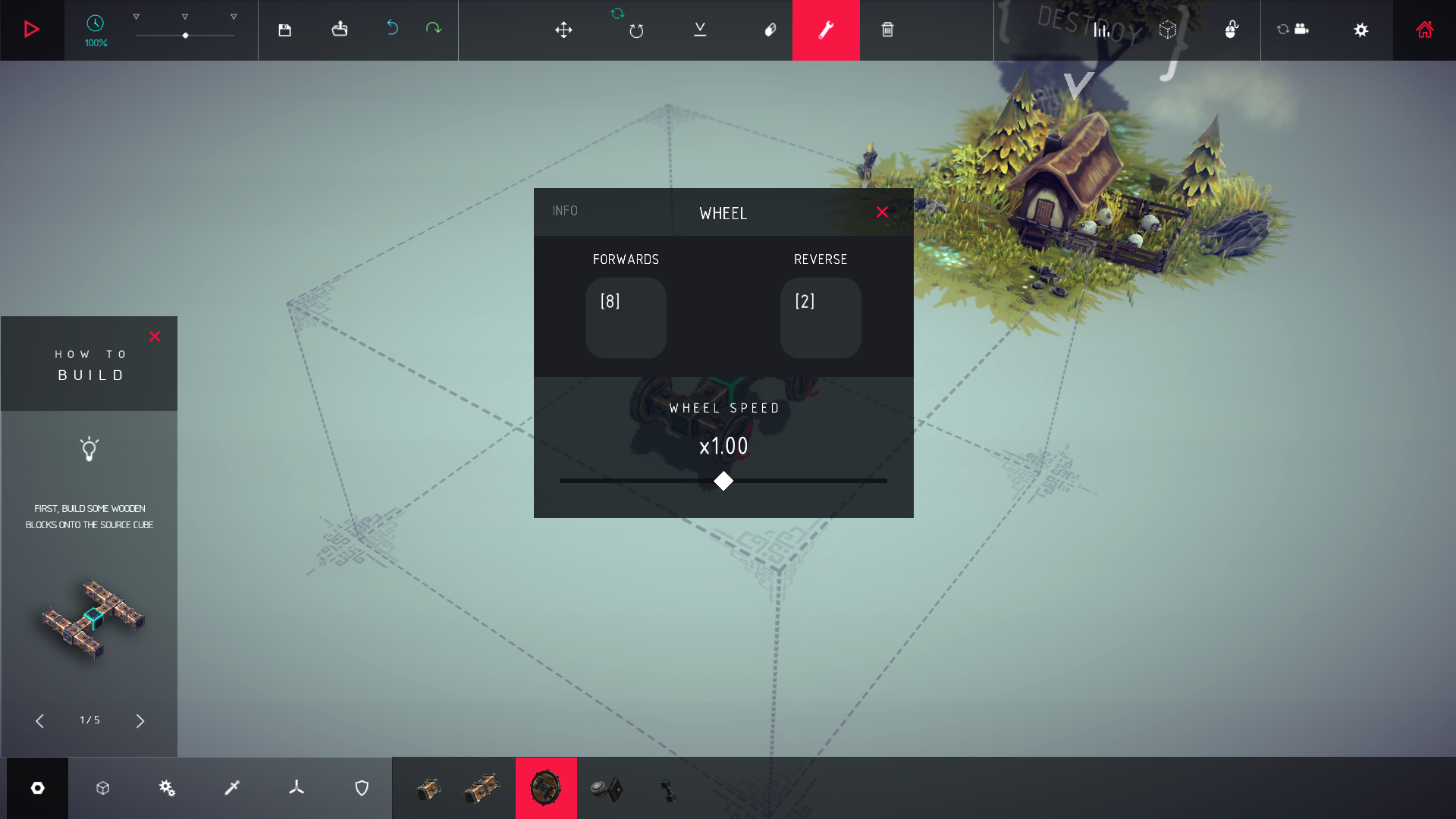
I change the keys on the left set of wheels to 8 to move forward and 2 to move backwards.
You will probably have to drive around a little bit to get the hang of it, but the steering will be much easier now.
Tools not explained in depth
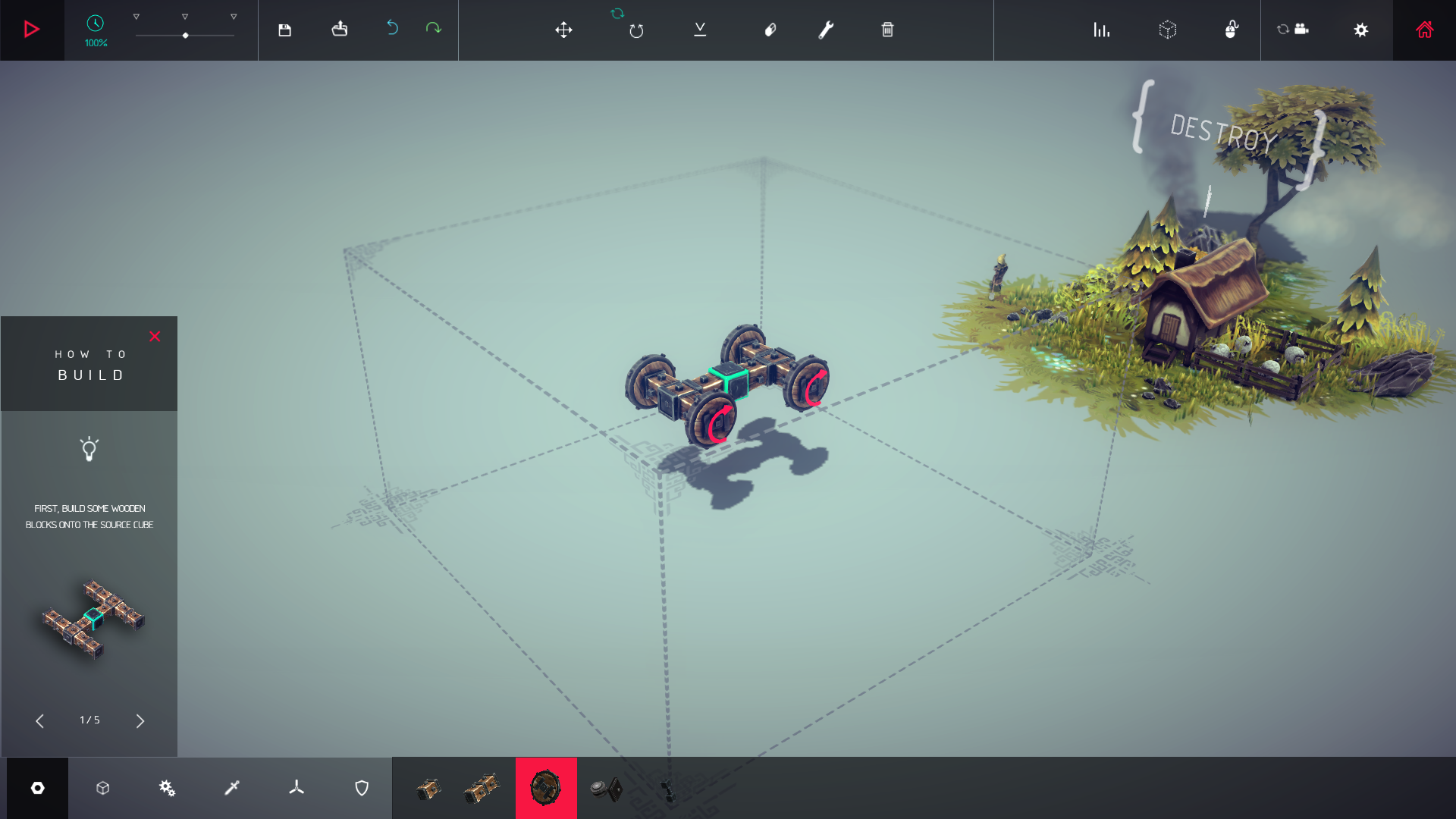
While placing an item like a wing or a cannon, use R to rotate the item to your liking. When you've placed an item like a wheel or a steering block (something that turns in a direction) mouseover the item and press F to change the direction the item turns.
Feedback
I always like feedback, both positive and negative. If you have tips for me to make this a better guide please leave a comment. Comments are always appreciated.
Did my guide help you? Share it with friends and like the guide!
Thanks for reading and have fun building!
- Fast Steering Catapult★ 5 (311)29k views313 ♥1 minUpdated 11 Mar, 2022
- Machines to complete all 54 zones!★ 5 (471)21k views931 ♥2 minUpdated 26 Aug, 2021
- How to Build a Plane in Besiege [Basic Vanilla]★ 5 (327)19k views637 ♥5 minUpdated 5 Jul, 2018
- Comprehensive Realistic Helicopter Tutorial★ 5 (346)17k views644 ♥21 minUpdated 24 Mar, 2017
- Besiege -初心者向けガイド-★ 5 (770)14k views1.1k ♥2 minJapaneseUpdated 22 Aug, 2015
- Guide for Independent Suspension★ 5 (188)10k views393 ♥2 minUpdated 13 Mar, 2017


- Upgrading to PremiumTeam Fortress 2★ 5 (20k)1441k views11k ♥6 minUpdated May 11, 2022
- No More Room in Hell Official ManualNo More Room in Hell★ 5 (2.8k)569k views2.1k ♥29 minUpdated Apr 22, 2019
- NMRiH Community Hosting GuidesNo More Room in Hell★ 5 (526)351k views653 ♥1 minUpdated Aug 10, 2022
- ULTIMATE GUIDE FOR GAME DEV TYCOONGame Dev Tycoon★ 5 (5.8k)326k views10k ♥4 minUpdated 23 Jan, 2014
- How to 'Git Gud' Soon™MORDHAU★ 5 (2k)318k views3k ♥68 minUpdated Nov 16, 2024
- Лучшие кооперативные игры SteamPAYDAY 2★ 5 (1.5k)315k views2.1k ♥56 minRussianUpdated Apr 27, 2025






This guide was created by its original author on the Steam Community. Are you the author and want it removed? Request removal.