Guide To Enable Steam Overlay in Oblivion
Locate your Oblivion Install Folder
We will be installing a few mods to get our steam overlay working and for that we need to find our oblivion install folder, to do that:
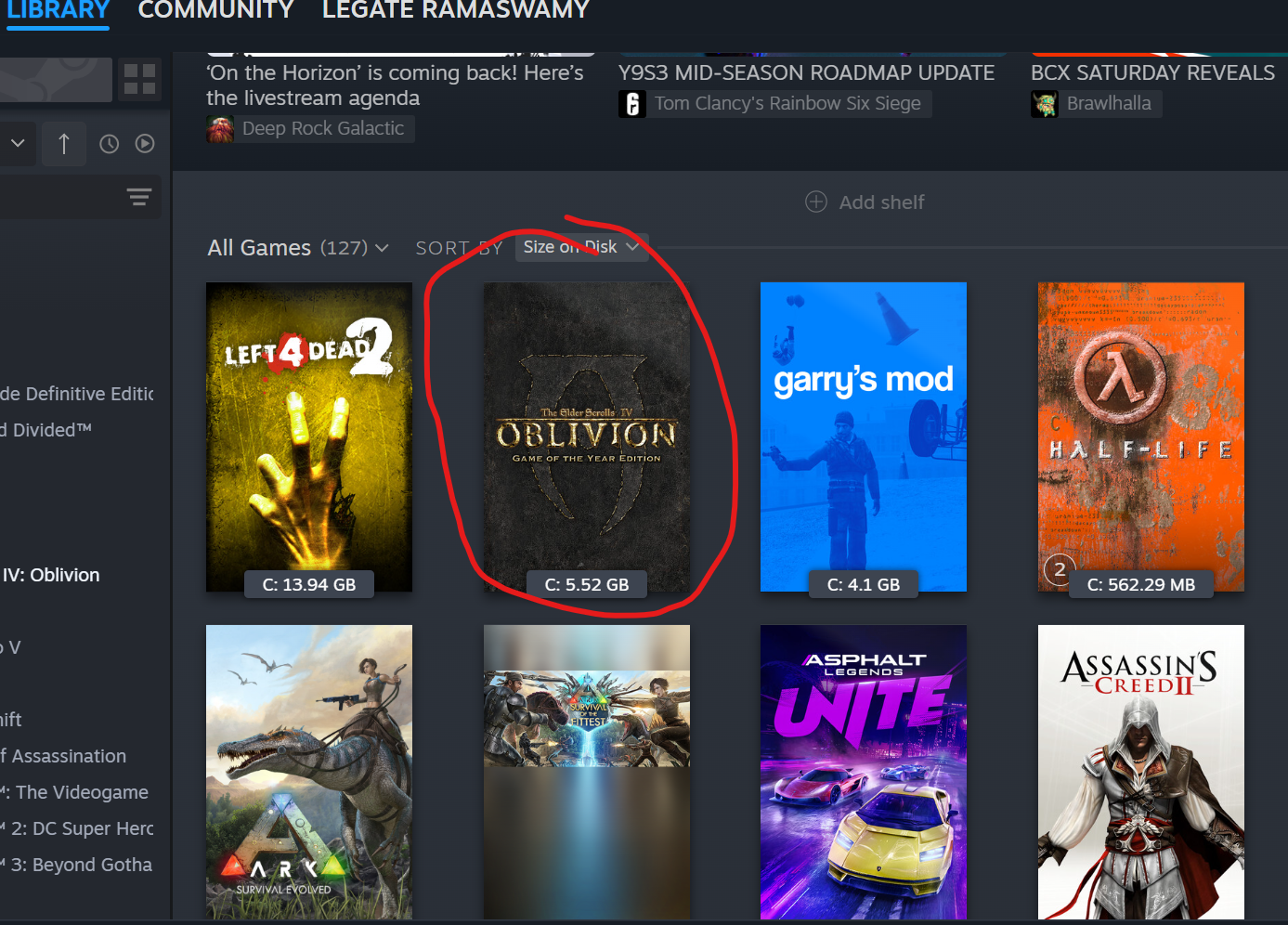
Go to your Steam Library and click on Oblivion:
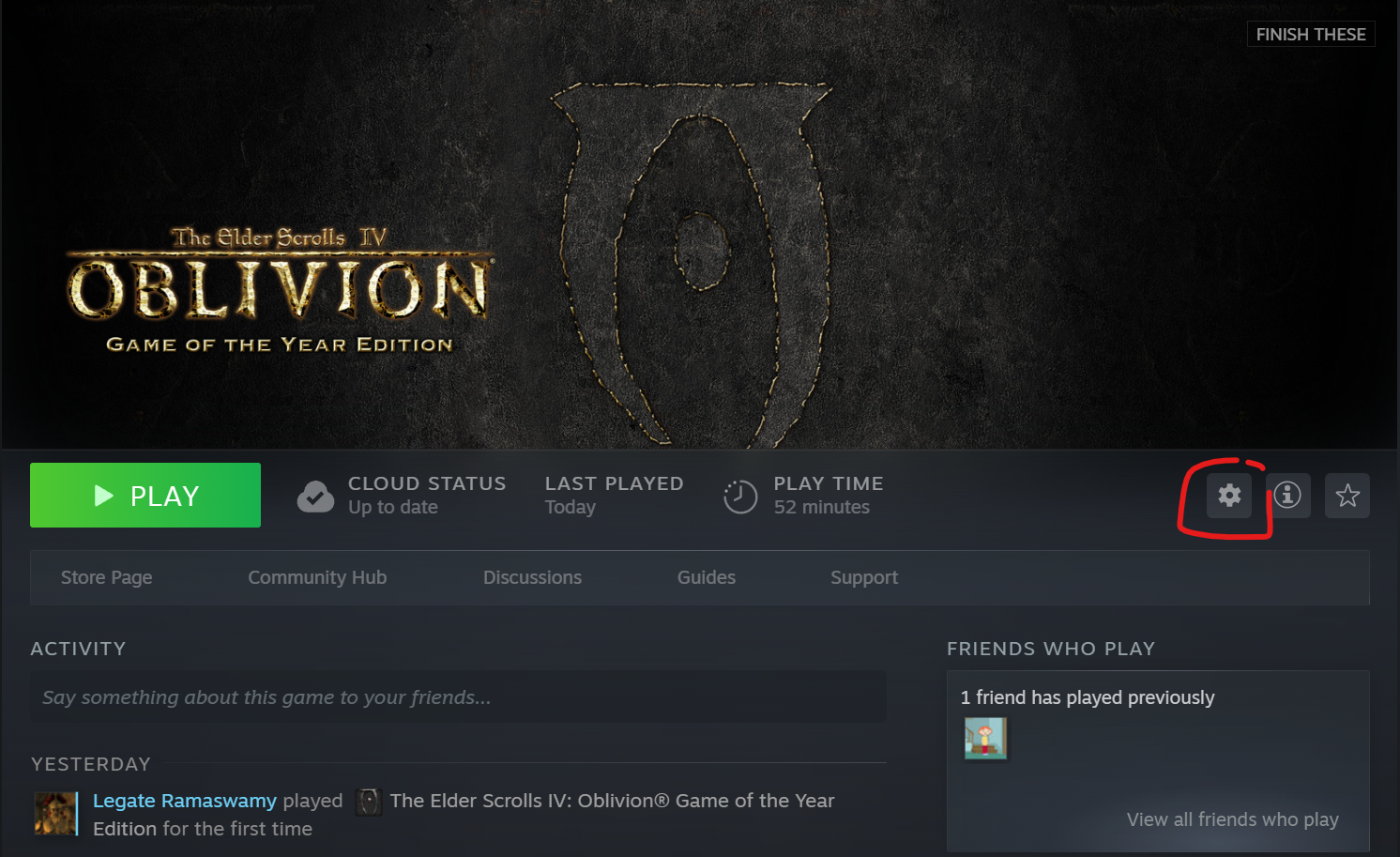
Click on the settings icon:
Click on Installed Files and then browse:
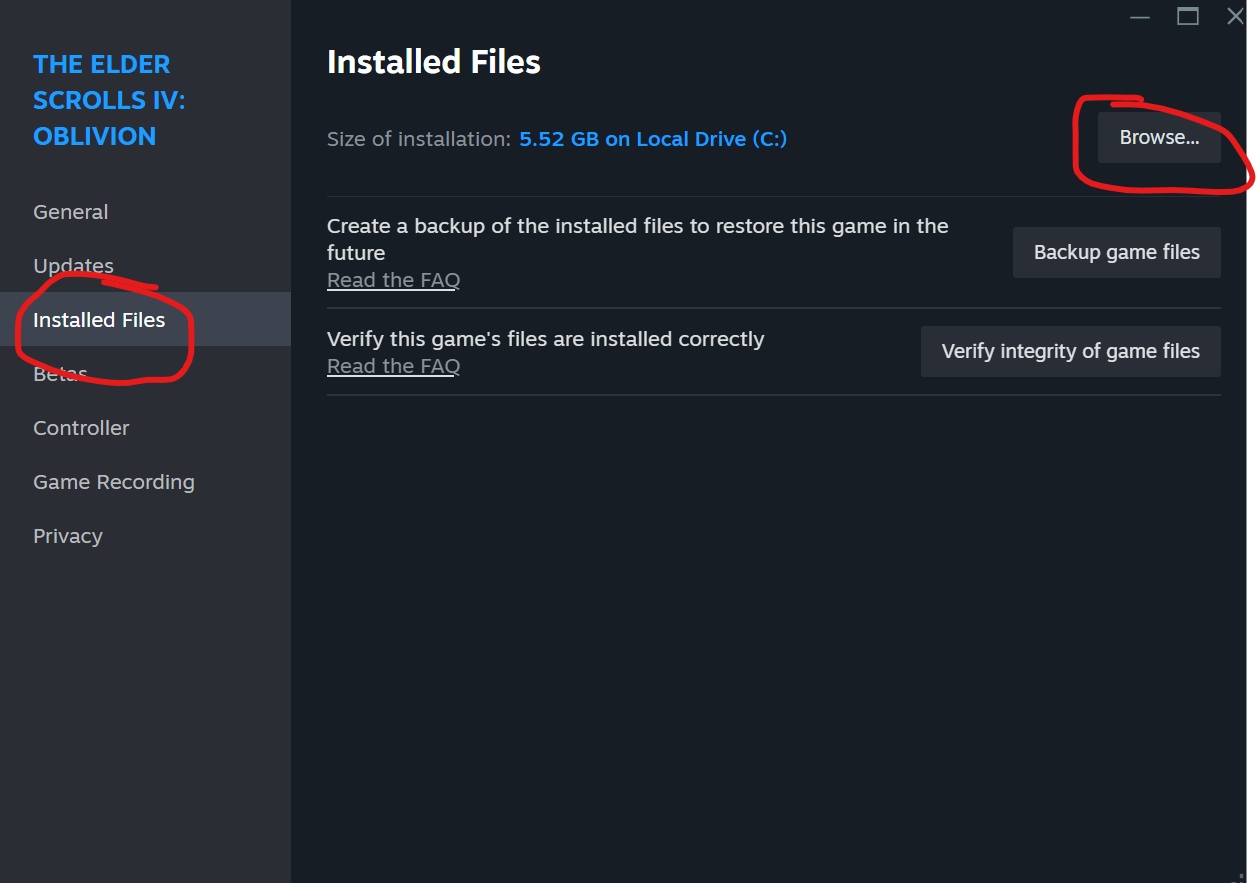
This will take you to the installed folder of Oblivion.
Go to your Steam Library and click on Oblivion:
Click on the settings icon:
Click on Installed Files and then browse:
This will take you to the installed folder of Oblivion.
Installing OBSE (Oblivion Script Extender)
For this guide, we'll be using OBSE to enable Steam Overlay.
To install OBSE, head to the following link on Nexus Mods: OBSE on Nexus Mods[www.nexusmods.com]
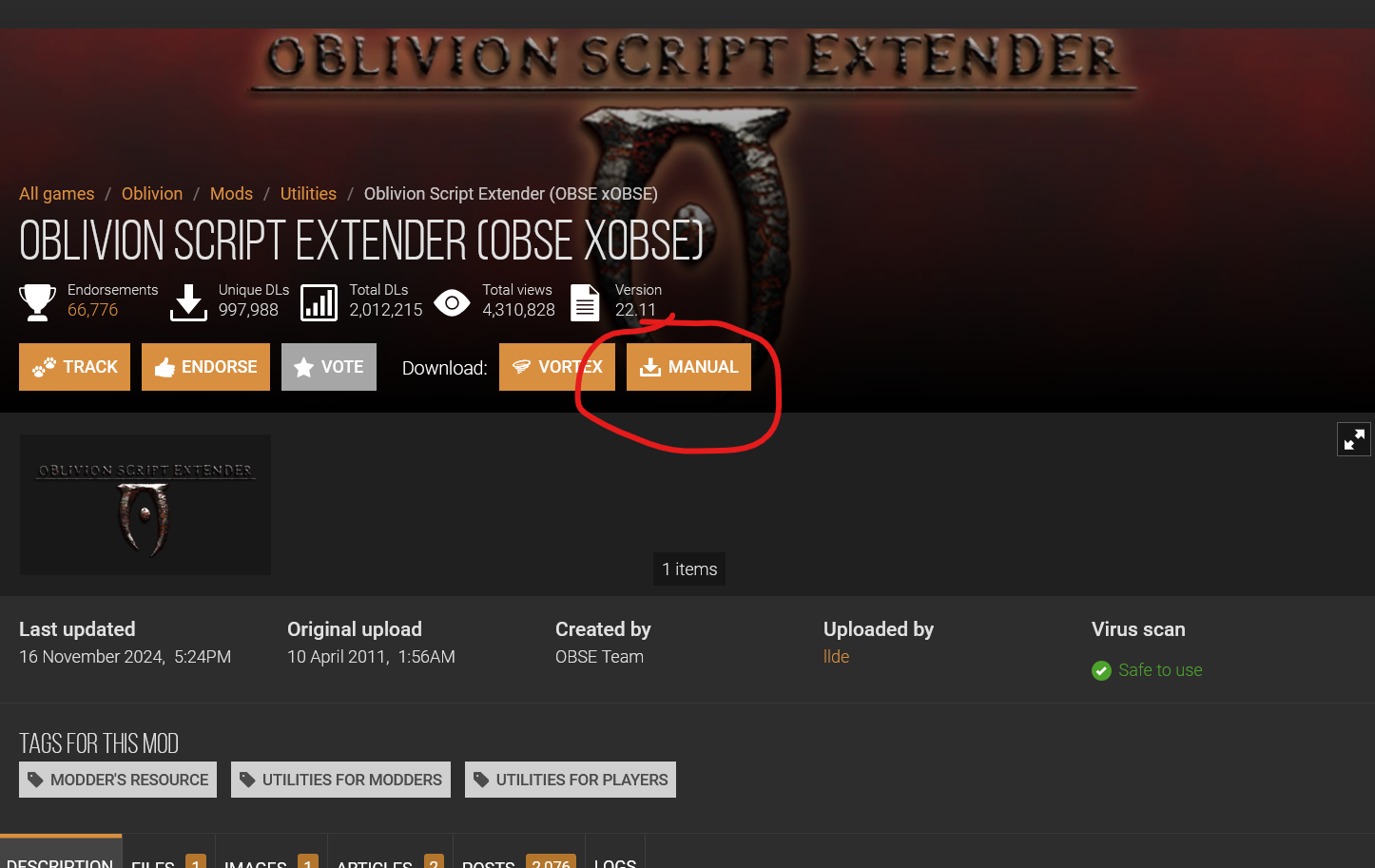
Click on Manual download and download OBSE's 7z folder:
Extract the downloaded folder using 7zip or WinRAR and you'll find the following files inside the extracted folder:
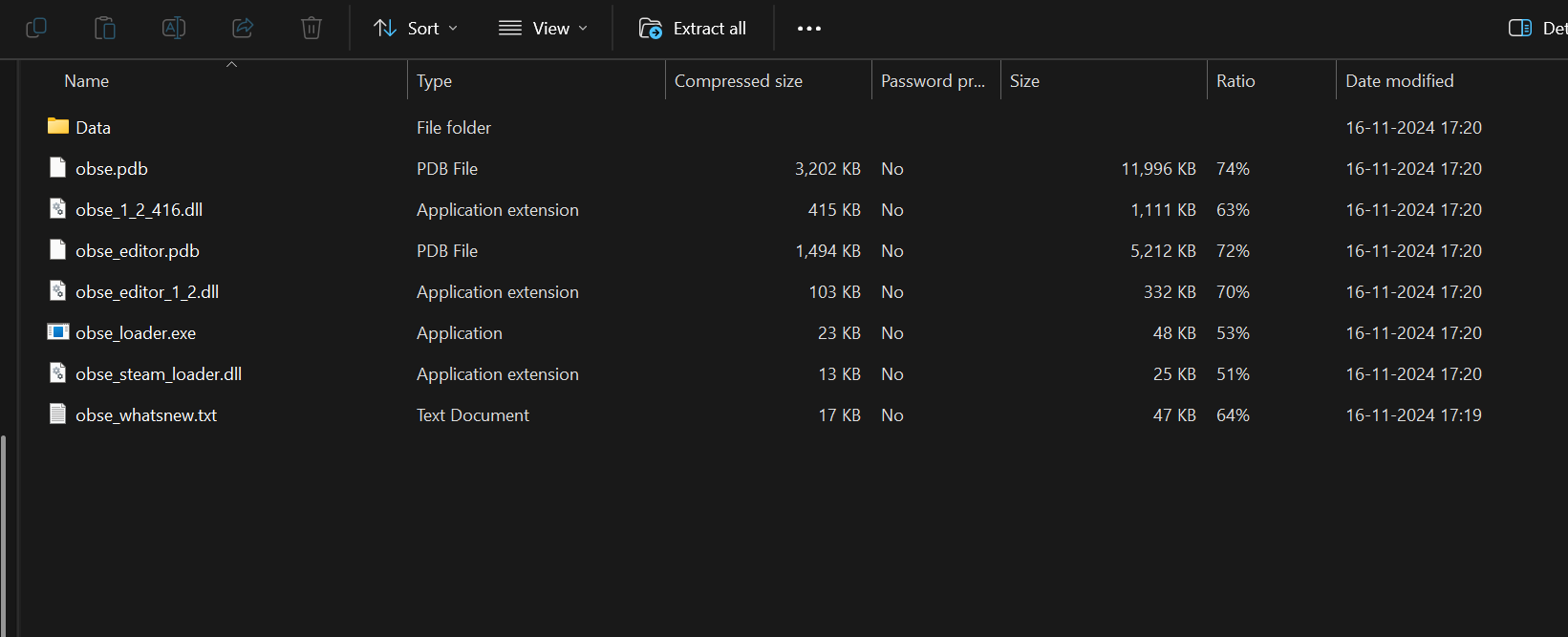
Now, copy and paste the following files into your Oblivion game directory:
- obse_1_2_416.dll
- obse_editor_1_2.dll
- obse_loader.exe
- obse_steam_loader.dll
- Contents of Data Folder into Data folder in Oblivion Game Directory.
Now rename OblivionLauncher.exe to OblivionLauncher.exe.bak and obse_loader.exe to OblivionLauncher.exe
This ensures that you'll be launching OBSE along with Steam which helps us in getting our overlay working.
Your Folder should now look something like this:
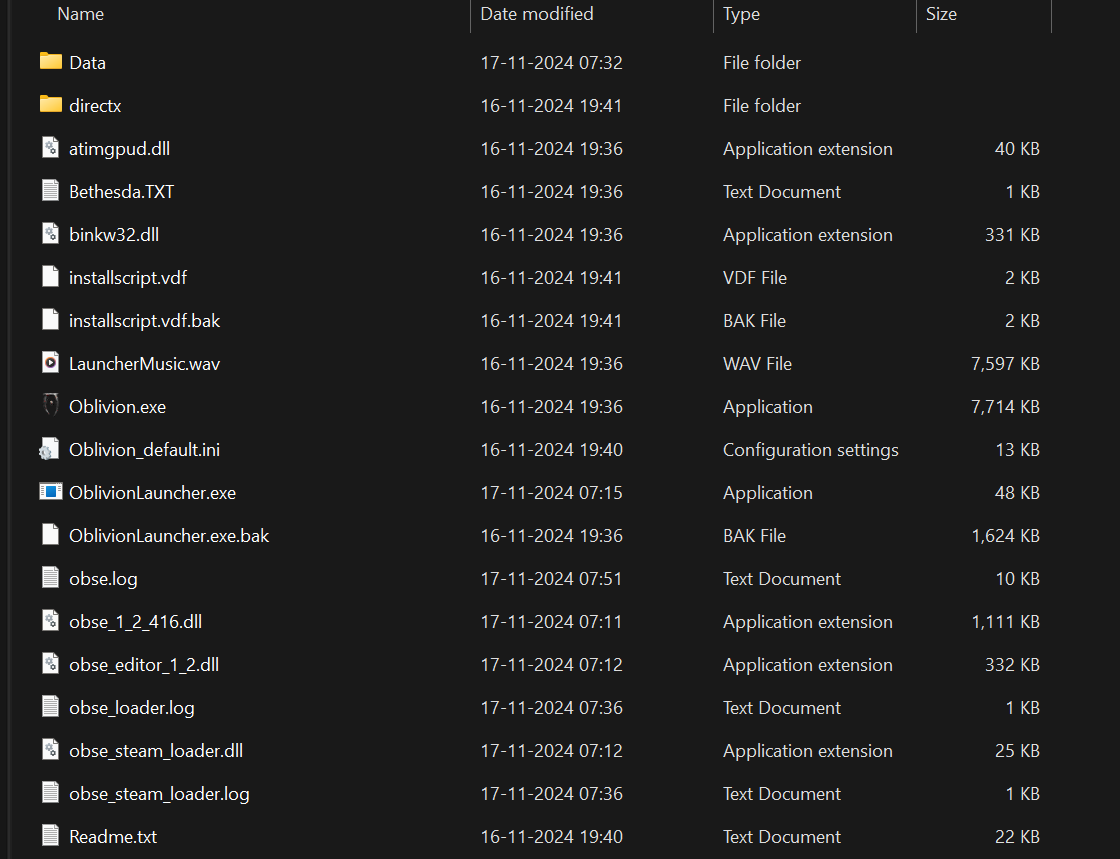
That's it, we installed OBSE and now let's deal with the steam overlay.
To install OBSE, head to the following link on Nexus Mods: OBSE on Nexus Mods[www.nexusmods.com]
Click on Manual download and download OBSE's 7z folder:
Extract the downloaded folder using 7zip or WinRAR and you'll find the following files inside the extracted folder:
Now, copy and paste the following files into your Oblivion game directory:
- obse_1_2_416.dll
- obse_editor_1_2.dll
- obse_loader.exe
- obse_steam_loader.dll
- Contents of Data Folder into Data folder in Oblivion Game Directory.
Now rename OblivionLauncher.exe to OblivionLauncher.exe.bak and obse_loader.exe to OblivionLauncher.exe
This ensures that you'll be launching OBSE along with Steam which helps us in getting our overlay working.
Your Folder should now look something like this:
That's it, we installed OBSE and now let's deal with the steam overlay.
Installing Steam Overlay Enabler
For this, we need to go back to Nexus Mods again and download the following mod manually: Steam Overlay Enabler Mod on Nexus Mods[www.nexusmods.com]
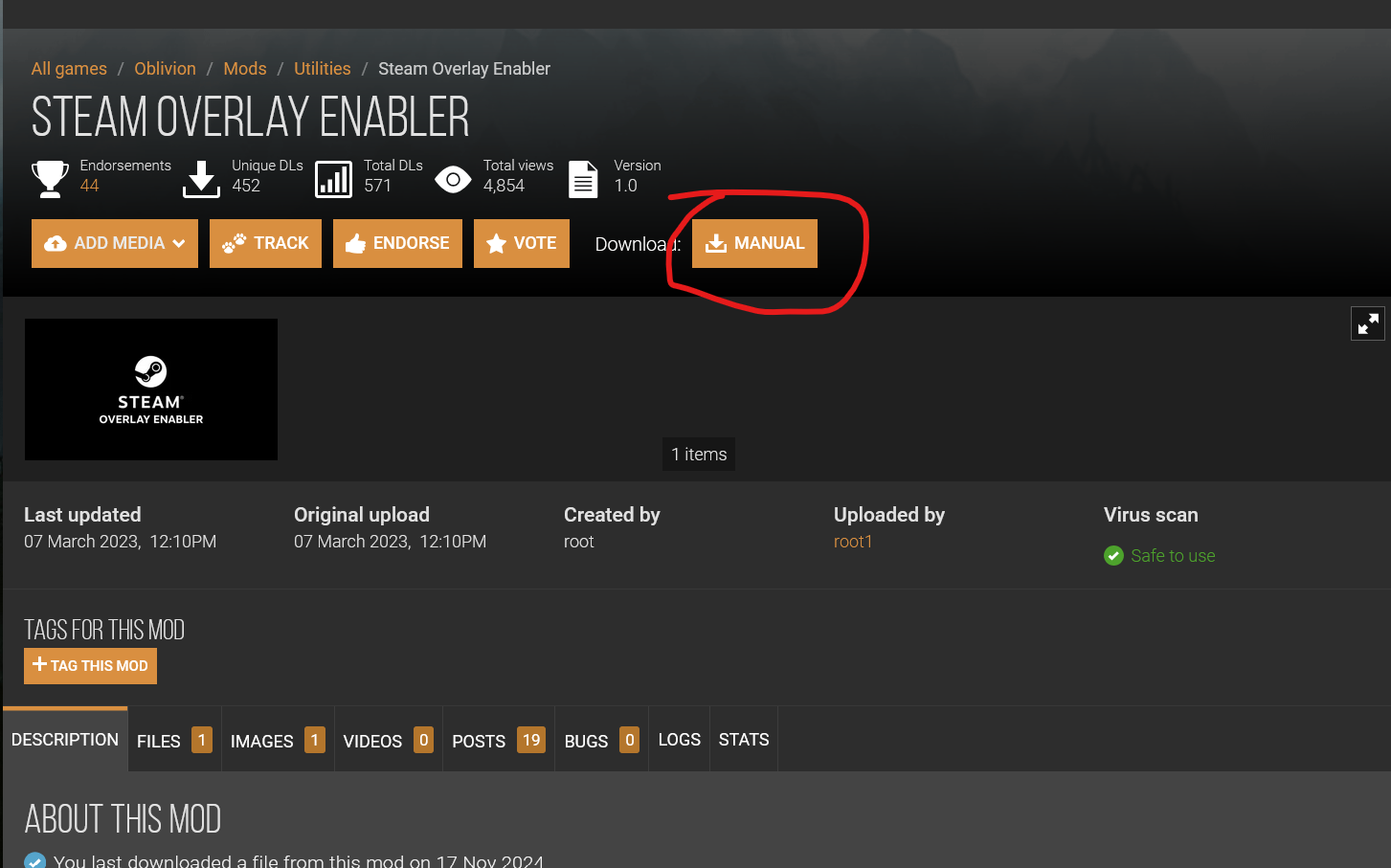
The mod may tell you to use Mod Organiser 2 for it but ignore that. OBSE works perfectly with it.
It will download another .7z file which you need to extract. After extracting, you'll find the following files inside it:
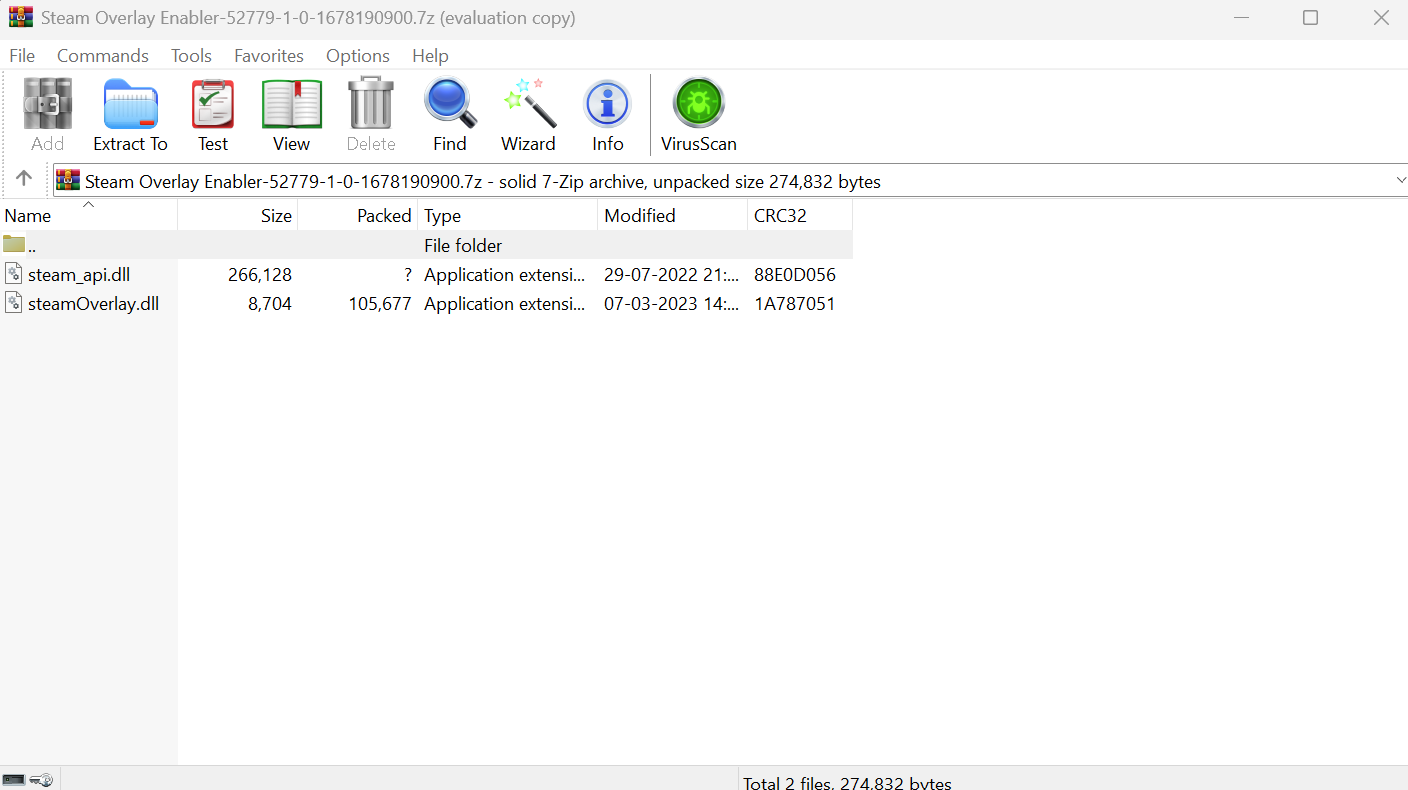
Copy and paste the two files into Oblivion game directory.
Your final folder will look something like this:
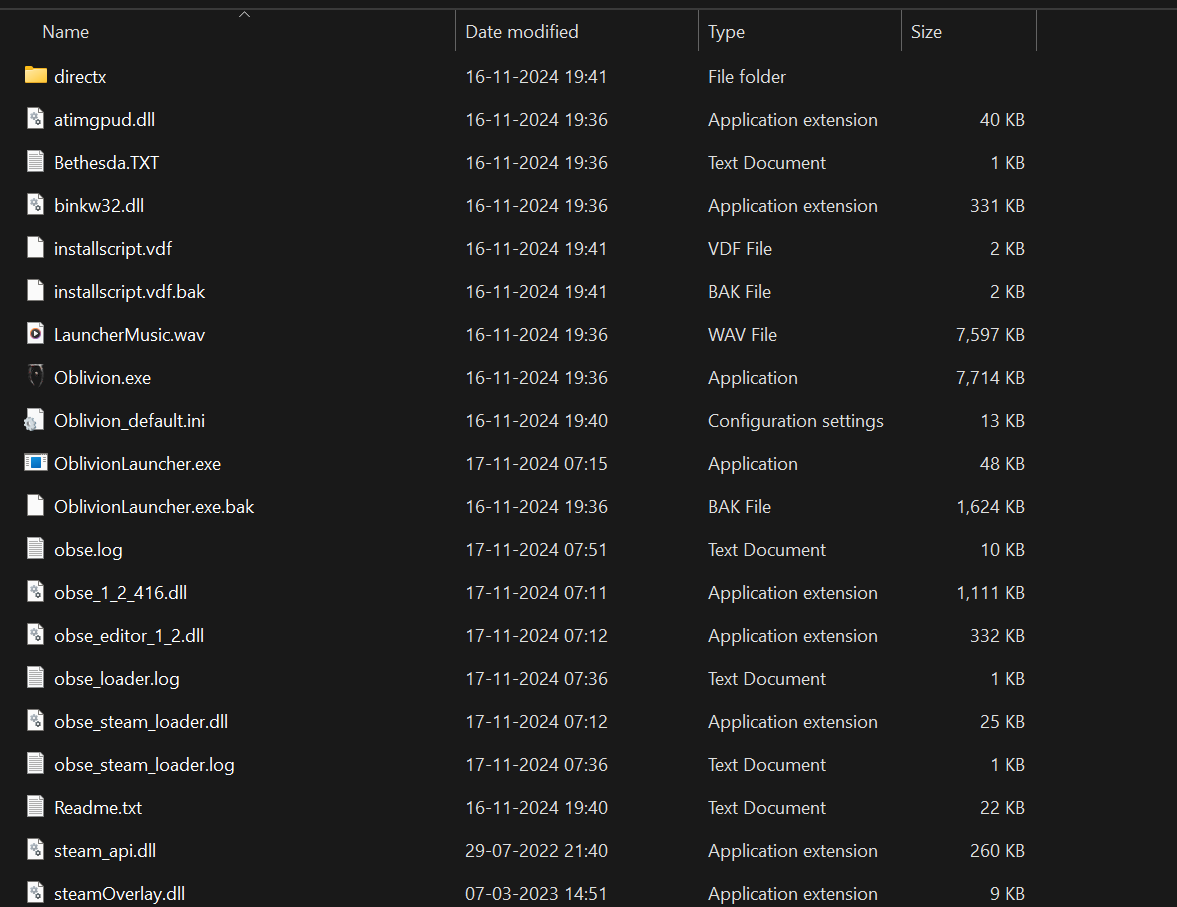
We're done with the installation of all the mods necessary.
The mod may tell you to use Mod Organiser 2 for it but ignore that. OBSE works perfectly with it.
It will download another .7z file which you need to extract. After extracting, you'll find the following files inside it:
Copy and paste the two files into Oblivion game directory.
Your final folder will look something like this:
We're done with the installation of all the mods necessary.
Launching the Game
Now we're done with the installation. All we need to do is open our game and hold Shift+Tab to check if the steam overlay is working or not
For me, following the steps I told got the Steam Overlay working for me.
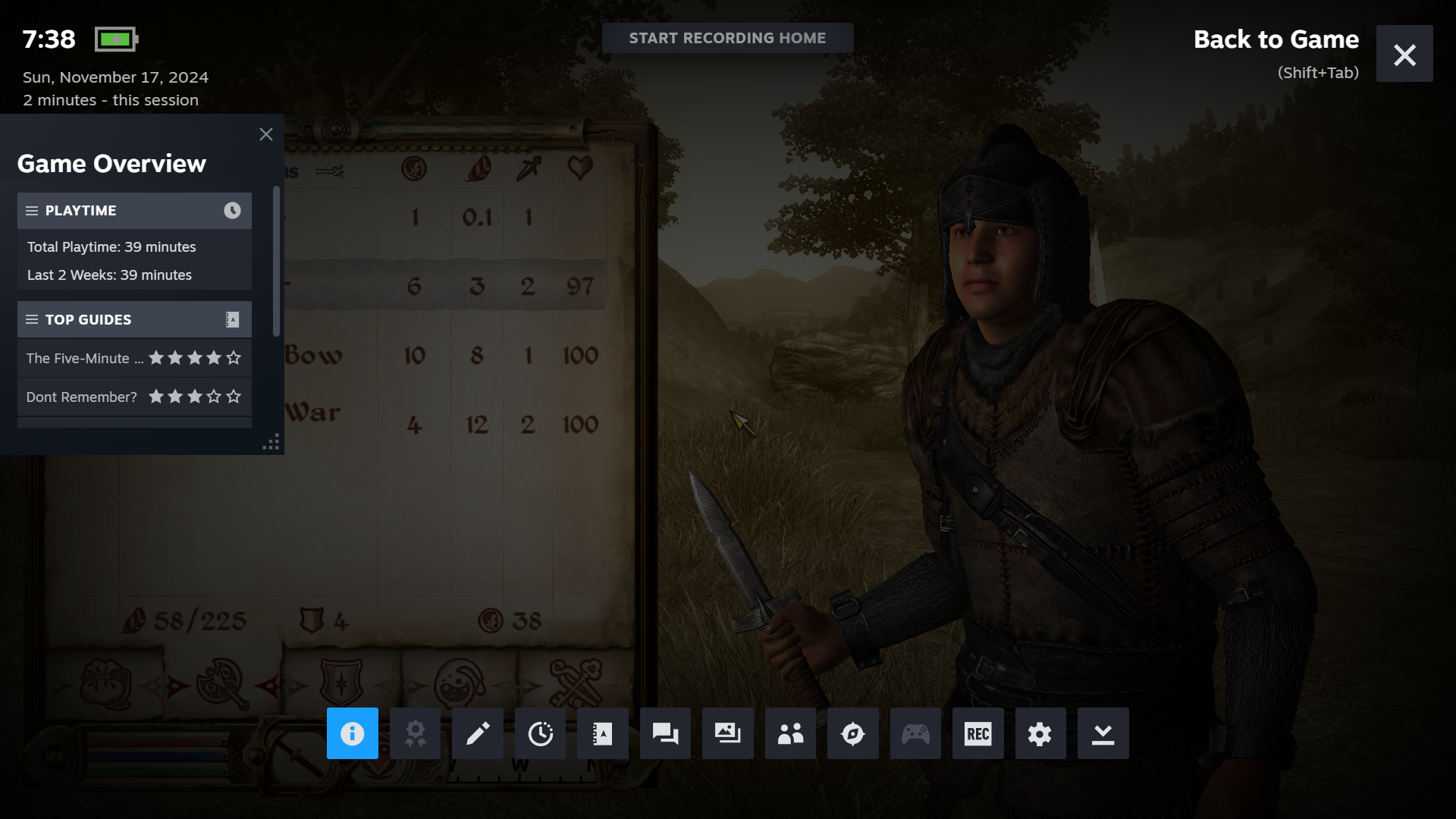
However, certain features like Screenshot and game recording do not work but you'll be still able to track your playtime and chat with friends while in-game.
I checked it and it doesn't break the game so it's a safe method to play the game.
Thanks for reading my guide. Please leave a rating if it helped you.
For me, following the steps I told got the Steam Overlay working for me.
However, certain features like Screenshot and game recording do not work but you'll be still able to track your playtime and chat with friends while in-game.
I checked it and it doesn't break the game so it's a safe method to play the game.
Thanks for reading my guide. Please leave a rating if it helped you.
More The Elder Scrolls IV: Oblivion Game of the Year Edition (2009) guides
- Essential Mods List★ 5 (1.1k)90k views3k ♥6 minUpdated Jun 7, 2022
- Almost Essential Mods★ 5 (1.2k)84k views2.5k ♥1 minUpdated Jan 16
- 1,200 Hours Played; What you NEED to know in Oblivion.★ 5 (1.2k)65k views2.3k ♥7 minUpdated Apr 25, 2025
- Русификация Oblivion + все DLC★ 5 (1.6k)65k views2.6k ♥1 minRussianUpdated Feb 23, 2025
- Oblivion 2024 Essential Modding Guide★ 5 (457)48k views1.5k ♥42 minUpdated Apr 25, 2025
- Quest Orders★ 5 (664)40k views1.3k ♥1 minUpdated May 26, 2020



This guide was created by its original author on the Steam Community. Are you the author and want it removed? Request removal.