How to Mod DOOM Eternal
Introduction
This Guide will show you how to install a Mod-Loader, download mods and how to manage enabled/disabled mods.
It is completely safe and you can't get banned for it. If you have mods installed that alter gameplay then Battlemode and Horde Mode are disabled. This happens thanks to ModInjector.
Quick Video at the end for everyone who doesn't want to read.
Modding Discord Servers:
DOOM 2016+ Modding[discord.gg]
Doom Eternal Modding Hub[discord.gg]
It is completely safe and you can't get banned for it. If you have mods installed that alter gameplay then Battlemode and Horde Mode are disabled. This happens thanks to ModInjector.
Quick Video at the end for everyone who doesn't want to read.
Modding Discord Servers:
DOOM 2016+ Modding[discord.gg]
Doom Eternal Modding Hub[discord.gg]
Download Mod Loader
Go to (you have to join the DOOM 2016+ Modding Server):
and download the 'EternalModInjector.zip' file.
If you get any prompt click on 'Continue to download'.
Alternatively you can download it here:
and download the 'EternalModInjector.zip' file.
If you get any prompt click on 'Continue to download'.
Alternatively you can download it here:
Installing EternalModInjector
The EternalModInjector.zip contains the following files:
Extract the files to your DOOM Eternal installation's root directory. By default it should be
Your DOOM Eternal folder should then look like this:
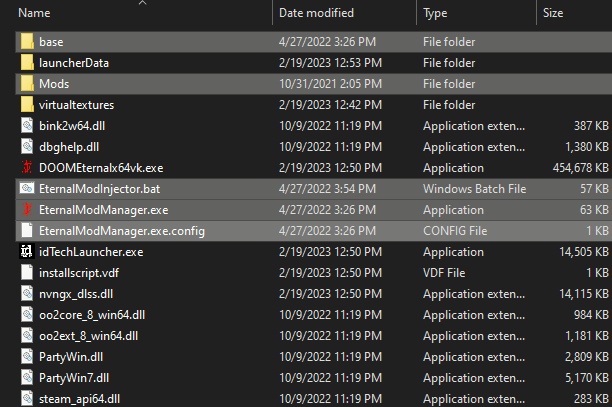
-/base/
-/Mods/
-/EternalModInjector.bat
-/EternalModManager.exe
-/EternalModManger.exe.config
Extract the files to your DOOM Eternal installation's root directory. By default it should be
C:\Program Files (x86)\Steam\steamapps\common\DOOMEternal\
Your DOOM Eternal folder should then look like this:
Running EternalModInjector for the First Time
Launch the file:
A new Command Prompt window will open, looking like this,
telling you what the batch file exactly does:
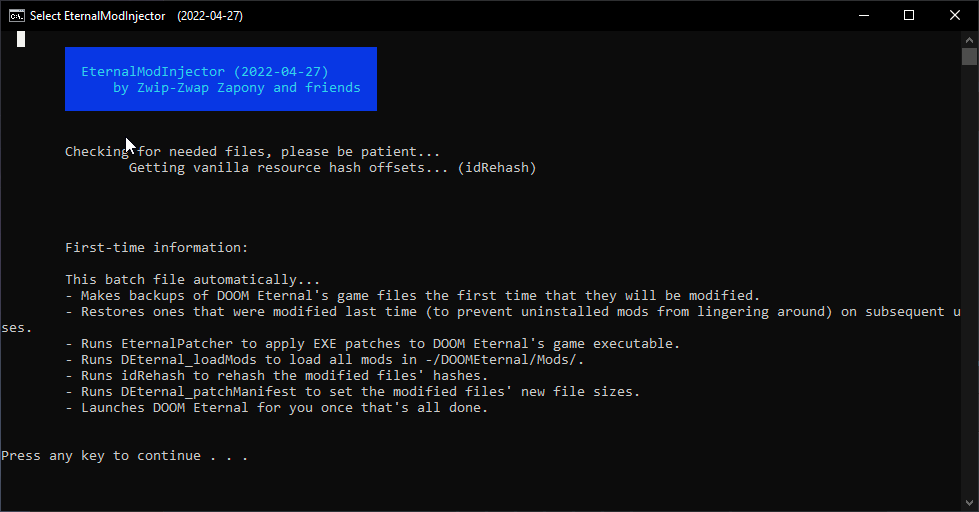
Press any key to continue. This next part credits the community members who worked on this.
Again press any key to continue.
This is the last message, it informs you that it creates a backup of the current game files and how to repair game files in case you run into any problems with the created backup files.

Press any key two more times and the Mod Loader will run and launch your game afterwards.
Now this should only take a few seconds depending on your PC.
Next close your game and let's set up EternalModManager!
EternalModInjector.bat
A new Command Prompt window will open, looking like this,
telling you what the batch file exactly does:
Press any key to continue. This next part credits the community members who worked on this.
Again press any key to continue.
This is the last message, it informs you that it creates a backup of the current game files and how to repair game files in case you run into any problems with the created backup files.
Press any key two more times and the Mod Loader will run and launch your game afterwards.
Now this should only take a few seconds depending on your PC.
Next close your game and let's set up EternalModManager!
Setting up ModManager
EternalModManger is the easiest way to manage all your installed and uninstalled mods.
Run:
Running ModManger for the first time you will get the following the prompt:
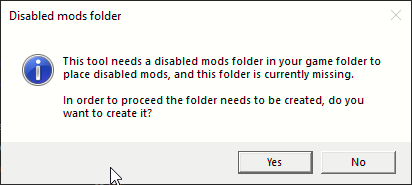
The prompt informs you that ModManger requires a folder named 'DisabledMods' and asks if you want to create it. Click on 'Yes' and ModManager will launch.
Next you will get the following window:
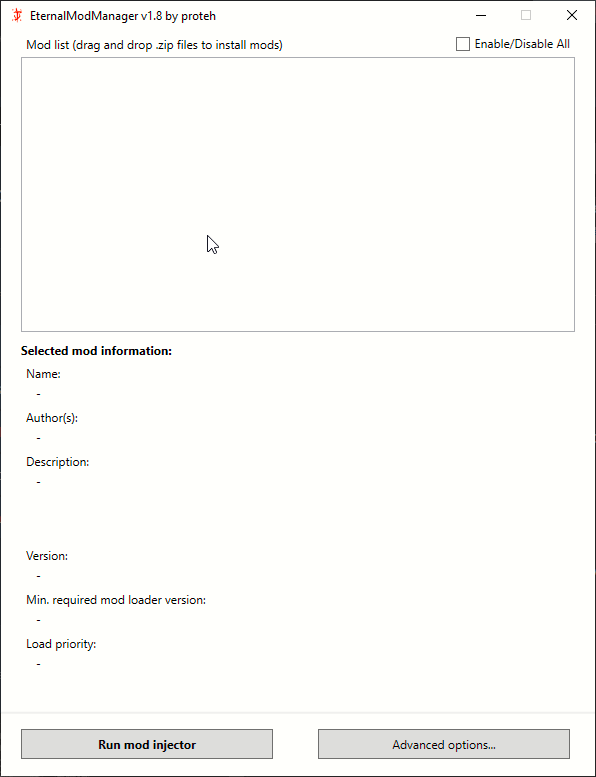
Click on 'Advanced Options...' and make following changes:
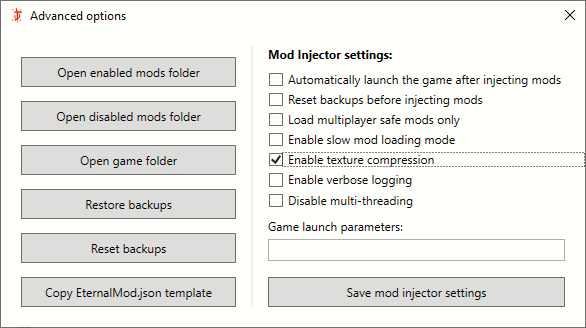
'Enabling texture compression' prevents crashes when you have installed a lot of texture files.
Next click on 'Save mod injector settings' and close both windows.
Run:
EternalModManger.exe
Running ModManger for the first time you will get the following the prompt:
The prompt informs you that ModManger requires a folder named 'DisabledMods' and asks if you want to create it. Click on 'Yes' and ModManager will launch.
Next you will get the following window:
Click on 'Advanced Options...' and make following changes:
'Enabling texture compression' prevents crashes when you have installed a lot of texture files.
Next click on 'Save mod injector settings' and close both windows.
Downloading Mods
There are 3 sources to find mods.
1. DOOM 2016+ Modding[discord.gg]
2. Doom Eternal Modding Hub[discord.gg]
3. Nexusmods[www.nexusmods.com]
NOTE: Some mods are only available on the discord servers but more and more mods are getting ported on nexusmods.
For this example I pick a mod from nexusmods.
If you wanna download anything from nexusmods you need to have an account.
1. Go to: https://www.nexusmods.com/doometernal
2. Scroll down and click on 'POPULAR (ALL TIME)'
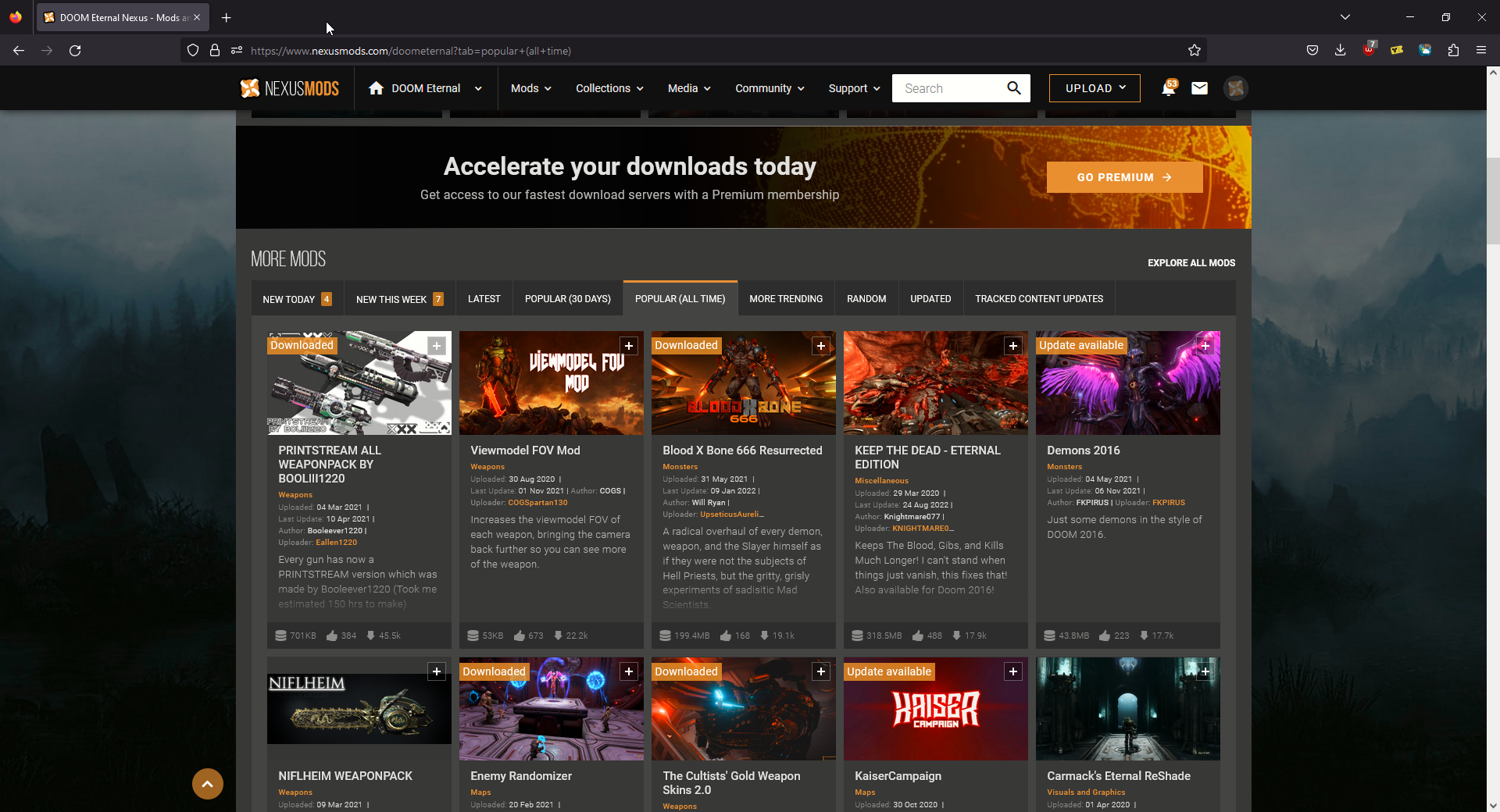 Click on the mod in the top left row: 'PRINTSTREAM ALL WEAPONPACK BY BOOLIII1220'
3. Click on 'Files'
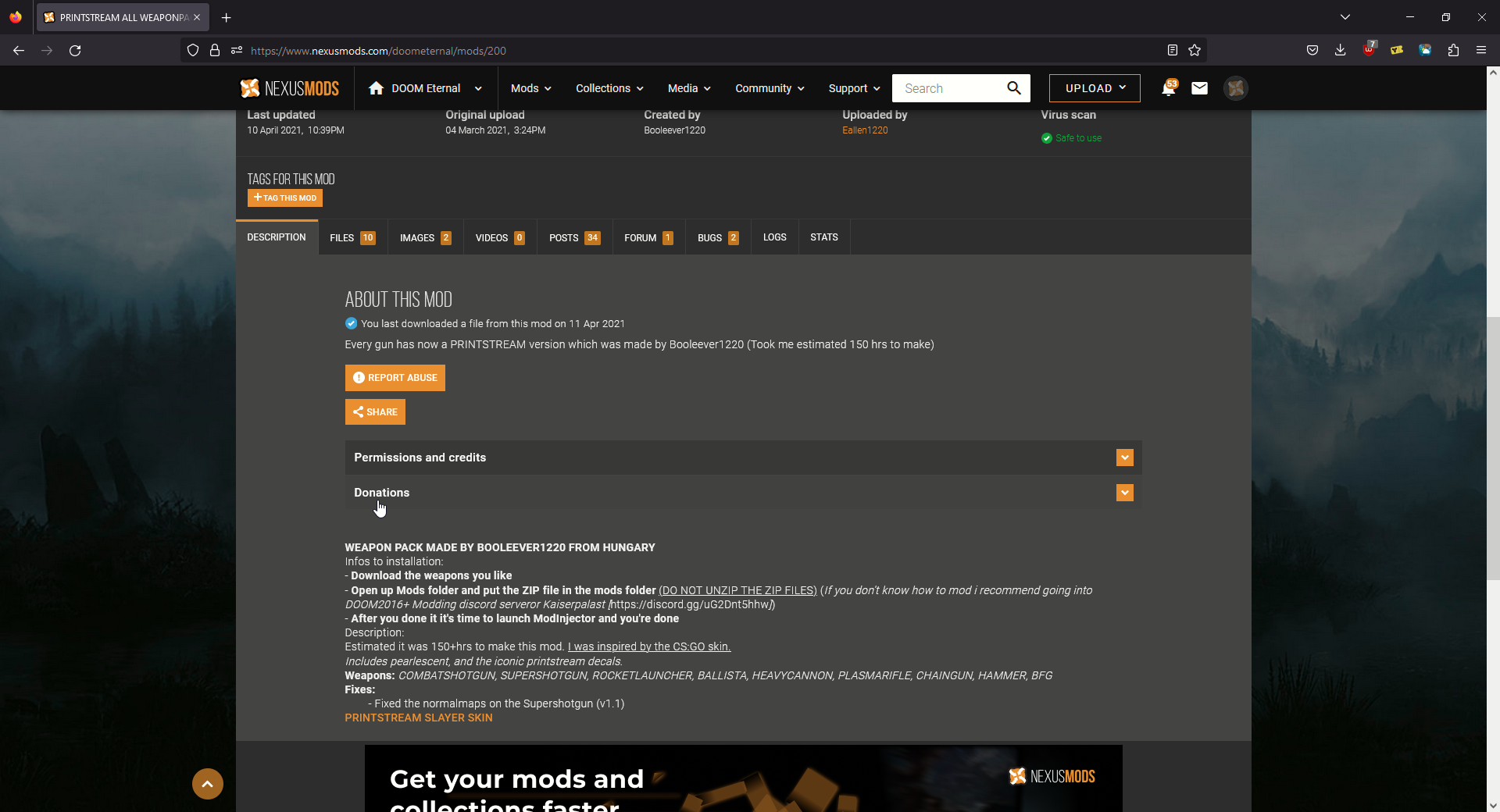 On the 'Description' tab it usually tells you how to install it, what skin it replaces and/or how to launch level mods if it's a level. And additional notes if it's necessary.
4. Click on 'Manual Download'
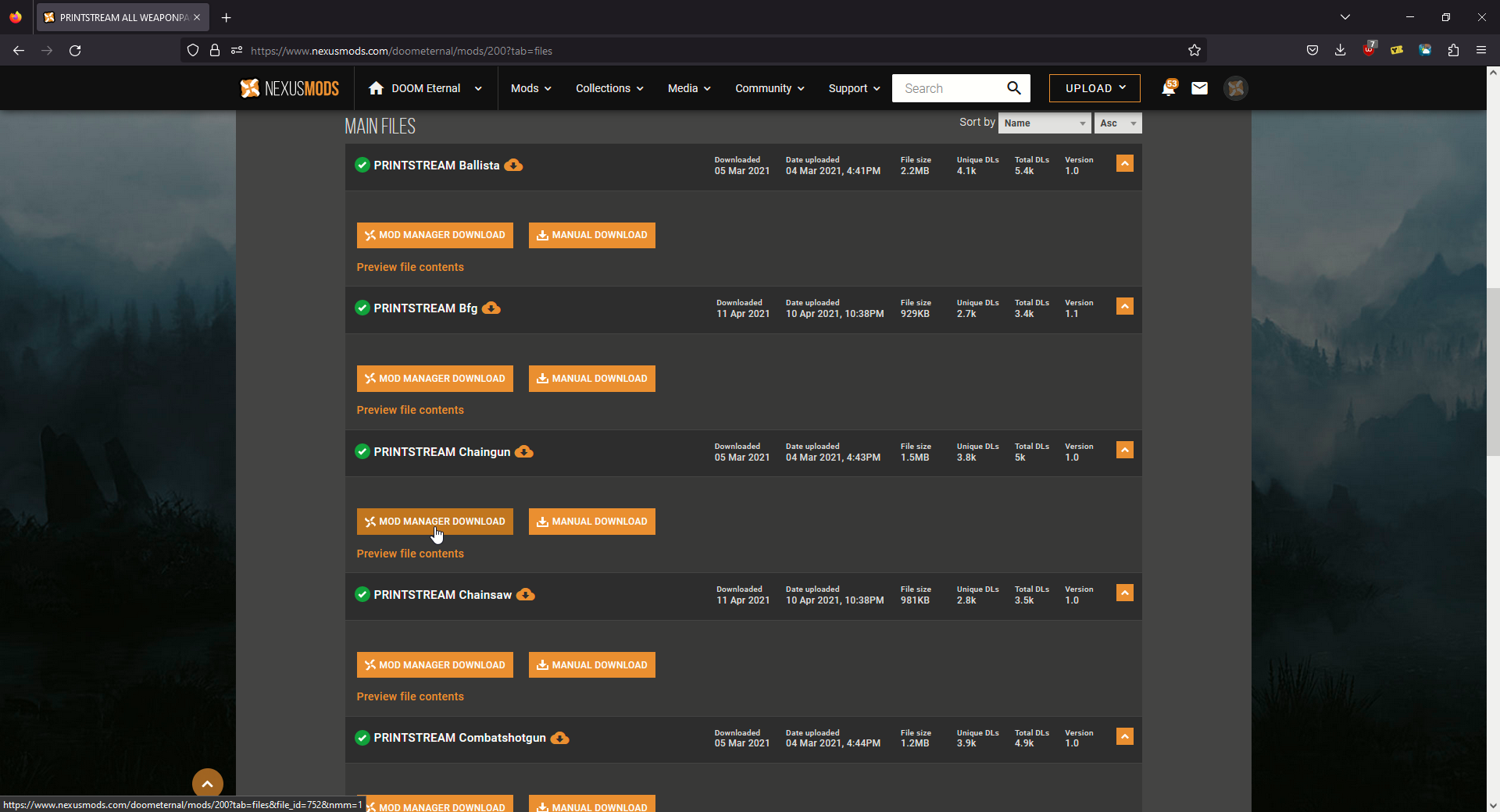 Here you will see all files. Sometimes collections also have a .zip file with all skins combined but not here. In this case we have to download every skin individually.
5. Click on 'SLOW DOWNLOAD'
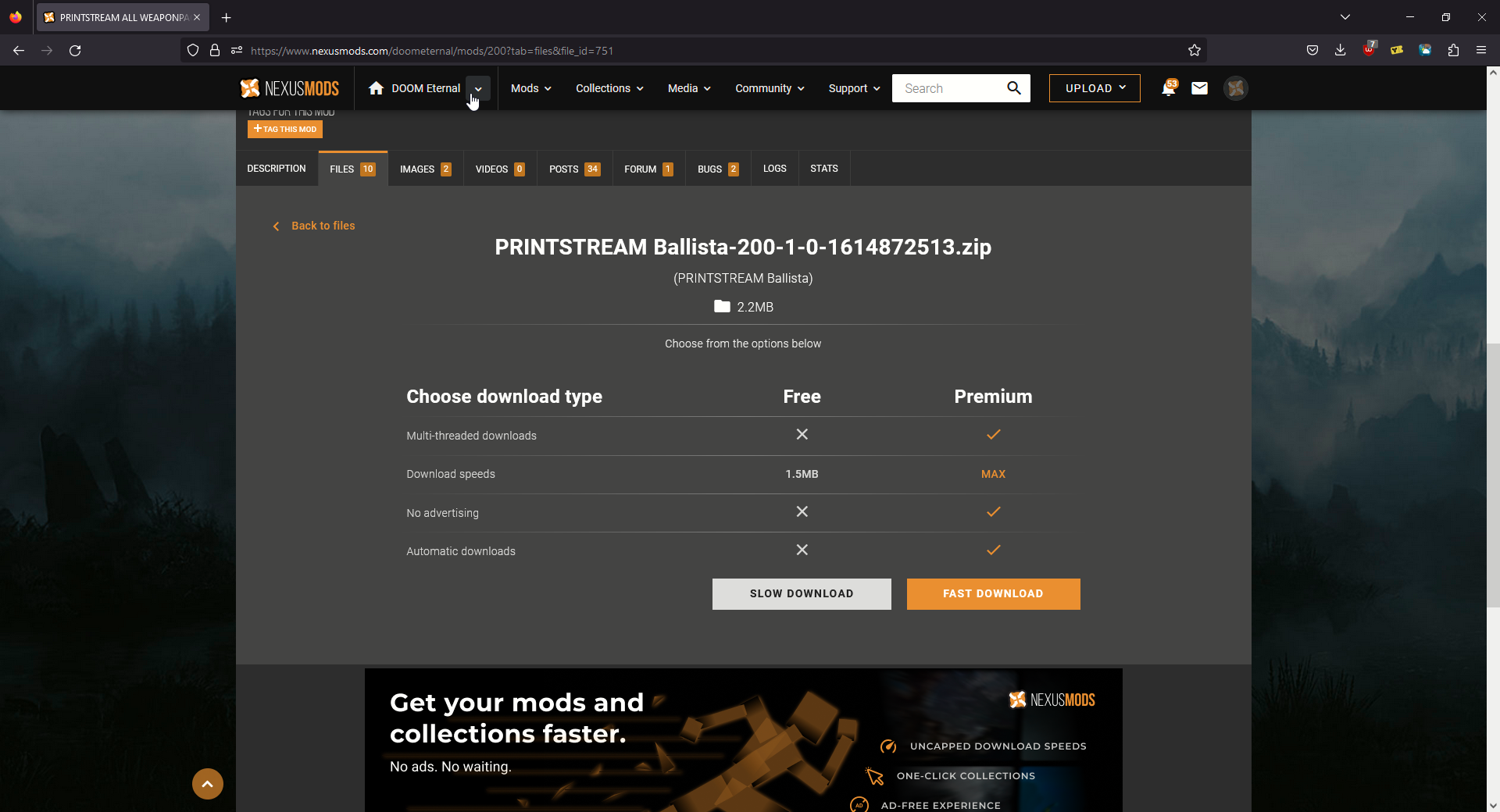 Repeat this for the remaining 9 files.
1. DOOM 2016+ Modding[discord.gg]
2. Doom Eternal Modding Hub[discord.gg]
3. Nexusmods[www.nexusmods.com]
NOTE: Some mods are only available on the discord servers but more and more mods are getting ported on nexusmods.
For this example I pick a mod from nexusmods.
If you wanna download anything from nexusmods you need to have an account.
1. Go to: https://www.nexusmods.com/doometernal
2. Scroll down and click on 'POPULAR (ALL TIME)'
Click on the mod in the top left row: 'PRINTSTREAM ALL WEAPONPACK BY BOOLIII1220'3. Click on 'Files'
On the 'Description' tab it usually tells you how to install it, what skin it replaces and/or how to launch level mods if it's a level. And additional notes if it's necessary. 4. Click on 'Manual Download'
Here you will see all files. Sometimes collections also have a .zip file with all skins combined but not here. In this case we have to download every skin individually.5. Click on 'SLOW DOWNLOAD'
Repeat this for the remaining 9 files.Installing Mods
NOTE: NEVER unzip mods! Otherwise they won't work.
1. Copy all the downloaded .zip files into the mods folder in the game directory
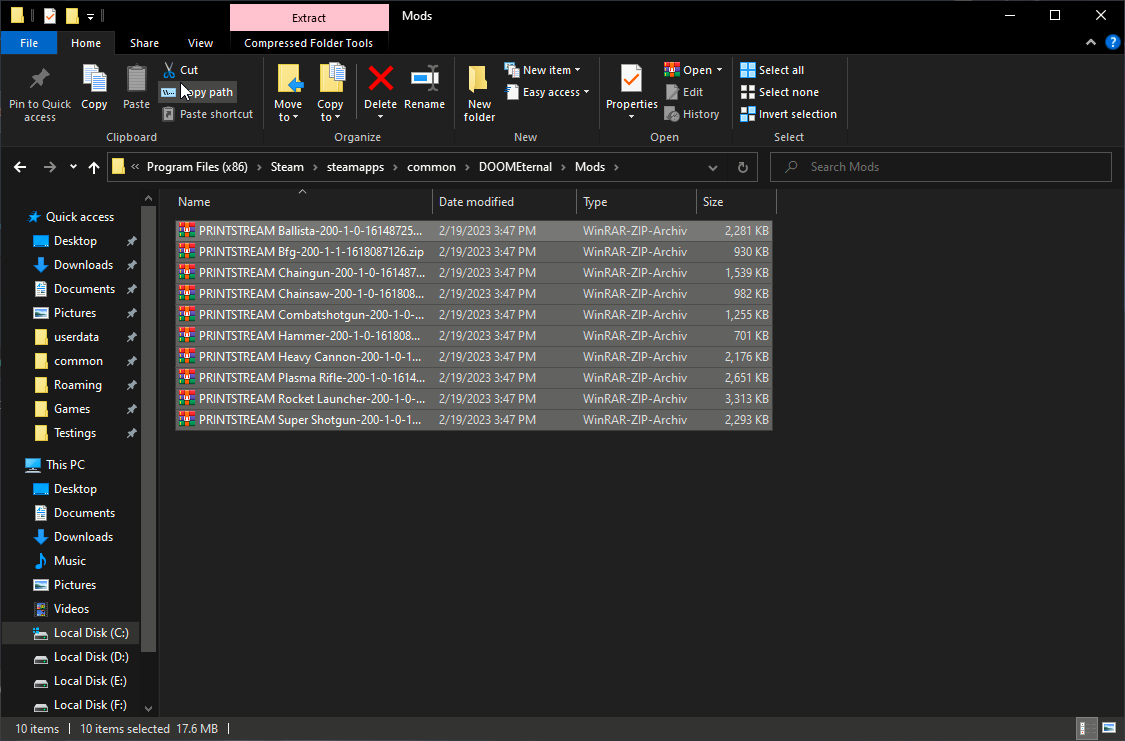 Your Mods folder should then look like this.
2. Run EternalModManager.exe
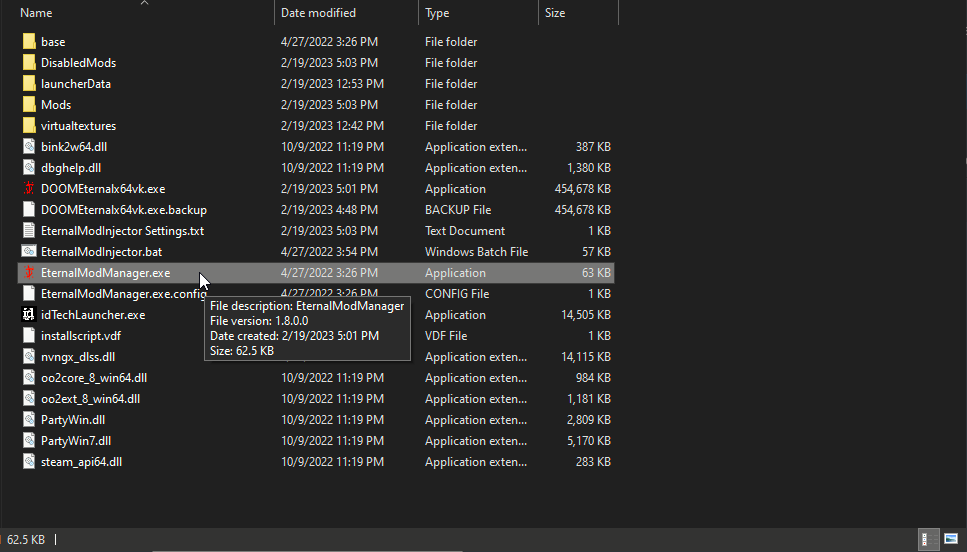
3. Click on 'Run mod injector'
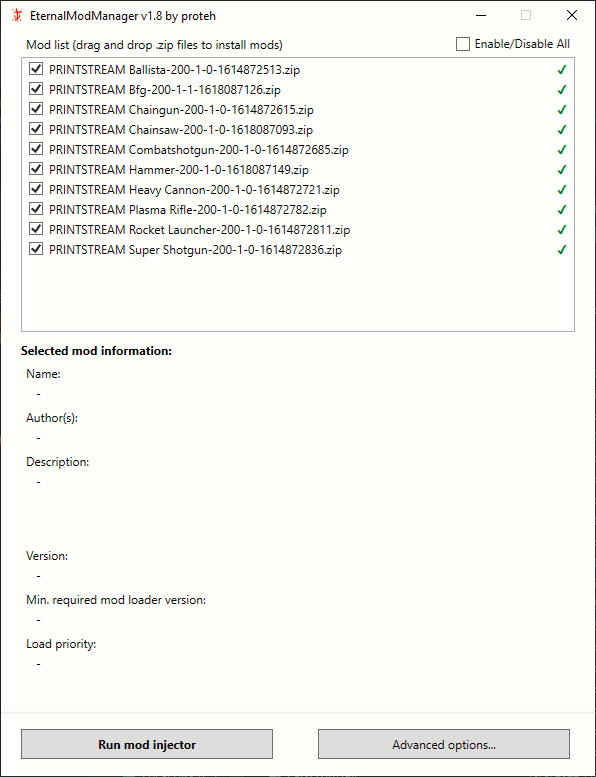 Every mod placed in the Mods and DisabledMods folder will be listed here.
Quick explanation:
Box checked means installed.
Box unchecked means uninstalled.
Checkmark on the right means safe for use in Battlemode.
Exclamation mark on the right means unsafe for use in Battlemode. (Battlemode will be disabled.)
4. Wait for ModInjector to finish.
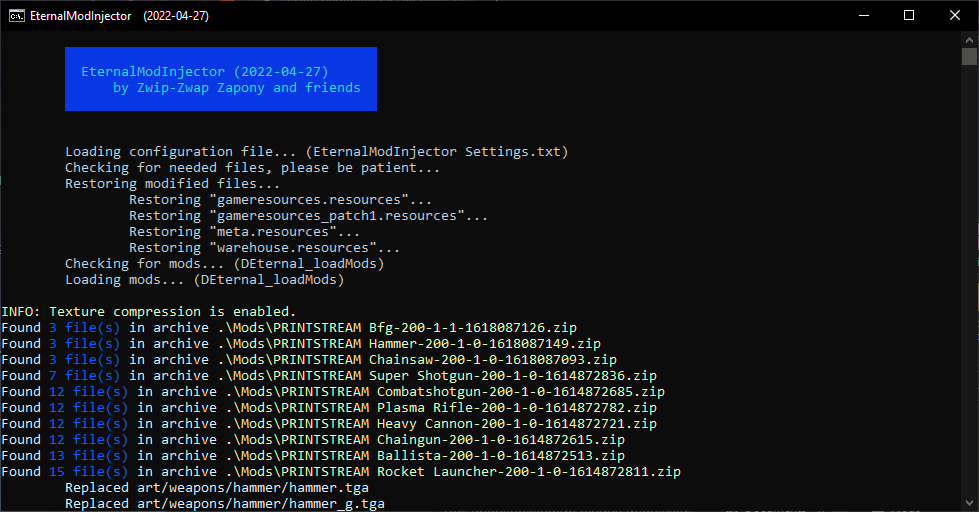
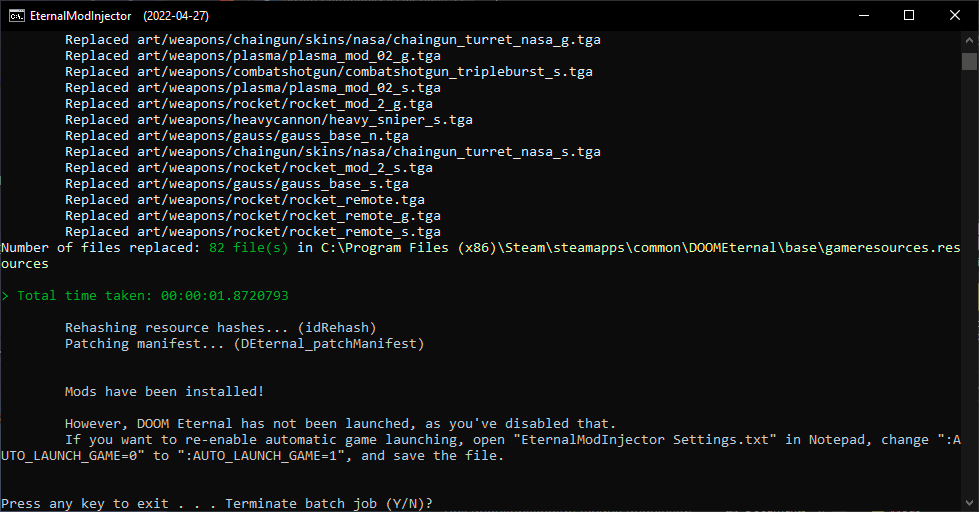 Depending on how many mods you install, ModInjector might take a bit. But it's usually less than a minute.
5. Launch the Game.
1. Copy all the downloaded .zip files into the mods folder in the game directory
Your Mods folder should then look like this.2. Run EternalModManager.exe
3. Click on 'Run mod injector'
Every mod placed in the Mods and DisabledMods folder will be listed here.Quick explanation:
Box checked means installed.
Box unchecked means uninstalled.
Checkmark on the right means safe for use in Battlemode.
Exclamation mark on the right means unsafe for use in Battlemode. (Battlemode will be disabled.)
4. Wait for ModInjector to finish.
Depending on how many mods you install, ModInjector might take a bit. But it's usually less than a minute.5. Launch the Game.
Results
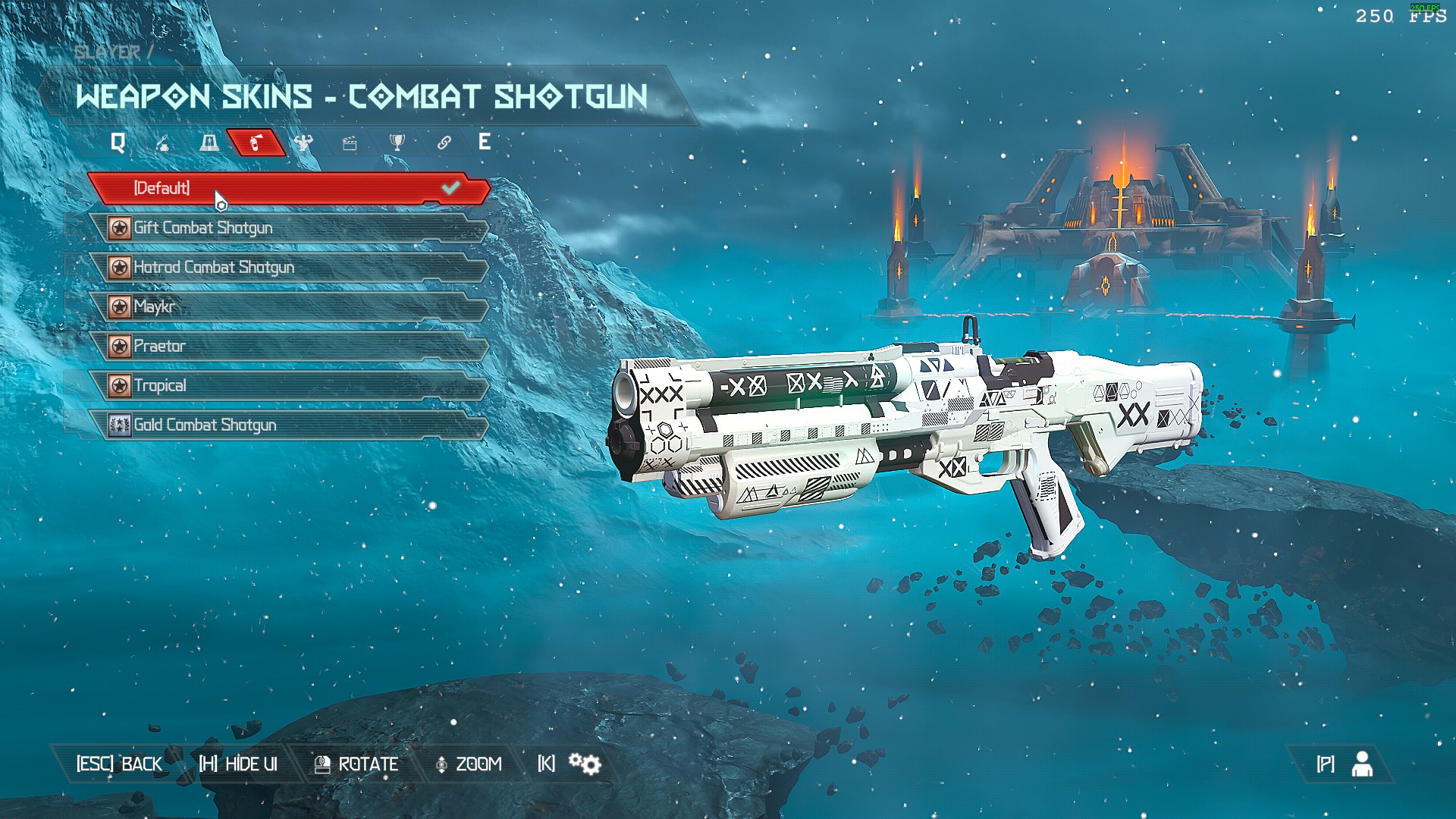
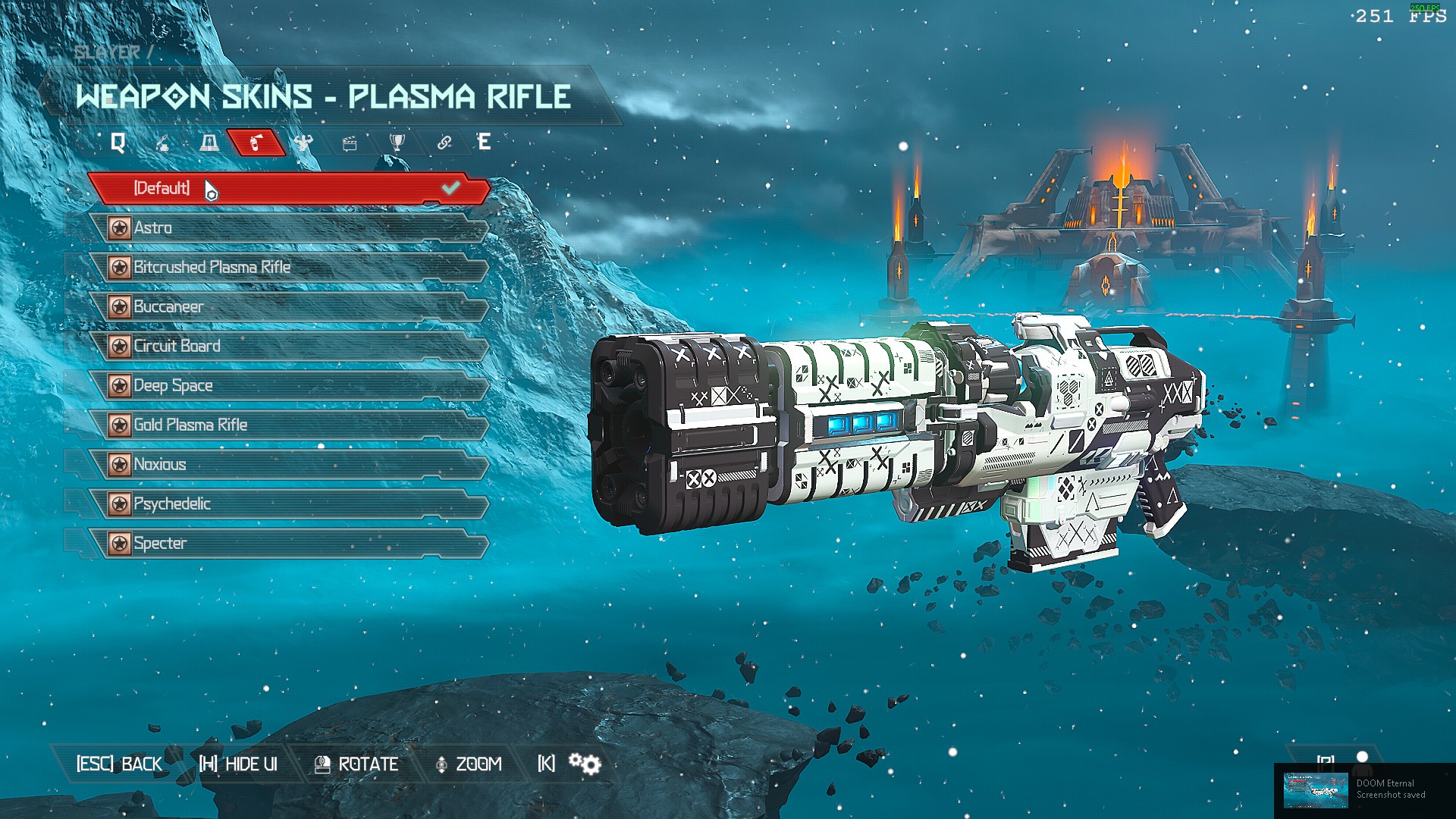
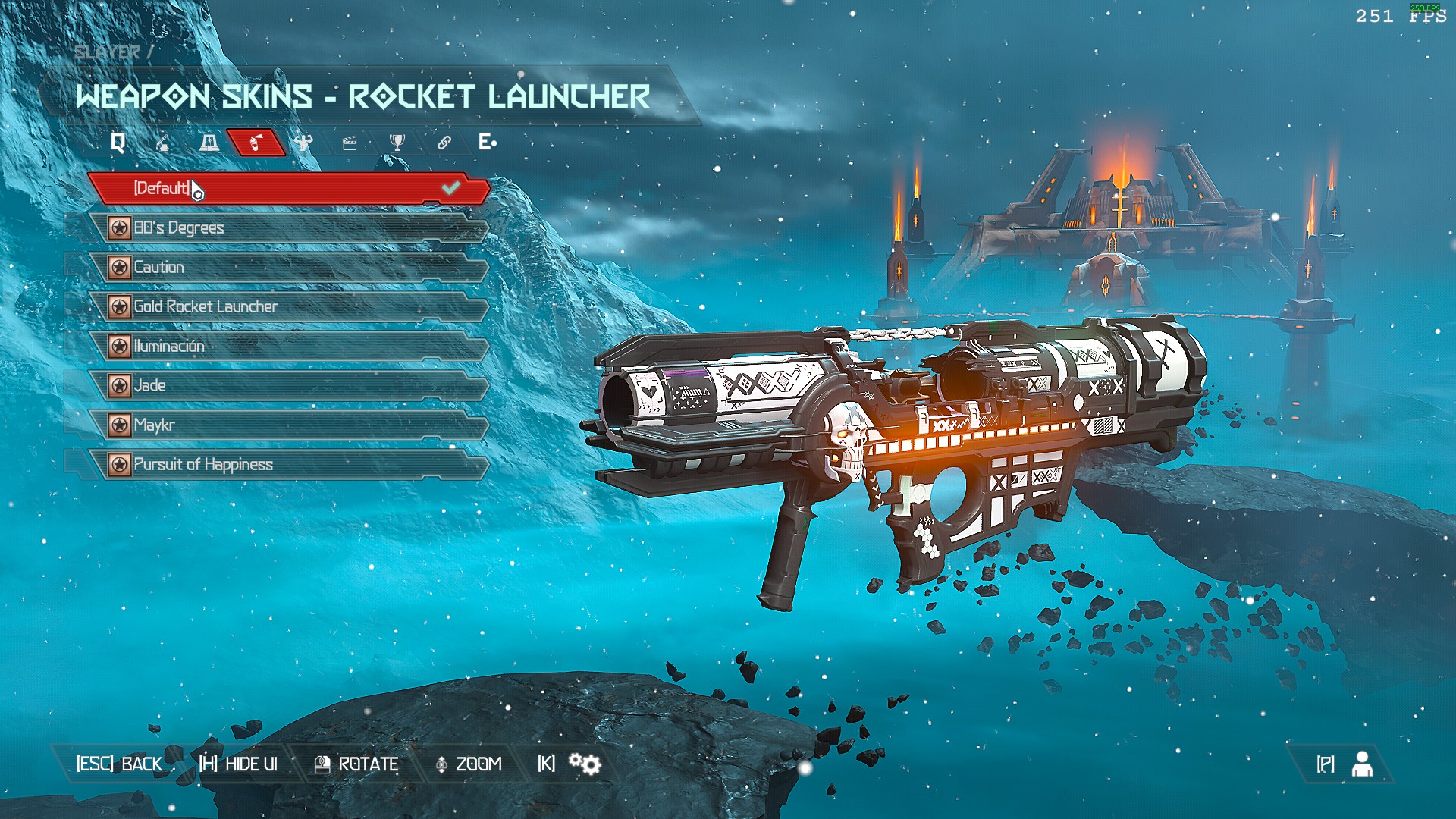
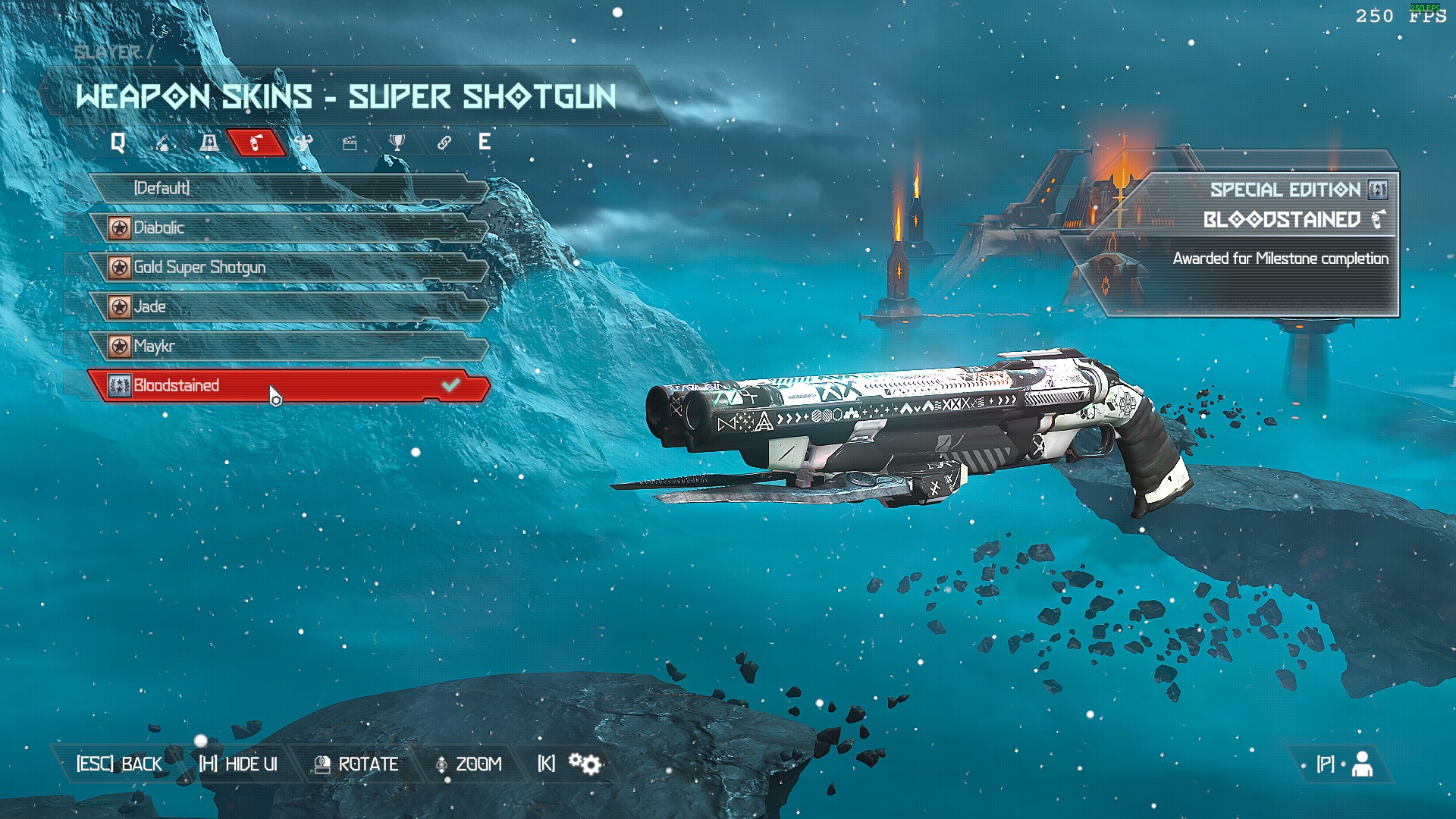
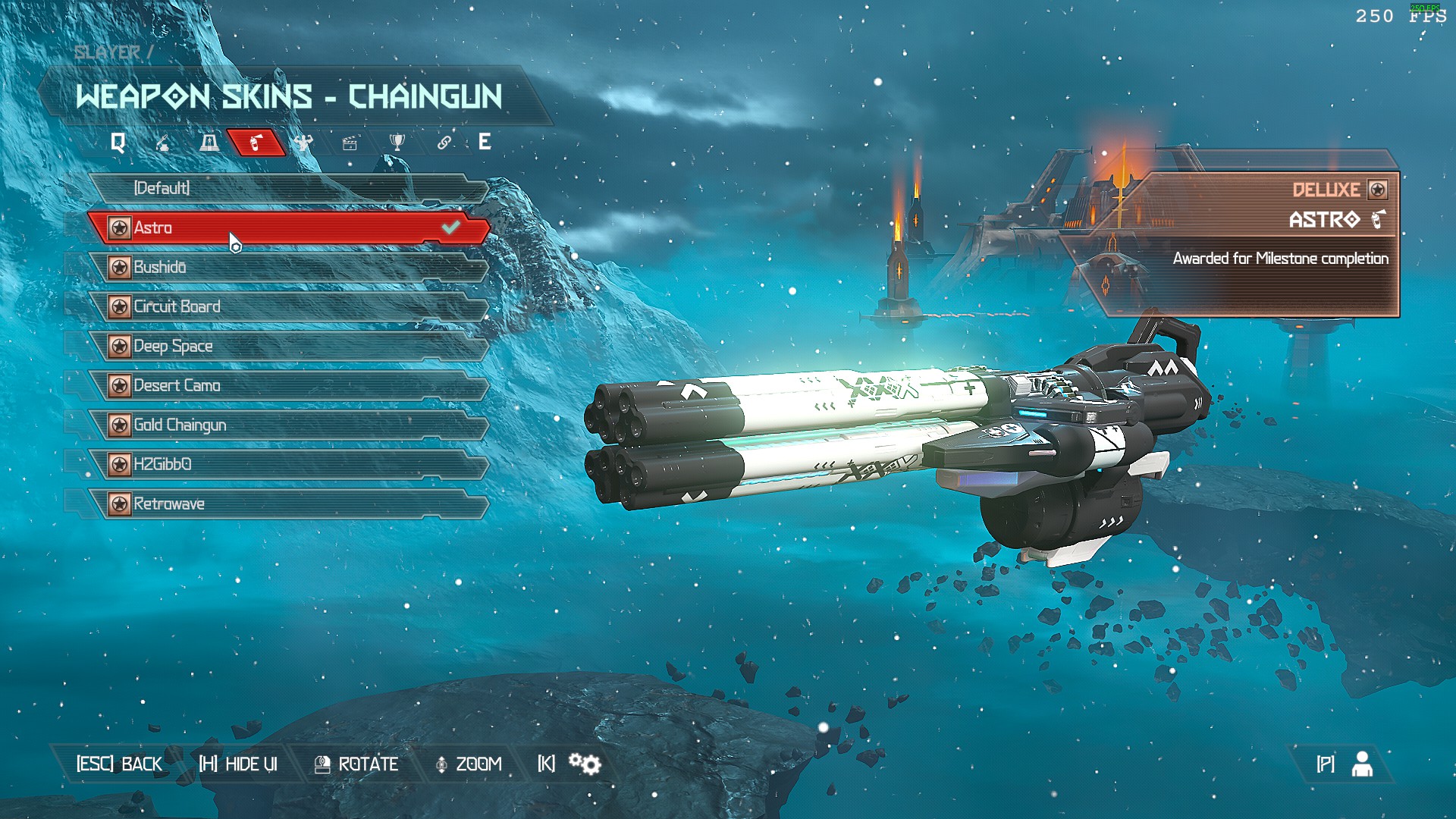
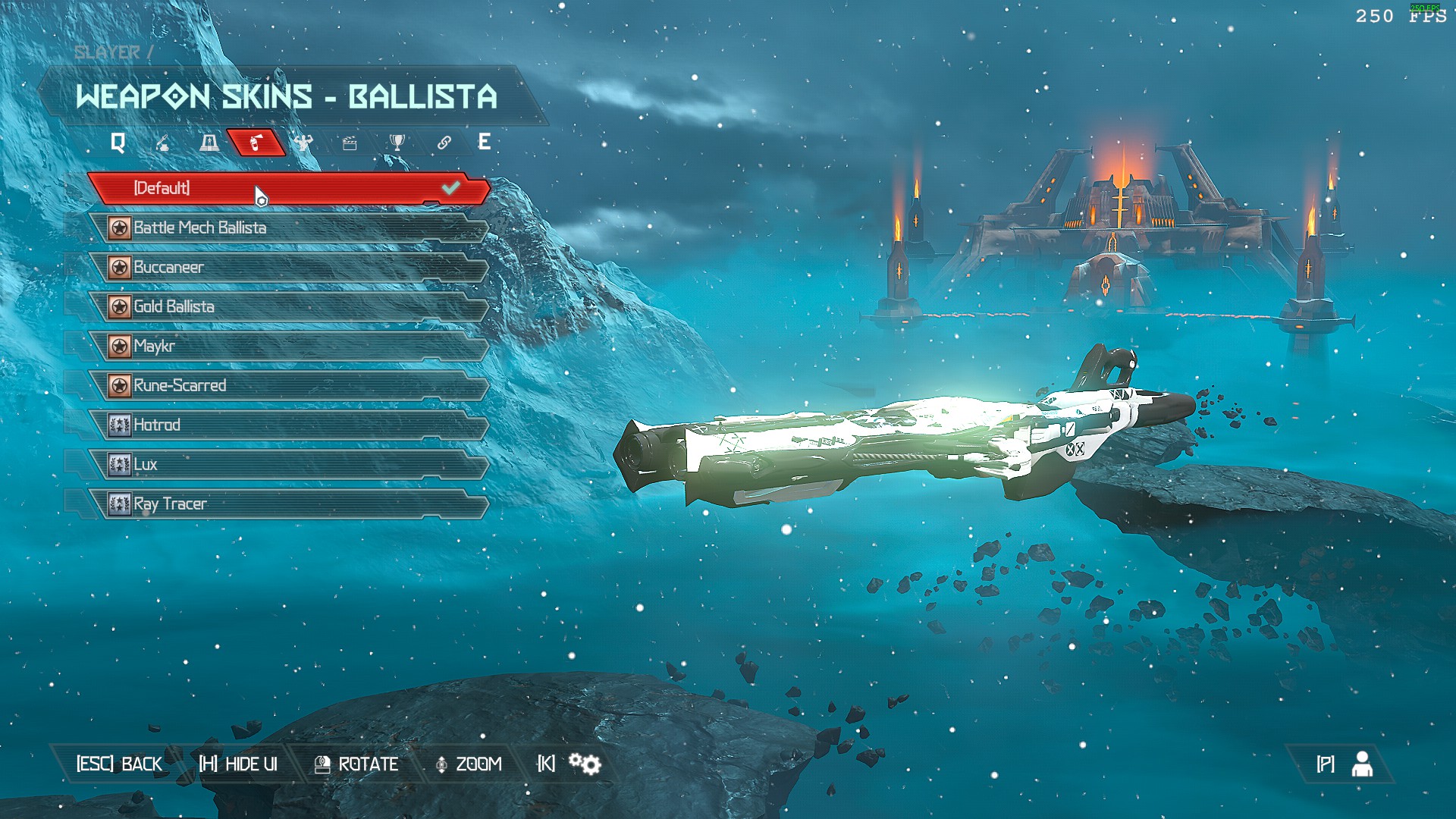
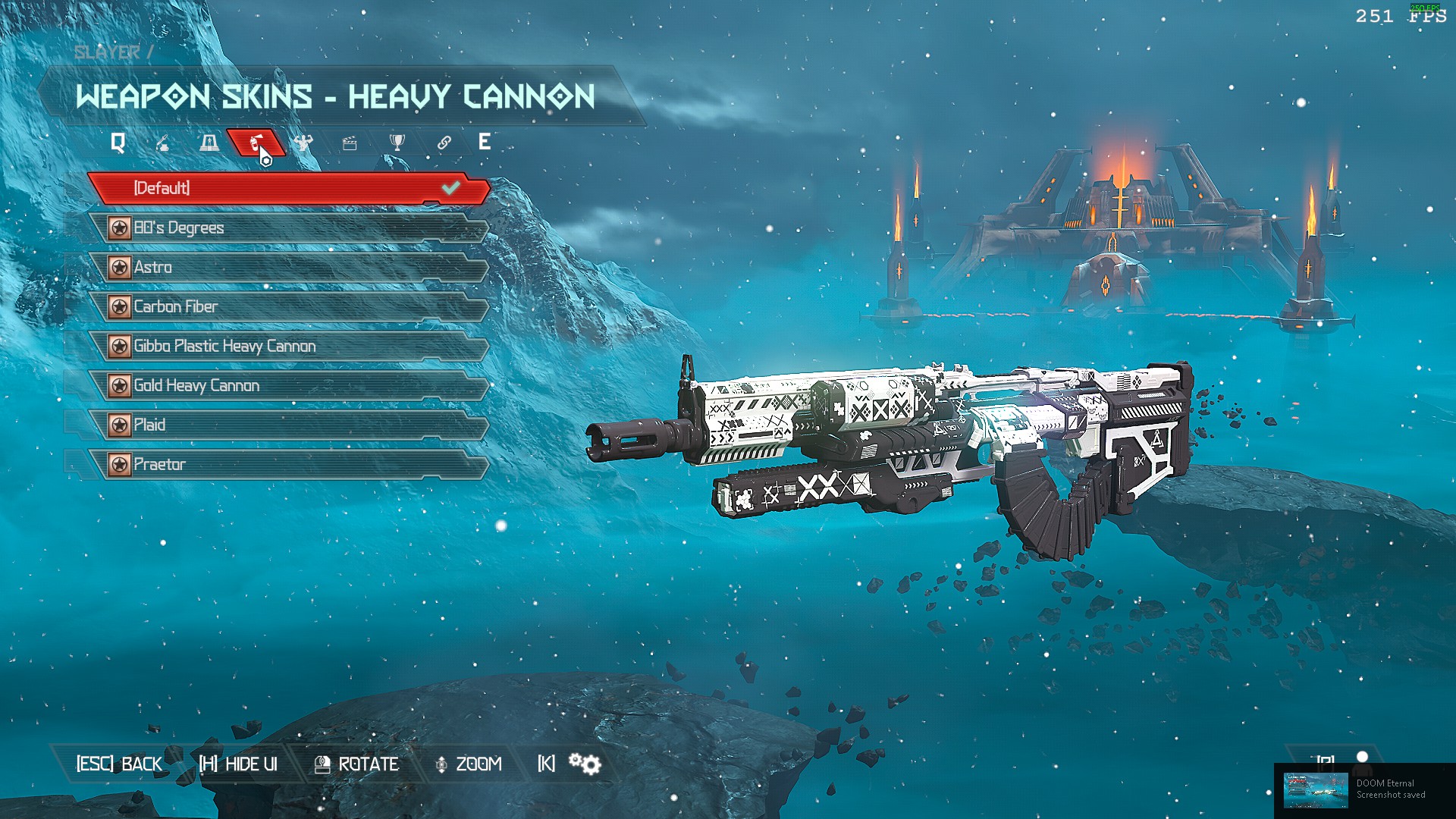
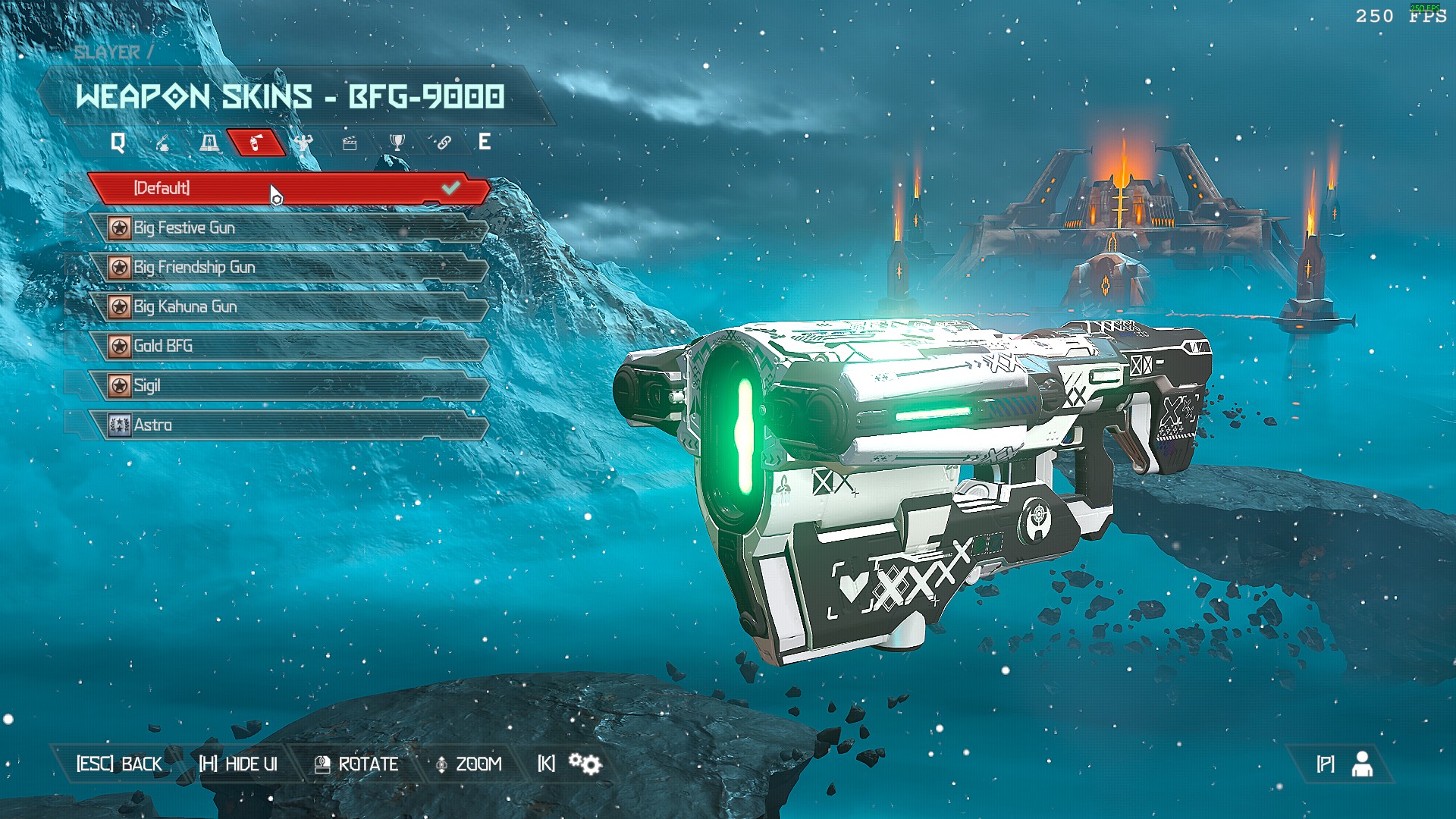
Now in the Game go to the Customization screen and select your weapon skins.
In this case most of the Printstream weapons replace the default skin, so I didn't have to change a lot.
Enjoy!
If you have any questions, feel free to leave a comment and I'll answer.
In this case most of the Printstream weapons replace the default skin, so I didn't have to change a lot.
Enjoy!
If you have any questions, feel free to leave a comment and I'll answer.
Quick Video for Everyone Who Hates Reading
More DOOM Eternal guides
- DOOM Eternal 100% Achievement Guide★ 5 (677)39k views1.6k ♥15 minUpdated Apr 9, 2024
- DOOM Eternal Written Guide/Walkthrough for all collectables and secrets inc DLC.★ 5 (1.7k)36k views3.9k ♥129 minUpdated May 22, 2025
- Секреты Doom Eternal★ 5 (874)32k views1.7k ♥23 minRussianUpdated Apr 17, 2023
- Console Commands for DOOM Eternal★ 5 (213)29k views502 ♥18 minUpdated Mar 30, 2021
- Collectibles and Secrets Guide 100% DOOM Eternal★ 4 (370)26k views589 ♥1 minBulgarianUpdated Apr 2, 2021
- DOOM for Dummies [Tweaks, Fixes, Problem solving] [EN]★ 5 (720)23k views878 ♥15 minUpdated Jun 18, 2020



This guide was created by its original author on the Steam Community. Are you the author and want it removed? Request removal.