Tips for setting up Mods for the first time
1. How do I download mods?
Once you opt into the pc-mod-preview beta, clicking play on steam you'll be greeted with a new launcher akin to Fallout or Skyrim.
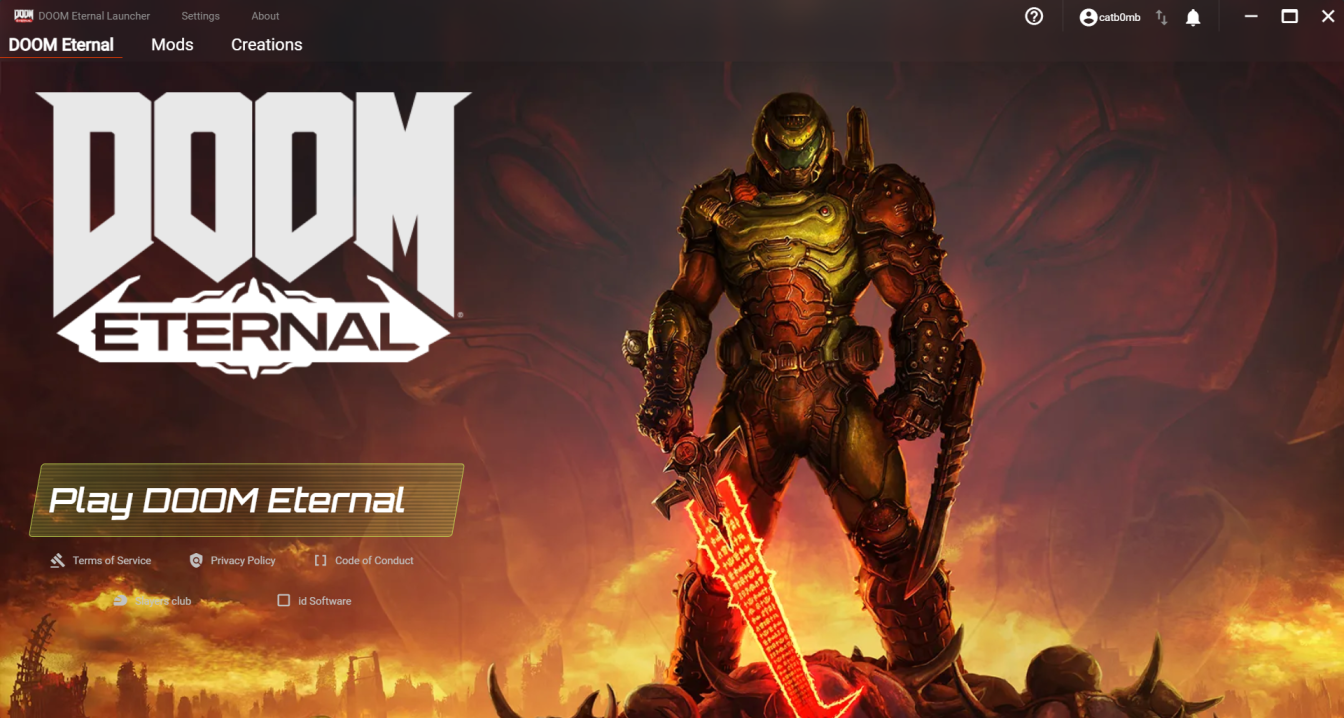
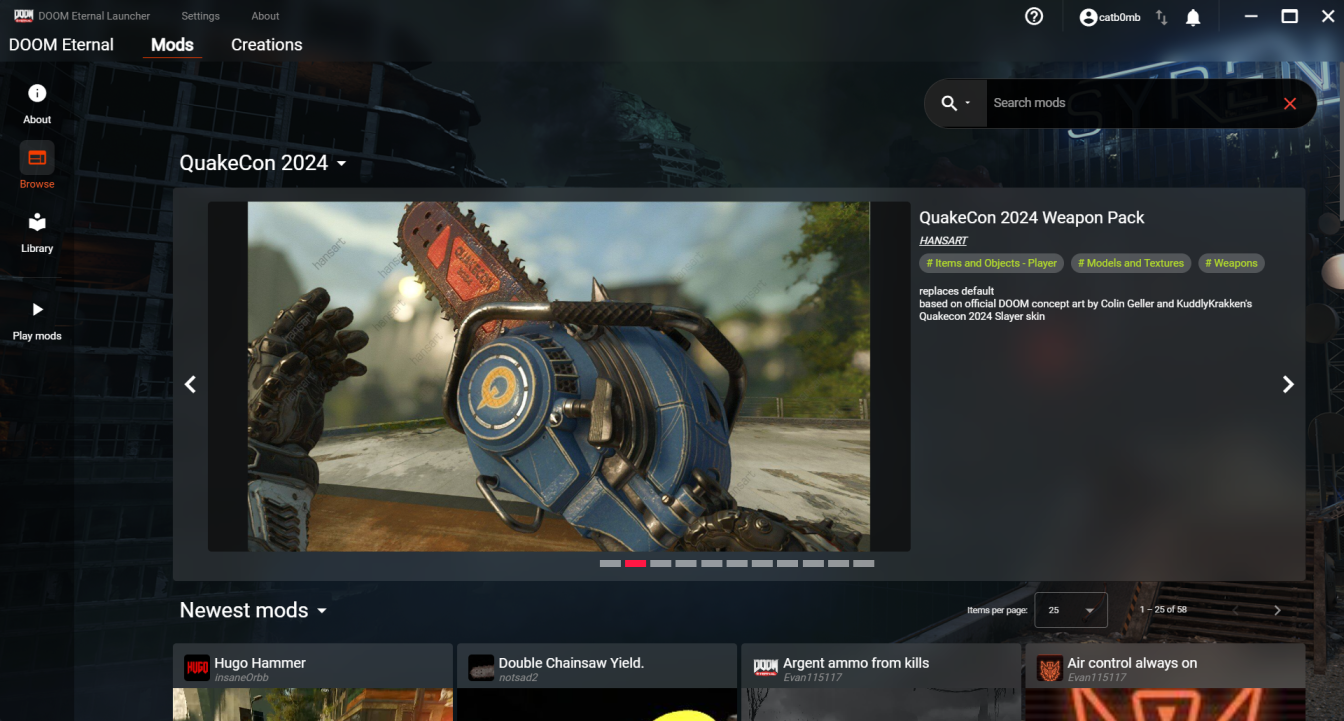
Click over to mods, browse, and log in with your bethesda.net information.
Frankly, I have no idea why or how to prevent this and it's one of the few issues I currently have with this beta. Every other Bethesda game I own can pickup my login fine as it's already linked to my Steam, yet this isn't for some reason. Just make sure you have an easy to memorize password for now, I guess.
As of the Nov 21 update this is no longer an issue and the launcher saves your login.
Once you've downloaded the mods you want, head on over to "play mods".
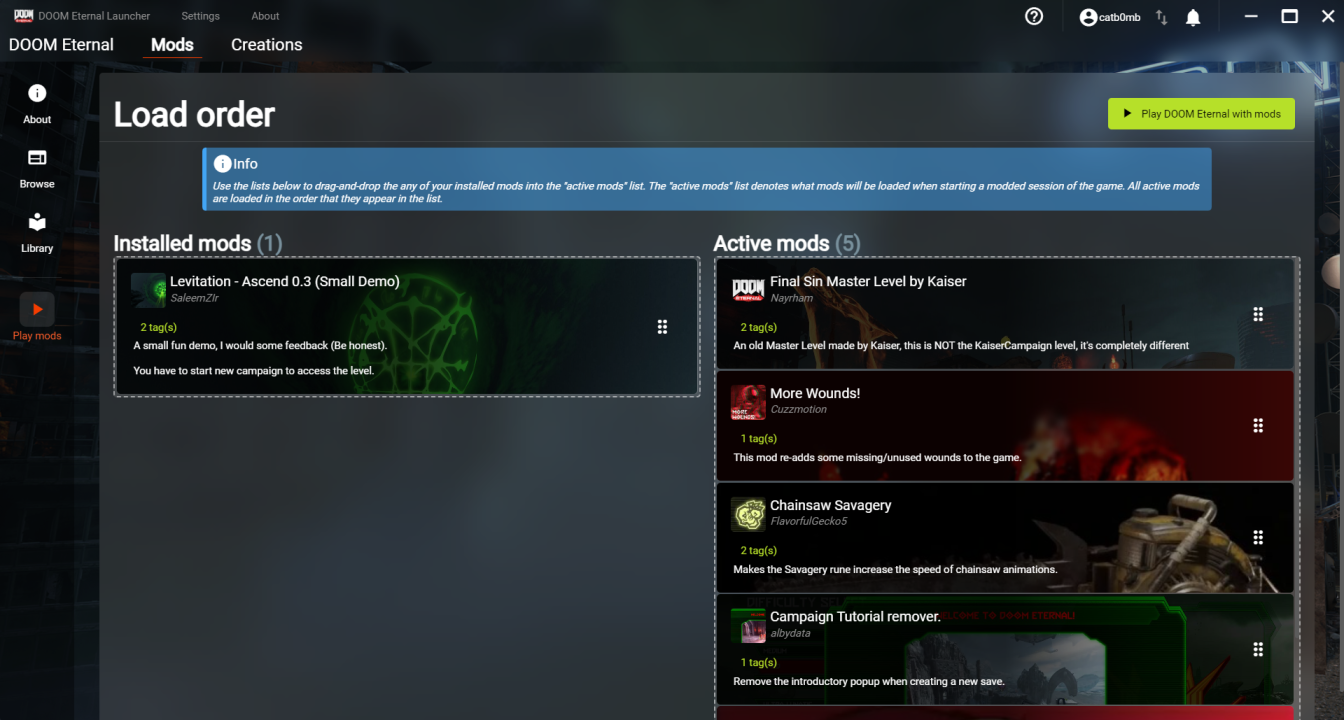
Drag and drop the mods you want in your installed tab over to your active tab. Like other Bethesda games or GzDoom if you're already familiar, mods are loaded in the order they are placed in, from top to bottom. Keep this in mind in order to prevent conflicts or any other issues when you inevitably have a large modlist.
Click over to mods, browse, and log in with your bethesda.net information.
"Why do I have to type my login every single time I go to the browse tab? Is there a way to prevent this?"
Frankly, I have no idea why or how to prevent this and it's one of the few issues I currently have with this beta. Every other Bethesda game I own can pickup my login fine as it's already linked to my Steam, yet this isn't for some reason. Just make sure you have an easy to memorize password for now, I guess.
As of the Nov 21 update this is no longer an issue and the launcher saves your login.
Once you've downloaded the mods you want, head on over to "play mods".
Drag and drop the mods you want in your installed tab over to your active tab. Like other Bethesda games or GzDoom if you're already familiar, mods are loaded in the order they are placed in, from top to bottom. Keep this in mind in order to prevent conflicts or any other issues when you inevitably have a large modlist.
2. Where did everything go?
Booting up the game with mods, you'll likely notice that the game acts as if it's booting up for the first time, with a level 0 character and default settings, without the ability to connect to the bethesda.net servers. You'll likely also notice all of your saves are gone. This is because this is pulling from a separate "modded" game profile, that way we can prevent any potential corruption on your vanilla saves.
This can be a bit annoying if you've used custom binds for things like the equipment launcher/specific weapons, or aren't a fan of the "racecar HUD" being enabled by default like I am. You could manually go through all your settings and readjust them again, but here's a simple way to easily transfer your settings over.
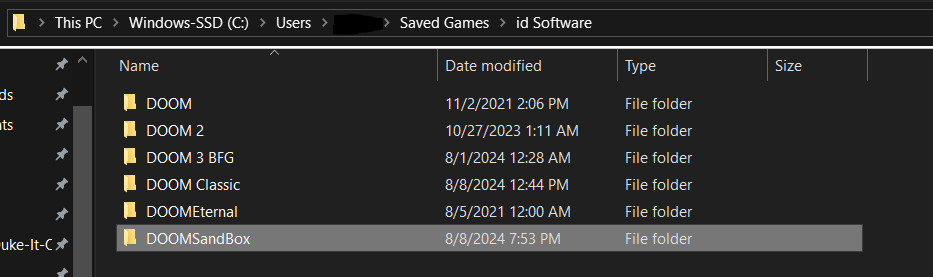
Go to C:/Users/[desktop name]/Saved Games/id Software/DOOMEternal/base.
(If you're on Linux/Steam Deck, go to /home/user/.local/share/Steam/steamapps/compatdata/782330/pfx/drive_c/users/steamuser/Saved Games/id Software/DOOMEternal/base/)
Here, you'll notice there's a DOOMEternal and a DOOMSandbox folder (this is your modded profile). From here, go to DOOMEternal/base and copy DOOMEternalConfig.cfg.
![]()
Copy DOOMEternalConfig.cfg over to DOOMSandbox/base.
![]()
And you're set! Next time you boot up your modded game, you'll instantly have your settings and binds from vanilla.
This can be a bit annoying if you've used custom binds for things like the equipment launcher/specific weapons, or aren't a fan of the "racecar HUD" being enabled by default like I am. You could manually go through all your settings and readjust them again, but here's a simple way to easily transfer your settings over.
Go to C:/Users/[desktop name]/Saved Games/id Software/DOOMEternal/base.
(If you're on Linux/Steam Deck, go to /home/user/.local/share/Steam/steamapps/compatdata/782330/pfx/drive_c/users/steamuser/Saved Games/id Software/DOOMEternal/base/)
Here, you'll notice there's a DOOMEternal and a DOOMSandbox folder (this is your modded profile). From here, go to DOOMEternal/base and copy DOOMEternalConfig.cfg.
Copy DOOMEternalConfig.cfg over to DOOMSandbox/base.
And you're set! Next time you boot up your modded game, you'll instantly have your settings and binds from vanilla.
3. What about Saves?
As of Update 2, saves can now be imported by checking the "import save profile" box in the load order menu. As a warning, uncheck this after you launch the game once with this, as if you don't, it'll overwrite your saves with your "standard" saves no matter what.

4. Conclusion
And that's about it! I feel like these are some issues people are gonna run into when setting up mods for the first time so I wanted to make this guide to prevent any further headaches or confusion when booting the game up for the first time. Once some more updates roll in for the SDK or anything changes I'll update this guide to account for it. Thank you again to id Software for giving us the tools to create more content for this great game!
More DOOM Eternal guides
- DOOM Eternal 100% Achievement Guide★ 5 (677)39k views1.6k ♥15 minUpdated Apr 9, 2024
- DOOM Eternal Written Guide/Walkthrough for all collectables and secrets inc DLC.★ 5 (1.7k)36k views3.9k ♥129 minUpdated May 22, 2025
- Секреты Doom Eternal★ 5 (874)32k views1.7k ♥23 minRussianUpdated Apr 17, 2023
- Console Commands for DOOM Eternal★ 5 (213)29k views502 ♥18 minUpdated Mar 30, 2021
- Collectibles and Secrets Guide 100% DOOM Eternal★ 4 (370)26k views589 ♥1 minBulgarianUpdated Apr 2, 2021
- DOOM for Dummies [Tweaks, Fixes, Problem solving] [EN]★ 5 (720)23k views878 ♥15 minUpdated Jun 18, 2020


This guide was created by its original author on the Steam Community. Are you the author and want it removed? Request removal.