Logitech Extreme 3D PRO
EASY GUIDE
Logitech Extreme 3D Pro works fine without any other third-party program.
Follow this:
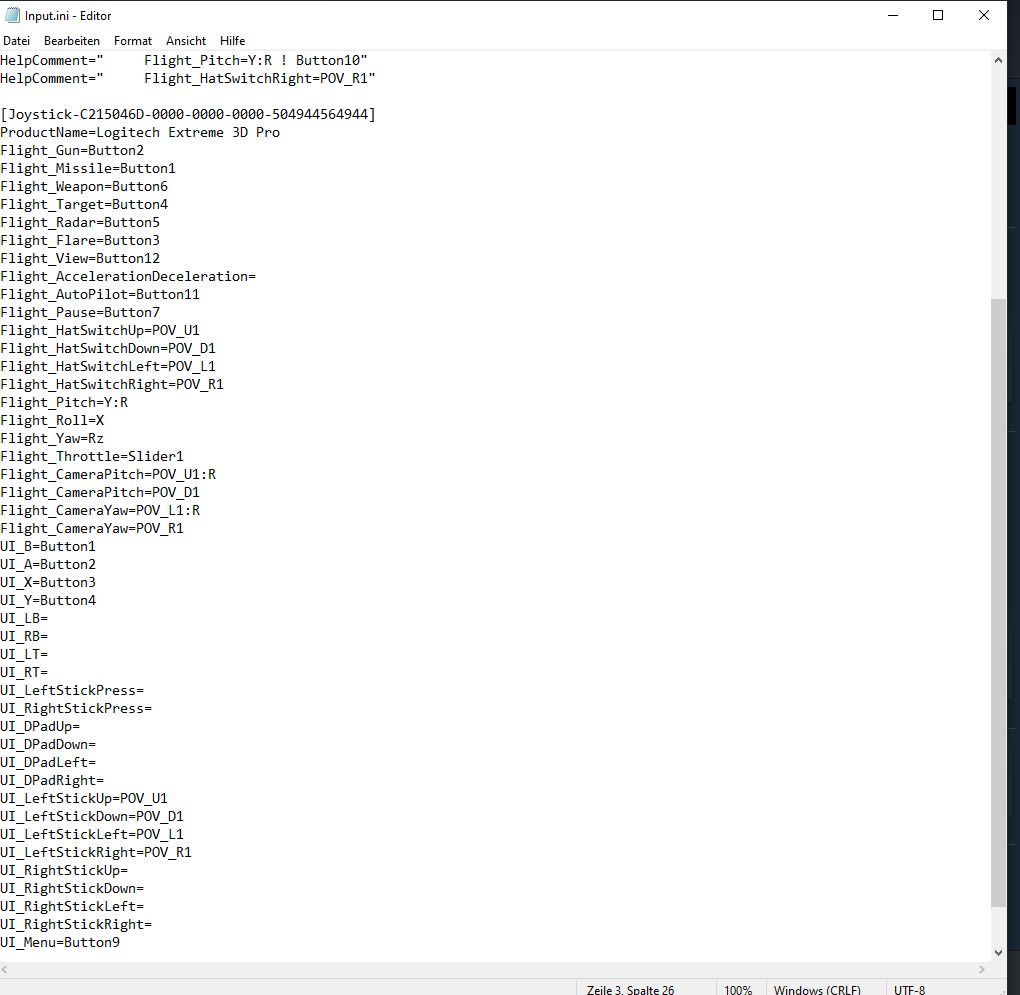
Open Explorer and go to this folder --> C:\Users\USERNAME\AppData\Local\BANDAI NAMCO Entertainment\ACE COMBAT 7\Config --> open file Input.ini --> under this
[Joystick-C215046D-0000-0000-0000-504944564944]
ProductName=Logitech Extreme 3D Pro
copy paste my config instead the empty one (The button numbers are the ones on the Joystick itself. You can change that if you want).
Flight_Gun=Button2
Flight_Missile=Button1
Flight_Weapon=Button6
Flight_Target=Button4
Flight_Radar=Button5
Flight_Flare=Button3
Flight_View=Button12
Flight_AccelerationDeceleration=
Flight_AutoPilot=Button11
Flight_Pause=Button7
Flight_HatSwitchUp=POV_U1
Flight_HatSwitchDown=POV_D1
Flight_HatSwitchLeft=POV_L1
Flight_HatSwitchRight=POV_R1
Flight_Pitch=Y:R
Flight_Roll=X
Flight_Yaw=Rz
Flight_Throttle=Slider1
Flight_CameraPitch=POV_U1:R
Flight_CameraPitch=POV_D1
Flight_CameraYaw=POV_L1:R
Flight_CameraYaw=POV_R1
UI_B=Button1
UI_A=Button2
UI_X=Button3
UI_Y=Button4
UI_LB=
UI_RB=
UI_LT=
UI_RT=
UI_LeftStickPress=
UI_RightStickPress=
UI_DPadUp=
UI_DPadDown=
UI_DPadLeft=
UI_DPadRight=
UI_LeftStickUp=POV_U1
UI_LeftStickDown=POV_D1
UI_LeftStickLeft=POV_L1
UI_LeftStickRight=POV_R1
UI_RightStickUp=
UI_RightStickDown=
UI_RightStickLeft=
UI_RightStickRight=
UI_Menu=Button9
You can use the game menu with Keyboard or with POV and Button 2 to confirm. Button9 for skip cutscene.
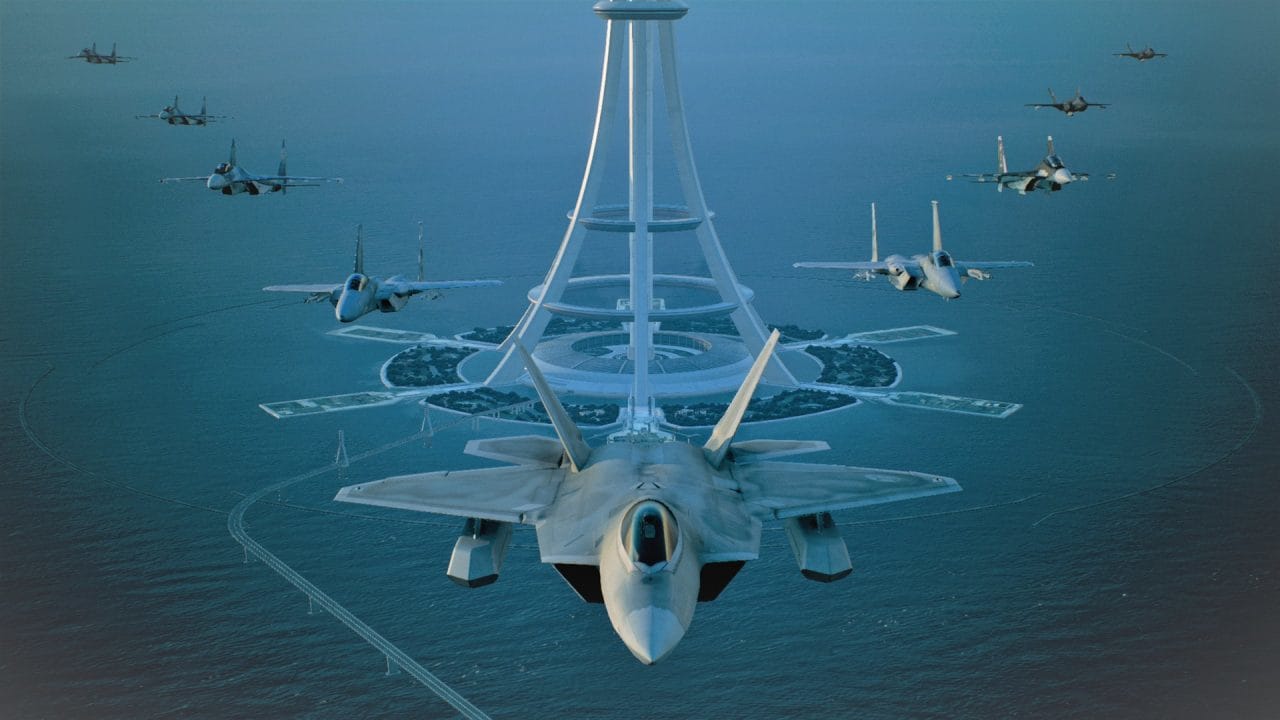
I hope I could help. ! READY TO TAKE OFF !
- How to S rank all missions on ACE difficulty - ACE of ACES achievement★ 5 (717)26k views1.6k ♥23 minUpdated May 12, 2019
- Native Flightstick Configuration★ 5 (316)24k views670 ♥8 minUpdated Oct 15, 2025
- Named Aircraft/"Bird of Prey" Guide★ 5 (980)20k views1.9k ♥10 minUpdated Feb 8, 2019
- All Aircraft Skins {Detailed Unlocks}★ 5 (414)19k views873 ♥15 minUpdated Dec 13, 2022
- Quick Guide to Maximum Texture Quality★ 5 (405)19k views721 ♥2 minUpdated Jan 16, 2020
- The ultimate(ish) nugget's guide to Ace Combat 7★ 5 (290)17k views540 ♥27 minUpdated Sep 8, 2022




- Upgrading to PremiumTeam Fortress 2★ 5 (20k)1441k views11k ♥6 minUpdated May 11, 2022
- No More Room in Hell Official ManualNo More Room in Hell★ 5 (2.8k)569k views2.1k ♥29 minUpdated Apr 22, 2019
- NMRiH Community Hosting GuidesNo More Room in Hell★ 5 (526)351k views653 ♥1 minUpdated Aug 10, 2022
- ULTIMATE GUIDE FOR GAME DEV TYCOONGame Dev Tycoon★ 5 (5.8k)326k views10k ♥4 minUpdated 23 Jan, 2014
- How to 'Git Gud' Soon™MORDHAU★ 5 (2k)318k views3k ♥68 minUpdated Nov 16, 2024
- Лучшие кооперативные игры SteamPAYDAY 2★ 5 (1.5k)315k views2.1k ♥56 minRussianUpdated Apr 27, 2025






This guide was created by its original author on the Steam Community. Are you the author and want it removed? Request removal.