Playing DSP multiplayer with the Nebula mod.
Disclaimer
This guide is now up to date with the fog as of 27/05/2024!
I am in no way affiliated with anyone working on the project. I am here to guide you on the installation process. You can always get the most up to date information on the Nebula GitHub page[github.com] or in the Discord (also linked in the GitHub).
If you have any questions, I will try my best to be of assistance (but I rarely check Steam comments, so I recommend their Discord).
Keep in mind that game updates will almost certainly break the mod. Please do not spam the developers with questions, they are working their hardest!
THIS GUIDE WILL ONLY WORK WITH THE OFFICIAL STEAM VERSION OF THE GAME
Installing Nebula with r2modman
Dowload the mod manager from: https://dsp.thunderstore.io/package/ebkr/r2modman/
(click the Manual Download button)
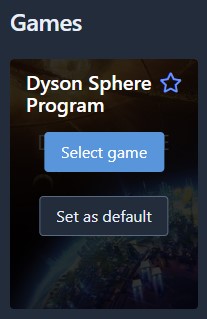
After the installation process is complete hover over Dyson Sphere Programs icon and set it as the default game.
Now select the default profile (you can opt to make your own, but it is not necessary for the mod manager to work)
Click Online and download the pinned mod (alternatively search for and download BepInEx, in case for some reason it is not pinned).
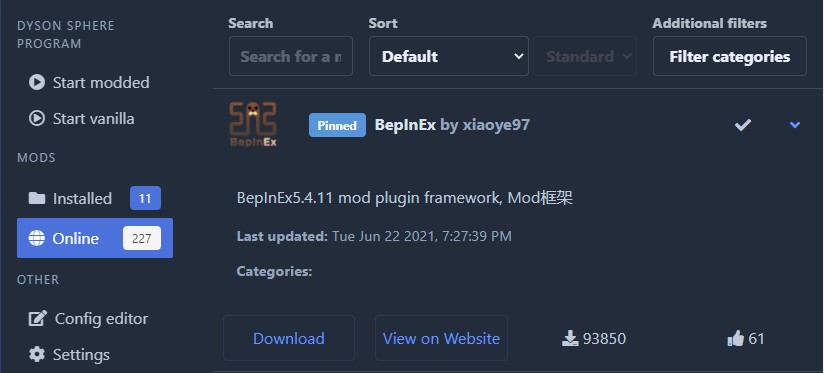
After the download is complete you should start the game once (click Start modded) to let the mod make it's own configuration files.
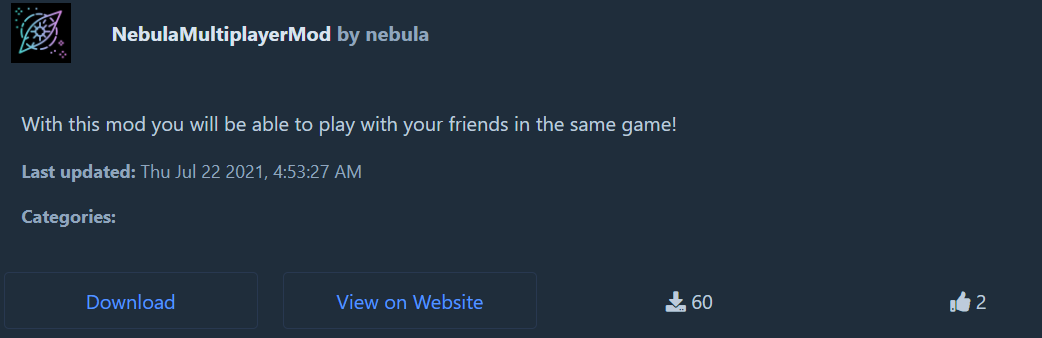
Go to the Online tab again and search for NebulaMultiplayerMod, click download and wait for the install to complete.
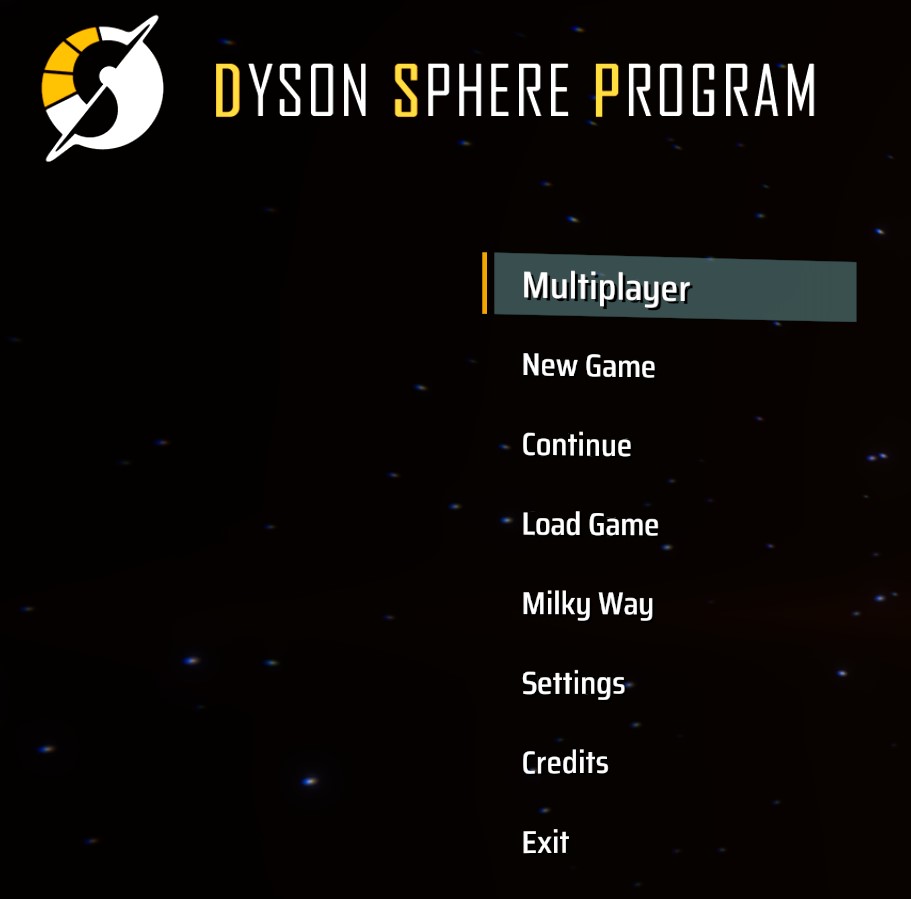
Now start the game again (Click Start modded) and you should see Multiplayer in the main menu.
You can now head over to the section about hosting and connecting to a server.
Installing other mods through r2modman
You can simply download any mod you wish. Just keep in mind that not all mods are compatible with Nebula (usually all UI mods are compatible).
Also remember that some mods might not be up to date with the current game version. Usually r2modman will show these as deprecated, there's no guarantee they will work.
UPDATE : You can now sort mods by their compatibility with Nebula, all these mods are verified to work with Nebula, at least for the most part. This filter can be accessed by pressing the "Filter categories button" and selecting the category "Nebula compatible".
Creating or loading a game
To load a game click Multiplayer and then Load Game (Host) now select the game you want to host.
Joining a game
This can be done by opening the Command Prompt (or Terminal for newer windows versions) and then typing in ipconfig to check this field:
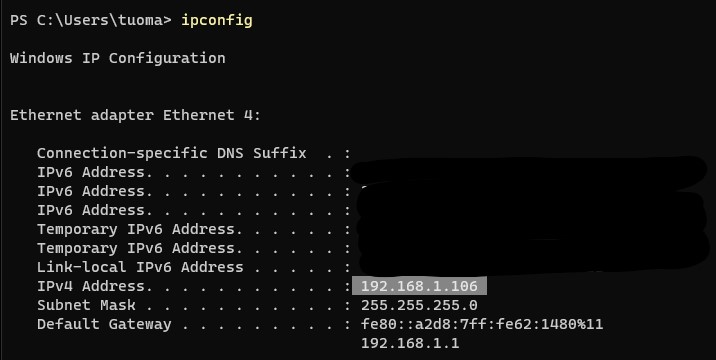 All you have to do to join a game, is to type the local IP of the hosting player into the Join Game dialog.
Once you click Join Game it should connect to the hosting person's game. That is if everything is installed correctly.
UPDATE: There are now instructions on playing over the network without port forwarding. Please check the relevant category on the right side of the page!
To host a server accessible over the internet you need to Port Forward the port 8469. If you don't know how to do this there's a video with instructions in a later section.
The easiest way to figure out your public IP address is to Google for What is my ip.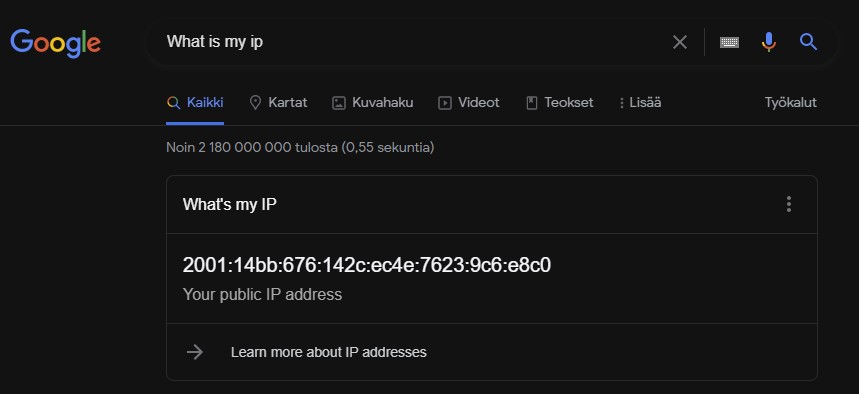
If the Google answer doesn't show you your IPv4 address (xxx.xxx.xxx.xxx) and instead shows the IPv6 address instead (like in the picture) then usually just clicking any of the results Google gives should show the IPv4 address.
Now assuming you've successfully port forwarded the game, you should be able to give the other party your Public IP address, and they should be able to join using the Join Game menu just as usual.
In case of any issues i would suggest going to their Discord server here and going first to the #faq channel and if that doesn't help then to the #support channel.
Port Forwarding
You can follow this port forwarding tutorial. Just remember that the port is 8469 and you only need to port forward TCP.
Also see : https://github.com/hubastard/nebula/wiki/Hosting-and-Joining#port-forwarding
Alternatively I have added my own port forwarding steps below for a quick start.
IMPORTANT :
Before trying to port forward check that you router is set to a public IP. Some routers (and ISPs) will default to an IP address that is locked down on your ISP's side. You can see an example in this picture, where my router had it set to the default internet, and had to change it to Public IP.
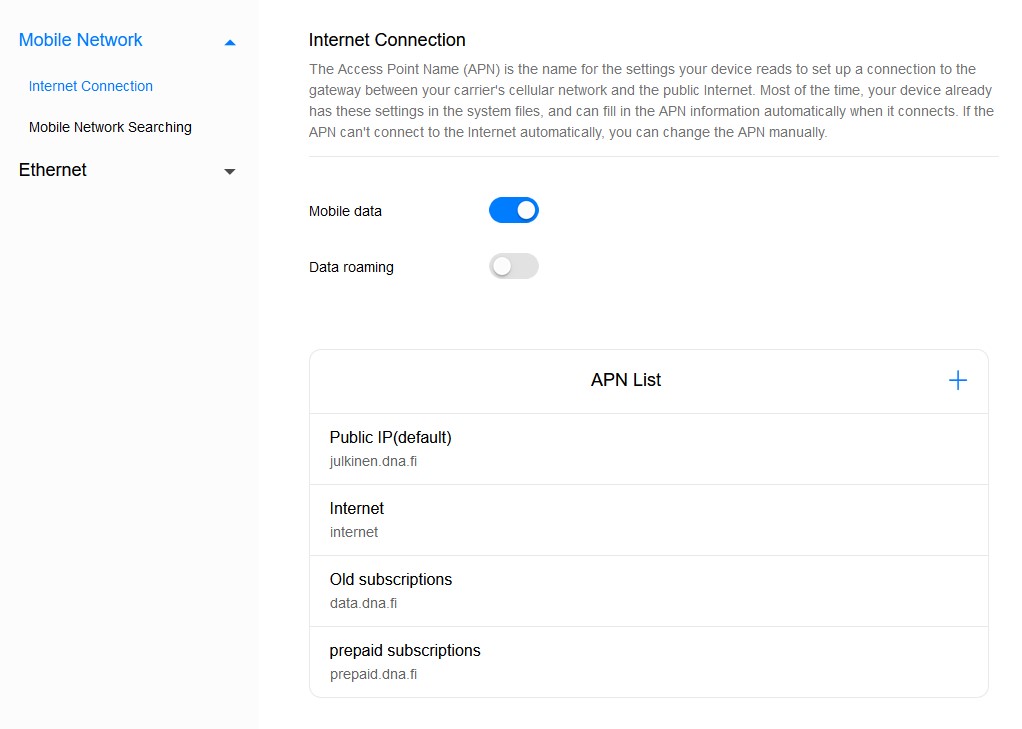 Next head over to your router's port forwarding settings and add a new rule like in the image. Remember to replace 192.168.1.106 with your computer's local IP address.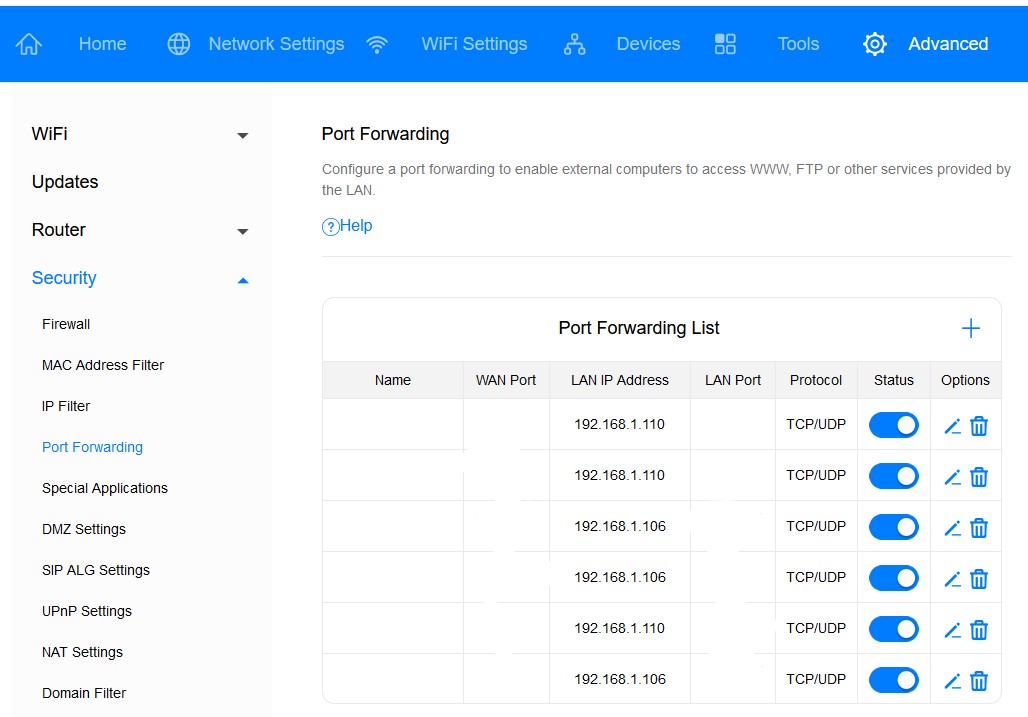
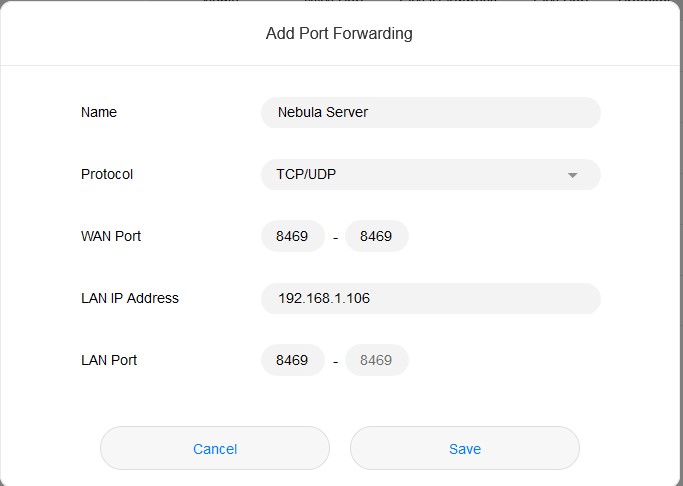
Click save, you might have to restart your router depending on it's age. Other people should now be able to connect to you using your public IP address.
NOTICE: While extremely unlikely, it's never a good idea to leave ports open for nothing. Having a port open basically means your router will let any connection through as long as it specifies that port. Now this connection cannot do anything on your PC unless you have a server running. However do you always know with 100% certainty what your PC is running?
Online without port forwarding (Ngrok)
- Dyson Sphere Program Production Chain Layouts★ 5 (1.2k)58k views2.8k ♥29 minUpdated 17 Dec, 2023
- Dyson sphere design and construction★ 5 (334)35k views761 ♥39 minUpdated 6 Feb
- Pre-planetary logistics: An organization method for starters, circular belts and sorter dynamics★ 5 (741)34k views2k ♥26 minUpdated 19 Mar, 2021
- A Set of Basic Factory Blueprints★ 5 (403)29k views1.1k ♥5 minUpdated 15 Sep, 2024
- Basic Basics★ 5 (322)29k views529 ♥8 minUpdated 25 Dec, 2022
- Main Bus Design★ 4 (174)27k views315 ♥3 minUpdated 25 Jan, 2021


- Upgrading to PremiumTeam Fortress 2★ 5 (20k)1441k views11k ♥6 minUpdated May 11, 2022
- No More Room in Hell Official ManualNo More Room in Hell★ 5 (2.8k)569k views2.1k ♥29 minUpdated Apr 22, 2019
- NMRiH Community Hosting GuidesNo More Room in Hell★ 5 (526)351k views653 ♥1 minUpdated Aug 10, 2022
- How to 'Git Gud' Soon™MORDHAU★ 5 (2k)318k views3k ♥68 minUpdated Nov 16, 2024
- Лучшие кооперативные игры SteamPAYDAY 2★ 5 (1.5k)315k views2.1k ♥56 minRussianUpdated Apr 27, 2025
- Desert Eagle Heat Treated | Blue GemCounter-Strike 2★ 5 (1.6k)292k views1.5k ♥2 minUpdated Jan 16





This guide was created by its original author on the Steam Community. Are you the author and want it removed? Request removal.