Steam Deck/Linux — Remove Black Bars/Ultrawide patch
About
Ace Combat 7 does not natively support the 16:10 aspect ratio used by the Steam Deck, leading to black bars at the top and bottom of the screen. However, this issue can be resolved using a tool created by massimilianodelliubaldini[github.com], which modifies the game executable to support a custom aspect ratio.
I developed a script which will automatically patch the game for you (with as few user interaction as possible).
While this patch works well, you may notice minor HUD cutoffs. It is primarily noticeable on mission completion screen, but overall it is very minor, and does not affect the gameplay.
If you are comfortable with Linux, feel free to directly go to the Github repo[github.com] with less hand-holding documentation.
You can use this automation on any other Linux distros as well.
Script will automatically pick up your resolution, just make sure protontricks[github.com] is installed.
Installing the patch
- Hold the Power Button for 3 seconds.
- Select Switch to Desktop from the menu.
- Navigate in Desktop Mode using track pads for mouse movement, and triggers for right and left click.
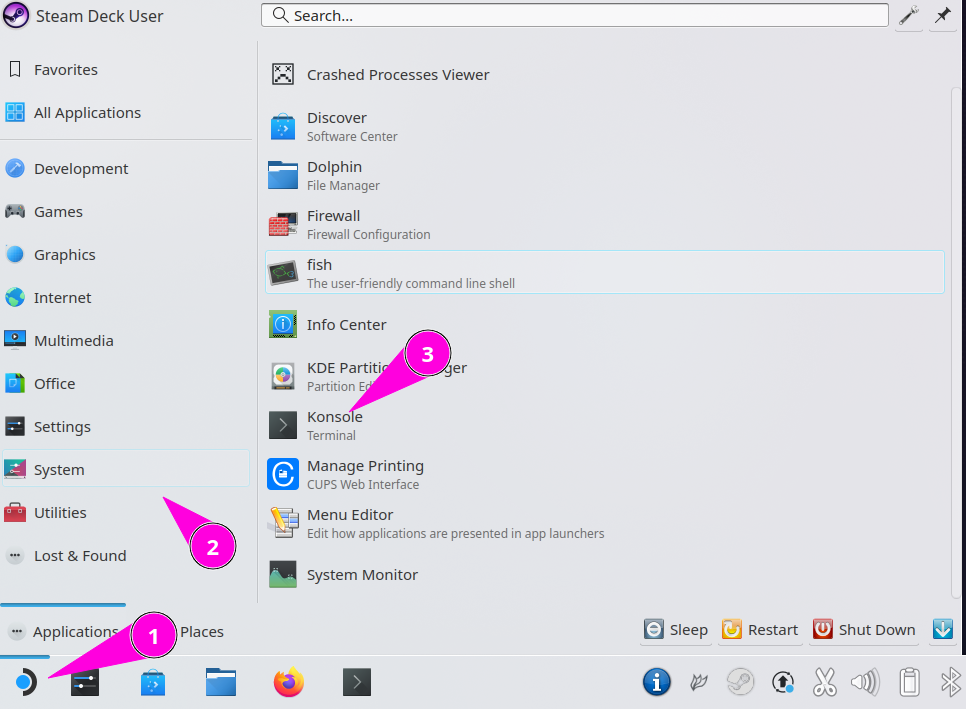
- In Desktop Mode, click the Start/Deck icon (bottom-left corner).
- Navigate to System → Konsole.
This will automatically download all required components and begin the installation.
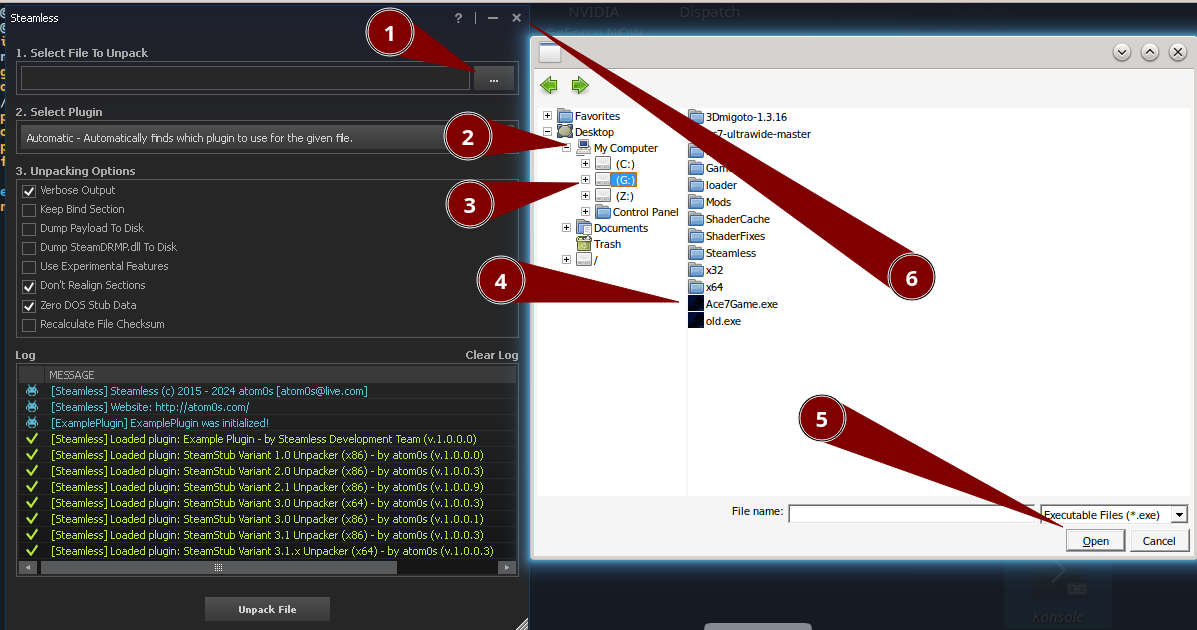
- When prompted, click the [...] button near Select file to Unpack.
- In the Explorer window:
- Click My Computer.
- Open the drive G:
- Select the Ace7Game.exe file and click Open.
- Click Unpack File in Steamless, and wait for the message:
"Successfully unpacked file."
- Close the Steamless window when finished.

Game Configuration
Once back in Gaming Mode, follow these steps to adjust the game’s compatibility settings:
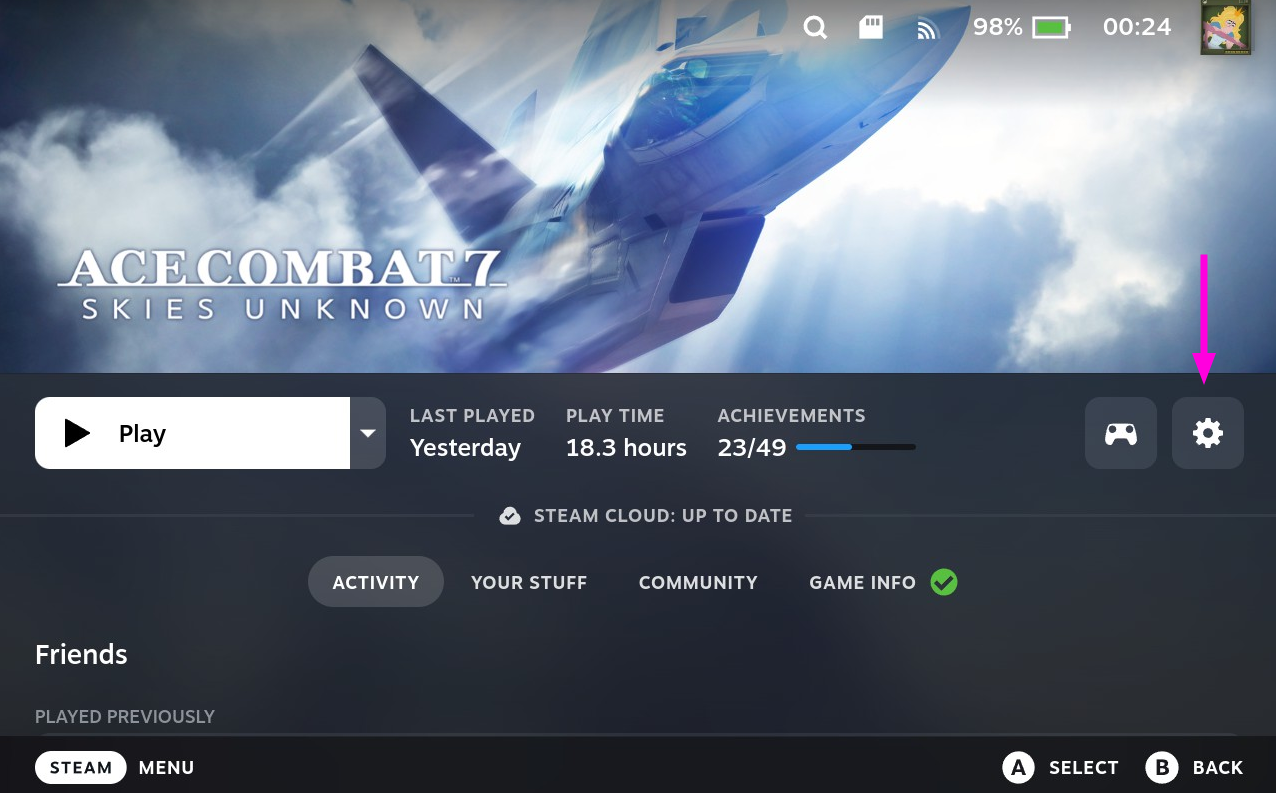
- Open the game properties by clicking the cog icon on the game’s screen:
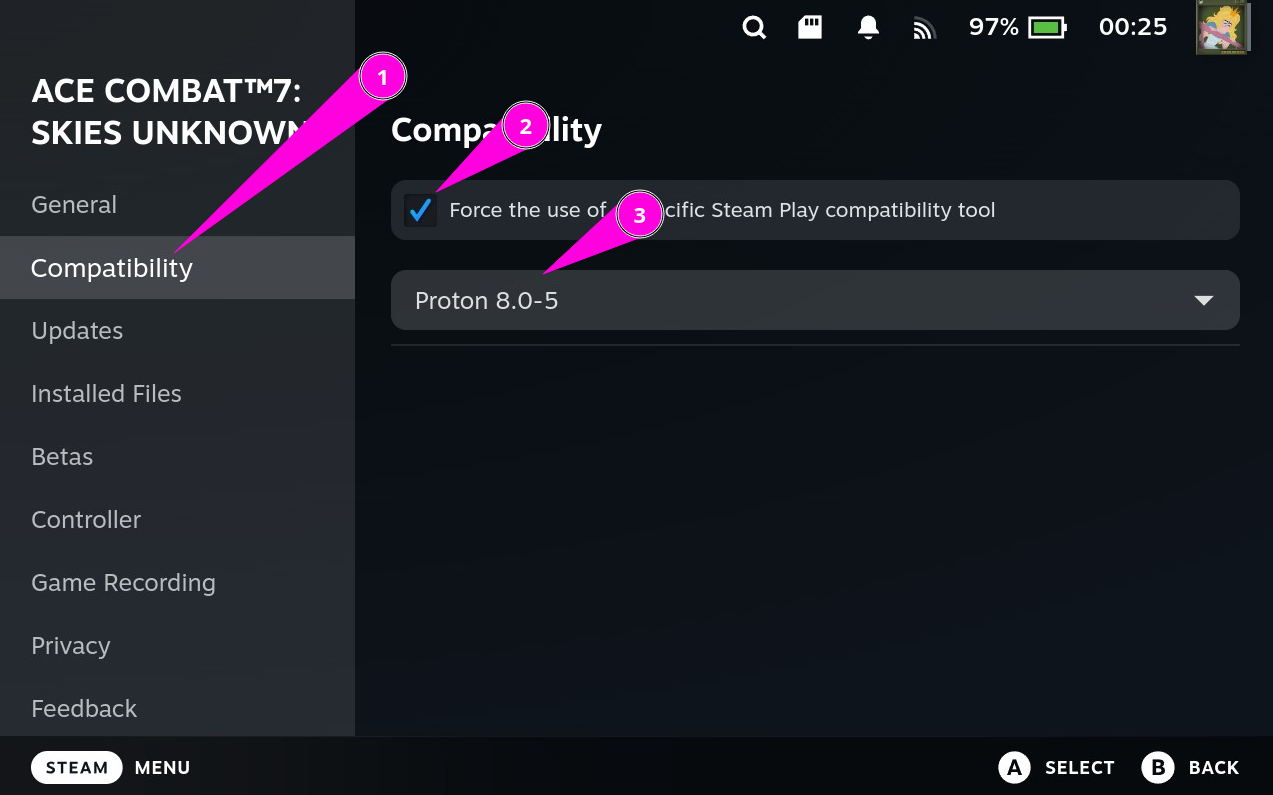
- Go to Compatibility settings and enable "Force the use of a specific Steam Play compatibility tool".
- From the dropdown, select Proton 8.0-5.
Enjoy the game
That should be it.
Game is running perfectly on the Steam Deck.
Once again, thanks to the original developer of the fix, and people who contributed.
Tested on the latest patch from Nov15 2022 (Tested on 24/12/2025)
Please note that might trigger the anticheat in the multiplayer, so stick to the single player.
If you want to remove the temporary installer files after everything is working, you can run the cleanup script.
How to run cleanup:Start the Konsole again and run:
To uninstall this fix, just verify the games content from the properties of the game → Installed Files → Verify this game's files are installed correctly
And delete d3d11.dll file from
- How to S rank all missions on ACE difficulty - ACE of ACES achievement★ 5 (717)26k views1.6k ♥23 minUpdated May 12, 2019
- Native Flightstick Configuration★ 5 (316)24k views670 ♥8 minUpdated Oct 15, 2025
- Named Aircraft/"Bird of Prey" Guide★ 5 (980)20k views1.9k ♥10 minUpdated Feb 8, 2019
- All Aircraft Skins {Detailed Unlocks}★ 5 (414)19k views873 ♥15 minUpdated Dec 13, 2022
- Quick Guide to Maximum Texture Quality★ 5 (405)19k views721 ♥2 minUpdated Jan 16, 2020
- The ultimate(ish) nugget's guide to Ace Combat 7★ 5 (290)17k views540 ♥27 minUpdated Sep 8, 2022




- Upgrading to PremiumTeam Fortress 2★ 5 (20k)1441k views11k ♥6 minUpdated May 11, 2022
- No More Room in Hell Official ManualNo More Room in Hell★ 5 (2.8k)569k views2.1k ♥29 minUpdated Apr 22, 2019
- NMRiH Community Hosting GuidesNo More Room in Hell★ 5 (526)351k views653 ♥1 minUpdated Aug 10, 2022
- ULTIMATE GUIDE FOR GAME DEV TYCOONGame Dev Tycoon★ 5 (5.8k)326k views10k ♥4 minUpdated 23 Jan, 2014
- How to 'Git Gud' Soon™MORDHAU★ 5 (2k)318k views3k ♥68 minUpdated Nov 16, 2024
- Лучшие кооперативные игры SteamPAYDAY 2★ 5 (1.5k)315k views2.1k ♥56 minRussianUpdated Apr 27, 2025






This guide was created by its original author on the Steam Community. Are you the author and want it removed? Request removal.