🔧 Aliens vs Predator (2010) – How to fix In-Game Issues solutions | Miscellaneous
★ SOLUTIONS FOR IN-GAME ISSUES
Welcome! This is a game manual. Here we try to answer frequently asked questions and solve problems.
In game crash fix: Setup compatibility mode
- Right click and go to "properties" then "compatibility"
- Turn on compatibility mode with windows 7 selected in there and click on the box that says "run this game as administrator" (do this to all 3 of them)
- Open the AvP launcher from within the game files once
From then on you should be able to open the game from within steam and without any crashes caused by the game itself
Credits: seaghdha
Run the game at screen refresh rate
Rebellion's Asura engine may automatically set monitor refresh rate to 60 Hz; this can result in reduced smoothness on a high refresh rate monitor even if GPU render shows a high FPS count.
If Vsync limits refresh rate to 60 fps on a high refresh rate monitor, this is a sign this issue is occurring.
This game support 60 FPS (Default) and 120+ FPS.
There are solutions to the problem.
If Vsync limits refresh rate to 60 fps on a high refresh rate monitor, this is a sign this issue is occurring.
This game support 60 FPS (Default) and 120+ FPS.
There are solutions to the problem.
- After starting the game (mission or multiplayer match), press Left Alt + Enter to switch to windowed mode, and then Left Alt + Enter again to switch to fullscreen mode. This should solve the problem.
- Set the "-subwindow" parameter in Launch Options:
In your Steam library click Right mouse on "Aliens vs. Predator" game > "Properties" > General. In Launch Options you need write -subwindow.
This parameter launch your game already in windowed mode.
Setup your resolution in game in 1280x720. Its give you issue with mouse in main menu, so you must navigate in game menu using arrows on keyboard. Once launch game click Left Alt + Enter for switch game in fullscreen mode. This should solve the problem with frame losses. - Disable fullscreen optimizations
1. Navigate to <path-to-game>.
2. Right-Click AvP_DX11.exe and click on Properties.
3. In the AvP_DX11.exe Properties window, click on the Compatibility tab.
4. Enable Disable fullscreen optimizations.
5. Click OK.
This will disable V-sync even if enabled in-game.
How to play Multiplayer
Dedicated Server Setup Guide
How to enable Controller/Gamepad
Full controller support must first be enabled in the control settings menu:
In game: Options -> Control -> Use Game Pad ON
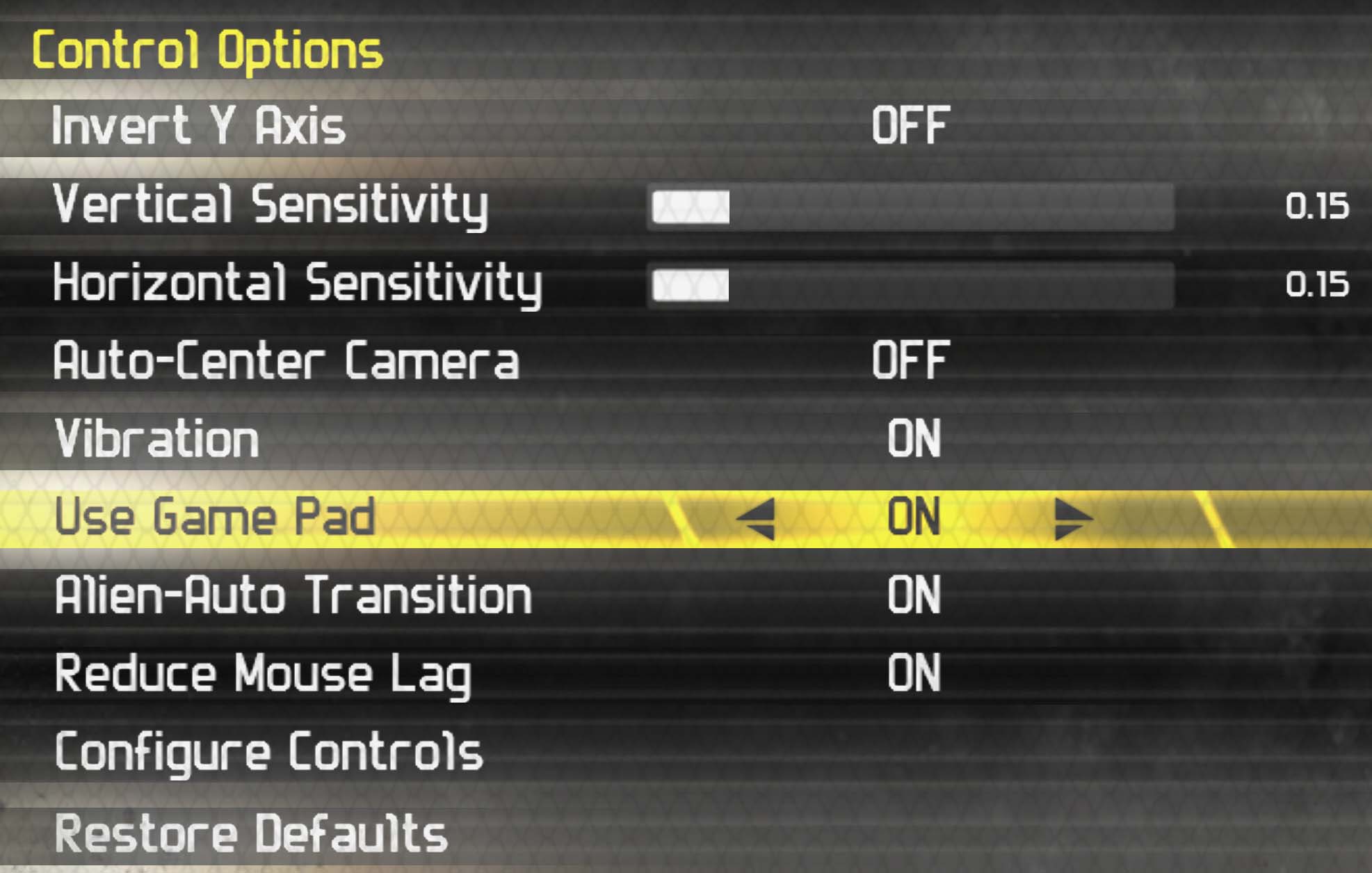
Controller remapping: Three preset available per player class.
Supported: XInput-compatible controllers. Unknown: PlayStation controllers, Generic/other controllers.
In game: Options -> Control -> Use Game Pad ON
Controller remapping: Three preset available per player class.
Supported: XInput-compatible controllers. Unknown: PlayStation controllers, Generic/other controllers.
Character cannot move in game
This is a common mistake for users whose primary language is not English. Change your language to English (Shift+ALT or Shift+CTRL)
Play on Steam Deck
https://youtu.be/Lnh2N0i3sCk?si=Mcf3QPolJ-4qD63H
This game have status "Unsupported" for Steam Deck, but its playable!
Credits: DansNull
This game have status "Unsupported" for Steam Deck, but its playable!
- Before launching the game. Make sure you are using the “Proton Experimental” version in the games Steam settings.
- (Booting the game the first time only) You have to boot it in “desktop mode” so you can properly close the “readme” file that opens. After this first boot in desktop mode, you can boot it normally in Deck Mode going forward.
- Once the game opens, use the right trackpad and steam button+RT to navigate to the settings page so you can enable “Use Gamepad” in the controls settings.
- Once Gamepad is enabled, you can finish tweaking the settings and play the game just fine using the Steam Deck controls! Set all the video settings to Max! The Steam Deck can easily handle it!
Credits: DansNull
Game crashing while firing guns
You need to tell the game executable to run on only one of your CPU cores.
Credits: wobi1
- Open Task Manager (ctrl+alt+del or right click on the task bar).
- Start the Game. Get to the main menu.
- Alt-Tab to Task Manager, switch to the details tab, find the AvP DX11.exe in the list.
- Right click AvP DX11.exe and select "Set affinity" , Uncheck all but "CPU 0", Click OK.
- Right click AvP DX11.exe again and hover over "Set priority" and in the popout select "High", click ok to confirm.
- Switch back to the game and kill some aliens!
Credits: wobi1
Game crashes every time if you kill someone in multiplayer
The problem lies in the .exe files in game folder. You may have previously manually installed various patches from the Internet.
Solution:
1. Go to <path-to-game>
2. Find and delete AvP.exe, AvP_DX11.exe, AvP_Launcher.exe
3. Verified files in Steam
After that, try playing multiplayer again.
Solution:
1. Go to <path-to-game>
2. Find and delete AvP.exe, AvP_DX11.exe, AvP_Launcher.exe
3. Verified files in Steam
After that, try playing multiplayer again.
Updating Executable (Steam)
Check more information about it in steam disscussion:
⚠️ "Updating Executable" error in AVP 2010 is back (2026) — how we fixed it before & what to do now
⚠️ "Updating Executable" error in AVP 2010 is back (2026) — how we fixed it before & what to do now
★ MISCELLANEOUS
How to install addons/modifications
Read the Readme files for detailed installation instructions.
Most of modification files are often in the .en format.
1. Put <mod>.en file in <path-to-game>\Misc folder
2. Open common.lst from the <path-to-game>\Misc folder with the notepad
3. Add a the following line at the bottom: misc\<mod>.en
4. Save the file and close the notepad.
The extension .en of the modded files means the game has to be on English or the
modification won't work. If you want to use this mod in your desired language, this
extension should be changed to the one from your region. For eg: Spanish = .sp,
French = .fr, Italian = .it, German = .ge
Main resources with game addons & modifications:
ModDB: Addons | Mods | Files
NexusMods[nexusmods.com]
AVP Mod Installer by Vhetration:
Original / Self-Contained (Windows)
For developers: QuickBMS Script \ Post Processor by Vhetration
How to install an AVP 2010 Mod by Vhetration
How to Mod AvP by TheUnbeholden
Most of modification files are often in the .en format.
1. Put <mod>.en file in <path-to-game>\Misc folder
2. Open common.lst from the <path-to-game>\Misc folder with the notepad
3. Add a the following line at the bottom: misc\<mod>.en
4. Save the file and close the notepad.
The extension .en of the modded files means the game has to be on English or the
modification won't work. If you want to use this mod in your desired language, this
extension should be changed to the one from your region. For eg: Spanish = .sp,
French = .fr, Italian = .it, German = .ge
Main resources with game addons & modifications:
ModDB: Addons | Mods | Files
NexusMods[nexusmods.com]
AVP Mod Installer by Vhetration:
Original / Self-Contained (Windows)
For developers: QuickBMS Script \ Post Processor by Vhetration
How to install an AVP 2010 Mod by Vhetration
How to Mod AvP by TheUnbeholden
Disable Heads-Up Display \ User Interface (HUD\UI)
You can use two mods to disable the interface. With the interface disabled, you can take beautiful screenshots or videos and share them with your friends.
If you are an expert in multiplayer, it can give you a new gaming experience:
Viewing information about the kills in the game is available only via the in-game console [~] (tilda button), [TAB] for game statistics, and reading the chat only when chat is open.
Known mistakes, but no one has fixed them yet: There is no display of allies. When playing the MSTDM match, you will have to recognize who is an ally and who is an enemy on your own.
Download on ModDB
In this version, there is no way to switch between displaying and hiding the HUD. The game menu, chat, and console are available to you. If you forget to make a Backup, recovery is possible via "Verify integrity of game files".
Download on NexusMods[www.nexusmods.com]
This version allow you Toggle all HUD on/off with a single key press in game.
Required: Latest version of ReShade with full add-on support[reshade.me] (second option)


If you are an expert in multiplayer, it can give you a new gaming experience:
- The Marine will no longer have a visual motion sensor. You will only hear sounds. Listen to the footsteps, recognize the location of the enemies yourself.
- Marine has no ammunition display, lifebar or any other information on screen. Your screen is clear.
- There is no display (outline) of enemies when viewed through the scope of a sniper rifle.
- Wall browsing (Sniper glitch) no longer works.
- There is no longer a skull icon above the enemy that is persecuting you. You need to find and defeat the enemy in a fair fight.
- All weapons in the game are no longer highlighted. It is necessary to remember the places where they lie.
- There is no longer a crosshair that will determine the xenomorph's position on the walls.
Viewing information about the kills in the game is available only via the in-game console [~] (tilda button), [TAB] for game statistics, and reading the chat only when chat is open.
Known mistakes, but no one has fixed them yet: There is no display of allies. When playing the MSTDM match, you will have to recognize who is an ally and who is an enemy on your own.
Download on ModDB
In this version, there is no way to switch between displaying and hiding the HUD. The game menu, chat, and console are available to you. If you forget to make a Backup, recovery is possible via "Verify integrity of game files".
Download on NexusMods[www.nexusmods.com]
This version allow you Toggle all HUD on/off with a single key press in game.
Required: Latest version of ReShade with full add-on support[reshade.me] (second option)
P.S.:
Please write in the comments if any of the ways helped you. If you encounter any difficulties anyway, write to us. We will look for solutions to the problem together.
More Aliens vs. Predator guides
- How to Play the Single-Player Levels Cooperatively★ 5 (497)30k views784 ♥4 minUpdated Jul 26, 2019
- REAL NASTY HABIT achievement in 30 minutes★ 5 (483)16k views556 ♥2 min
- Aliens vs. Predator - Walkthrough/Collectibles★ 5 (466)14k views598 ♥1 minUpdated Oct 16, 2025
- Play the game at 144 fps with DirectX 11 Enhanced Features★ 5 (218)13k views237 ♥1 minUpdated Oct 25, 2019
- Multiplayer Start-offs★ 5 (181)13k views176 ♥4 minUpdated Apr 3, 2022
- Руководство по получению достижений★ 5 (800)13k views770 ♥9 minRussianUpdated Mar 12, 2016


This guide was created by its original author on the Steam Community. Are you the author and want it removed? Request removal.