Play the game at 144 fps with DirectX 11 Enhanced Features
Introduction
By default, if you tried to play the DirectX 11 version with v-sync on, it will be defaulted to 60 fps even if you have a high refresh rate monitor. You can play the DirectX 9 version at high frame rates, but you will lose features such as anti aliasing and tessellation.
You can play the DirectX 11 version with v-sync off, and it will play at high frame rates, but I feel the performance is erratic and not really smooth. 60 fps with v-sync on at high refresh rate monitor for fps game also feels "BAD".
There is a guide that recommend the use of Special K, but I've found the game always crashes if I use it. This guide will show you a simple trick to achieve high frame rate at high refresh rate monitor with DirectX 11 Enhanced Features ON.
You can play the DirectX 11 version with v-sync off, and it will play at high frame rates, but I feel the performance is erratic and not really smooth. 60 fps with v-sync on at high refresh rate monitor for fps game also feels "BAD".
There is a guide that recommend the use of Special K, but I've found the game always crashes if I use it. This guide will show you a simple trick to achieve high frame rate at high refresh rate monitor with DirectX 11 Enhanced Features ON.
The Trick
The trick actually is pretty simple.
1. Play the DirectX 11 version
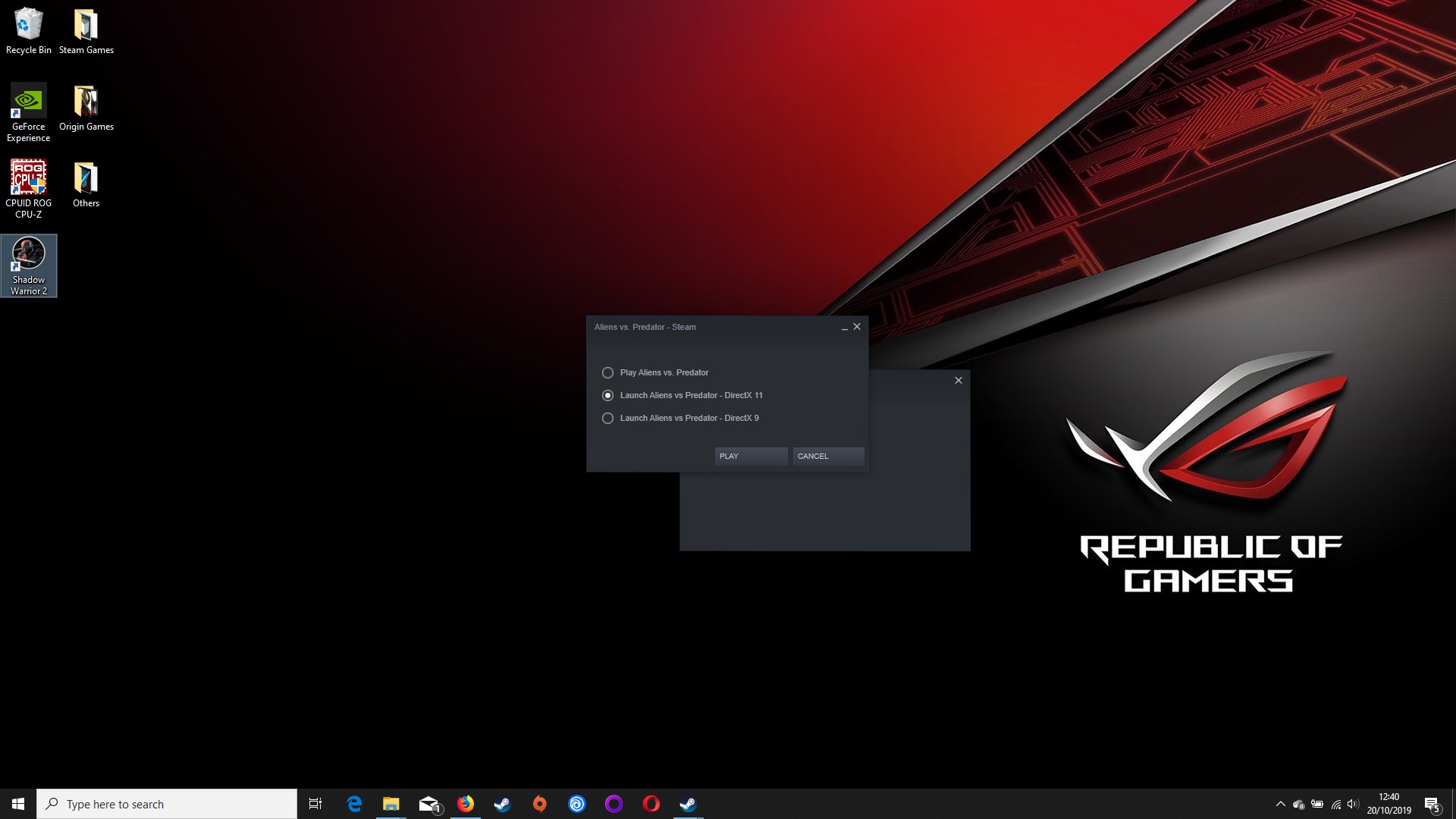
Option 1 is actually the DirectX 11 version too
2. After you are in-game, just press Alt + Enter, the game will be in windowed mode
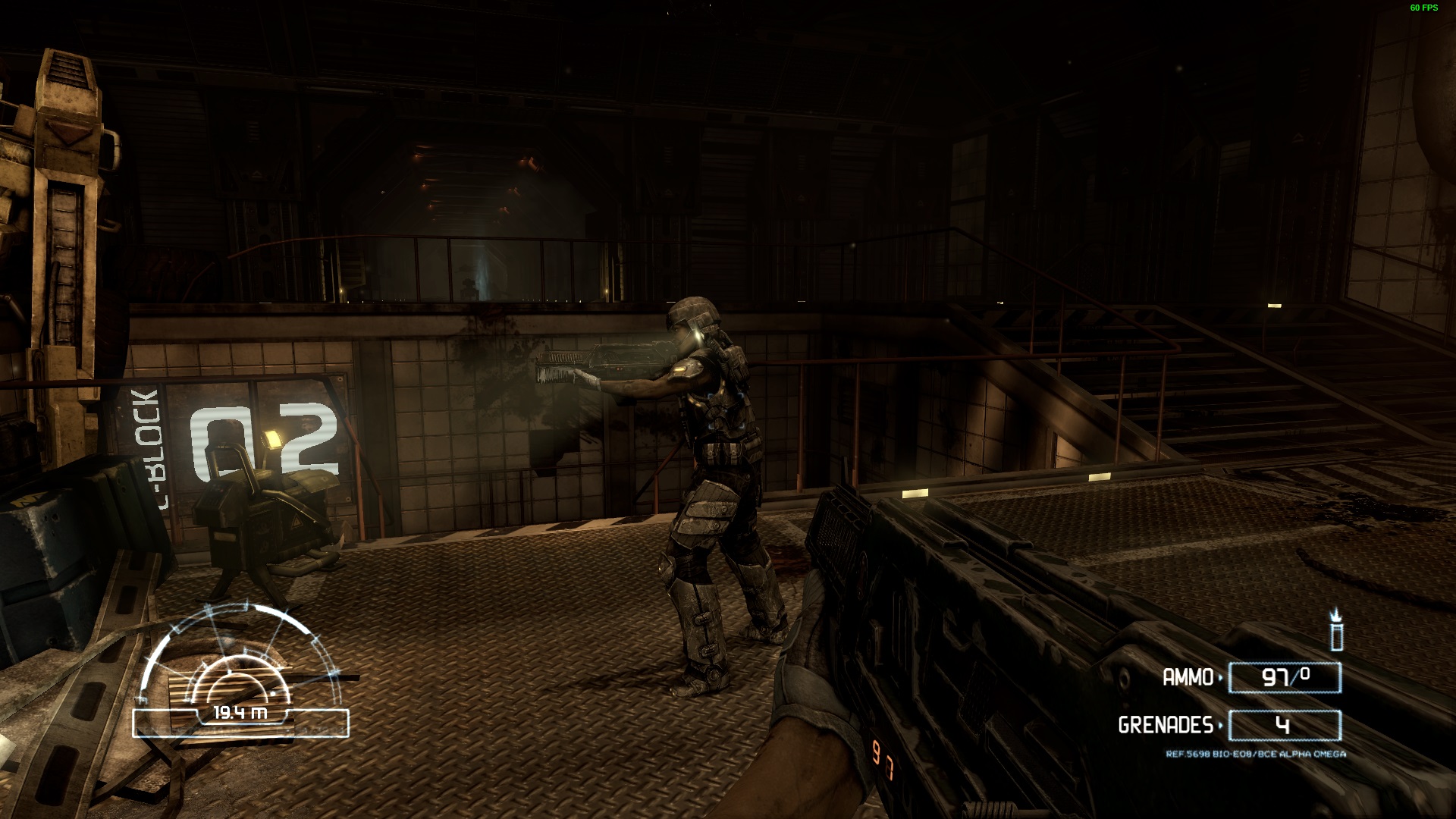
before Alt + Enter
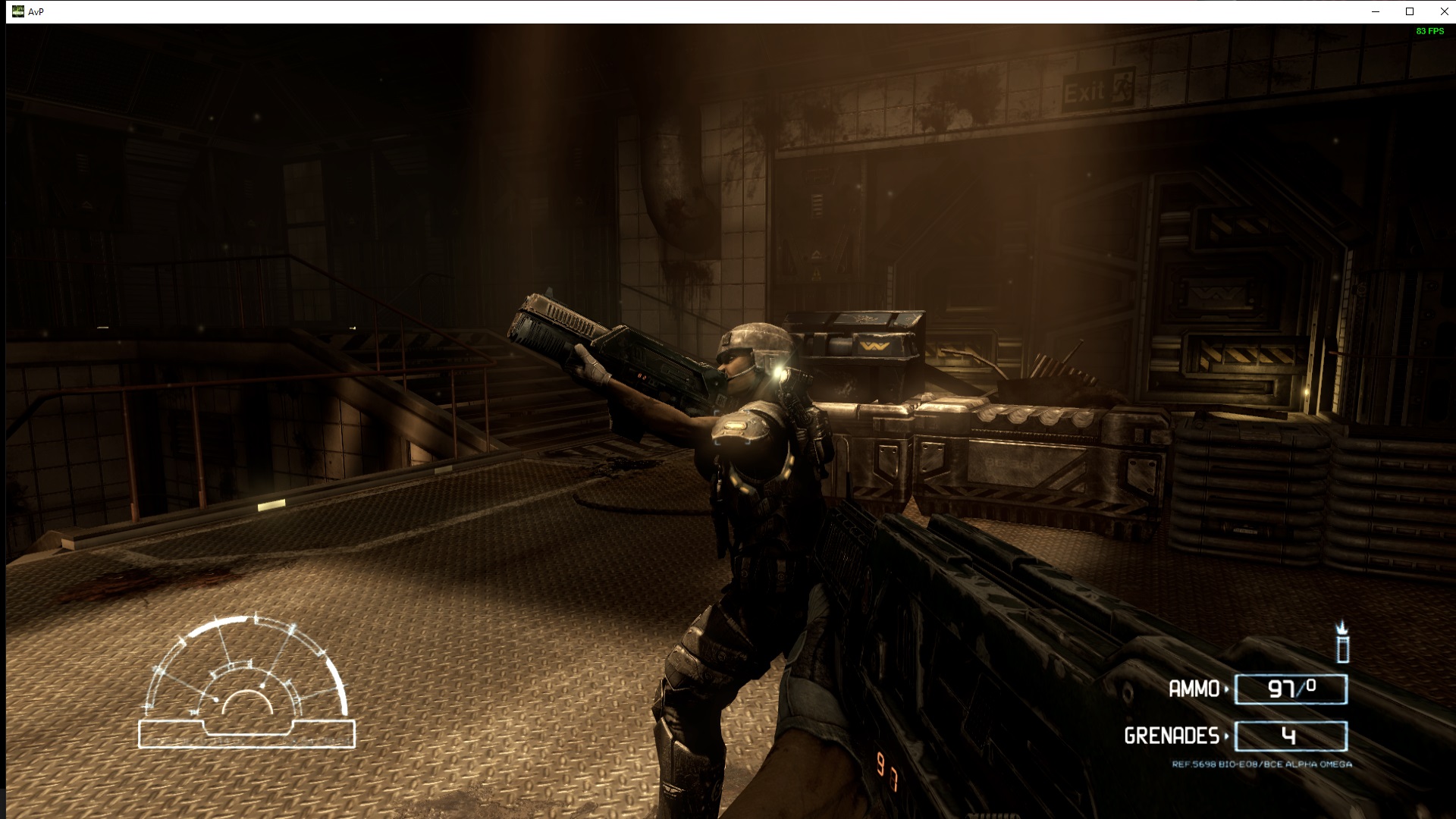
After Alt + Enter
3. After that, press Alt + Enter again, you will be in fullscreen mode again.
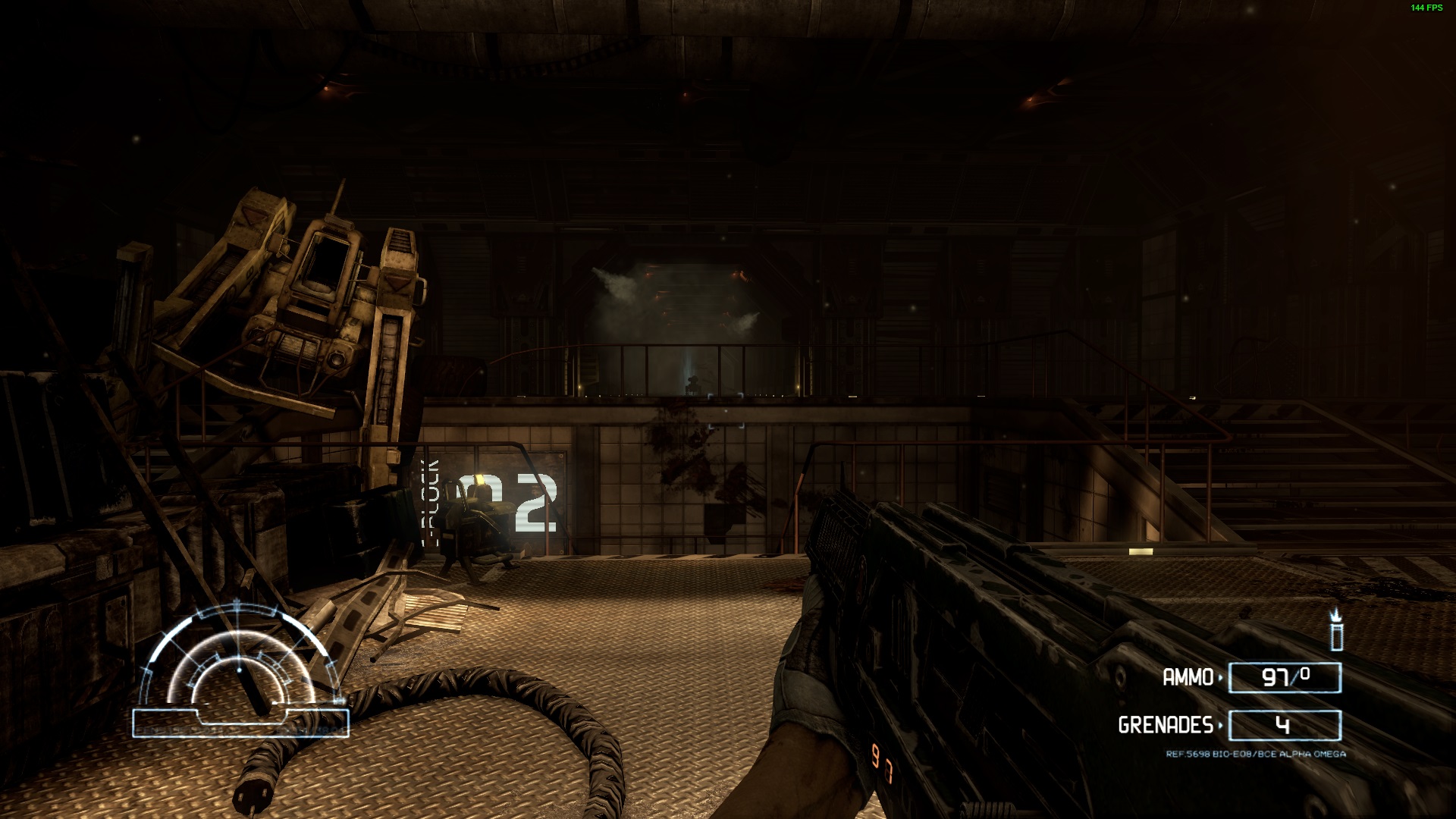
That's it...
By entering the windowed mode, the 60 fps lock will be no more, but the performance isn't really good.
And going back to fullscreen mode again, the increased fps will stay, and the performance will be much better.
Pretty simple, isn't it?
1. Play the DirectX 11 version
Option 1 is actually the DirectX 11 version too
2. After you are in-game, just press Alt + Enter, the game will be in windowed mode
before Alt + Enter
After Alt + Enter
3. After that, press Alt + Enter again, you will be in fullscreen mode again.
That's it...
By entering the windowed mode, the 60 fps lock will be no more, but the performance isn't really good.
And going back to fullscreen mode again, the increased fps will stay, and the performance will be much better.
Pretty simple, isn't it?
More Aliens vs. Predator guides
- How to Play the Single-Player Levels Cooperatively★ 5 (497)30k views784 ♥4 minUpdated Jul 26, 2019
- REAL NASTY HABIT achievement in 30 minutes★ 5 (483)16k views556 ♥2 min
- Aliens vs. Predator - Walkthrough/Collectibles★ 5 (466)14k views598 ♥1 minUpdated Oct 16, 2025
- Multiplayer Start-offs★ 5 (181)13k views176 ♥4 minUpdated Apr 3, 2022
- Руководство по получению достижений★ 5 (800)13k views770 ♥9 minRussianUpdated Mar 12, 2016
- How To: Xenomorph★ 4 (142)12k views140 ♥10 minUpdated Jan 5, 2016



This guide was created by its original author on the Steam Community. Are you the author and want it removed? Request removal.