Civilization VI - SQLite Modding
What is SQL?
First a note, there are a lot of wikipedia links in this section below. You don't need to follow any of them for the guide, I've add them for those interested in learning more about SQL and Databases.
- SQLite[en.wikipedia.org] - This is what we're using when modding Civilization VI. It's based on .sqlite files and is usually smaller in nature. It follows the PostgreSQL[en.wikipedia.org] syntax. It's core strength is that it doesn't rely on a server, but instead the existence of a file on the client (i.e. your computer).
- MySQL [en.wikipedia.org]- This is a commonly used version of SQL. It is not used in Civilization VI modding, but most SQL is very similar so learning/knowing it doesn't hurt. The strength of MySQL is that it's open sourced and doesn't have those hefty licensing fees like Microsoft SQL Server.
- SQL Server[en.wikipedia.org] & T-SQL[en.wikipedia.org] - This is Microsoft's take on SQL. Commonly used by companies and corporations that can afford to pay licensing fees for the increased stability and performance*.
How does Civilization VI use SQL?
- Civilizations - Their leaders, traits, and everything in between, even colors.
- Units - Their promotions, cost, combat stats, religious stats, etc.
- Buildings - Their yields, modifiers, cost, etc.
- Technologies & Civics - Their boosts, cost, benefits, etc.
- Great People - Their costs, descriptions, how to earn them, etc.
- The list continues and spans to even hard to understand things like some of the AI decision making for barbarians and leader agendas as well.
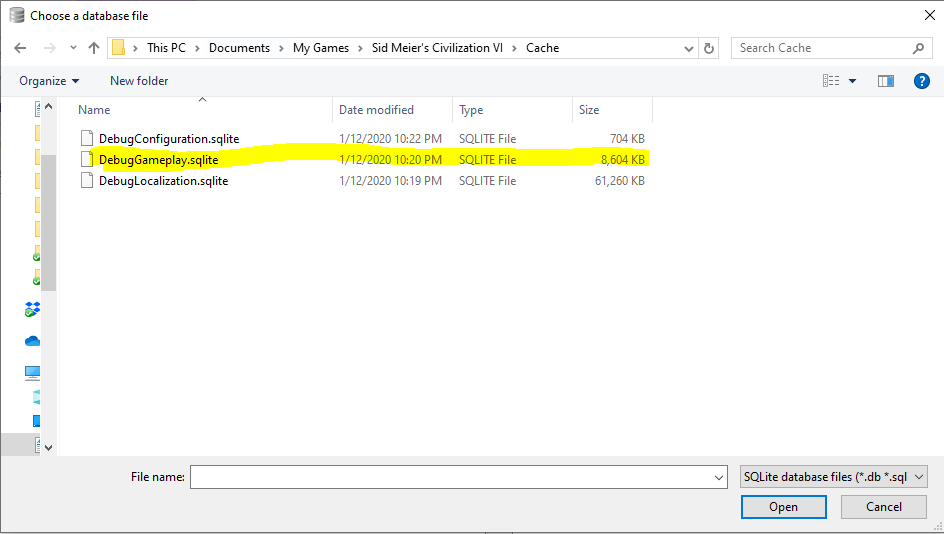
The above mentioned are all found in the DebugGameplay.sqlite database file. Which like all other database files mentioned in this guide can be found in the Cache Folder.
Civilization VI supports multiple languages, the way it does this is instead of setting text (names, descriptions, etc) in the gameplay database, it assigns them unique keys (e.g. "LOC_UNIT_SETTLER_NAME" which is the key for a settler unit's name). Then when the game asks for a settler's name, it combines that with your language setting to grab the correct text.
Example SQL Queries below (don't worry if you don't fully understand the queries, I'll explain more later).SQLite Browser Setup & Usage
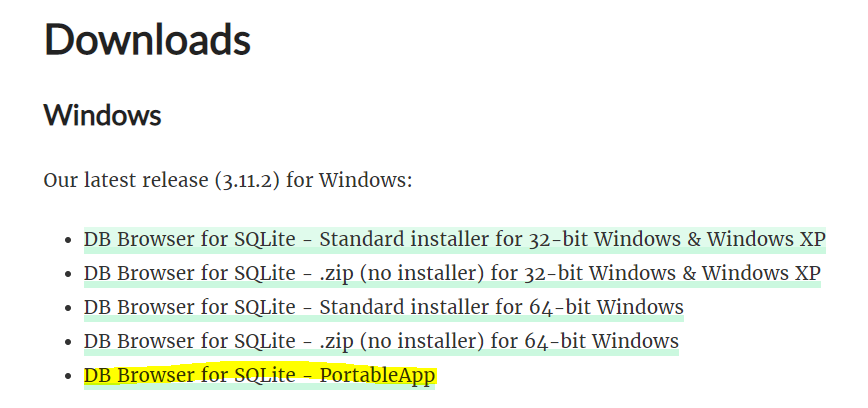
- Download SQLite Browser[sqlitebrowser.org] (portable version recommended).
- After that, run the installer that you've downloaded. Really all the portable version does is extracts the files to a folder despite them calling it an installer. You can move that folder anywhere you want after installation, even a flash-drive.
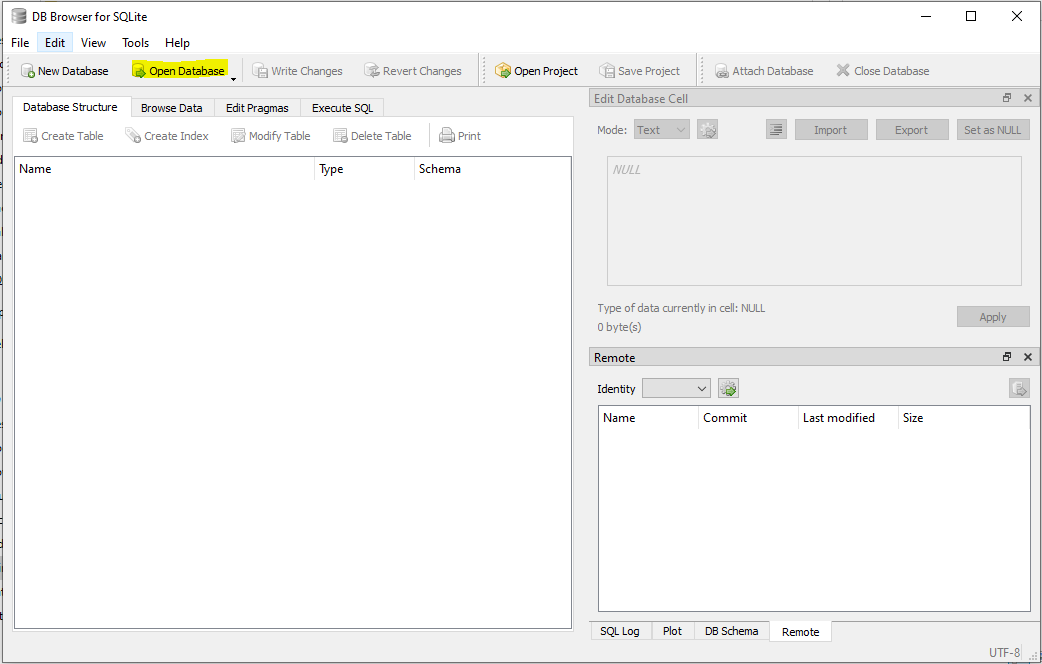
- Once complete, open Sqlite Browser by running "SQLiteDatabaseBrowserPortable.exe"
- Once open, you'll need to open a database. In SQLite, all databases are .sqlite files.
- You can find the Civilization VI .sqlite files in your Cache Folder.
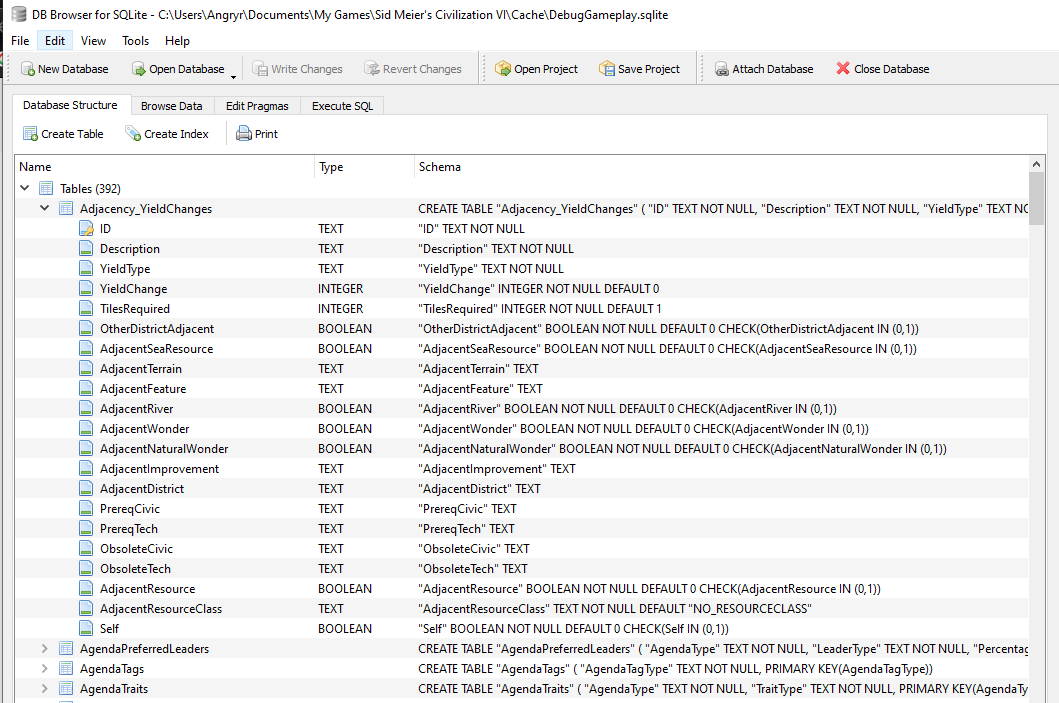
- Once you open a .sqlite database, you'll find a few tabs across the top. The first of which is the Database Structure tab. This shows you, among other things, all tables in the database (so in our case all gameplay tables) and if you click the arrow next to the table name you can view all of its columns (names and data types).
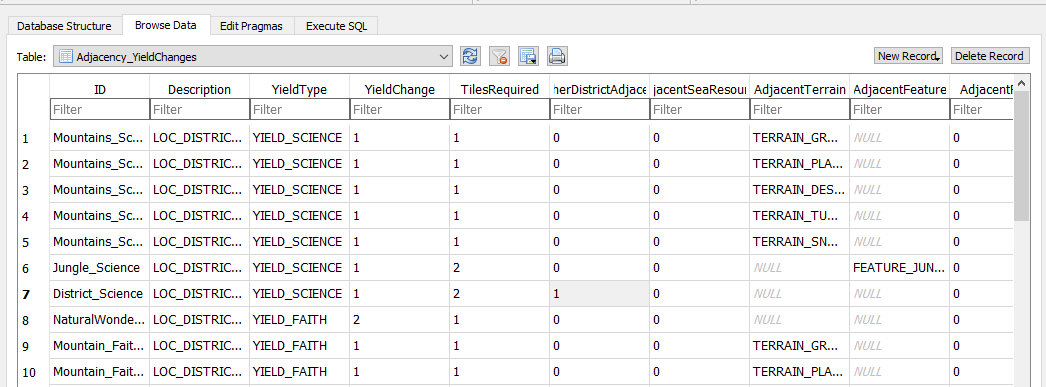
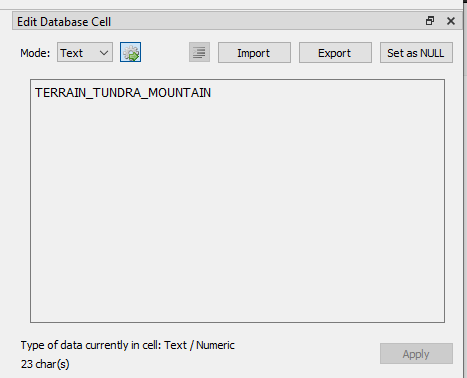
- The second tab across the top is the Browse Data tab. Here you can select a table (in this case the first one, Adjacency_YieldChanges) and edit the data in the table with the UI on the right-side.
- We're going to ignore/skip the 3rd tab (Edit Pragmas). It's irrelevant, unnecessary, and complex for Civilization VI modding.
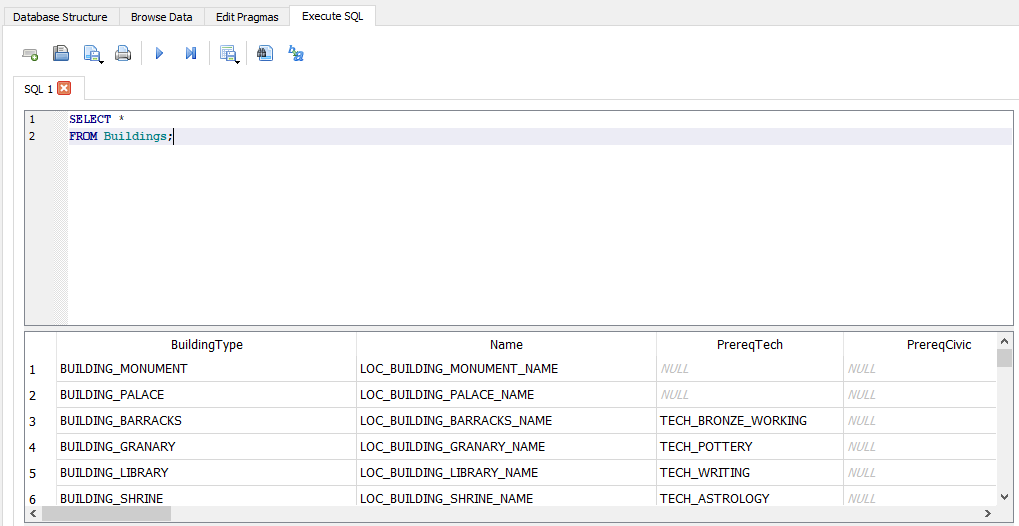
- The 4th and last tab is the most useful tab, Execute SQL. Here you can execute SQL statements from really advanced to really simple. Here's a very basic SQL statement below. By pressing the blue play arrow or pressing F5 you can execute your statements (don't forget your semi-colons).
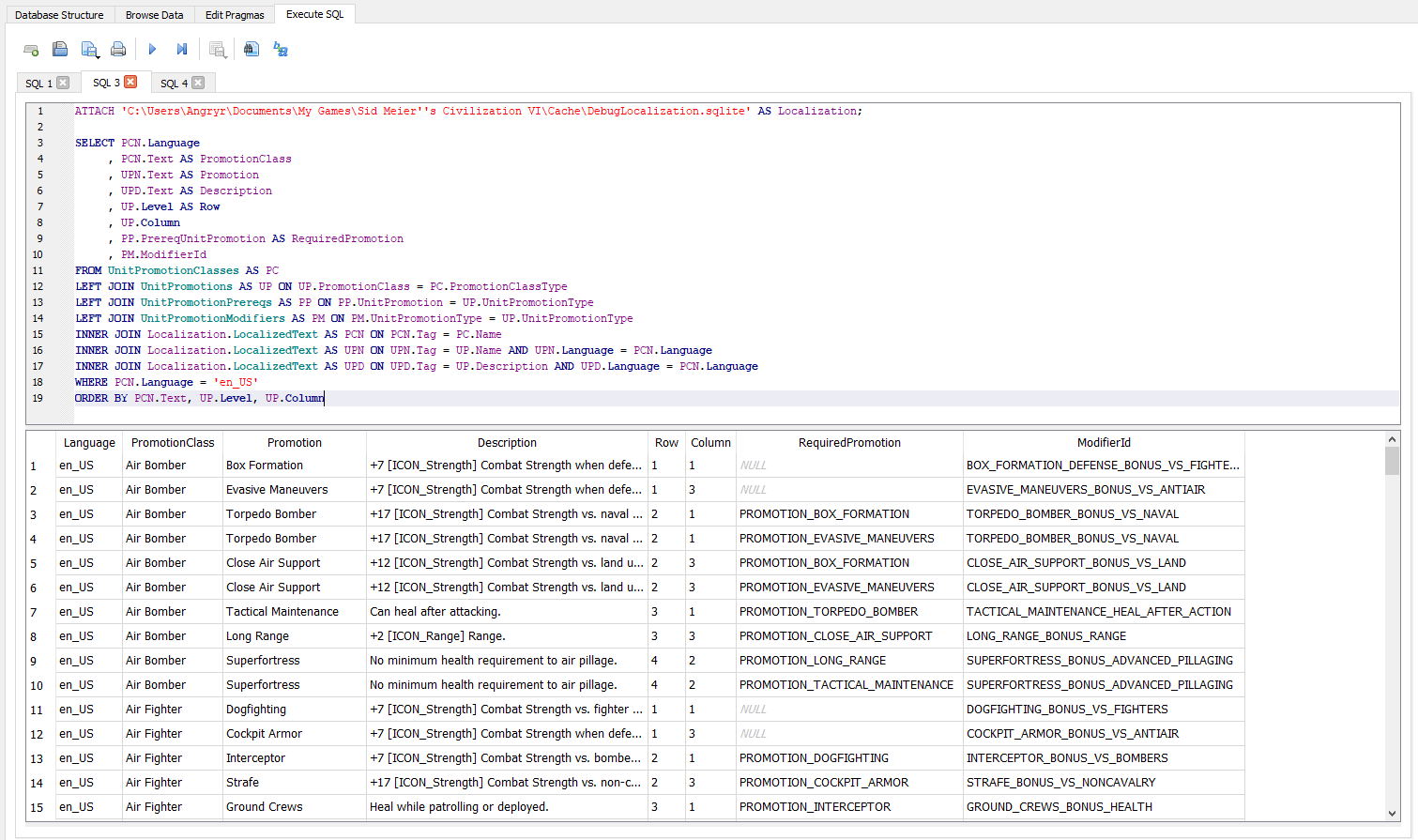
- The reason the Execute SQL tab is the best tab, despite not having a UI, is because the UI cannot do advanced queries that join results from multiple tables together, like below (there's a lot going on below so don't get intimidated. I'll try to cover it all later in this guide).

SQL Basics
There's a lot of sections to the basics. Increased by the fact I'm relying on a lot of explaining from other websites since SQL can be an entire career.
- 1. SELECT - This is a statement used to view or read data in a table.
- 2. INSERT - This is a statement used to add or create data in a table.
- 3. UPDATE - This is a statement used to edit or update data in a table.
- 4. DELETE - This is a statement used to remove or delete data from a table.
- 5. Comments [www.w3schools.com]- Though they're not actually SQL statements, you can write comments in your code that are ignored completely by SQL. Anything after a double-dash (--) will be ignored.
These 4 statement types together are commonly referred to as CRUD operations (Create, Read, Update, and Delete).
You can use an asterisk (*) to select ALL columns from a table.
The SELECT statement below retrieves all information (*) from the Buildings table (See the section on SQLite Browser to learn how to find a list of tables in a database).
This statement is the bread & butter of exploration. Try looking through the list of tables and doing select statements on them.
- Standard Operators[www.w3schools.com] (e.g. =, <>, <, >, <=, >=, etc)
- The IN keyword[www.w3schools.com].
- The LIKE keyword[www.w3schools.com].
Here are some starting examples, Try and apply the information in the links above to the Buildings or Units tables.
- AND Operator[www.w3schools.com] - For AND, both conditions must be true in order for the row to be retrieved.
- OR Operator[www.w3schools.com] - For OR, Only one of the conditions must be true in order for the row to be retrieved.
SQL Table Joins
Joins in SQL are a way to select, update, or delete data from multiple tables at once. Since the topic of SQL Joins is so large, I'm going to keep this information to the bits that are helpful for Civilization VI modding.
This query grabs all buildings that change provide yields (one building will appear multiple times if it changes multiple yields).
So for me, I use:
Please note that the ATTACH keyword is a feature of SQLite specifically and not other flavors of SQL.
Adding SQL via ModBuddy
For learning how to turn your SQL into a mod, we're going to make a couple of ridiculous mods.
- 1. All units will cost 1 production to create, which we'll learn affects purchase cost as well.
- 2. We're going to make Ancient Era buildings cost triple production.
- 3. We're going to change Victoria's name to "Annoying Victoria" because I don't like her.
- 4. We're going to change Victoria to only say "Blah Blah Blah", same reason.
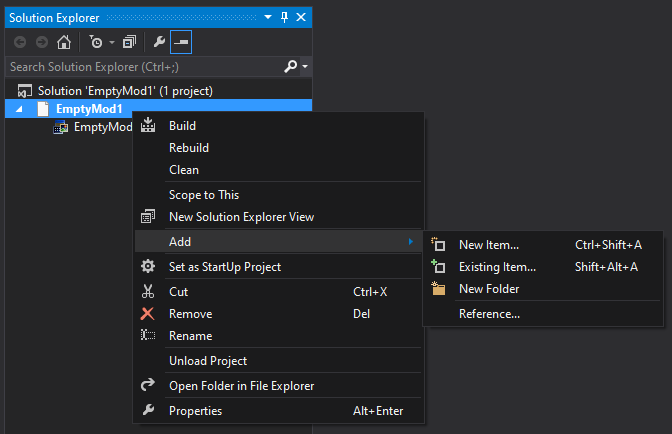
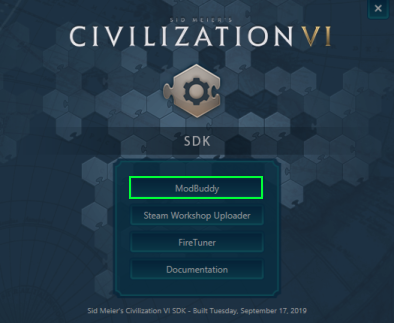 Create a new empty mod and give it any name you'd like,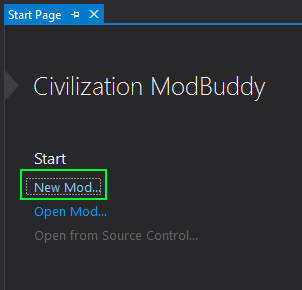
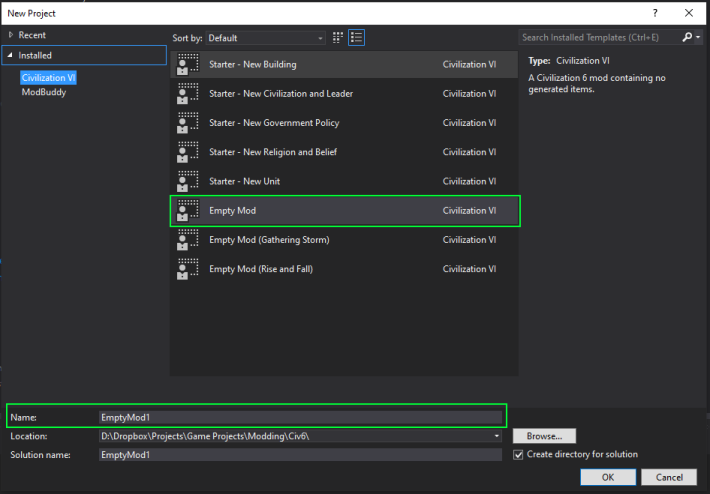
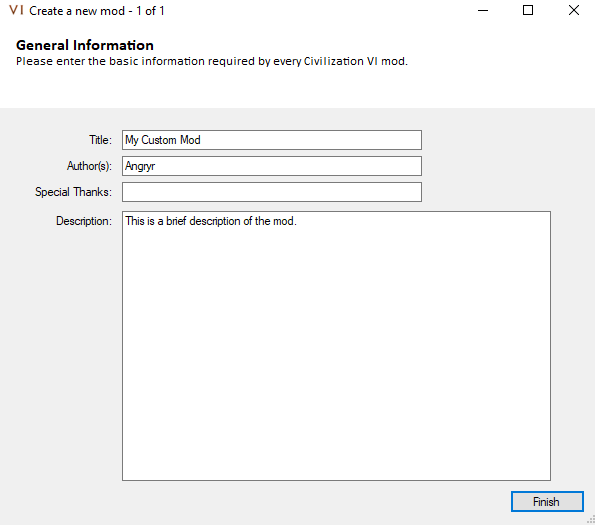
 Select "Database (SQL)" and name it Production.sql,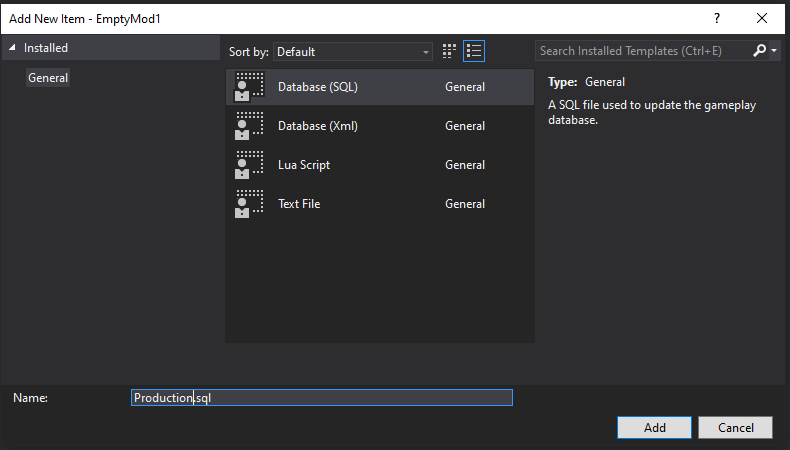
We will be putting all queries that change production in this file.
New Query - Setting Unit Costs to 1.
Updating all unit production cost is pretty easy. We just do an UPDATE statement on the Units table and set the Cost column to 1.New Query - Tripling Ancient Era Building Costs
Tripling the cost of only Ancient Era buildings is a little more involved, so I'm going to ease into it making a few extra queries for explanatory purposes.
If we were updating ALL buildings to triple cost it would be as simple as the query below. Just like our units query.This next query updates all buildings that require a technology in the list provided, which just so happens to be the list of technologies in the Ancient Era.
Okay, so we've created two separate queries. Technically, we could just execute both queries separately and be done, which is completely okay. But, just in case you run into a scenario where you need to combine two queries into one, I'm going to show you two methods to do so. The first method is to make use of an OR operator in the WHERE clause.
Checking Update Statements
If you ever want to test what rows an UPDATE statement is going to update, you can remove the UPDATE and SET parts and replace them with SELECT and FROM.
2. Modding Text
For text modding, we're going to start out just like we did in the Production section and add a new SQL file. This time call it "Victoria_Text.sql".
Here are the queries we will be reviewing below.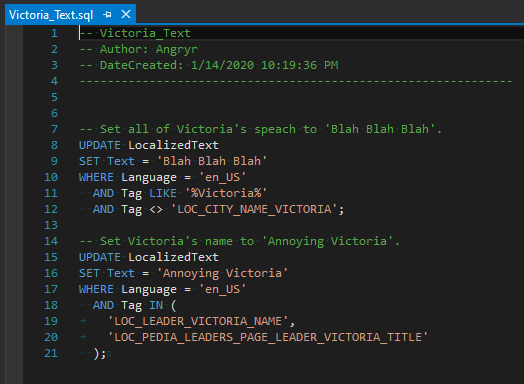
Pay no attention to the terrible terrible spelling. Not going to say which word, just in case you didn't notice.
The order I placed them in the photo clashes with the order we'll be reviewing them in, more on the reasoning later.
LocalizedText Table & Tags
The LocalizedText table from the DebugLocalization.sql database in your Cache Folder is the table we'll be used for both of these changes. As I stated previously in the guide, it holds all text for the game. You can find the text you want using the Tag and Language columns.
- 1. Find the relevant table, get the key, update the text.
- 2. You'll quickly notice that almost all the tags follow the same pattern. "LOC_X_NAME" or "LOC_X_DESC" or something slightly different.
Let's quickly look through the LocalizedText table for things related to Victoria. This query will give you a list of all American English tags containing Victoria.
Now we'll just adjust the above query to be an UPDATE statement, and now we have the query we need to change Victoria's name.
Changing Victoria's Speech
(and probably everything else too) We've already written a query to look for all text tags containing Victoria, so let's bring that back.
And we've already identified 3 things we don't want to turn into "Blah Blah Blah" (The 2 names and the city name).
In fact, I've taken laziness to the next level as a learning experience for you guys. We can remove the leader names from the WHERE statement above if we just run this query before the leader name query. This is why the order of the queries in the screenshot doesn't match the guide. The screenshot did it the lazy way.
The Lazy WayThe reason this works is that the first query is updating everything except the city name to "Blah Blah Blah" then our second query comes through and changes that "Blah Blah Blah" for the two leader name tags to "Annoying Victoria".
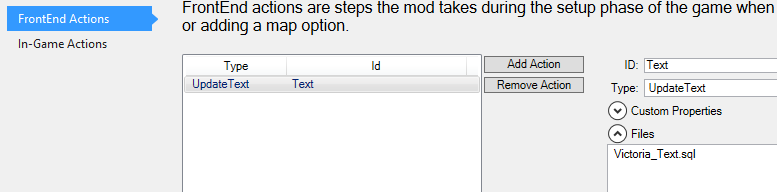
Front-End Actions
Text for the game setup screens are loaded when the game boots up.
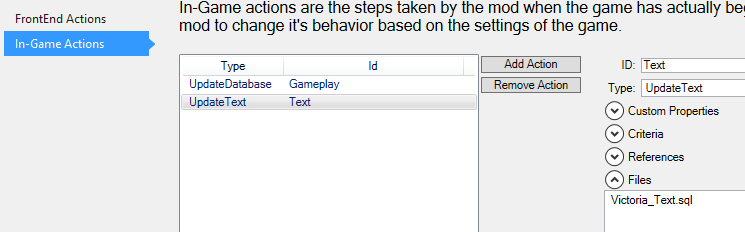
In-Game Actions
Text for in-game is during the loading screen for a game.
The Results of the Mod
There were a lot more changes than this, these were just the ones I had time to screenshot (also, some of the image files were too big and I was too lazy to deal with it).
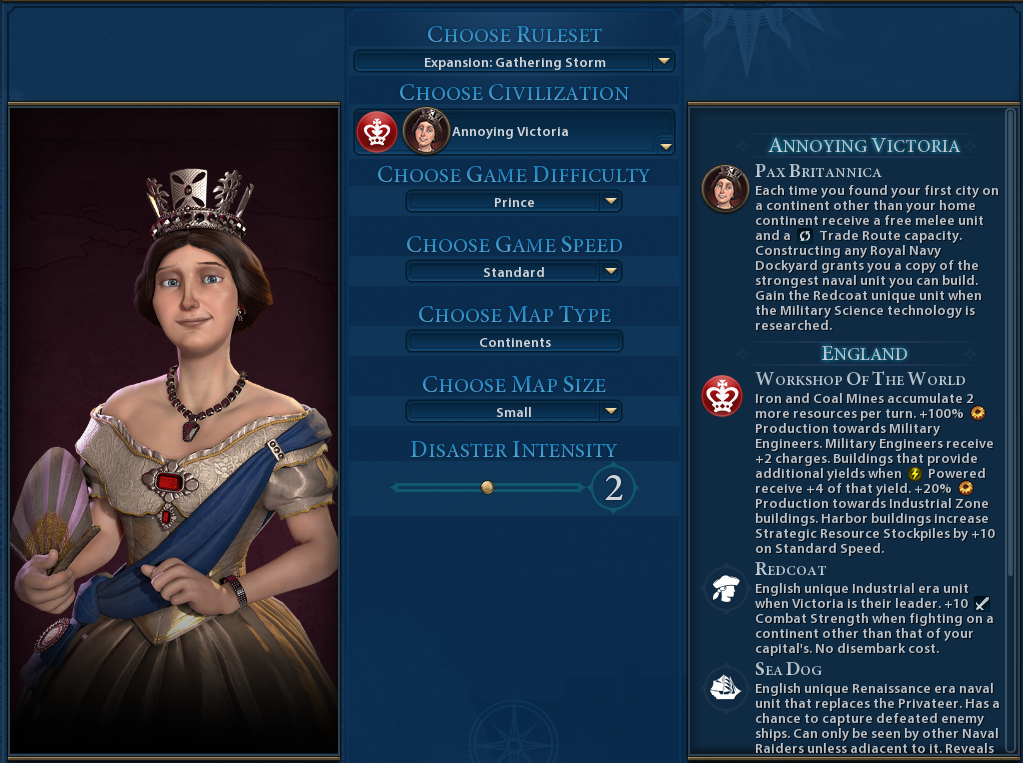
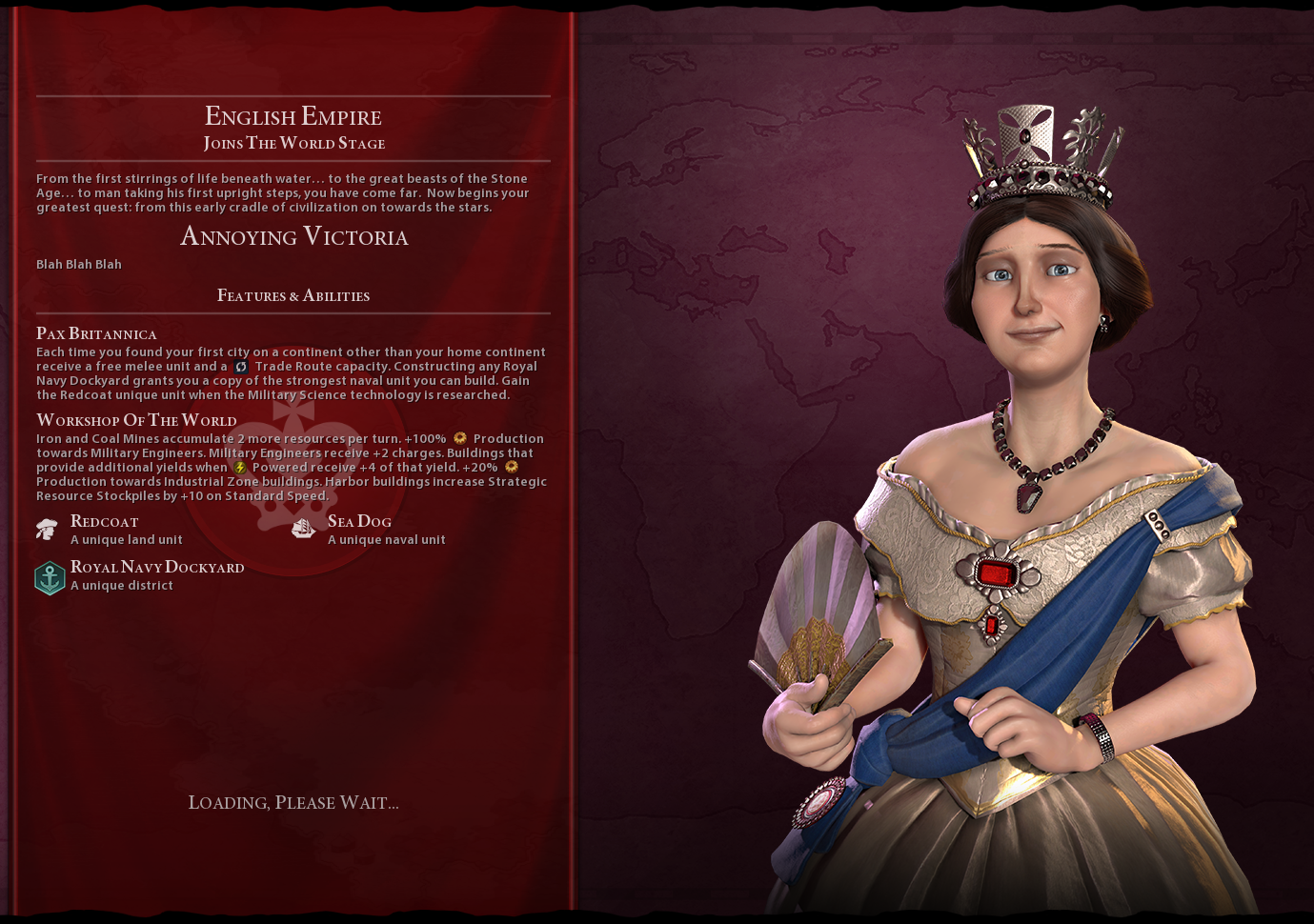
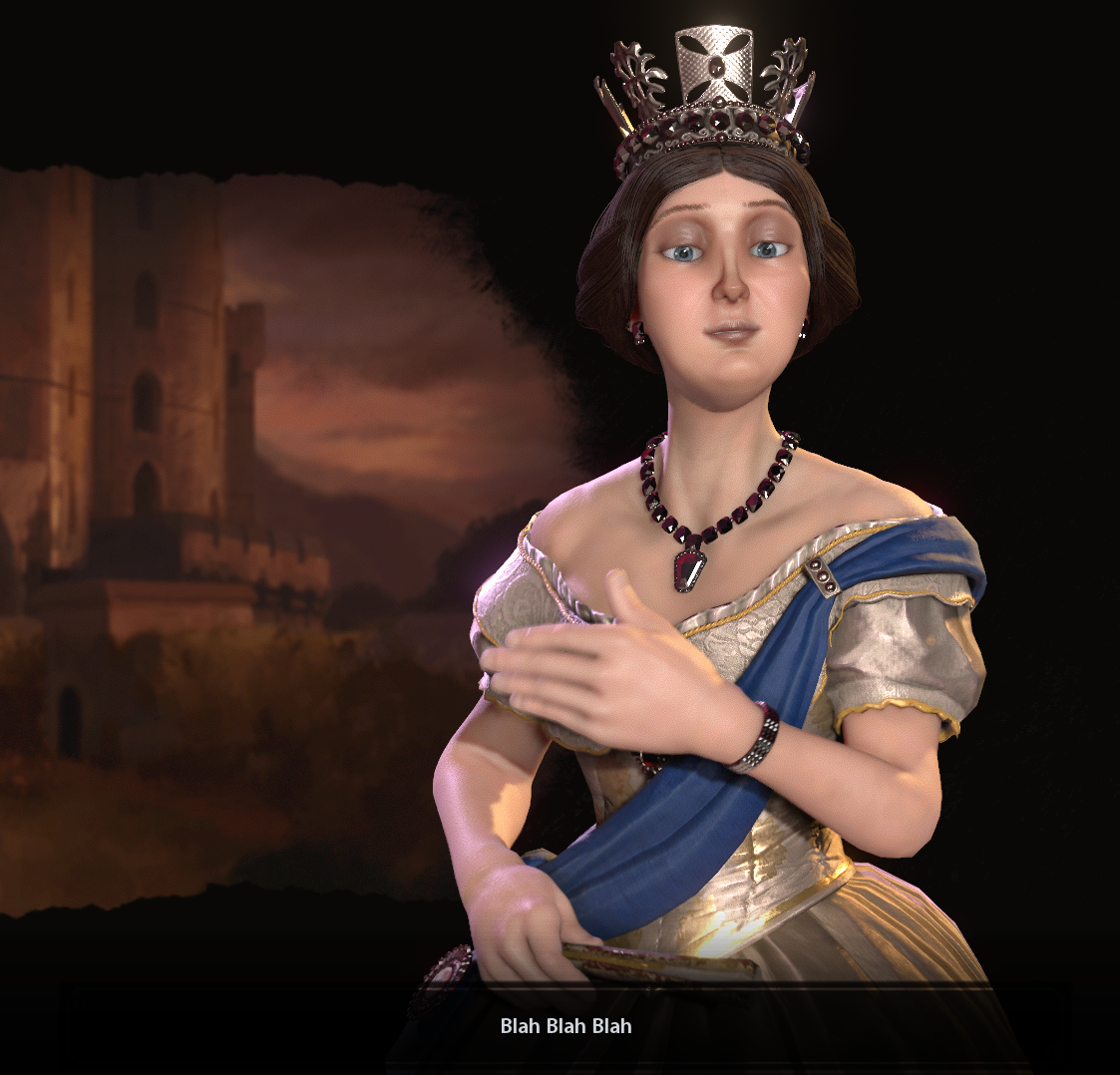
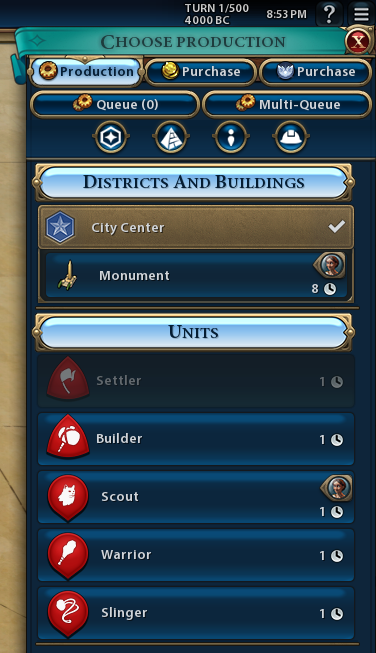
Good thing this mod was made for teaching and I don't actually need to go back and fix that part. #homework4u
- Better Balanced Game (BBG) Full Change Log (v6.0.x)★ 4 (120)62k views293 ♥62 minUpdated 27 Aug, 2025
- 100% achievements guide + tips & tricks (base game + all DLC's, include Gathering Storm)★ 5 (1.5k)57k views3.7k ♥146 minUpdated 4 Jan
- [EN] Early game strategy, or how not to get overwhelmed★ 5 (368)41k views1k ♥15 minUpdated 23 Jul, 2023
- All Victory Conditions and how to reach them!★ 5 (702)40k views1.2k ♥5 minUpdated Jun 17, 2020
- 新手指南 —— 从上手到上瘾! Civi-VI Game Guide★ 5 (1.7k)37k views3.2k ♥3 minSimplified ChineseUpdated 7 Sep, 2022
- Zigzagzigal's Guides - Japan (GS)★ 4 (141)34k views399 ♥67 minUpdated 2 Apr, 2023



- Upgrading to PremiumTeam Fortress 2★ 5 (20k)1441k views11k ♥6 minUpdated May 11, 2022
- No More Room in Hell Official ManualNo More Room in Hell★ 5 (2.8k)569k views2.1k ♥29 minUpdated Apr 22, 2019
- NMRiH Community Hosting GuidesNo More Room in Hell★ 5 (526)351k views653 ♥1 minUpdated Aug 10, 2022
- ULTIMATE GUIDE FOR GAME DEV TYCOONGame Dev Tycoon★ 5 (5.8k)326k views10k ♥4 minUpdated 23 Jan, 2014
- How to 'Git Gud' Soon™MORDHAU★ 5 (2k)318k views3k ♥68 minUpdated Nov 16, 2024
- Лучшие кооперативные игры SteamPAYDAY 2★ 5 (1.5k)315k views2.1k ♥56 minRussianUpdated Apr 27, 2025






This guide was created by its original author on the Steam Community. Are you the author and want it removed? Request removal.