How to bypass the 2K launcher
Find Civ6's executable
To find Civ6's executable, right click the game in your library, hover over "manage" and click "browse local files".
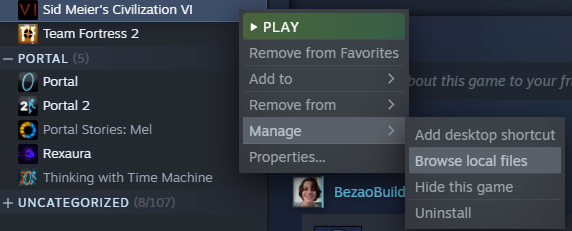
A window of your operating system's file browser should appear. Now enter the folder "Base"
![]()
Now the folder "Binaries".
![]()
Now this may depend upon your operating system, since I am running Windows, I enter the folder "Win64Steam", but if you are running other operating system, it should change accordingly. There should be only one folder in there anyways.
![]()
Now you should stumble upon a bunch of files. Now you need to find the Civilization VI executable. Note that without the launcher, you will not be able to choose between DX11 and DX12. If you play on DX11, the Civ6 executable is "CivilizationVI.exe" on Windows, and probably called the same on other platforms, but without the extension (or maybe a different extension). For DX12, it is called "CivilizationVI_DX12.exe" on Windows., again, same deal with extensions. Remember those names.
![]()
Now you need to assemble the actual path to the executable. You first need to get the folder's location. On Windows, you do this by clicking the path on the top, where you can then copy the text.
Then you need to add the executable name to it. On Windows, you do this by adding a backslash and then the file name. For example, if your folder is in
On MacOS and Linux, you add a forward slash instead. For example, if the folder is:
A window of your operating system's file browser should appear. Now enter the folder "Base"
Now the folder "Binaries".
Now this may depend upon your operating system, since I am running Windows, I enter the folder "Win64Steam", but if you are running other operating system, it should change accordingly. There should be only one folder in there anyways.
Now you should stumble upon a bunch of files. Now you need to find the Civilization VI executable. Note that without the launcher, you will not be able to choose between DX11 and DX12. If you play on DX11, the Civ6 executable is "CivilizationVI.exe" on Windows, and probably called the same on other platforms, but without the extension (or maybe a different extension). For DX12, it is called "CivilizationVI_DX12.exe" on Windows., again, same deal with extensions. Remember those names.
Now you need to assemble the actual path to the executable. You first need to get the folder's location. On Windows, you do this by clicking the path on the top, where you can then copy the text.
Then you need to add the executable name to it. On Windows, you do this by adding a backslash and then the file name. For example, if your folder is in
C:\Program Files (x86)\Steam\steamapps\common\Sid Meier's Civilization VI\Base\Binaries\Win64Steam
and your executable isCivilizationVI.exe
for DX11, the final result is:C:\Program Files (x86)\Steam\steamapps\common\Sid Meier's Civilization VI\Base\Binaries\Win64Steam\CivilizationVI.exe
On MacOS and Linux, you add a forward slash instead. For example, if the folder is:
/home/bezaobuilder/.steam/steam/SteamApps/common/Sid Meier's Civilization VI/Base/Binaries/Linuxx64
and your executable is:CivilizationVI
then the final path is:/home/bezaobuilder/.steam/steam/SteamApps/common/Sid Meier's Civilization VI/Base/Binaries/Linuxx64/CivilizationVI
Add the launch options
You now have the path to your Civ6 executable. What good does it do? Well, now you need to go to the game's launch options. Right click the game in the library, but this time, click properties.
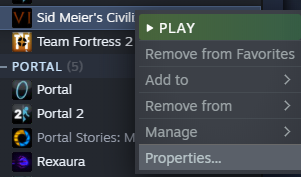
A window like this should show up:
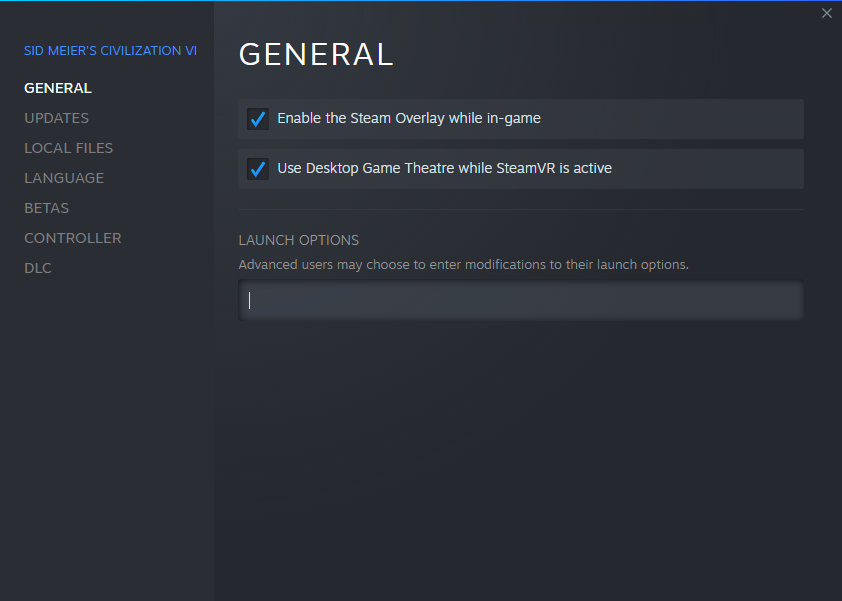
Now, look at the "launch options" text box, there you want to type
Let's see another example. Say your path to the executable is:
A window like this should show up:
Now, look at the "launch options" text box, there you want to type
"path_to_civ6_executable" %command%
Replacing path_to_civ6_executable with the path to the civ6 executable we found out on the previous section.
Need an example? Let's say the path to the game's executable is:C:\Program Files (x86)\Steam\steamapps\common\Sid Meier's Civilization VI\Base\Binaries\Win64Steam\CivilizationVI.exe
Then what you want to type in the launch options is:"C:\Program Files (x86)\Steam\steamapps\common\Sid Meier's Civilization VI\Base\Binaries\Win64Steam\CivilizationVI.exe" %command%
Let's see another example. Say your path to the executable is:
/home/bezaobuilder/.steam/steam/SteamApps/common/Sid Meier's Civilization VI/Base/Binaries/Linuxx64/CivilizationVI
Then what you want to type is:"/home/bezaobuilder/.steam/steam/SteamApps/common/Sid Meier's Civilization VI/Base/Binaries/Linuxx64/CivilizationVI" %command%
Include the double quotes too. And %command% has to be outside the quotes.
Now, when you launch the game, Steam may be confused, saying the game is not running (but it is running). It may also take a while for the window of the game to start. But when it does start, congratulations! You just started Civilization VI without the 2K launcher.
Linux on Proton
The above methods work for Linux only if you are running it natively without Proton (which is probably what most are running, and thus you shouldn't worry about this), but if you are using Proton, it will not work. whoisfel made a guide on how to bypass the launcher if you are using Proton to run the game:
https://steamcommunity.com/sharedfiles/filedetails/?id=2600050365
If you don't know what Proton is, or you haven't applied it to Civ6, just use the method I mentioned.
https://steamcommunity.com/sharedfiles/filedetails/?id=2600050365
If you don't know what Proton is, or you haven't applied it to Civ6, just use the method I mentioned.
More Sid Meier's Civilization VI guides
- Better Balanced Game (BBG) Full Change Log (v6.0.x)★ 4 (120)62k views293 ♥62 minUpdated 27 Aug, 2025
- 100% achievements guide + tips & tricks (base game + all DLC's, include Gathering Storm)★ 5 (1.5k)57k views3.7k ♥146 minUpdated 4 Jan
- [EN] Early game strategy, or how not to get overwhelmed★ 5 (368)41k views1k ♥15 minUpdated 23 Jul, 2023
- All Victory Conditions and how to reach them!★ 5 (702)40k views1.2k ♥5 minUpdated Jun 17, 2020
- 新手指南 —— 从上手到上瘾! Civi-VI Game Guide★ 5 (1.7k)37k views3.2k ♥3 minSimplified ChineseUpdated 7 Sep, 2022
- Zigzagzigal's Guides - Japan (GS)★ 4 (141)34k views399 ♥67 minUpdated 2 Apr, 2023



🔥 Popular guides
- Upgrading to PremiumTeam Fortress 2★ 5 (20k)1441k views11k ♥6 minUpdated May 11, 2022
- No More Room in Hell Official ManualNo More Room in Hell★ 5 (2.8k)569k views2.1k ♥29 minUpdated Apr 22, 2019
- NMRiH Community Hosting GuidesNo More Room in Hell★ 5 (526)351k views653 ♥1 minUpdated Aug 10, 2022
- ULTIMATE GUIDE FOR GAME DEV TYCOONGame Dev Tycoon★ 5 (5.8k)326k views10k ♥4 minUpdated 23 Jan, 2014
- How to 'Git Gud' Soon™MORDHAU★ 5 (2k)318k views3k ♥68 minUpdated Nov 16, 2024
- Лучшие кооперативные игры SteamPAYDAY 2★ 5 (1.5k)315k views2.1k ♥56 minRussianUpdated Apr 27, 2025






This guide was created by its original author on the Steam Community. Are you the author and want it removed? Request removal.