(GS) Change Main Menu Animation
Base game animation
If you want to use the base game animation, navigate to the following path (your path may vary based on where you installed Steam):
C:\Program Files (x86)\Steam\steamapps\common\Sid Meier's Civilization VI\Base\Platforms\Windows\Movies
From there, select and copy the TitleBG.bk2 file:
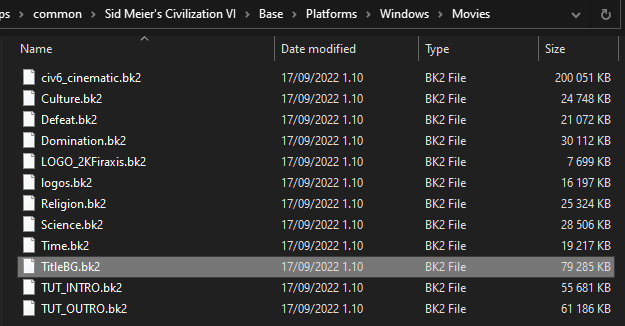
Then navigate to the following path (again, your path may vary based on your Steam installation path):
C:\Program Files (x86)\Steam\steamapps\common\Sid Meier's Civilization VI\DLC\Expansion2\Platforms\Windows\Movies
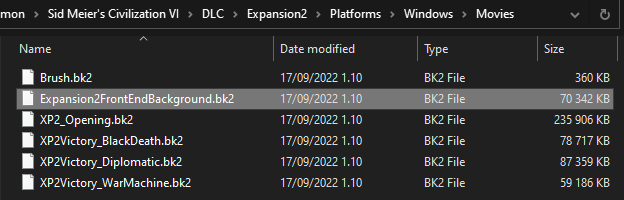
Here you need to paste the TitleBG.bk2 file that you copied earlier, then select the Expansion2FrontEndBackground.bk2 file, and either delete it or move it elsewhere in your computer. When you have done that, rename the TitleBG.bk2 file to Expansion2FrontEndBackground.bk2, the same name as the file you deleted/moved away earlier.
And you're done! Your animation in the main menu should now be the base game animation. If you moved the original Expansion2FrontEndBackground.bk2 file elsewhere in your PC, you can use it as a back-up to restore the Gathering Storm animation back, but you can also verify the game files to get it back, too.
Rise and Fall animation
If you want to use the Rise and Fall animation, navigate to the following path (your path may vary based on where you installed Steam):
C:\Program Files (x86)\Steam\steamapps\common\Sid Meier's Civilization VI\DLC\Expansion1\Platforms\Windows\Movies
From there, select and copy the Expansion1FrontEndBackground.bk2 file:
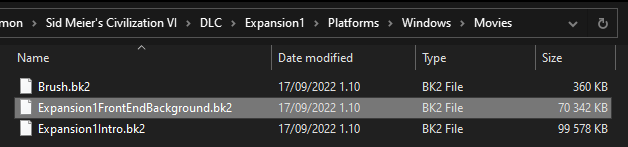
Then navigate to the following path (again, your path may vary based on your Steam installation path):
C:\Program Files (x86)\Steam\steamapps\common\Sid Meier's Civilization VI\DLC\Expansion2\Platforms\Windows\Movies
Here you need to paste the Expansion1FrontEndBackground.bk2 file that you copied earlier, then select the Expansion2FrontEndBackground.bk2 file, and either delete it or move it elsewhere in your computer. When you have done that, rename the Expansion1FrontEndBackground.bk2 file to Expansion2FrontEndBackground.bk2, the same name as the file you deleted/moved away earlier.
And you're done! Your animation in the main menu should now be the Rise and Fall animation. If you moved the original Expansion2FrontEndBackground.bk2 file elsewhere in your PC, you can use it as a back-up to restore the Gathering Storm animation back, but you can also verify the game files to get it back, too.
- Better Balanced Game (BBG) Full Change Log (v6.0.x)★ 4 (120)62k views293 ♥62 minUpdated 27 Aug, 2025
- 100% achievements guide + tips & tricks (base game + all DLC's, include Gathering Storm)★ 5 (1.5k)57k views3.7k ♥146 minUpdated 4 Jan
- [EN] Early game strategy, or how not to get overwhelmed★ 5 (368)41k views1k ♥15 minUpdated 23 Jul, 2023
- All Victory Conditions and how to reach them!★ 5 (702)40k views1.2k ♥5 minUpdated Jun 17, 2020
- 新手指南 —— 从上手到上瘾! Civi-VI Game Guide★ 5 (1.7k)37k views3.2k ♥3 minSimplified ChineseUpdated 7 Sep, 2022
- Zigzagzigal's Guides - Japan (GS)★ 4 (141)34k views399 ♥67 minUpdated 2 Apr, 2023


- Upgrading to PremiumTeam Fortress 2★ 5 (20k)1441k views11k ♥6 minUpdated May 11, 2022
- No More Room in Hell Official ManualNo More Room in Hell★ 5 (2.8k)569k views2.1k ♥29 minUpdated Apr 22, 2019
- NMRiH Community Hosting GuidesNo More Room in Hell★ 5 (526)351k views653 ♥1 minUpdated Aug 10, 2022
- ULTIMATE GUIDE FOR GAME DEV TYCOONGame Dev Tycoon★ 5 (5.8k)326k views10k ♥4 minUpdated 23 Jan, 2014
- How to 'Git Gud' Soon™MORDHAU★ 5 (2k)318k views3k ♥68 minUpdated Nov 16, 2024
- Лучшие кооперативные игры SteamPAYDAY 2★ 5 (1.5k)315k views2.1k ♥56 minRussianUpdated Apr 27, 2025






This guide was created by its original author on the Steam Community. Are you the author and want it removed? Request removal.